



Analytics & Reporting: October 9, 2026 Release Notes
Timeline
When will this be released?
UAT Preview Window: Oct 15, 2026
Production Availability: Nov 2, 2026
Is there downtime for this release?
No.
Article Links
Security Required
Security is important to us. Your role determines your access to screens and activities within Analytics & Reporting. Only administrators can access these screens and activities.
Overview
Security Groups enable granular control over who can access custom reports. Administrators can create targeted user groups to share public custom reports securely with specific team members. You can manage groups from the Security Groups section in Admin settings. Report sharing options are available directly within the Save Report modal and the report's Permissions tab.
Note: Security Groups apply exclusively to custom reports.
This feature provides precise data access management without requiring structural changes to departments or roles.
- Targeted Sharing: Grant report access to specific colleagues instead of entire departments or all users.
- Reusable Group: Apply a single security group across multiple reports.
- Data Protection: Group access never expands underlying product permissions; members must already have product access to view reports.
- Administrative Control: Membership updates apply instantly, and only product administrators can modify or reshare group-restricted reports.
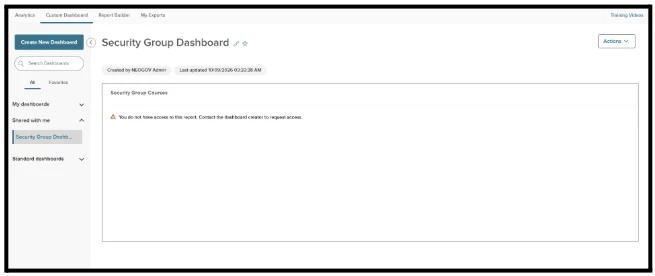
- Dashboard Integration: Charts derived from group-shared reports remain hidden from non-group members on custom dashboards.
Creating A Security Group
Administrators manage groups on Admin > Security Groups. The page lists every group with its name, who created it, the created date, the last updated date, and edit and delete actions. You can search by group name or by creator, and the most recently created or updated group always appears first.
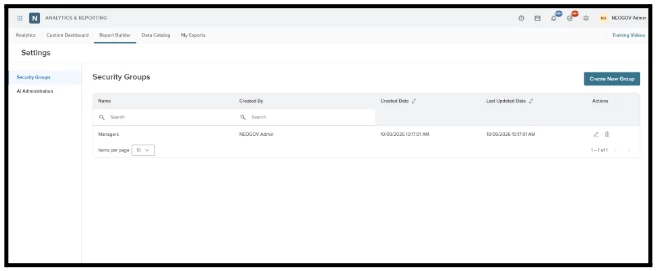
- Access to Admin > Security Groups, select Create new group.
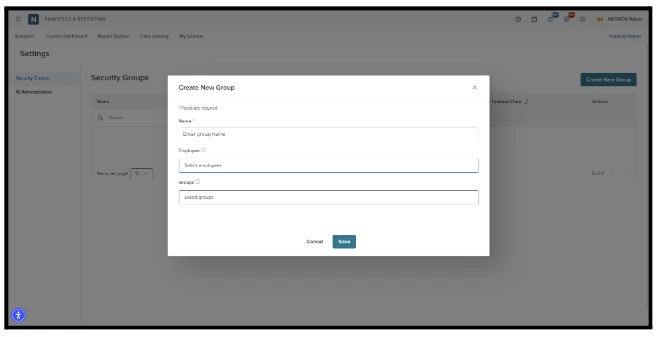
- Enter a name (up to 100 characters). This is the only required field, and it must be unique.
- In Select employee, search for and select the colleagues to include.
- Optionally, use the Groups dropdown to add all members of an existing group.
- Click Save. The new group appears at the top of the list.
Notes:
- A group can hold up to 30 employees, counting people added individually and through existing groups.
- If you share the group with one or more reports, the system disables the delete icon. To delete the group, first change the sharing on those reports.
- The system restricts deletion while the group functions as a subgroup within another group; you must detach it as a subgroup before you can delete it.
Sharing Reports with Security Groups
You can share only a public custom report with a group. When you choose public, sharing options will appear, varying by report type. You can pick only one: a group, a department, or a role. Choosing one disables the others.
| Report’s Product | Options Shown When Report is Public |
|---|---|
| Recruitment, Schedule, Onboard, Perform, Learn, eForms, Foundation(only Class Spec, Department and Division), Cross-Product | Department and Groups |
| Core HR, Payroll, Benefits Foundation | Groups |
| Time and Attendance | Role and Groups |
Option 1: Add a group while saving a new report
- Build your report and click Save.
- In the Save Report window, select Public.
- Choose the group in the Groups field.
- Click Save.
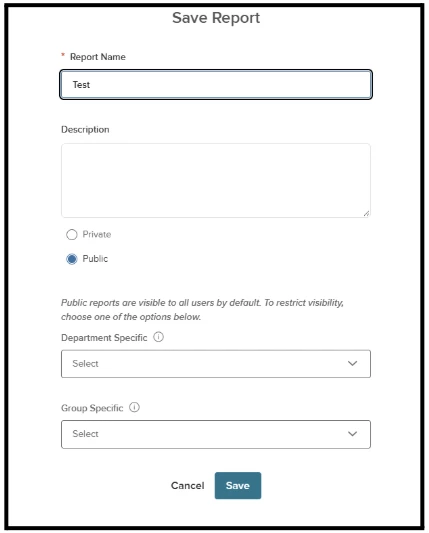
Option 2: Add a group to an existing report
- Open the report's Permissions page.
- Select Public.
- Choose Groups and select the group.
- Save your changes.
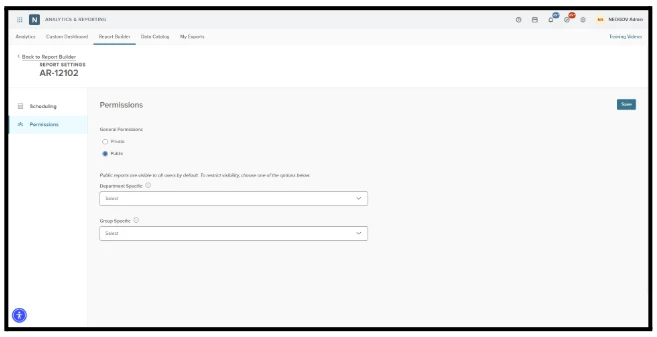
Permissions for Reports Shared with a Group
View
- Only members of the group who also have access to the report's product. A member without that product access will not see it.
- If an employee is removed from the group, they lose access immediately. If you change or clear the group on a report, access updates right away.
- If a report is shared with a group, the same restriction will be applied in the Report Catalog and reports in payroll.
Edit/Delete
- Once you share a report with a group, only admins of the report’s product can edit it, delete it, or change its permissions. Everyone else sees it read-only.
Subscriptions
- Report subscriptions still reach an employee after they leave the group if they are added as recipients, so review subscription lists when you change membership.
Custom Dashboards
You can add a chart from a group-shared report to a public Custom Dashboard. Only group members see the chart. Reports shared with a group also do not appear in the Add Report window for people outside the group.
Related Articles