



Core HR: Fall 2026 Release Notes
Article Links
Timeline
When will this be released?
UAT Preview Window: October 1, 2026 at 5 AM PST to October 29, 2026.
Production Availability: October 29, 2026 at 5 AM PST.
Is there downtime for this release?
No.
FTE Count by Department Widget
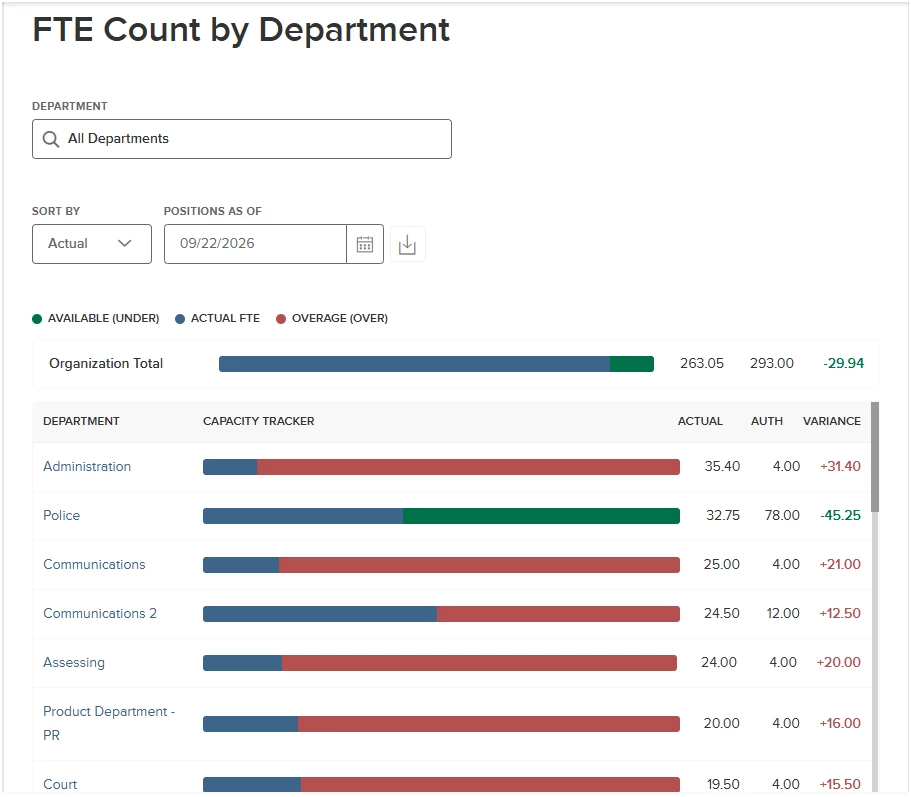
This quarter, we have released the FTE Count by Department widget. This updated widget replaces what was formerly known as the Budget widget on the Core HR dashboard. This allows for better visibility of the Availability and Overage on seat count. Included in the update are redirects that will allow a user to take action directly from the widget.
New User Experience
We’ve designed a new experience, which allows you to see all departments from the widget without needing to select an individual to see their details. Simply scroll through and see the variance for all departments. When you select All Departments, you will see the Organizational Total above the individual department numbers. If you want to see the individual positions totals within a specific department, you can select it in the dropdown or click on the department name.
We’ve updated the SORT BY filter to remove obsolete positions. Taking this change into consideration, the frozen or obsolete positions have been removed from the Actual, Available, and Overage filters.
We’ve also created a new sorting filter for the Inactive category. This filter looks at any position that has a status of Frozen or Obsolete. This will be helpful when the position gets moved to a non-active status while employees are still attached to it, triggering you to take action. You will be able to download off the filter data.
Value
Provides an easier experience than the previous widget, while adding some upgrades and visual redesign.
Audience
Anyone who has permissions for the widget.
Items Removed for This Enhancement
X/Y grid.
Department and Position Details
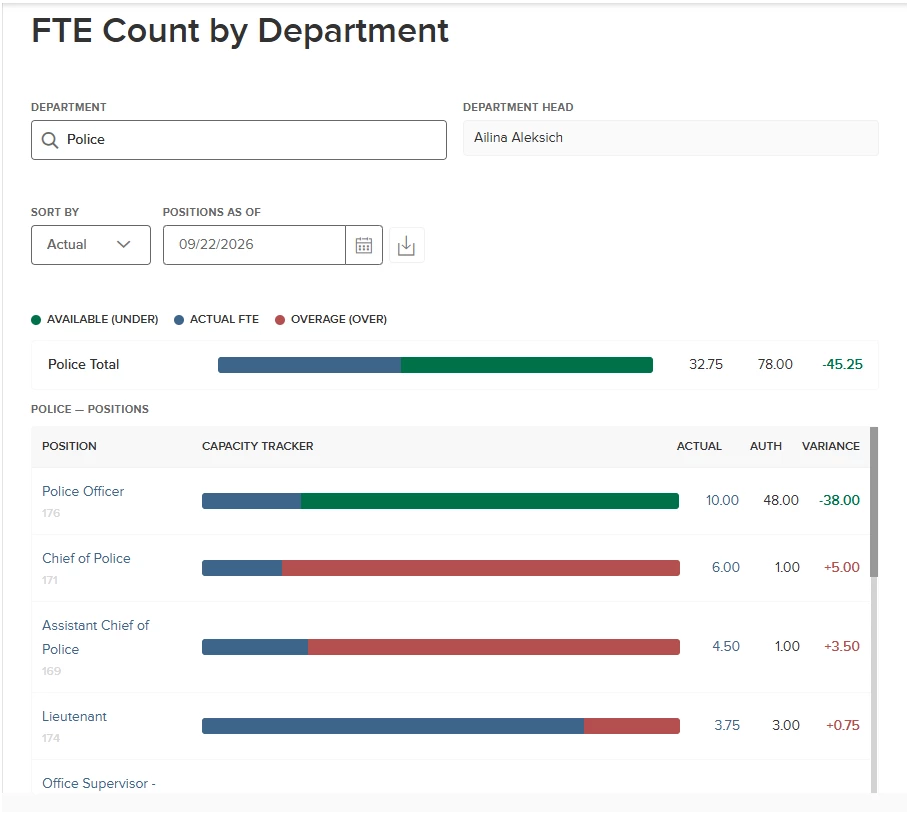
Selecting a department in the dropdown, or clicking on the department name, will take you to the department details. This will give you overall department information and show you the position-by-position availability and overages.
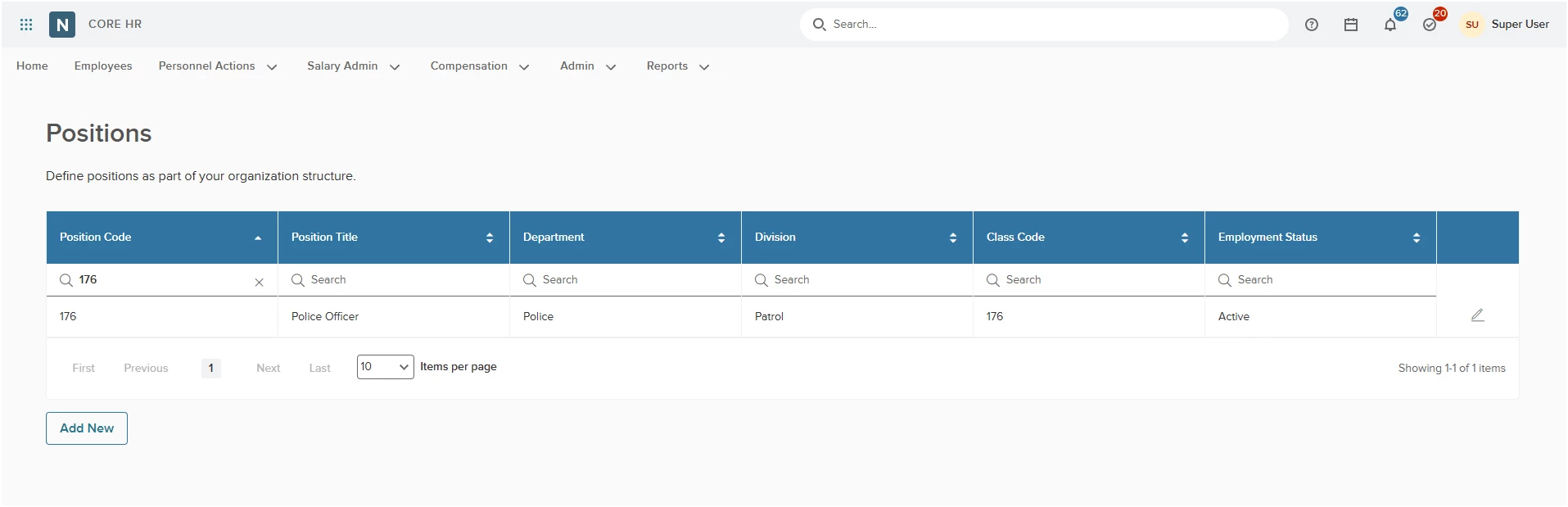
Clicking on a position will take you to the Positions page where the information will be prefiltered to that position, or similar positions based on the position code. If you need to take action to adjust the FTE at the position level, this redirect will be helpful. You will be able to download all of this data.
Value
Seeing position details allows you to take action at the position level with a redirect to the specific position.
Audience
Admins.
Employee Details
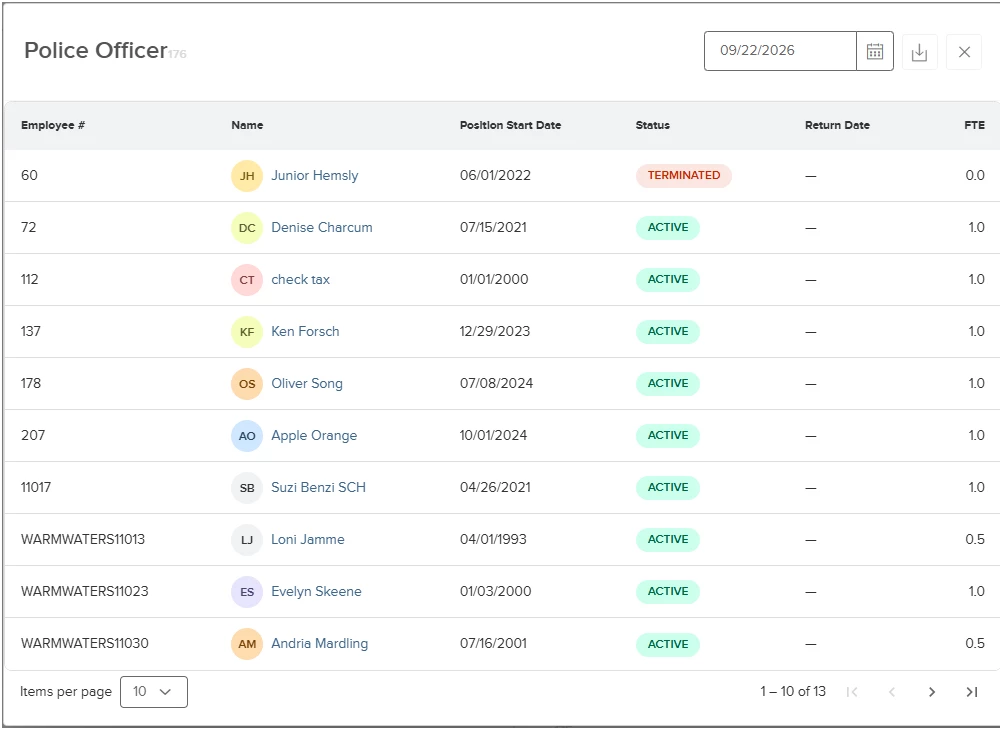
When you click on the ACTUAL FTE within a specific position, the widget will open the employee details. This will show employees that are set to this position and show their status (example: “on leave”).
If you need to make staffing adjustments to accommodate an employee that is on leave, click on the employee name to go to the Assignments page of that employee’s profile. You will be able to download all of this data.
Value
Allows you to update employees without having to manually navigate to the employee list page and search for the employee. This saves you time and effort getting directly to the employees data.
Audience
Admins.
Assignments and Employments Merger
With this release, employments and assignments are now merged on a single page. Navigating to an employee profile from the list page will default to the Assignments page, showing employment records with their associated assignments nested beneath each record.
Active and Terminated Tabs
We’ve added the Active and Terminated tabs to the Assignments page, which will contain the associated employment records. When an employment record is terminated, both the employment and assignment records will move from the Active tab to the Terminated tab.
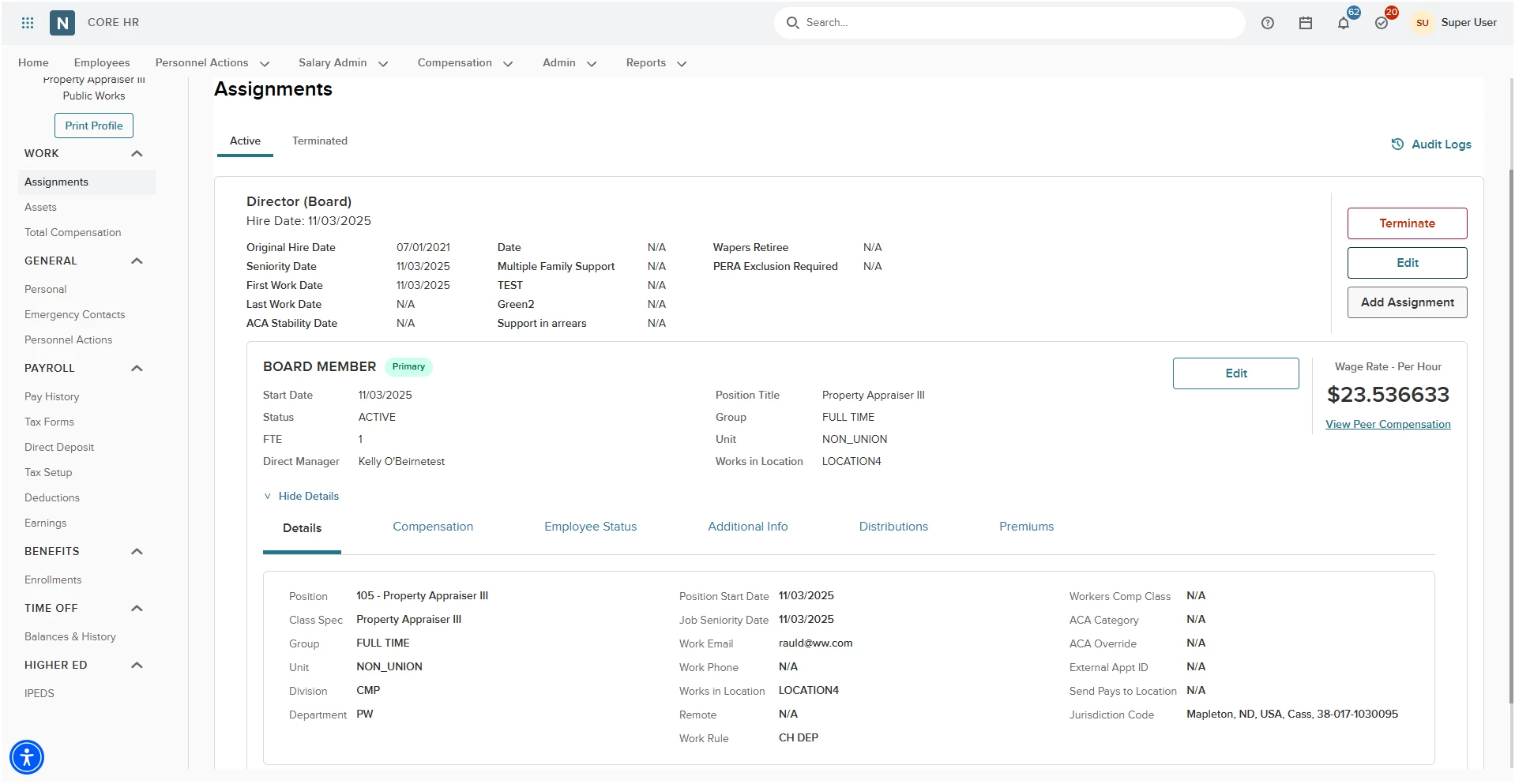
Value
Protect core data integrity by focusing on active employment assignments while automatically blocking invalid reactivations.
Audience
Admins.
Updated Field Locations
We have updated both the View and Edit modes for all popups involved with assignments, which includes Edit Assignment, Add Assignment and Re-hire. This will have fields better grouped by similar data, and reduced white space, resulting in less scrolling.
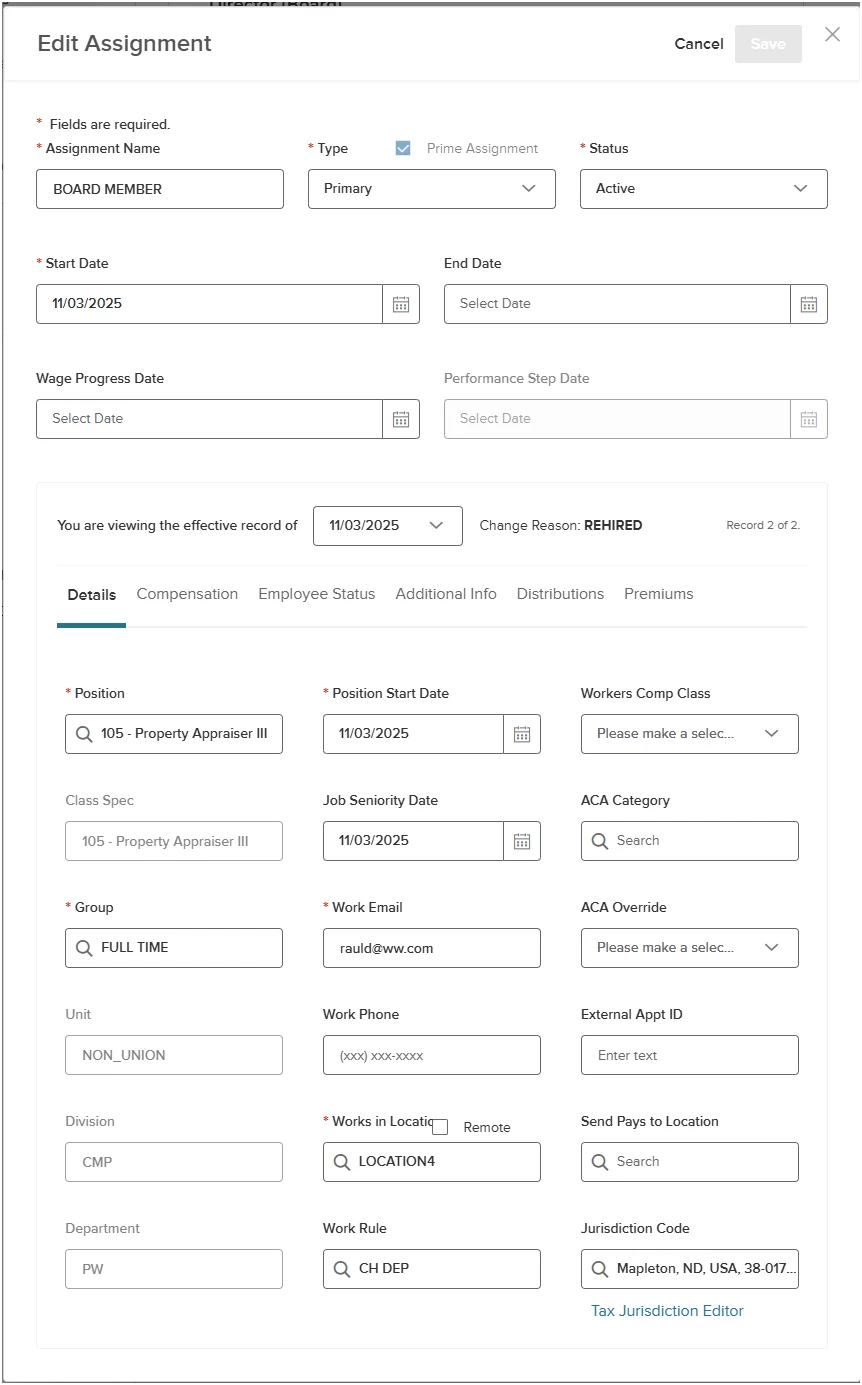
Value
Standardizing the field order between view and edit modes improves efficiency and data accuracy. It enables HR users to conduct visual spot checks that confirm field updates have been successfully processed.
Audience
Admins.
Example
The left column on screen shot above shows the organization structure fields that are shown within the assignment.
Personnel Actions Employee Page and PDFs
You can now access personnel actions directly within an employee’s profile. This view functions just like the administrative Personnel Actions page, but automatically filters for the selected employee. This allows admins to review and manage approvals without leaving the profile page.
We've also added a printer icon to both the employee and administrative Personnel Actions pages. Clicking this icon exports a personnel action form as a PDF for any record with a finalized status (Withdrawn, Denied, or Processed).
Personnel Actions on Employee Profile
We’ve added the Personnel Actions page to the employee profile under the GENERAL section of the left navigation. This gives access to all statuses for a specific employee, and you can print a PDF of any finalized statuses.
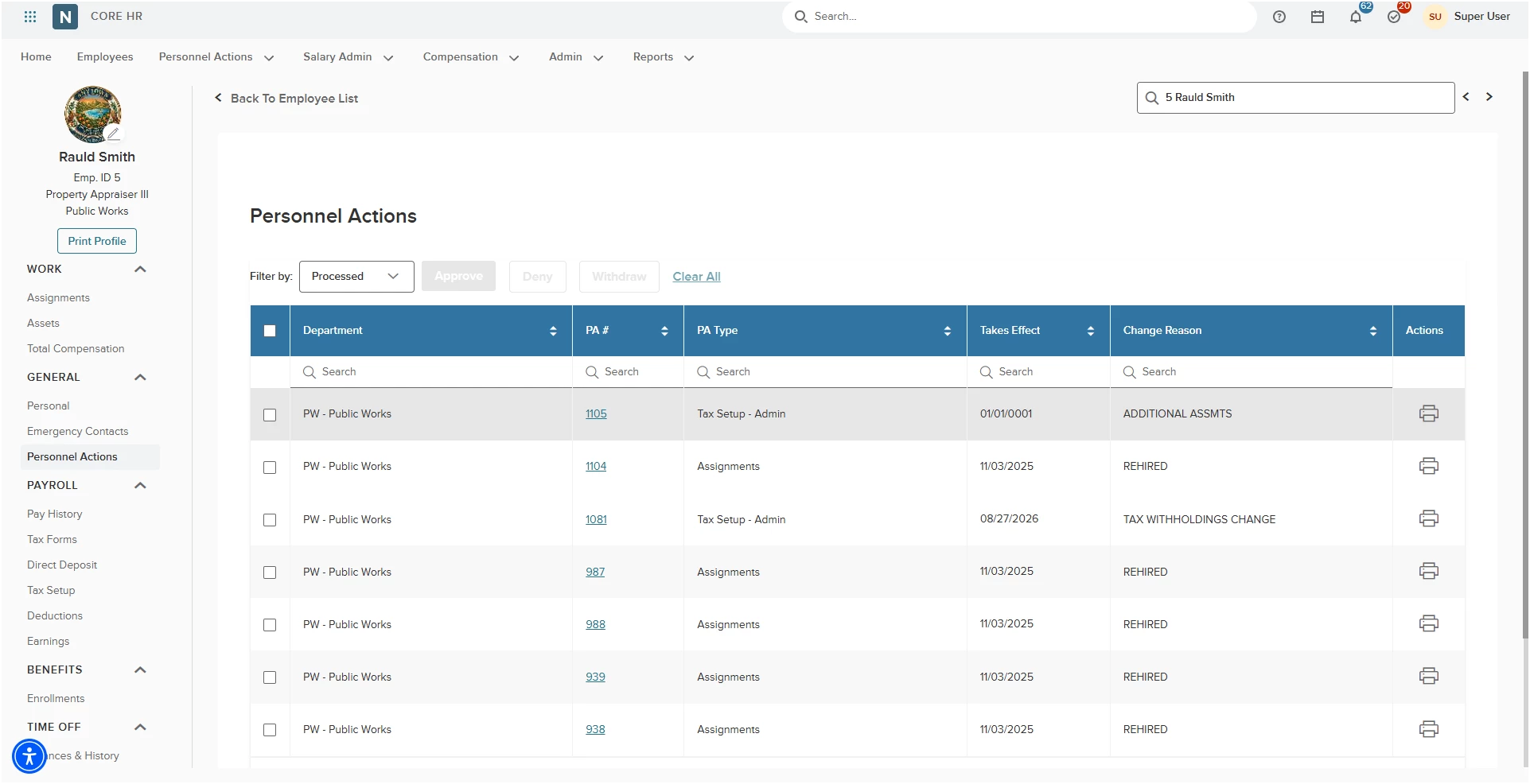
Value
Bulk processing allows you to quickly approve multiple items for a single employee.
Audience
Admins.
Personnel Action Form - Printable PDF
With this release, we have added the ability to print a Personnel Action Form as a PDF from the Personnel Actions page for any finalized status. Finalized status include Withdrawn, Denied, and Processed.
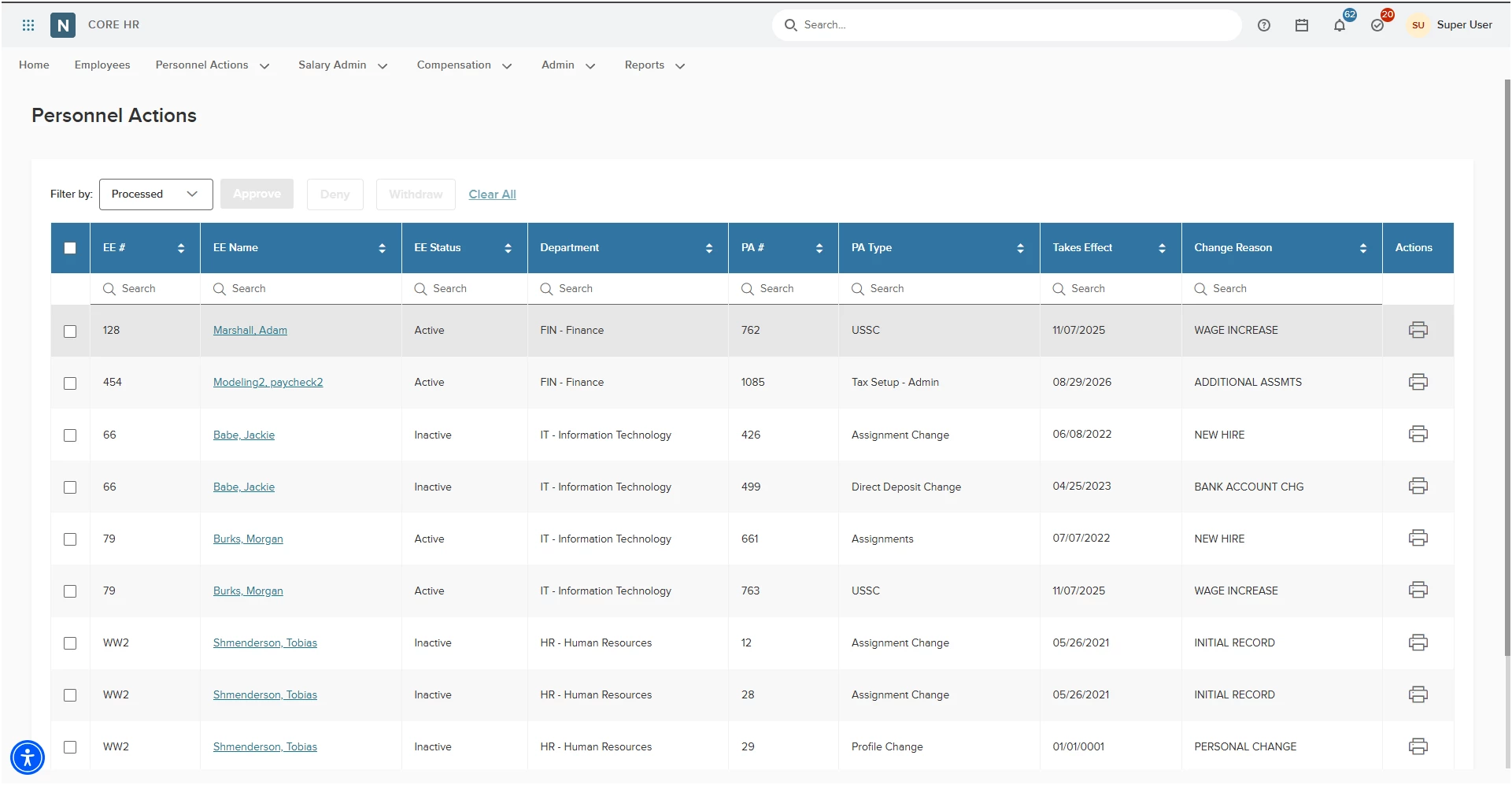
Value
Allows you to print a physical copy of a personnel action.
Audience
Admins.
Pay for Performance
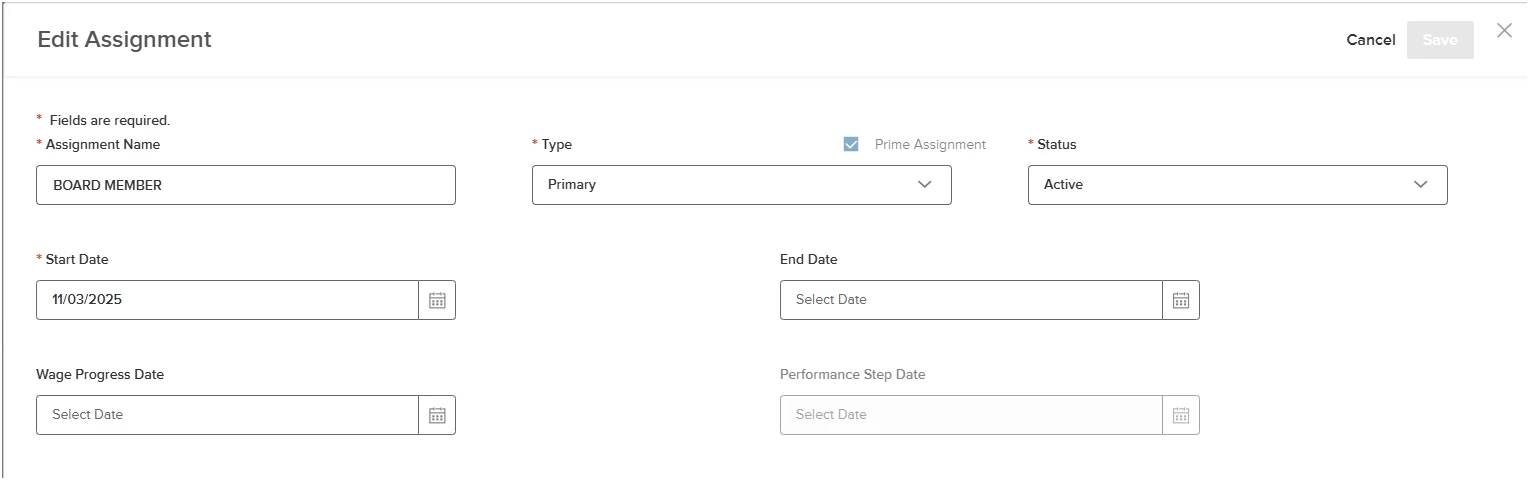
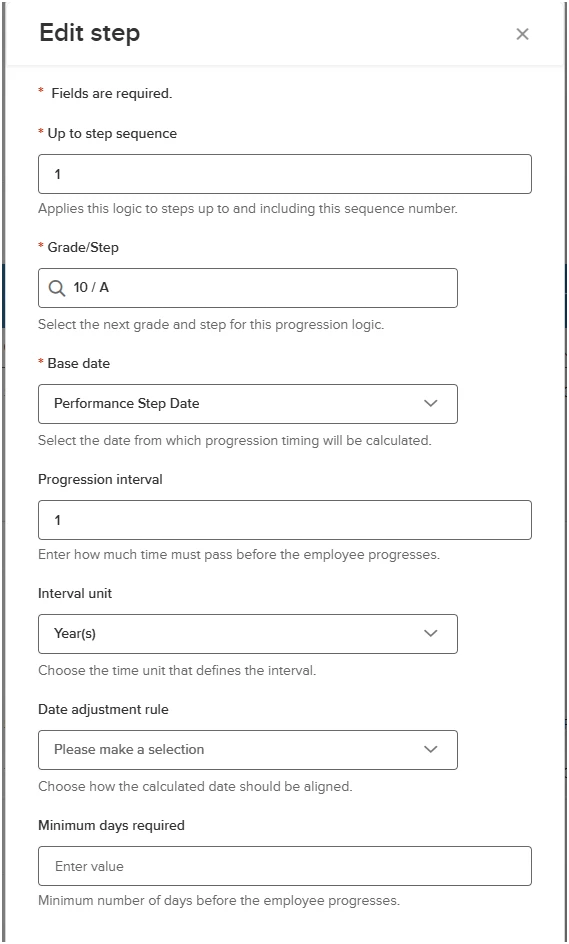
With this release, you can push a specific performance step date over from the Perform module to the Core HR module. This date will be labeled within Core HR as the Performance Step Date. The field will be available in the setup within the Step Progression Rules.
With this change, annual step advancements will be determined by an employee's performance review results.
Performance Step Date
You will find the Performance Step Date in the assignment. The date only populates from action taken within the Perform module. Once populated, you can select it from the Step Progression Rule within the salary administration experience.
Value
Ability to move people through a step progression only if they meet the criteria within their performance review.
Audience
Admins.
Employee List Upgrades
With this release, we will be upgrading the employee list page that is shared with the full HRIS suite. This includes any time you access the Employees link from the menu in Core HR, Benefits, Time & Attendance and Payroll.
New Employee List Design
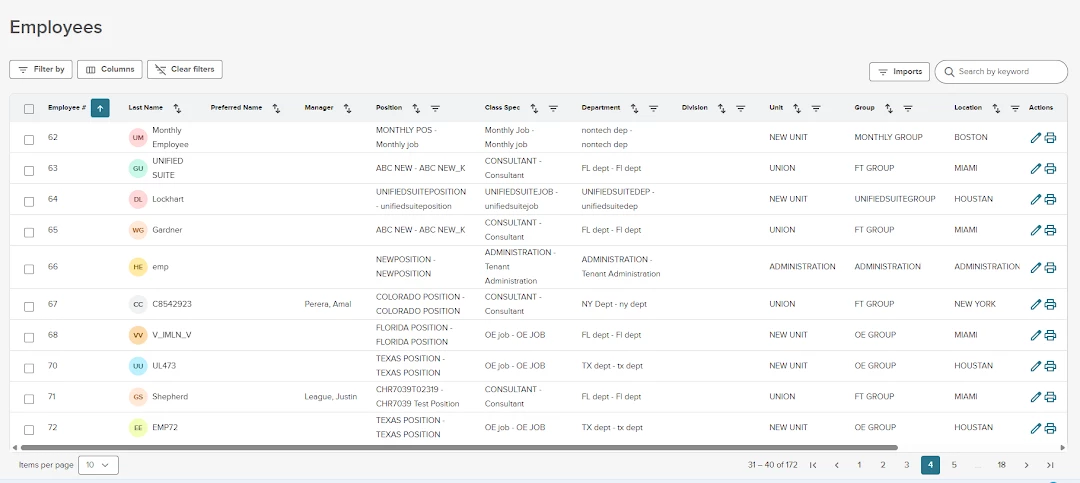
With this release you will see an updated design to the employee list page. The new design will have different filters, imports and quick keyword table search above the table. The page will also show the employee’s initials or Image (if uploaded).
Value
More flexibility when searching for a grouping of employees.
Audience
Admins.
Updated Column Search
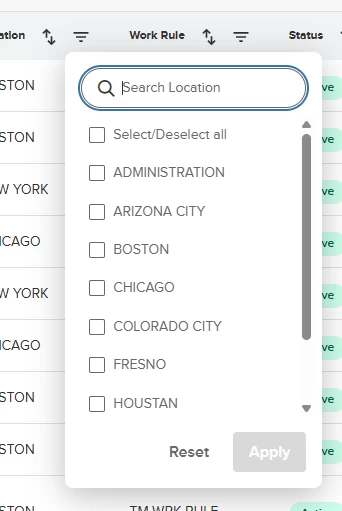
With this release you will be able to search for and select multiple values within a specific column. You can do this over multiple columns and fine tune your search.
Value
Previously, you were only able to search one value within a specific column. Now, you can select multiple values within a single column.
Audience
Admins.
Example
An Admin is looking for two separate locations within their Parks & Rec department. Using this new search they can easily find and take action on those employees.
Items Removed for This Enhancement
Individual column search.
Column Filtering
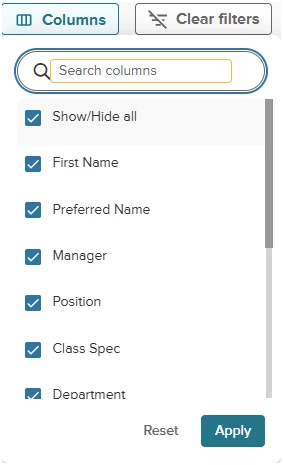
With this release, you will be able to filter which columns you want to view within the employee list page.
Value
Removes items you may not use as an individual user.
Audience
Admins.
Filtered Employee List Navigation
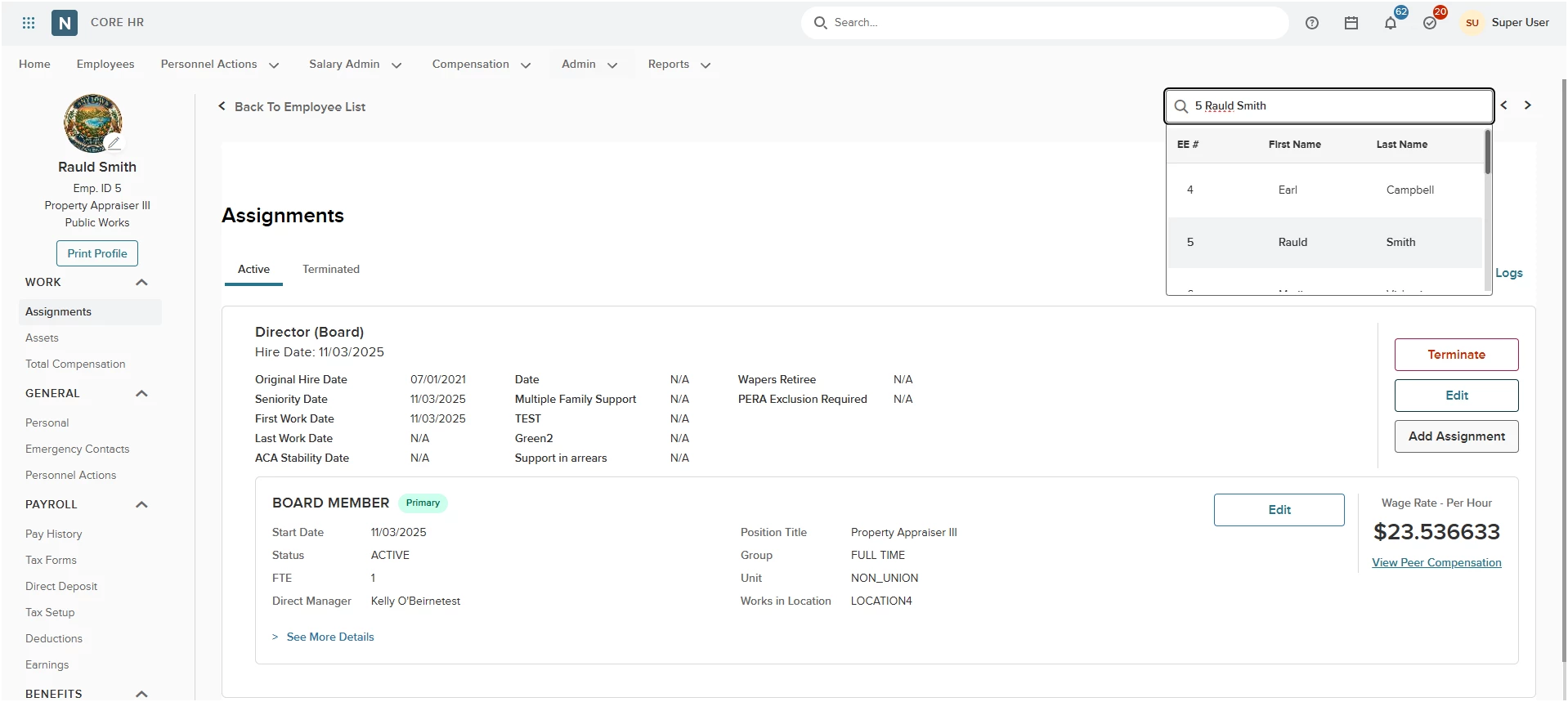
With this release, you can navigate between employees directly from an individual profile page without returning to the employee list screen.
When you open an employee profile from a filtered list, a navigation control appears in the top-right corner:
- Searchable Dropdown: View and search your current filtered list of employees by name or employee number.
- Previous/Next Controls: Click the left and right arrows to quickly cycle to the previous or next employee in your filtered set.
Value
Removes the need to go back to the employee list screen to select the next employee from your filtered list.
Audience
Admins.
Appendix: Bugs Resolved
No additional bug fixes outside of the maintenance releases.
Related Resources