



Core HR Summer 2026 Release Notes
Article Links
Timeline
When will this be released?
UAT Preview Window: Jul 2, 2026.
Production Availability: Jul 30, 2026.
Is there downtime for this release?
Yes.
Salary Ranges Modernization
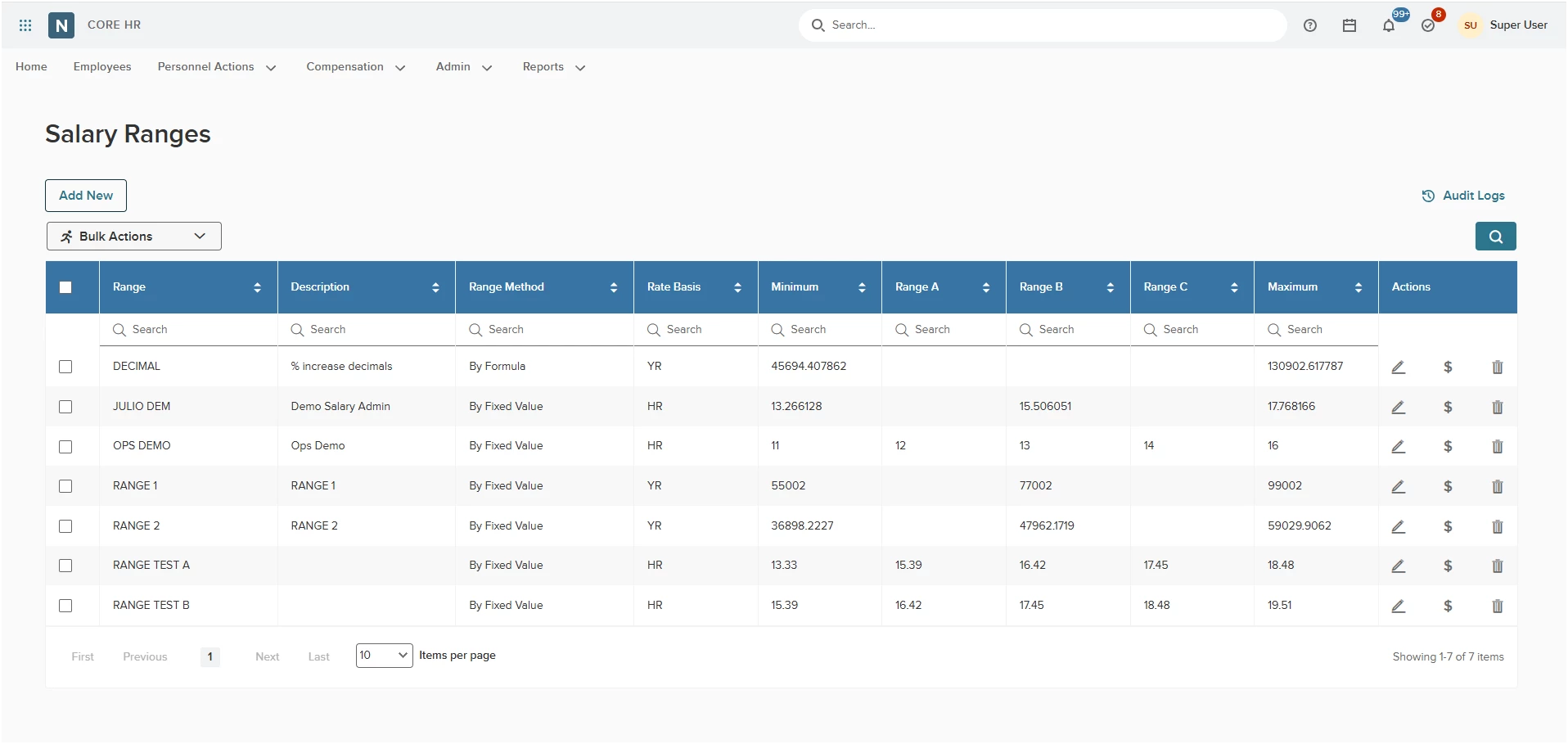
With this release, you will see a modernization of the Salary Ranges (ISSR) page to the new Salary Ranges page. This updated page will use standard tables and icons that are seen throughout HRIS. It will use popups for different actions, such as adding and editing, along with a bulk actions dropdown that includes mass update and an import. You’ll access this new page through the new Salary Admin menu.
Modernization of Salary Ranges
With this release, you can use the modernized version of the Salary Ranges page. This includes an all new user interface with updated popups and icons that follow standard HRIS design elements.
Value
This modernized version creates a smoother setup of salary ranges with a familiar look and feel that is seen throughout HRIS. Uses the new step-by-step popup for setup focusing the user on a guided process.
Audience
Administrators or anyone who previously had access to salary ranges.
Multiple Midpoints for Benchmarking
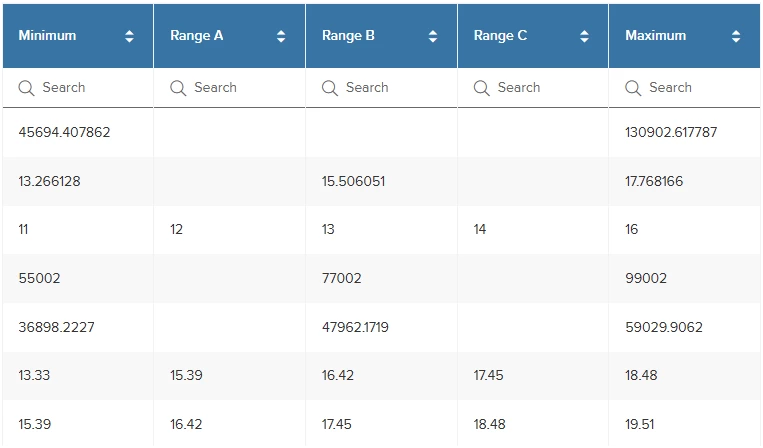
With this release, we have upgraded the midpoints as requested by clients to have multiple midpoints for better benchmarking. Previously each salary range only had a minimum, a midpoint and a maximum. Now you will see a Minimum, Range A, Range B, Range C, and the Maximum.
If your agency currently has a “midpoint” within the old pages, that will be mapped to Range B which is the “middle” of the midpoints. Because these midpoints are not mandatory, you can use them in any configuration with all of them being used, one of them being used, or any combination of two of them being used.
Value
Adding additional midpoints allows agencies to have a better understanding of where their employees land within the five possible benchmarking range points, which include the Minimum, Maximum and three midpoints.
Audience
Administrators.
Bulk Actions - Adjust Salary Ranges
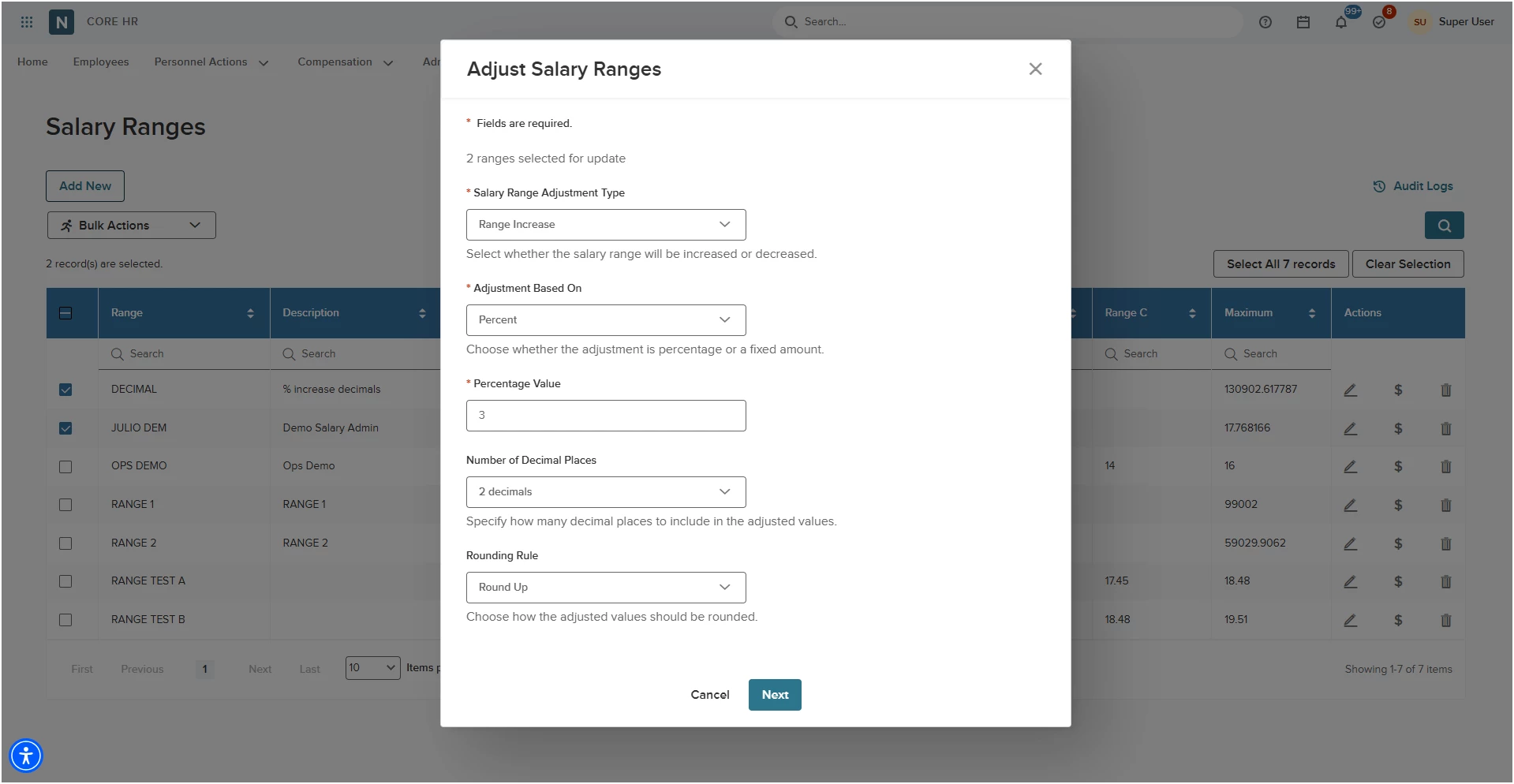
With this release we have added the Bulk Actions button, which has an Adjust Salary Ranges function. This allows the same functionality as the Adjust Salary Range values found in the dollar sign icon ($) in the table. That feature allows you to adjust all the ranges for an individual range, which we previously were able to do. With this new bulk action, selecting two or more ranges will apply this same type of function. It will also give you a preview step, with the ability to export to a CSV file if the data needs to be moved to another financial system/ERP.
Also, you will be able to mass apply the same change/values at the employee level, which was previously possible for steps but not ranges. To accomplish this, you will use the Mass Salary Update tool.
Value
Saves time with the ability to mass update salary ranges instead of one at a time.
Audience
Administrators.
Bulk Actions - Import Salary Ranges
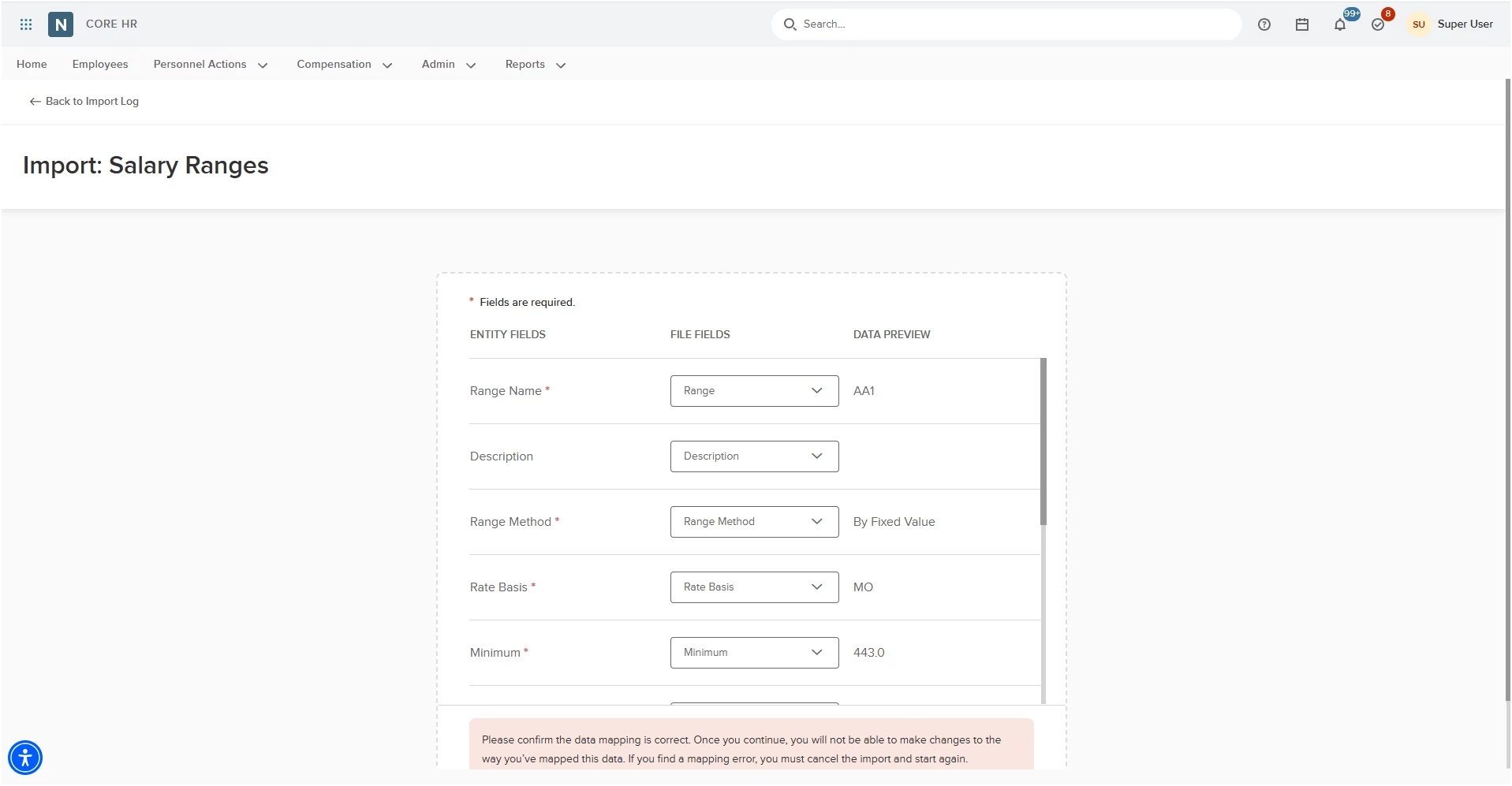
With this release, we have added the ability to Import Salary Ranges within the Bulk Actions. You will need a CSV file with the column headers and your data. The column headers to use those in the table on the Salary Ranges page.
To use the import tool, select Bulk Actions > Import Salary Ranges. This will take you through a step-by-step process to import your salary ranges.
After importing, you can map your column headers to the fields. If the column headers match what is in the system, the import tool will automatically map the fields correctly.
Value
Allows users to load salary ranges in bulk.
Audience
Administrators.
Mass Salary Update Modernization
With this release, we have modernized the Mass Salary Changes/Apply General Wage Changes (USSC) page to the new Mass Salary Update page. This new page will have a modernized user interface that will have the look and feel of the rest of HRIS. Tables and icons will feel familiar while adding many new features. You can access the page through the new Salary Admin menu.
Employee Selection Criteria
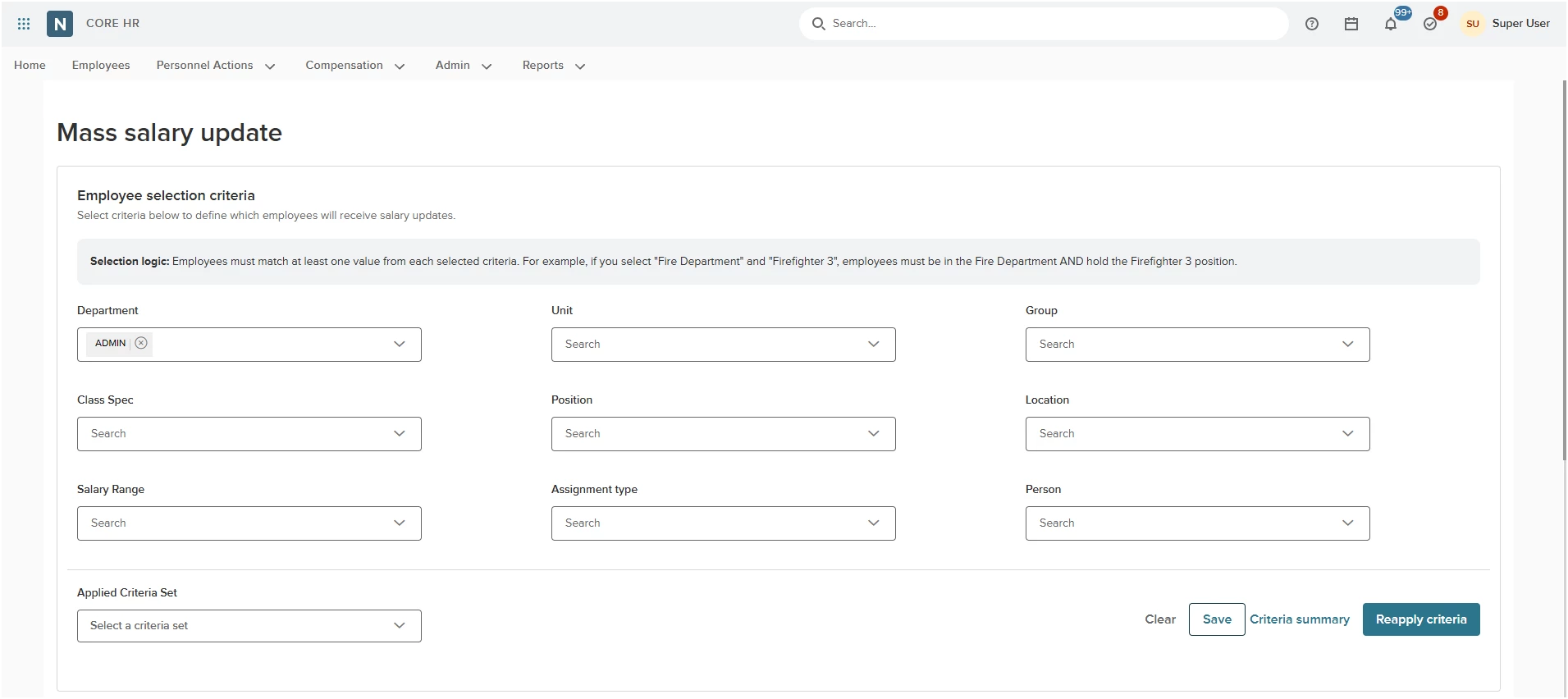
WIth this release, we have updated the order of the mass salary update tool to start with the filtering instead of the action. This will allow you to narrow down the employees you are looking to update based on the filters. We have added the Salary Range to the filter as this is used to apply the mass salary range update to the employee level, much like the mass apply step changes have worked in the past.
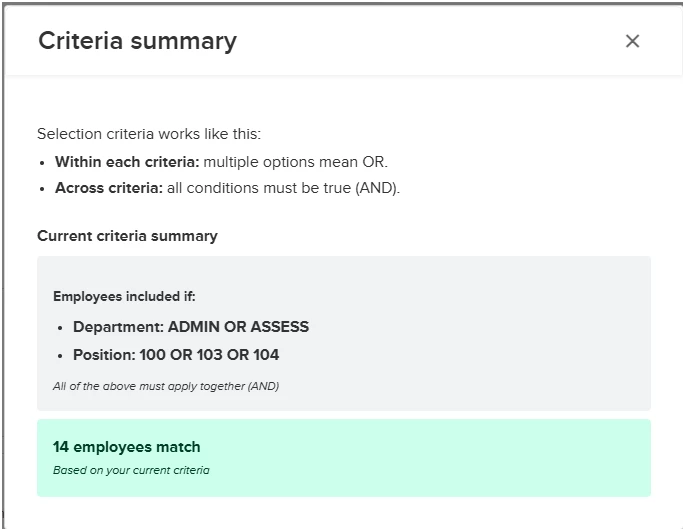
Along with updating the employee selection criteria, we are also providing a criteria summary link that will show you how many employees qualify for the criteria selected. The summary also explains the way the criteria works together when selecting multiple items.
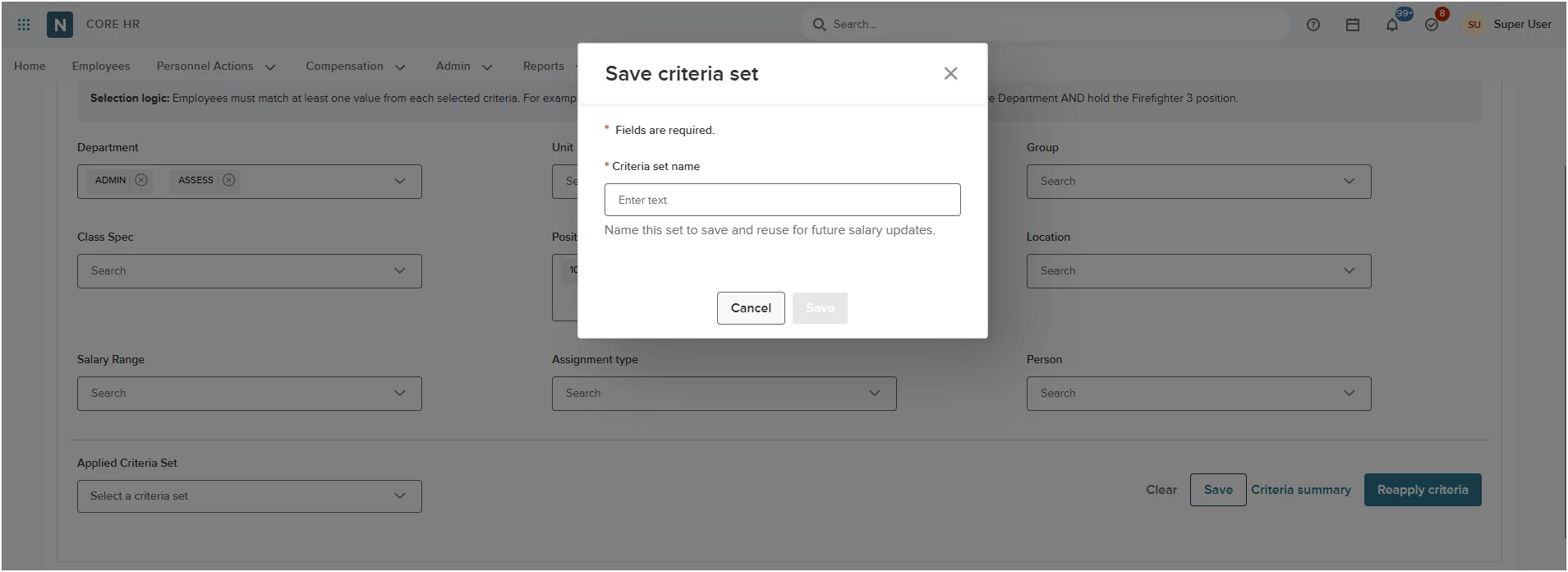
You can now save your employee search criteria to reuse later. Whenever you reload a saved search, it will automatically update to show the most current list of eligible employees.
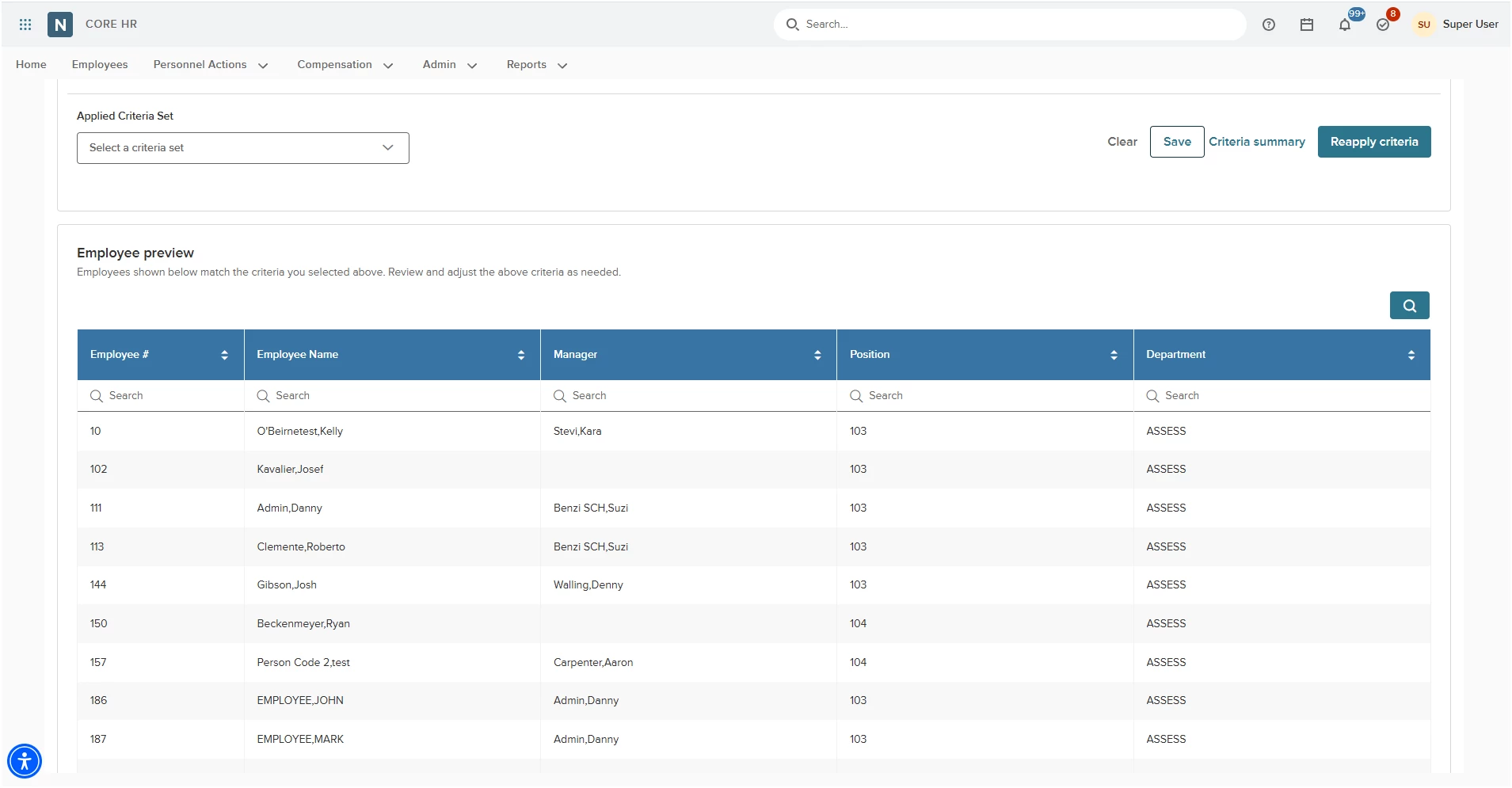
We have also added an employee preview of who qualifies for the selected criteria. This allows you to spot check and make sure employees you think should be accounted for are verified to be in the list.
Value
Streamline workforce management and eliminate operational errors. Our advanced filtering and verification tools empower HR administrators to precisely target and validate employee segments before executing critical workflows. By allowing you to save and revisit these dynamic lists, we transform a repetitive administrative task into a secure, highly efficient, and repeatable process.
Audience
Administrators.
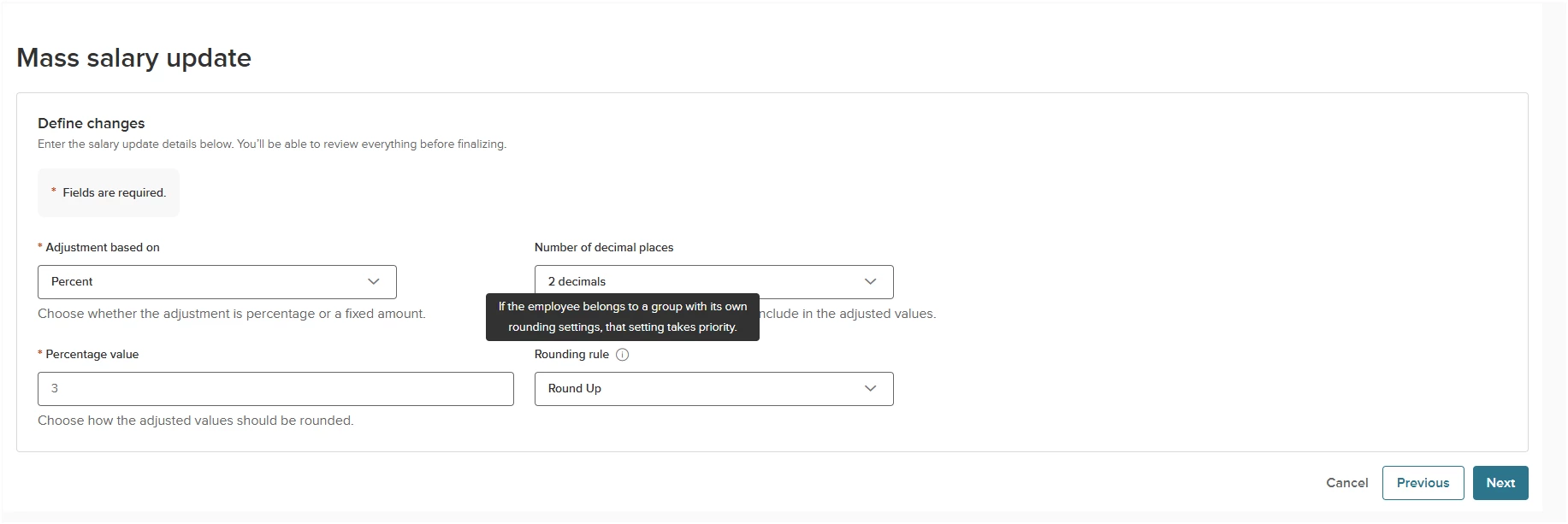
Updated Action Fields
This update streamlines the Dollar Amount and Percent fields to eliminate confusion and improve data entry efficiency.
Field Enhancements
- Previous Functionality: Both fields were mandatory, forcing users to manually enter a "0" in one field and the actual value in the other.
- New Functionality: Users now simply select either Dollar Amount or Percent. The system will dynamically display and adjust the fields based on that selection.
Rounding Rule Hierarchy
We have also added a helpful tooltip to guide users through the system's rounding logic. The system will now apply rounding priority in the following order:
- Group Rounding Rules: This is the primary default. Please note that Group rounding only applies to Hourly, Daily, or Yearly Rate Bases that match the employee's Assignment.
- UI Rounding Rules: If Group rounding rules are not configured—or if a different rate basis is used—the system will apply the rounding displayed in the user interface.
- System Default: If neither Group rounding nor UI rounding is established, the system will automatically default to six decimal places.
Value
Removed confusion with multiple fields being mandatory when they should have been one or the other.
Audience
Administrators.
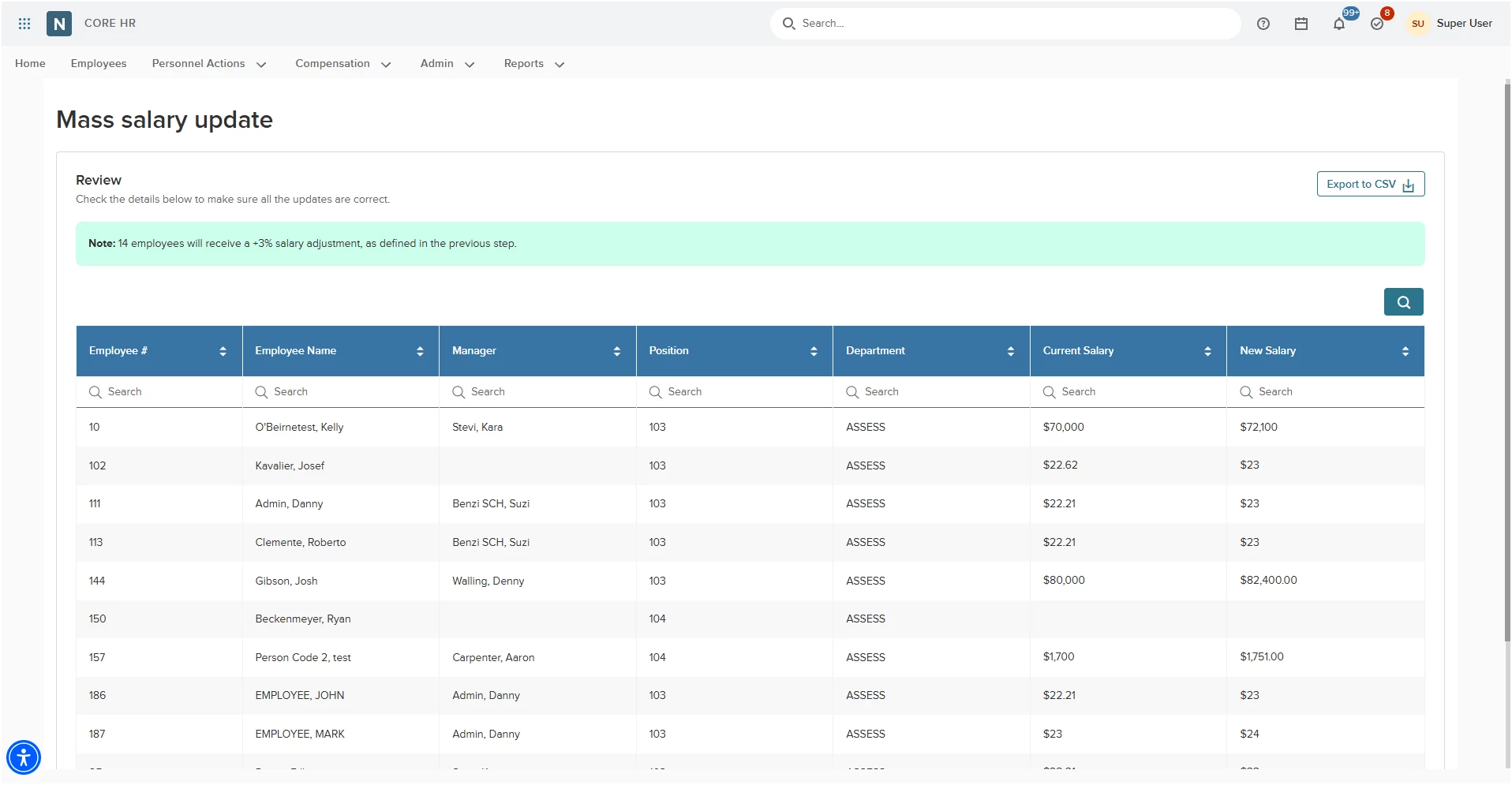
Review Step
We have replaced the old "trial mode" with a streamlined Live Review step, giving you a clear summary of your compensation changes before you finalize them. This ensures complete data accuracy before you move to the final step.
Here’s what you can do.
- Compare Salaries Side-by-Side: View a complete list of eligible employees showing their current salary right next to their new proposed salary.
- Verify Actions: See exactly what adjustments were made for each individual.
- Export Data Easily: Download the entire review list as a CSV file. You can use this file to double-check the details or import the data directly into your payroll/ERP system before officially applying the changes.
Value
Provides a clear picture of what employees are being selected, what the action to be taken on them is, and also allows for an export for further analysis before committing the changes.
Audience
Administrators.
Salary Schedules Modernization
With this release, we are modernizing all pages that were previously located in the Compensation menu and the Using Scales/Steps sub menu. These pages will now be under the new Salary Schedules page with a tab for Grade & steps (formerly Scales/Steps), Salary Schedules (this is new functionality), and Step Progression (formerly Step Progression Rules).
Also, the Mass Apply actions will be within these tabs as buttons or bulk actions. You can access the new page through the new Salary Admin menu.
Grades & Steps
With this release, you will be able to find a modernization version of Scales/Steps. This includes an all new user interface with updated popup and icons that follow standard HRIS design elements.
Based on client feedback, the name change aligns more with the public sector. Many of our clients let us know that Grades & Steps and Salary Ranges are both “Pay Scales”. Changing the old Scales/Steps to the new Grades & steps should remove confusion.
The new layout removes the need for multiple tables to view the grades and step details. With this change, the grade is a list with a plus icon to expand and view the steps.
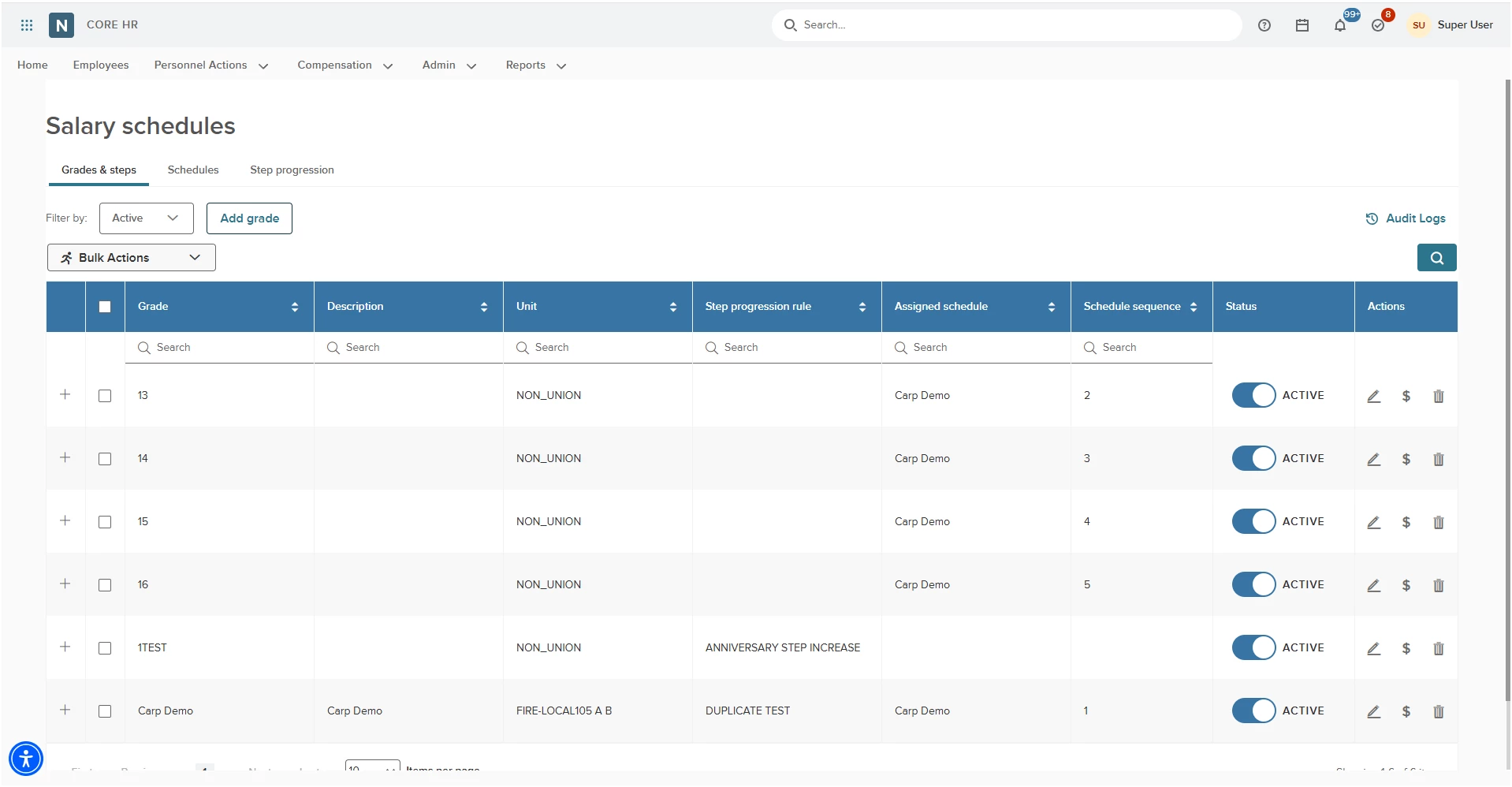
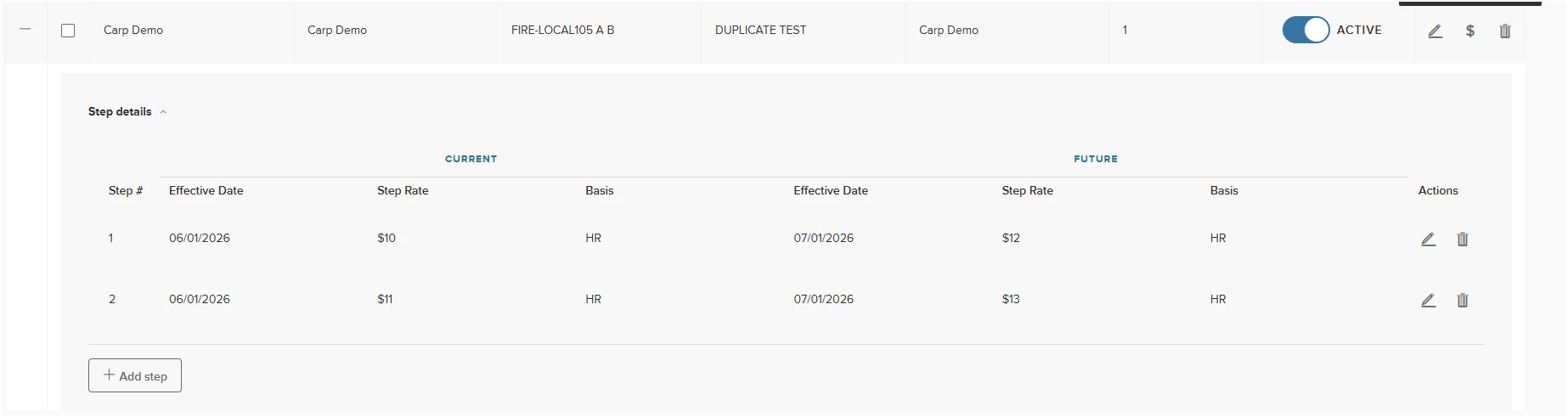
Selecting the plus icon will show the step details. Here you will find that we have the current values with a side by side comparison. This will allow for visibility of the current values while updating the new values with a future effective date. This will be helpful for clients who typically start making changes to the Grades & Steps four to six weeks prior to the new fiscal year.
This is also useful when a collective bargaining agreement operates on a different schedule than the fiscal year. Once approved, the new agreement can be entered into the system well in advance without hiding the current active values.
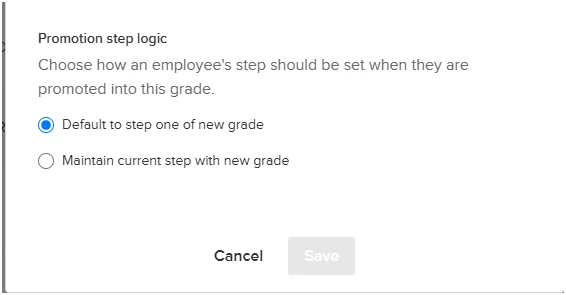
Previously, when an employee moved into a new position, the Core HR system automatically defaulted to the Grade/Step tied to that position. Because positions are typically set up with Step 1 of a grade, this often resulted in a lower wage rate being updated to the employee's Assignment. This caused issues for agencies that use steps to represent years of service, as promoted employees were being reset to Step 1 instead of keeping their current step in their new grade.
With this update, you now have flexibility when adding or editing a step. You can choose to keep the original default logic, or you can choose to maintain an employee's current step when they receive a new grade.
When you select this new logic on a grade:
- Grade Updates: The employee's grade will update appropriately to match their new position.
- Step is Maintained: Anyone moved into the new grade associated with that position will keep their current step number instead of automatically resetting to Step 1.
Value
The modernization allows for easy step-by-step adding and editing of grades and steps. Also the ability to view current and future steps helps keep track of current values, while setting up new values in advance. Promotion logic allows for better flexibility with maintaining current step placement for years of service models.
Audience
Administrators.
Grades & Steps - Bulk Actions
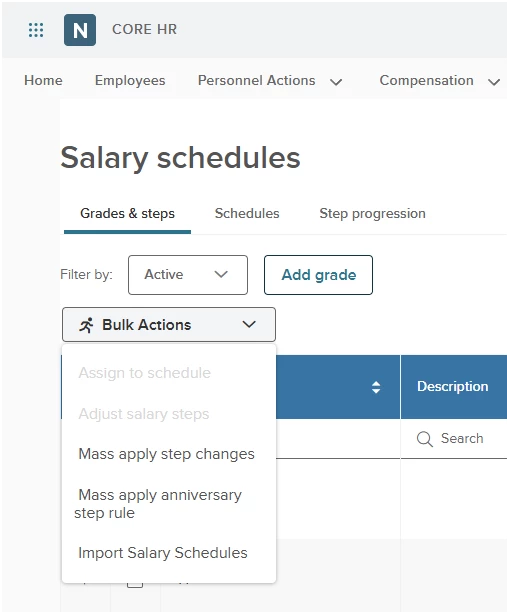
With this release, UAT will include these fully functional bulk actions.
- Assign to Schedule.
- Adjust Salary Steps (formerly Mass Update Step - Update Wage Scales/Steps (USWS).
- Import Salary Schedules.
The Mass Apply Anniversary Step Rule is located under the Step Progression tab as Apply Step Rule, and will be removed from the grades & steps bulk action as it only applies to step progression rules. Once the product release date occurs, the Mass Apply Step Changes will be active.
- Assign to Schedule - Allows you to assign existing grades to a salary schedule when two or more grades are selected.
- Adjust salary steps - Allows you to mass update steps for multiple grades when two or more grades are selected.
- Mass Apply step changes - Allows you to apply the mass update of steps to the Employees wage rate on their assignment record. You must adjust the salary step before you can use this option.
Import Salary Schedules - Allows you to import grades and steps along with assigning them to a salary schedule.
Value
Bulk actions allow you to perform these steps without navigating to a separate page. This saves time and gives you better workflows.
Audience
Administrators.
Schedules
With this release, we’ve added the new Salary Schedules feature to salary administration. Salary schedules are a grouping of common grades that belong together and show a career ladder within a specific department.
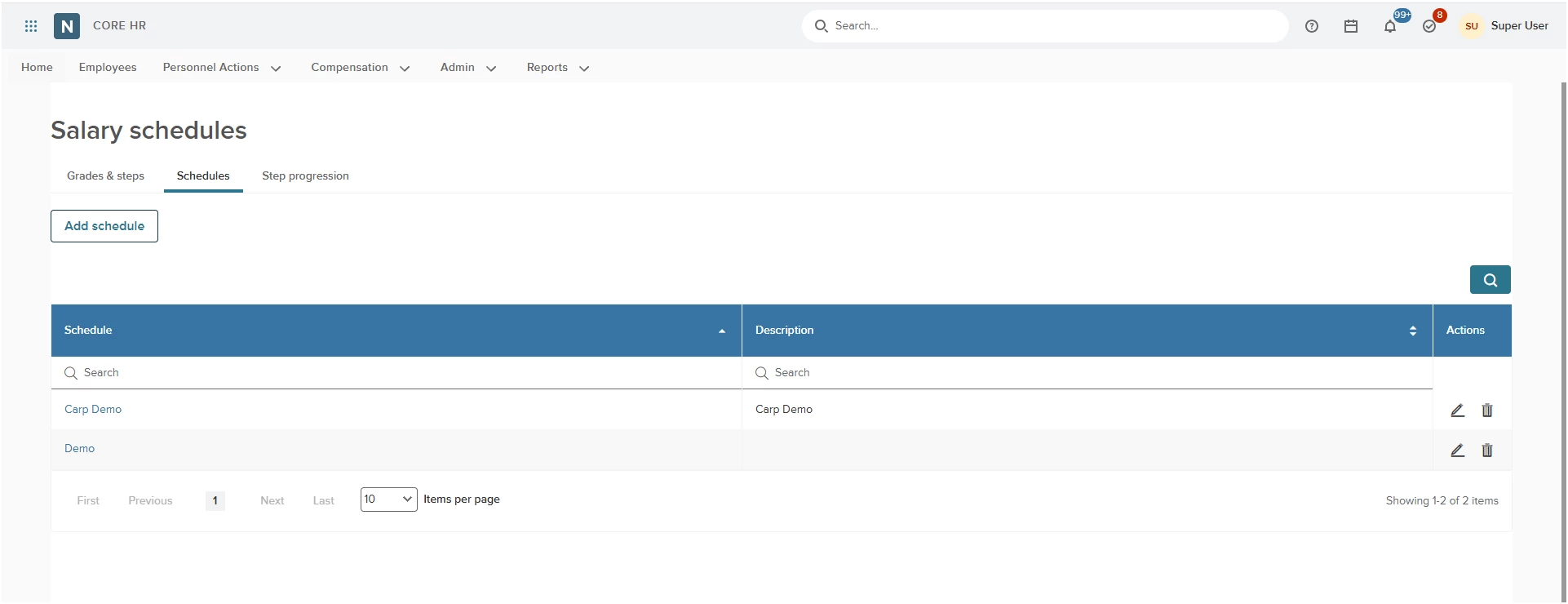
With this new feature, you can assign a group of grades to a schedule using the Bulk Actions on the Grades & steps tab. You’ll see the result under the Schedules tab.
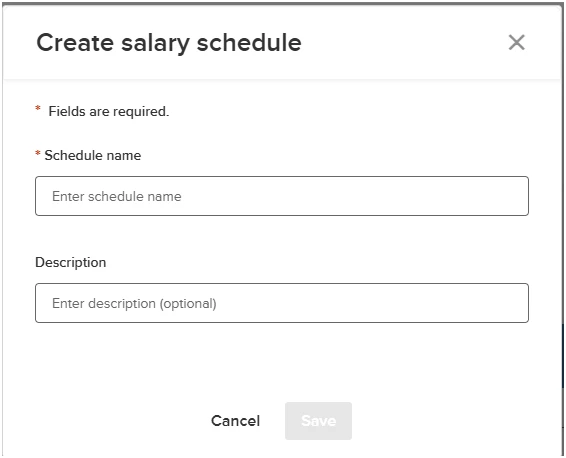
Under the Schedules tab, you can create a new schedule, view the schedules, set print settings for a PDF that you can post on your website, or export the schedule to use with different financial system/ERP.
Selecting the schedule name will allow you to view the schedule grid. The toggle on the far right allows you to change the display of your grades/steps.
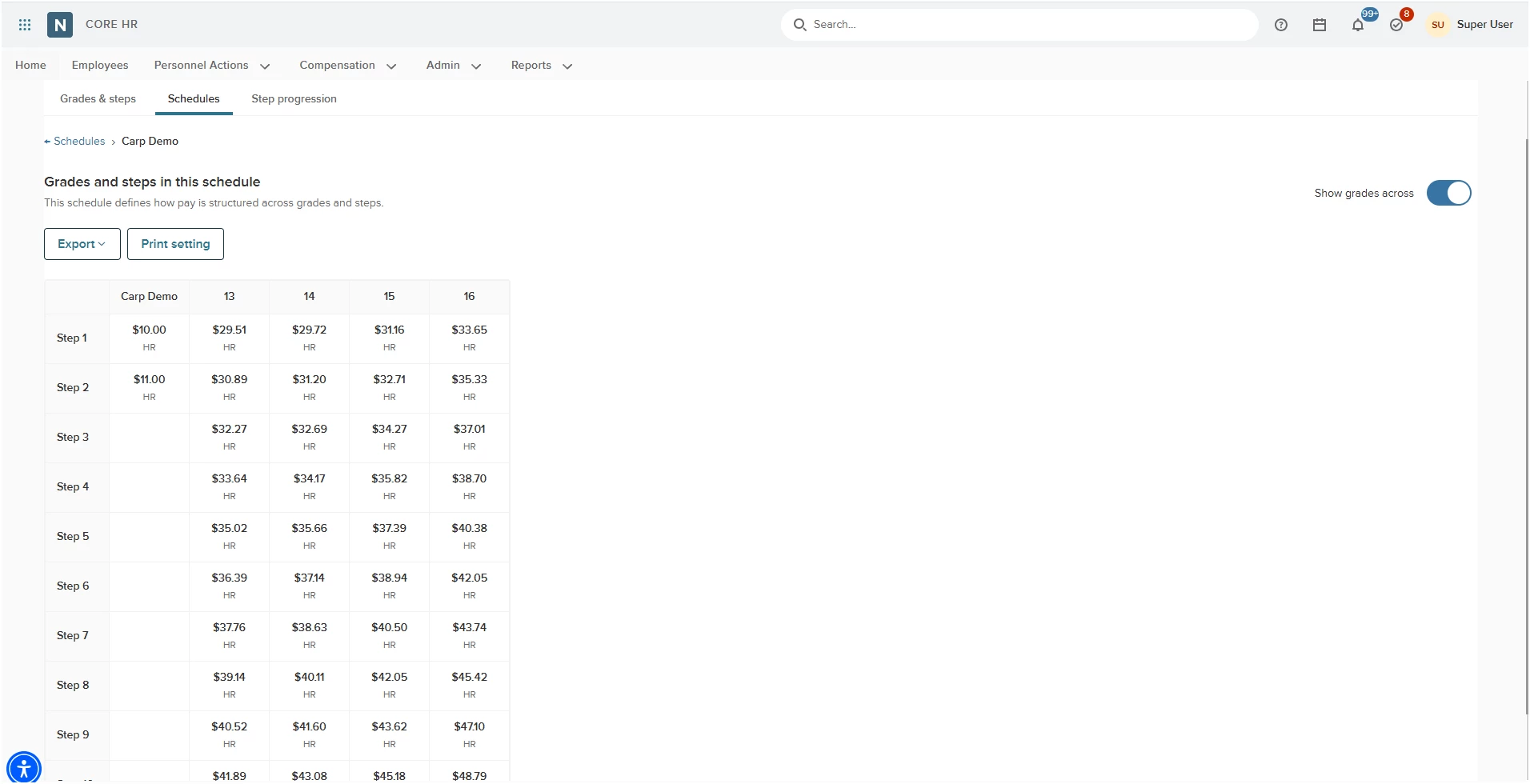
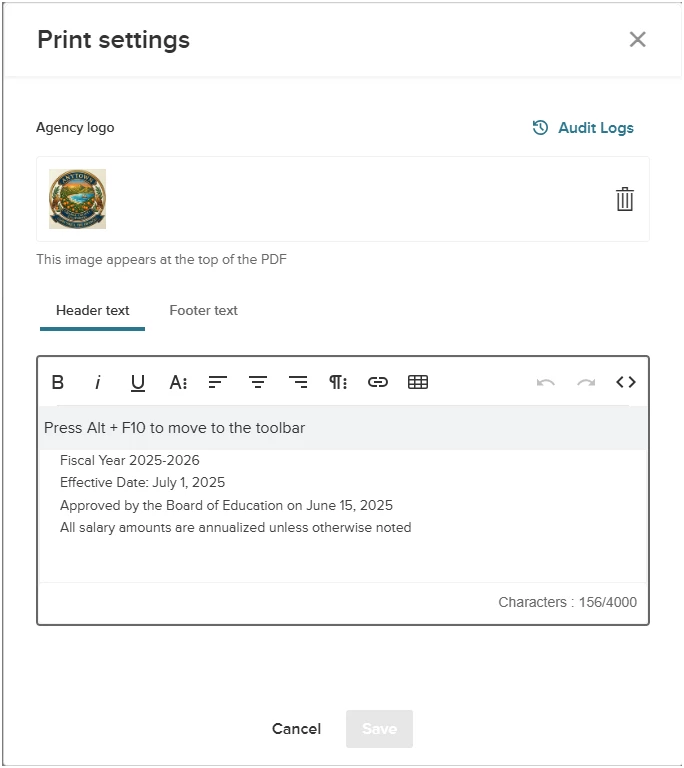
Print settings will allow you to prepare an export to PDF. You can select a specific logo and header and footer for each of the agency's schedules.
The feature also includes an Audit Log so you know who made updates and when they made them to the print settings.
The export also allows you to export the table without the headers and footers to a CSV file.
Value
Many agencies need to post their salary schedules to their website. This allows a PDF to be generated directly from the system as you update. This removes the need to generate this type of document from multiple places in order to post it.
Audience
Administrators.
Example
An agency has 10 grades that are part of their police department, and would like to group them together to display them as a salary schedule. They want to add all grades from a base employee up through leadership roles.
Step Progression
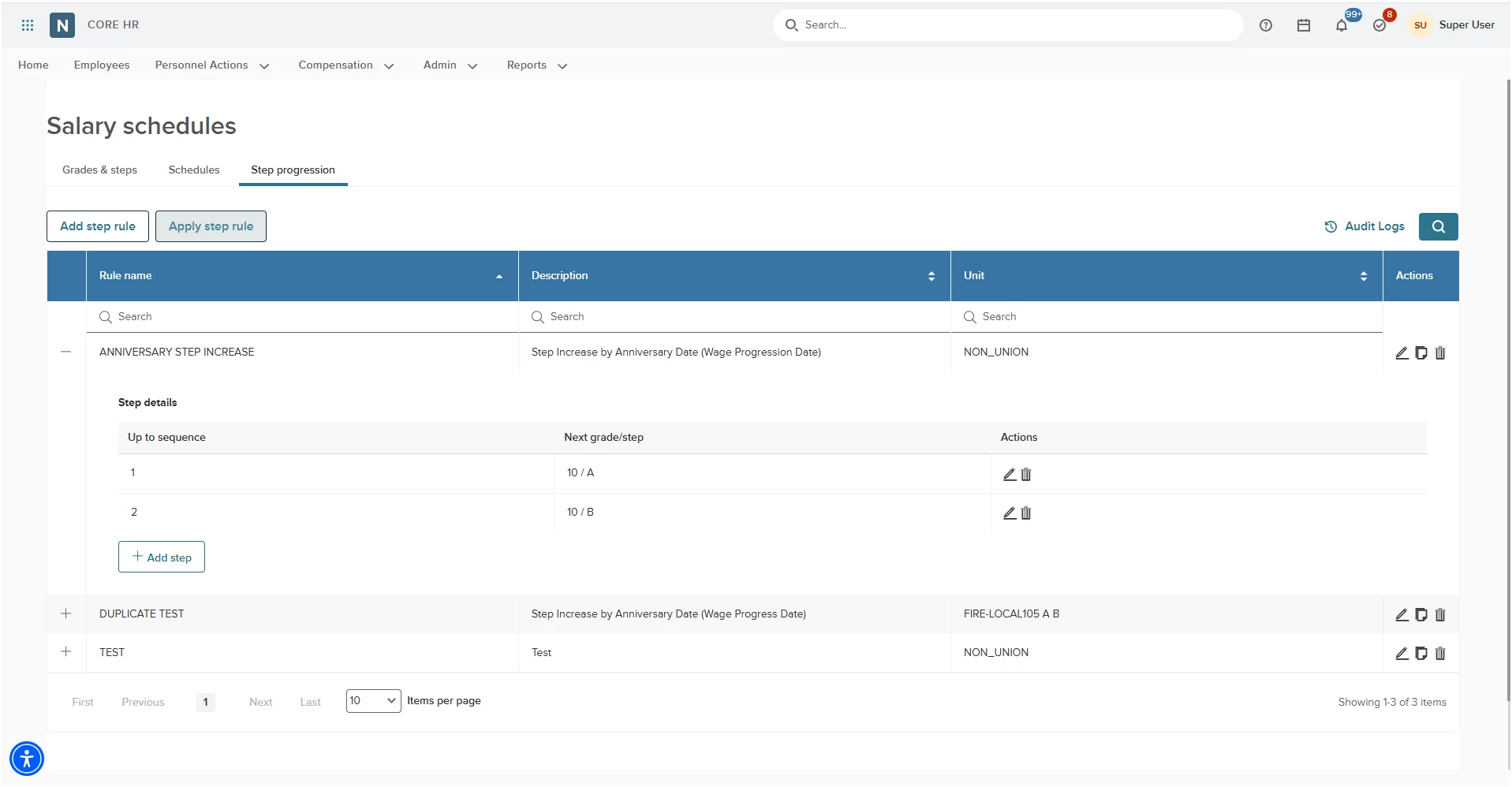
With this release, the step progression rules have been moved to the new Salary schedules page within the Salary Admin menu. This is a modernization of step progression rules that replaces the old Wage Step Rules (ISRS), Mass Apply Anniversary Step Rule, and Apply Step Rules (USAS) pages.
The Step Progression tab allows you to set up step progression rules while the Apply Step Rules allows you to apply these changes to the qualifying employee. You can do this manually by running the process, or scheduling it to automatically pick up qualifying employees on a specific timeframe that runs daily, week, monthly, and so on.
Value
Streamline salary administration with automated, consistent workflows. This feature delivers a modernized, intuitive user interface that aligns seamlessly with your existing compensation screens. By utilizing date-driven step progression rules, the system automatically advances employees when they meet specific criteria—completely eliminating manual data entry, reducing errors, and freeing up valuable administrative time.
Audience
Administrators.
Example
An agency wants to auto-step employees based on their Hire Date, Position Start Date, Job, or Seniority Date.
Employee ID Configuration
With this release, we are taking a previous feature that was only accessible to NEOGOV employees and making it available to clients. Along with making this available to clients, we have also updated the feature.
Auto Numbering of Employees
This feature will allow automatic numbering of employees by a generic number for all employees, or by adding a prefix for specific departments.
If you use the department prefix, the system will look for employees who are assigned a position that is part of that department when generating their Employee ID during the hiring process. It will take the prefix defined for the department and add that to the auto-generated number. You can also choose to create a total number of characters, and fill empty spaces with zero as shown in the examples.
Note: This feature will not retroactively update the existing Employee ID. If an existing employee needs to fall within this number [prefix + number = Employee ID], you must manually change them.
Value
Allows agencies that require a department prefix on an Employee ID to be controlled by the client.
Audience
Administrators.
Examples
- Example 1: Set a prefix for the Fire Department as “Fire”. After setup, the first employee would be based on the lowest number available when starting (such as Fire0001).
- Example 2: Set a prefix for the Parks & Recreation department as “PR”. After setup, the first employee would be based on the lowest number available when starting (such as PR0001).
Manual Numbering of Employees
This will turn off the automatic numbering, and allow you to manually control the employee ID based on specific departments.
Value
Agencies that may generate the Employee ID within another system can manually add the ID when hiring an employee within HRIS.
Audience
Administrators.
Appendix: Bugs Resolved
No additional bug fixes outside of the maintenance releases. Refer to the maintenance release notes for details.
Related Resources
Redesigned Salary Administration Process (Released Summer 2026)
- Article: Core HR: Using Salary Schedules (New Process)
- Article: Core HR: Mass Salary Update (New Process)
- Article: Core HR: Setting Up Salary Ranges (New Process)
Legacy Salary Administration Process
- Article: Setting Up Salary Ranges in Core HR
- Article: Mass Salary Update Report in Core HR
- Article: Setting Up Wage Step Rules in Core HR
- Article: Setting Up Wage Scales/Steps in Core HR