



eForms Release Notes Spring 2026
Article Links
Timeline
When will this be released?
UAT Preview Window
- Seamless Form Versioning for In‑Progress Processes: April 2, 2026
- Multiple Consecutive Review Tasks and Historical Comments: April 13, 2026
- Select the Task Requiring Form Return: April 13, 2026
- Manager Change Enhancements: April 13, 2026
Production Availability: April 30, 2026
Is there downtime for this release?
No.
Overview
This spring, we are making the eForms approval process more flexible, transparent, and aligned with Onboard. From multi-step approvals and smarter denial routing to seamless form versioning and configurable manager-change handling, these updates make managing complex form processes simpler, clearer, and easier to audit for every admin.
Seamless Form Versioning for In‑Progress Processes
This enhancement enables automatic handling of in‑progress forms when a new form version is published.
How it Works
When a new version of a form is published, any in‑progress instances of the previous form version are automatically archived, and their related processes are canceled with a new Canceled status.
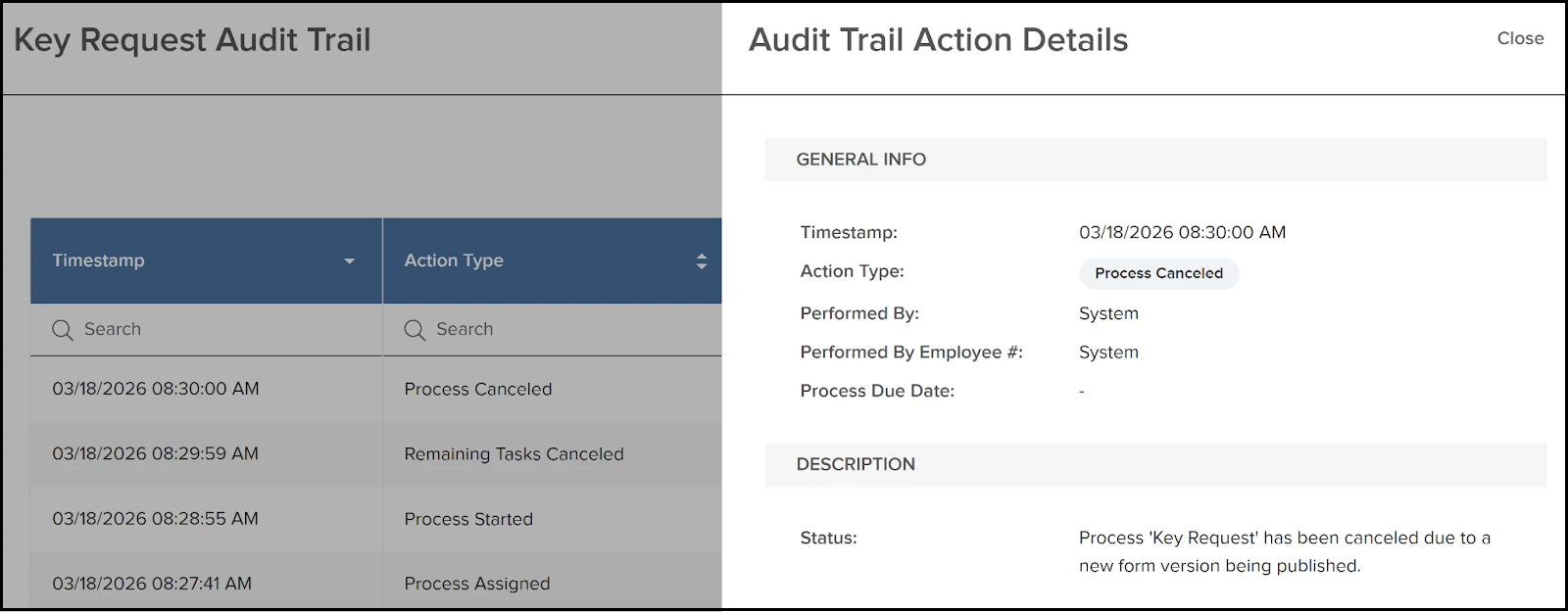
eForms then reassigns the process to the employee with the new form version. This means that everyone who had the process assigned could continue on the latest version.
Note: Contract processes and merge tasks remain out of scope and unchanged.
Clear Auditing of Version-Driven Cancellations
Each process cancellation triggered by a new form version creates an audit entry with this statement: “Process has been canceled due to a new form version being published.”
No Data Carryover Between Versions
When the process is reassigned to the employee with the new form version, data from the archived form is not migrated. This avoids subtle data mismatches between versions, and keeps the new instance clean and aligned with the updated form design.
Value
- Ensures end users are always working on the latest form version without manual intervention from admins.
- Prevents partially completed forms from continuing on outdated versions, reducing errors, rework, and confusion.
- Keeps behavior consistent with the Onboard product, reducing training overhead across products.
- Provides transparent audit history so you can explain exactly why a process was canceled and restarted.
Audience
HR admins and managers.
Examples
- Your agency uses a Remote Work Agreement form in eForms for employees who work partially or fully remote.
- HR updates the form and publishes a new version that adds fields for primary work location, days on‑site vs remote, and an updated acknowledgement section.
- Some agreements are already in progress. Employees and managers have started remote work requests on the old form version; a few are mid‑approval.
- What eForms will do automatically:
- All in‑progress instances of the old version are archived and their processes set to Canceled, with an audit entry.
- eForms reassigns those remote work requests using the new form version, so every active request now uses the updated terms and questions.
- Result for admins and managers:
- All pending remote work agreements capture the same, current information, without admins manually chasing down which version is in use.
- The audit trail cleanly shows why older processes stopped and new ones started, which helps explain the change to employees, managers, and auditors.
Multiple Consecutive Review Tasks and Historical Comments
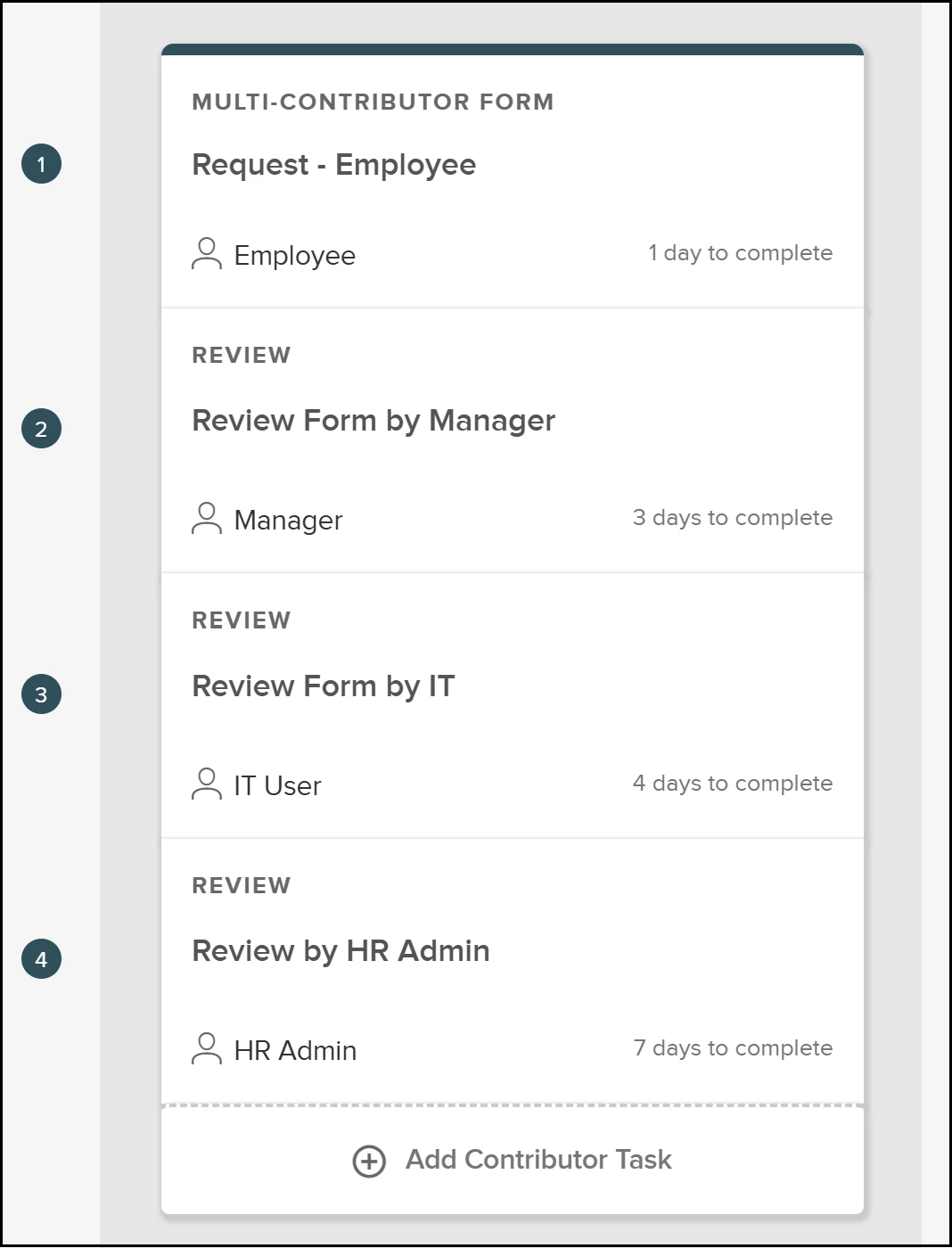
You can now add several Review Form tasks to catch issues with forms early. Add up to 10 back-to-back Review Form tasks for a form.
Note: This applies only for the Review Form task that is a part of the Multi-Contributor Form task. The Review Process task remains unchanged at this time.
How it Works
In a process, create a new form task or edit an existing one, to add a Review Form task as a Contributor task.
Note: the review appears as a task option only if fewer than 10 consecutive Review Form tasks exist. Once the limit is reached, you won’t be able to add more Review Form tasks.
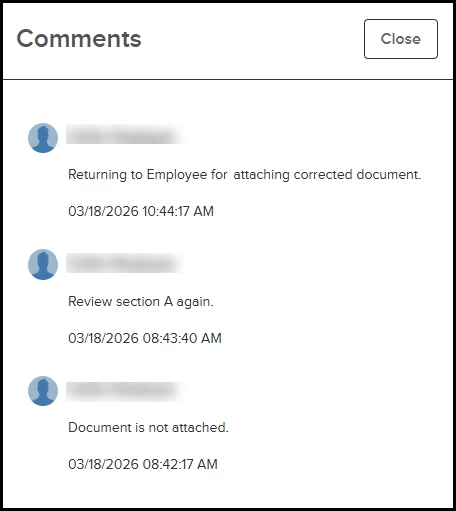
The comments flyout now supports all historical comments that reviewers left on the form, along with the reviewer’s name and a timestamp.
Value
- Minimizes form errors and saves HR teams from discovering inaccurate data too late.
- Reduces back-and-forth by giving reviewers full history and context.
Audience
HR admins.
Examples
- You can configure Manager Review, HR Review, and IT Review as three consecutive review form tasks in the same set of multi-contributor form tasks, instead of mixing workarounds with contributor tasks.
- When the manager revisits the form, they can see all previous comments (their own, HR’s, IT’s) in reverse chronological order.
- If the request goes through multiple deny/approve cycles, every reviewer still sees the complete comment history, not just the last message.
Select the Task Requiring Form Return
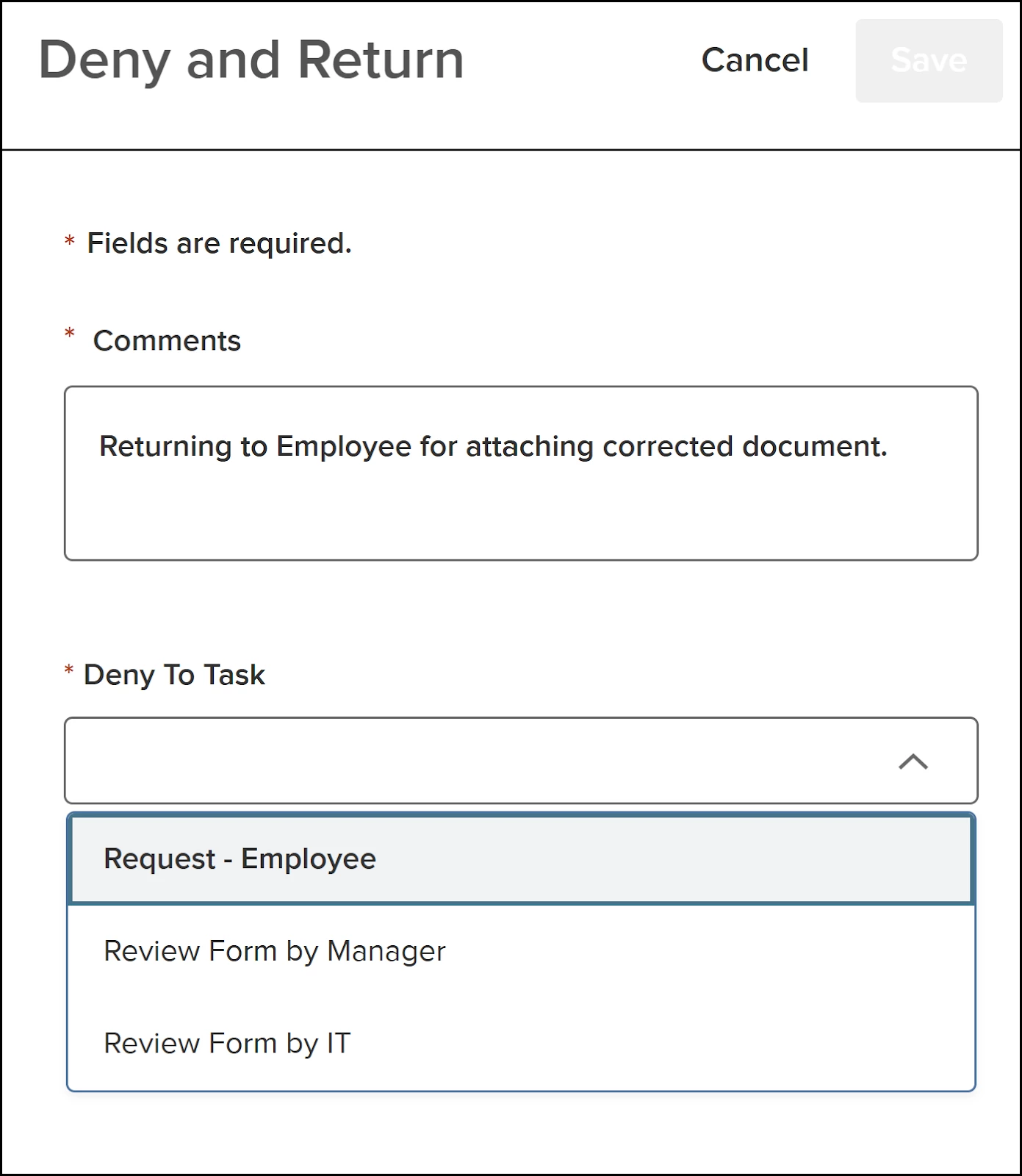
When taking action on a Review Form task and selecting Deny and Return, you can define which preceding task the form should be returned to. The chosen task then becomes Current, and all later contributor tasks revert to Pending.
Note: This applies only to the Review Form task that is a part of the Multi-Contributor Form task. The Review Process task remains unchanged at this time.
Value
Reduces errors and HR rework.
Audience
- HR admin.
- HR user.
- IT user.
- Manager.
Examples
- You can configure Manager Review, HR Review, and IT Review as three consecutive review form tasks in the same set of multi-contributor form tasks, instead of mixing workarounds with contributor tasks.
- HR opens the form and notices the manager didn’t include enough justification. From the review task, HR clicks Deny and Return.
- In the flyout, they use the new Deny To Task dropdown to choose Manager Review, instead of bouncing back to the employee.
- The workflow jumps back to the manager review step; IT review stays pending until it’s ready again.
Manager Change Enhancements
Manager changes in eForms will be more controlled and consistent across systems. New safeguards and automation reduce manual updates, keep reporting structures in sync, and make manager changes easier to track for HR.
New Manager Changes Section in eForms Settings
Admins with access to the Settings page in eForms will see a new Manager Changes menu item at the bottom of the list. Opening the menu shows the Auto‑Reassign Tasks for Manager Changes options.
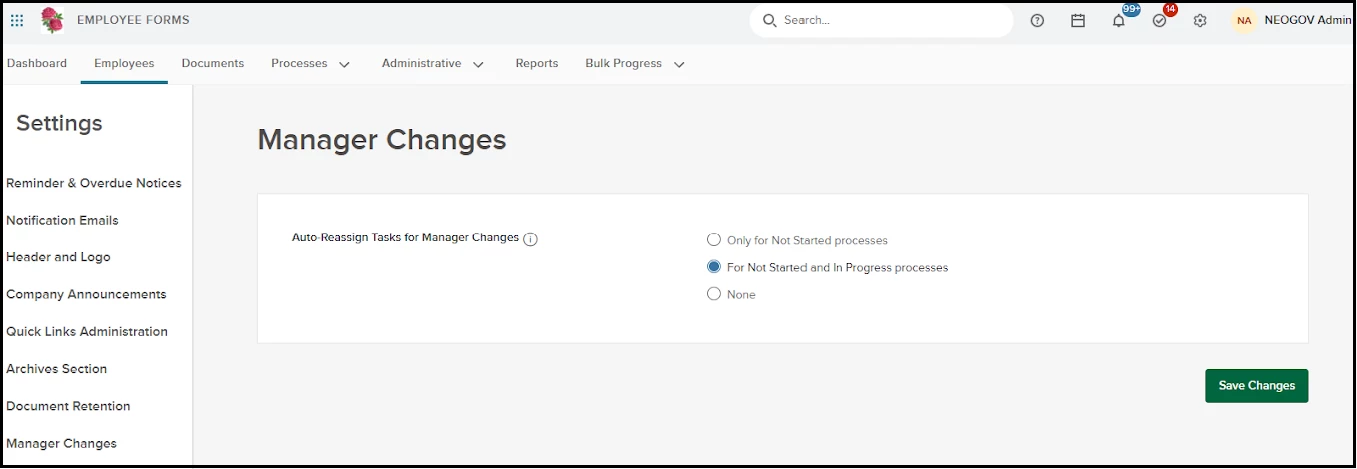
What the Setting Controls
This setting tells eForms when to automatically reassign manager‑based tasks to the new manager after any change in the management hierarchy (not just direct manager changes).
This setting applies to tasks that are routed to a manager via manager logic (direct manager, manager’s manager, N‑th manager, etc.).
Options and Behavior
- Only for Not Started processes
- When a manager change is detected, eForms only updates processes that have not started yet - those that are assigned, but without any completed tasks.
- In‑progress processes keep their current assignees.
- Newly assigned processes will route to the new manager chain.
- For Not Started and In Progress processes
- When a manager change is detected, eForms automatically:
- Reassigns manager‑based tasks for Not Started processes to the new manager chain.
- Reassigns eligible manager‑based tasks for In Progress processes to the new manager chain.
- When a manager change is detected, eForms automatically:
- None (default)
- eForms does not auto‑reassign any tasks when a manager changes.
- Existing in‑progress and not‑started processes keep their current assignees.
- Only newly created processes pick up the new manager chain.
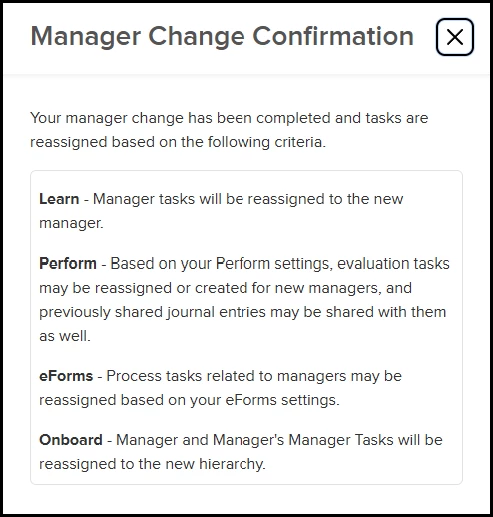
Value
Provides reliable control and simplified cleanup, reducing manual effort and eliminating surprises when leadership changes.
This enhancement gives admins the following.
- Predictable behavior when org charts change.
- You decide once how eForms should react.
- This makes it easy to explain to HR/IT what will happen whenever a manager changes.
- You decide once how eForms should react.
- Less manual reassignment during reorgs.
- When you choose an auto‑reassign option, eForms takes care of moving affected manager‑based tasks to the new manager instead of forcing admins to hunt down all impacted processes, and manually reassign each approval or task.
- Fewer stalled or mis‑routed approvals.
- With auto‑reassignment on, you reduce:
- Approvals stuck with managers who left or changed teams.
- Sensitive tasks still routed to the wrong person higher up the chain. This is especially important for workflows that use manager’s manager / N‑th manager routing, where hierarchy changes are harder to see.
- With auto‑reassignment on, you reduce:
Audience
HR admins.
Appendix: Bugs Resolved
Related Resources