

Onboard Spring 2026 Release Notes
Article Links
Timeline
When will this be released?
UAT Preview Window: Thursday, April 2, 2026
Production Availability: Thursday, April 30, 2026
Is there downtime for this release?
No.
Automated Task Reassignment for Manager Changes
Keep task assignments accurate when updating an employee’s manager or manager’s manager—no manual reassignment needed. Tasks tied to reporting roles now update automatically across Onboard.
Example:
If a manager leaves the company, their incomplete onboarding tasks are automatically reassigned to the new manager without HR intervention.
How it works
- When you update an employee’s Manager or Manager’s Manager, any Onboard tasks originally assigned to those roles automatically reassign to the updated person, regardless of how the change is made.
- If a manager (or manager’s manager) is terminated, their tasks are temporarily reassigned to the HR Admin role. Once a new manager is assigned, any remaining current or pending tasks are passed on to the new manager accordingly.
- A new Manager Change Confirmation modal keeps you informed on how the manager change affects tasks across products.
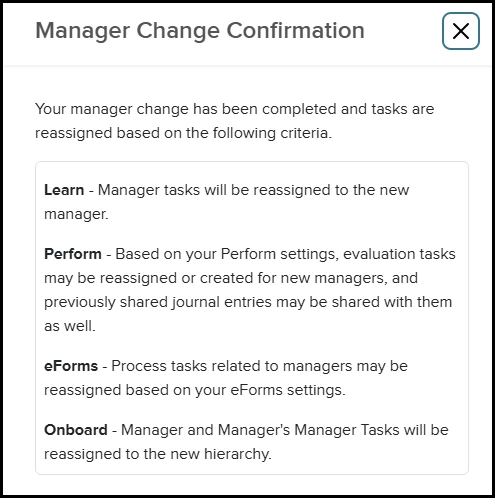
The dialog is informational only - manager changes are already saved before it appears. No data is stored or tracked from the dialog.
Value
Eliminates manual task cleanup when reporting lines change, ensuring onboarding tasks always reflect the current hierarchy.
Audience
Administrators, HR Users (anyone with ability to update the employee’s Direct Manager)
Move Active Employees to Preboarding
Start preboarding during a position change so you can prepare employees earlier and assign the right checklists. You can now select an employee status directly within the position change workflow. Choosing Prehire or Authorized Prehire triggers preboarding and displays the appropriate checklist options. This keeps onboarding tasks aligned with the employee’s transition stage.
Example:
HR adds the Preferred Name field to onboarding forms so new hires see their chosen name pre-filled.
How it works
- Open an employee profile and initiate a position change from the gear icon.
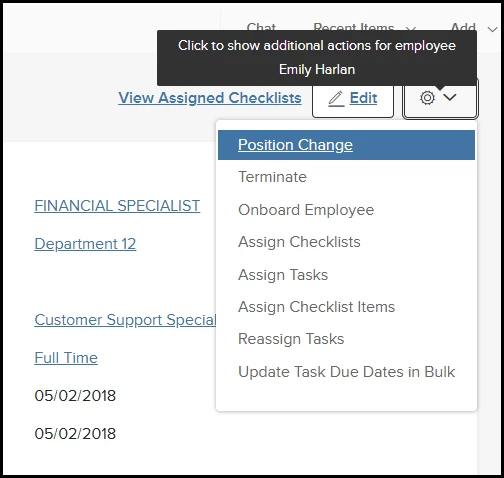
Employee Profile > Gear Icon > Position Change - In the Position Start Date section, select an option from the new required Employee Status dropdown. Options include: Prehire, Authorized Prehire, Employee.
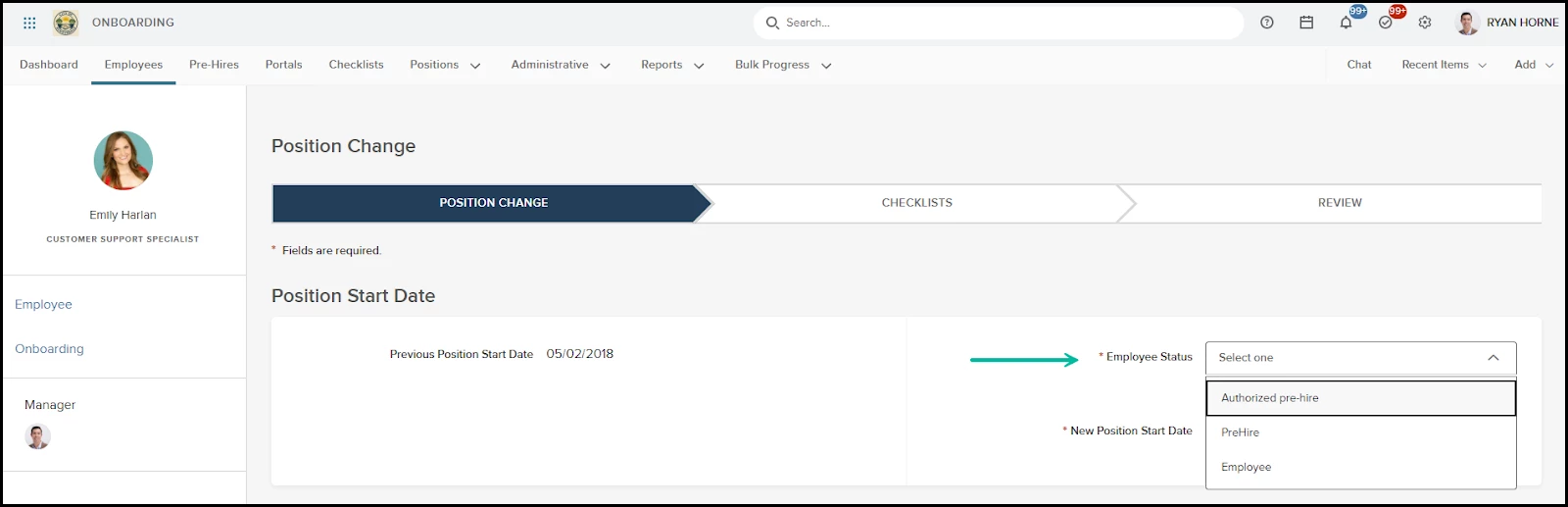
Employee Profile > Gear Icon > Position Change > Employee Status Field - Select either Prehire or Authorized Prehire to move the employee to Preboarding. Choosing Employee keeps the employee in the standard active Employee status where you can choose the appropriate Onboard checklists.
- If you select Prehire, select from available preboarding checklists in the Checklist tab.
- If you select Authorized Prehire, select from available onboarding checklists in the Checklist tab.
- Confirm your intentions to change the Employee’s Employment Status and note that Pre-hires only have access to the Onboard module. Any existing urgent tasks they may have outside of Onboard, will not be accessible.
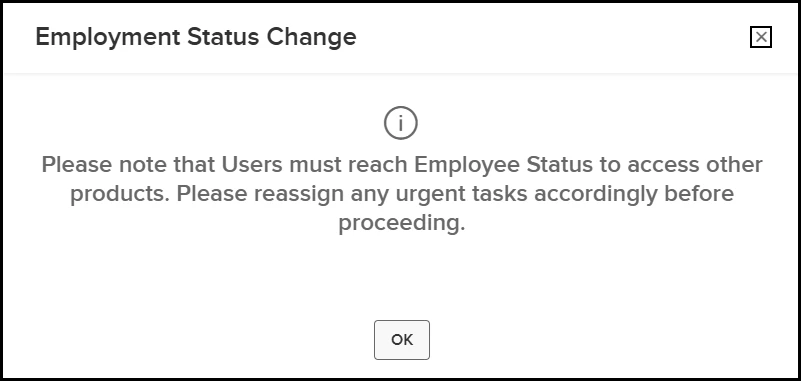
Position Change Workflow > Employee Status Field (Select Pre-Hire or Authorized Pre-Hire) - Continue to the Checklists and Review tabs to complete the workflow.
Note:
After completion:
- The employee status updates to your selected value.
- If Pre-Hire or Authorized Pre-Hire is selected, the system adjusts the user’s security access to Employee level and removes the employee as a direct manager for any subordinates.
Value
Enables access to Preboard Checklist task assignment without having to first terminate and rehire the existing employee.
Audience
Administrators
New Security Setting - Edit Predefined Checklists
Ensure consistent checklist assignment during employment events with a new security setting that controls whether users can edit preselected checklists. You can now restrict checklist changes while still allowing HR users to initiate workflows like promote to employee or position changes. This helps maintain compliance and prevents accidental checklist modifications.
Example
An HR Admin restricts checklist editing so HR Users assign the correct onboarding tasks without altering predefined selections.
How it works
- Security access for Edit Preselected Checklists can only be modified by NEOGOV. Contact your Implementation Consultant or Customer Support to update your security settings.
- Access is configured by role:
- HR Admin: Enabled by default.
- HR User: Enabled by default.
- IT User:
- Disabled by default.
- Access will be enabled automatically if Position Change, Rehire, Terminate, or Pre-Hire Actions access is enabled for the role.
- Manager:
- Disabled by default.
- Access will be enabled automatically if Position Change, Rehire, Terminate, or Pre-Hire Actions access is enabled for the role.
- Employee: Disabled and cannot be changed.
- During an employment event (Onboard > Checklists tab):
- If access is enabled:
- Select or deselect checklists.
- Use Select All or Clear Selection.
- If access is disabled:
- Checklist options appear greyed out.
- Select All and Clear Selection are unavailable.
- If access is enabled:
Below is an example of access removed for Edit Preselected Checklists.
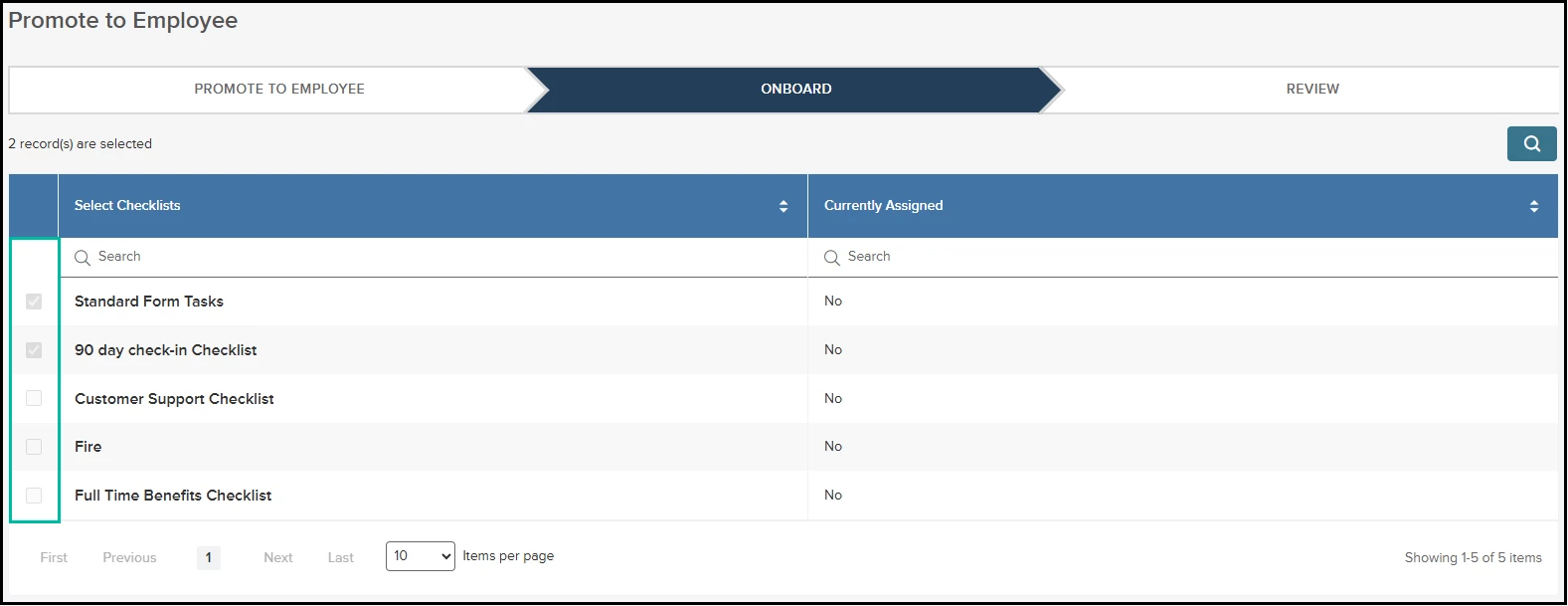
The predefined checklists have been selected based on the assignments criteria defined in the checklists. The user cannot deselect or select any other checklists at this time for the Employee.
Value
Protects checklist integrity while allowing controlled workflow execution.
Audience
Administrators
Appendix: Bugs Resolved
No additional bug fixes outside of the maintenance releases. Please refer to the maintenance release notes for summative details.
Related Resources