Production Availability: February 19, 2026, 4 AM PDT
Is there downtime for this release?
No.
Situational Offboarding and Termination Reasons
Tailor offboarding experiences based on why an employee is leaving your agency. With Situational Offboarding, you can assign different checklists and portals by Termination Reason, creating a more efficient and personalized offboarding process.
Example
Create a retirement offboarding experience that differs from one used for employees terminated for cause.
How it Works
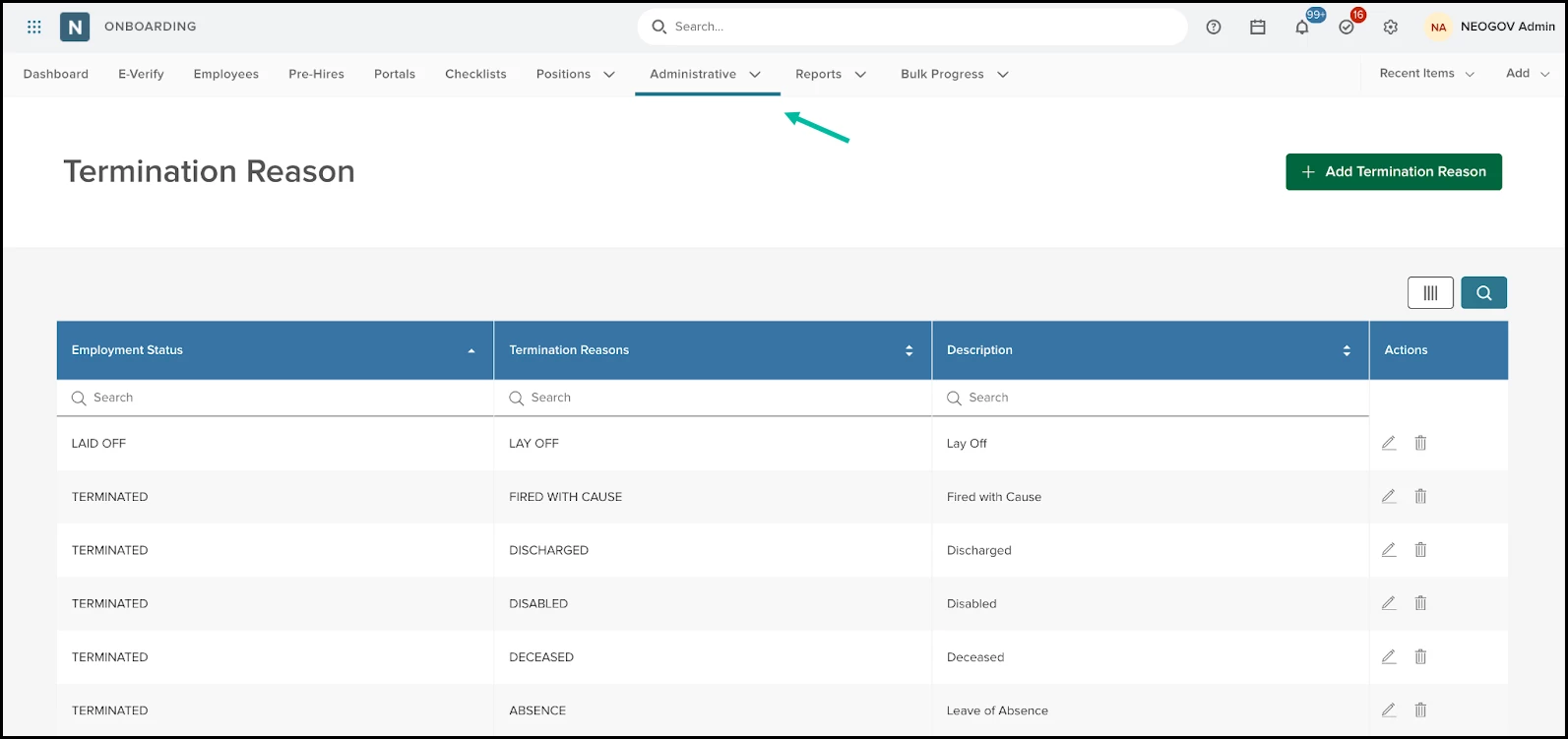
Agency administrators now have access to a Termination Reason table in the Administrative menu. Navigate to Administrative > Termination Reasons to view, add, edit, or delete Termination Reasons. By default, only users with the HR Admin role can access and manage this page.
Note: Onboard provides 12 default reasons. If your agency uses NEOGOV HRIS, Onboard will turn off management of your Termination Reasons
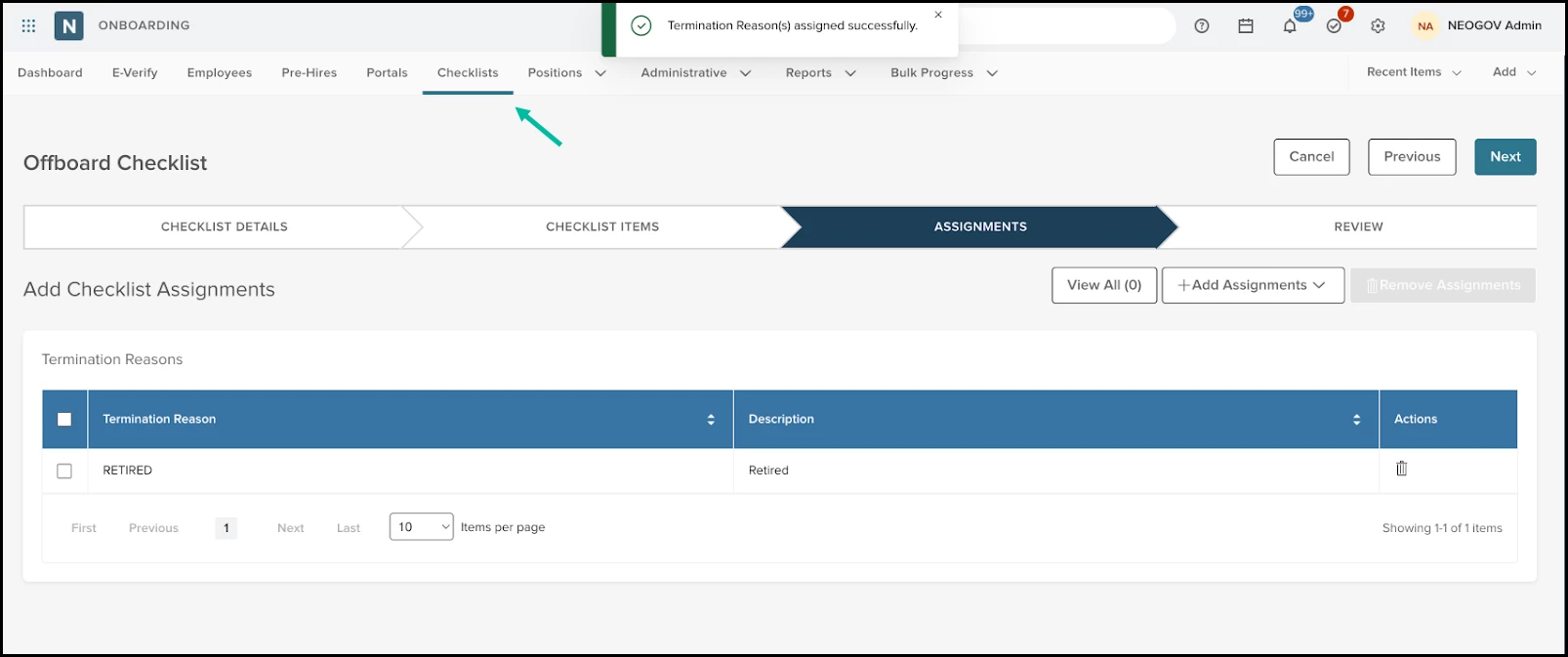
Next, go to Checklists > Offboarding, select a checklist, and open Assignments. Checklist Administrators can now configure checklist assignments based on Termination Reason.
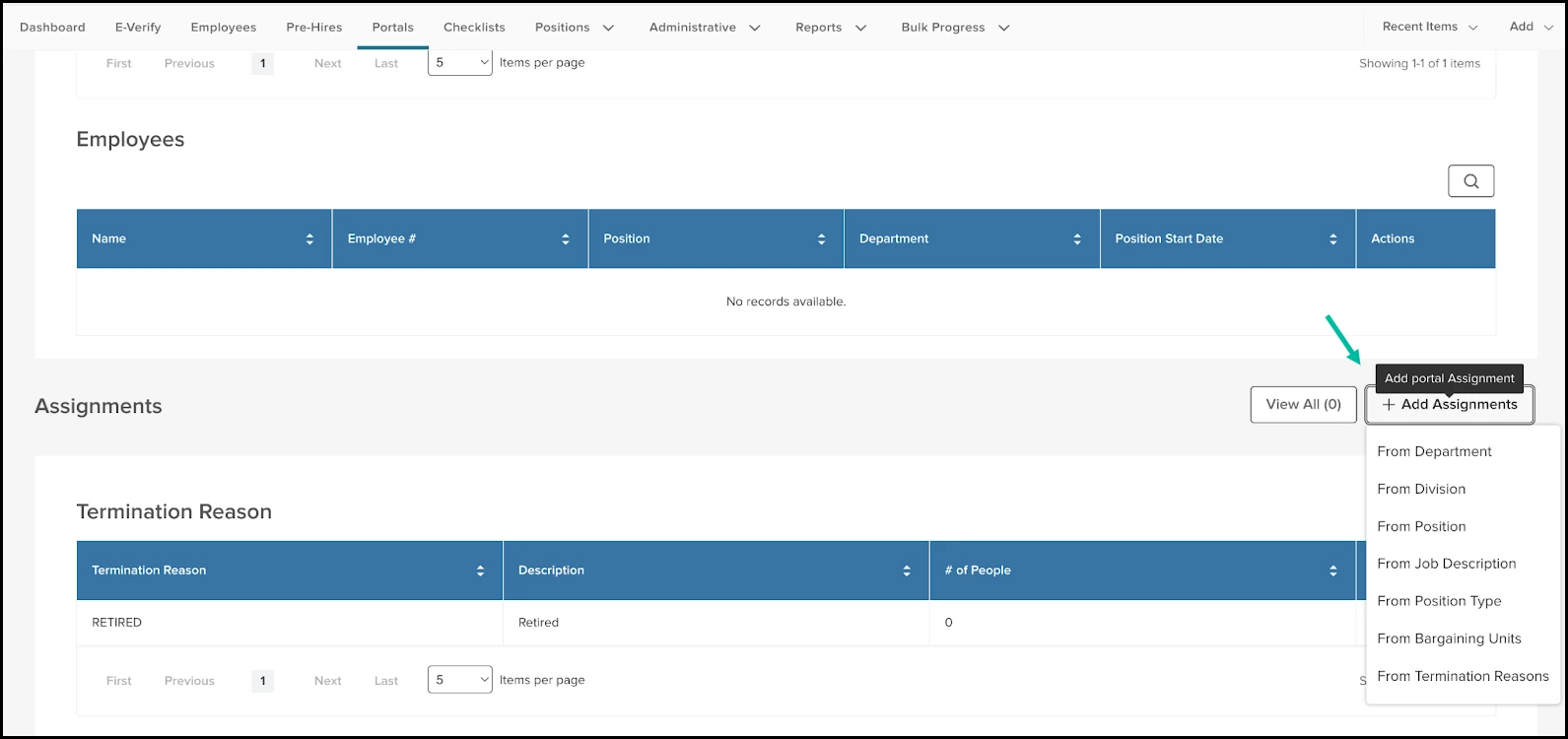
You can also configure sub-portal Assignments by Termination Reason. Navigate to Portals, select a sub-portal, and then open Settings.
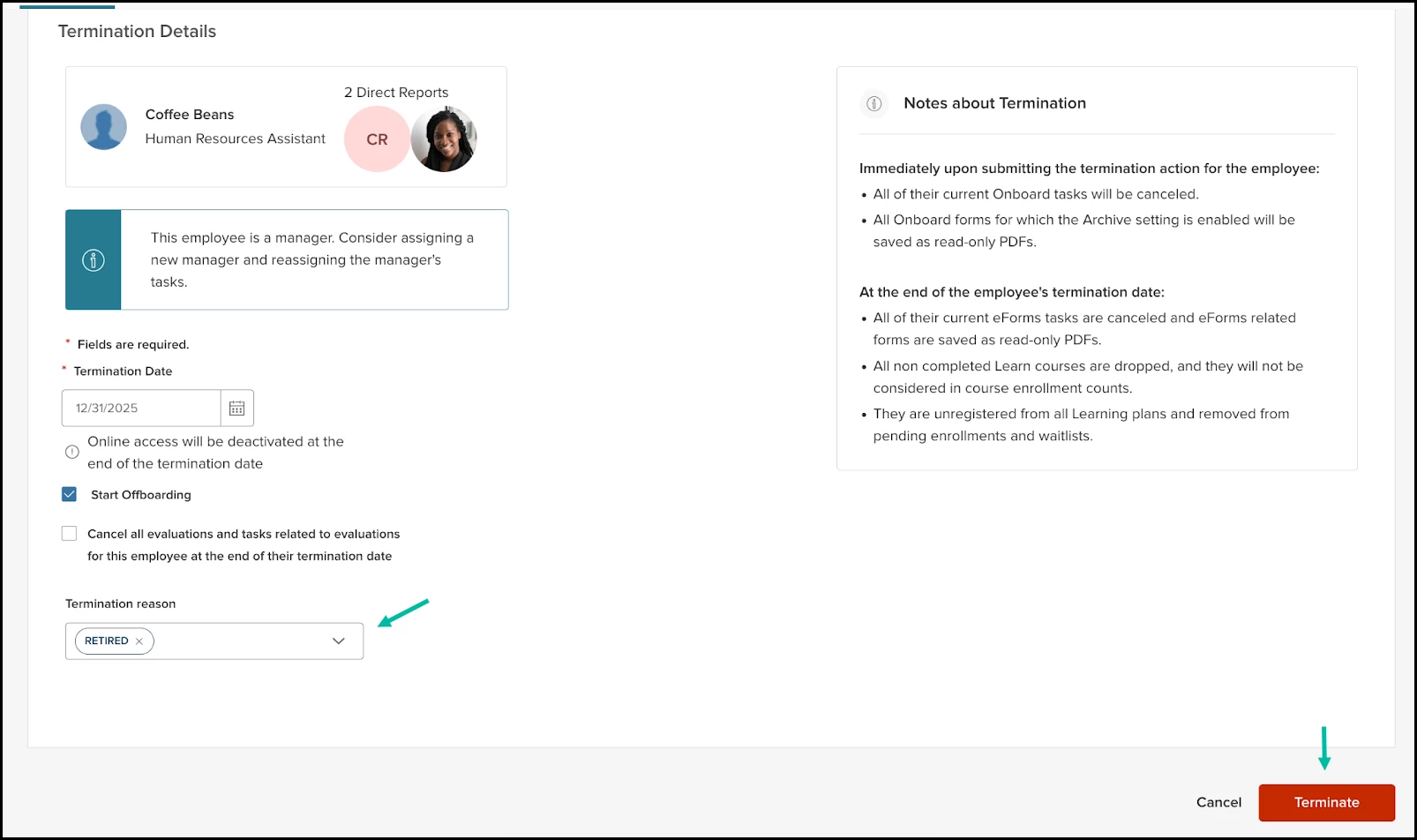
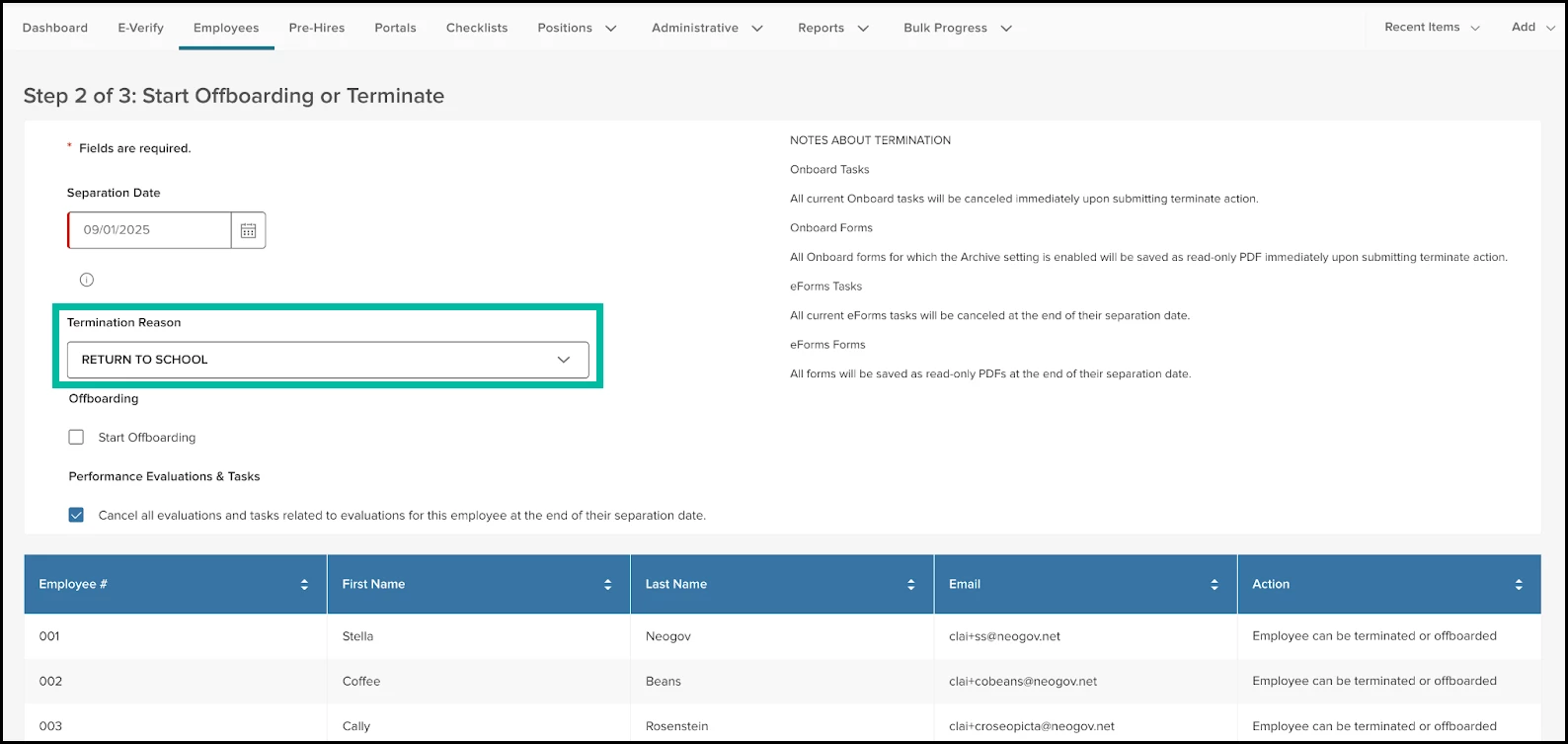
Once you configure Termination Reasons, Checklist Assignments, and Portal Assignments, you are ready to use Situational Offboarding. When terminating employees individually or in bulk, select an optional Termination Reason.
Once the Terminate action is submitted, Onboard assigns the relevant offboarding checklists and portals to the separating employee based on the selected Termination Reason.
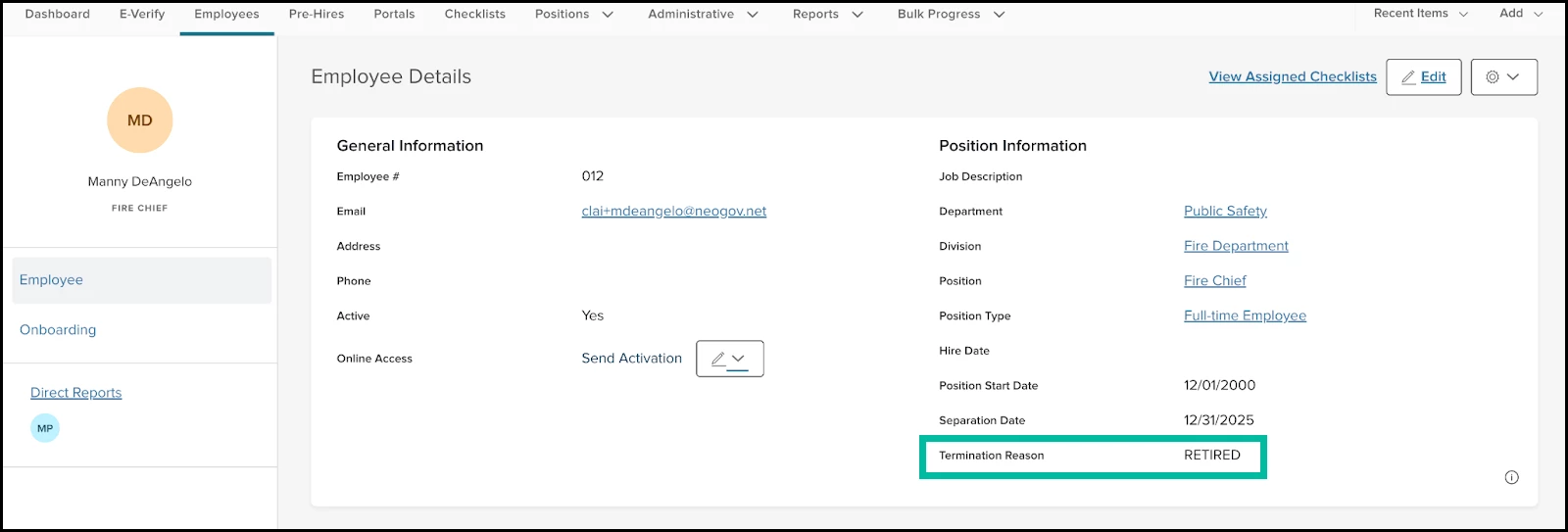
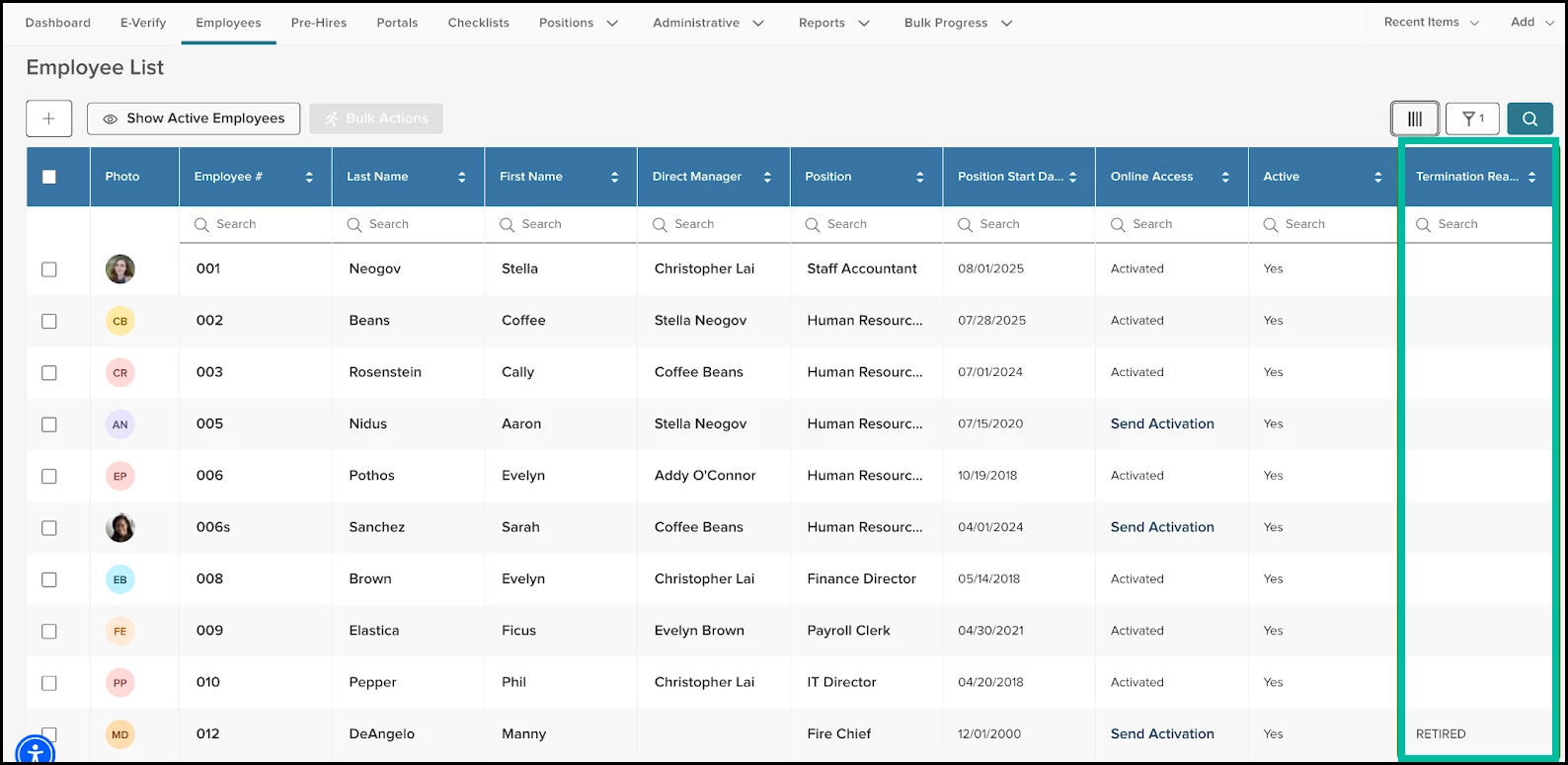
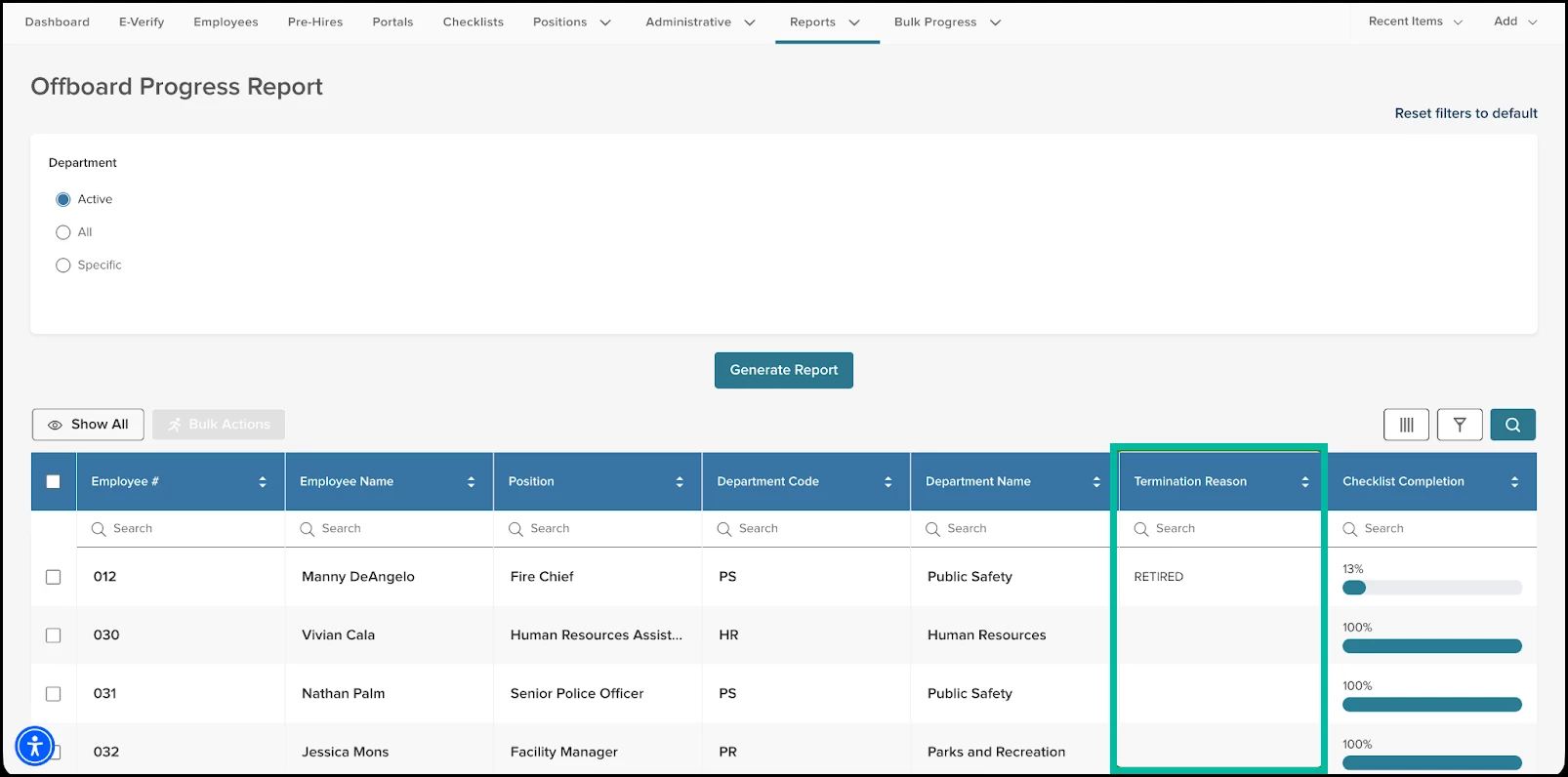
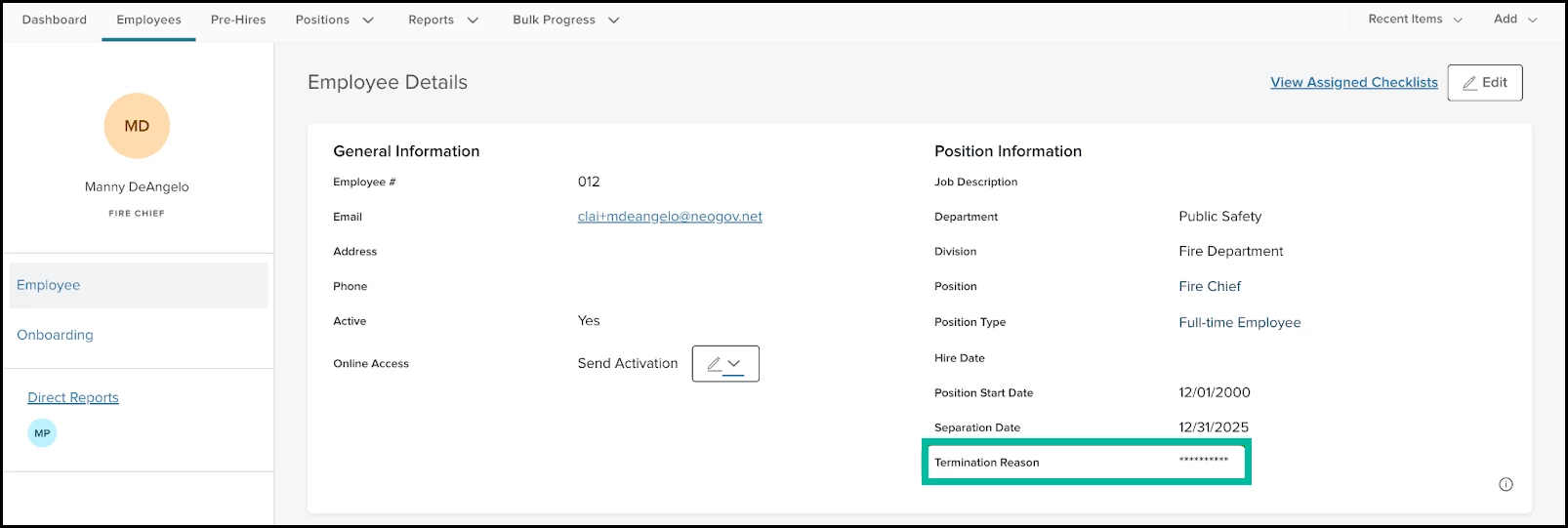
The Termination Reason field now appears in the following areas:
Employee Record
Employee List
Offboard Progress Report
Exit Interview Reports Termination Reason is an optional column on the Employee List and a default column on the Offboard Progress Report
Note: Filtering by Termination Reasons is allowed within Exit Interview Reports, even if your agency collects anonymous exit interview responses. This is consistent with the behavior for other filter options within our Exit Interview Reporting.
By default, only HR Admins and HR Users can view Termination Reasons for terminated employees. IT Users and Managers do not have access to this information; Onboard masks the Termination Reason value. Your agency can adjust permissions to allow IT Users and Managers to view termination reasons if needed.
Value Streamlines and personalizes offboarding while also ensuring departing employees receive only relevant information and tasks.
We are rolling out new Analytics Dashboards across all NEOGOV products in Q1 2026. These dashboards provide greater visibility into agency data, enabling faster and more informed decision-making across Human Capital Management (HCM), Workforce Management (WFM), and Talent modules.
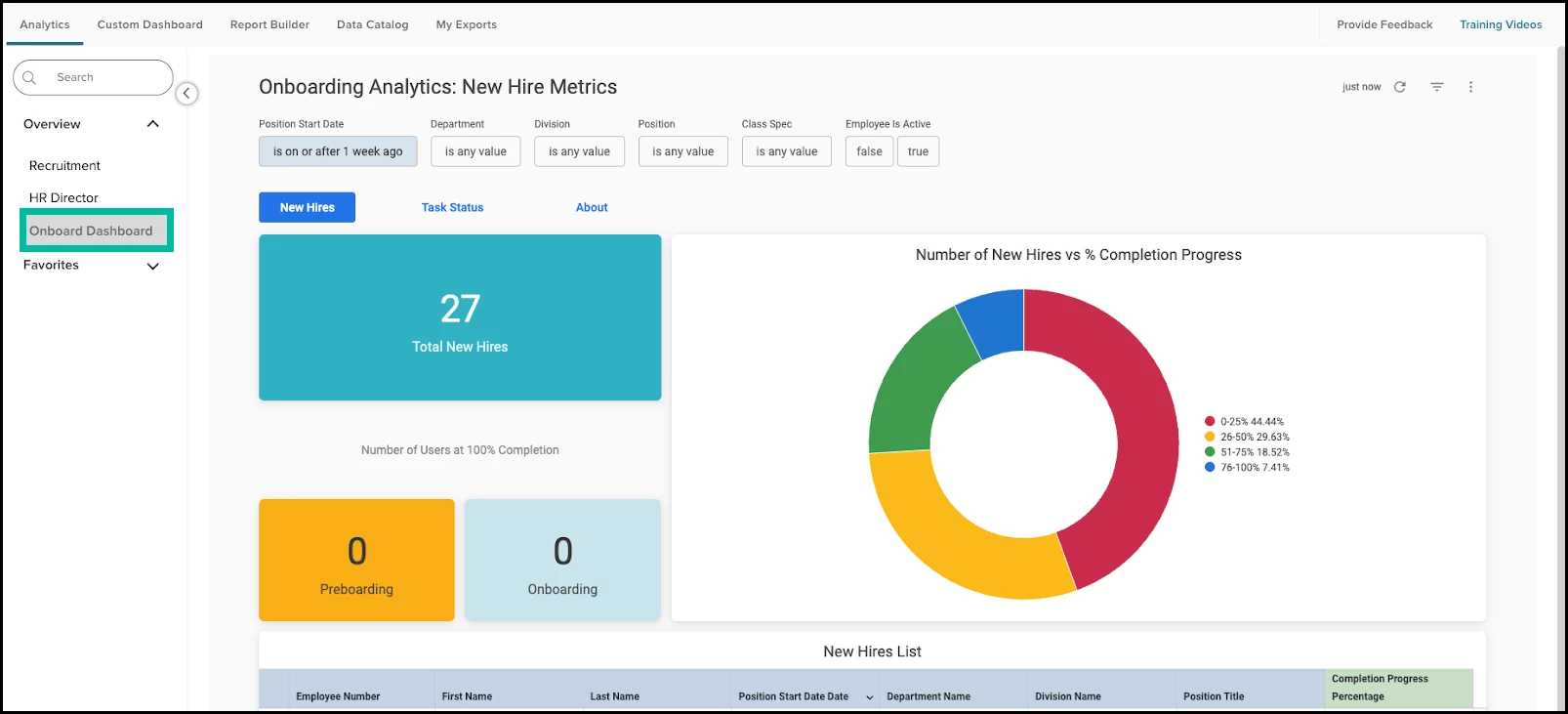
One of these new offerings is the Onboard Analytics Dashboard, which includes the New Hires Dashboard and Tasks Dashboard.
The dashboards will be available through an early-access period, followed by a phased rollout to all customers toward the end of Q1 2026.
How it Works
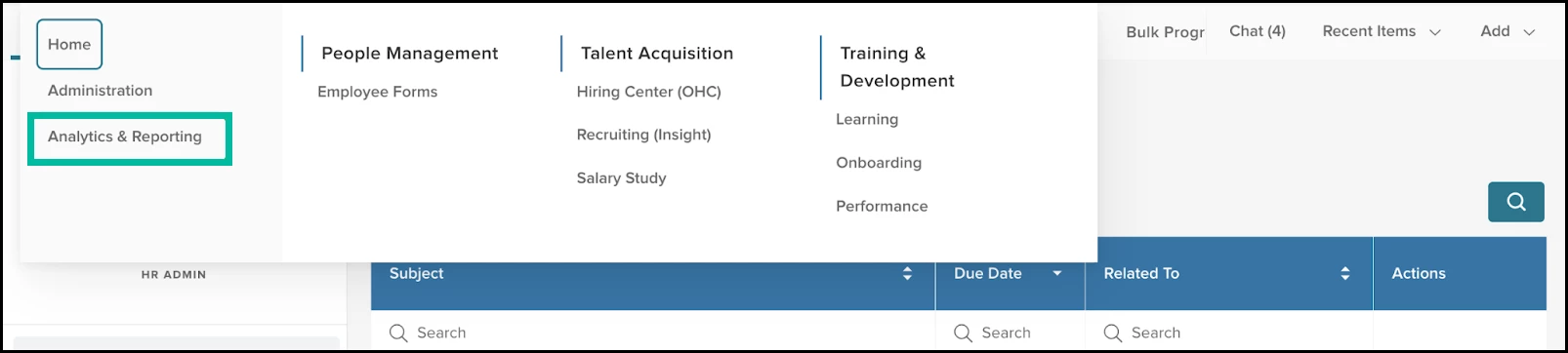
Log in to Onboard as an HR Admin or HR User and then select the product switcher in the top navigation. Select Analytics & Reporting.
The new dashboards will be accessible on the left
The Onboard New Hires Dashboard groups new hires by completion status, making it easy to identify employees who are behind. It also shows the total number of new hires within a selected time period and the percentage who have completed 100% of their preboarding and onboarding tasks.
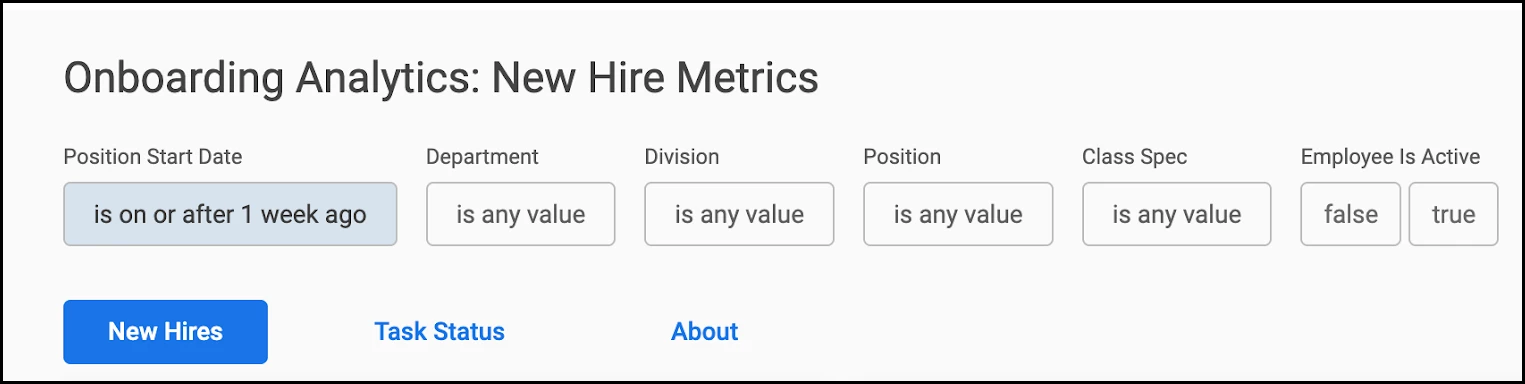
Use the filters at the top of the dashboard to refine your data or switch between Onboard dashboards.
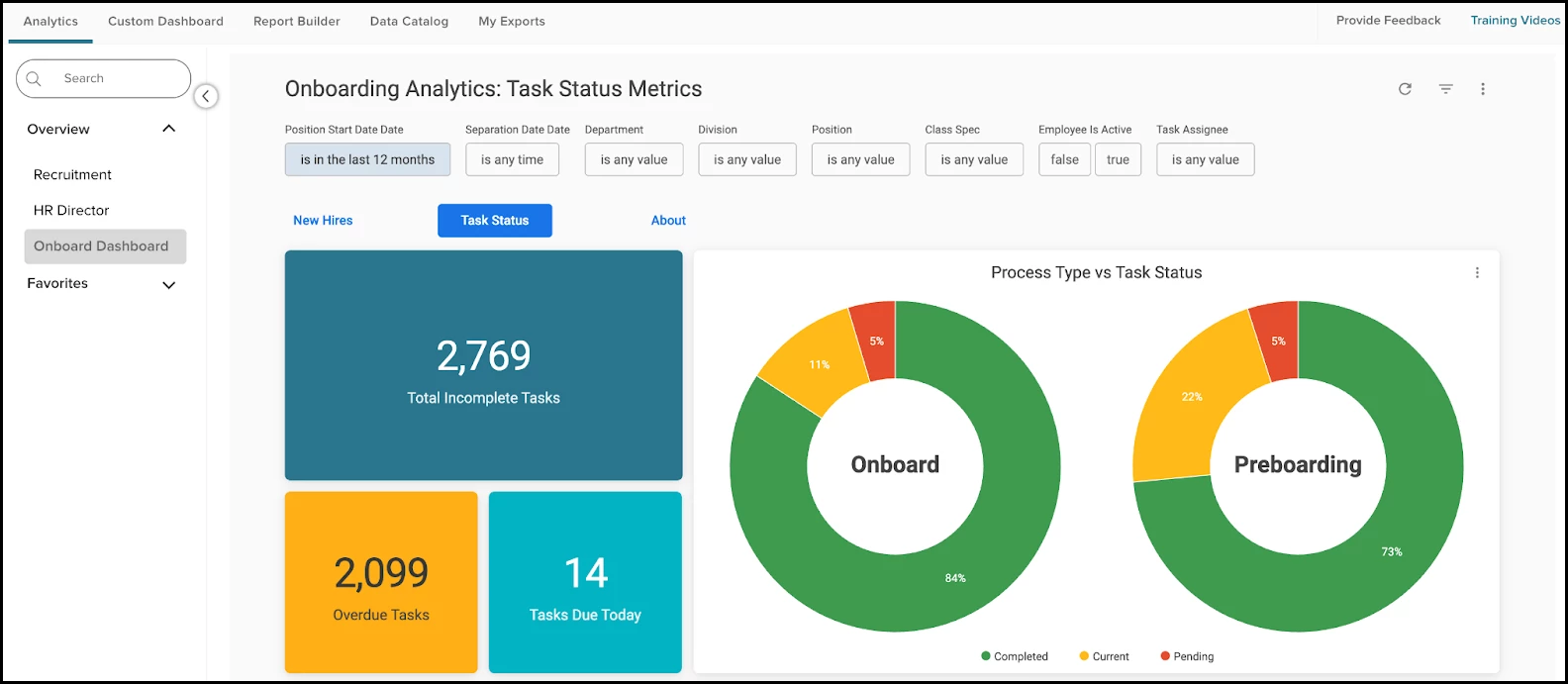
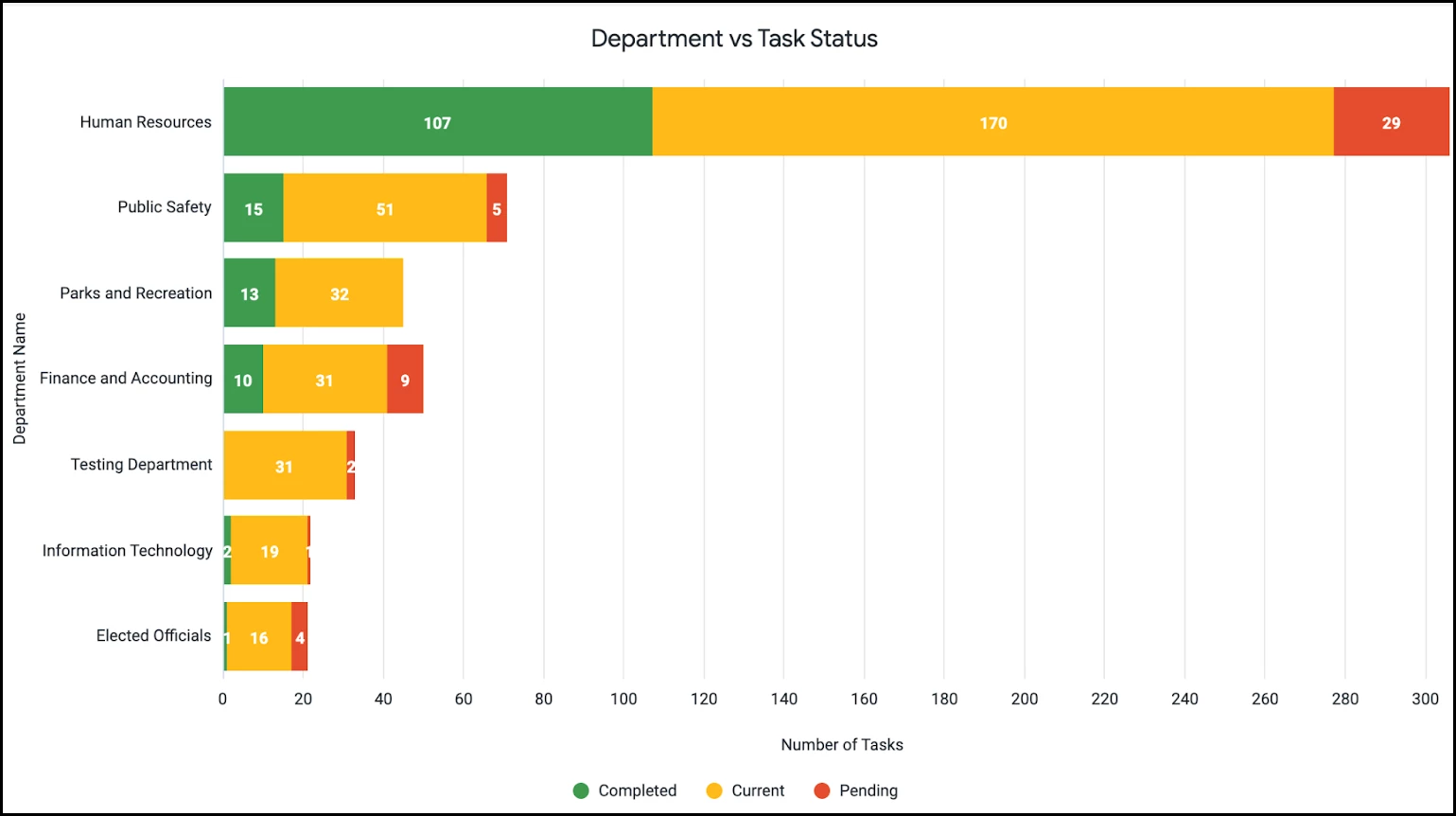
The Onboard Tasks Dashboard highlights tasks that require attention, with visual breakdowns by process type (such as Onboarding or Offboarding) and task status. You can also view task status by department, enabling targeted follow-up and support.
Furthermore, you can see the task status breakdown by department. This empowers you to deliver targeted support, saving time and improving results.
Value Provides clear insights into onboarding progress, task completion, and workforce activity, making it easier to monitor and manage onboarding processes.
Audience HR staff with access to Analytics and Reporting
Rich Text for Task Descriptions
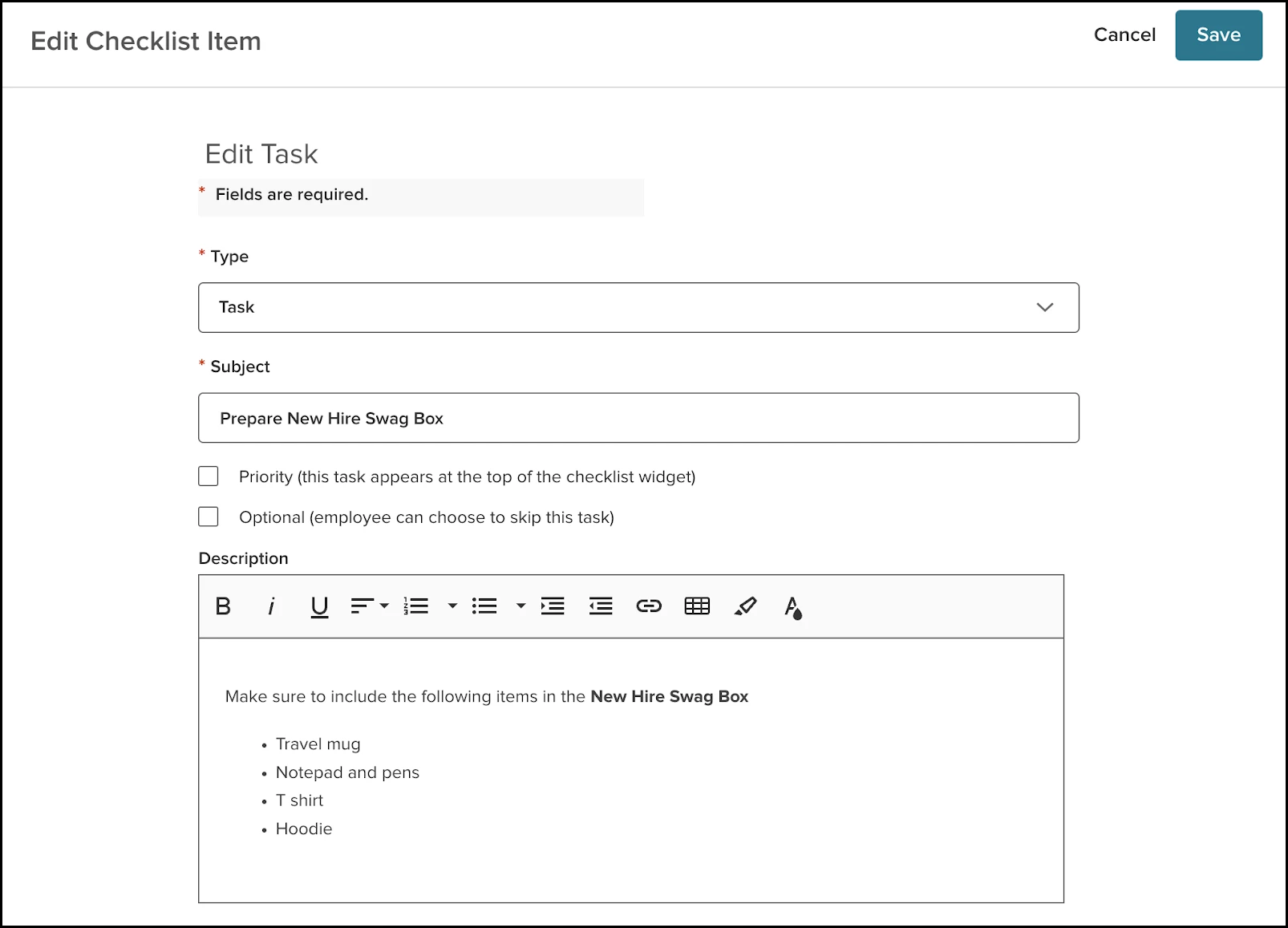
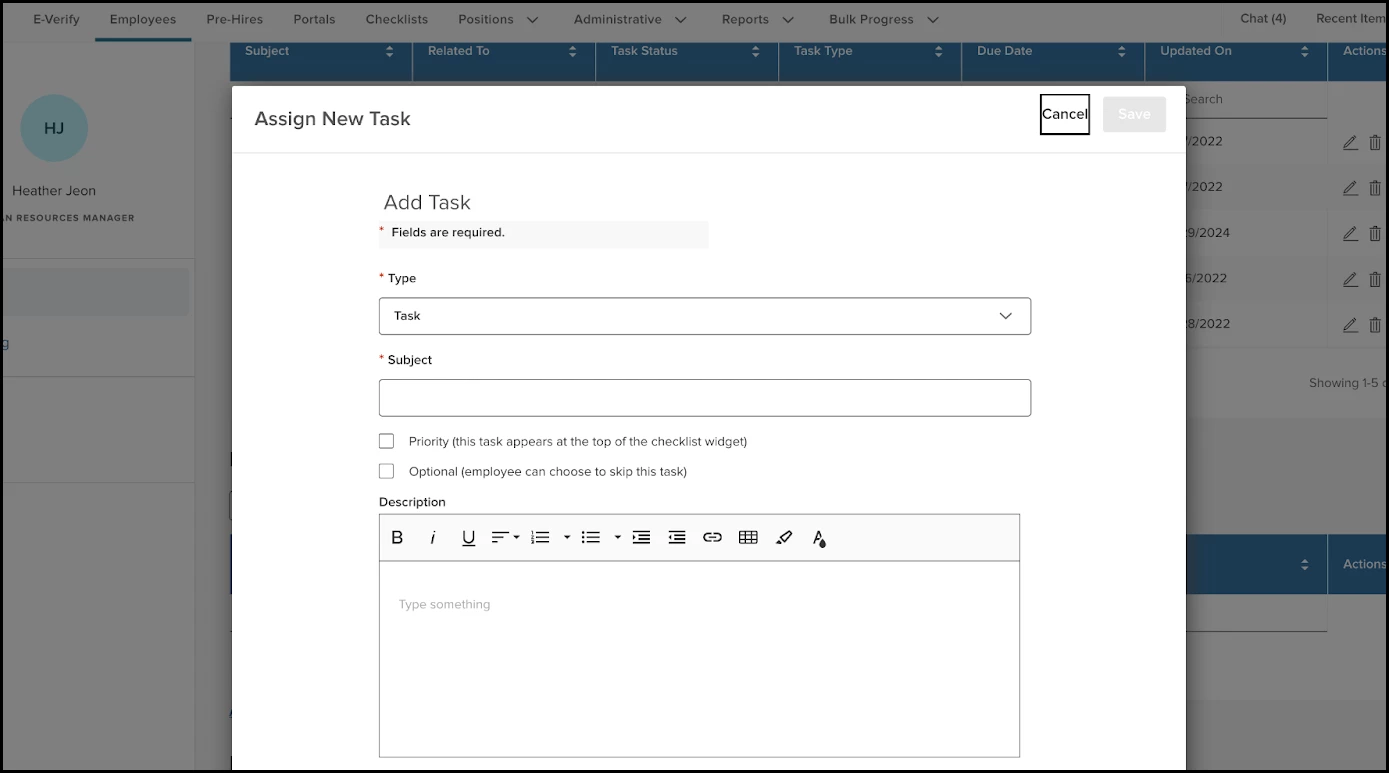
You can now use rich text in task descriptions to provide clearer instructions. Rich text options include bold text, bullet points, links, and tables, allowing you to add structure and context to tasks.
Example
Use a numbered or bulleted list to clearly outline task steps.
How it Works
Go to Checklists > Create or Edit a Checklist > Checklist Items, then either Create or Edit a checklist item.
You can also apply rich text descriptions to ad hoc tasks assigned directly from a pre-hire or employee profile.
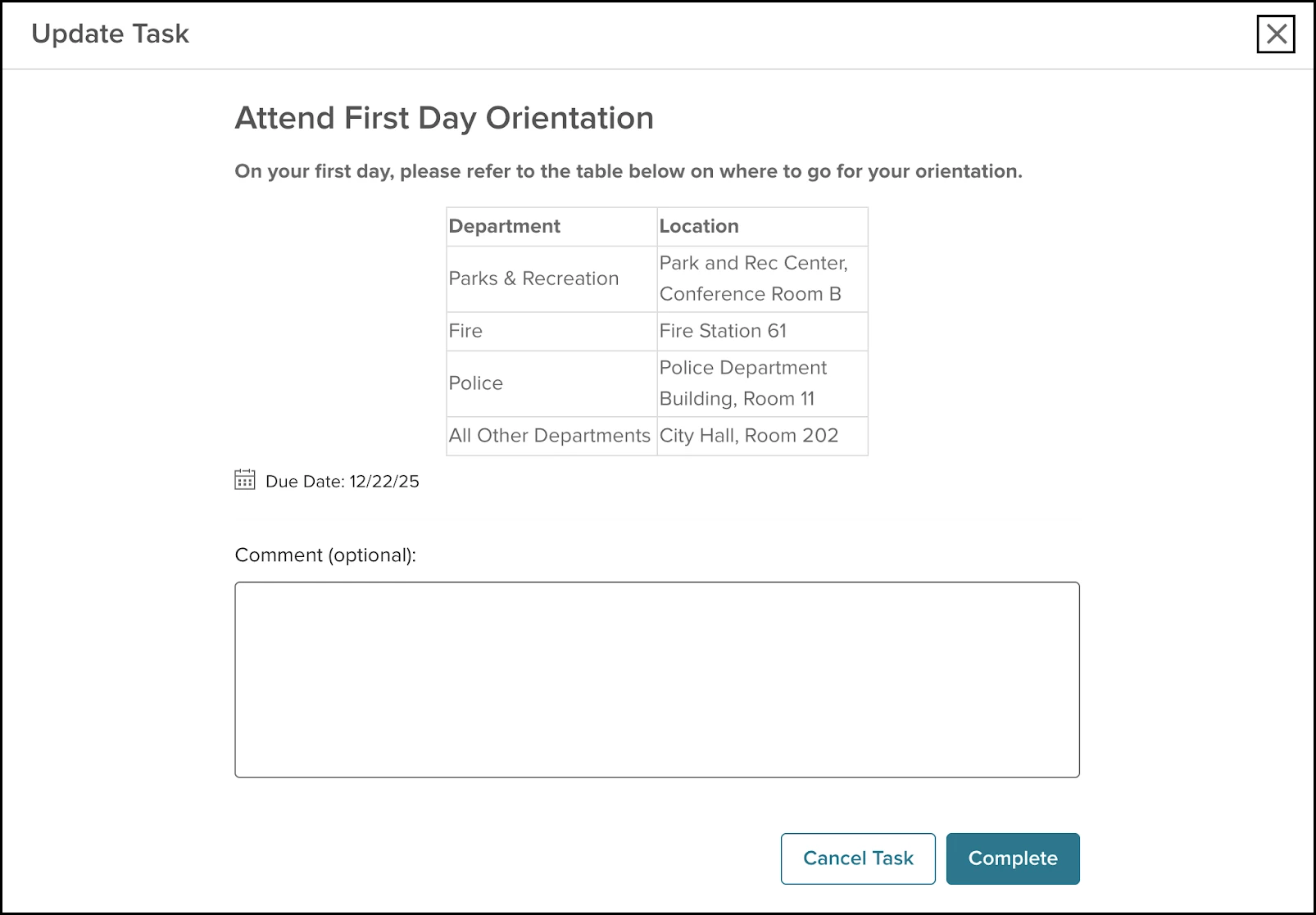
When you open a task, the description displays with the configured formatting.
Value Improves task clarity with structured instructions, reducing errors and follow-up questions.
Audience Administrators, Managers, Coordinators
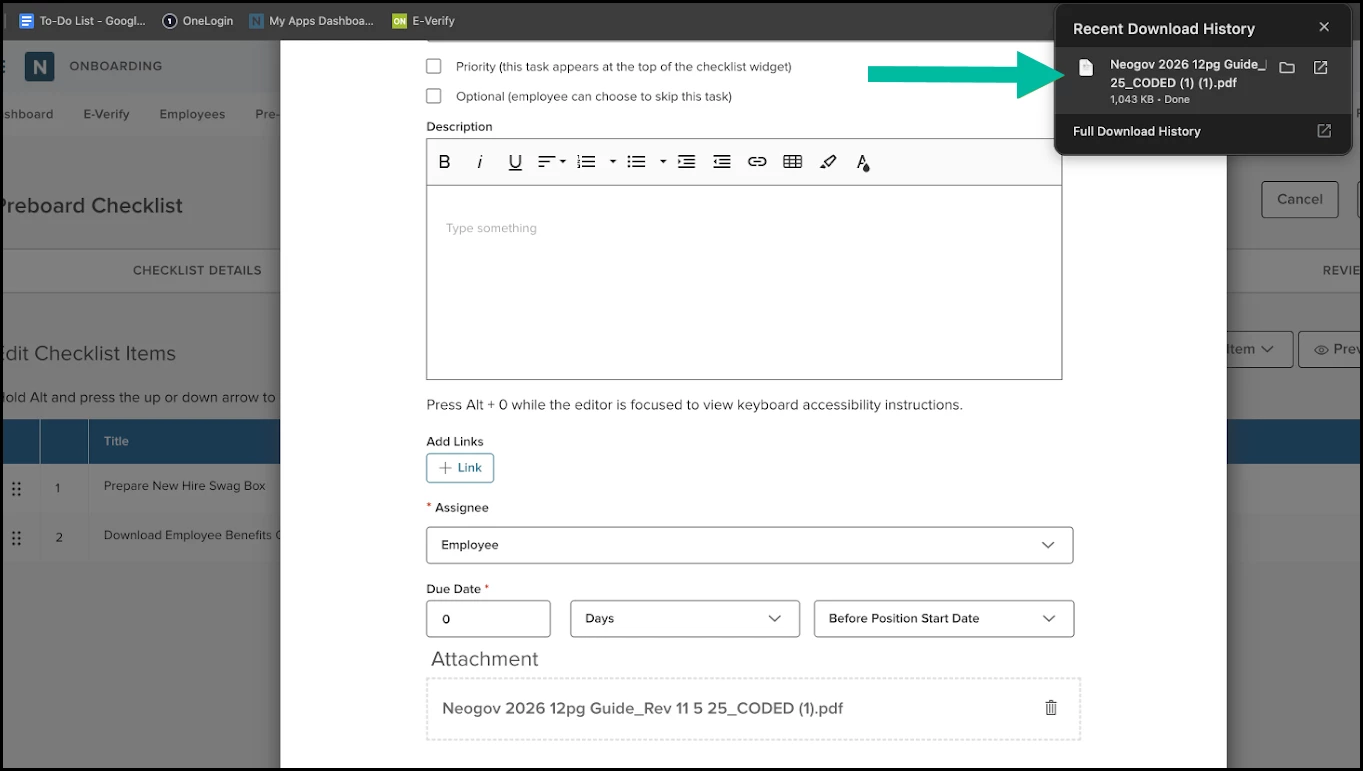
Download Attachments When Editing Checklist Items
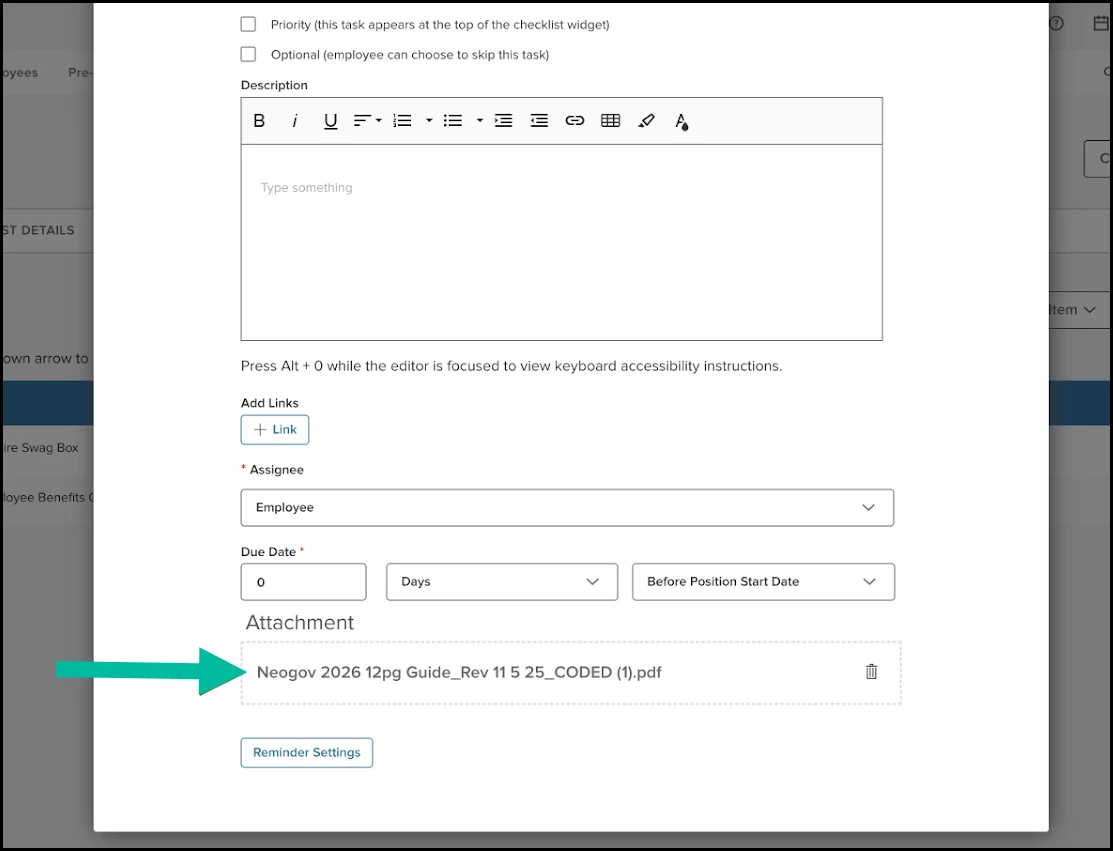
When editing checklist items, you can now click to download the current attachment. This makes it easy to determine whether attachments are up to date or need updating.
How it Works
Go to Checklists > Create or Edit a Checklist > Checklist Items, then Edit an existing checklist item.
You can also apply rich text descriptions to ad hoc tasks assigned directly from a pre-hire or employee profile.
Value Simplifies attachment reviews and helps ensure checklist documents remain up to date.
Audience Checklist Administrators
View and Download Individual PDFs in Form Reports
You can now view and download individual submitted forms directly from Form Reports. Previously, Form Reports only supported bulk exports, making it difficult to access single forms quickly. This enhancement aligns with other Onboard and eForms experiences and respects form-level read permissions.
Example
An HR staff member downloads a signed benefits enrollment form directly from the report to share with stakeholders.
How it works
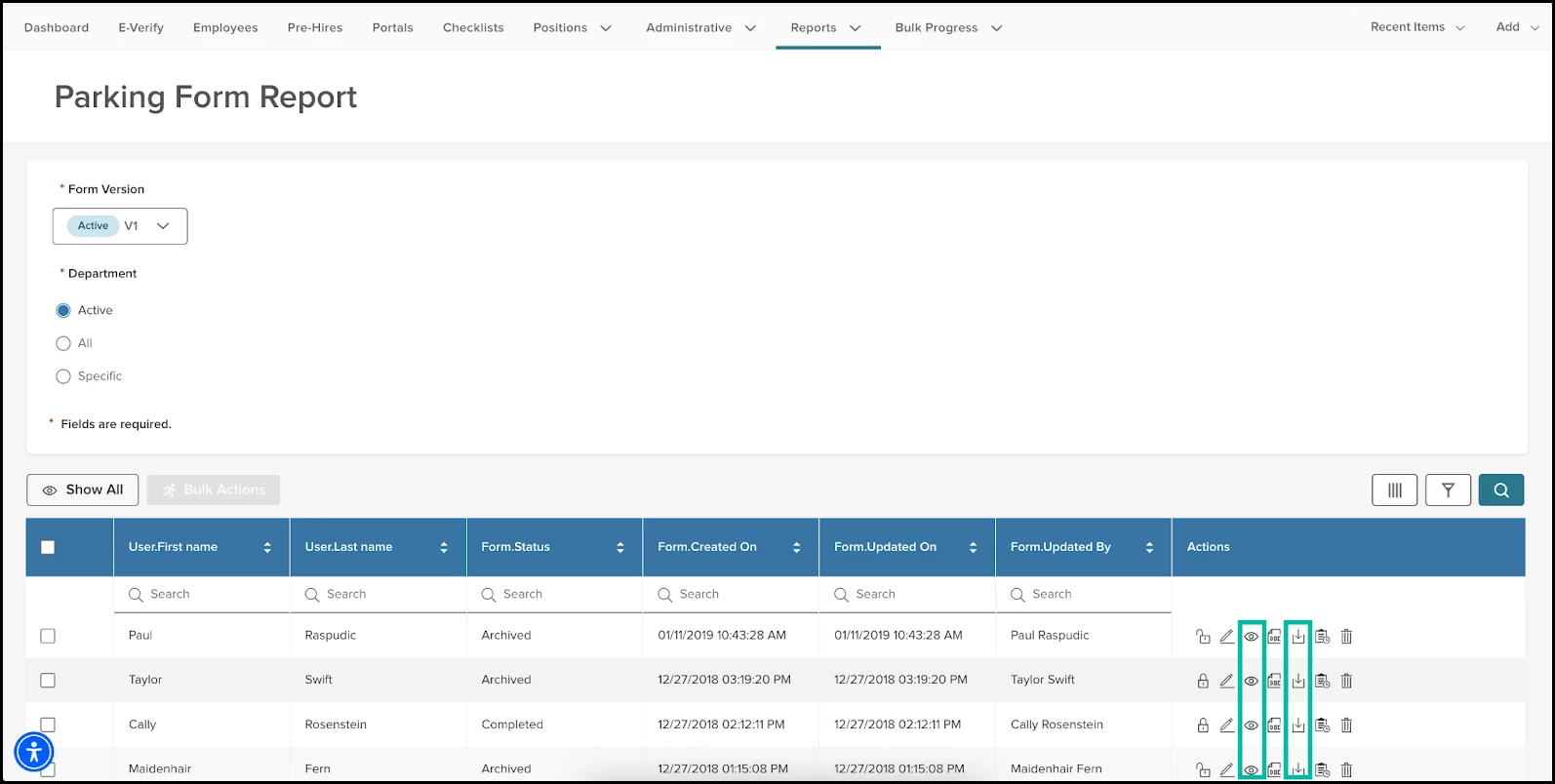
Go to Reports > Form Reports and then select a form.
The following new actions will be available in the Actions column:
View PDF: Opens the form in a new browser tab
Download Form: Downloads the form as a PDF
Value Saves time by making submitted forms individually accessible and exportable from Form Reports.
Audience Form administrators, HR Staff
Appendix: Bugs Resolved
No additional bug fixes outside of the maintenance releases. Refer to the maintenance release notes for full details.