



Payroll: Fall 2026 Release Notes
Article Links
Timeline
When will this be released?
UAT Preview Window: October 1, 2026 at 5 AM PST to October 29, 2026.
Production Availability: October 29, 2026 at 5 AM PST.
Is there downtime for this release?
No.
Premium Detail Lookup
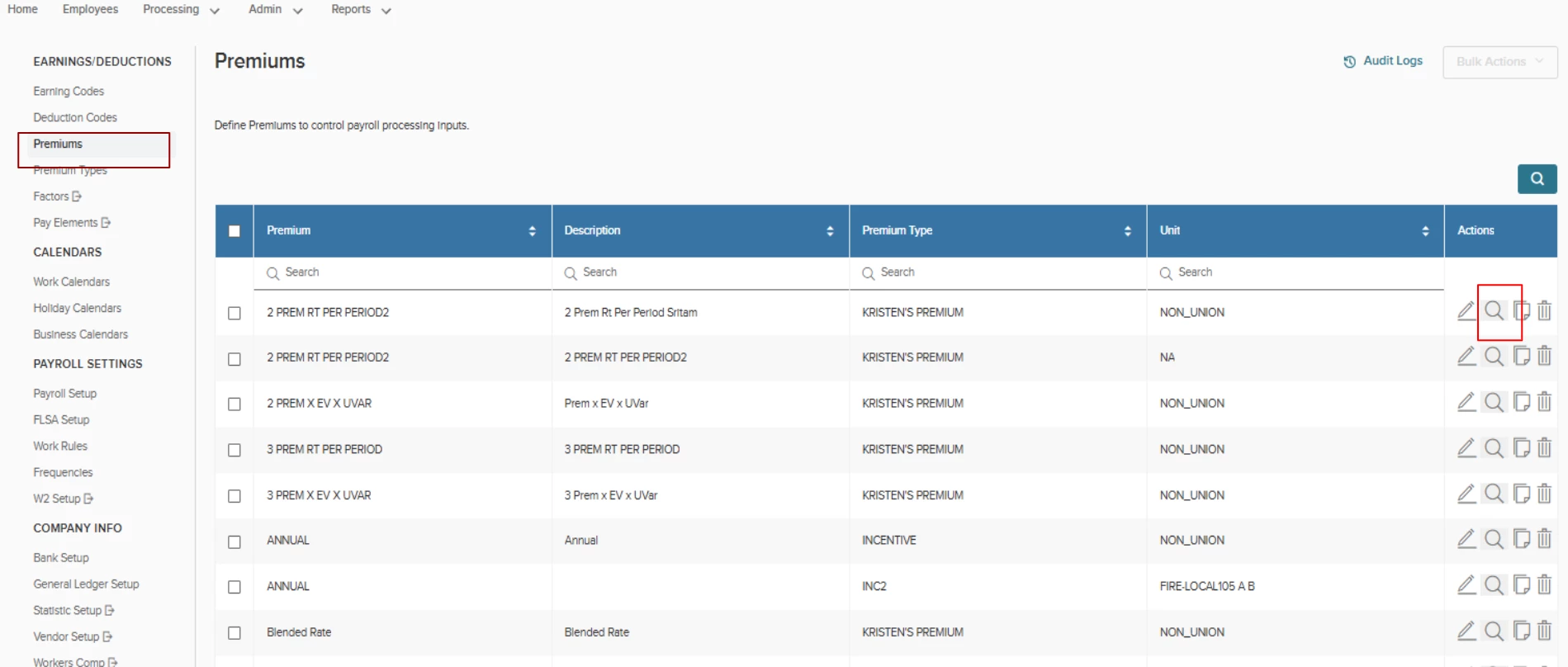
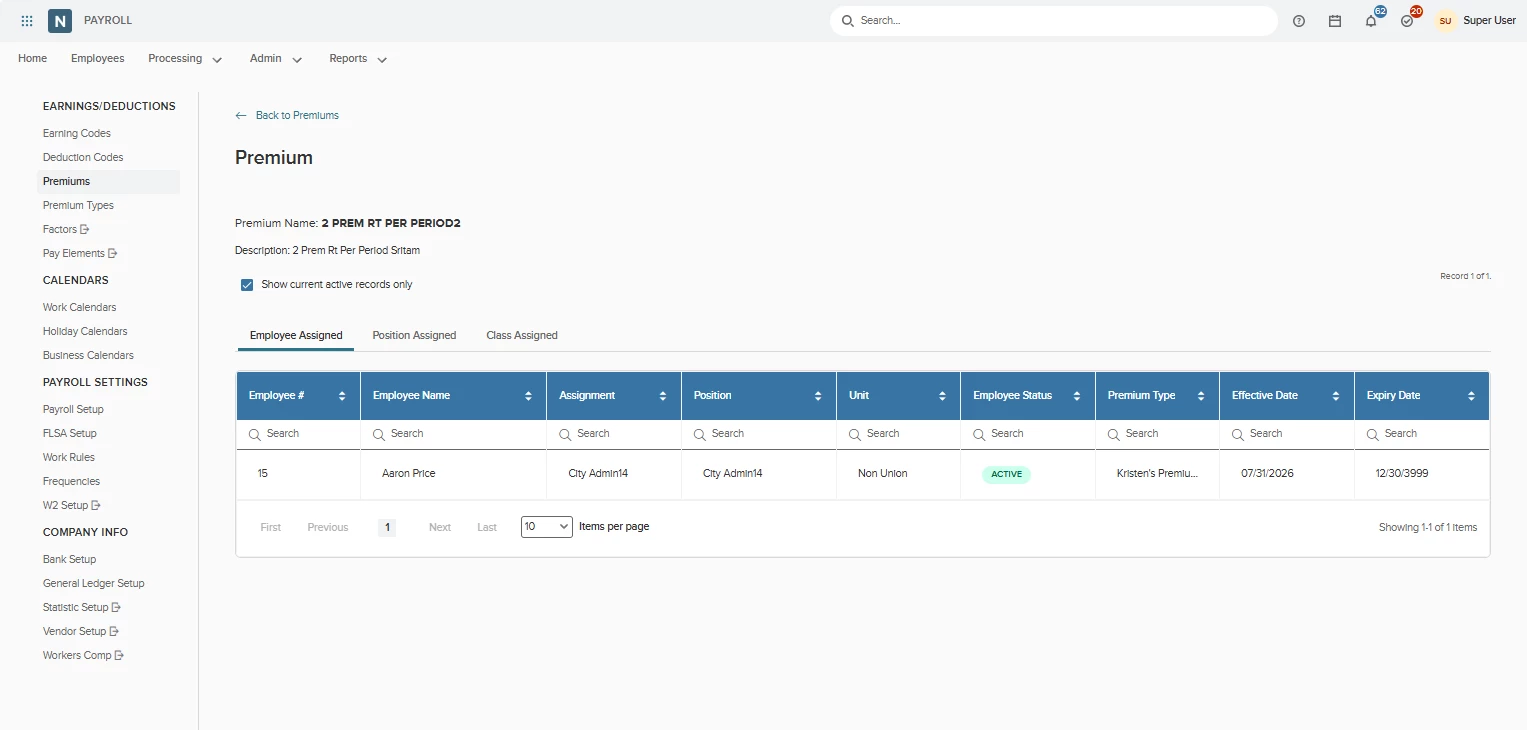
We’ve added a new magnifying glass icon on each row of the Premiums list page that opens a dedicated Premium Detail view. This provides a centralized lookup of all assignments tied to a specific payroll premium. Administrators can review assignments across three dedicated tabs: Employee Assigned, Position Assigned, and Class Assigned. Each tab has per-column sorting, individual search filters, and a toggle to view active records only or include full historical data.
Value
- Shows all active and historical employee, position, and class dependencies tied to a premium in a single location, eliminating manual cross-referencing and quickly unblocking premium cleanup or retirement.
- Accelerates troubleshooting by allowing administrators to pinpoint specific assignments in seconds while maintaining data accuracy with dedicated active-record filtering.
Audience
Administrators.
Navigation
- PAYROLL_SETUP > Premiums > Magnifying Glass.
- View by: Employee Assigned > Position Assigned > Class Assigned.
Premium Export
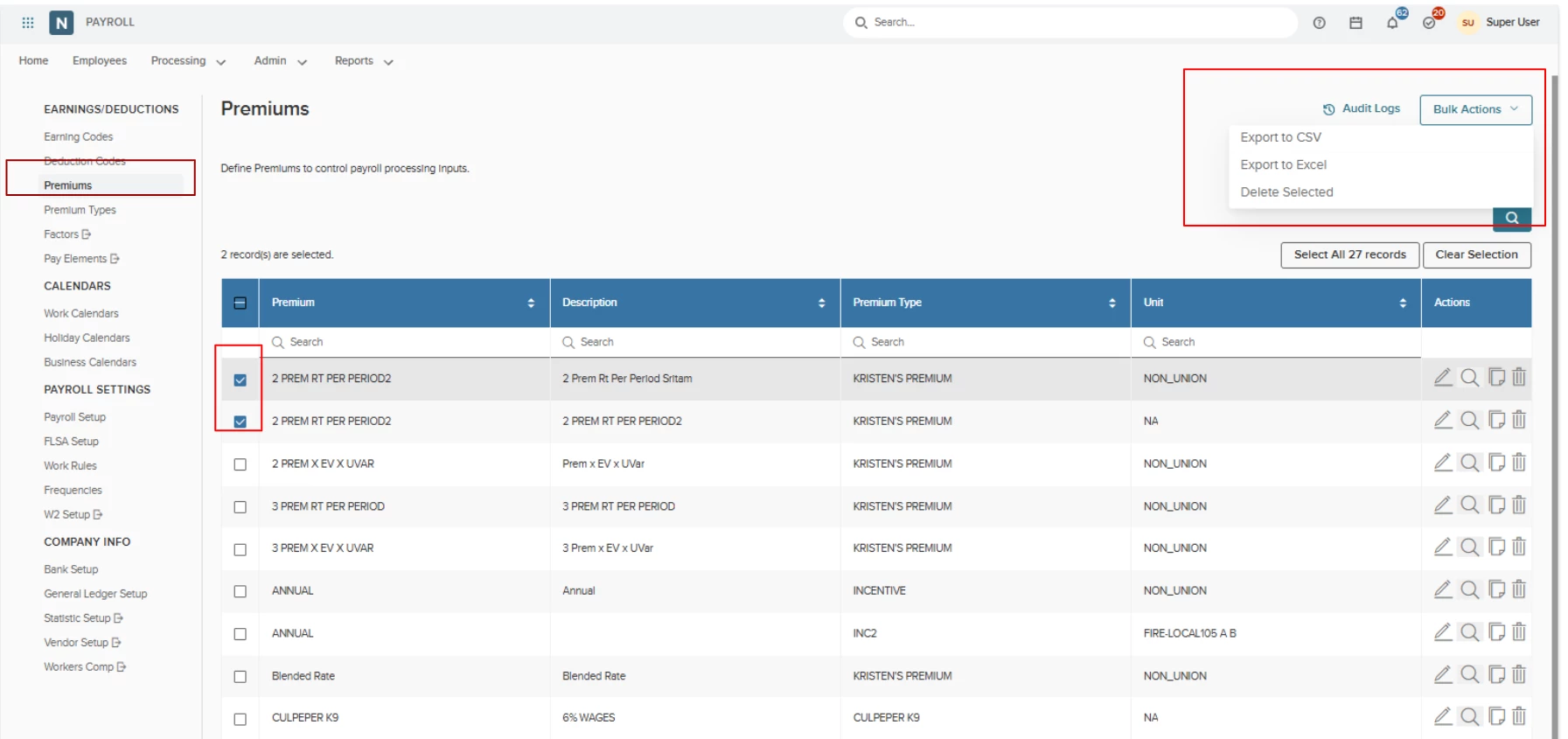
Users can now perform batch operations on the Premiums page (Payroll > Earnings/Deductions > Premiums) using individual row checkboxes or the main header selection box. Selecting records enables a Bulk Actions dropdown adjacent to Audit Logs. This offers choices for Delete, Select, or Export to CSV or Excel so you can capture complete configuration parameters.
Value
- Accelerates administrative workflows by enabling rapid bulk extraction of premium definitions, eliminating tedious manual entry and redundant support inquiries.
- Allows administrators to seamlessly evaluate data.
- Role-based access restrictions guarantee that bulk export and deletion functions adhere strictly to the granted permission.
Audience
Administrators.
Navigation
PAYROLL_SETUP > Premiums > Select premiums to export > Bulk Action > Choose download type.
Examples
- Audit Preparation: An administrator uses the select-all checkbox on the Premiums page and chooses Export to Excel to generate a complete configuration workbook for quarterly compliance reviews.
- Bulk Cleanup: A payroll specialist selects several obsolete premium codes using row checkboxes and uses Delete Selected under Bulk Actions to clean up records in a single step.
Service Tier Premiums
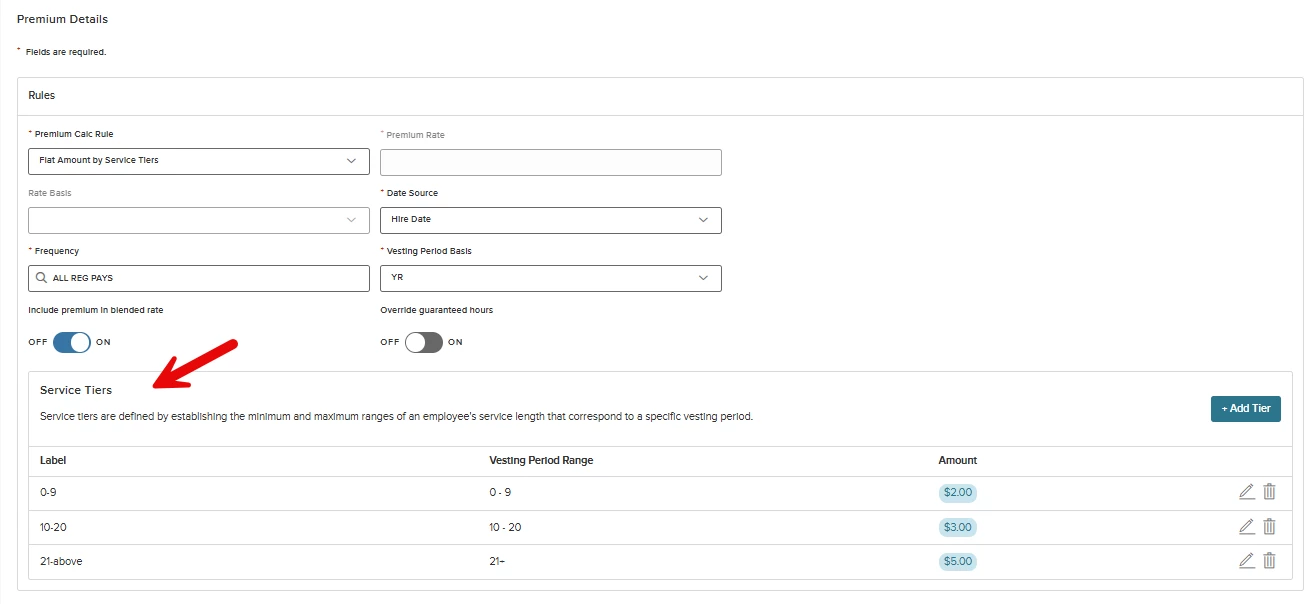
Allows customers to view longevity-based premium rules that automatically adjust pay based on length of service (Hire Date, Seniority Date, or Assignment Date). Users with view-only access can review tier schedules, calculation criteria, and calculated rates across setup and employee records, while direct manual edits and overrides are locked.
Value
- Automates Milestone Tracking: Removes the need to manually track employee tenure and update rates.
- Ensures Accuracy and Compliance: Applies standardized tier rules and prevents accidental manual override errors.
- Streamlines Audits: Provides clear, read-only visibility into tier structures and rate calculations.
Audience
Administrators.
Examples
- Tenure Milestone Step-Up: An employee reaches 10 years of service, and the system automatically advances their premium from 1.5% to 3.0% on the next payroll run.
- View-Only Rate Verification: A payroll specialist reviews an employee's work assignment to verify the tier schedule and confirmed calculated rate.
Navigation
PAYROLL_SETUP > Premiums.
Supported Premium Calc Rules
- Percentage Rate by Service Tiers: The premium is calculated as a percentage of pay, and the percentage used depends on the employee's current tier.
- Flat Amount by Service Tiers: The premium is a fixed dollar amount, and the amount used depends on the employee's current tier.
Supported Date Source
The Date Source determines which employee date is used to measure length of service for tier matching.
- Hire Date: The employee's original hire date.
- Seniority Date: The employee's seniority date.
- Assignment Date: The employee's current assignment start date.
Supported Vesting Period
| Code | Meaning |
|---|---|
| YR | Per Year |
| MO | Per Month |
| WK | Per Week |
| DY | Per Day |
One Big Beautiful Bill Overtime Earnings Details
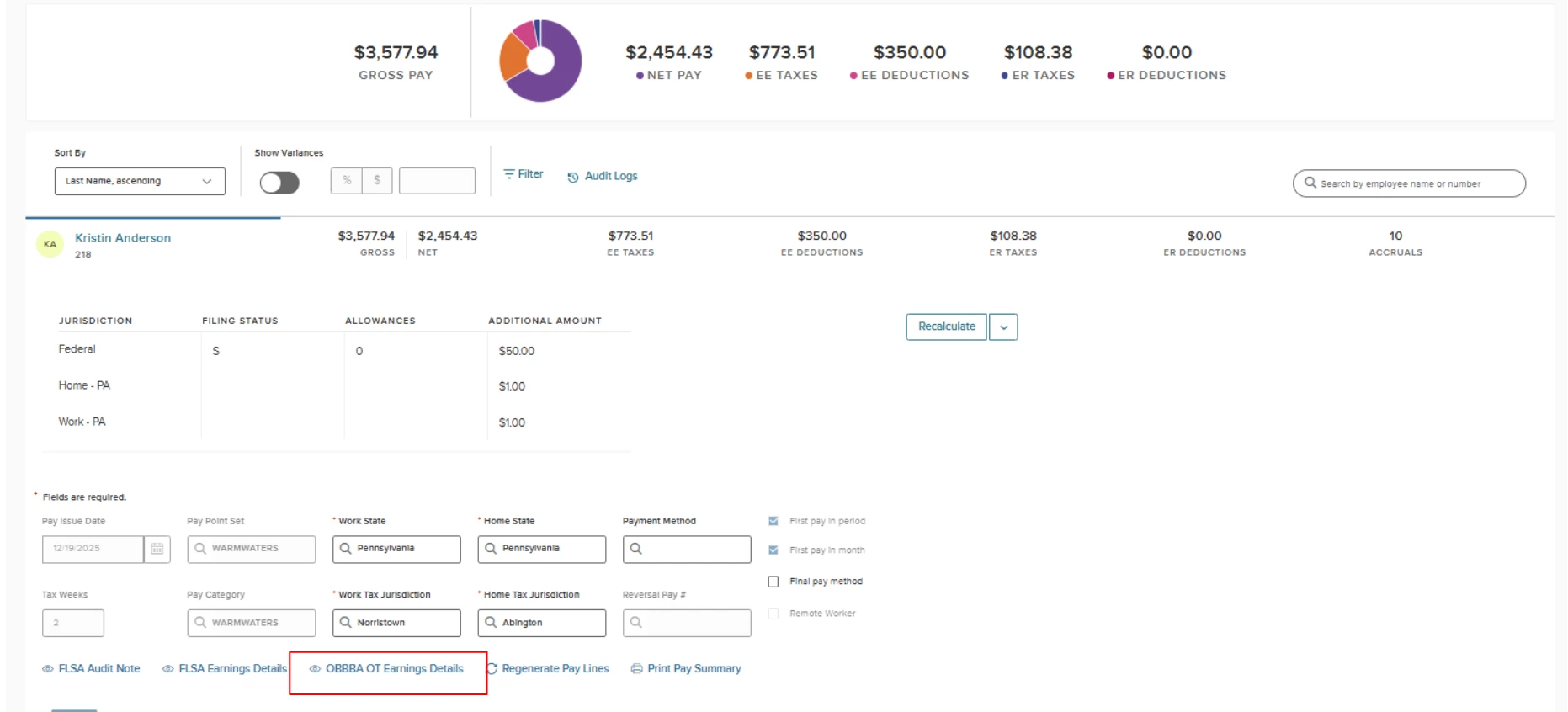
Provides a weekly, itemized breakdown of earnings used in the Fair Labor Standards Act (FLSA) overtime calculations under the One Big Beautiful Bill Act (OBBBA) federal rules. Directly accessible from the payroll record, users can review and export week-by-week pay elements before and after payroll batches close. The page is read-only to safeguard calculation history and payroll records.
Value
- Ensures Federal Compliance: Verifies week-by-week calculations to confirm adherence to OBBBA overtime rules.
- Full Pay Transparency: Breaks down regular hours, overtime, bonuses, and supplemental pay by line item rather than lump sums.
- Audit-Ready and Exportable: Remains accessible after batch closure with one-click Excel (.xlsx) and CSV exports.
- Protects Data Integrity: Read-only access prevents accidental alterations to finalized payroll data.
Audience
Administrators.
Examples
- Pre-Close Calculation Review: A payroll manager reviews the itemized weekly table (hours, rates, earnings per assignment) to confirm overtime calculations prior to batch closure.
- Post-Payroll Audit Export: An auditor pulls up a closed pay period and exports the week's itemized OBBBA table to Excel for external reporting.
- Direct In-Line Editing Removed: Editing capabilities are disabled to preserve calculation records and maintain a clean audit trail.
Prerequisite
OBBBA Overtime must be turned on and configured.
Navigation
Open a payroll record and select OBBBA OT Earnings Details from the action link. The link is next to your existing FLSA Audit Note, FLSA Earnings Details, and Print Pay Summary options.
Prorate Earnings
Enables users to split lump-sum payments (such as bonuses or retroactive adjustments) across a designated date range using calendar intervals or FLSA cycles. This eliminates manual line-by-line calculations. The feature provides an interactive preview to verify allocations before inserting pay lines into an employee's earnings record.
Value
- Automates Lump-Sum Allocation: Automatically calculates multi-period payment splits across weeks, months, quarters, or FLSA cycles.
- Flexible FLSA Weighting: Offers both Equally Weighted (equal share per closed period) and Daily Weighted (allocated by exact calendar days) calculations.
Note: This allocates the bonus to the correct pay period. Because we do not currently support FLSA adjustment chaining, a bonus split in Pay Period X will not factor in a bonus previously split in Pay Period Y. As a result, manual FLSA adjustments may be required.
- Pre-Commit Preview: Allows administrators to adjust date ranges and regenerate previews before committing records to payroll.
- Instant Recalculation: Automatically recalculates payroll immediately after records are inserted.
Audience
Administrators.
Examples
- Monthly Bonus Allocation: A $1,000 bonus spanning January 1 through June 30 is split across six monthly end dates (~$166.67/month), with rounding differences absorbed in the final month.
- Daily Weighted FLSA Split: A retrospective payment is distributed across closed FLSA periods based on the exact count of calendar days falling within each cycle.
Items Excluded from Prorated Transactions
- Hours-Based Components: Restricted to amount-based payment components (PC usage type 11); hours-based components cannot be prorated.
- Future / Open Periods: Cannot allocate amounts into open or future periods. Calculations only apply to closed periods covering time already worked.
Navigation
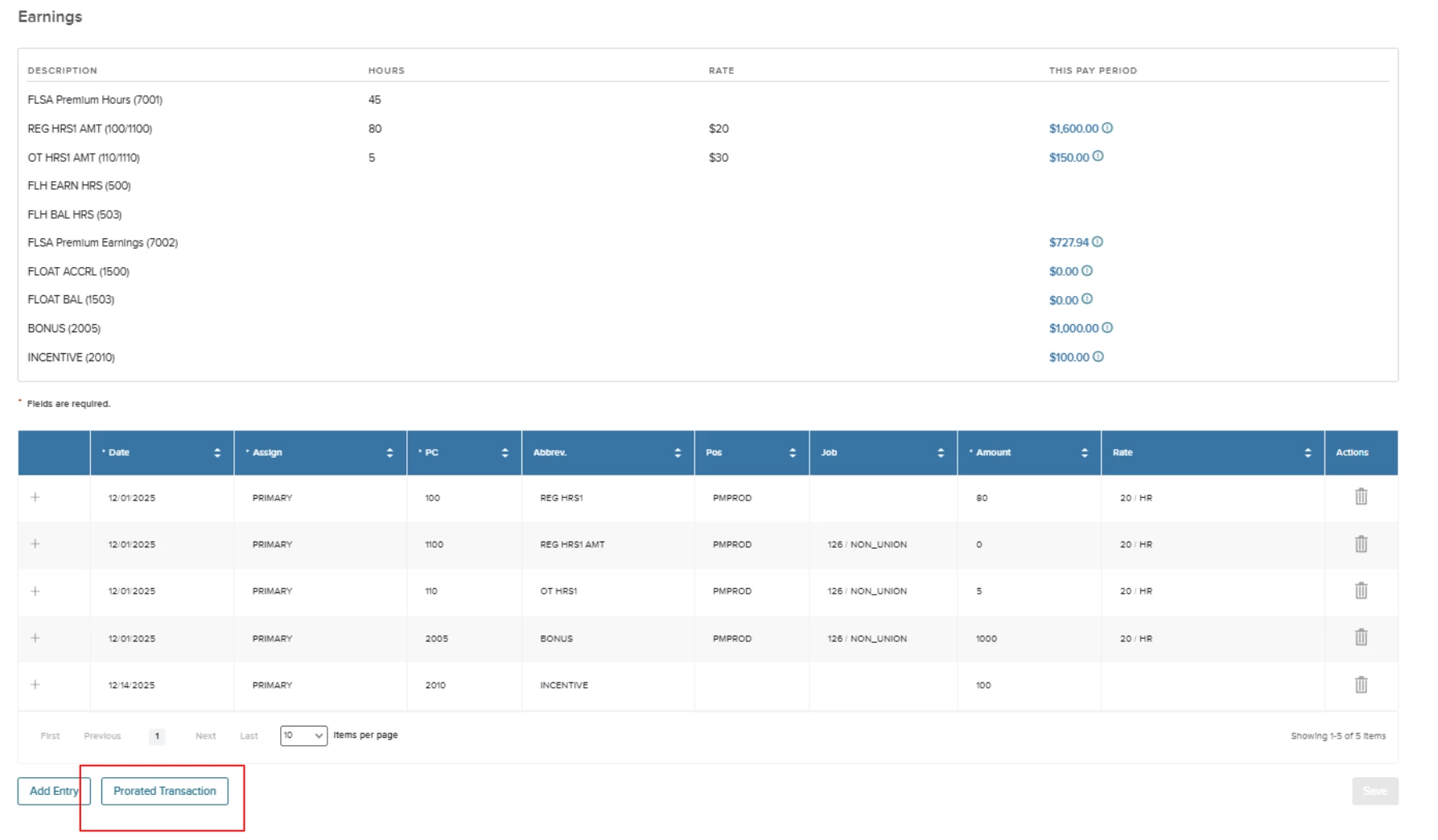
On an employee's Edit Earnings page, select Prorated Transaction (next to Add Entry).
Splitting an Amount by Month, Quarter, or Week
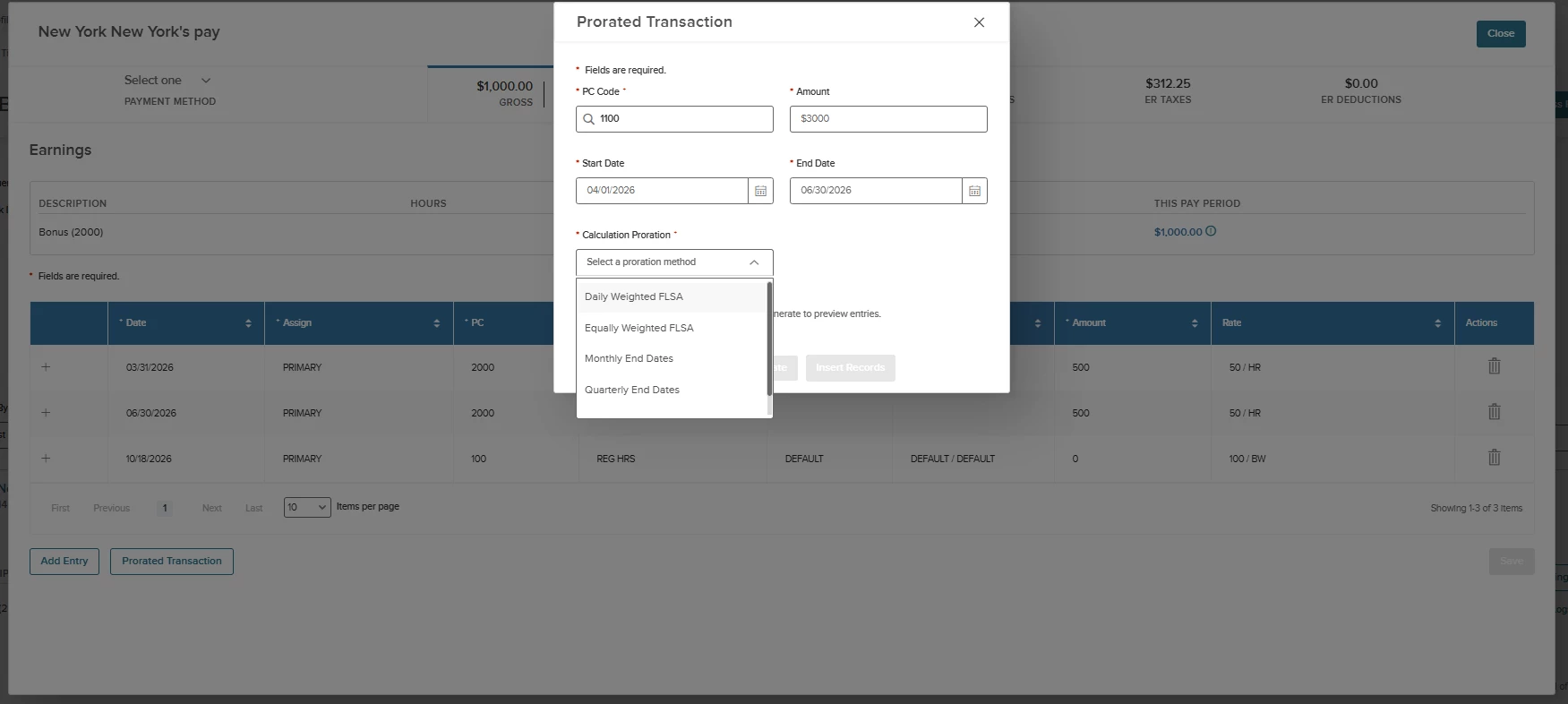
- Select Prorated Transaction and choose the payment component you want to split.
- Enter the total amount and the start and end dates the payment covers.
- Choose how you want the amount divided: Monthly End Date, Quarterly End Date, or Weekly End Date.
- Select Generate to preview the split. You can adjust the end date and generate again until the breakdown matches what you intend to pay.
- Select Insert Record to create the resulting pay lines. You'll see a confirmation prompt before the lines are added, since incorrect lines must be removed manually if you need to start over. Once inserted, the system recalculates payroll automatically to reflect the new lines.
Payroll Log File Analyzer
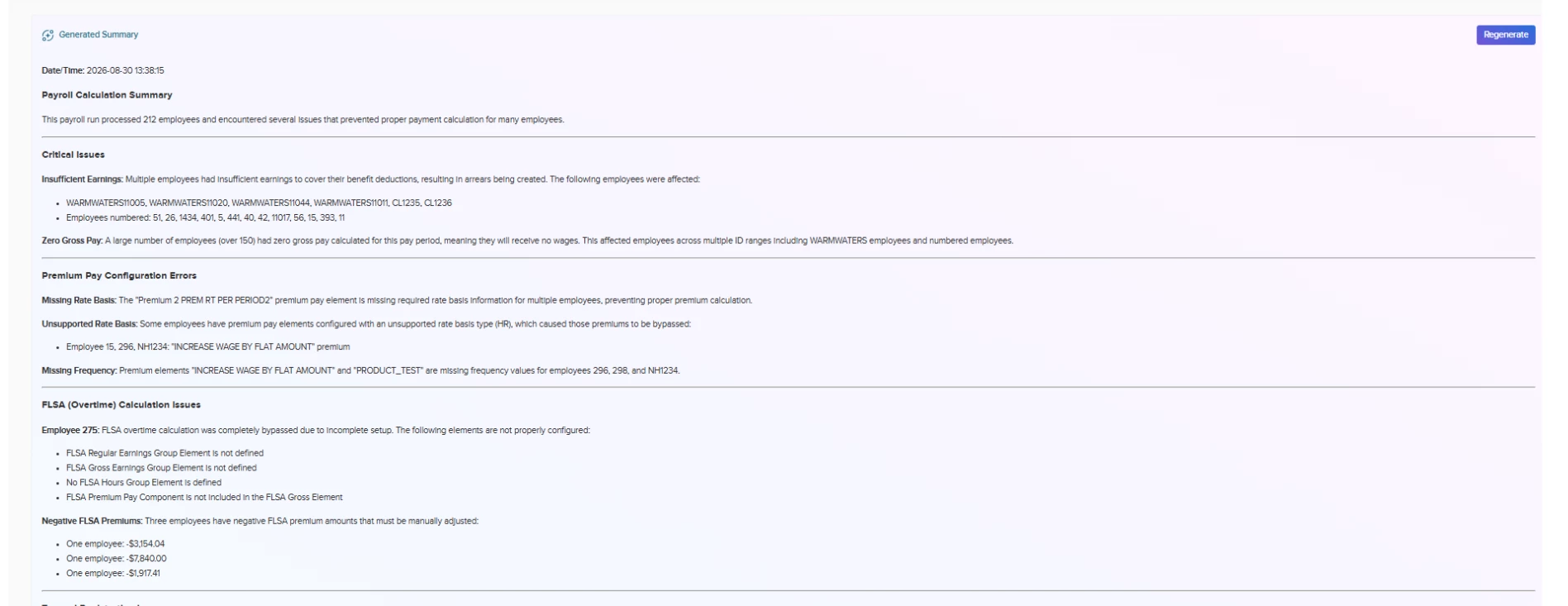
AI translates complex, technical payroll calculations into clear, plain-language summaries of errors and warnings automatically after a batch is calculated or recalculated. Accessible directly on the payroll results screen via a collapsible AI Summary card, it pinpoints affected employees, specific error/warning codes, and actionable explanations to streamline setup troubleshooting.
Value
- Faster Troubleshooting: Replaces dense, technical run logs with concise, human-readable summaries to reduce diagnostic time.
- Self-Service Issue Resolution: Empowers administrators to identify and fix common setup configuration issues without escalating to support.
- Clear Employee-Level Context: Directly links errors and warnings to the specific employees affected with straightforward explanations of what went wrong.
- Accelerated Payroll Cycles: Quicker identification of setup issues enables faster batch corrections and recalculations.
- Built-In Sharing and Refreshing: Provides quick actions to copy formatted summaries to the clipboard for collaboration or regenerate summaries after recalculating.
Audience
Administrators.
Examples
- Post-Calculation Error Triage: An administrator calculates a payroll batch, expands the summary card on the results page, and immediately identifies missing setup data on a flagged employee.
- Team Collaboration: A payroll specialist uses the Copy button to paste the plain-language issue list directly into an email or support ticket for quick review.
How it Works
Step 1: Opt In.
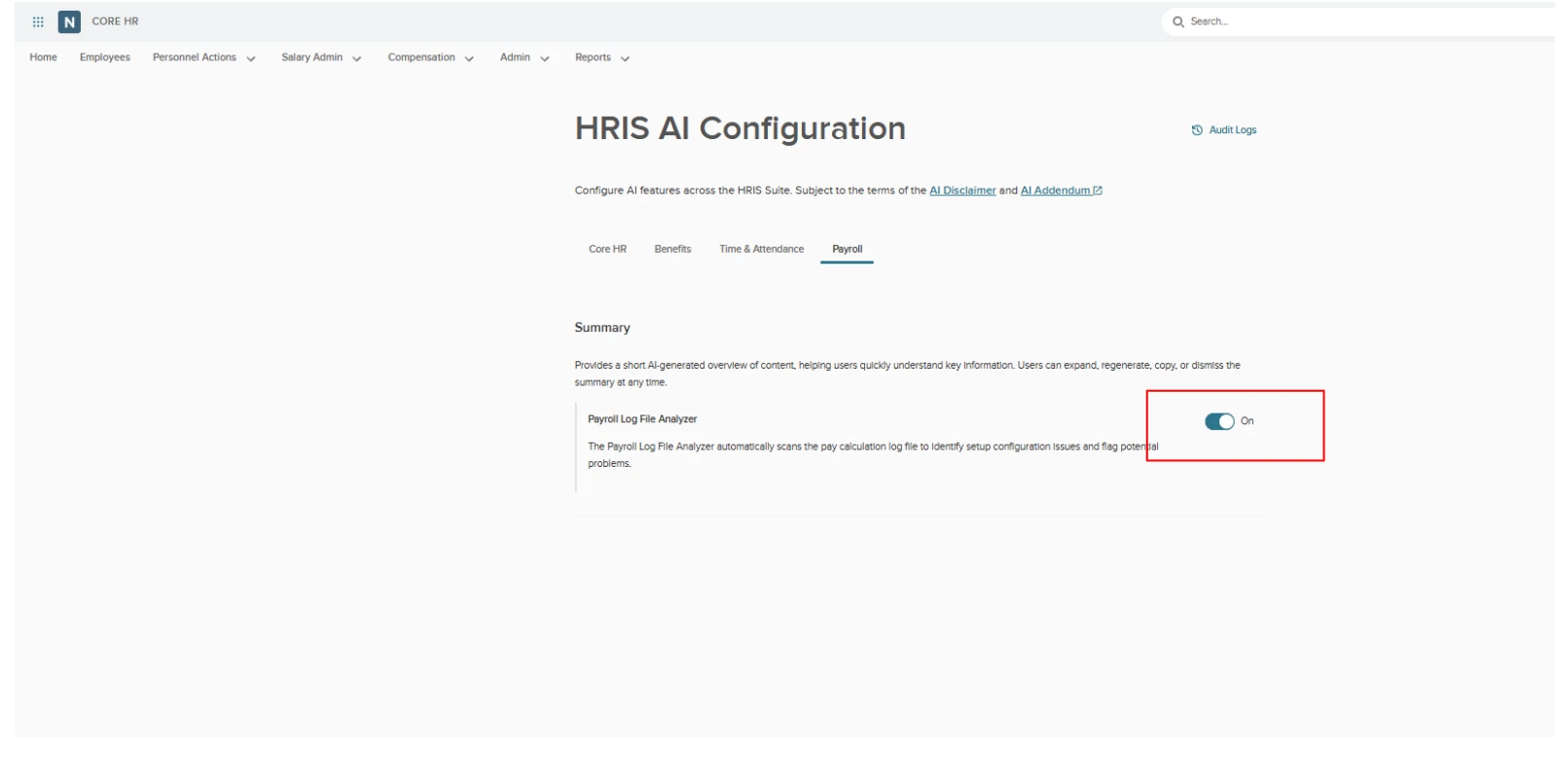
- Go to Core HR > Admin > HR AI Configuration, and select the Payroll tab.
- Turn on the AI summary / Payroll Log File Analyzer toggle.
- The first time you enable it, you will be asked to review and agree to the AI Disclaimer and AI Addendum by checking a consent box before the feature activates.
- Changes apply immediately across the Payroll module.
Step 2: Process Payroll as Usual.
- Run or recalculate a payroll batch the way you normally would. You do not need a separate action to trigger the analyzer.
- If the run produces errors or warnings, an AI-generated summary card appears on the payroll results screen automatically.
Step 3: Review the Summary.
- The summary card shows the date and time the summary was generated, under the heading Payroll Calculation Errors and Warnings.
- By default, the card is collapsed to just the heading and timestamp. Select Show more to expand the full list of issues, or Show less to collapse it again.
- Each issue entry includes the affected employee, the error or warning code, and a plain-language explanation.
Step 4: Resolve the Underlying Issue.
- Use the summary to go to the relevant setup screen and correct the issue (for example, missing or incorrect employee setup data).
- Recalculate the payroll batch. This refreshes the run log and automatically generates an updated summary reflecting the current state.
Step 5: Use the Summary Card’s Other Actions.
- Regenerate: Use this to re-run the AI summary against the latest recalculated data.
- Copy: Use this to copy the currently visible summary text (expanded entries) to your clipboard, useful for sharing with a colleague or attaching to a support case.
Important
This feature uses artificial intelligence to generate summaries for your convenience. It is not a substitute for your own professional judgment, and it does not by itself block or approve payroll processing. You remain responsible for reviewing and validating the AI-generated summary and for the decisions you make based on it.
Enabling the feature requires agreeing to the AI Disclaimer and AI Addendum, which supplement your existing agreement with NEOGOV. Use of the feature is optional. You can decline it and continue reviewing full run logs directly.
Screenshots
Turn the toggle on.
Run payroll as usual. If you get a hard error you will see this summary. Click on the Summarize button.
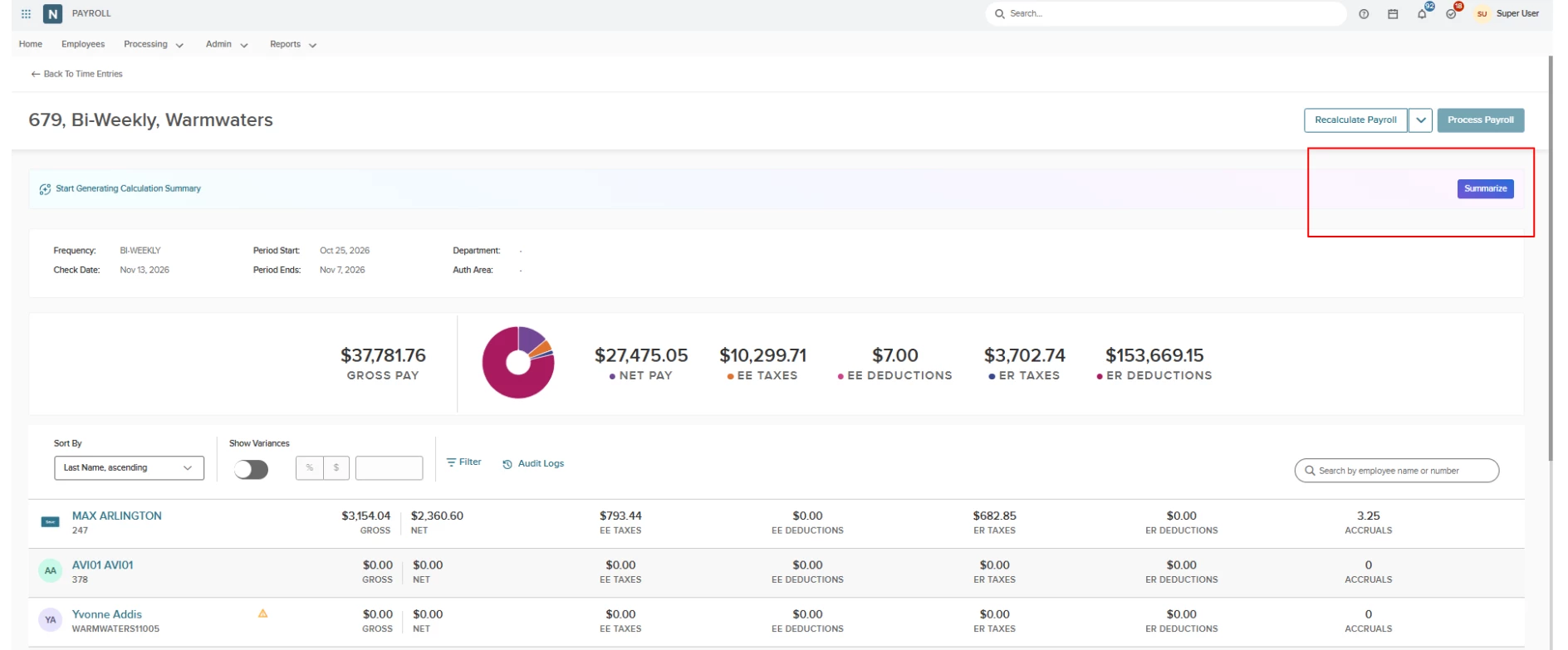
This will generate a summary of all identified errors, complete with actionable troubleshooting recommendations.
Payroll Error Export
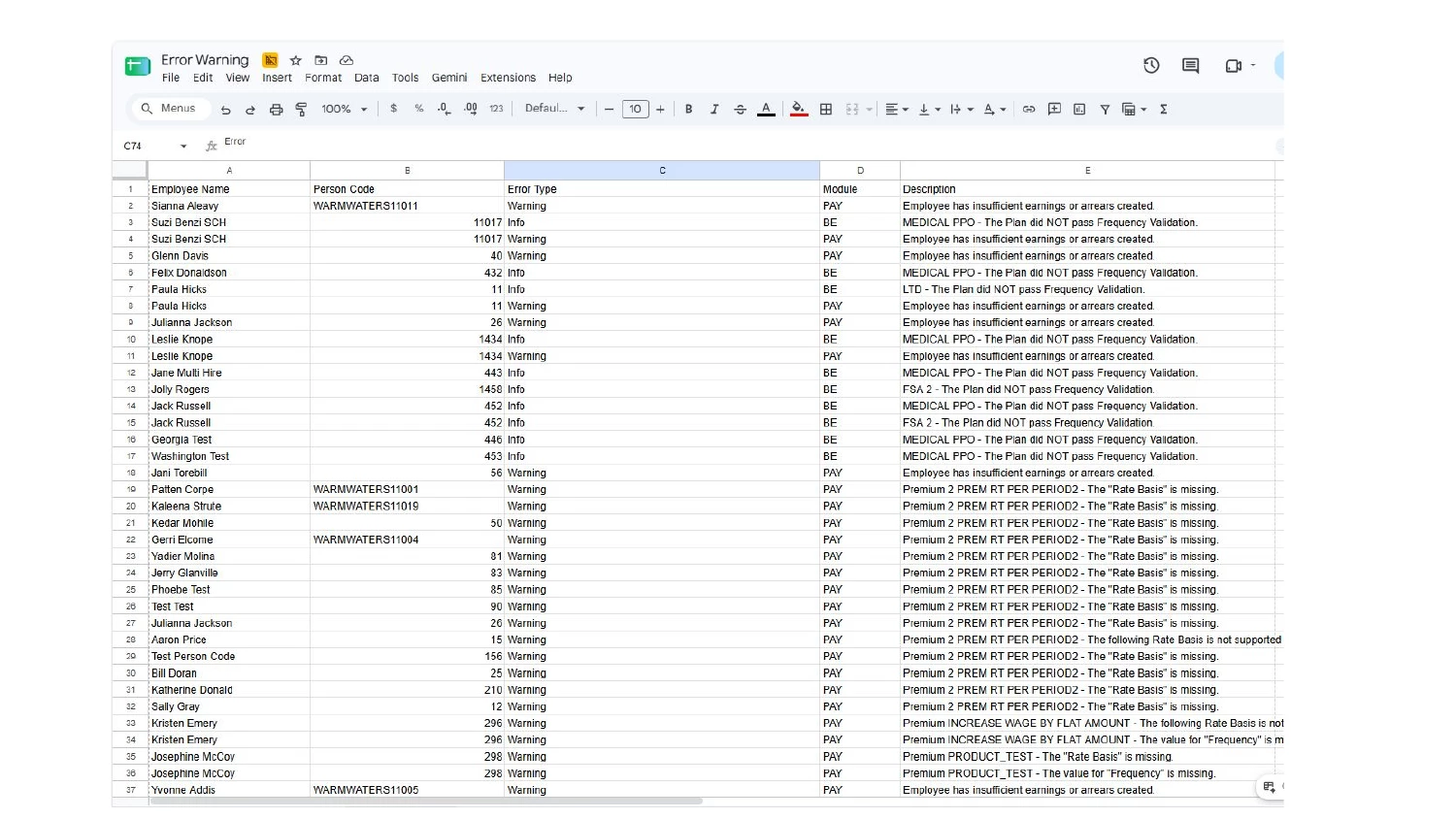
Provides payroll administrators with a centralized, filterable view of every error and warning affecting a pay run directly within the payroll batch screen before final processing. By identifying affected employees, impacted modules, and clear root causes early, administrators can resolve configuration or calculation issues proactively rather than managing corrections after payroll is run.
Value
- Pre-Processing Issue Detection: Catches discrepancies before processing to prevent retro adjustments and off-cycle runs.
- Action-Required Visibility: Highlights issues instantly using batch banners and row-level status icons.
- Targeted Filtering: Quickly isolates flagged records such as new hires, terminations, or $0 gross pay.
- Clear Root Cause Detail: Delivers plain-language error descriptions across modules to speed up troubleshooting.
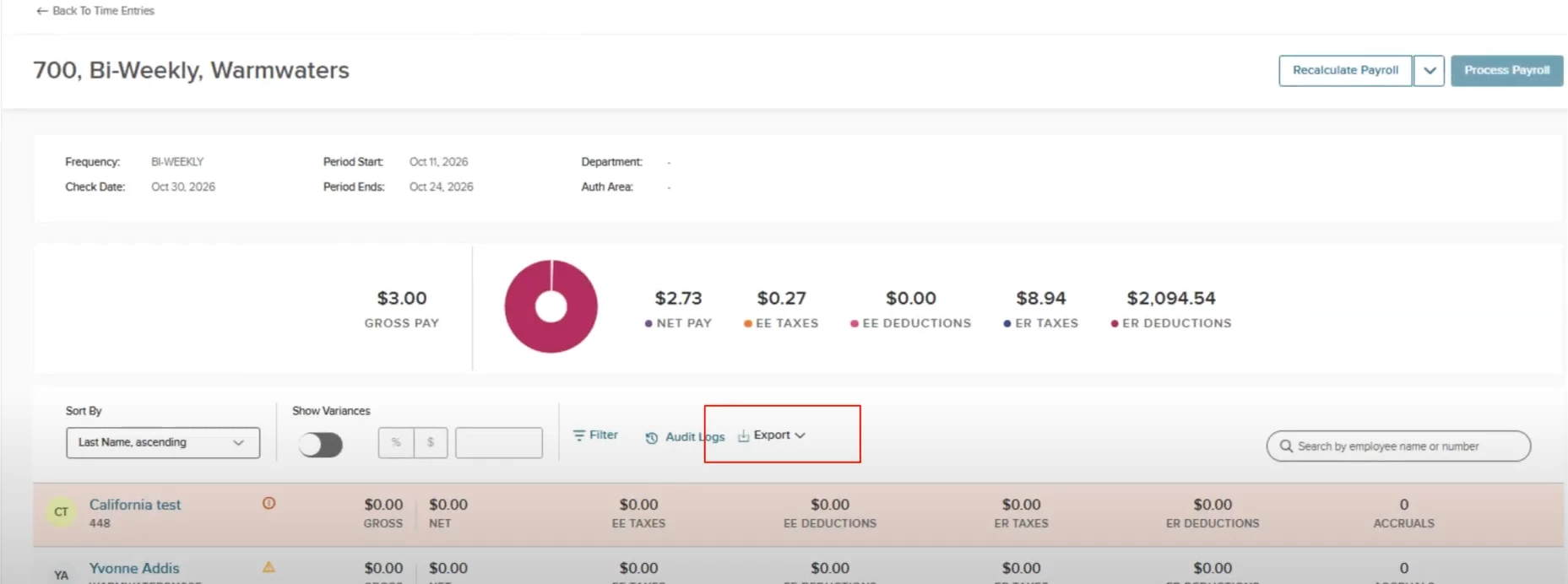
- Audit-Ready Exports: Supports one-click CSV and Excel exports for offline review and compliance tracking.
Audience
- Payroll Administrators and Specialists: Triaging batch alerts, filtering flagged records, diagnosing calculation issues, and correcting employee data before processing.
- Payroll Managers and Auditors: Verifying batch health, reviewing payroll exceptions, and retaining documented export logs for audit compliance.
Examples
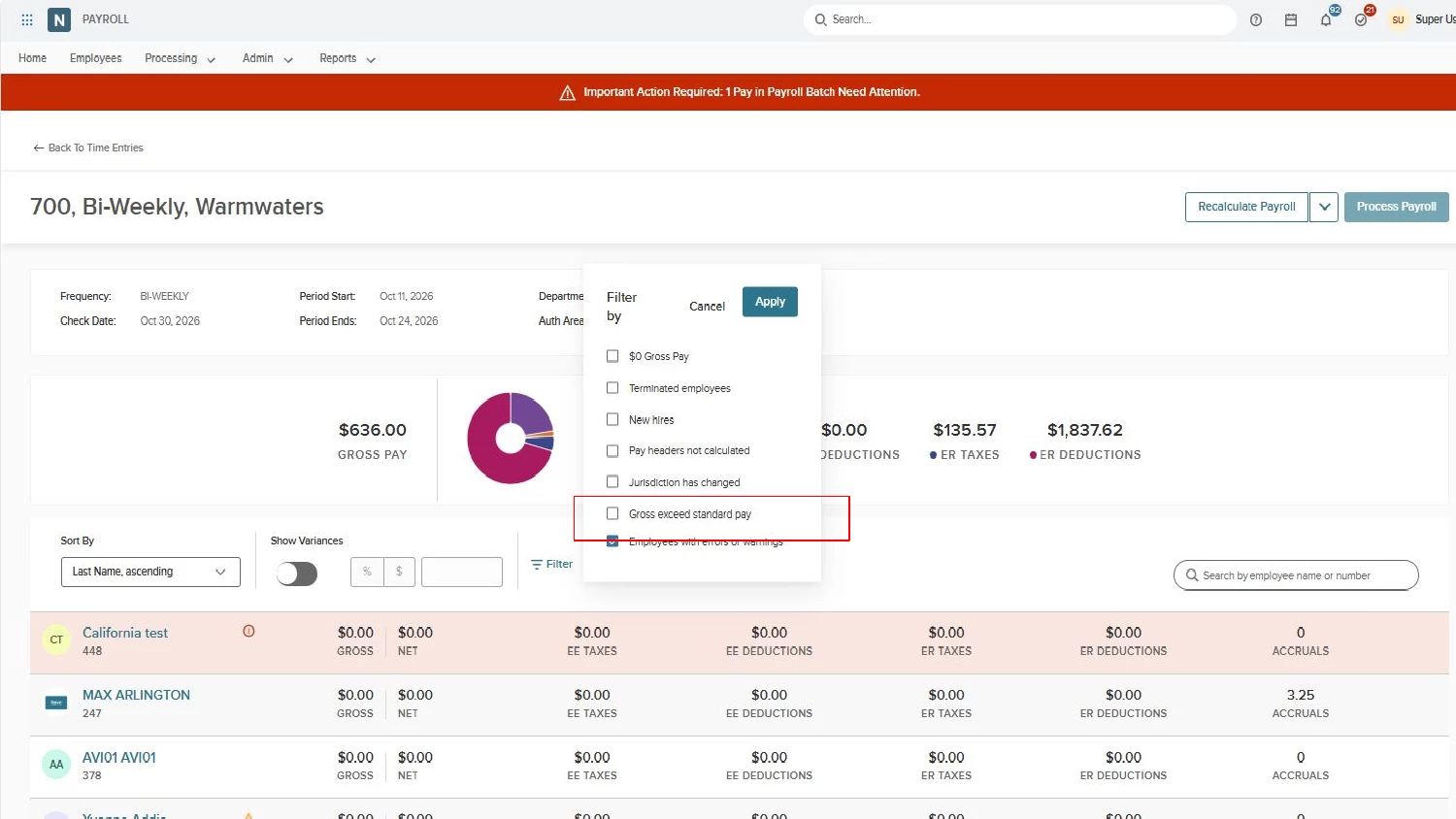
- Pre-Run Error Triage: An administrator applies the Employees with errors or warnings filter to isolate flagged records and resolve a missing rate basis before committing the batch.
- Cross-Department Collaboration: A payroll specialist exports the error list to Excel to share benefit frequency validation failures directly with the benefits team for review.
How does this differ from AI?
This picks up the existing warnings and errors you see in the payline. For example: you will see a triangle as a warning or a red circle as an error. We now filter those warnings and errors and allow you to download them.
How it Works
- Run payroll.
- Click on the Filters button.
- Select Employees with errors and warnings. Once selected, you will see an Export option located next to Audit Logs.
Remote Worker
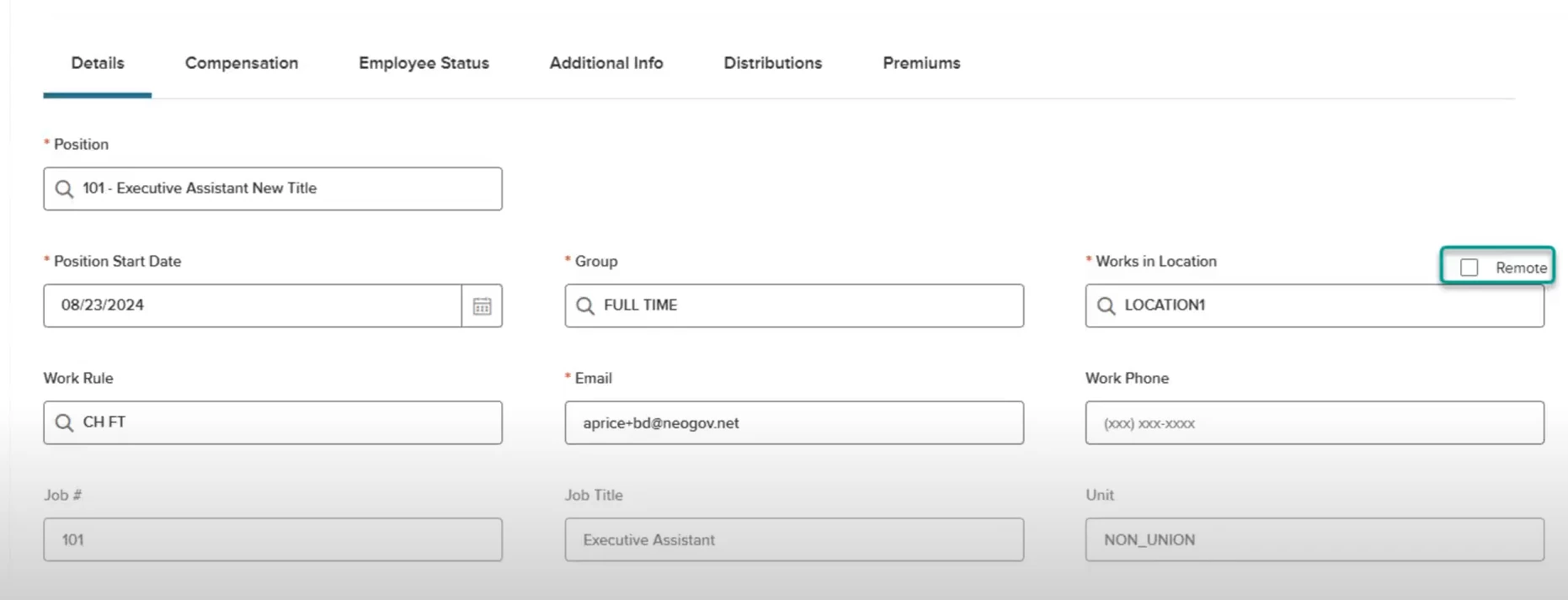
Automatically calculates applicable state-level payroll taxes (such as state income tax, unemployment, disability, and paid family/medical leave) based on a remote worker's home address instead of their assigned physical office location. Configured directly on the employee's assignment details with effective dating and approval workflow support, it provides payroll administrators with clear pay batch indicators and an audit-ready record of all tax jurisdiction overrides.
Value
- Multi-State Tax Compliance: Aligns state and jurisdictional tax calculations with the employee's actual work location, reducing tax compliance risk.
- Automated Calculation Overrides: Applies home-state tax calculations to standard and manual pay runs without requiring manual tax card edits.
- Pay Batch Visibility: Displays read-only Remote indicators and original office locations on pay batch headers for clear, at-a-glance context.
- Governance and Audit Trails: Routes status updates through Personnel Action approval workflows while capturing a complete before-and-after audit history.
- Streamlined Assignment Handling: Automatically reverts tax calculations back to office defaults if toggled off, and alerts admins if primary assignments change.
Audience
Administrators.
Examples
- Remote Worker Setup: An HR administrator checks the Remote box on an employee's primary assignment, confirms the tax notice, and routes the change through the agency's approval workflow.
- Pay Batch Verification: A payroll specialist reviews a pay run header, identifies a flagged remote worker, and confirms state taxes were calculated using their home address.
Items Excluded from Supporting Remote Employees
- Secondary Assignments: Applies exclusively to primary assignments.
- Secondary roles do not inherit remote tax overrides.
- Specific Pay Run Types: Does not alter tax jurisdictions for retroactive pay, time-generated pay, vendor pay, or vacation pay runs.
- Historical Paychecks: Changes do not retroactively modify or recalculate previously issued paychecks.
Navigation
Employee Assignment Details on the primary assignment > Check the Remote box next to the work location.
CalPERS
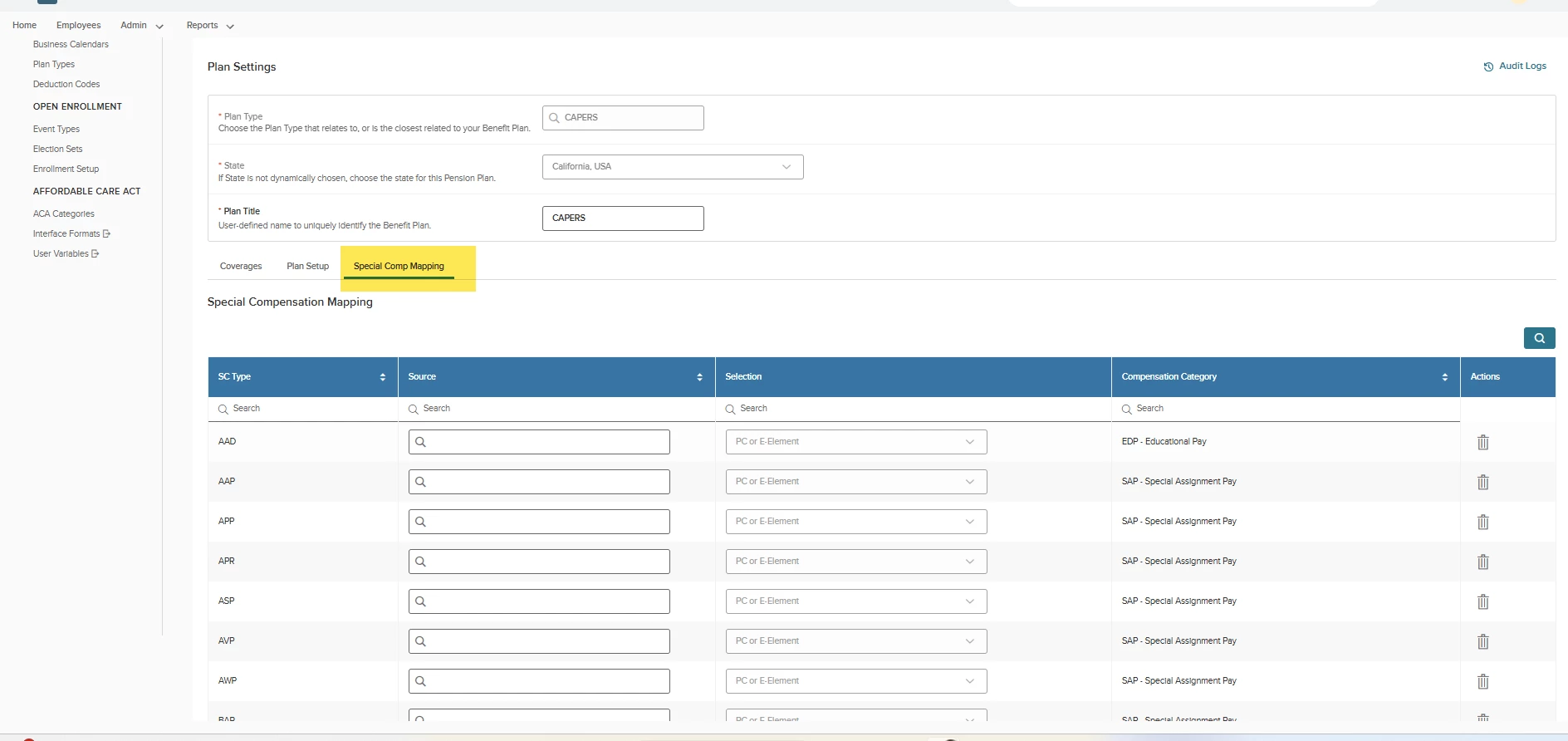
Streamlines and automates the configuration of California-required special compensation earnings for CalPERS benefit plans. Through a dedicated Special Comp Mapping tab on CalPERS plans, administrators can automatically generate all state-approved special compensation codes and link them to Payment Components (PCs) or Elements via standardized dropdown selections.
Value
- Automated Setup: Auto-builds and prepopulates all California-approved special compensation codes into a dedicated tab, eliminating manual Lexicon creation.
- Error Prevention: Replaces free-text entry with standardized dropdown lists of values to prevent syntax errors and typos from breaking CalPERS export files.
- Flexible Source Selection: Enables direct mapping to either Payment Components (PCs) or Elements based on agency payroll configuration.
- Clear Gap Identification: Displays unmapped approved codes as open rows, making it easy to identify missing configurations at a glance.
- Automated Lexicon Sync: Automatically builds and updates underlying Lexicon tables in the background without requiring manual data-table maintenance.
Audience
Administrators.
Examples
- Initial Code Generation: An administrator opens a CalPERS benefit plan, accesses the Special Comp Mapping tab, and selects the auto-build button to load all state-approved codes.
- Component Assignment: A payroll specialist selects an unmapped special compensation code, chooses Payment Component as the source type, and selects PC 1100 from the dropdown menu to link earnings.
Items Excluded from CalPERS Special Compensation Mapping
- Non-CalPERS Benefit Plans: Applies exclusively to plans configured with the CalPERS plan type. Other pension systems are not supported by this tab.
- Cross-Source Value Retention: Switching between Payment Component and Element clears any prior selection on that row and does not preserve dual mappings.
- Non-Standard Special Comp Codes: Automatically loads only state-approved codes. It does not support ad-hoc or non-approved state codes outside California standards.
Navigation
- Go to Benefit Plans.
- Open a plan with the CalPERS plan type.
- Select the Special Comp Mapping tab.
Appendix: Bugs Resolved
No additional bug fixes outside of the maintenance releases. Refer to the maintenance release notes for more details.
Related Resources