


Payroll Spring 2026 Release Notes
Article Links
Timeline
When will this be released?
UAT: Thursday, April 2, 2026, 7 AM EDT
Production: Thursday, April 30, 2026, 7 AM EDT
Is there downtime for this release?
No.
Cost Center Enhancements
Payroll now supports Charge Code 1 and Charge Code 2 in addition to Cost Centers. These can be created and edited, and any new values will be available for use moving forward.
These updates flow into Payroll entry details, pay line, and imports, so everything stays aligned.
The first step is to create a new cost center.
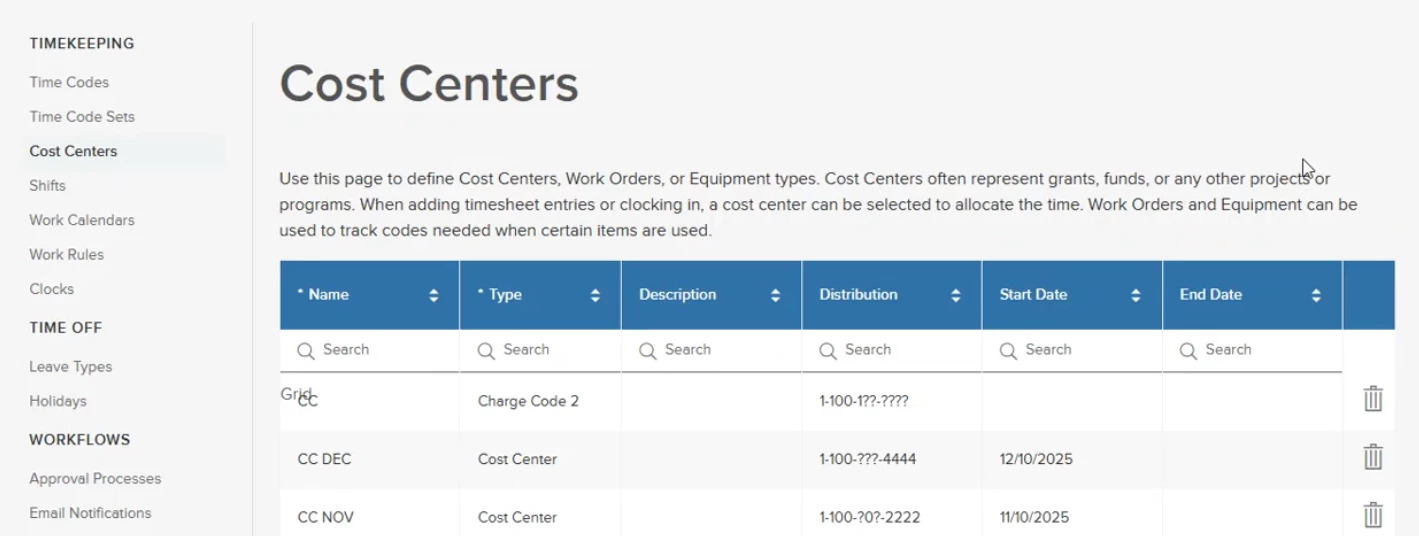
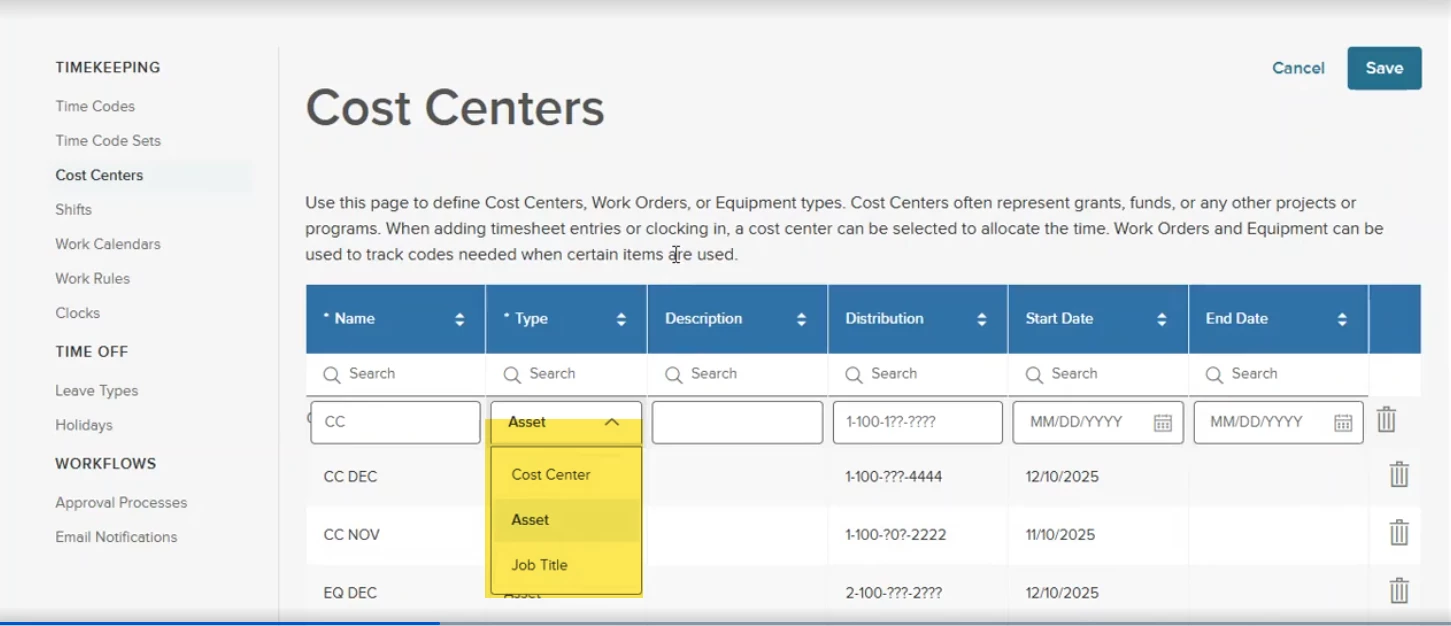
When you create the new cost center, use the dropdown in the Type column to select Charge Code 1, Charge Code 2, or Cost Center.
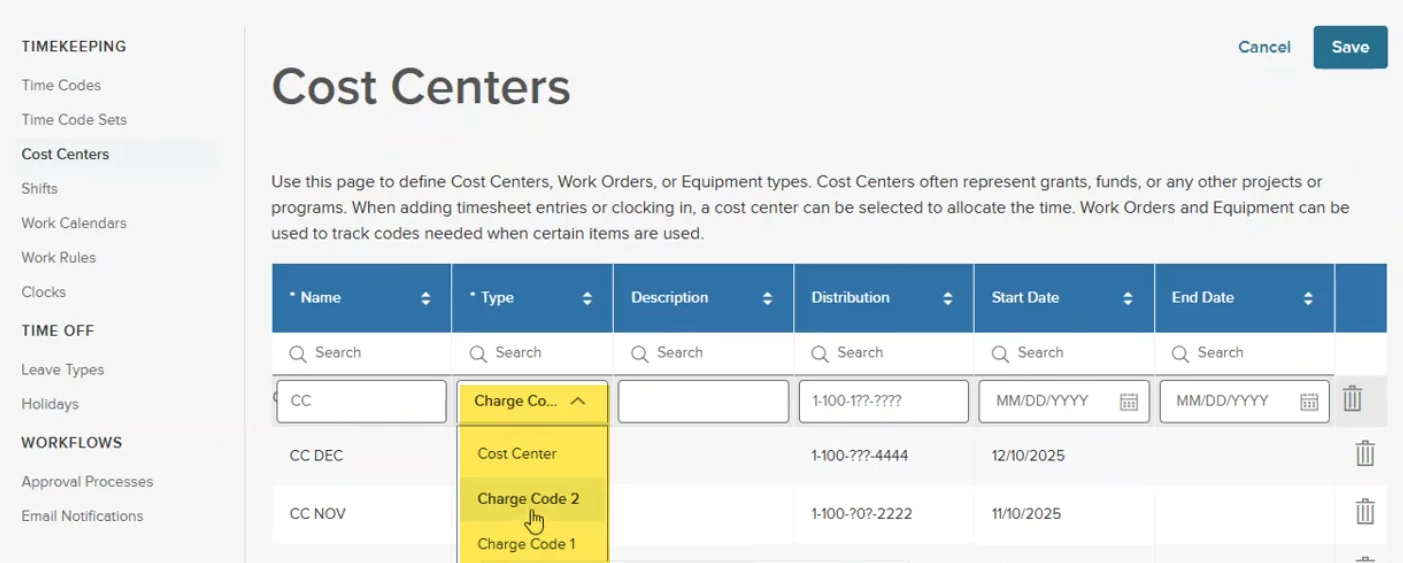
You can also change the label name by clicking the Edit Cost Center Types button.
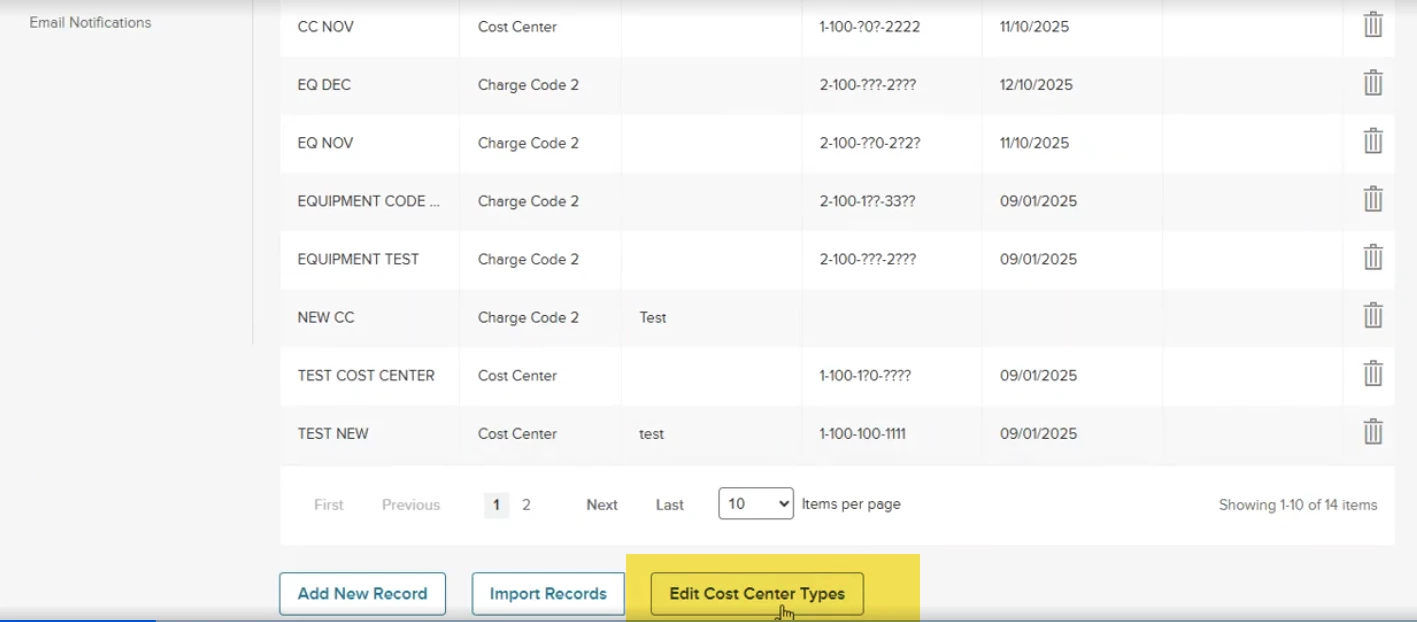
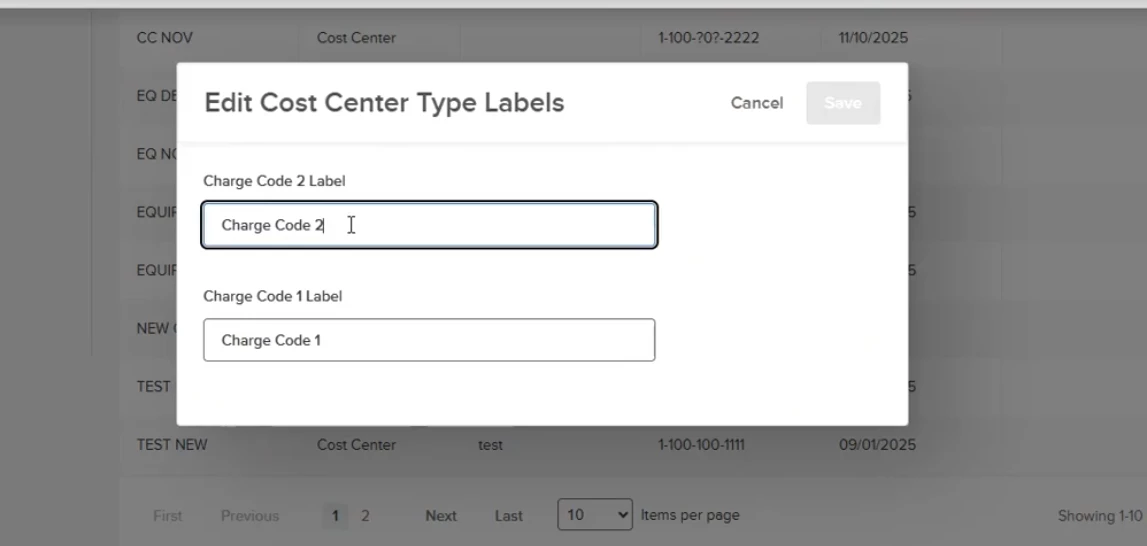
Here you can change the name to match your preference.
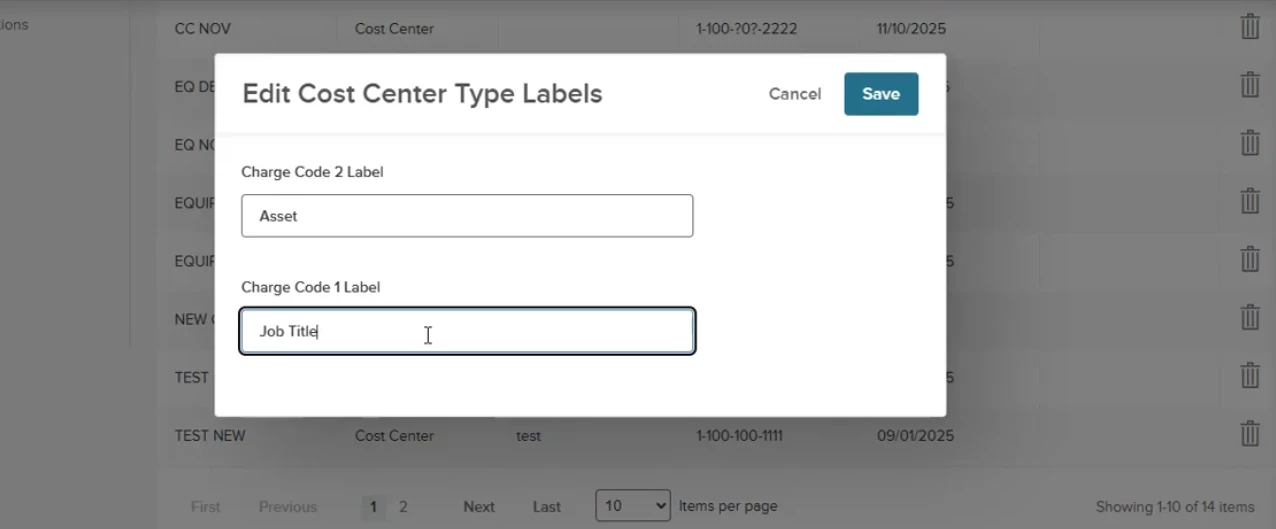
After saving, you will see the new names in the dropdown.
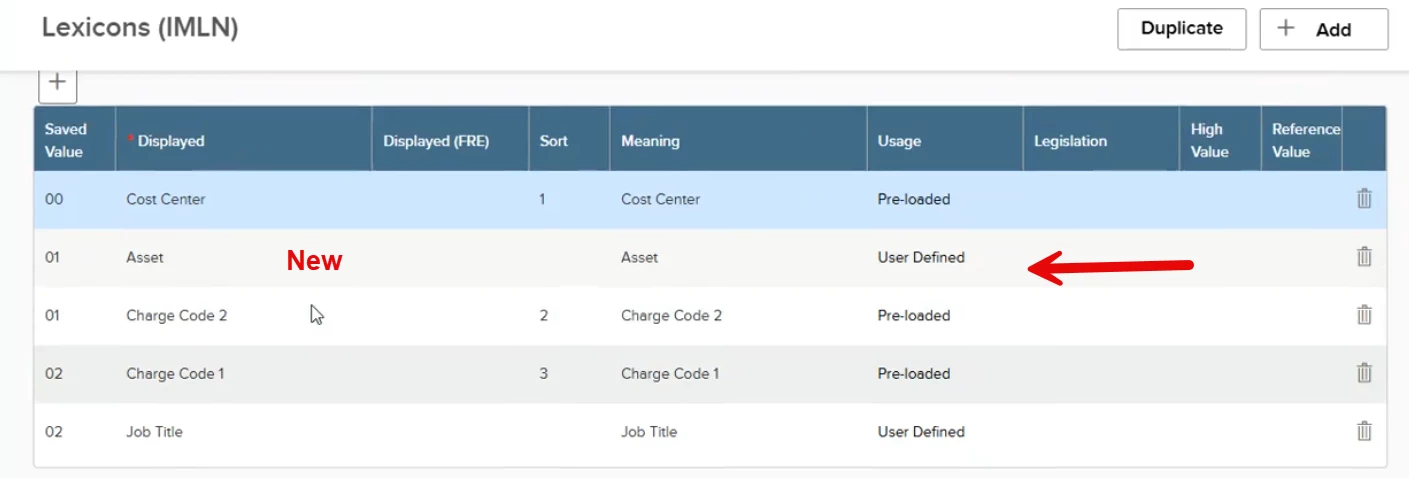
You will also see the new name as User Defined on the Lexicons (IMLN) page.
This change will flow to Payroll in the entry details as well as the pay line information. The imports will also be updated.
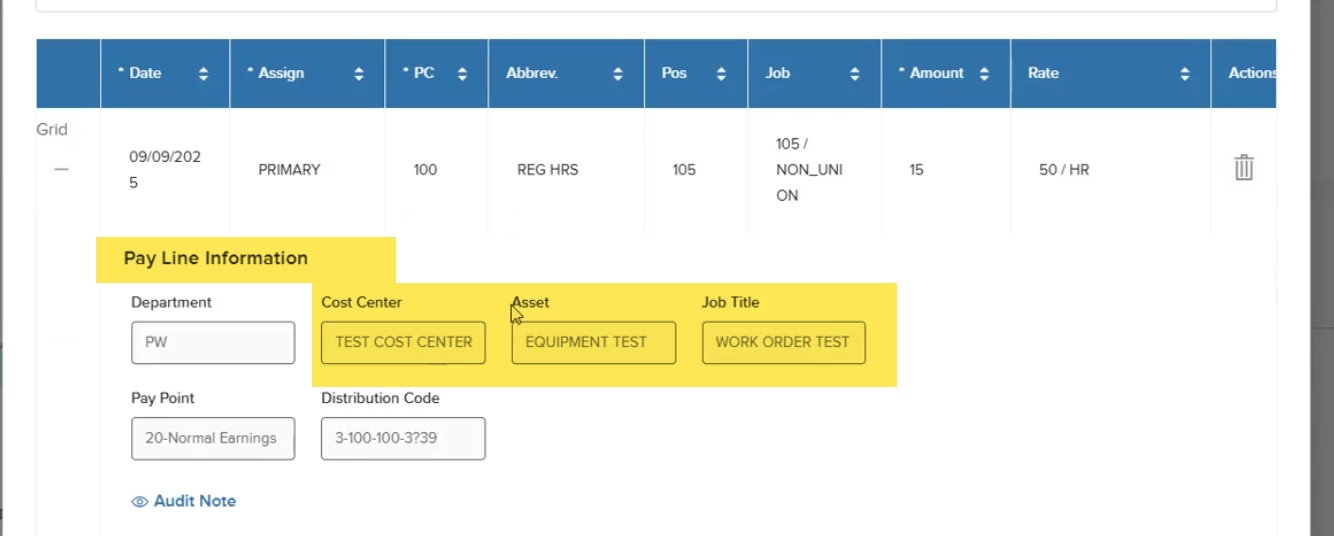
FLSA Calendar Automation
With the release, FLSA calendars will automatically extend each year, which helps streamline payroll. However, customers should still verify that the correct FLSA Type is defined within each calendar to ensure accurate overtime calculations.
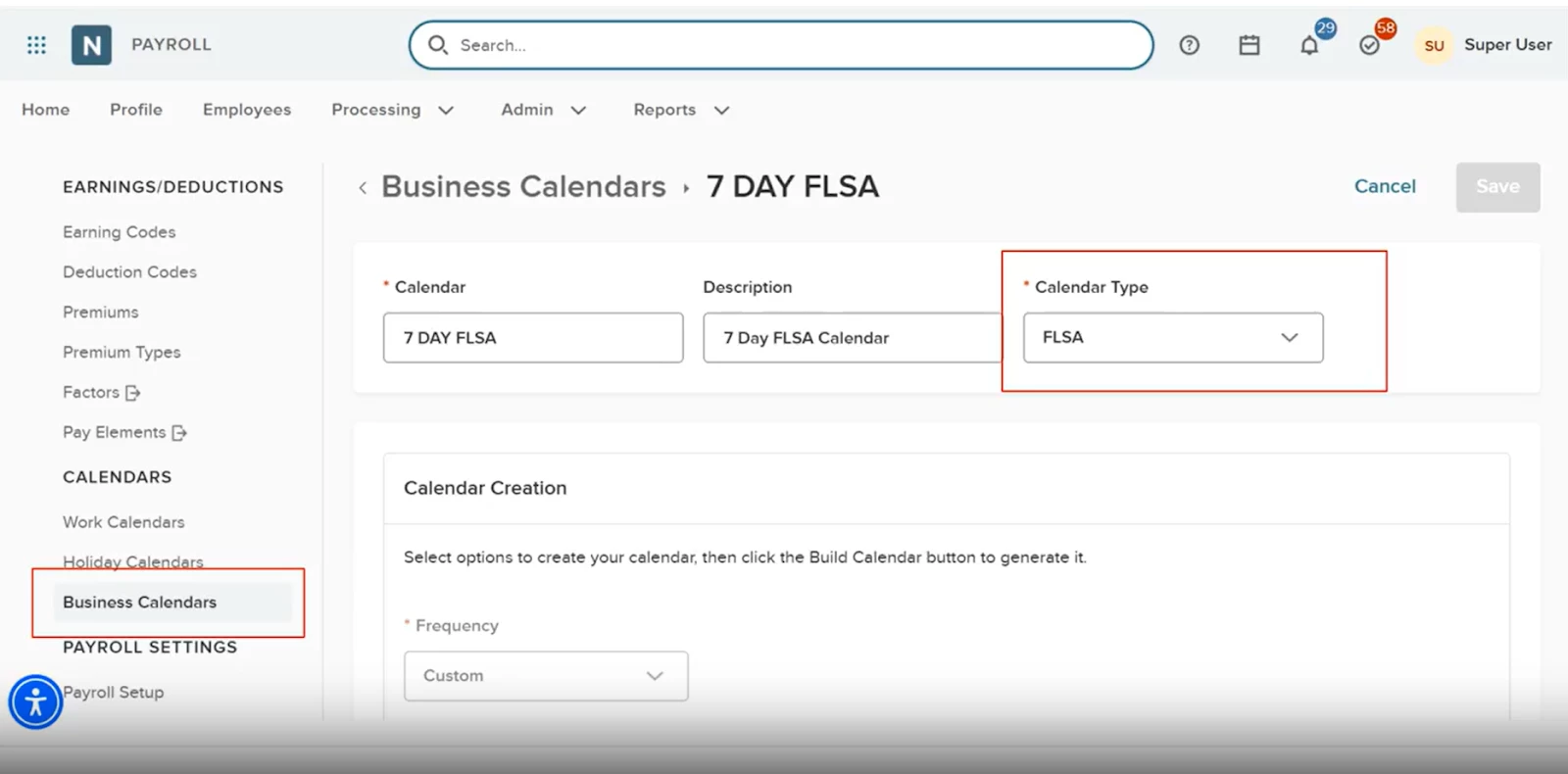
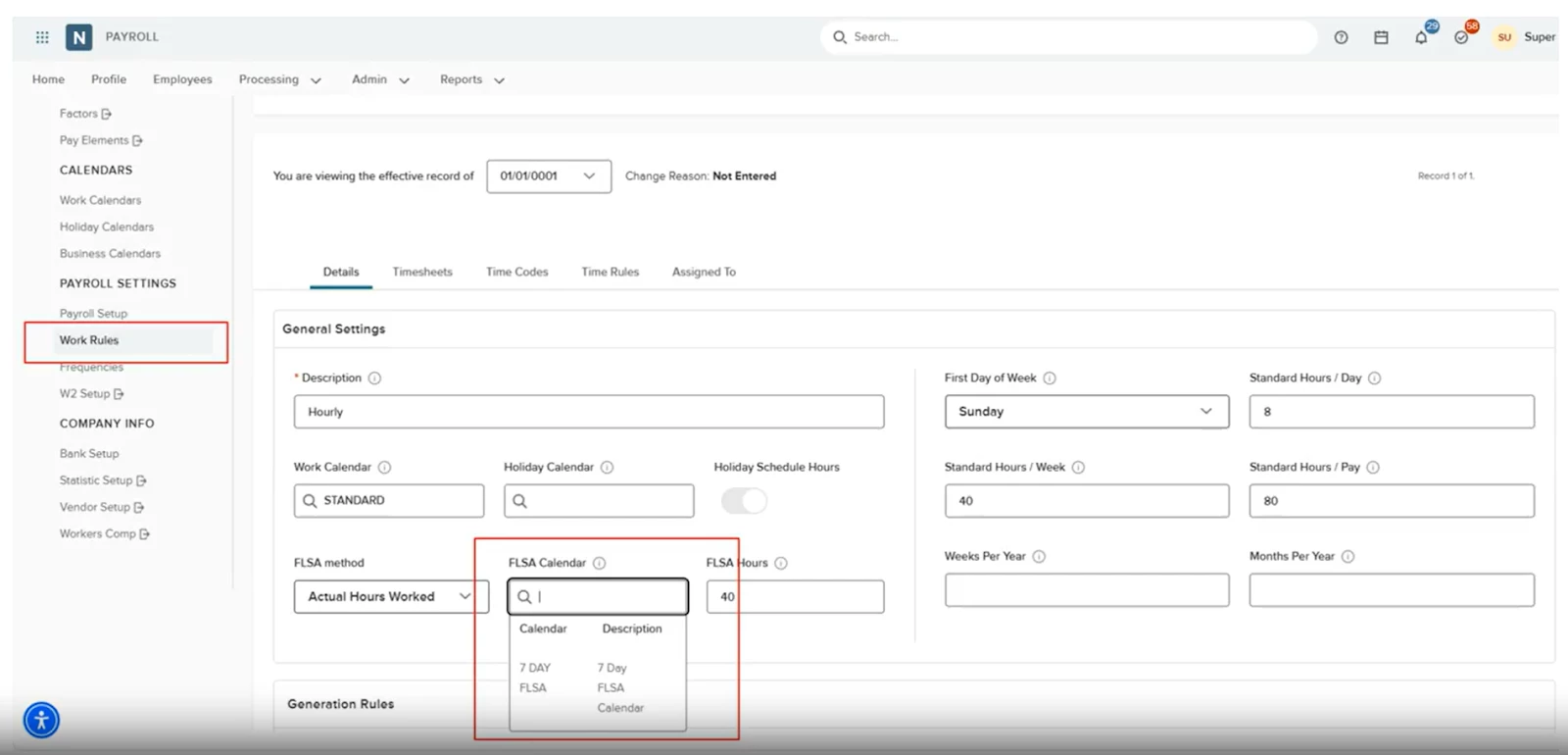
To ensure FLSA compliance, we now feature validated selection filters on the Work Rules and Employee Compensation pages. When assigning a calendar, Payroll dynamically filters the list to show only those tagged as FLSA Business Calendars. This safeguard prevents the accidental assignment of non-compliant schedules to employees covered by FLSA.
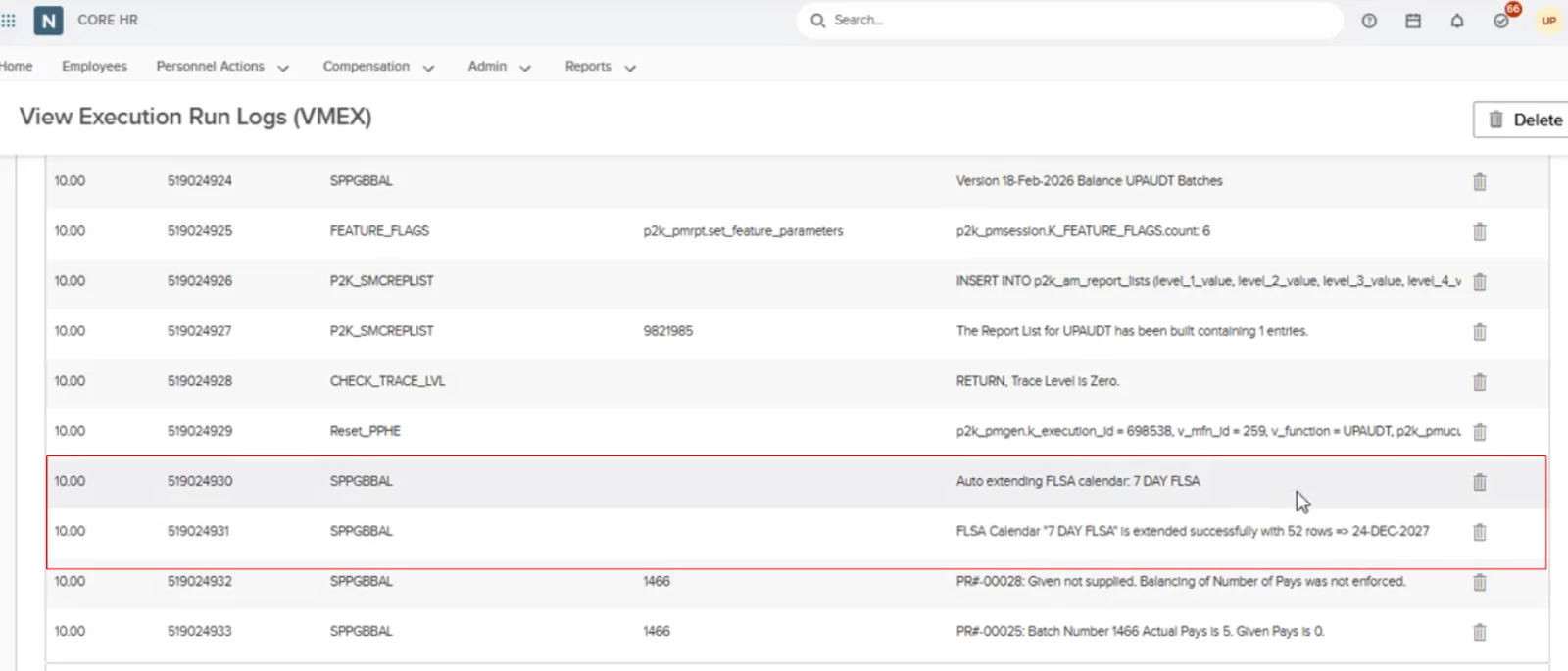
You can monitor the automatic extension status directly from the View Execution Run Logs (VMEX) page.
Finally, we recommend verifying that your business calendar is added to the pay calendar.
Value
- NEOGOV Payroll now automatically extends the FLSA calendar as needed.
- Reduced manual interventions.
Audience
HR administrators.
Example
Previously, the Payroll administrator manually extended the FLSA calendar each year. When this step was missed, payroll calculations became inaccurate.
Gross-Up Enhancements
With this release, we’ve added new Gross-Up features.
You can now perform net-to-gross calculations for both cash and non-cash benefits. Choose between Regular or Supplemental tax rates to match your specific needs.
Note: These earnings must be processed in an off-cycle batch.
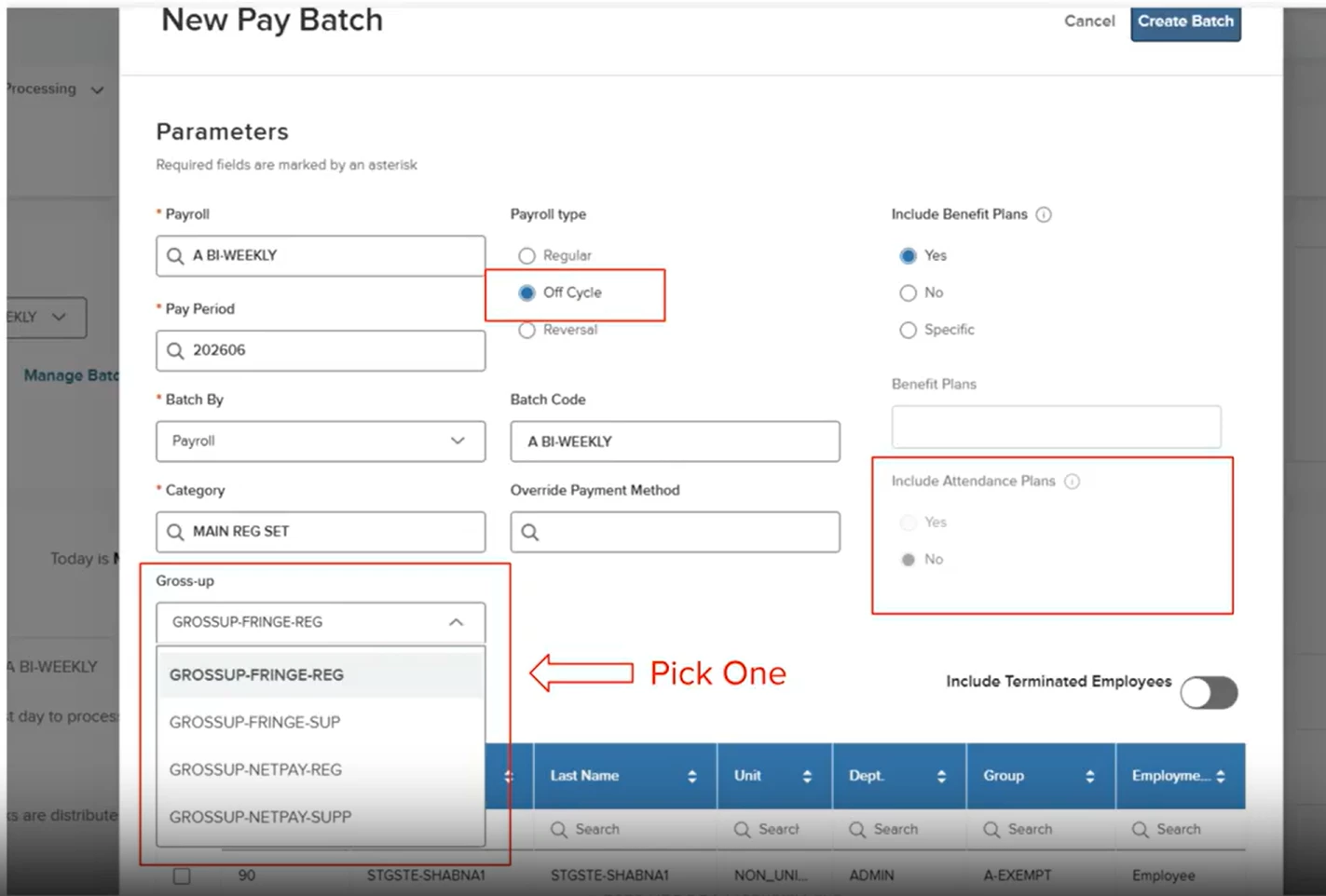
Gross-Up Earning for Regular Net Pay
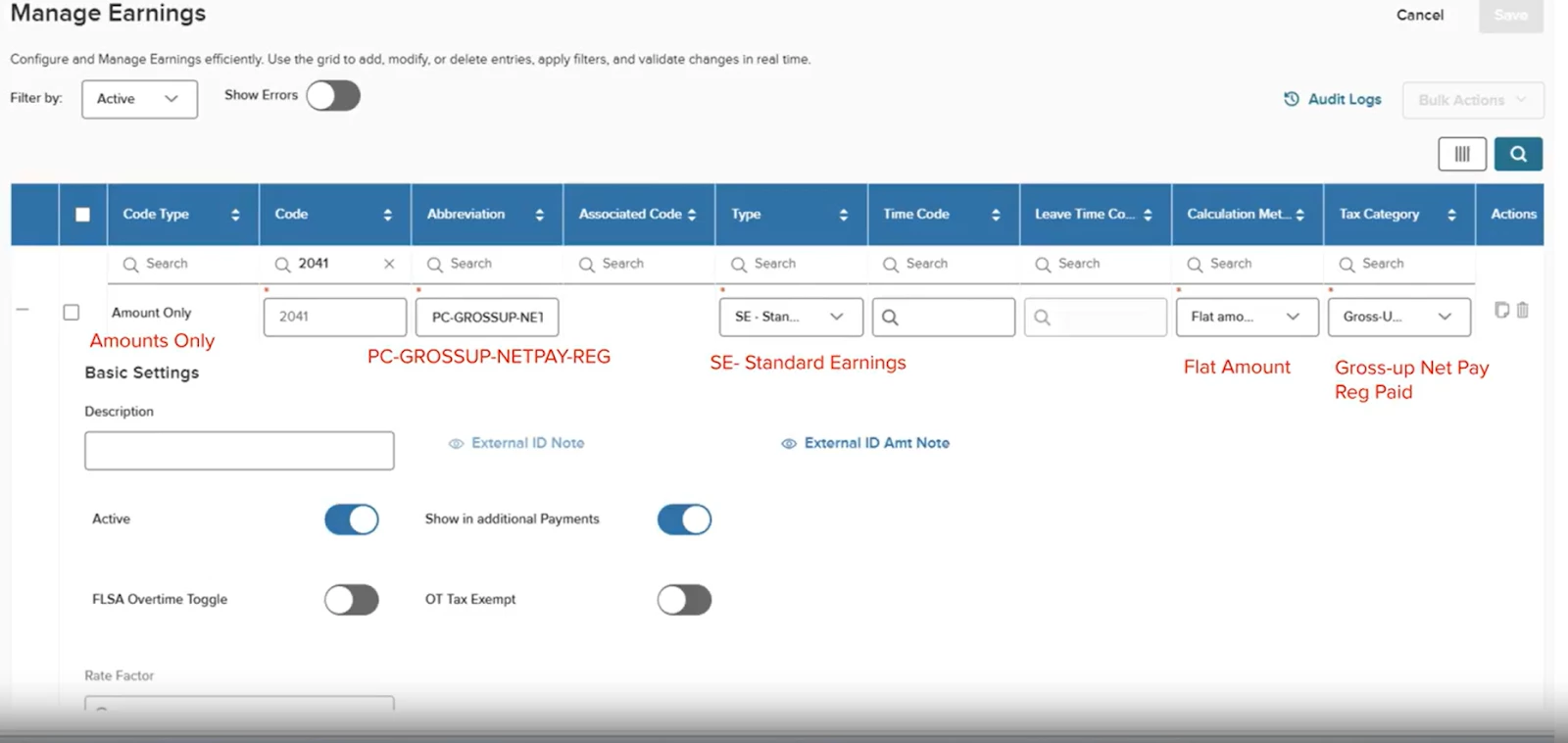
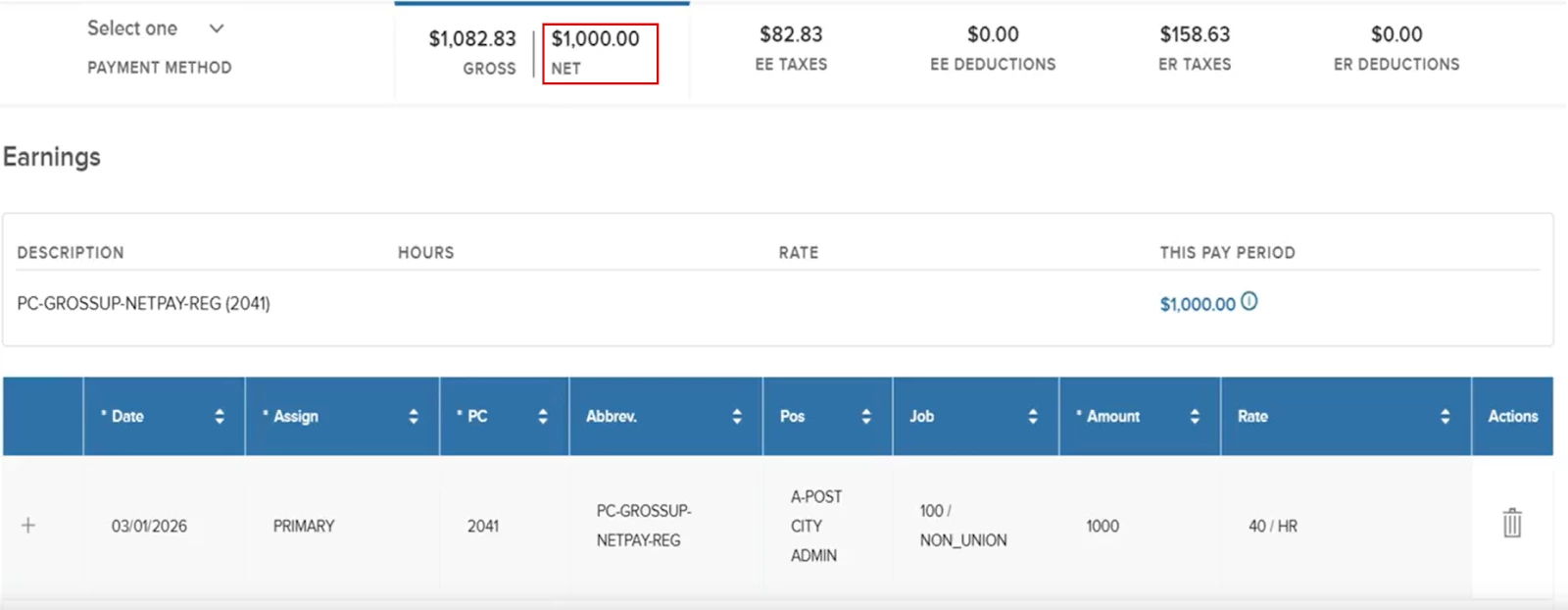
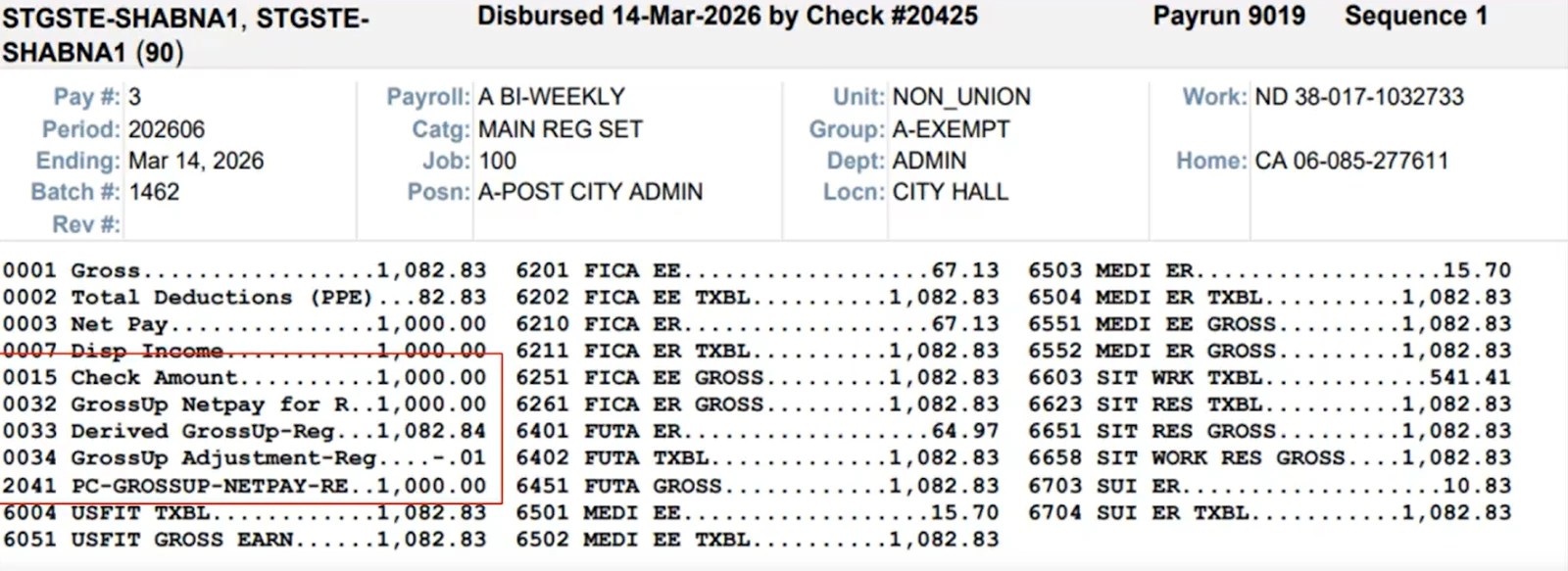
A Regular Net Pay Gross-Up ensures employees receive a guaranteed take-home amount by calculating the tax liability in reverse. Based on the employee's specific tax brackets, Payroll automatically adjusts the gross earnings to maintain a consistent net payment of $2,000 every period, even if tax rates change.
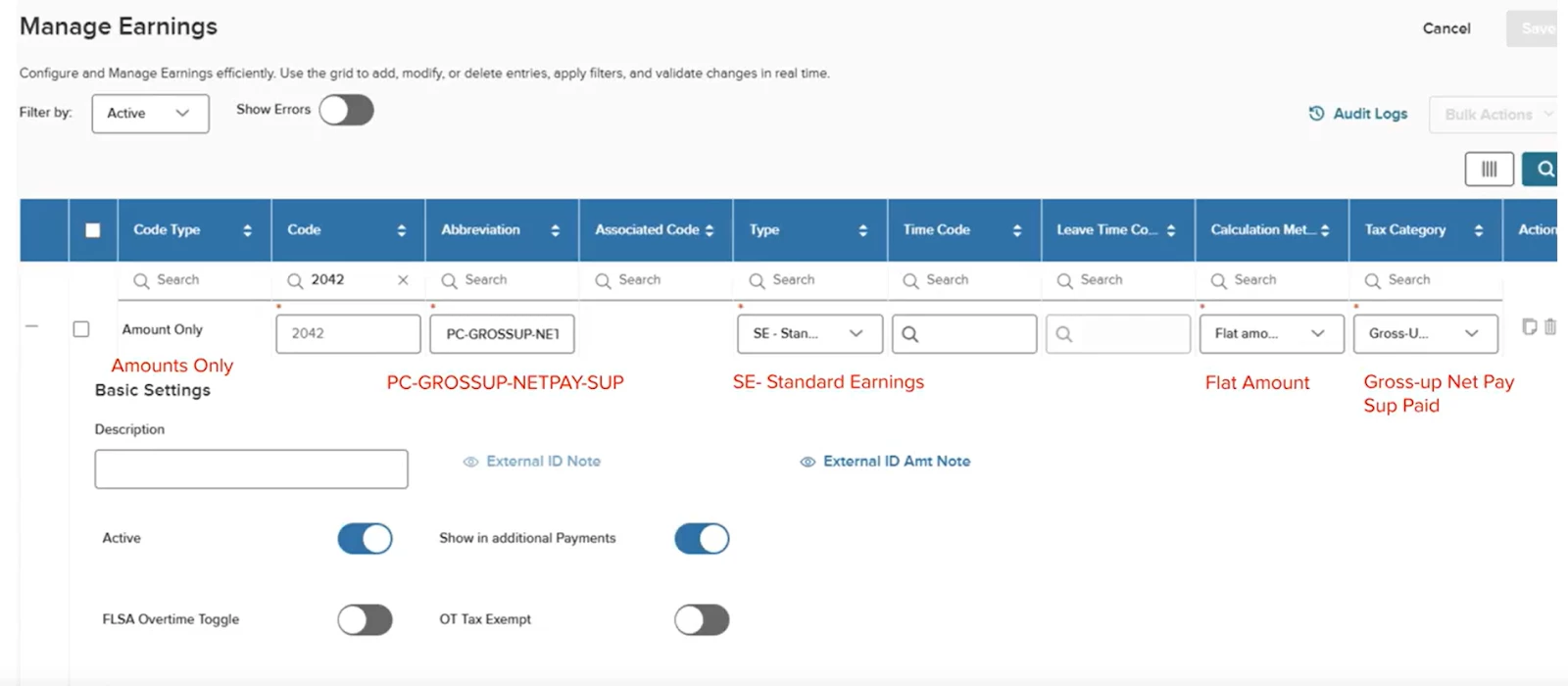
The following screenshots show the setup.
Gross-Up Earning for Supplemental Net Pay
A Supplemental Net Pay Gross-Up delivers a specific, one-time net amount by calculating the required tax withholding in reverse. By applying a flat supplemental tax rate, Payroll automatically grosses up the payment to ensure the employee receives an exact pocket amount, such as a $500 Christmas bonus.
The following screenshot shows the setup.
Gross-Up Earning for Regular Fringe Benefit Net Pay
This gross-up ensures that taxable perks (like a company car) do not reduce an employee's $2,000 net salary. Payroll calculates the tax on the benefit in reverse, and adds it to the gross earnings, maintaining a consistent take-home amount regardless of tax fluctuations.
The following screenshots show the setup.
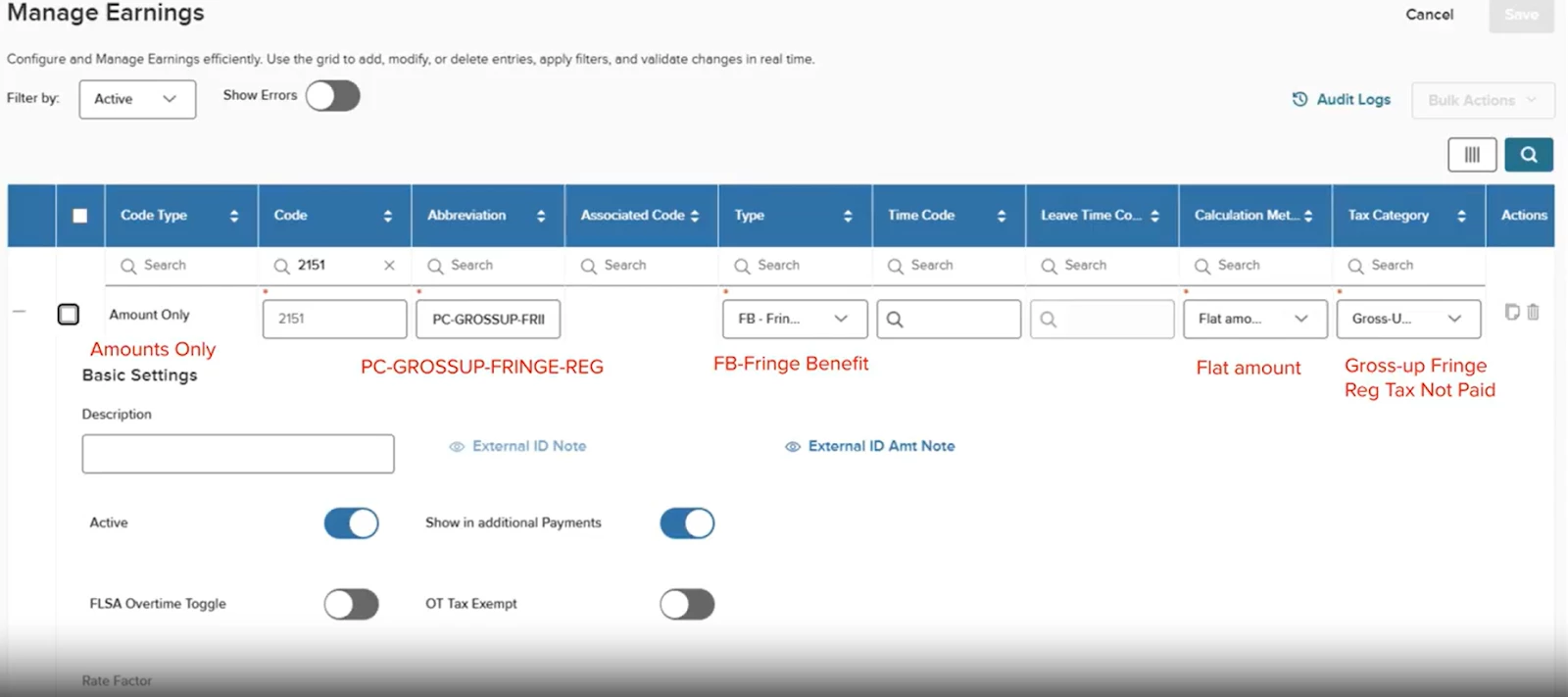
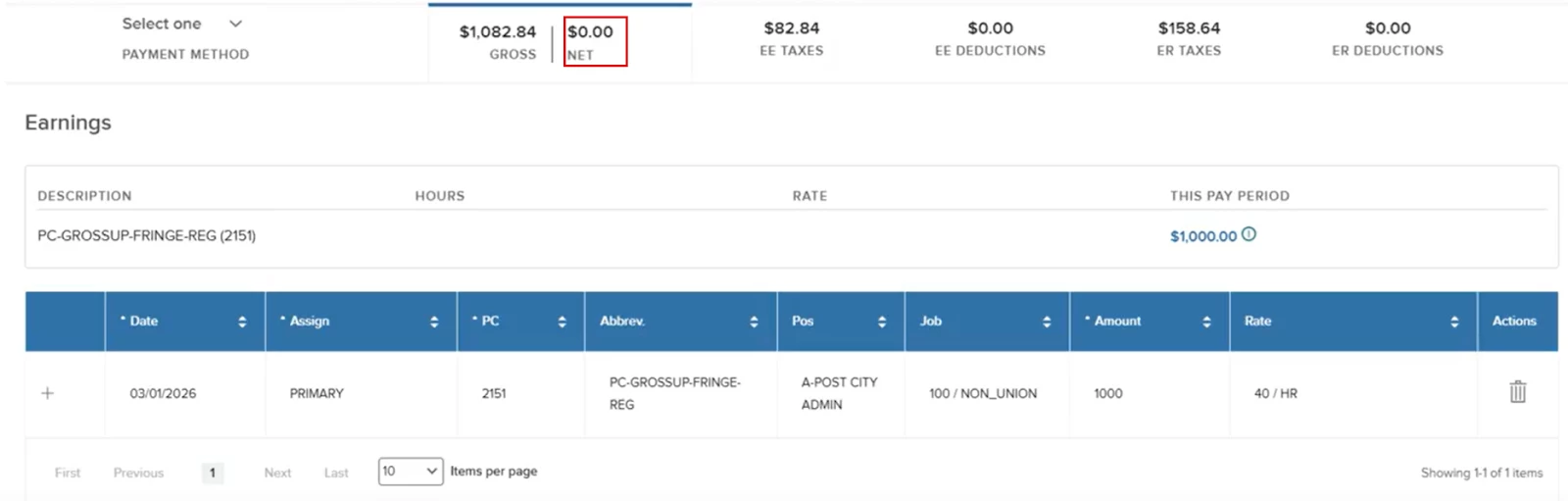
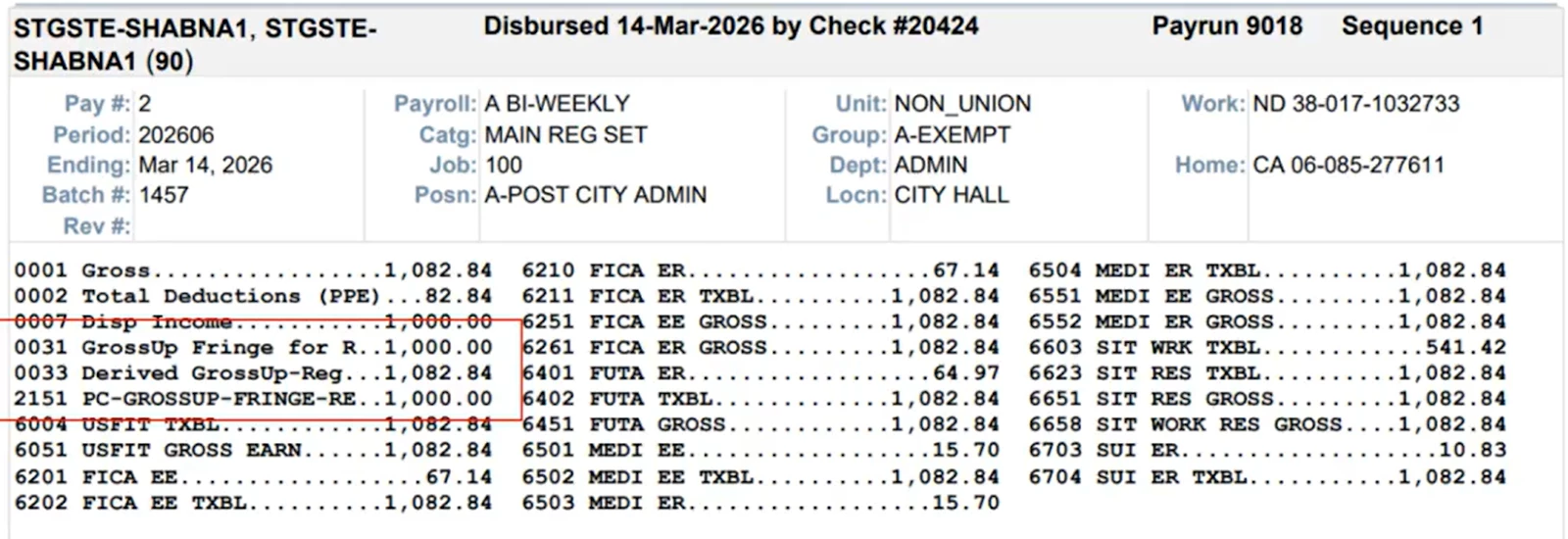
Gross-Up Earning for Supplemental Fringe Benefit Net Pay
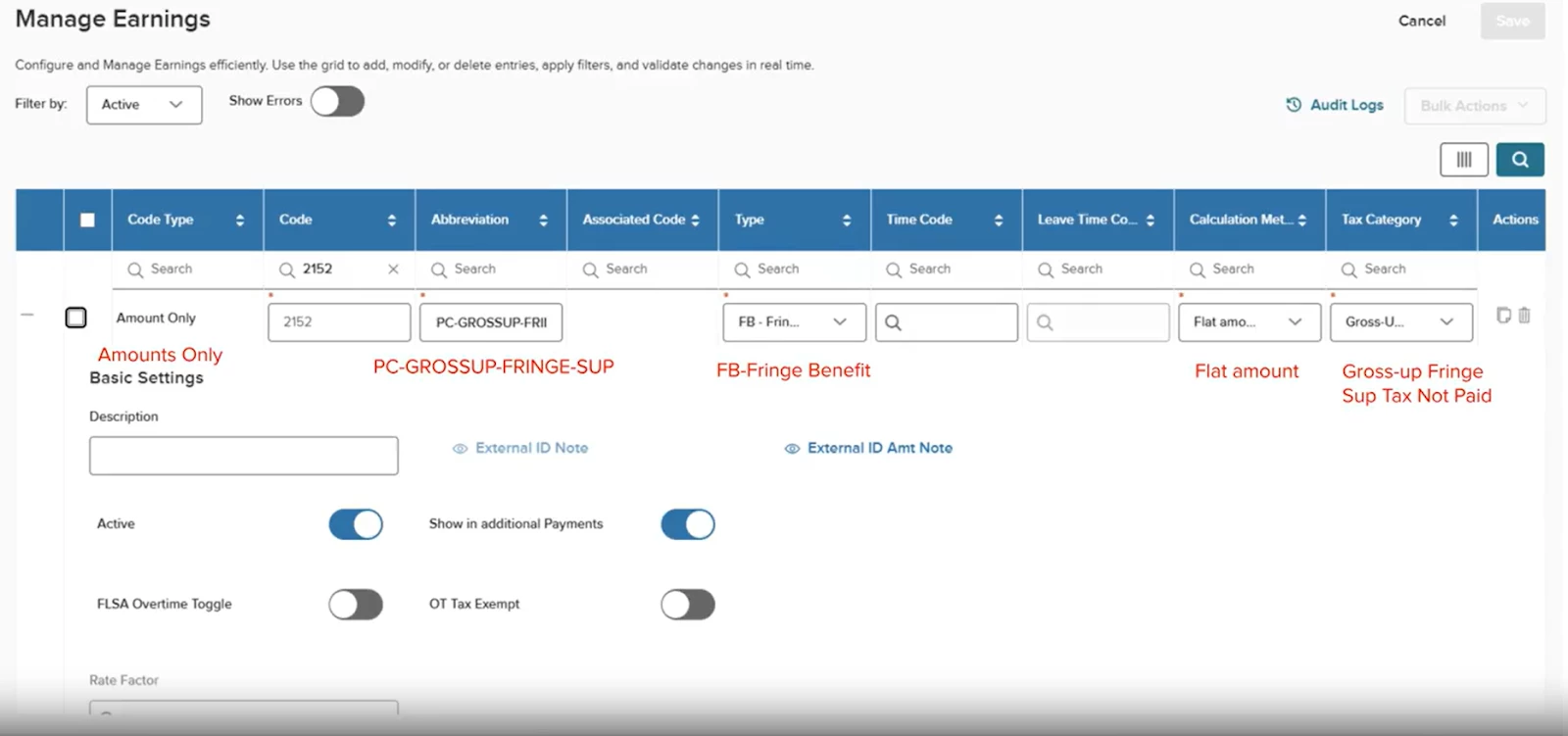
A Supplemental Fringe Benefit Gross-Up protects an employee's regular earnings from the tax liability of a one-time non-cash perk. Payroll calculates the tax on the benefit's value in reverse using a flat supplemental rate, ensuring the employee receives the benefit without a corresponding decrease in their standard net pay.
The following screenshot shows the setup.
Value
- HR admins no longer need to manually calculate gross-up taxes.
- With the correct configuration, the employer is able to choose how to pay their employees.
Audience
HR administrators.
Example
Each year, the company hosts a giveaway that includes gift cards and fixed bonuses. Calculating the taxes manually to ensure employees receive the correct amounts was cumbersome. With the new functionality, users can run an off-cycle payroll, select gross-ups, and follow the prompts to deliver the intended net amount, which is then recorded accurately.
Alternative Rate 2 Option
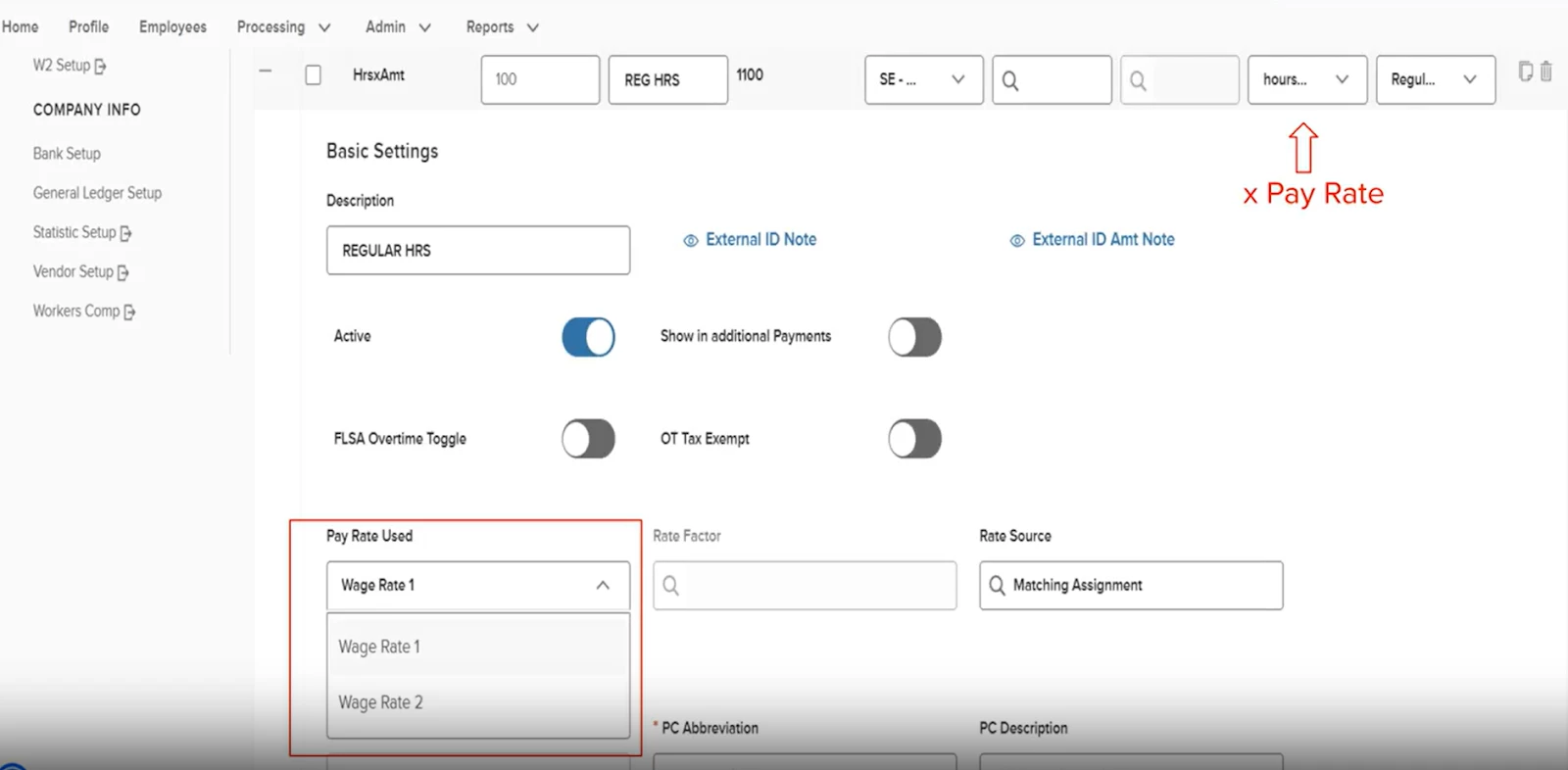
With this release, we’ve added an alternative Rate 2 option to provide additional flexibility in pay calculations.
Note: This value will be used for custom calculations, and should only be enabled in consultation with your implementation consultants or support teams.
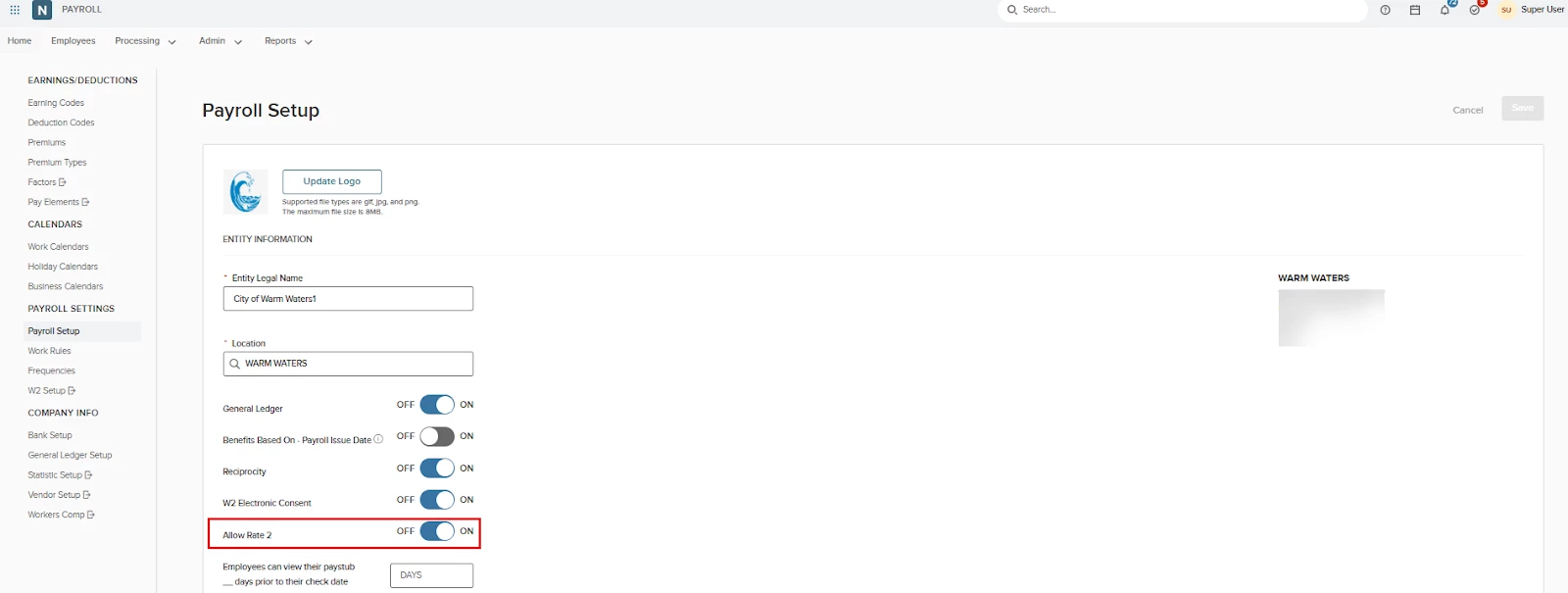
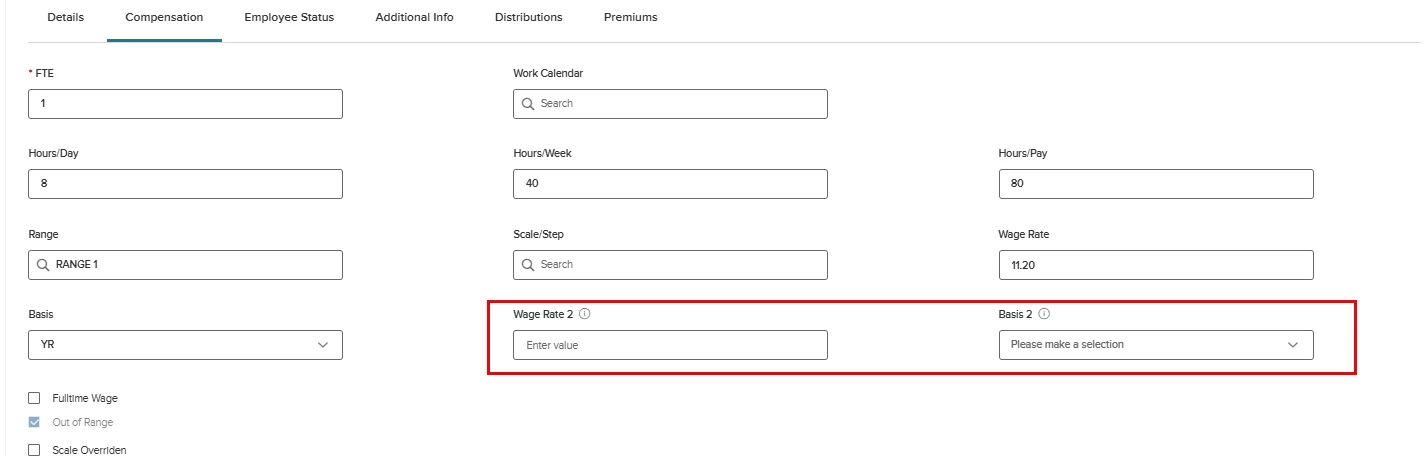
To use this feature, go to the Payroll Setup page and set the Allow Rate 2 toggle to ON. This will allow the second wage rate to appear on the employee’s Compensation tab.
Value
Allows customers to configure individual pay rates or calculations based on the specific job duties of each employee.
Audience
HR administrators.
Example
An employee normally works the day shift, but sometimes picks up extra shifts on the weekend. These extra shifts have a higher pay rate. By using Wage Rate 2, they can clock in at the weekend rate, ensuring their paycheck reflects the increased pay.
Pension Updates
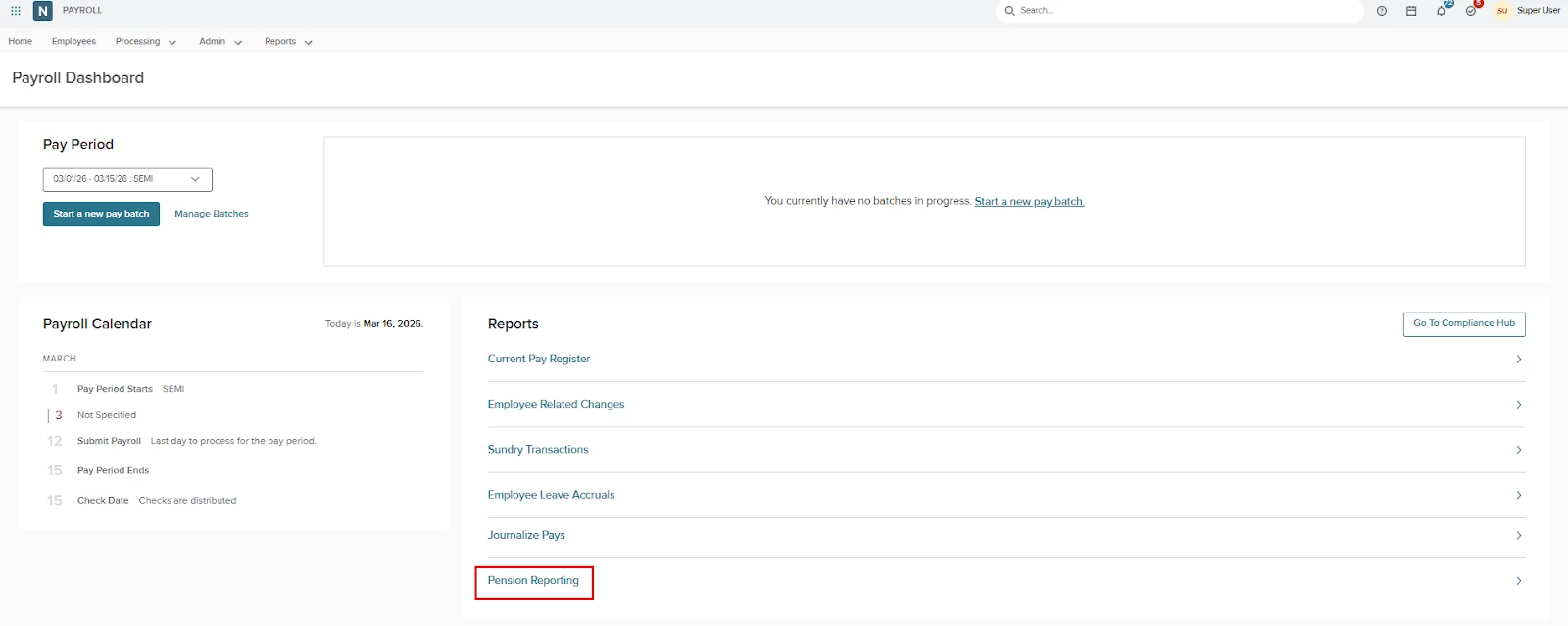
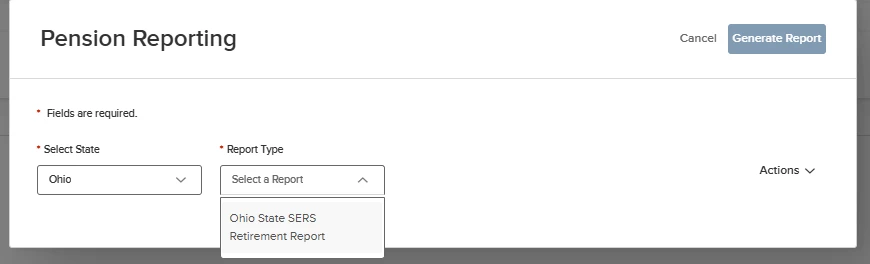
With this release, we have expanded our pension reporting capabilities by adding Ohio to the Payroll Dashboard selections. This update allows administrators to generate state-specific pension files directly from the dashboard.
Value
Customers are able to run a pension report for Ohio.
Audience
HR administrators.
Example
Customers in Ohio can now generate their pension reports directly through the Pension Reporting page.
Payroll Auditing Improvements
With this release, we’ve enhanced our payroll auditing capabilities. These enhancements provide greater visibility into edits made, and improve the tracking of changes for more effective review and compliance. The following pages have received the enhancements.
- Premiums.
- Payroll Setup.
- Frequencies.
- Payroll Batches.
Value
- Users can view who made the changes, when it was run, and the values before and after execution.
- Changes take effect immediately, and are automatically logged.
- Users can now retrieve change information without relying on developer assistance.
Audience
HR administrators.
Example
HR updates an employee’s information on the Payroll Setup page. Payroll will automatically record the change. Users can instantly access who made the change and what the previous and new values are.
Appendix: Bugs Resolved
No additional bug fixes outside of the maintenance releases. Refer to the maintenance release notes for more details.
Related Resources