



Perform: Fall 2026 Release Notes
Article Links
Timeline
When will this be released?
UAT Availabililty
| Feature | UAT Availability Date |
|---|---|
| AI Summary of Multiple Evaluations | Not available in UAT |
| Pay for Perform Connection with NEOGOV HRIS | October 1, 2026 |
| Sum Option for Numeric Scoring | October 1, 2026 |
| Bulk Export for Evaluation Program Participants | October 1, 2026 |
| Allow Employees to Add to Future Goals Section | October 1, 2026 |
| Show Task Descriptions when Completing Tasks | October 1, 2026 |
Production Availability
October 29, 2026.
Is there downtime for this release?
No.
AI Summary of Multiple Evaluations
Quickly identify performance trends and insights by generating an AI-powered narrative of an employee’s past evaluations. This feature synthesizes historical data to help you understand employee performance over time without manually reviewing each past rating period.
Example
A Manager can generate a summary of a direct report's last three years of evaluations to identify consistent strengths and track how their performance has improved over time.
How it Works
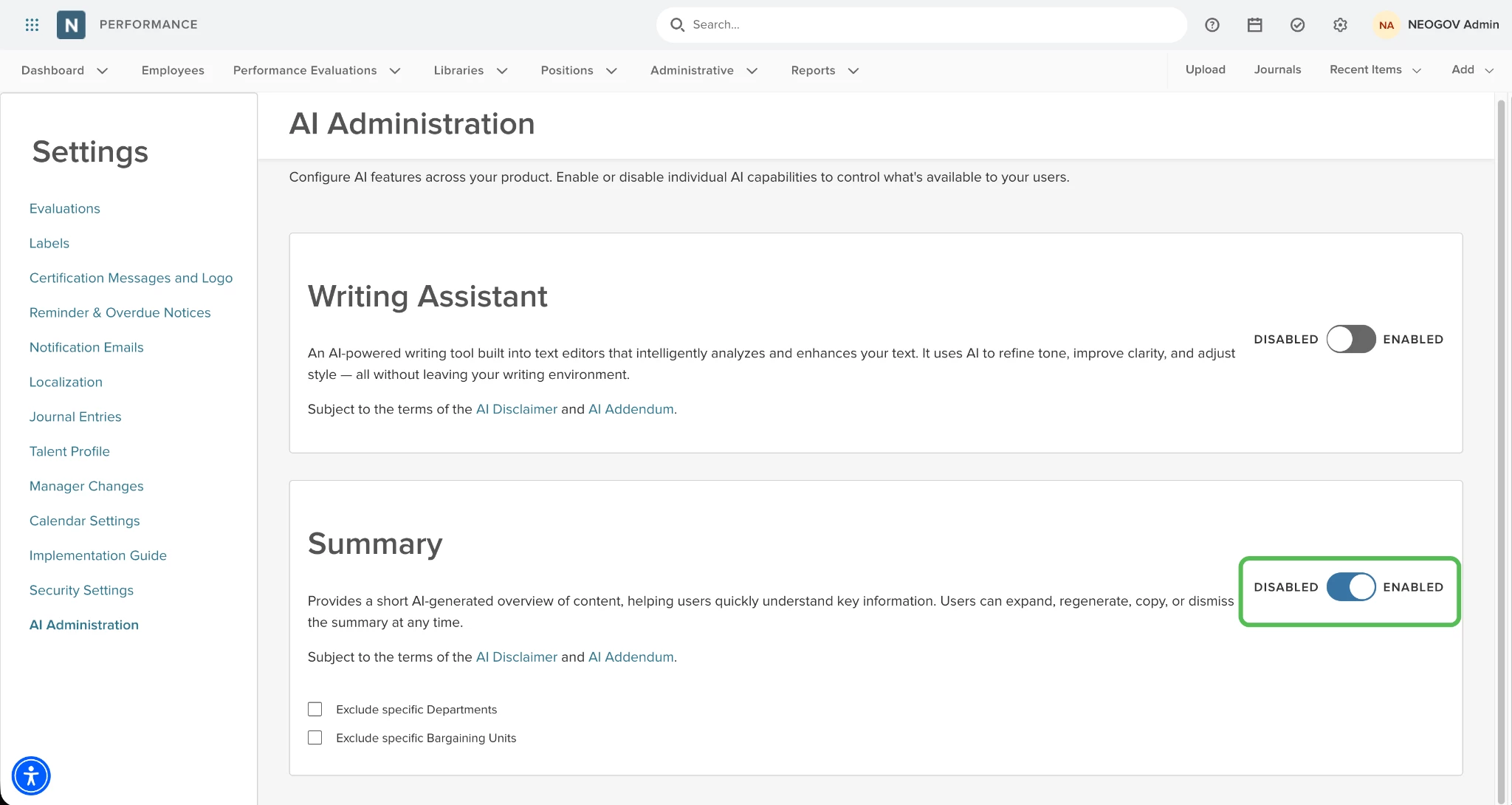
- Ensure that the AI Summary feature toggle is enabled in Perform Settings > AI Administration.
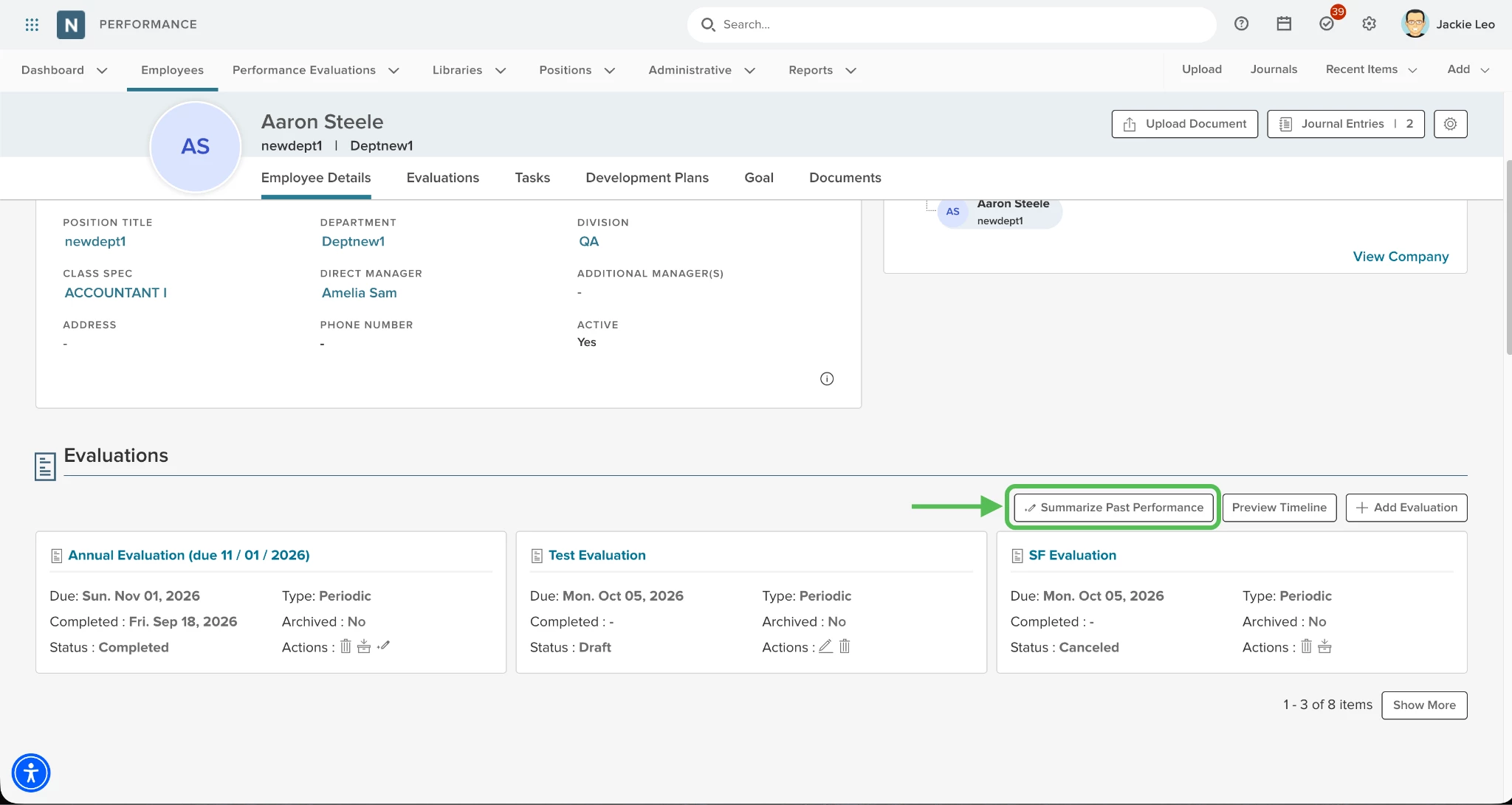
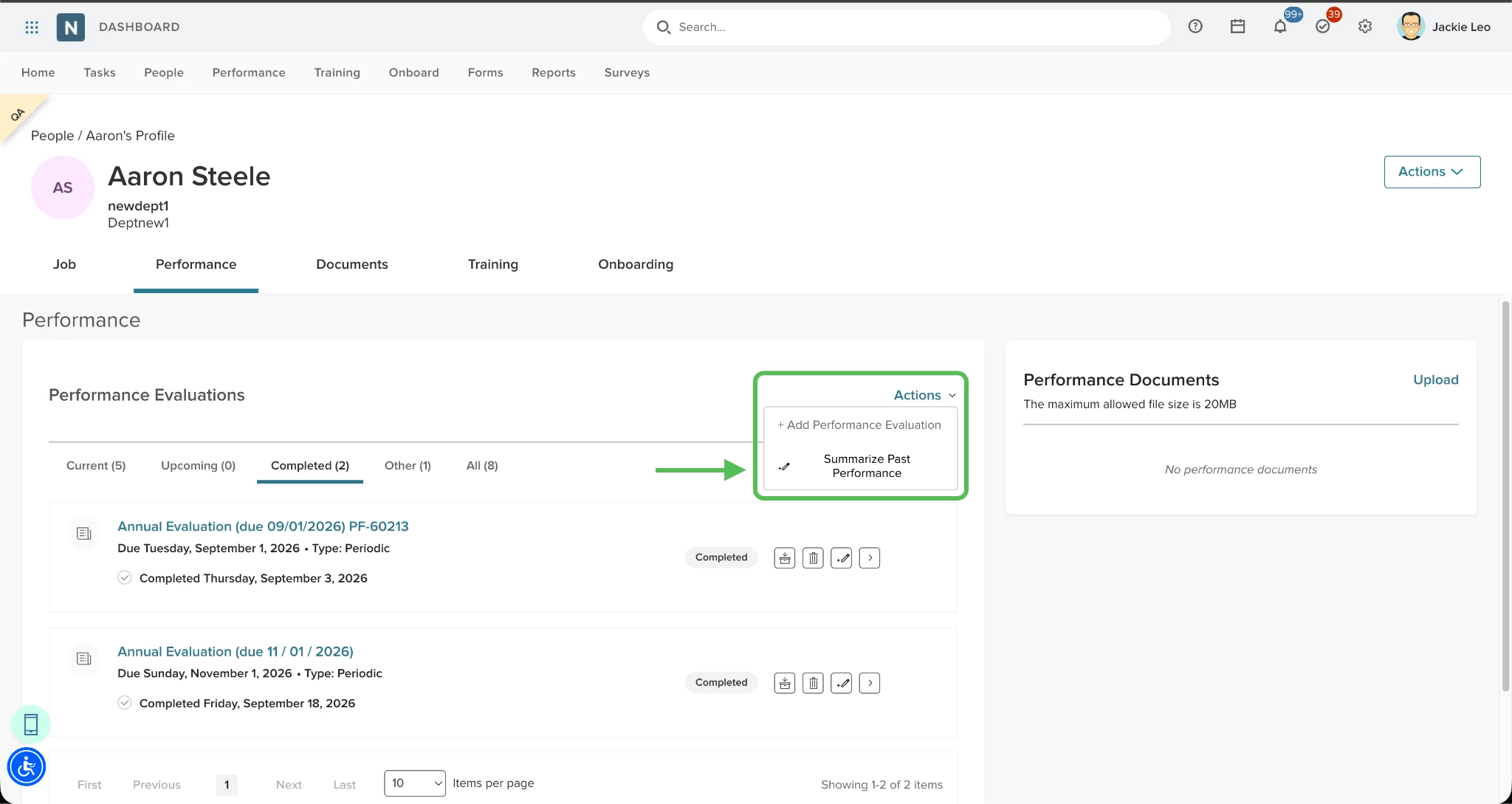
- Select Summarize Past Performance from the Perform Profile or the Unified Suite Profile (Performance tab).
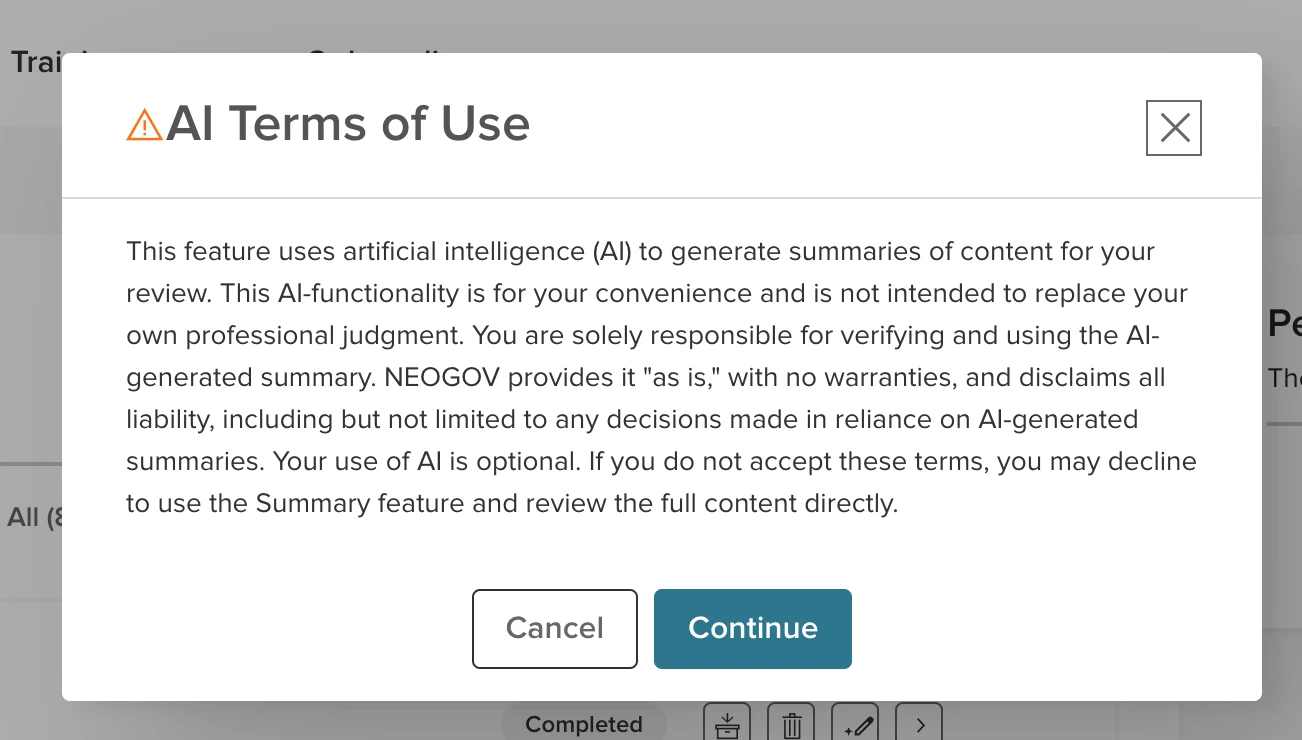
- Review and accept the AI Terms of Use popup to proceed.
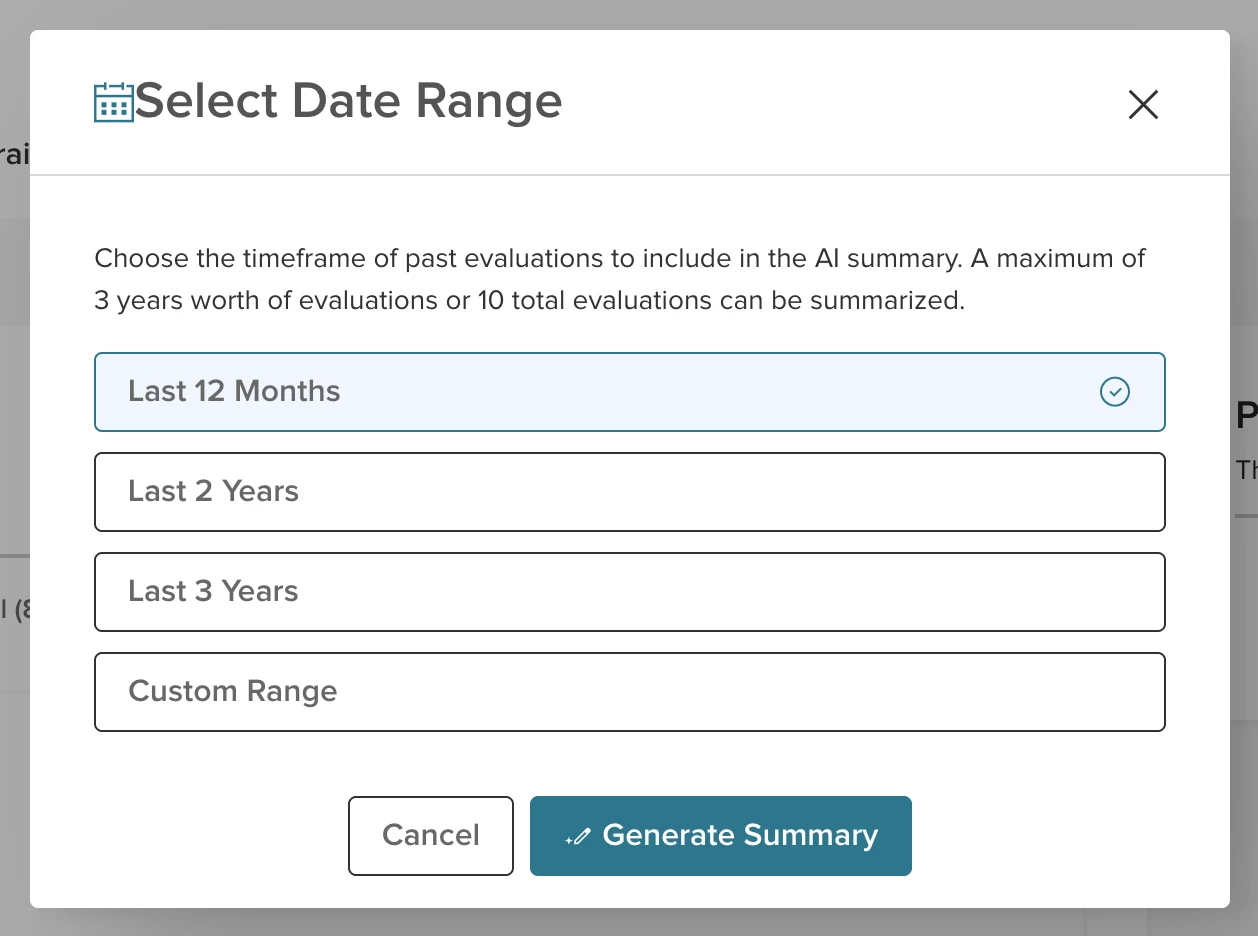
- Choose a timeframe for the summary: Last 12 Months, Last 2 Years, Last 3 Years, or a Custom Range.
- View the generated narrative, which includes:
- Trends Over Time: A comparison of historical baselines against recent performance momentum.
- Key Strengths and Areas for Growth: Up to three items each. Historical Key Strengths are the highest-rated items in the selected timeframe whereas Areas for Growth represent rating items that require ongoing support.
- Goal Outcomes: A summary of up to three significant accomplishments in the selected timeframe.
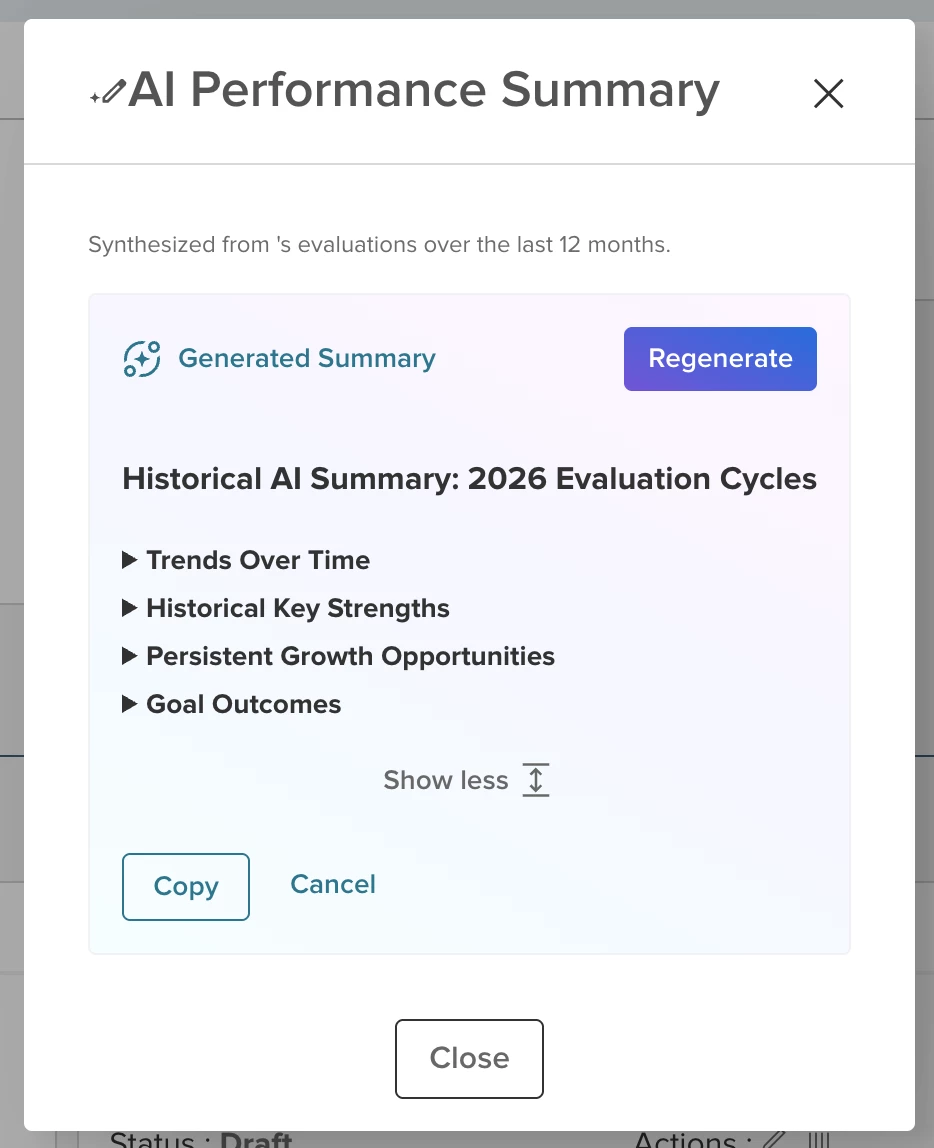
- Use the Copy button to save the text to your clipboard or Regenerate to create a new version.
Notes
- Summaries are limited to a three year timeframe or, at most, 10 evaluations. Users must have existing permissions to view or download an employee's evaluations to use this action.
- Tie-breaking logic is built into the summary prompt to ensure no more than three items are shown for the Strengths, Growth Opportunities, and Goal Outcome sections.
Value
Reduces the time required to synthesize historical performance data, enabling more informed talent development and review discussions.
Audience
Administrators and Managers.
Pay for Perform Connection with NEOGOV HRIS
The Pay for Perform feature automates the merit increase process by bridging the gap between performance evaluations and payroll. This update allows HR administrators to define business rules that trigger step progressions in NEOGOV HRIS directly from a completed evaluation, ensuring that performance-based pay increases are processed accurately and efficiently.
Example
A Manager is completing a final annual review for an employee, and gives them a 5/5 overall rating. As a result, the Manager can propose a step progression date, which initiates a personnel action in HRIS.
How it Works
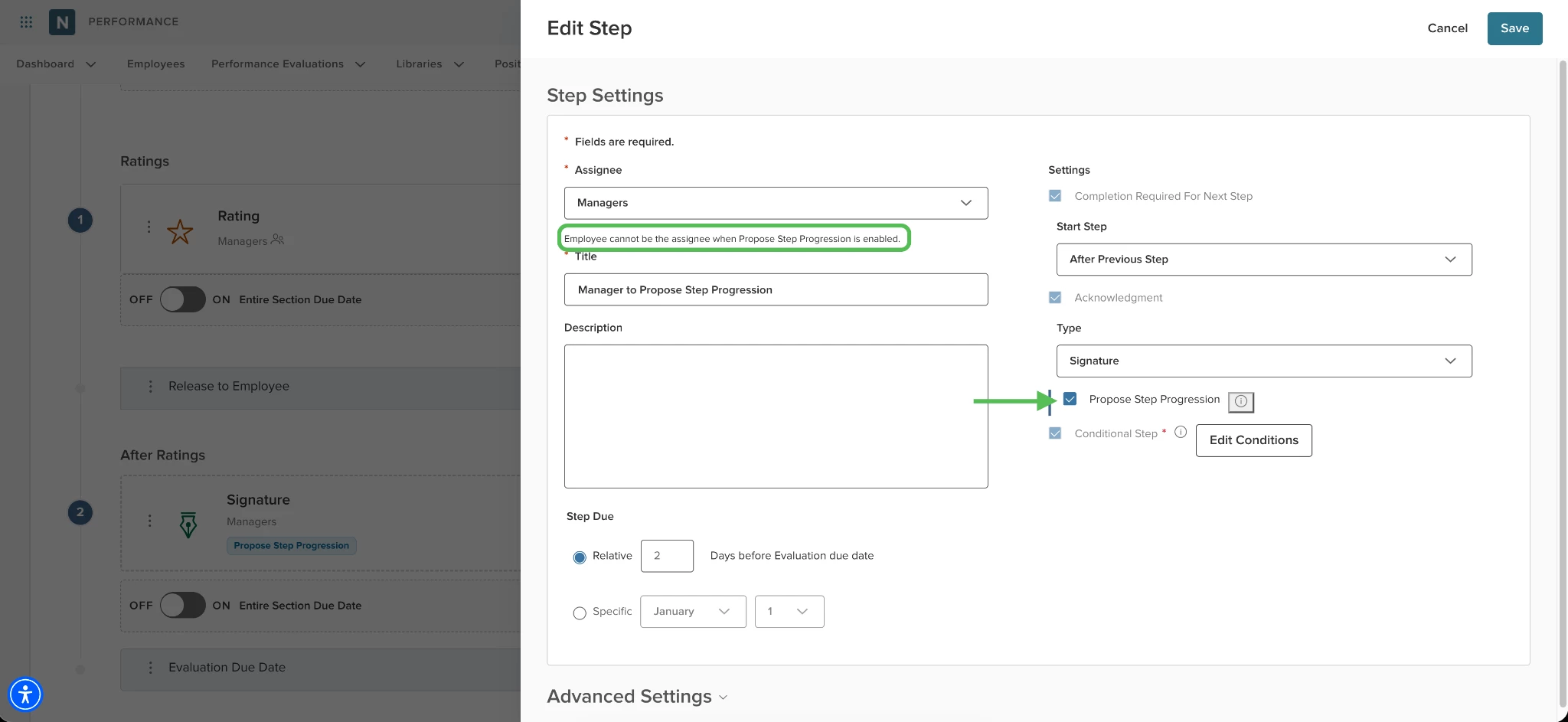
- Admins need to enable Propose Step Progression on an After Rating Acknowledgement task within an evaluation program.
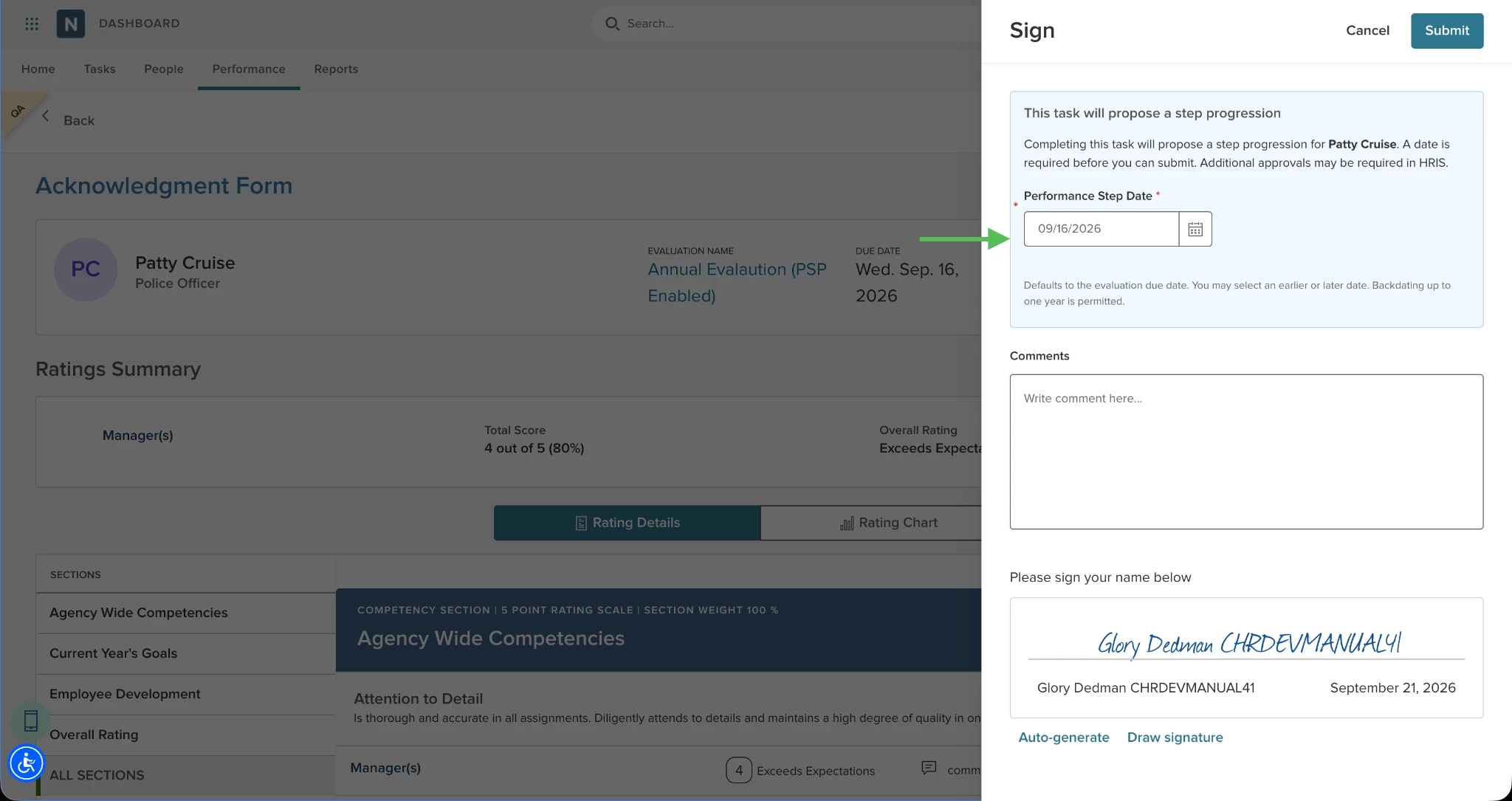
- When the assignee (the Manager in this example) opens the task, they see this required field: Performance Step Date. The default date is the evaluation due date, but can be adjusted or backdated up to one year.
- Upon completion of the task, Perform sends a message to NEOGOV HRIS containing all the required information to initiate a personnel action for a step progression. Depending on your agency’s process, additional approvals in HRIS may be required.
Notes
- When Propose Step Progression is enabled, the acknowledgement task assignee cannot be the employee. This ensures that employees do not propose step progressions for themselves.
- Acknowledgement steps with Propose Step Progression enabled must have conditions defined. This ensures that the step progression can only be proposed if all conditions are met.
Value
By allowing merit increases to be proposed directly within the evaluation workflow, organizations reduce administrative overhead, minimize data entry errors, and ensure that pay increases are processed timely, even retroactively.
Audience
HR Admins.
Sum Option for Numeric Scoring
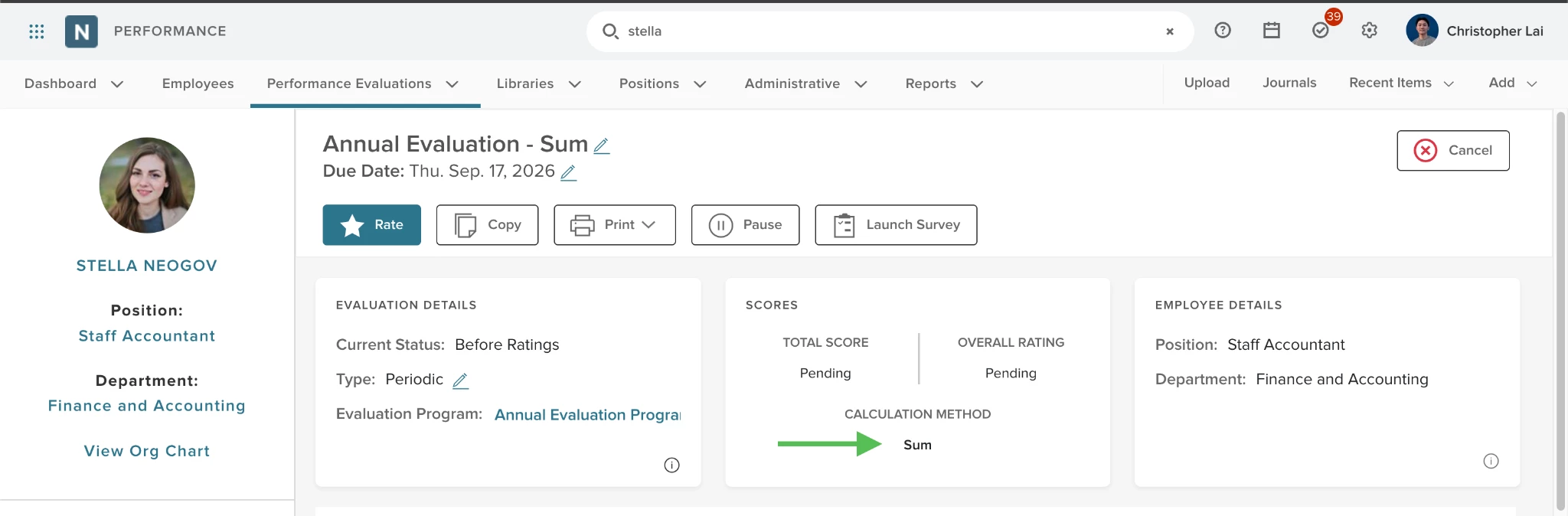
Calculate total evaluation scores by adding individual item ratings together for a simpler scoring approach. This new Sum calculation method provides an alternative to weighted averages, allowing you to show a straightforward total points earned out of the maximum possible points.
Example
An Administrator sets up a 50-point evaluation consisting of 10 items, each scored on a 5-point scale and added together for a total score.
How it Works
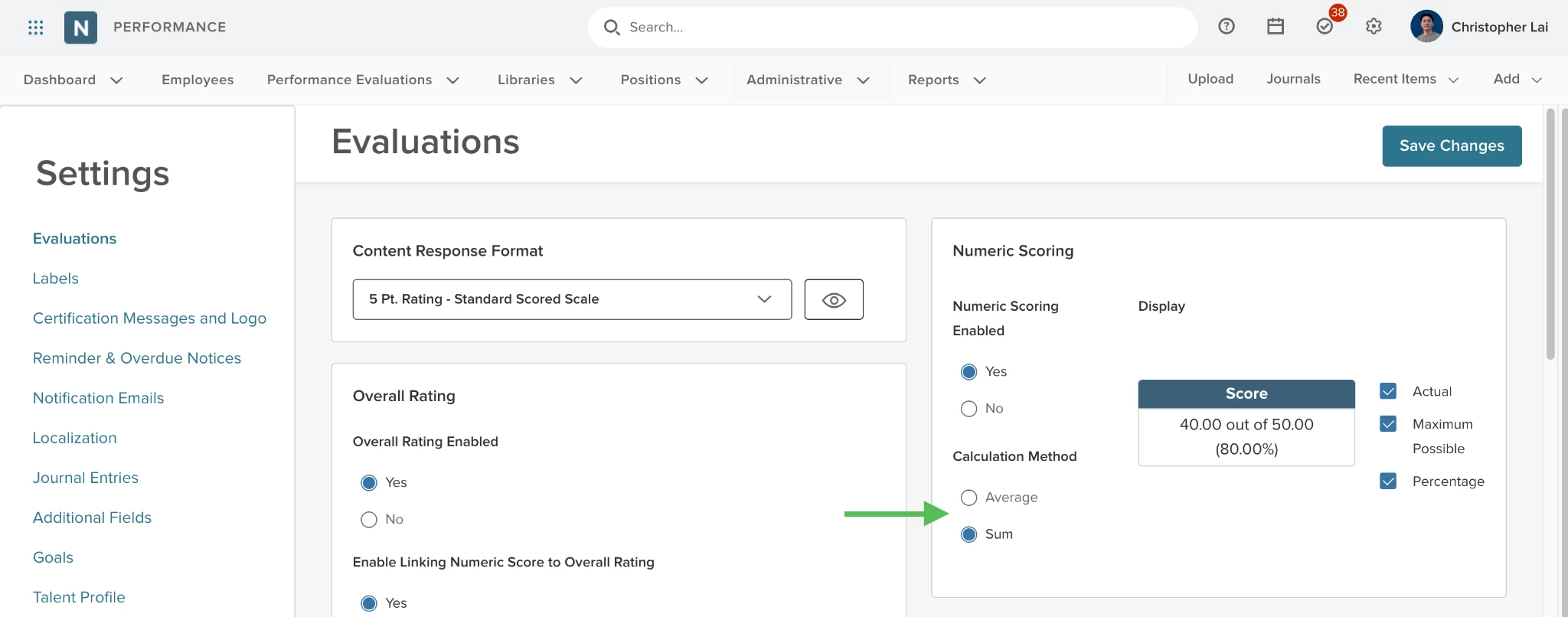
First, set your agency’s Global Default, which applies to all newly created evaluation programs.
- Navigate to Perform Settings > Evaluations > Numeric Scoring.
- Enable Numeric Scoring, then select Sum under Calculation Method.
- View the score display, which shows the actual score, maximum possible score, and percentage (example: 40 out of 50 (80%)).
Next, set the numeric scoring calculation method on a specific evaluation program.
- Navigate to Evaluation Program > Content > Advanced Settings.
- Enable Numeric Scoring, and select Sum as the Calculation Method.
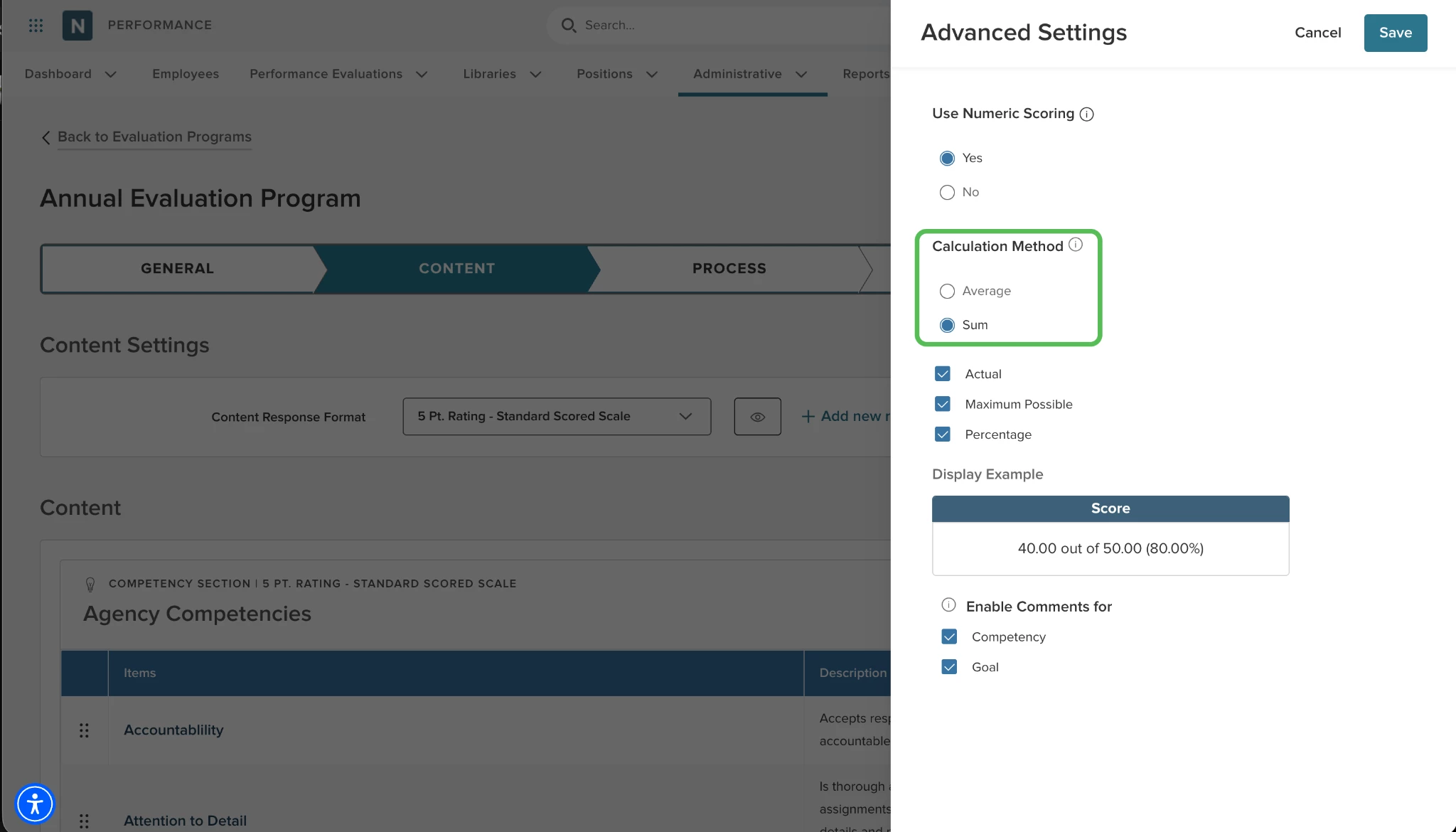
- All weighting-related fields, including section weights and the weighting donut chart, are automatically hidden when Sum is active.
- If you would like to give more weighting to specific items, edit the section response format. For example, one section would have a 5-point rating scale and another can have 10-points.
- The system calculates the Actual Score by adding all numeric ratings and the Max Possible Score by adding the maximum values of all applicable items.
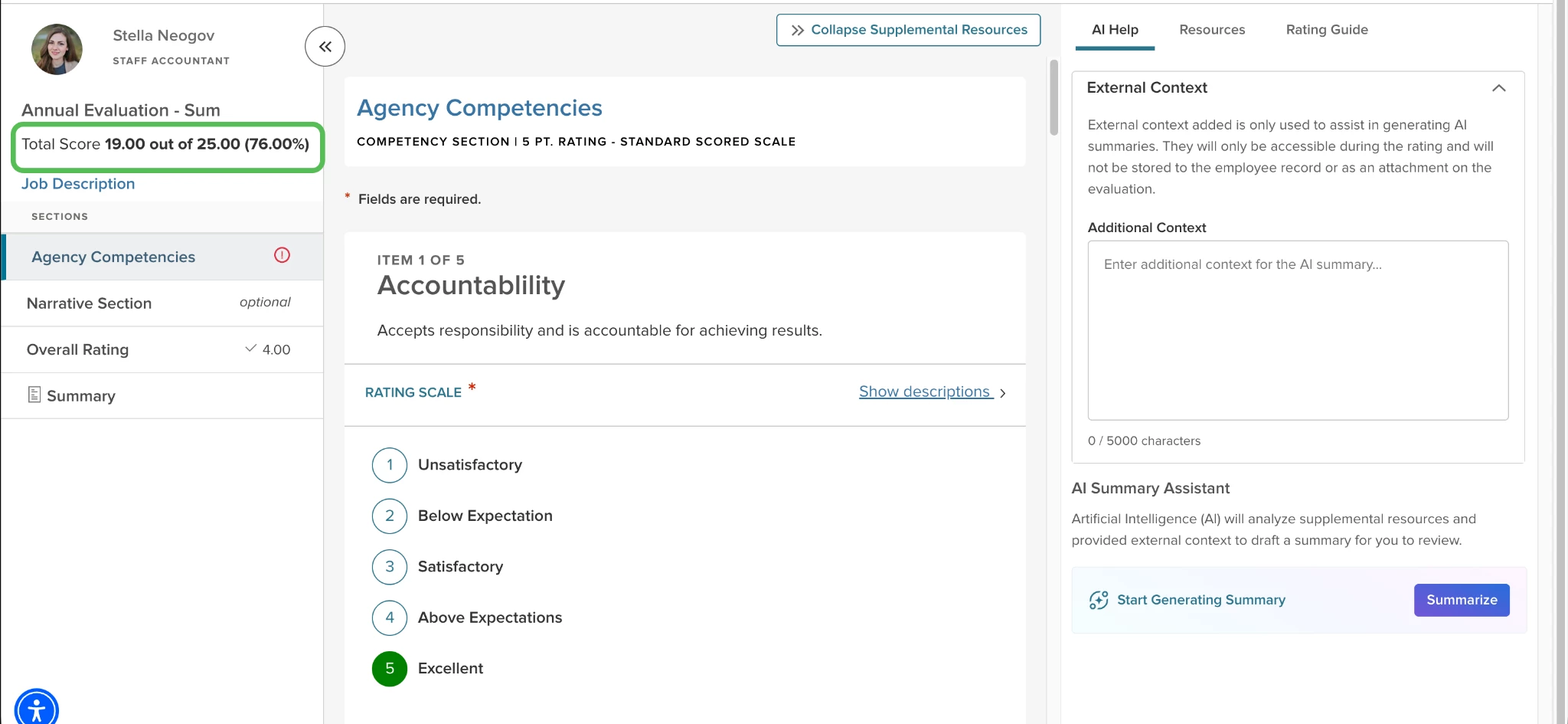
- If a rater selects N/A for an item, that item’s score and its potential maximum points are excluded from the total calculation.
Reporting Impacts
The only report in Perform that has been impacted is the Performance Rating Report. The Chart Setting flyout now allows you to switch between Average and Sum for the Calculation Method. The report data will be filtered to only include evaluations that have the numeric score calculation method equal to the average or to the sum.
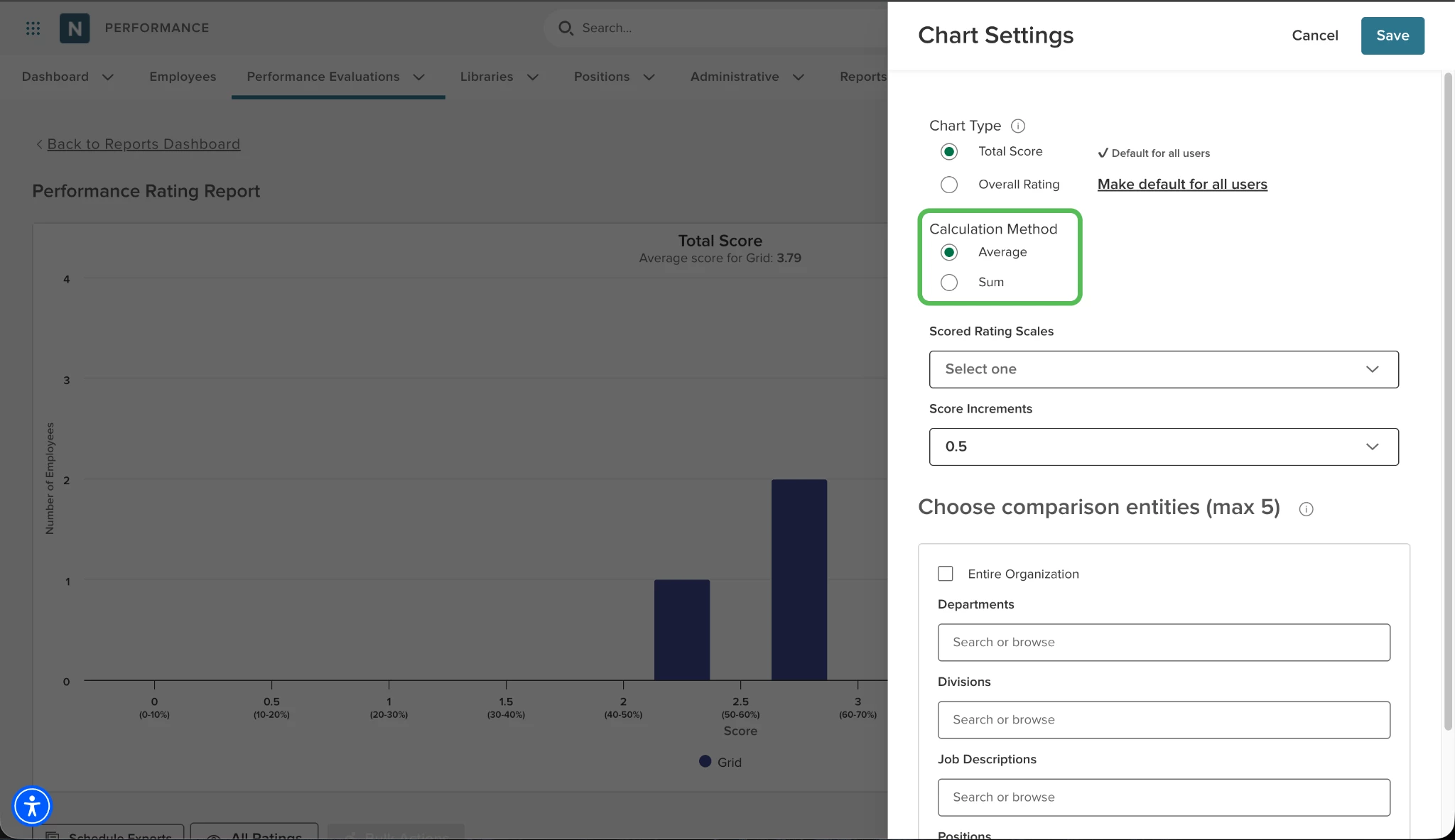
If the Chart Type is set to Overall Rating, then all evaluation data is shown.
In Analytics and Reporting, the following minor changes have been made in the Evaluation and Rating Item report types to support the new calculation method.
- The Calculation Method has been added as a new field.
- Total Score: This field shows the total score regardless of the numeric scoring calculation method.
- Total Score %: Calculates the percentage depending on the calculation method selected for a given evaluation.
- Rater Weight: If the calculation method is set to Sum, then the Rater Weight field value is blank.
Notes
- The Calculation Method is read-only within individual evaluation settings to ensure consistency with the program's original configuration.
- You cannot edit the numeric scoring calculation type once an evaluation is created.
Value
Simplifies the creation of point-based evaluation programs by removing the need for complex weighting configurations.
Audience
Administrators.
Bulk Export for Evaluation Program Participants
Audit and review employees assigned to an evaluation program by exporting the People list from any evaluation program.
Example
An HR Administrator exports the People list on an evaluation program to Excel. The Admin uses the Excel file to verify that all employees in the Parks and Recreation department are correctly assigned to the program.
How it Works
- Navigate to an evaluation program and select the People tab.
- Click View All to open the full participant list.
- Select Export To and choose a format: PDF, Excel, or CSV.
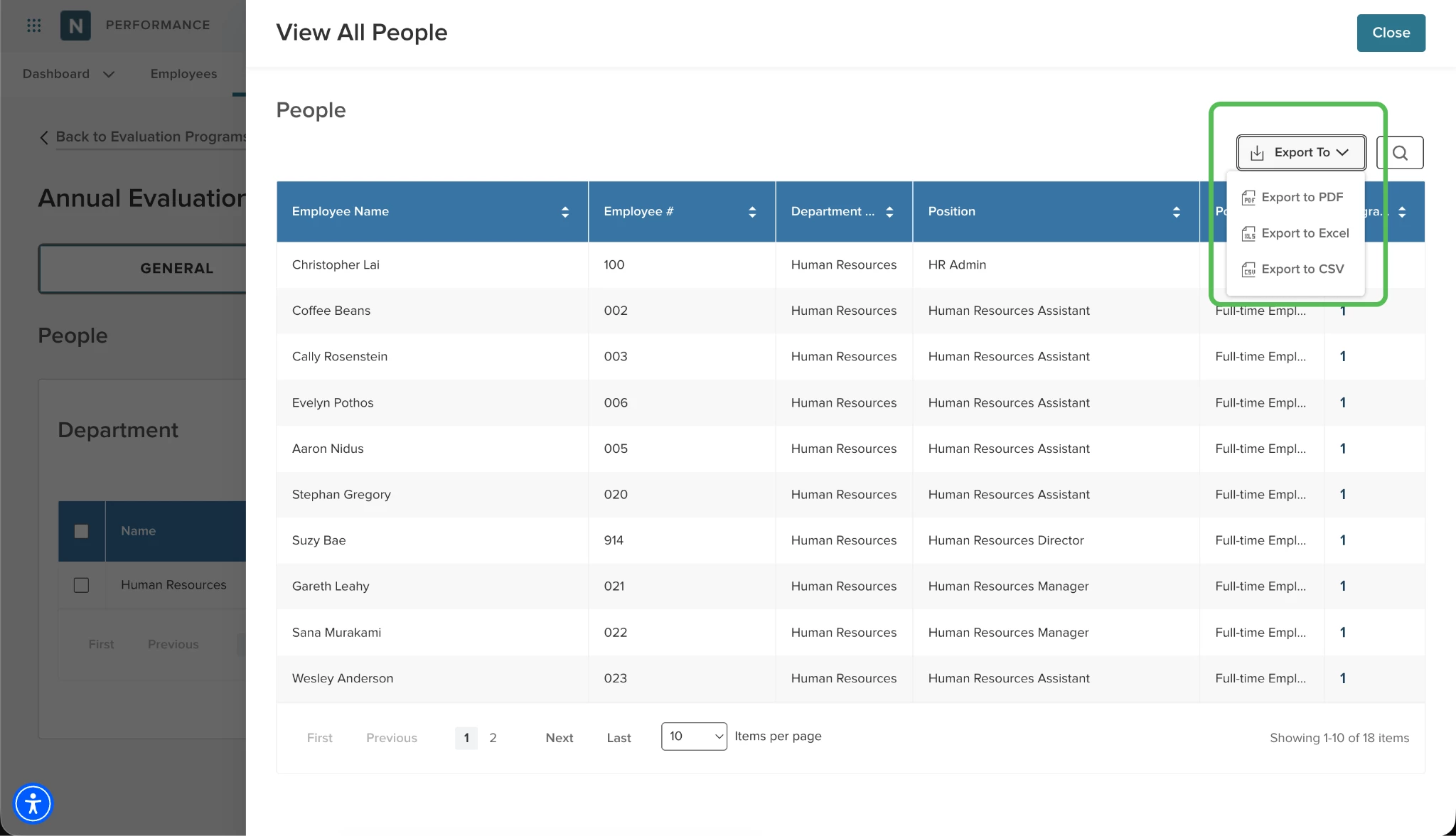
- The system generates a file named [Evaluation Program Name]_People containing 12 data points, including Employee Number, Department, Position, Bargaining Unit and more.
Note: The Export To button is disabled if no rules are configured on the People tab. If an employee is missing specific data (such as a Bargaining Unit), the corresponding cell in the export remains empty.
Value
The feature makes it easy to quickly scan the People list to double check which users are on the program.
Audience
HR Administrators.
Allow Employees to Add to Future Goals Section
Foster a more collaborative goal-setting process by allowing employees to view and contribute to future goals directly within their evaluations.
Example
An agency wants the employee being rated to add future goals during their self-evaluation. This means the goal-setting process is not fully dependent on the Manager.
How it Works
- Select an evaluation program, then navigate to Content.
- Select a Future/List Goal section to open the editor.
- Locate the Allow Self Raters to Access Future Goals setting.
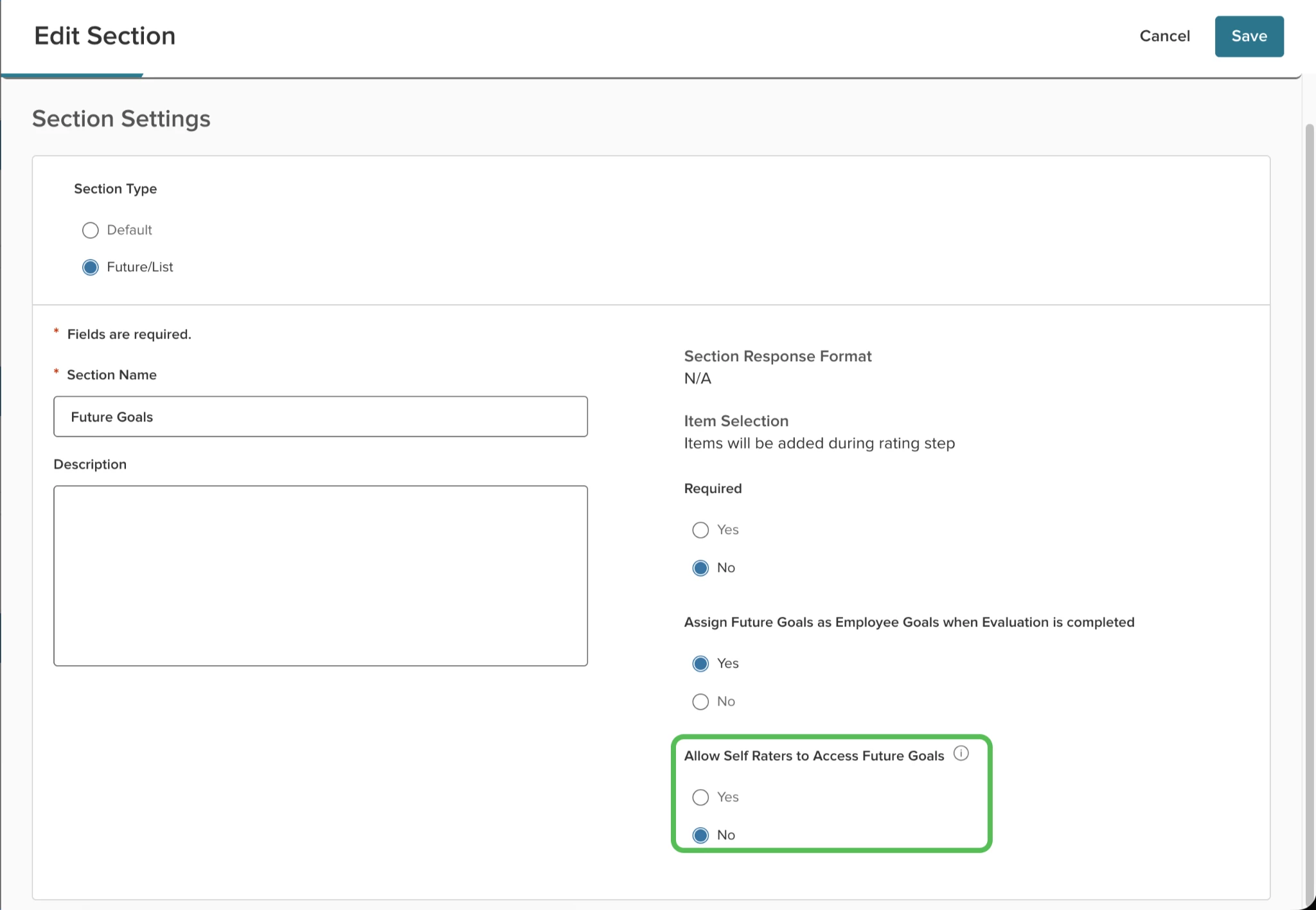
- Select Yes to enable access.
Once enabled, employees can view, add, and edit goals in this section during their self-evaluation and on the Evaluation Detail page.
Note: The default setting is No for all existing evaluation programs, and must be manually enabled for each section.
Value
Allows employees to take a more active role in goal setting, and reduces the administrative burden on managers during the review cycle.
Audience
Employees and Managers.
Show Task Descriptions when Completing Tasks
Provide employees with clear, actionable instructions directly within their tasks to ensure evaluations and content updates are completed accurately. You can now view full task descriptions across various task types in Perform, reducing confusion and the need for external documentation.
Example
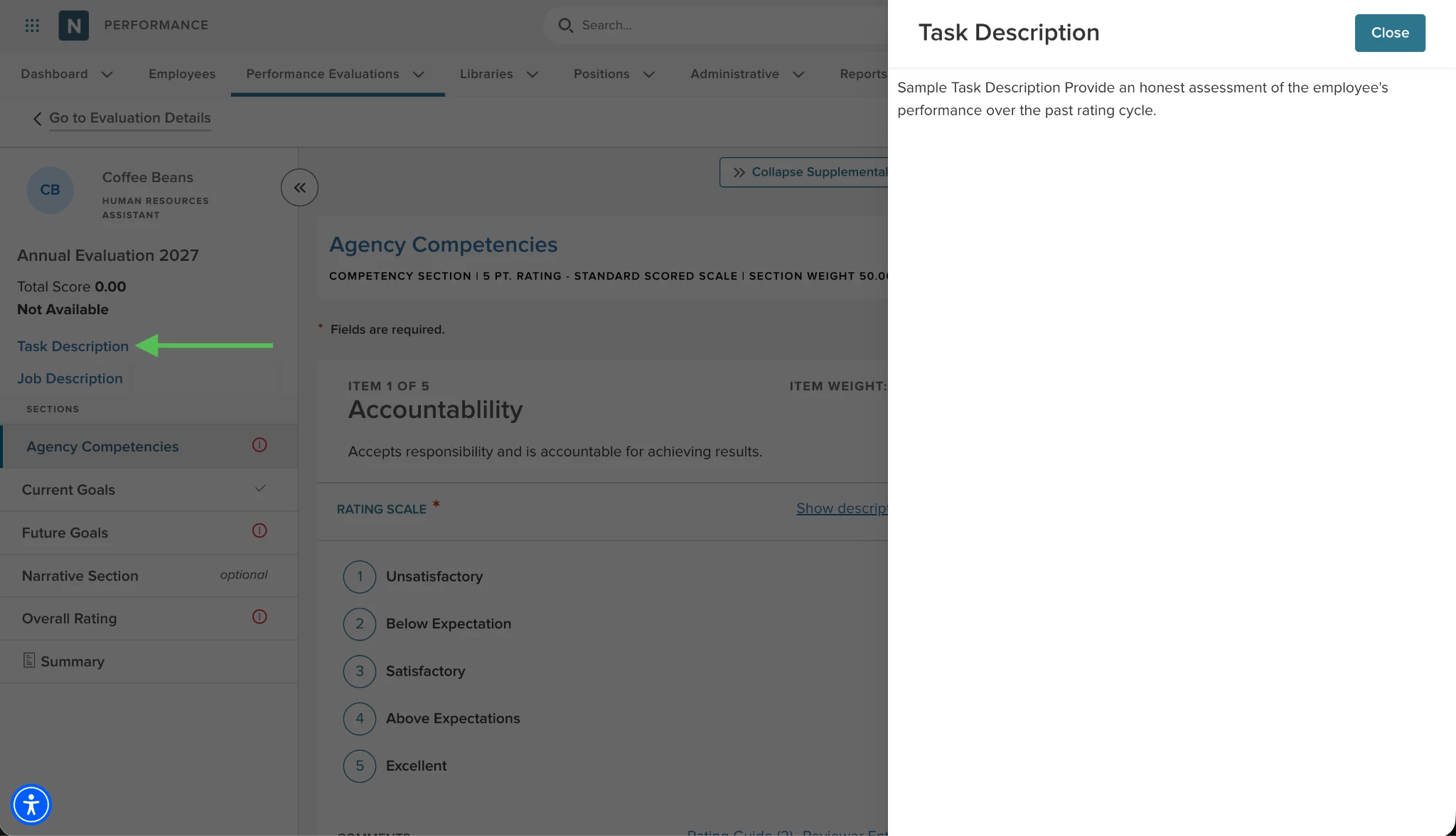
An employee opening a rating task can select the Task Description link to see specific guidance on how to evaluate their direct reports for the current quarter.
How it Works
- Rating Tasks: Select the Task Description link located above the Job Description in the left-side flyout menu. The full description appears in a new flyout menu to the right.
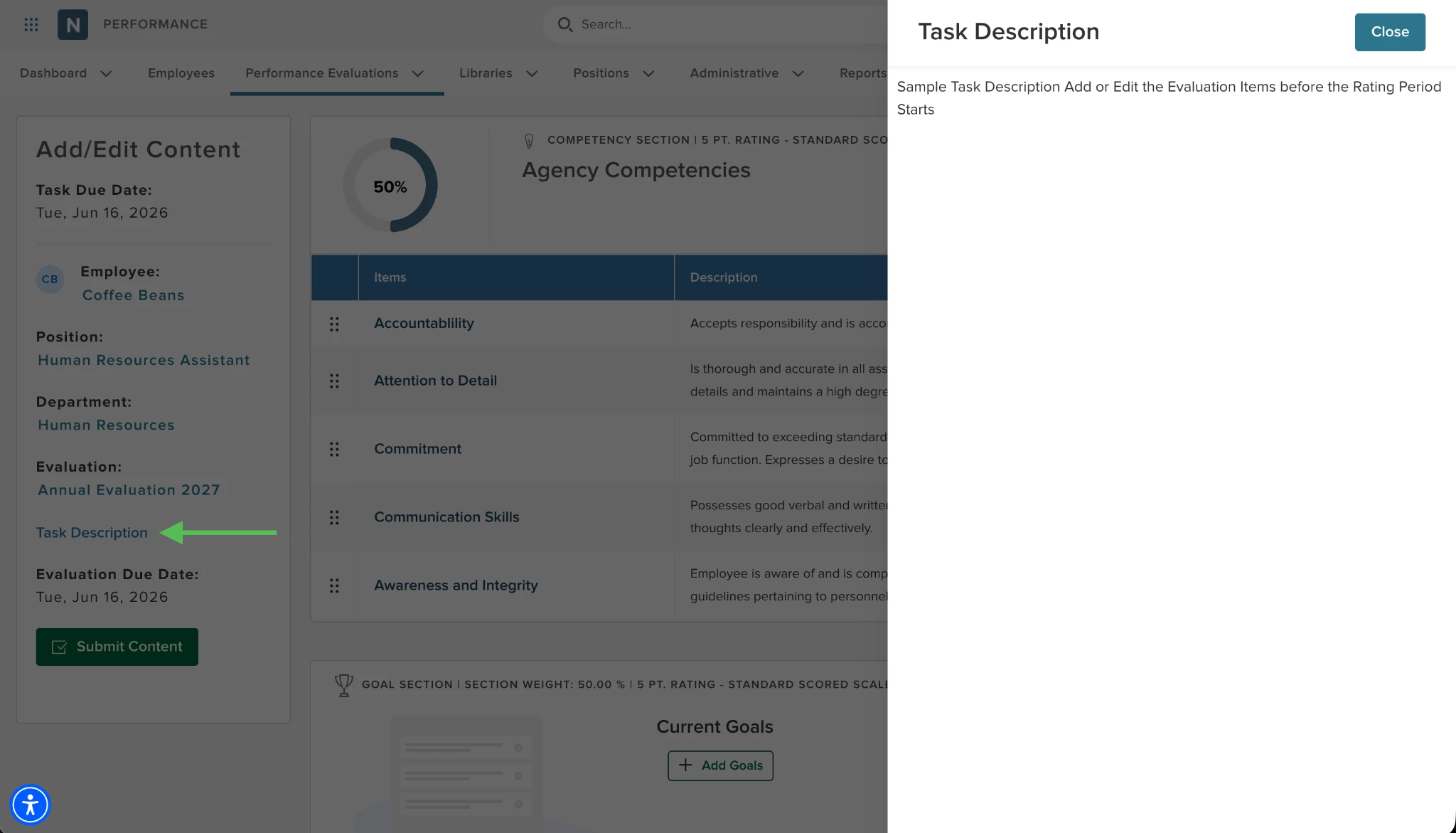
- Add/Edit Content Tasks: Select the Task Description link between the Evaluation and Evaluation Due Date fields in the left panel to view instructions in a right-side flyout.
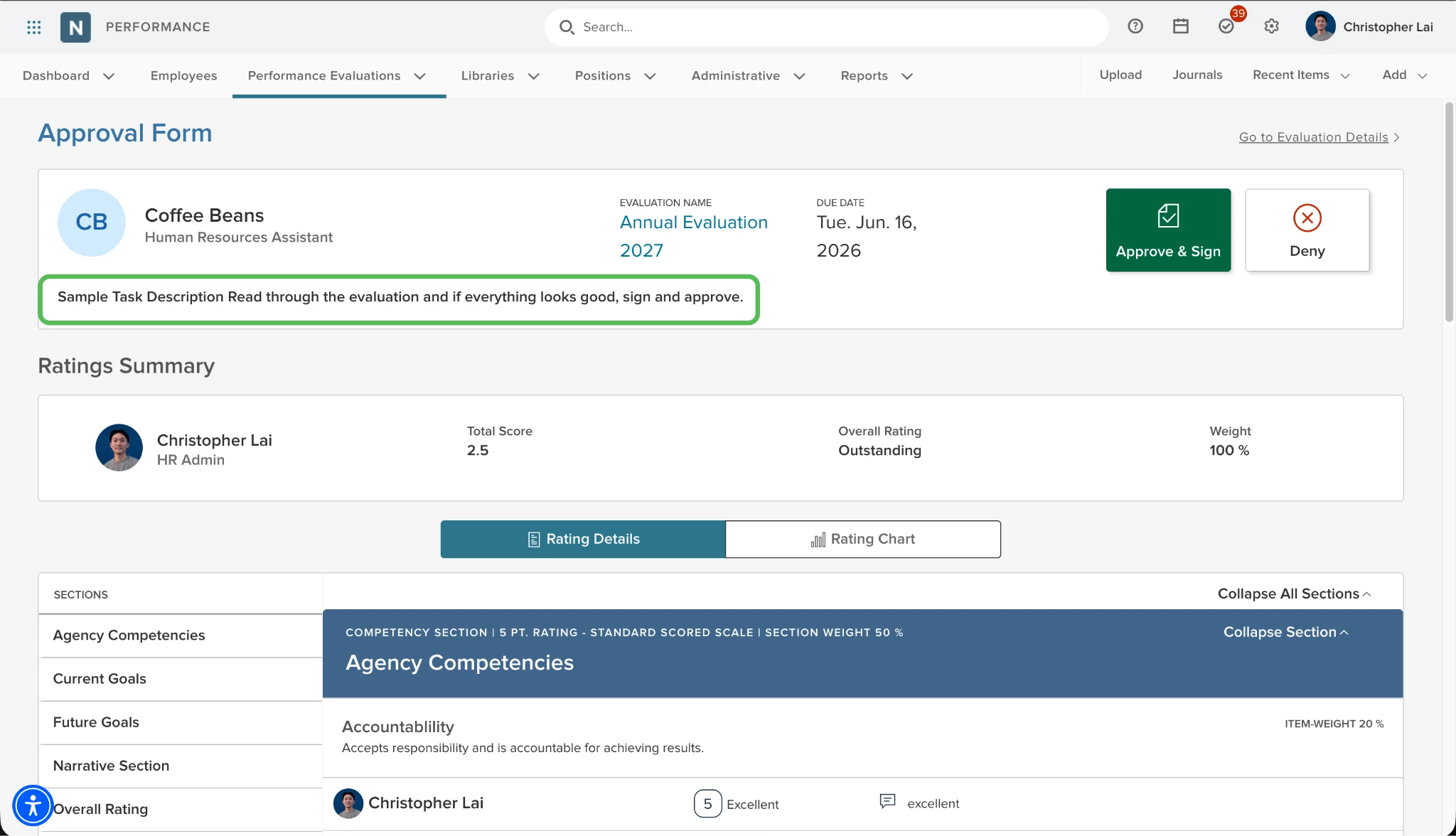
- Acknowledgement Tasks: View the description text directly within the task container, located below the action buttons.
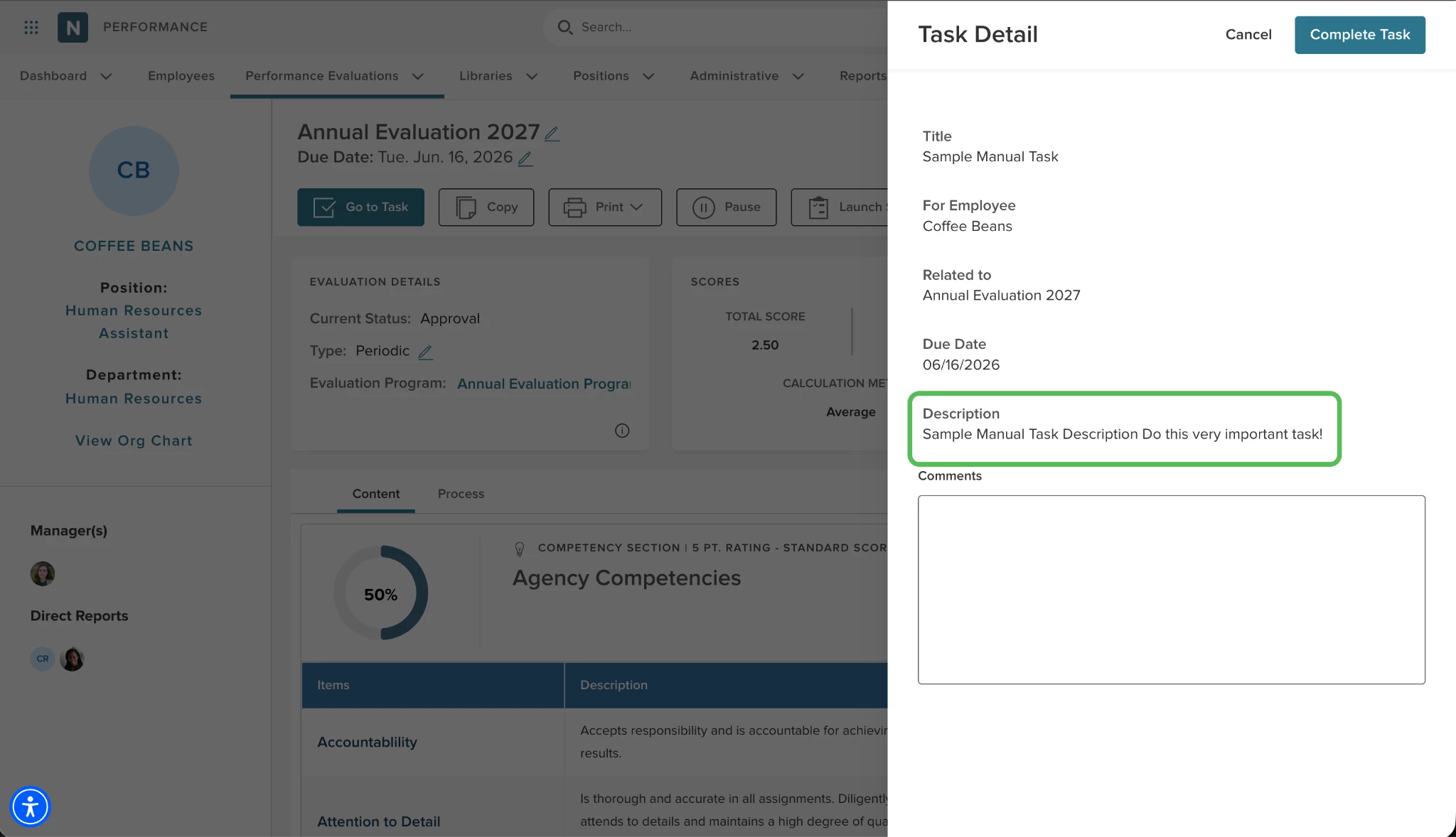
- Manual Tasks: View the target employee's name in the new For Employee field, located between the Title and Related To fields in the manual task flyout menu.
Notes
- The Task Description link only appears if a description has been defined for the task.
- Descriptions will not show for check-in and journal entry tasks.
- Descriptions are also available as tokens for reminder and overdue notice templates.
Value
Improves task completion accuracy by providing contextual instructions directly within the workflow.
Audience
Administrators, Employees, and Managers.
Appendix: Bugs Resolved
No additional bug fixes outside of the maintenance releases. Refer to the maintenance release notes for details.
Related Resources