


Perform: Winter 2026 Release Notes
Article Links
Timeline
When will this be released?
UAT Preview Window: 01/20/2026, 4AM PDT.
Production Availability: 02/19/2026, 4AM PDT
Is there downtime for this release?
No.
Enhancements
This release introduces enhanced control over survey visibility settings to support compliance and reduced risk, and a new confirmation modal for setting temporary passwords, improving security and usability for HR Admins.
Predefined Survey Visibility Settings
Ensure survey confidentiality and streamline setup by preconfiguring visibility settings directly in the survey library. You can now define whether respondent identities are hidden and whether results are visible to employees. This removes the risk of accidental settings at launch and helps maintain compliance.
Configure Settings for a New Survey Template
Consider this example. If you want to prevent managers from unintentionally exposing sensitive feedback, they can set a new survey template to hide respondents’ identities and not disclose survey feedback to the target employee.
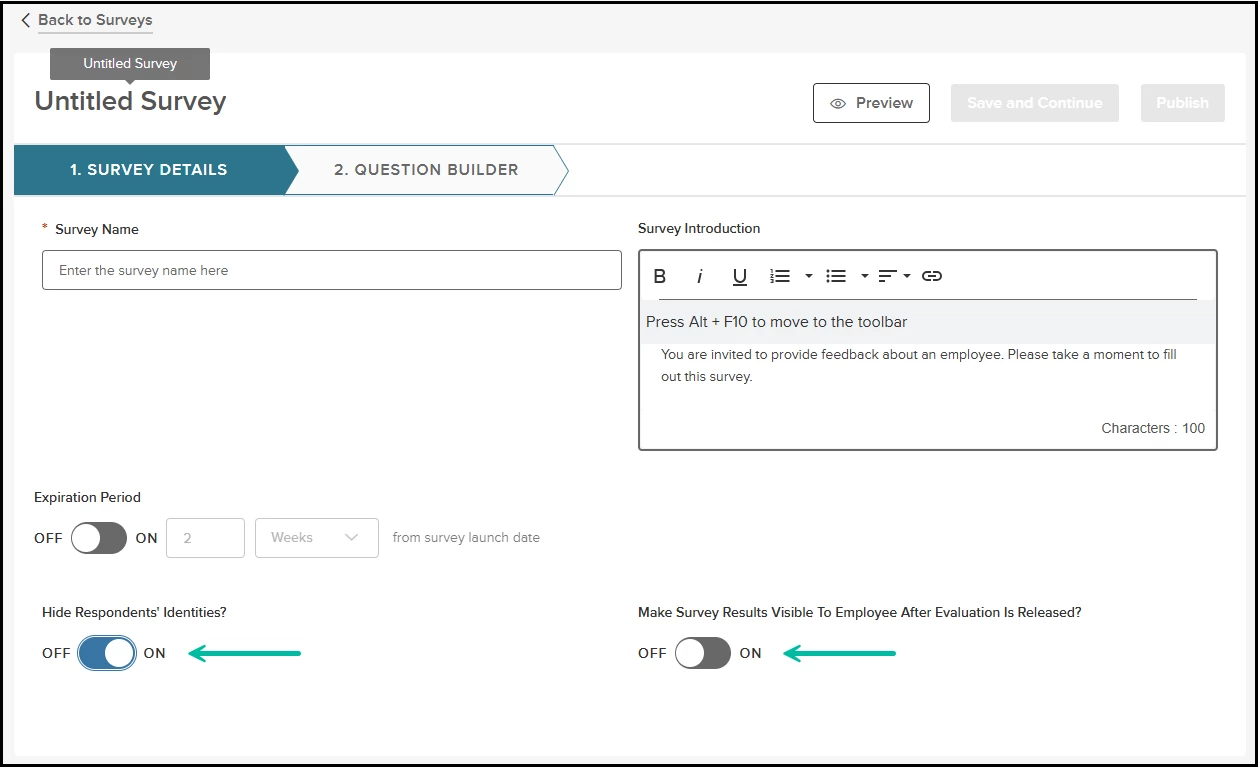
To access the feature from Perform, do the following.
- Click Libraries > Surveys to go to the Survey List.
- Click + Create a Survey to generate a new survey template. You will see the two new toggles.
- Hide Respondents’ Identities: If the toggle is ON, all respondents will be listed as anonymous next to their responses.
- Make Survey Results Visible to Employee After Evaluation is Released?: If the toggle is ON, all survey responses will be available for the employee to review, once the evaluation process reaches the Release to Employee bar. If the toggle is OFF, all responses will never be disclosed to the employee.
Previously, you could only configure these options when launching the survey from the evaluation. Now, these options are exclusively available to HR Admins and HR Users from within the Survey Library. Once configured, any subsequent surveys launched from an evaluation will inherit the visibility settings from the template.
Configure Settings for Existing Templates
With this release, all existing survey templates must now be configured before users can launch a survey from the evaluation. To configure visibility settings for existing survey templates, first navigate to the Surveys page from the Libraries tab.
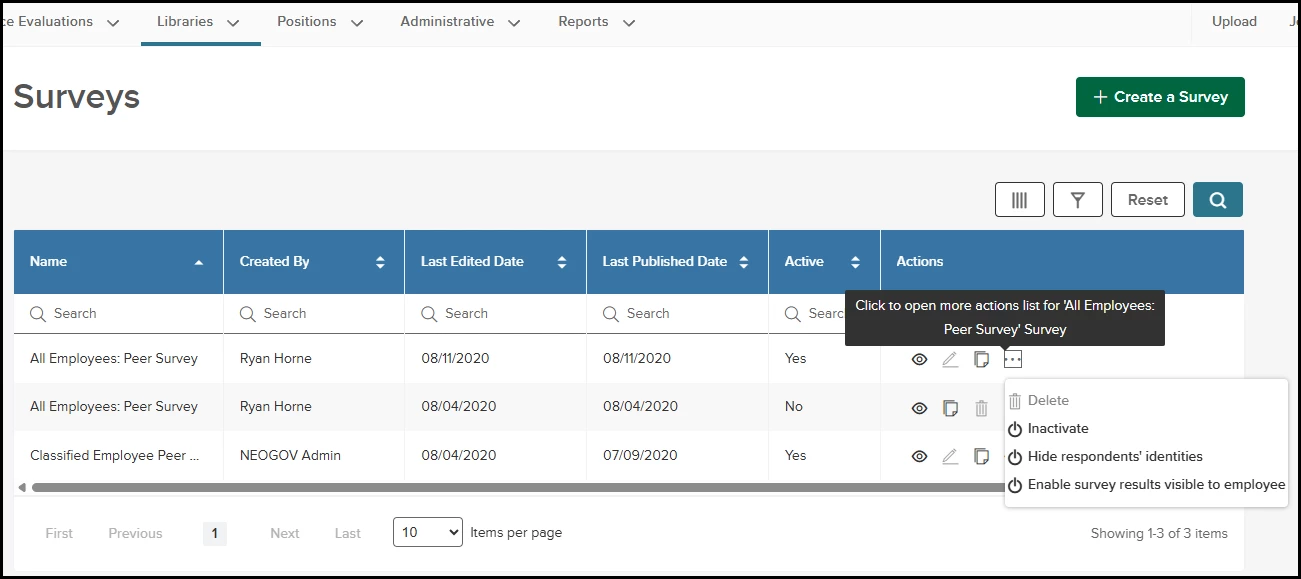
Next, find the desired survey and click the three ellipses icon under the Actions column to view a list of available actions for the survey. Select Hide respondents’ identities to enable the setting, then repeat the steps and select Enable survey results visible to employee. Return to the more actions ellipses at any time to update your settings.
To help manage your settings, we’ve added two new columns to the survey list to display your current visibility settings.
- Hide Respondents’ Identities.
- Results Visible to Employee.
From the survey list, click the additional columns button to open the Columns flyout menu.
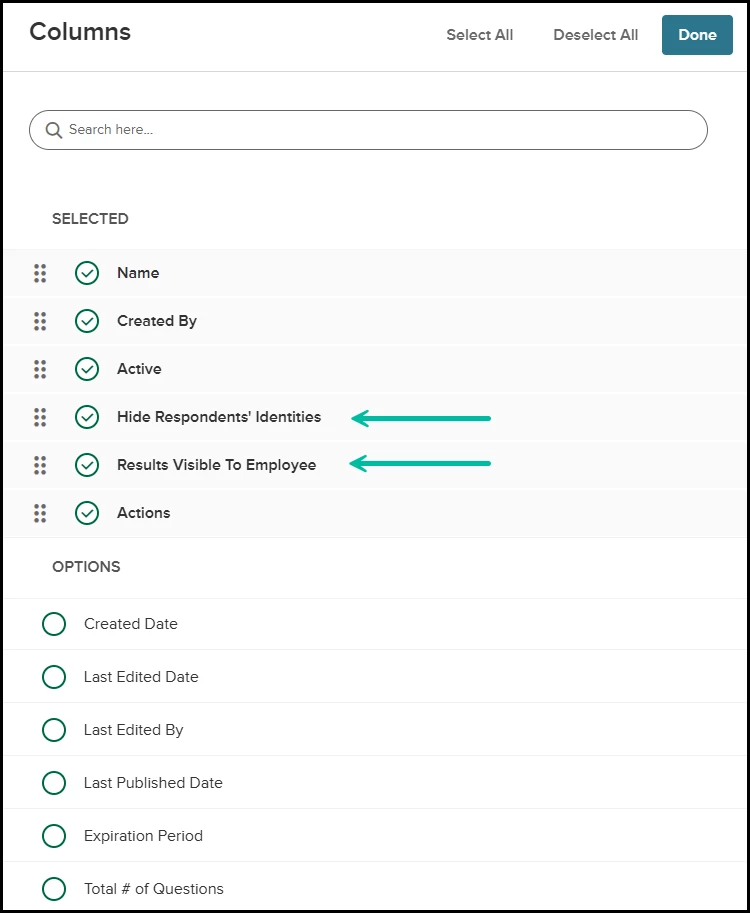
Select the new columns to add to the list. The default value for all existing surveys is N/A. You must configure the visibility settings before surveys can be launched.
Changes to Survey Launch
With this release, we’ve made subtle changes to the Launch Survey page to accommodate the visibility settings update.
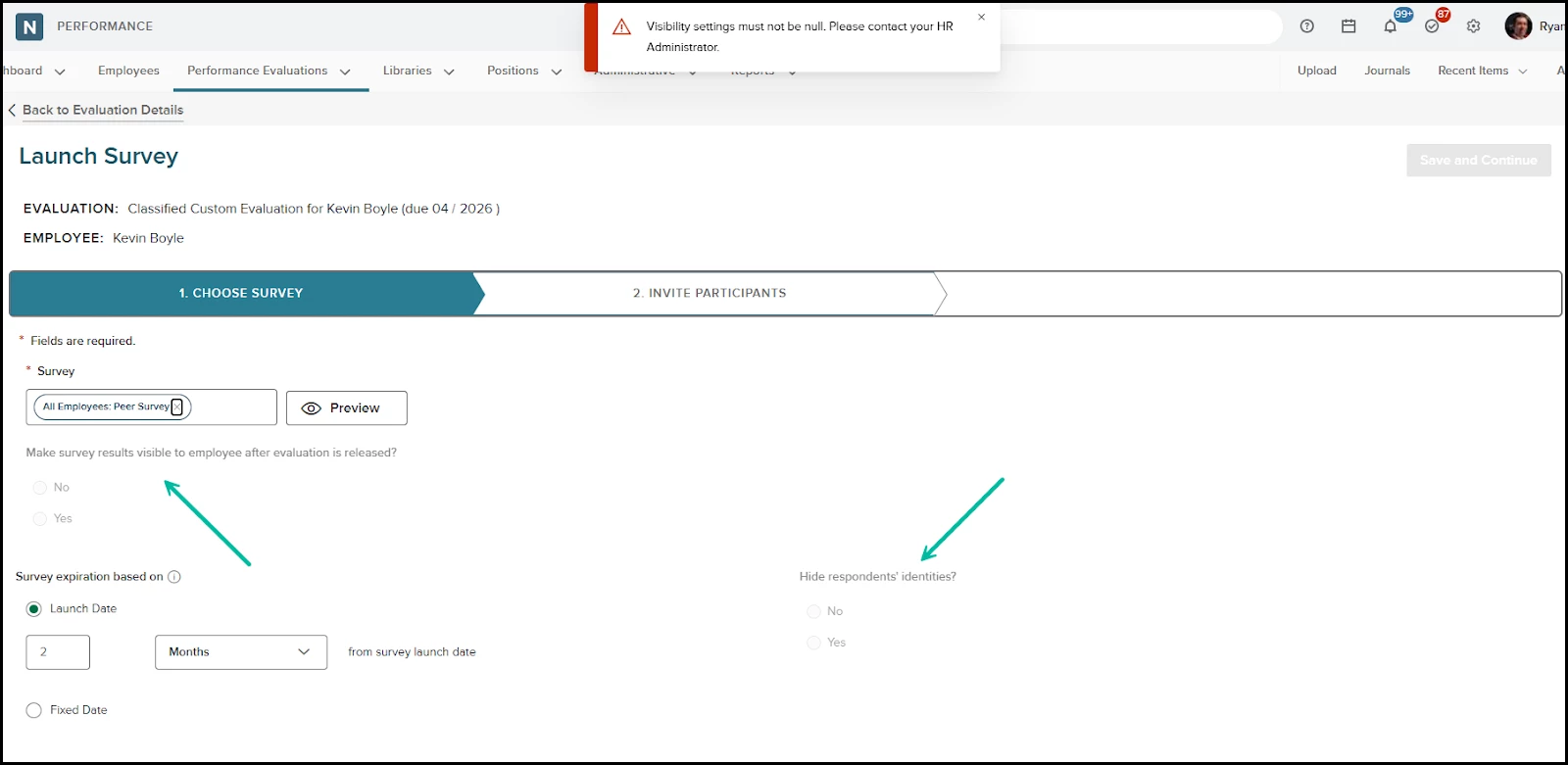
When launching a survey, visibility settings are still shown, but are now greyed out and read only. If you select a survey template that has not had visibility settings configured by HR (as in the example above), this error message appears: Visibility settings must not be null. Please contact your HR Administrator. If you see the error message, you will not be able to proceed until HR has configured the settings from the survey library.
We’ve also changed the Survey selection field from a search field to drop down / search combination. We made this change to improve the user experience.
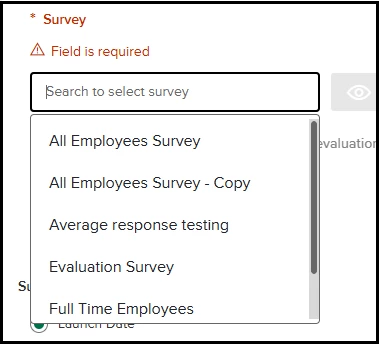
To use the new field, click into the field to see a list of all active survey templates then type the title of the desired survey to further refine the list.
Additional Notes
- Visibility settings are mandatory; surveys cannot be launched from an evaluation without them.
- Settings are not retroactive. Surveys inherit the settings configured at the template at the time of Launch.
Value
Reduces compliance risks by ensuring visibility rules are always enforced at the source.
Audience
HR administrators and HR users.
Set Temporary Password via Confirmation Popup
Note: This feature will only be in Production and will not be available for testing in UAT.
Securely configure Temporary user passwords with improved clarity and control.
HR admins will now see a confirmation popup when setting a temporary password, ensuring all criteria are clearly met before proceeding.
Example
An HR admin resets a new hire’s password and confirms it meets all security rules without trial and error.
From Perform, go to the Administrative menu then navigate to the User List. In the Actions column, click Set Temporary Password to open the popup.
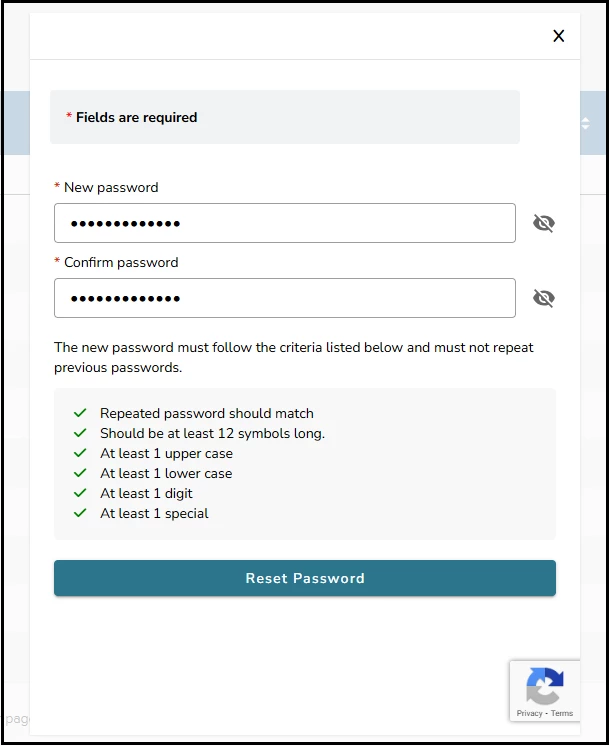
The popup will prompt you to enter and confirm the new password. Review the validation criteria (green checkmarks appear as criteria are met) and click Reset Password to complete the action. A green success message confirms the temporary password has been set successfully.
Value
Streamlines password resets while reducing the risk of errors or weak credentials.
Audience
HR administrators.
Appendix: Bugs Resolved
No additional bug fixes outside of the maintenance releases. Refer to the maintenance release notes for details.
Related Resources