



July 28, 2026 PowerReady Release Notes 35.0
Table of Contents
Timeline
When will this be released?
July 28, 2026 1:00 AM PST
Is there downtime for this release?
No
New Feature/Enhancements
Linking Specific Skills & Performance Categories to Individual Activities
We’ve streamlined observation reporting by enabling automatic linking between specific Activities and Call Types and their corresponding Skills and Performance Categories (PCs).
-
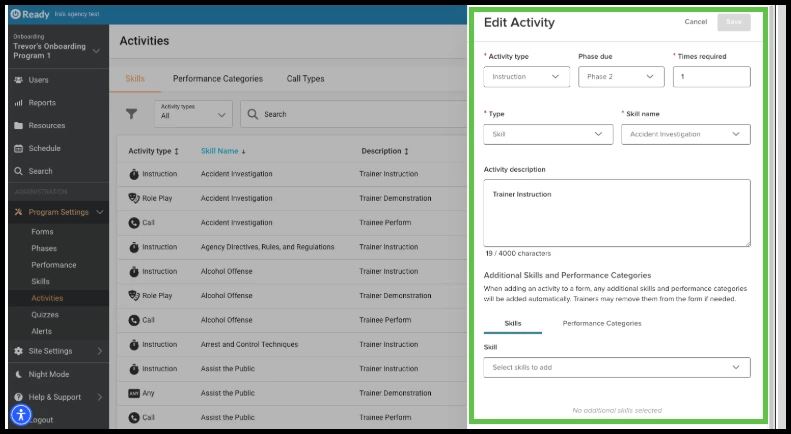
Updated Configuration Interface: Updated the activity settings modal under Program Settings > Activities to a modern slide-out panel across all three tabs (Skills, Performance Categories, and Call Types).
-
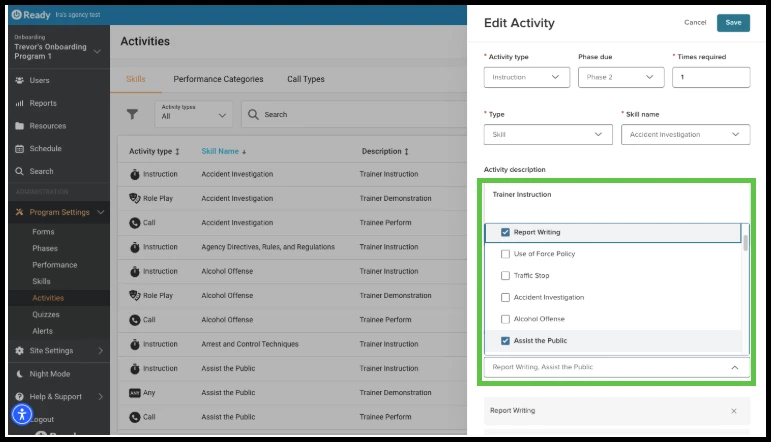
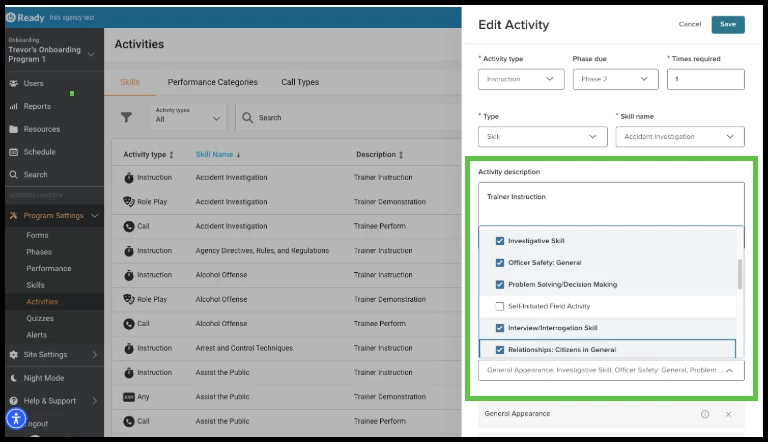
Automated Linkings: Coordinators and Site Admins can now map additional skills and performance categories directly to specific activities within Program Settings.
-
Auto-Population in Reports: When a trainer adds an activity to an observation report—either by clicking an assigned activity from the left-hand checklist or importing data via CAD—all pre-linked skills and performance categories automatically populate the form.
The new slide-out menu:
Linking to multiple skills:
Linking multiple performance categories:
Value
This feature automates repetitive form data entry, significantly reducing the manual effort and time required by trainers. By ensuring that the correct evaluation criteria appear automatically whenever an activity or CAD call is selected, it minimizes data entry errors, establishes evaluation consistency across trainers, and delivers cleaner, more reliable reporting metrics for agency leadership.
This is similar to the “Grade on every call activity” option, but this allows for skills and performance categories to be linked to specific activities, and it can apply to all activity types (not just call activities).
Audience
-
Site Administrators & Coordinators: Configures and manages the activity-to-skill and activity-to-PC mapping rules in Program Settings.
-
Trainers: Benefits from auto-populated evaluation fields when logging observation forms and CAD imports.
Examples
-
Automated CAD Call Reporting: A trainer imports a Traffic Stop call from the CAD system into a Daily Observation Report. The system automatically populates the corresponding skills (e.g., Radio Communication, Officer Safety) and performance categories (e.g., Driving Skill, Report Writing) directly onto the form, allowing the trainer to begin scoring immediately without manual selection.
-
Standardized Checklist Evaluation: A Training Coordinator maps the Physical Fitness Test activity to the Endurance skill in Program Settings. When any trainer clicks the activity from their left-hand checklist while filling out an evaluation, the Endurance skill is guaranteed to appear on the form, keeping all evaluators aligned on expected criteria.