



August 18, 2026 PowerTime Release Notes
Table of Contents
Timeline
When will this be released?
Aug 20, 2026
Is there downtime for this release?
No
Features & Enhancements
Updating Fairness Lists Through OT Form Approval
If your agency wants Lists to update based on hours employees actually work, we now allow Points Lists to update upon the approval of overtime forms.
Previously, Points Lists only updated when you approved open shift requests or when you chose an employee to cover an opening. This method left potential for you to award a shift, then have it transfer away or otherwise not worked.
This update helps to more fairly award open shift requests and determine which employee must be forced onto the schedule to cover staffing requirements.
Value
If your agency needs point-based lists to reflect overtime worked rather than just open shift assignments, this update gives administrators the flexibility to source list updates directly from approved overtime forms.
Audience
-
Administrators / List Managers: Choose the source of hours when creating new lists and configure integration options under list settings.
-
Supervisors / Approvers:
-
Will continue to see warnings and list order when filling open shifts.
-
Gain new options to update lists when giving final approval on overtime forms.
-
Enablement and Navigation
-
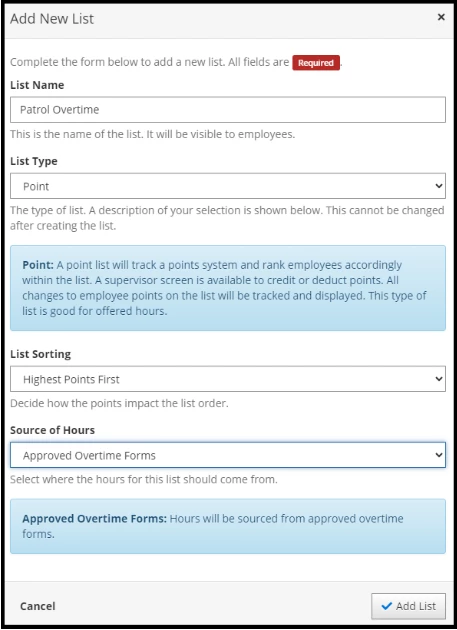
To configure lists: Administrators may navigate to Users > Lists. Click Add New List (for Point List types). You will see the new option Source of Hours, select Approved Overtime Forms.
-
If you do not see Source of Hours, enable the feature under System > Settings > Features > Lists. You will need to log out and back in to see the option in the menu.
Creating a New List (Setting the Source of Hours)
When creating a new list:
-
Navigate to Users > Lists and click Add New List.
-
For Point list types, locate the Source of Hours dropdown.
-
Select an option:
-
Awarded Open Shifts (default): Updates points when supervisors are approving open shift requests or forcing employees into an overtime shift.
-
Approved Overtime Forms: New option to update points when supervisors approve an overtime request.
-
Modifying Existing Lists
Once you create a list, you cannot change its primary source of hours.
Configuration & Integration
When configuring a list where Approved Overtime Forms is selected, open the Integrations tab to manage specific settings across three sub-tabs.
Updating Lists via Overtime Form Approval
When the setting is Enabled you will see several options:
-
Define the Use Hours From setting:
-
Start and End times - Uses the start and end times to determine how the list will update.
-
Hours Field - Uses the value entered in the hours field to determine how the list will update.
-
-
The additional options define how to update the list, and are the same as documented here.
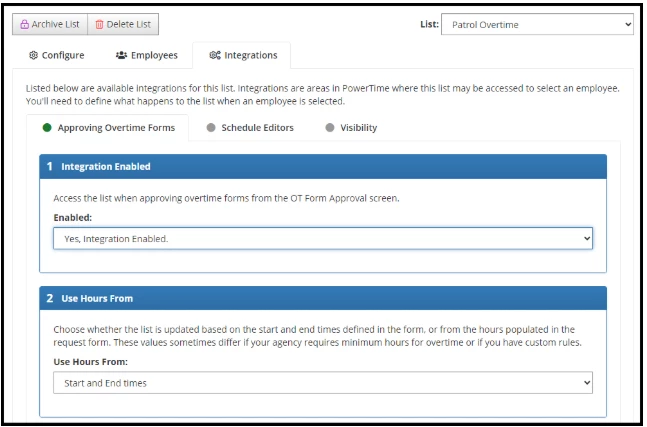
When the option is enabled, you will see the following updates:
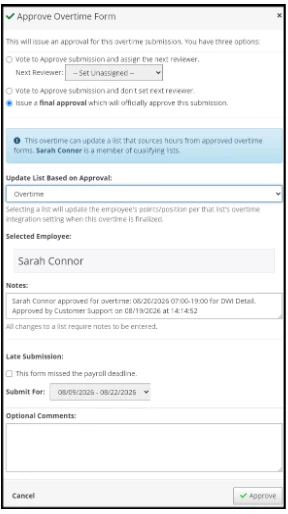
Lists update when a supervisor or authorized user issues a final approval on an overtime form.
-
Navigate to Supervisor > Approvals > OT Forms.
-
Click Approve OT Form and select Issue a final approval (or complete the final approval step).
-
If the person you're approving for overtime belongs to a list that is integrated into approved overtime forms:
-
The screen displays the option: Update List Based on Approval:
-
Lists all eligible overtime-integrated lists the employee belongs to.
-
Auto-populates with employee name, overtime date/time, approver name, and timestamp.
-
Example: "Richard Hall approved for overtime: 03/03/2026 12:34:56 for Special Event OT. Approved by Capt. Olivia Armstrong n 03/04/2026 at 11:12:13"
-
-
-
Filling Open Shifts where Lists are updated from Approved Overtime Forms
When a list's update source is set to Approved Overtime Forms, supervisors can still view the list when filling open shifts so they can select the most qualified person. However, the list will not update points from the open shift action.
When configuring a list where Approved Overtime Forms is selected, open the Integrations tab:
Visibility
-
Includes a setting labeled "Visibility When Filling Shifts".
-
Show List (default): When you select this option, supervisors will receive the warnings defined for this list when filling the open shift. This helps make decisions that align with your agency’s policies while not affecting the list until the shift has been worked.
-
Do NOT Show List: The list will not be visible when filling open shift requests.
-
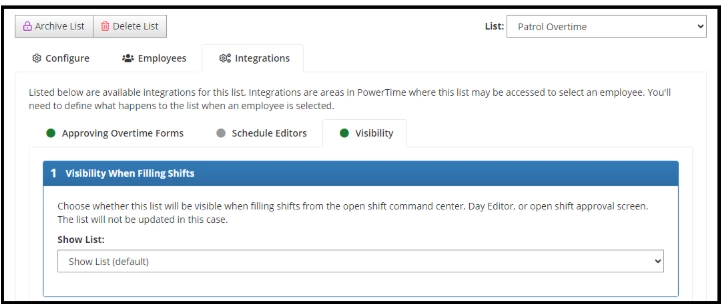
When you select Show List, you will see the following updates:
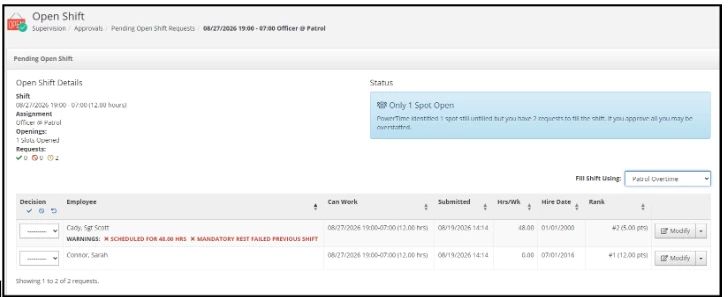
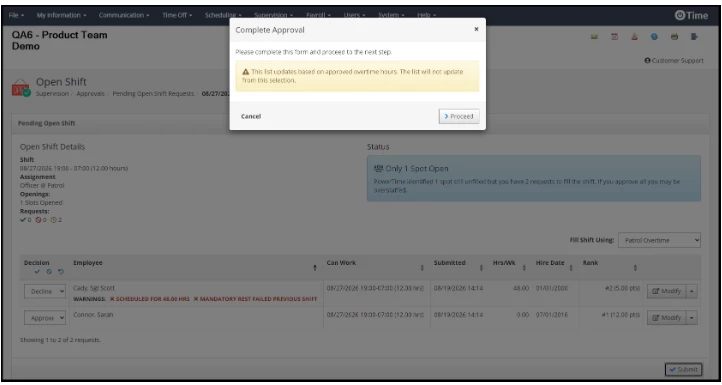
When filling an open shift, watch out for a yellow warning note stating, "This list updates based on approved overtime hours. The list will not update from this selection."
This note appears when filling open shifts in the following areas:
-
Open Shift Command Center (Fill):
-
Navigation: Supervisor > Open Shift > Command Center > Fill > List
-
-
Open Shift Command Center (Approve):
-
Navigation: Supervisor > Open Shift > Command Center > Fill > Approve
-
-
Open Shift Approvals:
-
Navigation: Supervisor > Approvals > Open Shift > Review
-
Important Considerations
-
Read-Only Source Selection: The Source of Hours selection is locked after list creation. If you require a different source, you must create a new list.
-
Open Shift Behavior for Overtime Lists: Lists configured to update from Approved Overtime Forms will not update their balances when used to fill open shifts. While supervisors can still view these lists to select qualified employees, a notification confirms that assigning an open shift will not modify the list's points or hours.
-
This logic applies regardless of whether Time off credits (no multiplier applied) or Paid is selected.
Appendix: Bugs Resolved
| Feature Issue | New Behavior |
| When manually crediting F-Score hours, when users entered certain values (e.g. 3.11, 3.14) the values would appear to change after entry.
This is because the hours entered were being converted to minutes and seconds.
Because PowerTime does not handle seconds, we rounded the value entered to the nearest 2 decimal places.
This resulting in the interaction looking like it incorrectly updated. | We now require the user to enter the amount of time to be credited in hours and minutes rather than typing in a whole number.
This more accurately reflects how the F-Score is updated. |