



May 20, 2026 PowerTime Release Notes
Table of Contents
Timeline
When will this be released?
May 20, 2026
Is there downtime for this release?
No
Features & Enhancements
Department Support Notifications
For agencies with Department Support configured, notifications are now streamlined to ensure relevance and reduce noise.
Value
Ensures administrators and supervisors only receive alerts for staff they manage, preventing nuisance notifications.
Details
-
Logic: You will now only receive notifications for employees if you are designated as an Editor for a department in which they are a member.
-
Action Required: None. This functionality is enabled automatically for all relevant configurations.
Department Support Membership Overview
Agencies utilizing Department Support now have access to a new Employee Overview tab located under System > General Setup > Departments.
Functionality
This new tab provides a centralized location to:
-
Audit Memberships: Rapidly view all employee department memberships.
-
Manage Access: View, edit, or change permissions for individual employees from a single view.
Troubleshooting
If an employee lacks expected access or permissions, use this screen to identify the discrepancy. Once the cause is identified, you can perform the necessary adjustments on the Department editing screen.
Viewing Deleted Time Off & Overtime
Increased visibility into deleted Deleted Time Off and Overtime entries. If a member of your agency deleted an entry, you can now see the deleted entry and restore it, if desired.
Time Off
On the Time Off > Balances > Accounting screen, administrators will now see a checkbox under employee names.
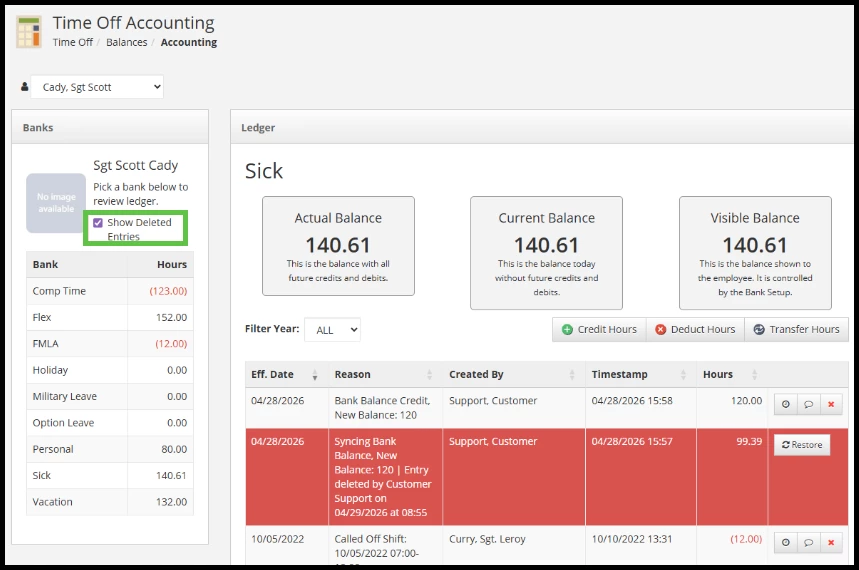
When you check the Show Deleted Entries box, you can then see any deleted Time Off entries. The Reason column contains the original explanation for the change and information about who deleted the entry.
Clicking Restore makes the entry active and updates the time off balance.
Known Gap
If a user deletes a Time Off entry from the Calendar Editor and the user does not refund the hours, no audit item will show for this action. In this case, no time off balances are updated, so the balance is accurate.
However, if there is an approved Time Off form in the employee’s history or a deduction appears for a certain date on the Time Off Accounting screen, an entry does not reflect on the schedule. In a future enhancement, we will add an audit entry to this screen that shows a credit of 0 hours, but will reflect the action taken.
Overtime
On the Overtime History screen, you can now see a new tab to view Deleted Overtime entries. Deleted overtime entries are only visible on this screen.
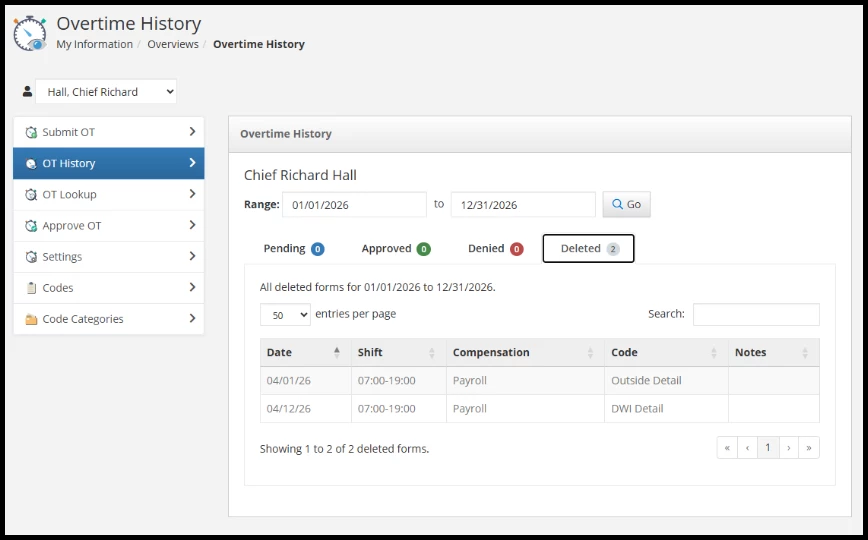
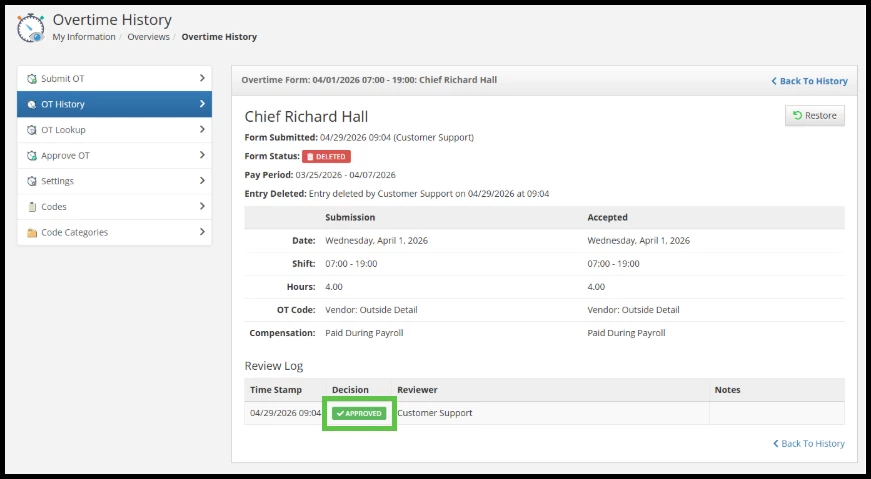
If users delete an overtime entry in Pending status, you can view all audit information from the Deleted Overtime tab, including who deleted the entry and when. If you click the Restore button, the form returns to Pending status.

If a user deletes an overtime entry in Approved or Declined status, you can view all audit information, including who deleted this entry and when. If you choose to restore, the form returns to its Approved or Declined status.
Accurately Reflect Platoon Future Moves
The Platoon now acts as a heading for employees on the schedule and is used for visual grouping.
Value
This enhancement ensures that all future organizational changes are visible to administrators, preventing discrepancies between the Future Moves page and the live schedule.
Details
-
Management: Future grouping changes can be set under System > General Setup > Platoons > Future Moves.
-
Improved Visibility: Previously, if an employee had a future move that eventually returned them to their current platoon (e.g., Platoon A > Platoon B > Platoon A), the final move back to Platoon A was not reflected on the Future Moves page, despite occurring on the schedule. All such moves are now clearly reflected.
Sync Date Ranges on the Calendar Editor and Calendar View
To improve user experience and reduce confusion, date ranges and viewing periods between the Calendar Editor and Calendar View tabs now synchronize.
Value
Users can now switch between these tabs without losing their place in the schedule, providing a more seamless workflow.
Important Considerations
Please be aware of the following regarding synchronization:
-
Tentative Dates: The Calendar View may optionally show tentative future dates, which are not supported in the Calendar Editor. If viewing tentative dates, the ranges will not sync.
-
Start Days: The Calendar View may be configured to start on a different day of the week than the Calendar Editor. In these cases, the date ranges will be similar but may not align exactly.
-
Tab Renaming: To ensure consistency across PowerTime, the Schedule Editor tab is now called Calendar Editor to match the name of the page in the dropdown menu.