
Table of Contents
Timeline
When will this be released?
Jan 21, 2026
Is there downtime for this release?
No
New Feature/Enhancements
This release covers the new feature of deleting single indicators and new additions to the CAD event data source upload.
Deleting Single Indicators
Users can now delete indicators from the following areas:
-
Data Sources: Trashcan icon available in the slide-out view with an additional column. (note: CAD events data source is missing the trashcan and this will be fixed shortly. Please use the profile or indicator table to delete CAD events from a user)
-
Profile Page:
-
Summary Section – Trashcan in indicator summary.
-
Indicator Table View – Trashcan icon added.
-
-
All Indicators Page: A new column added to include a delete (trashcan) button.
-
View Indicator Modal (from Profile): Trashcan column added for deletions.
-
Multi-assigned Indicators: Users can now remove an indicator from an individual personnel without deleting it from all assignments.
When a user initiates deletion, a confirmation pop-up appears:
- Header: “Confirm Deletion?”
- Text Box: “Reason for Deletion” (Required, Max 500 characters)
- Buttons: Confirm and Cancel
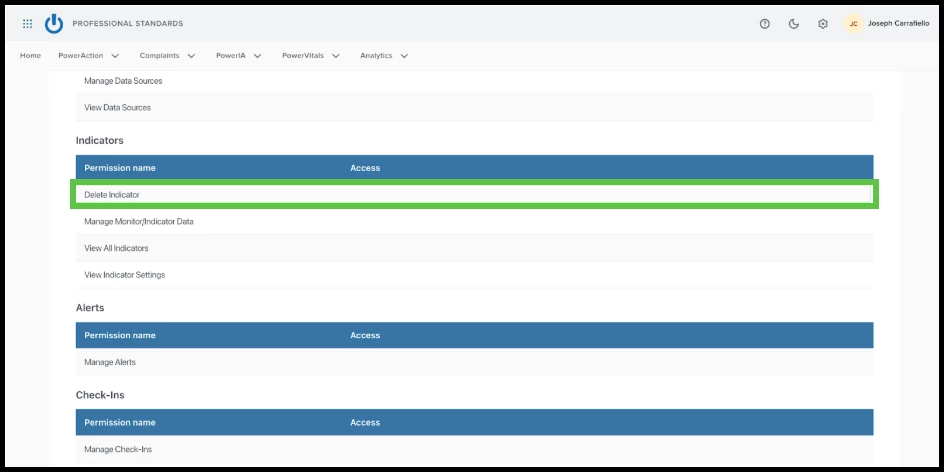
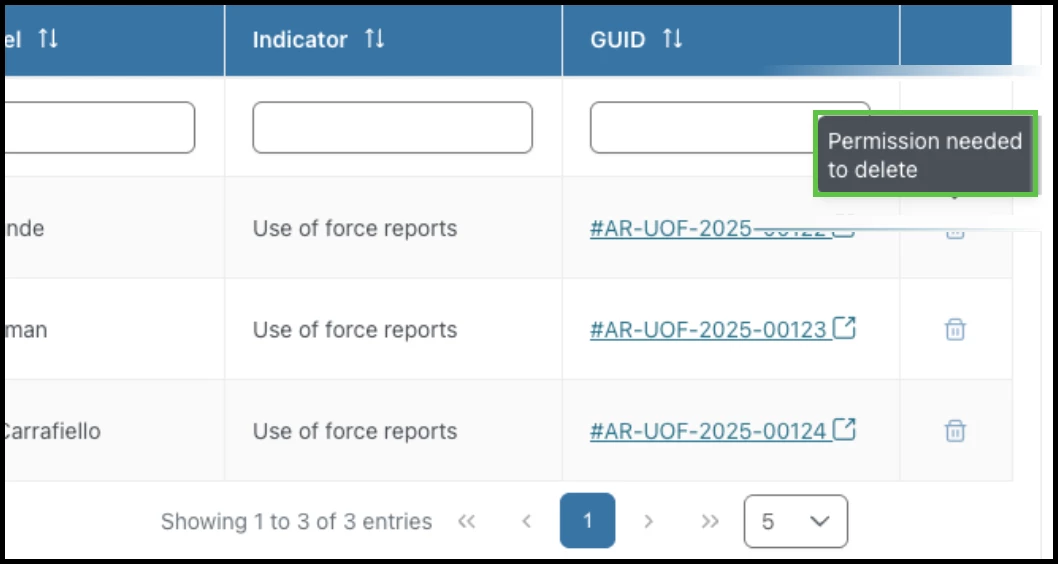
Note: To delete singular indicators from data sources, users need the assigned permission Delete Indicator, which is located in the Indicators section of PowerVitals permissions. If users don’t have this permission, they will not be able to complete the action and instead will see a message telling them Permission needed to delete.
Value
- Enables granular control for managing indicators at both global and individual personnel levels.
- Enhances auditing and accountability through mandatory deletion reasons and metadata logging.
- Reduces errors from broad deletions by allowing per-person removal of shared indicators.
Audience
Administrators
Examples
- Users navigate to a personnel profile and see an erroneously assigned indicator. With the new trashcan icon, they can click to delete and provide a reason (e.g., "Incorrectly assigned via CAD").
- A supervisor can remove an indicator from a single officer involved in a shared incident while retaining it for others.
General Changes
This section includes changes to the product's basic design that don’t affect product function, such as the location of common links or menu changes, the addition of tooltips, additional filter and sorting options, or changes to page titles.
Change
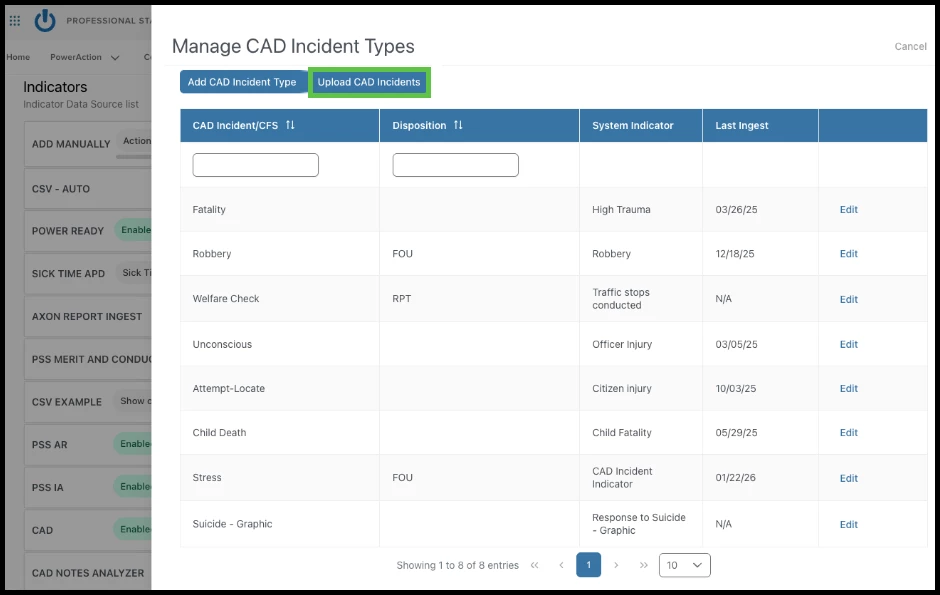
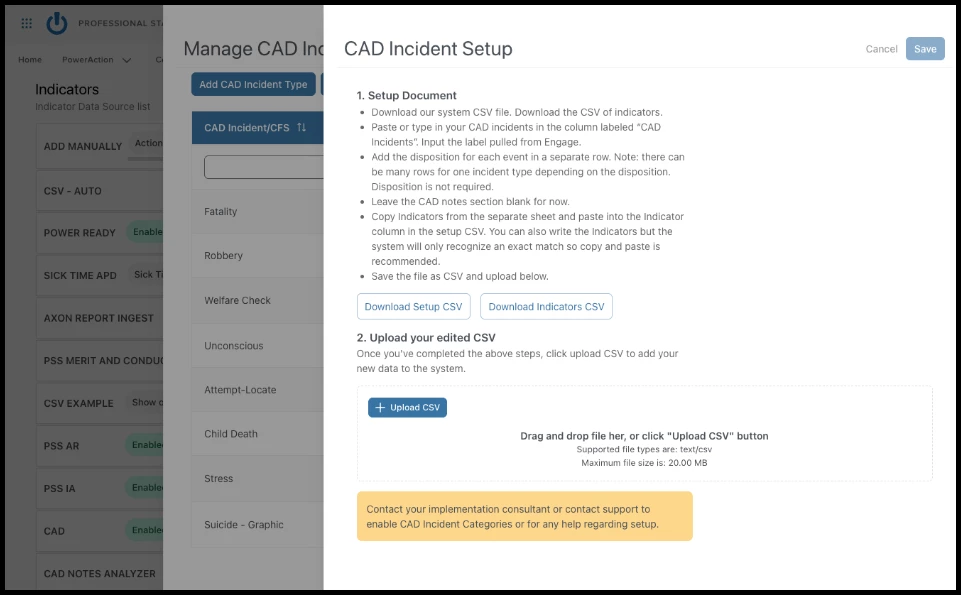
The Upload CAD Incidents, aka bulk upload, option is now always present in the CAD events data source.
Example
If an agency wants to bulk upload more events after the initial upload, they can create a new CSV of events and upload to that data source. This action only accounts for new events and will not delete any events through omission on the CSV.