



Unified Mobile: Release Notes Fall 2026
Article Links
Timeline
When will this be released?
Limited Beta Release available in Q4
Is there downtime for this release?
No.
My Timesheet: Mobile Experience
The mobile app now has a redesigned Time & Attendance experience, so employees can track their time, submit timesheets, and manage time off from their phones. It has three screens: Overview, My Timesheet, and My Time Off. Employees get the tools they use on the web, built for mobile, without needing access to a computer.
Overview Screen
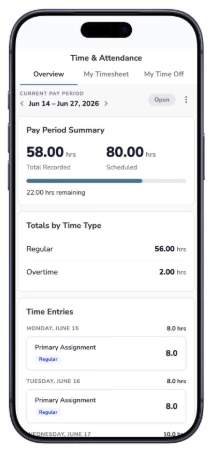
The timesheet feature in the mobile app now opens to a new Overview screen that summarizes employees' current and past pay periods in one place. Alerts for missed punches, overtime they can convert, and pending time off show up right away, so employees can spot and fix problems before they turn into payroll corrections. Employees who clock in and out can check their time here without opening a timesheet. Schedule users will have the ability to track recorded entries against scheduled hours.
Value
- See everything at a glance: Employees get a quick view of their pay period status without opening anything else.
- Catch issues early: Employees see alerts as soon as they open the app, so they can fix problems before the pay period deadline.
- Less time spent tracking time: Employees who clock in and out get what they need from this one screen.
Audience
- Employees: Everyone who uses Time & Attendance, especially employees who clock in and out and don't need to open a timesheet. Schedule users will have the ability to track recorded entries against scheduled hours.
- Administrators: Employees can see missed punches that need an administrator's help, so these issues get reported sooner.
Examples
- Quick check-in: An employee who clocks in and out opens the app to check their hours for the current pay period and sees they're on track.
- Missed punch: An employee sees an alert for a missed punch from yesterday and contacts their administrator to fix it before the pay period closes.
- Overtime alert: An employee sees an alert that some of their overtime hours can be converted and goes to My Timesheet to take action.
My TimeSheet
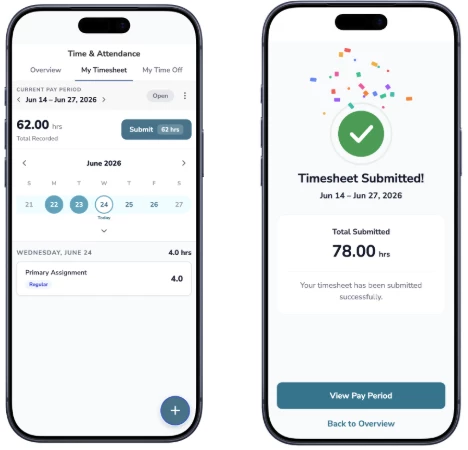
Employees can now enter, review, and submit their timesheets from their phones. They pick a pay period, then scroll to a specific day to add, edit, or comment on time entries. Their primary assignment is selected automatically. Each entry needs an assignment and a time code, and fields follow the organization's configuration. Alerts for missed punches, overtime conversion, and pending time off appear here too. A guided submission flow asks employees to confirm their timesheet is accurate, then shows a confirmation with their total submitted hours.
Value
- Log time where you work: Employees can enter time at the end of a shift instead of waiting until they're at a computer.
- More accurate timesheets: Required fields and alerts catch problems before they reach payroll.
- Submit with confidence: The guided submission flow and confirmation screen let employees know their timesheet was received.
- A familiar experience: The mobile timesheet works the same way as the web version.
Audience
- Employees: Anyone who enters time against assignments and time codes. This is especially useful for field, shift-based, and other employees who don't work at a desk.
- Administrators: Their timesheet field configuration carries over from web to mobile automatically, with no separate setup.
Examples
- End-of-shift time entry: A public works employee opens My Timesheet, picks today's date, and adds an entry. Their primary assignment is already selected, so they choose a time code, enter their hours, and save.
- Adding context: An employee adds a comment to a time entry to explain why they stayed late on a job site.
- Converting overtime: An employee sees an alert that 4 overtime hours can be converted. They tap Convert overtime and bank those hours as comp time.
- Pending time off: An employee tries to submit their timesheet, but Submit is unavailable because a time off request is still pending. They wait for the request to be resolved, then submit.
- Submitting a timesheet: At the end of the pay period, an employee taps Submit, confirms their timesheet is accurate, and gets a confirmation with their total submitted hours.
My Time Off
Employees can now view their leave balances, check upcoming and past requests, and request time off from their phones. The screen has an easy-to-read layout. Employees can request full days or partial days, with start and end times for each day.
Value
- Plan ahead: Employees can check their leave balances before they make plans.
- Request time off right away: Employees can submit a request as soon as they need one, without waiting to get to a computer.
- Flexible requests: Partial-day requests with start and end times make it easier to plan appointments and short absences.
- Know where requests stand: Employees can see upcoming and past requests in one place.
Audience
- Employees: Anyone who accrues leave or requests time off, especially employees who don't work at a desk.
Examples
- Checking a balance: An employee opens My Time Off to see how much vacation time they have before booking a trip.
- Partial-day request: An employee requests Friday afternoon off for an appointment by entering the start and end times.
- Multi-day request: An employee requests three full days off for a family event.
- Checking on a request: An employee checks their upcoming requests to see if last week's time off request is still pending.