



Unified Mobile Release Notes Summer 2026
Article Links
Timeline
When will this be released?
Production Availability: July 30, 2026
Schedule Request Form: August, 8 2026
Is there downtime for this release?
No.
Attract features for candidate management - planned release 8/20
The Attract mobile app now supports expanded recruiting capabilities, enabling field recruiters to manage candidate communications, log activities, and track engagement directly from their mobile devices. This release closes critical functionality gaps between the web and mobile platforms, reducing dependency on desktop access and empowering recruiters to work efficiently in the field.
Candidate Profile Management
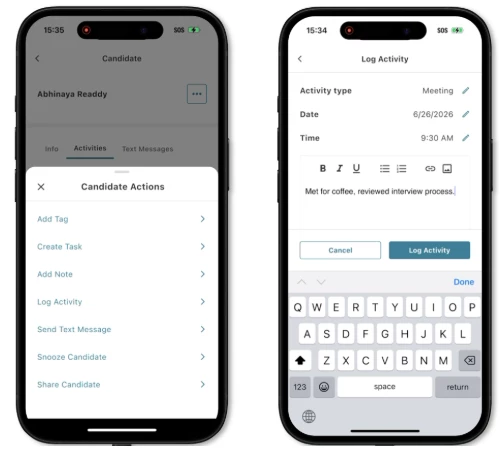
Recruiters can now add notes, log activities, and create tasks directly on a candidate's profile from the mobile app. Notes support file attachments and visibility controls (visible to everyone or only to me). Activities capture interaction details (calls, emails, in-person meetings) with date/time, type, and outcome metadata. Tasks support type selection (Todo, Call, Email), due dates, reminders, and descriptions. All entries include edit, delete, and complete actions, and an autosave draft feature preserves unsaved work if the user navigates away.
Value
Eliminates the need for desktop access to update candidate records. Ensures real-time data capture during recruiting events, ride-alongs, and field sessions, improving data integrity and reducing lost interactions.
Candidate Actions Overview
- Add Tag: Applies a label or keyword to a candidate's profile for categorization and filtering.
- Create Task: Generates an assignable to-do item (e.g., follow-up call, review resume) linked to a candidate or requisition.
- Add Note: Attaches a free-text comment or observation to a candidate's record for internal reference.
- Log Activity: Records a completed interaction (e.g., phone screen, interview, email) into the candidate's timeline.
- Send Text Message: Sends an SMS/text communication to the candidate directly from the app.
- Snooze Candidate: Temporarily hides or deprioritizes a candidate for a set period, removing them from active view without rejecting them.
- Share Candidate: Sends a candidate's profile or summary to another user (e.g., hiring manager) for review or collaboration.
Audience
Recruiters and hiring managers
Examples
- A recruiter at a career fair adds a note to a candidate's profile with an attached resume photo, visible only to themselves.
- A field recruiter logs a "Connected" call activity after speaking with a candidate on-site, including next steps in the description.
- A hiring manager creates a "Call" task with a reminder set for two days before the due date to follow up with a candidate.
Text Messaging from Candidate Profile & Conversations
Full two-way text messaging is now available within the Attract mobile app, both from the candidate profile and from the Conversations area. Recruiters can send, reply to, schedule, reschedule, and delete text messages. Message status indicators (sent, delivered, scheduled) are displayed. Additional capabilities include message templates, a 480-character limit, opt-in status badges on candidate profiles, and the ability to block/unblock candidates from text messaging. In-app notifications alert users to new incoming messages and replies.
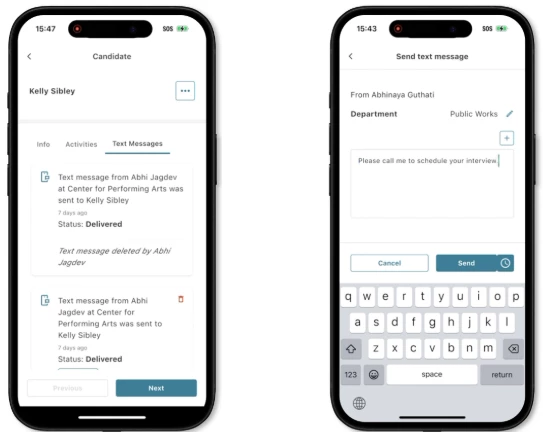
and Engage > Candidate profile > “More” (3 dots) > Send Text Message
Value
Centralizes candidate communication within the Attract platform, eliminating reliance on personal phones. Reduces fragmented communication, improves tracking of candidate interactions, and supports compliance with messaging opt-in requirements.
Audience
Recruiters and hiring managers with two-way text messaging enabled (via the Twilio integration flag "Integrations - Enable Two-Way Text Messaging"). Candidates must be opted in to text messaging.
Examples
- A recruiter sends a text message to a candidate from their profile, schedules a follow-up message for the next morning, and later sees the "Delivered" status.
- A recruiter views the "Opted into text messaging" badge on a candidate's profile before initiating a conversation.
- A recruiter blocks a candidate who has requested no further contact; the text message icon is disabled and a banner confirms the block.
Items removed from text messaging on mobile
- Bulk messaging: Disabled due to cost-per-message concerns and the risk of spamming candidates. Bulk text messaging will not be available in this release.
- Unblocking candidates from Conversations: Unblocking a blocked candidate from the Conversations area is not in scope for this release (not available on web either). Blocking is supported; unblocking will be addressed in a future update.
Enhanced Candidate Search Filters
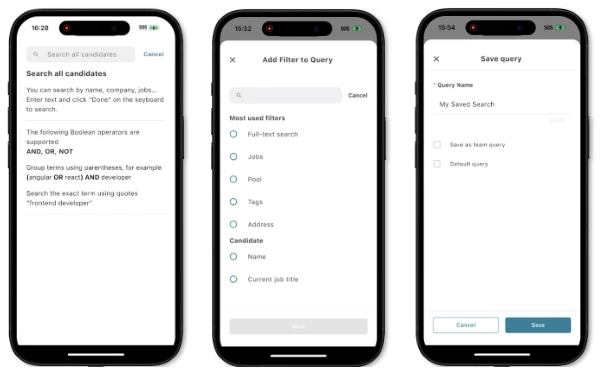
The candidate search experience on mobile now includes expanded and updated filters to match web parity: free-text keyword search, Current Company (is/is not), Education Degree, Highest Education, Work Experience, Jobs (multi-select by Job ID), Application Status (with include/exclude toggle), Location (with distance radius), Pools, and Current Job Title. Filters support partial matching, multi-select, and OR logic where applicable. Searches can also be saved for easy reference later.
Value
Gives recruiters the same powerful search and filtering capabilities on mobile that they have on the web, enabling faster candidate discovery in the field without switching to a desktop.
Audience
Recruiters and hiring managers
Examples
- A recruiter at a hiring event filters candidates by Location within 25 miles and Application Status "Is not in → Hired" to find local prospects still in the pipeline.
- A recruiter searches by Current Job Title "Police Officer" and Highest Education "Bachelors Degree" to narrow a candidate pool for a specialized role.
Geolocation-enabled clock in and clock out
Agencies using can now enforce where employees clock in and out by enabling geofencing on work rules. The system validates each punch against GPS coordinates, IP address ranges, or both, blocking time entries that don't meet the configured criteria and displaying clear guidance to the employee.
- Flexible restriction options: Choose from GPS radius, IP range, or a combined check to match your workforce environment (field, office, or hybrid)
- Multi-platform enforcement: GPS restrictions apply on mobile; IP restrictions apply on both mobile and the Unified home page
- Simple admin setup: Enable geofencing per work rule with a single toggle, configure a radius in feet, and manage reusable IP ranges from a dedicated form
Check for geolocation or employer network
Administrators can now enforce location-based restrictions on employee clock-in/out punches using geofencing. The system supports multiple restriction methods: GPS coordinates, IP address ranges, or a combination of both. This gives agencies flexible control over where and how employees can record time.
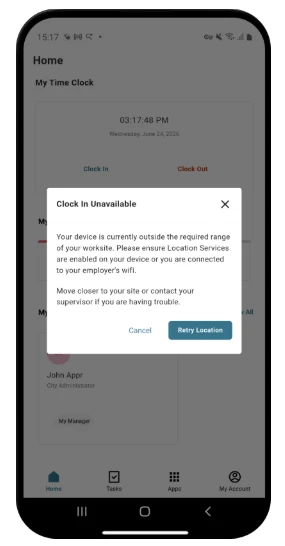
Prerequisites: Each employee's primary assignment must have a working location with GPS coordinates configured. Location details are populated via Google API, but existing locations require manual updates to add GPS coordinates.
Configuration
Geofencing is enabled per work rule under Work Rules > Timesheets. When the "Geofencing" toggle is turned on, four restriction options are available:
| Option | Description | Enforced On |
|---|---|---|
| Location Tracking Only | Stamps latitude/longitude on all punches without restriction (current behavior) | Mobile |
| Restrict Latitude/Longitude | Requires the employee to be within a defined radius (in feet) of their worksite GPS coordinates | Mobile Only |
| Restrict IP Address | Requires the punch to originate from a predefined IP range | Mobile & Unified home page |
| Restrict Latitude/Longitude and IP | Both GPS perimeter and IP range must pass; latitude/longitude is verified first, then IP address | Mobile & Unified home page |
A new IP Ranges form is available for administrators to create and manage IP ranges ahead of time.
Value
Prevents unauthorized or off-site time entries with flexible enforcement options (GPS perimeter, IP range, or both). Reduces manual timesheet auditing while accommodating diverse workforce environments for mobile field workers, office-based staff, or hybrid teams.
Audience
- Administrators who configure work rules, locations, and IP ranges
- Employees who clock in/out via the mobile app or the Unified home page
Examples
- A field worker clocks in from the mobile app within 200 feet of their worksite GPS coordinates, the punch proceeds normally.
- An employee attempts to clock in from home on the mobile app. The system detects they are outside the geofence radius and displays a restriction message with a "Retry" option.
- An office-based employee clocks in via the Unified home page. The administrator has configured IP restriction, and the system verifies the punch originates from an approved IP range before allowing it.
- An agency requires both location and network verification. An employee must be within the GPS perimeter and on an approved IP range. If either check fails, a message is displayed and the punch is blocked.
Schedule Request Form - Planned Release 8/20
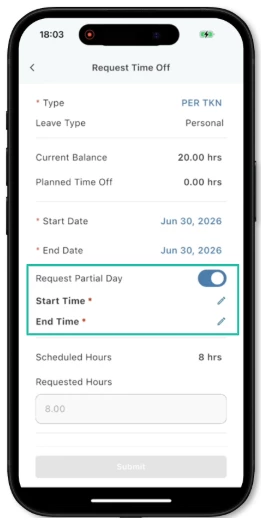
The Time Off Request form in the Time & Attendance Mobile App has been updated to allow users to visualize their scheduled shift dates and select specific start/end times for partial-day leave requests. This brings the mobile experience in line with the web version, enabling employees on shift-pattern schedules to submit more precise time off requests directly from their mobile device.
Request time off form in mobile
The request time off modal within Time and Attendance mobile now includes the ability to input start and end times for each selected day. Once an employee selects their start and end date range, the form displays their scheduled shifts and allows them to specify the exact hours they are requesting off, including support for partial-day requests. Shift start and end times default to the scheduled values but can be edited. Requested hours automatically calculate based on the entered times.
Value
Employees on shift-pattern schedules can now submit partial-day time off requests with precise start/end times directly from the mobile app, eliminating the need to use the web application. This reduces friction for field and shift workers who rely on mobile access and ensures parity between the web and mobile time off request experiences.
Audience
Employees assigned to shift-pattern work rules who use the NEOGOV mobile app to manage their schedules and time off.
Examples
- An employee working a night shift (9 PM - 6 AM) needs to leave early. They open the mobile app, navigate to Time & Attendance > More > Request Time Off, select the date, and adjust the end time to +4:00 AM instead of +6:00 AM, requesting 2 hours off at the end of their shift.
- An employee scheduled for multiple shifts across a week selects a date range. The form displays all scheduled shifts within that range. They remove shifts they don't need time off for (using the "x" button) and submit only the relevant entries.
- An employee attempts to request time off for a shift that already has a pending request. The form displays the shift grayed out with a tooltip ("A request for this shift has already been submitted"), preventing duplicate submissions.