



Vetted Release Notes April 14, 2026
Article Links
Timeline
When will this be released?
April 14, 2026 at 5pm PST
Is there downtime for this release?
No.
Investigator Edit Mode: Direct PHS Updates & Audit Tracking
We know that the background interview is a critical touchpoint in the hiring process. Often, as you sit down with an applicant to review their Personal History Statement (PHS), you uncover details that need to be added or corrected. Previously, this required a tedious cycle of rejecting the PHS and sending it back to the applicant to fix.
Investigators can now make real-time updates and add missing sections on behalf of the applicant during the interview, all while maintaining a bulletproof audit trail.
What’s New?
Investigators now have the power to refine the PHS data directly from their view, ensuring the final report is as accurate as possible without the back-and-forth.
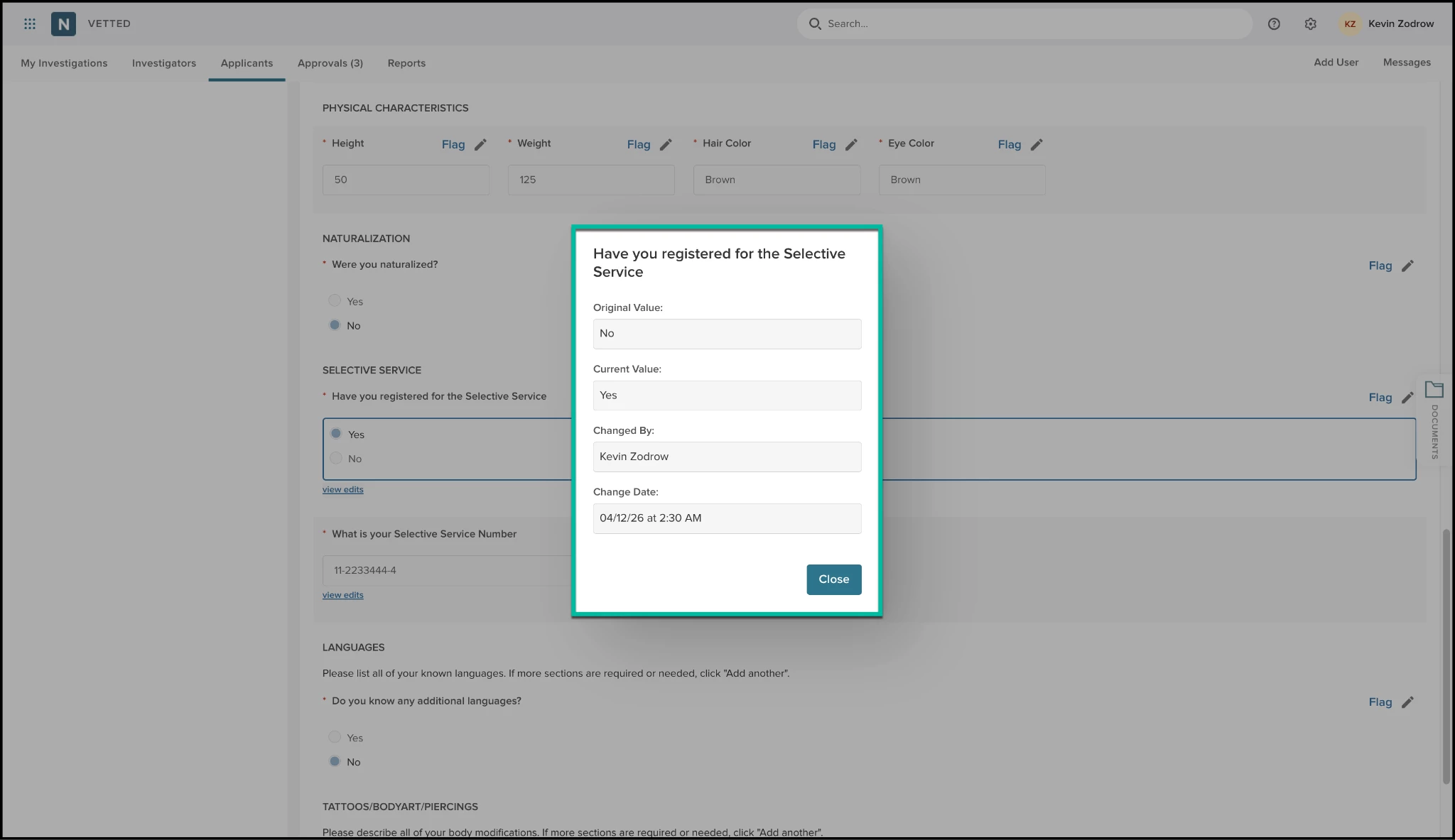
- Field-Level Editing: Fields in the PHS now feature an Edit icon. Selecting this opens a fly-out menu where you can input the new information.
- Add New Sections: Did the applicant forget to mention a short-term job or a recent move? You can now select Add New… within any module to surface a fly-out and enter entire new records (like employment, residences, or references) on the spot.
- Yes/No Toggle Logic: Easily update parent Yes/No questions. Toggling an answer will dynamically surface the required child questions for you to complete.
- High-Visibility Indicators: Transparency is key. Any field updated by an investigator — or any section added manually — will be clearly flagged with a visual indicator, so anyone reviewing the file knows exactly what was changed and by whom.
- Comprehensive Audit Grid: Vetted now tracks every single change. A new audit grid captures the module, section, question, the old value, the new value, the specific investigator, and a timestamp.
- Included in PHS: A simplified version of the investigator edits are appended to the end of the PHS.
Value
- Reduced Friction: No more "Reject and Resubmit" loops. Complete the PHS updates while the applicant is sitting right in front of you.
- Full Accountability: The system never overwrites the original response; it stores the investigator's input as a tracked update, ensuring the integrity of the initial disclosure.
Audience
- Investigators: To update applicant data during background interviews and meetings.
- Admins & Reviewers: To maintain visibility into what data was provided by the applicant versus what was corrected or added by the investigator.
Examples
- The Typo Correction: An applicant entered the number of years they’ve known a reference incorrectly. The Investigator selects Edit next to the field, enters the correct information, and saves. The field now shows the correction with a border indicating an investigator change.
- The Final Report Audit: An Admin reviewing a Final Report scrolls to the end of the PHS section and sees a structured table listing edits made by the Investigator, ensuring the department has a clear record of the "initial vs. final" data for the background file.
Items Removed because of this enhancement: None
PHS must be submitted at least once by the applicant.
Smart Tokens: Automated PHS Data Integration for Investigative Summaries
Writing a thorough Investigative Summary is one of the most time-consuming parts of a background investigation. To help you reclaim your time and eliminate manual data entry errors, we are thrilled to introduce PHS Module Smart Tokens!
Admin users can now configure Investigator Summary Templates with dynamic tokens that automatically pull structured data directly from an applicant's submitted Personal History Statement (PHS). No more copying and pasting employment dates or residence history — Vetted does the heavy lifting for you.
What’s New?
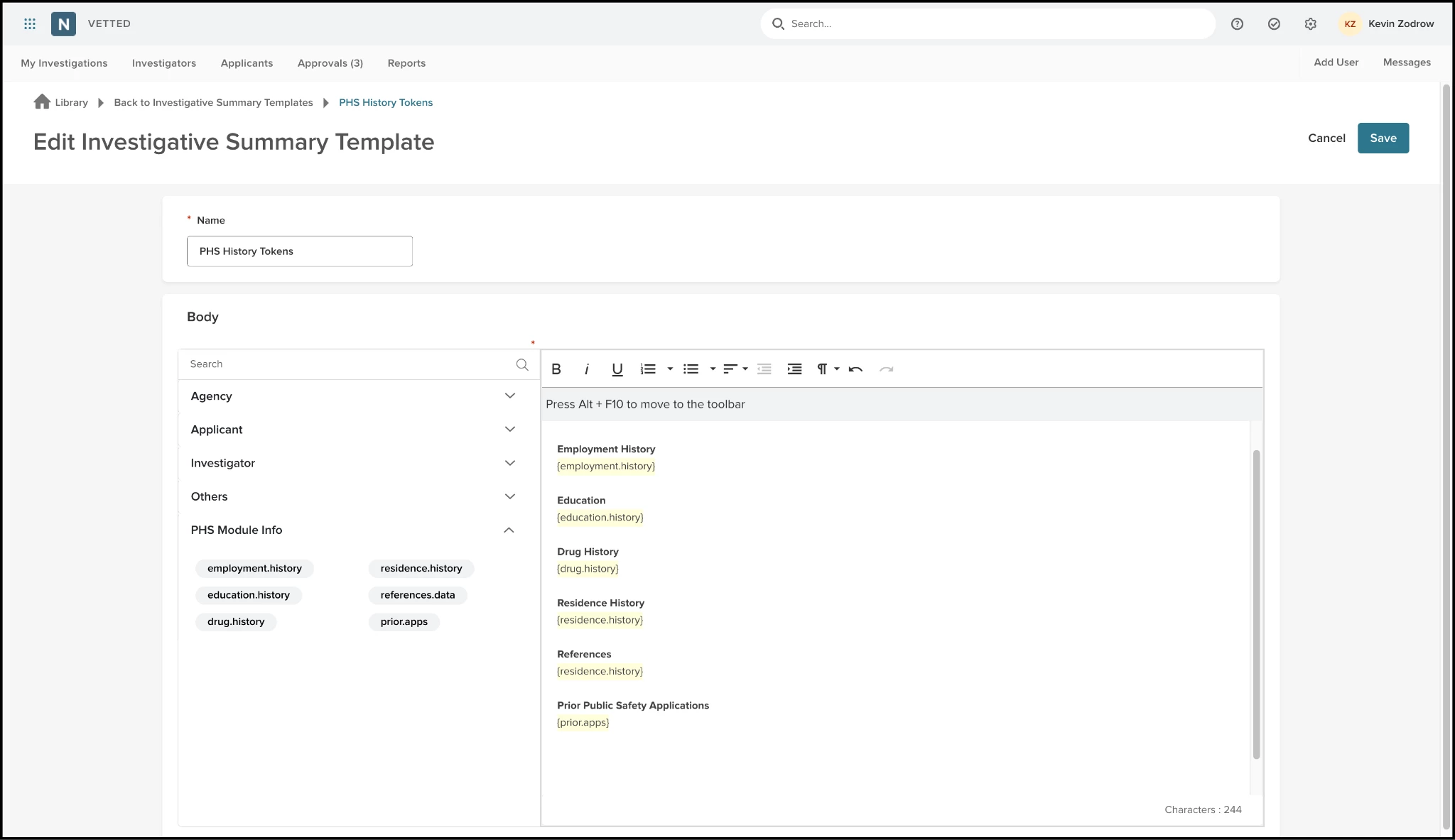
We’ve added a brand-new category to the Investigative Summary Template configuration page called PHS Module Info. Within this category, you’ll find six powerful new tokens:
- {employment.history}: Pulls all employment and military records. It even smart-labels current jobs as "Current" if the applicant hasn't left yet!
- {residence.history}: Lists previous and current addresses with move-in/out dates.
- {education.history}: Captures High School, College, and Trade School details in a clean, chronological list.
- {references.data}: Automatically formats names, relationships, and "years known" for all listed references.
- {drug.history}: Details drug types, frequency of use, and ages, including applicant comments in quotes for easy reading.
- {prior.apps}: Summarizes previous law enforcement applications, including agency names and application statuses.
Value
- Eliminate Transposition Errors: By pulling data directly from the source (the PHS), you ensure that dates, addresses, and more are 100% accurate in your final report.
- Massive Time Savings: Stop toggling between the PHS and your Word doc. One token can instantly format a decade’s worth of employment or residence history.
- Configurability: The data is automatically populated in the Investigator Summary upon selection of the summary template; however, investigators retain the ability to subsequently modify this information.
Audience
- Admins: To configure and standardize agency-wide Investigative Summary Templates.
- Investigators: To benefit from automated data population when generating their final summaries.
Examples
- The Employment Section: Instead of typing out five previous jobs, an Investigator inserts {employment.history}. The report instantly displays:
01/01/2022 to Current, State Police - Trooper
06/01/2018 to 12/31/2021, Regional Jail - Corrections Officer - Reference Summaries: An Admin adds the {references.data} token to the "References" header of the template. When the Investigator runs the report, it appears as:
Kevin Zodrow Relationship:
Former Co-worker
Years Known: 5 Years
Items Removed because of this enhancement: None
Dashboards - Customize Grid Settings
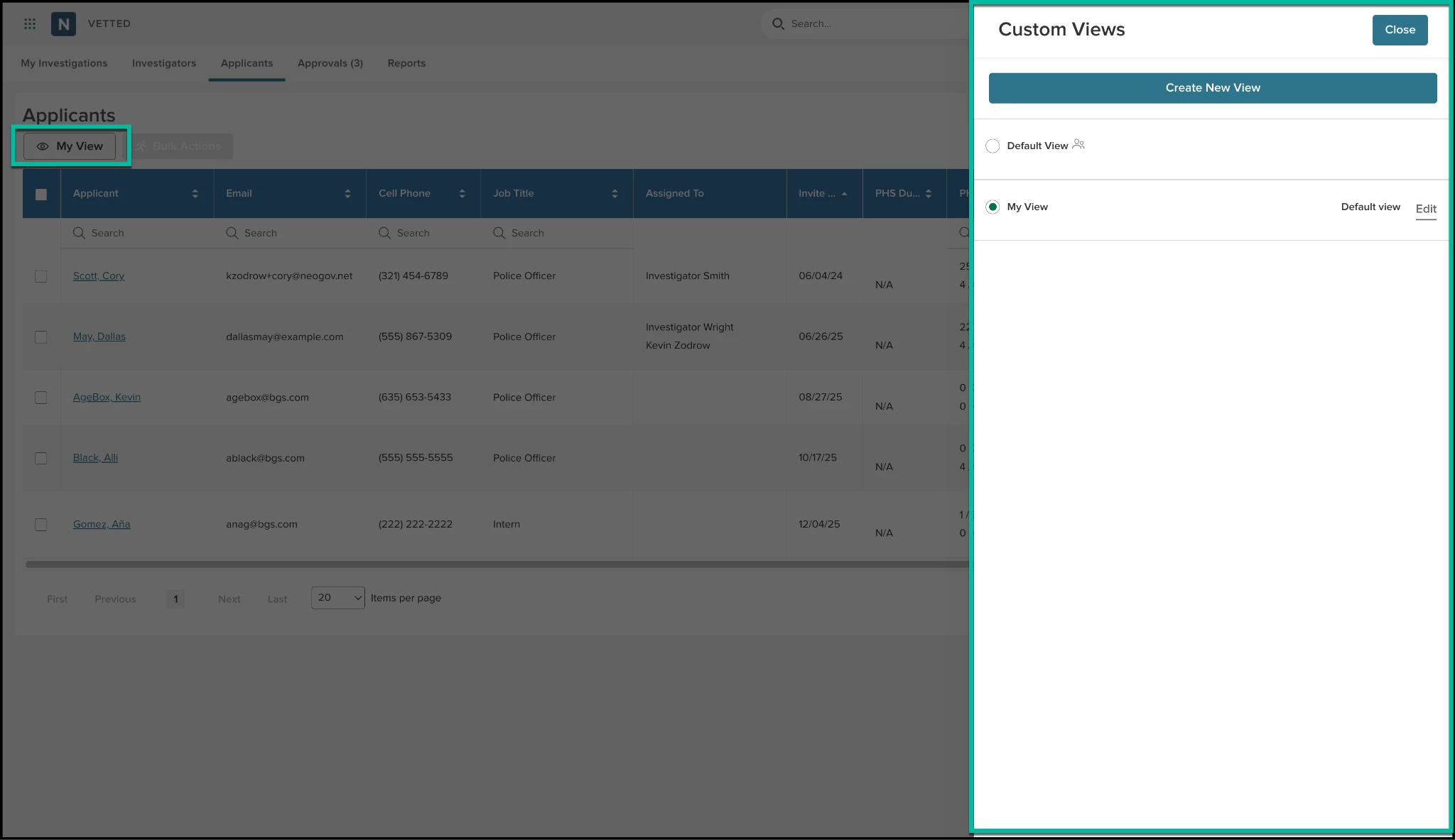
With this release, we are introducing Persistent Grid Settings and expanded data columns to give you more control over how you view and manage your workload. Investigators and Admins can now fully customize the Applicants and My Investigations grids. You can add new high-value columns, reorder them to fit your preference, and — most importantly— Save that view.
New Data Columns: You can now toggle the following columns into your grid view:
- SSN: Displays the applicant's Social Security Number (masked by default to show only the last four digits, for example, ***-**-1234).
- Email: Shows the applicant's primary email address.
- Cell Phone: Displays the applicant's phone number in a standard format: (540) 555-1212.
Value
- Personalized Efficiency: Every investigator works differently. Customizing your grid allows you to prioritize the data most relevant to your current task.
- Time-Saving Persistence: Your "perfect" view stays put. By saving your configuration, you eliminate repetitive administrative setup and get straight to work.
How it Works
- Select Column Selector.
- Rearrange and select columns to show or hide them as needed. Select Done.
- Verify that the grid displays the desired information in the preferred order.
- Select Default View.
- Select Create New View.
- Name your new view. Decide on default setting and public view (accessible by those on our team).
- Select Save, then Close.
Audience
- Investigators: To streamline daily caseload management and applicant outreach.
- Admins: To customize high-level oversight grids and monitor applicant pools more effectively.
- Custom Roles: Any user with permission to access the Applicants or My Investigations grids.
Examples
- The "Set It and Forget It" Pro: A user deselects several default columns they don't use (like Academy Session) and adds Email. They select Save, and even after logging out for the weekend, Vetted displays their streamlined, email-focused layout on Monday morning.
Items Removed because of this enhancement: None
General Changes
This section includes changes to the product's basic design that don’t affect its function, such as the location of common links or menu changes, the addition of tooltips, extra filter and sorting options, or modifications to page titles.
Links moved to Sub Navigation
We have updated the Vetted header to align with the standard NEOGOV look and feel, eliminating unused white space and moving primary navigation links into a streamlined sub-navigation bar.
Example: When logging in, you will now see My Investigations, Investigators, and Reports neatly organized in the sub-nav bar directly below the top navigation.
Ability to Configure Response Items in Drug Question
We are introducing the ability for Admins to customize the response options for the default Drug Question within the Personal History Statement (PHS). This update allows you to tailor the PHS to align with local legislation or departmental policies, ensuring you only ask for—and receive—the information that matters most to your agency.
Add New Options: Have a specific substance that has become a concern in your region? You can now add custom drug types (for example, "Fentanyl") to the list.
Remove Existing Options: If your state no longer tracks certain substances, such as Marijuana, you can simply remove that option from the dropdown to streamline the applicant's experience.
Remove Required for SSN and Drivers License in Support Documents
We have resolved an inconsistency where the Social Security Card and Driver’s License upload requirements were hardcoded as "Required" for some agencies while remaining optional for others. This update ensures a standardized behavior across all existing and new tenants, allowing for consistent configuration.
Appendix: Bugs Resolved
Functional
| Scenario When Issue Encountered | Issue Resolved |
|---|---|
| When generating a Final Report that included supporting documentation in .doc or .docx formats, these specific file types were failing to appear in the compiled report. | We have updated our document conversion engine to ensure all Microsoft Word attachments (.doc, .docx) are correctly processed and included in the Final Report alongside other applicable attachments. |
508(C) Compliance
| Screen(s) | Count of Bugs Resolved |
|---|---|
| Investigator - Applicant File | 2 |
| Applicant - Supporting Documents | 1 |
| Investigator - External Reports | 1 |
| Investigator - Correspondence | 1 |
| Investigator - Summary | 1 |
| PHS - CA POST | 4 |
| Admin Settings - Roles | 3 |