



Vetted Release Notes March 31, 2026
Article Links
Timeline
When will this be released?
March 31, 2026 at 5pm PST
Is there downtime for this release?
No.
Bulk Messaging — Connect with Multiple Applicants at Once
Communicating with candidates just got a whole lot faster. We’ve introduced Bulk Messaging, allowing department users to send a single message to multiple applicants simultaneously without having to open individual applicant files. This update is designed to eliminate repetitive tasks and save you valuable time during high-volume hiring cycles.
Value
- Massive Time Savings: Stop the "click, type, send, repeat" cycle. Update entire academy classes or applicant pools in seconds.
- Enhanced Visibility: The transparent recipient list ensures you never lose track of who you are messaging.
- Seamless Documentation: Maintain a perfect paper trail. Every bulk message is treated as an individual interaction within the applicant’s file and the system event log.
- Workflow Integrity: Built-in safeguards ensure you only message active candidates, keeping your archive data clean.
Audience
- Admins
- Investigators
- Custom Roles (with 'Allow' access to Messages and 'Modify' rights to Applicants or My Investigations)
Examples
- Academy Coordination: An Investigator selects 30 applicants currently in the "PHS Completed" status and sends a bulk message with instructions for the upcoming physical agility test.
- Status Updates: An Admin filters the My Investigations grid for all applicants in "Open Investigations" to send a quick check-in message reminding them to upload missing documents.
- Streamlined Resolution: After a bulk action, the Investigator checks the Event Log and sees 30 individual "Message Sent" entries, confirming every candidate was reached.
AI Control Center: Independent Feature Toggles
We know that every agency moves at a different pace when it comes to adopting new technology. While AI can drastically reduce administrative burden, we want to ensure you have complete control over how and when these features are rolled out to your team.
With this release, Admins now have a centralized location within Settings to independently enable or disable specific AI-powered features. This "opt-in" approach ensures that Vetted aligns perfectly with your agency's internal policies, compliance requirements, and risk management standards.
How it Works
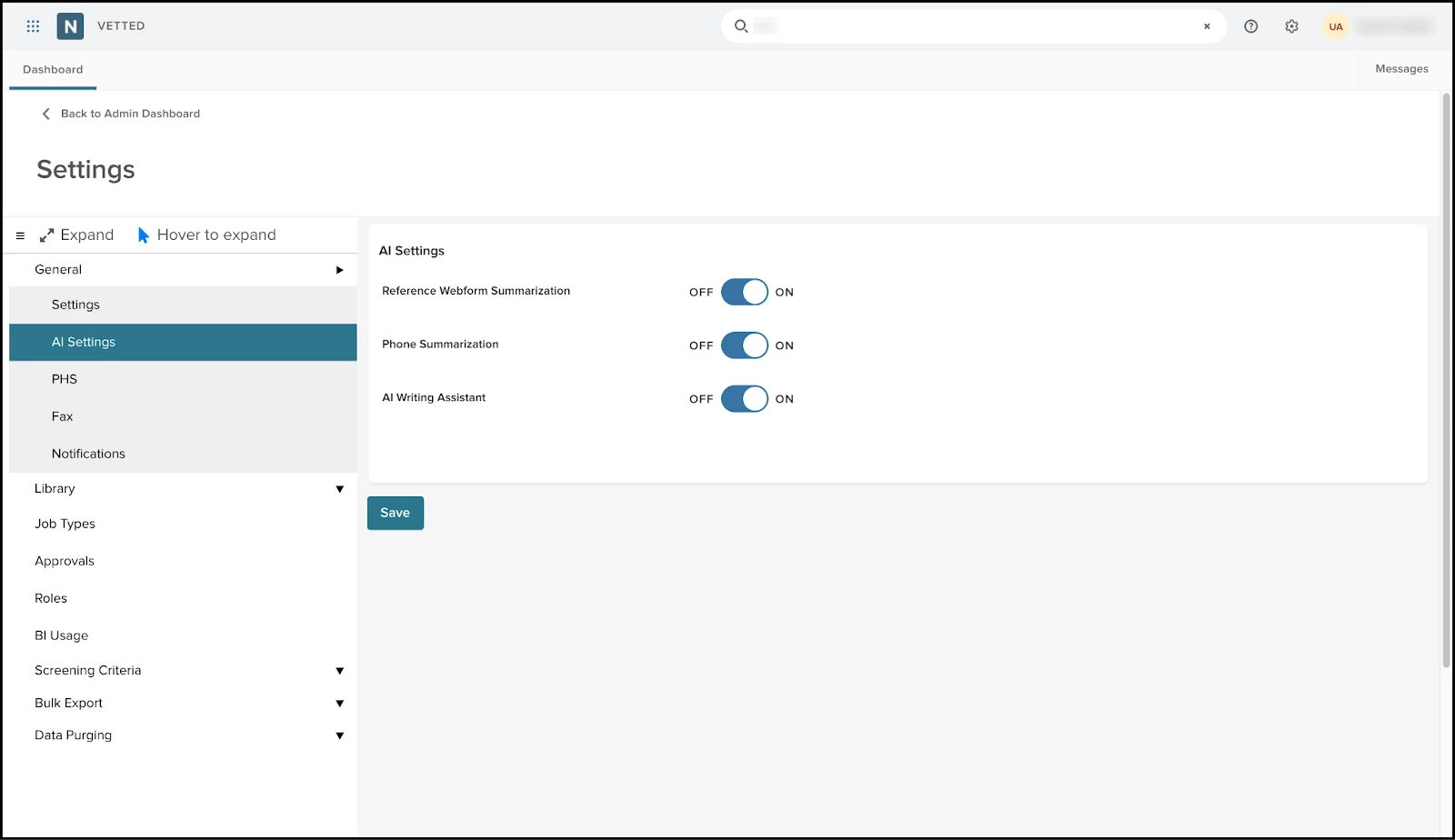
- Navigate to Settings > General > AI Settings.
- You will find independent toggles for:
- Reference Webform Summarization
- Phone Summarization
- Writing Assistant: NEW FEATURE - See Below!
- Toggles take effect immediately—no system refresh or downtime required.
- By default, these features will be ON. When a toggle is turned OFF, all related buttons, prompts, and UI entry points are hidden from Investigators and other users.
Value
- Agency Autonomy: Choose the specific AI tools that fit your current workflow and policy comfort level.
- Risk Mitigation: Ensure AI is only used when your agency is ready, preventing unauthorized use of tools.
- Seamless Experience: By hiding disabled features, your team’s interface remains clean and focused only on the tools they are authorized to use.
Audience
- Admins (or custom roles with "Settings: Modify" permissions).
Examples
- An agency is currently reviewing its compliance policy regarding AI. The Admin toggles the Writing Assistant to OFF until the legal review is complete, ensuring no investigators see the AI button in the simple and rich text editors.
- A department loves the efficiency of Reference Summarization but prefers investigators write their own Phone Summaries. They toggle the first to ON and the second to OFF.
AI Writing Assistant
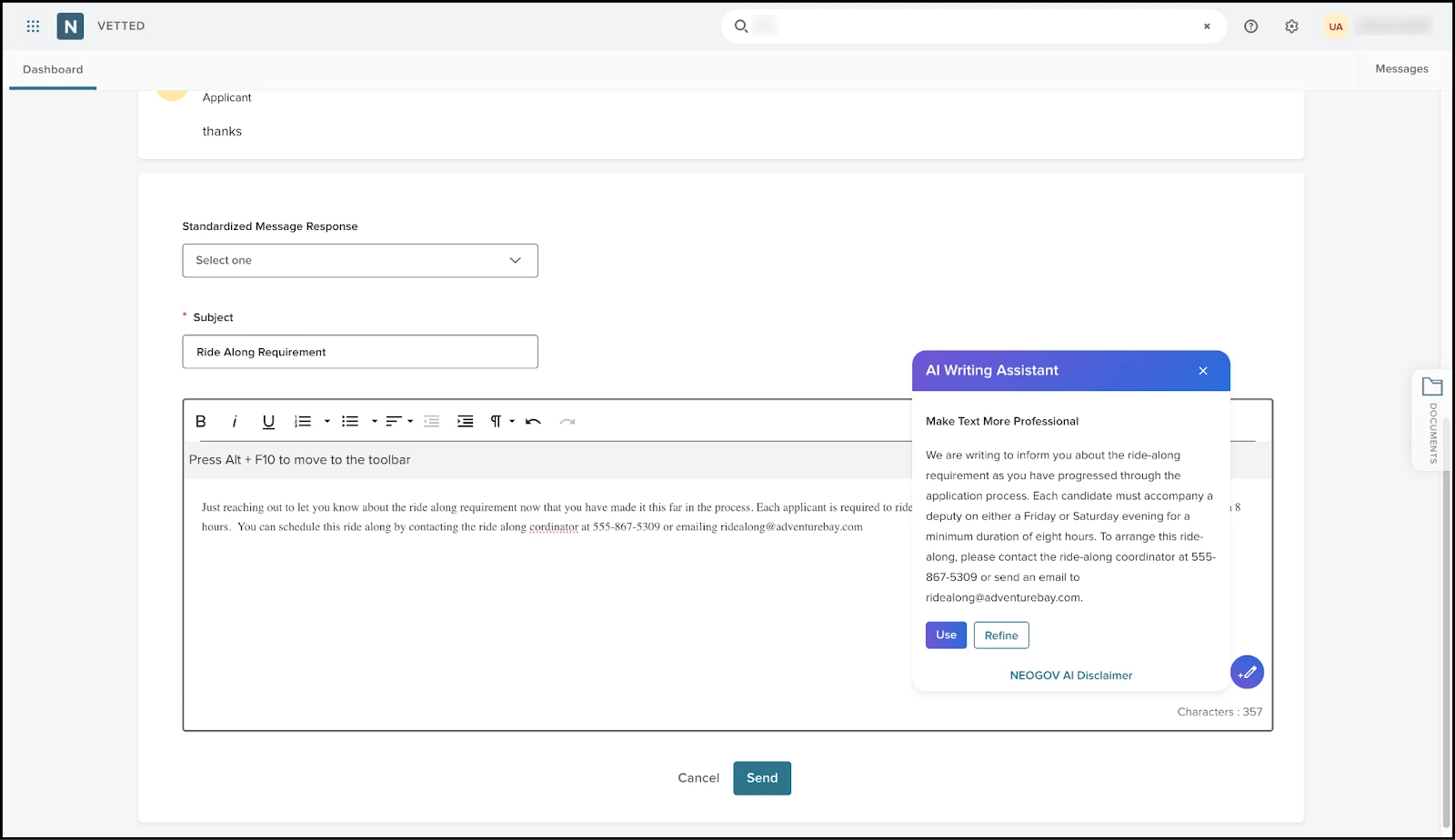
Drafting thorough, professional, and legally defensible background reports is one of the most time-consuming parts of an Investigator’s job. The AI Writing Assistant is here to help you clear the "blank page" hurdle and polish your notes and comments in seconds.
Embedded directly into the simple and rich text editors, this assistant helps you rephrase notes for clarity and ensure a professional, neutral tone — all while keeping you in total control of the final content.
How it Works
The Writing Assistant is available in key areas where Investigators often add notes and comments within the applicant file.
- Providing reasons for Legal Holds, Checklist Notes, Flag Notes, Documents, Messaging and more.
Value
- Time Savings: Reduce the hours spent drafting notes, comments, and investigative findings. Add your thoughts quickly and let AI clean it up.
- Consistency & Quality: Maintain a high standard of professional, subjective language.
- Reduced Burnout: Let the AI handle the repetitive formatting and summarizing so you can focus on the actual investigation.
Audience
- Investigators, Admins, and Custom Roles with modify permissions in the relevant areas.
Examples
- An investigator types a quick, shorthand note about an applicant's prior employment. They click Polish, and the AI transforms it into a clear, professional paragraph suitable for a Final Report.
Upload Supporting Documents for Applicant
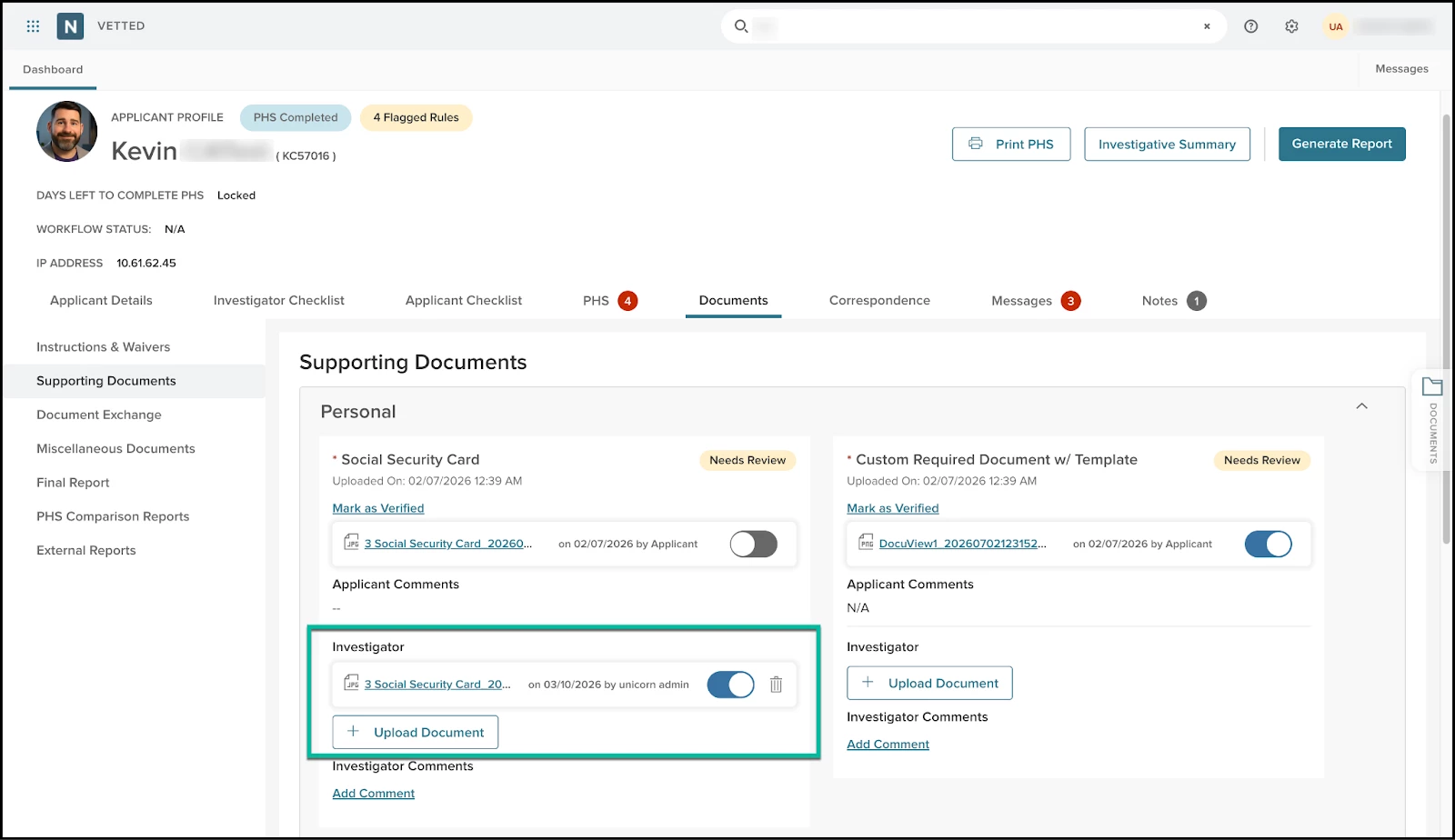
This allows Admins and Investigators to upload files directly to the Supporting Documents section of an applicant’s file. Previously, if an applicant provided a required document outside of the system (such as via email or in person), users had to upload it to the Miscellaneous documents folder, which could lead to a fragmented record.
Now, you can place the document exactly where it belongs—next to the specific requirement it fulfills. This ensures the applicant’s file remains the single, organized source of truth for all critical background information.
How it Works
When viewing the Supporting Documents tab within an Applicant File, users with appropriate permissions will now see an upload button within each document card. This allows you to fulfill a requirement on the applicant's behalf, ensuring that the background file is complete and ready for review without waiting for the applicant to log back in. And when generating the Final Report, users now have the ability to select exactly which version of a document (the Applicant's or the Investigator's) should be included by enabling or disabling the document.
Value
- Centralized Record Keeping: Keeps all required files in their designated slots rather than burying them in a general "Miscellaneous" folder.
- Reduced Friction: Allows investigators to keep the process moving even if an applicant is having technical trouble or provides documents during an in-person interview.
- Improved Auditability: Ensures that when a Final Report is generated, all expected supporting documents are present and correctly categorized.
Audience
- Investigators: To maintain complete files during the active investigation phase.
- Admins: To assist with high-volume onboarding or file corrections.
Examples
- An applicant brings their original DD-214 to their initial interview. Instead of asking the applicant to go home and scan it, the Investigator scans it and uploads it directly to the "Military Records" card in the Supporting Documents tab.
- An Admin receives a clearer copy of a Social Security card via email after the applicant's original upload was blurry. The Admin replaces the file directly in the Supporting Documents section to ensure the Final Report is legible.
General Changes
This section includes changes to the product's basic design that don’t affect its function, such as the location of common links or menu changes, the addition of tooltips, extra filter and sorting options, or modifications to page titles.
AI Summary Prompt Updates for Web Form and Phone Correspondence
We have enhanced the underlying logic for the Reference Webform Summary and Phone Correspondence Summary. This update ensures the summaries are more structured, professional, and consistent, facilitating easier comprehension. Key improvements include:
-
Recognizing when a reference is vague or fails to answer a specific question.
-
Utilizing direct quotes from the references.
-
Maintaining a neutral, factual tone throughout the summaries.
PHS Section Navigation Links in Final Report
Included in the left-hand navigation pane is an interactive Table of Contents for the Final Report. When a report is generated, Vetted automatically creates high-level anchor links based on the specific sections of the PHS, allowing Reviewers and Admins to jump directly to the data they need most without endless scrolling. The feature will soon expand to include the rest of the sections that can be added when generating the Final Report.
Workflow Wizard and Status Updates
We are introducing several refinements to the applicant status and workflow wizard to provide more flexibility and prevent accidental status overrides. These updates ensure that Vetted remains adaptable to your agency’s specific needs—whether you are following a strict approval chain or managing a quick disqualification outside of a formal workflow.
What to Look For:
-
New "No Workflow" Status Options: We have added Disqualified and Withdrawn back into the status dropdowns. These allow you to move an applicant out of the process immediately without triggering a multi-step approval wizard. An informational tooltip has been added to explain the difference between these and the standard approval workflow-based statuses. When one of these statuses is selected, a note will appear stating: "Status Update Only: To move this applicant through the workflow (if configured), click Submit for Approval."
-
Decoupled Investigator Assignments: You can now change an applicant's status to a workflow-configured status (e.g., Disqualified) without first assigning an investigator to the file. This allows Admins to manage workflow steps even if a specific investigator hasn't been officially designated in the system.
-
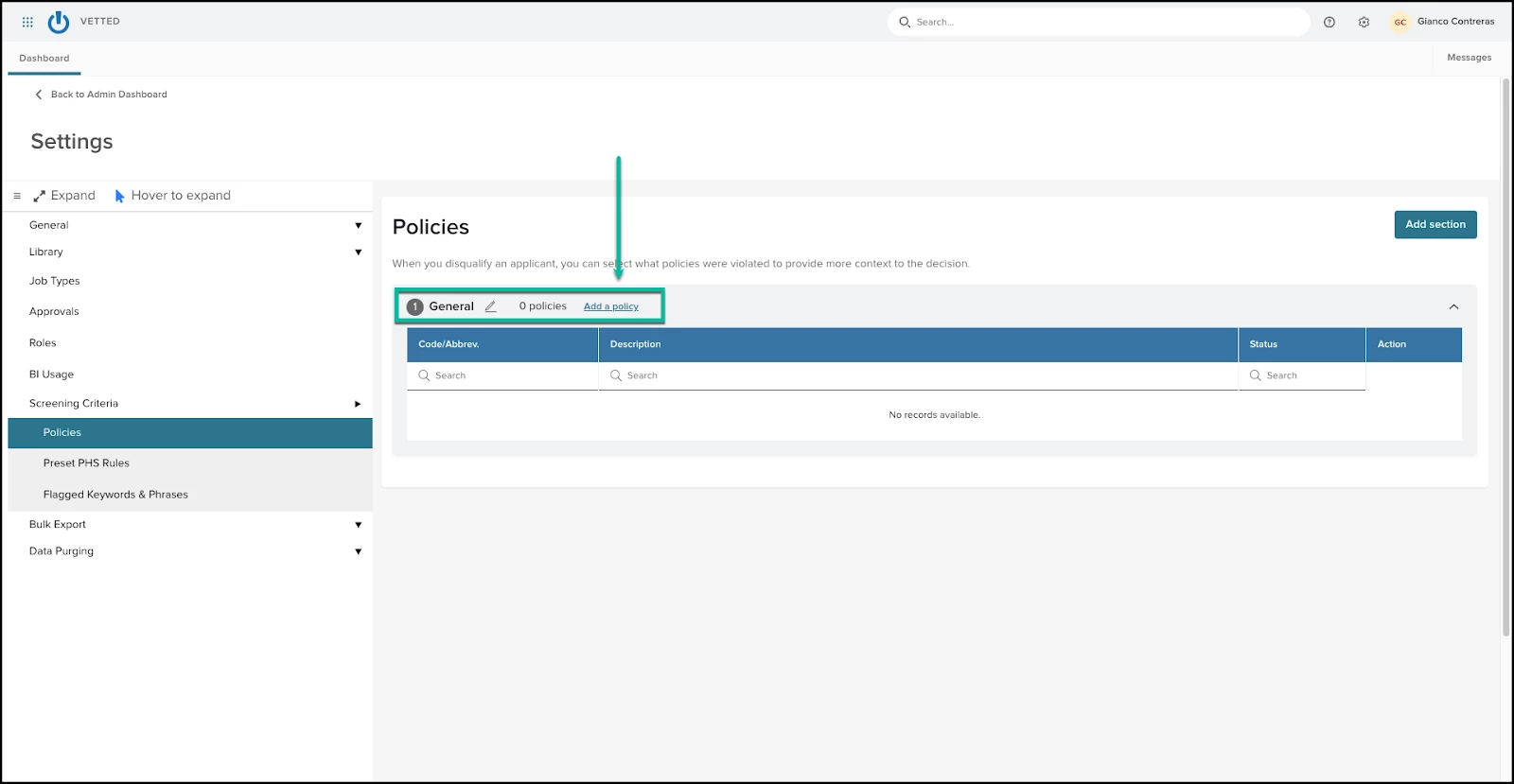
Policy-Driven Disqualification Requirements: When disqualifying an applicant, the system now prevents logging a disqualification if only a policy "Section" is present with no individual policies. Users will receive a notification that a specific Individual Policy must be added and selected to complete the action. This applies to both the Status & Settings page and the Workflow Wizard.
Modify PHS Module Name
We are introducing more flexibility for agencies to align the Vetted platform with their specific departmental terminology. Admins can now relabel Personal History Statement (PHS) modules. On the PHS Configuration page, when looking at a specific module, Admins will now find an edit pencil icon located in the working space page header next to each module name. Clicking this icon enables inline editing, allowing you to rename the module to better fit your needs.
Tip: When renaming a module, ensure the new name is consistent with the original module's intended data collection focus. There is a 40 character limit.
Appendix: Bugs Resolved
Functional
| Scenario When Issue Encountered | Issue Resolved |
| N/A |
508(C) Compliance
| Screen(s) | Count of Bugs Resolved |
| N/A |