



Vetted Release Notes Winter 2026
Article Links
Timeline
When will this be released?
UAT: Monday, January 20, 2026, 7 AM EDT
Production: Thursday, February 19, 2026, 7 AM EDT
Note: If this is your first time using a NEOGOV product during the preview window, please see the HCM Product Release Preview Window 101 article for more information and instructions.
Is there downtime for this release?
No
Legal Holds and Data Purging
With this release, Admins gain powerful new tools to manage data retention and support compliance: Legal Holds and Data Purging.
These features work together to protect applicant records that must be kept for legal, audit, or policy reasons, while also giving Admins a secure, role-based way to permanently delete records that are no longer needed.
Admins can now place a Legal Hold on any applicant file directly from the Applicant Information tab. Once enabled, the Legal Hold prevents deletion of the record, even if automated archive rules or manual deletion attempts are triggered.
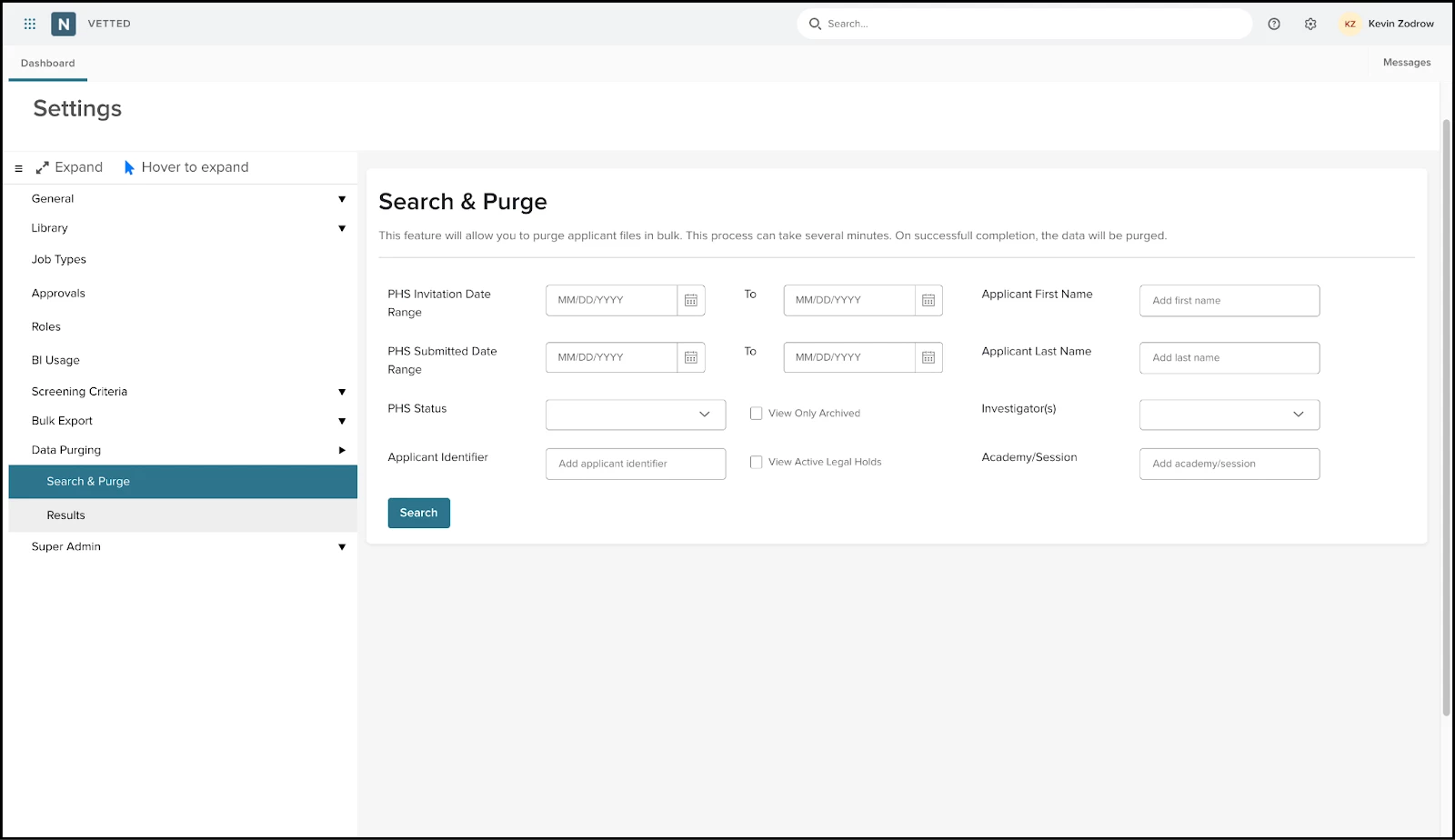
Admins can also search for and permanently delete applicant records using custom filters such as PHS status, submission date, investigator, or academy session. The purge process includes built-in validation, confirmation steps, legal disclaimers, and a downloadable audit report.
Value
The Legal Holds feature protects applicant files that may be required for legal, audit, or investigative purposes. This helps agencies avoid accidental data loss and stay compliant with internal policies and external requirements.
The search and purge feature allows Admins to delete only eligible records while maintaining a full audit trail. Together, these tools ensure Legal Holds are respected and provide clear proof of deletion when needed for internal reviews, audits, or legal requests.
Audience
- Admins
- Investigators
Examples
- An agency involved in litigation places a Legal Hold on an applicant file to preserve evidence.
- An Admin selects View Active Legal Holds to confirm which files are protected before running a bulk purge.
- After deletion, an Admin downloads a PDF summary and stores it in the agency’s internal audit records.
Print a Redacted Final Report (Investigator Summary and PHS)
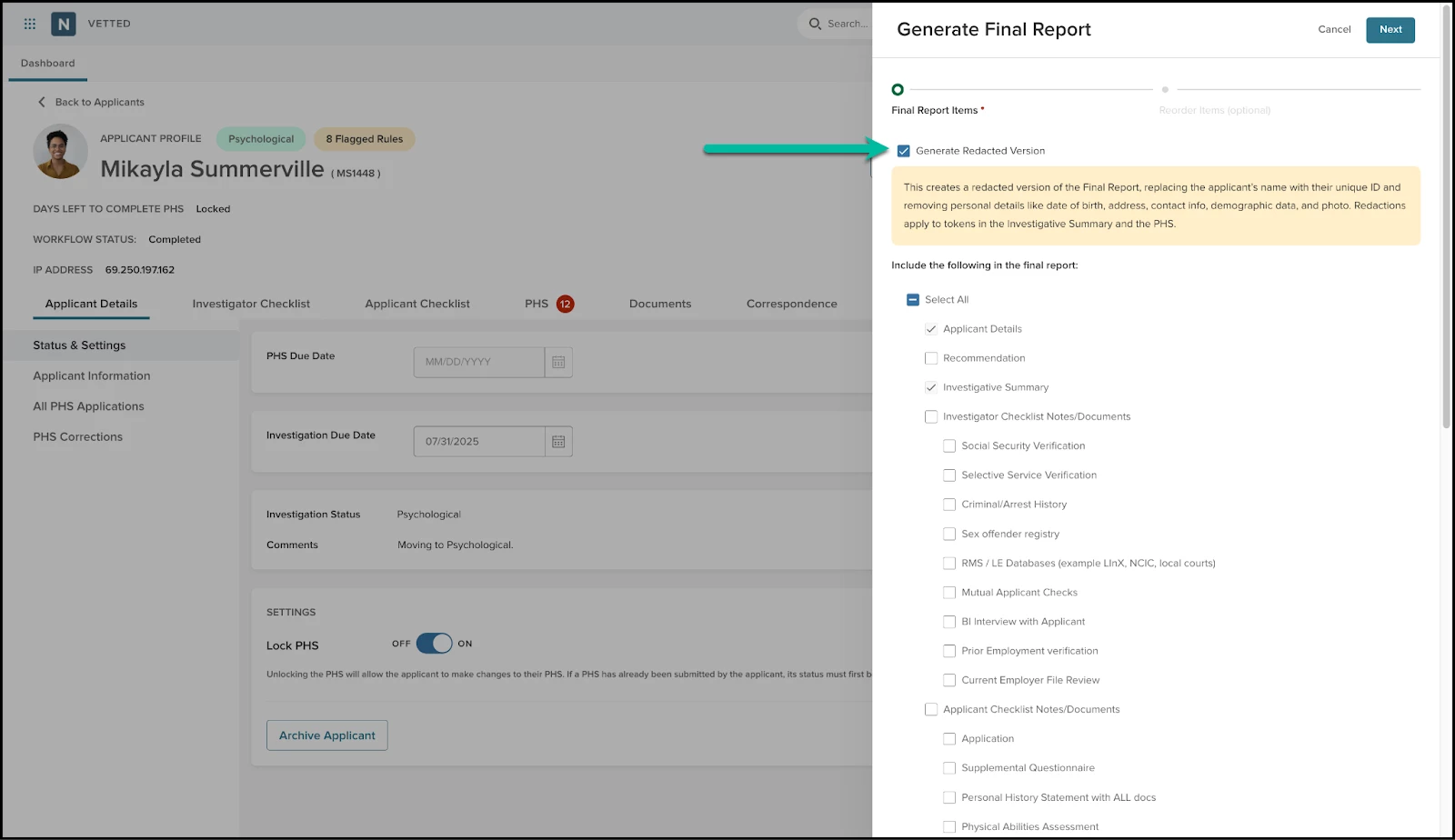
Bias-free review is now easier. With this release, Admins and Investigators can generate a redacted version of the Final Report. This version replaces applicant-identifying information with a Vetted-generated unique ID and removes sensitive personal data, including the Personal History Statement (PHS).
This first phase applies automatic digital redactions. It is especially helpful when sharing reports with hiring panels, review boards, or legal counsel where applicant anonymity is required.
How it Works
- From the Generate Report flyout, select Generate Redacted Version.
- Review the disclaimer confirming that sensitive data will be hidden, including name, date of birth, contact details, gender, and more.
- Select PHS.
- Generate the report. If the applicant does not already have a Unique Identifier, Vetted creates one automatically.
- When the report is ready, print it.
| Redacted items | |
| In the Final Report |
|
| In the Attached PHS PDF |
|
Note: This phase applies redaction only to structured data and PHS fields. Scanned or uploaded documents (such as birth certificates or licenses) are not redacted and may still display applicant details. A future update will support manual redactions in attachments.
Use this feature when printing reports for bias-free review committees.
Value
This feature supports fair, privacy-focused reviews by removing personally identifiable information from the Final Report. Agencies can produce redacted reports quickly and consistently without manual edits or risky PDF changes.
It also helps agencies comply with privacy requirements, internal policies, and fair hiring practices.
Audience
- Investigators and Admins: Generate and configure reports for internal or external review
- External Review Boards: Review reports without access to identifying applicant details
Examples
- An agency shares a Final Report with a civilian oversight committee using the redacted version to remove names, gender, and contact details.
- A hiring panel reviews multiple applicants side by side using reports that display Unique IDs, reducing the risk of implicit bias.
Submit For Approval Workflow Wizard
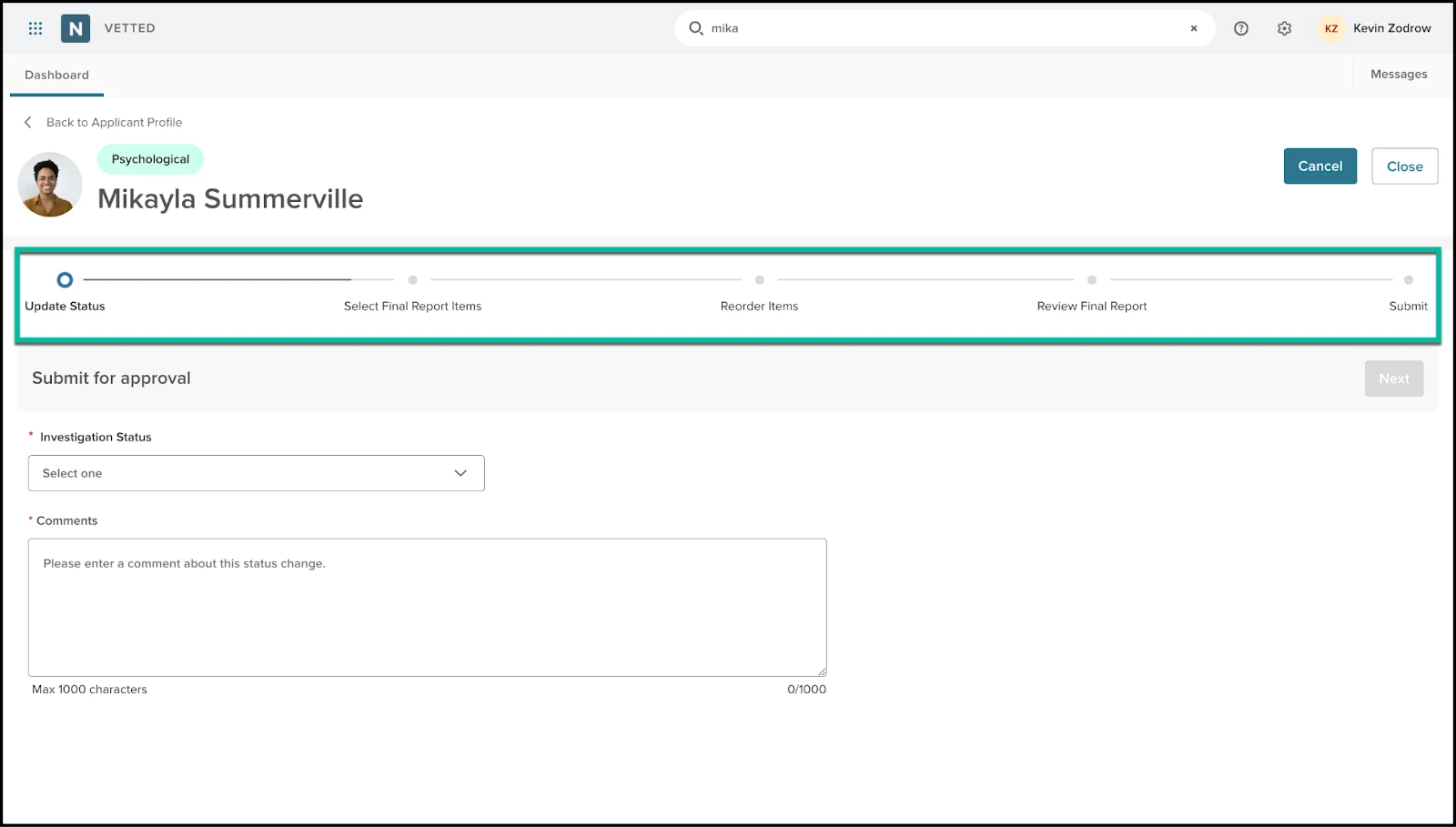
We redesigned the Submit for Approval process to make it simpler and more intuitive. Investigators and custom roles now complete the process using a guided, full-page wizard instead of a flyout or manual steps.
From the Applicant File header, the new Submit for Approval button launches a step-by-step workflow. Changes are held until the final submission, preventing accidental updates or early launches.
How it Works
New Workflow Steps
- Update Status
- Select from statuses that have workflows enabled
- Statuses without workflows remain available in the standard status dropdown
- Select Final Report Items
- Choose exactly what to include in the Final Report
- Reorder Final Report Items
- Drag and drop items to set the final order
- Generate Final Report
- A loading page displays while Vetted builds the report
- Review Final Report
- Preview the report before submission
- The option to generate a redacted version is available
- Submit for Approval
- Confirm changes and launch the workflow
- Vetted summarizes updates and shows who receives the report first
- Confirmation Page
- Return to the Applicant Detail page after submission
- Need to make changes? Go back to any previous step without closing the wizard.
- Need to stop? Close the wizard to exit without saving changes.
- Resubmitting after denial? The wizard supports reactivating previously denied workflows.
Value
This update reduces confusion during a critical handoff in the background process. The guided experience helps users:
- Include the correct data in the Final Report
- Review and edit content before submission
- Launch workflows only when ready
This saves time, improves accuracy, and reduces rework.
Audience
- Any user with permission to generate Final Reports
Examples
- An Investigator completes a review, updates the status to Ready for Review, selects documents, previews the report, and submits it with confidence.
- Another Investigator starts the wizard, realizes a reference is missing, exits without saving, and resumes later.
- After a workflow denial, a user updates the report and resubmits approval using the same guided flow.
Bulk Invite via CSV Enhancements
Bulk inviting applicants just got easier. The updated Bulk Invite via CSV experience supports high-volume hiring, reduces errors, and prevents failed invites.
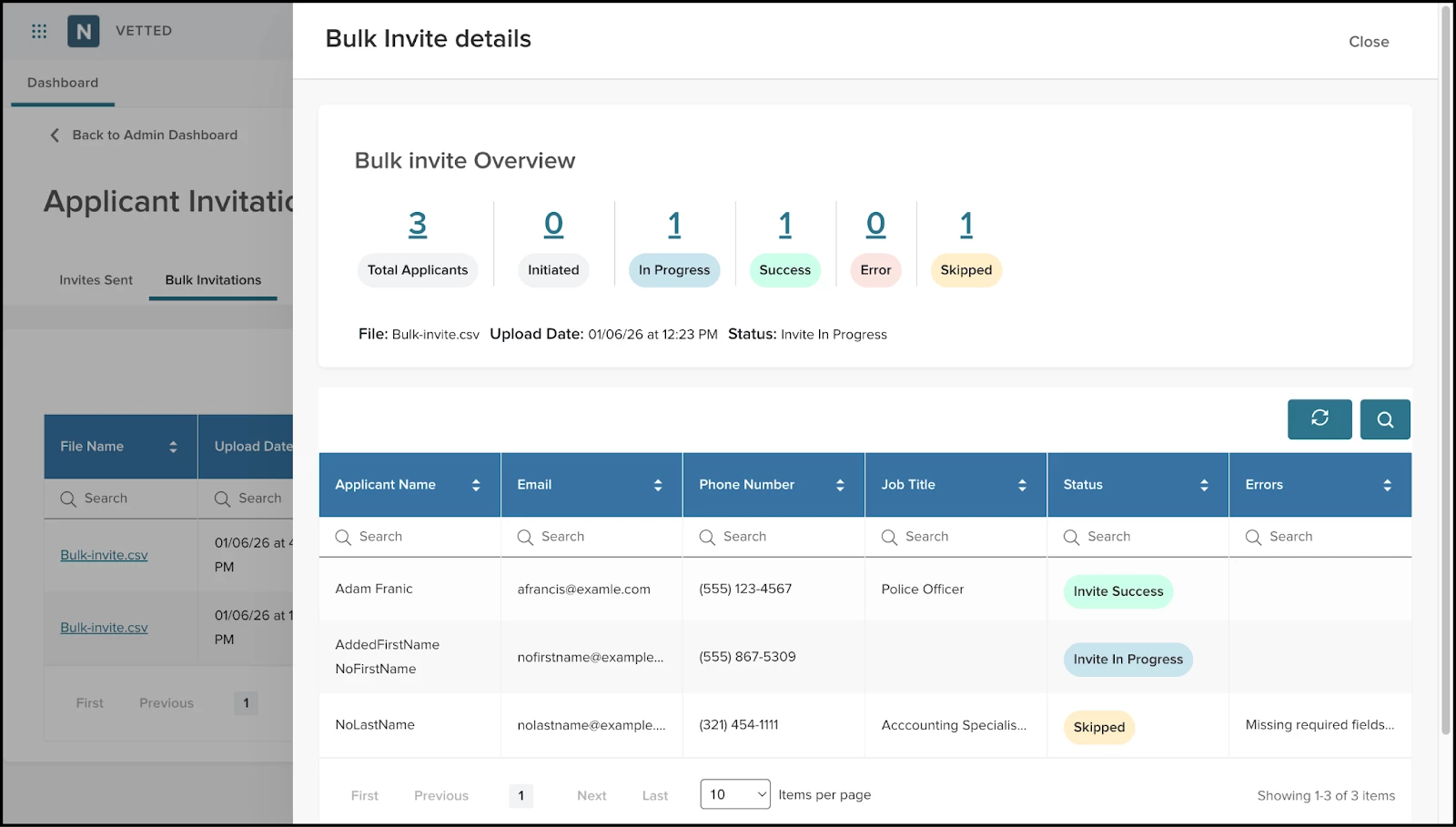
The new flow includes a full-width flyout with inline validation, row-level editing, and support for up to 200 applicants per upload.
How it Works
- Go to Applicants > Manage Invitations > Invite Applicants > Import Applicants from CSV
- Download the updated template to ensure correct formatting
- Upload your file and follow the guided steps with real-time validation
This update is especially helpful for Admins managing academy classes or large hiring events, including agencies without Insight integration.
Value
This enhancement improves bulk onboarding by:
- Reducing formatting errors
- Allowing in-app corrections
- Showing which records fail and why
- Supporting up to 200 applicants per upload
- Ensuring invites go only to applicants with valid data
Smarter Validation
- Email must include “@domain”
- Phone numbers must include 10 digits (hyphens are accepted)
- First and last names are required
- Job Type must be active and linked to a PHS and checklists
- Each row is validated independently with clear error messages
Inline Editing Before Sending
- Vetted shows validation errors row-by-row
- Use the pencil icon to edit any row directly in-app
- Quickly correct issues like invalid job types, bad formatting, or missing fields
Audience
- Admins
- Custom Roles with permission to invite applicants
Examples
- An Admin uploads 150 applicants. Twelve rows contain errors—10 are fixed in Vetted, two are skipped, and the rest are invited successfully.
- An ATS export includes phone numbers with dashes. Vetted now automatically accepts and cleans formatting.
Custom PHS Statuses — Tailor Status Labels to Match Your Workflow
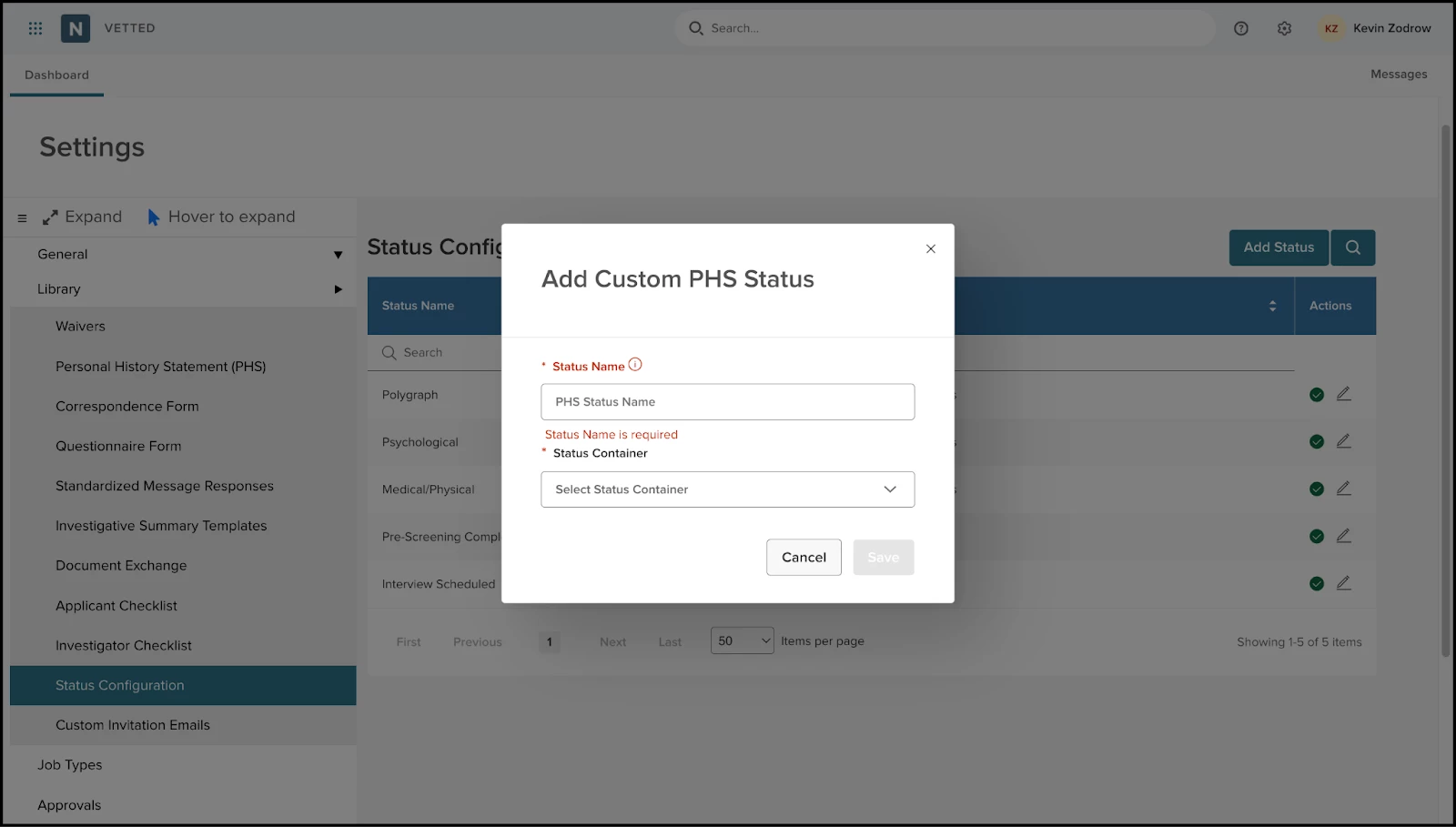
Admins can now create and manage custom applicant statuses within the five core containers in Vetted:
- PHS Not Started
- PHS In Progress
- PHS Completed
- Open Investigations
- Final Review
Custom statuses appear everywhere Vetted displays status pills or dropdowns. This allows agencies to align system labels with real-world workflows.
How it Works
- Go to Settings > Status Configuration
- Select Add Status
- Enter a label (up to 25 characters)
- Choose the container
- Select Save
Custom statuses integrate fully with event logs, grids, reports, and exports.
Value
Custom statuses give agencies flexibility to:
- Organize work by team or task
- Match system language to internal processes
- Track specialized steps such as Awaiting Polygraph
- Improve clarity without workarounds
Status changes are always tracked in the Event Log, even if a status is later removed.
Audience
- Admins: Configure and manage statuses
- Investigators and Custom Roles: Apply statuses
- Leadership and Reporting Users: View statuses in reports
Examples
- An agency adds Post Offer Checks under Final Review to separate medical, psychological, and conditional offer steps.
- A police department adds Background Triage under PHS Completed to flag applicants awaiting assignment.
Custom Invitation Email
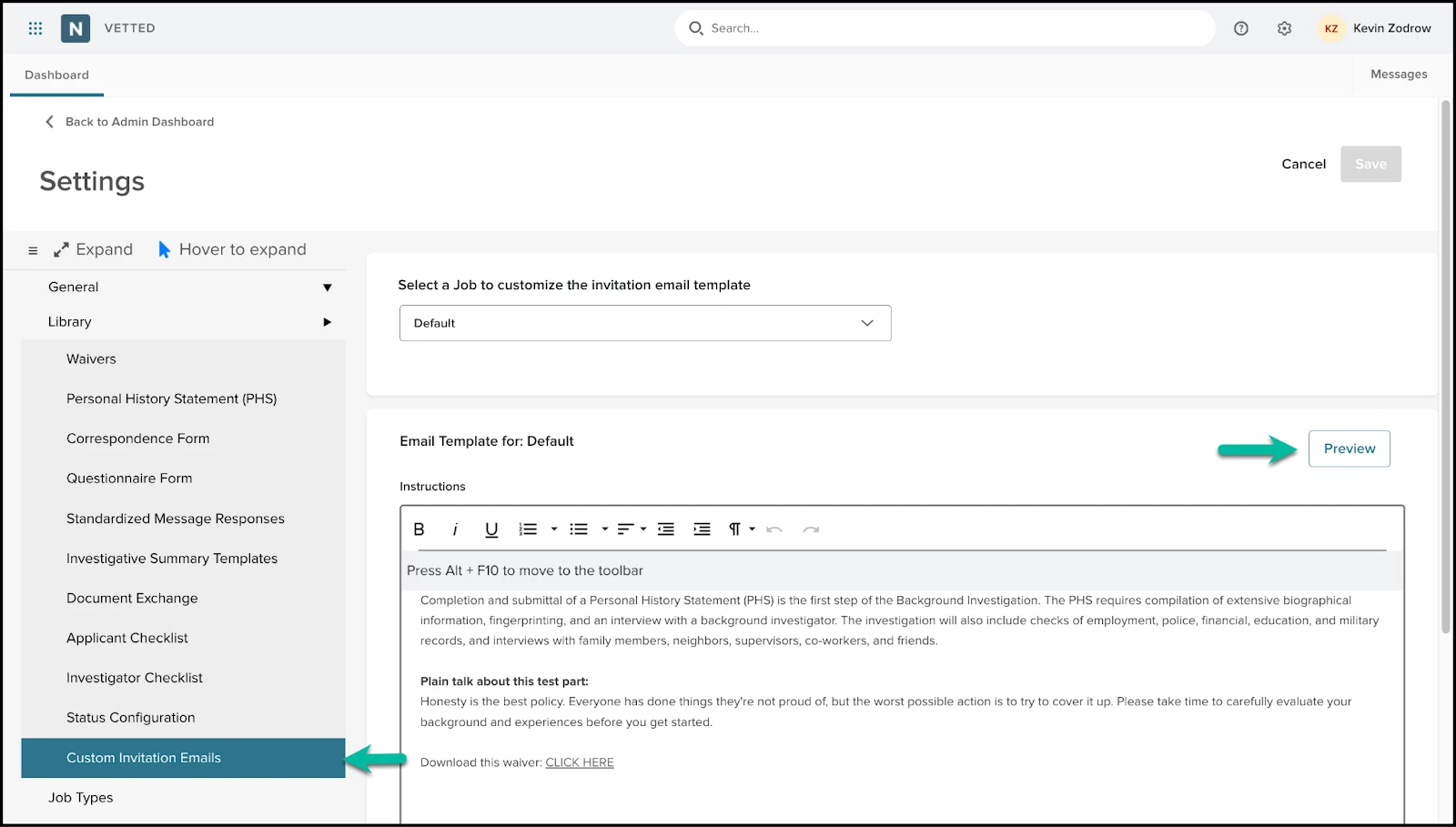
Admins can now customize invitation emails by Job Type. This allows agencies to include job-specific instructions and onboarding details in the initial invitation.
Admins can add rich text content between the standard welcome message and the login or account creation button. Each job type, such as Police Officer, Dispatcher, or Academy Cadet, can now include tailored guidance delivered in a single, clear message.
Value
This feature helps Admins:
- Provide clearer instructions
- Reduce follow-up emails
- Share job-specific requirements early
- Prevent delays and confusion
For Investigators, it means fewer messages from applicants who missed key steps.
Audience
- Admins: Configure and preview invitation emails
- Applicants: Receive clear onboarding instructions
- Investigators: Work with better-prepared applicants
Example
- A Dispatcher invitation includes testing instructions and different history requirements that do not apply to sworn roles.
Additional Setup
- Go to Settings > Library > Custom Invitation Emails
- Edit the Default Template or select a Job-Specific Template
- Add content using the rich text editor
- Preview the full email
- Save and deploy
Appendix: Bugs Resolved
No additional bug fixes outside of the maintenance releases. Please refer to the maintenance release notes for details.
Related Resources
- Article: Vetted: Department Settings: Custom PHS Statuses
- Article: Vetted: Bulk Invite via CSV
- Article: Vetted: Legal Holds and Data Purge
- Article: Vetted: Settings: Custom Invitation Email