



Vetted: September 28, 2026 Release Notes
Article Links
Timeline
When will this be released?
Release Date: September 28, 2026 at 4:30pm PST.
Is there downtime for this release?
No.
Custom Applicant Color Tagging (“Tag Color” Column)
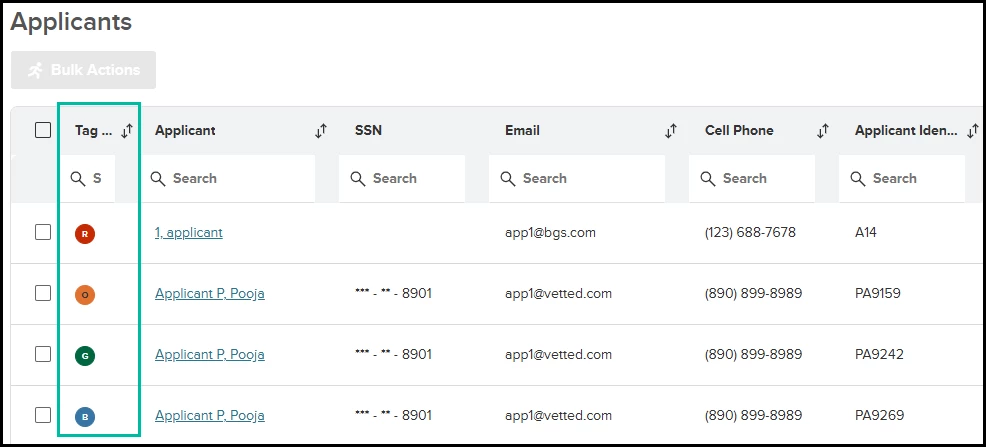
Visually organizing and tracking applicants just got easier. With this release, we are introducing Personalized Applicant Color Tags, allowing users to assign a color-coded indicator to any applicant within applicable tables. This new feature adds a Tag Color column, designed to help you prioritize, group, and manage applicants based on your personal workflow.
Select the neutral, circular indicator in the Tag Color column to open an inline popover displaying the available predefined colors. These tags are strictly personal to your user account, your assigned colors will never be shared with, visible to, or affect the workflow of any other agency user.
Need to update multiple applicants at once? We have added an Assign Tag Color option to the existing Bulk Actions fly-out, allowing you to instantly assign or clear a color for an entire selected group. You can also click the Tag Color column header to automatically group your applicants by color or use the search filter to display only applicants matching a specific color name.
How it Works
- Locate the Tag Color: Navigate to an applicable applicant table and locate the Tag Color column. Applicants without an assigned color will display a neutral, circular indicator.
- Assign a Color: Click the circular indicator next to an applicant to open the color options, then select your desired color. Your selection is saved immediately and is visible only to you.
- Bulk Assign Colors: To apply a color to multiple applicants, select the desired applicants and choose Bulk Actions > Assign Tag Color. Select a color to apply it to all selected applicants, or clear an existing color.
- Sort or Filter by Color: Click the Tag Color column header to group applicants by their assigned color, or use the table's search bar to filter applicants by a specific color name.
- Track Across Tables: Your assigned color remains associated with the applicant across applicable tables as they move through the background investigation process. Color assignments are personal to your user account and do not affect what other agency users see.
Value
- Visual Prioritization: Quickly distinguish high-priority applicants, pending tasks, or specific groupings at a glance without navigating into individual files.
- Frictionless Workflow: Tags are automatically saved immediately upon selection and seamlessly persist across all table views, eliminating the need to re-tag applicants as they progress through the background phases.
- Personalized Organization: Organize your caseload according to your own workflow without changing the applicant record or affecting what other agency users see.
Audience
- Admins.
- Investigators.
- Reviewers.
- Custom Roles (with access to applicable applicant tables).
Examples
- An Investigator assigns a Red tag to an applicant in the Total Applicants view to denote a priority review. When that applicant later moves to Open Investigations, the Red tag remains visible for that Investigator.
- An Admin selects 20 applicants and uses the Bulk Actions > Assign Tag Color tool to tag them with a Blue tag, visually grouping a specific academy session for their own tracking.
- A Reviewer searches the word "Green" in the table's search bar to filter the grid, instantly displaying only the applicants they have marked as ready for the next step.
- A user clicks the Tag Color column header to sort their current My Investigations table, instantly grouping all tagged applicants together by color priority so they can efficiently plan their daily follow-ups.
Items Removed because of this enhancement: None.
Custom Applicant Ordering (“#” Column)
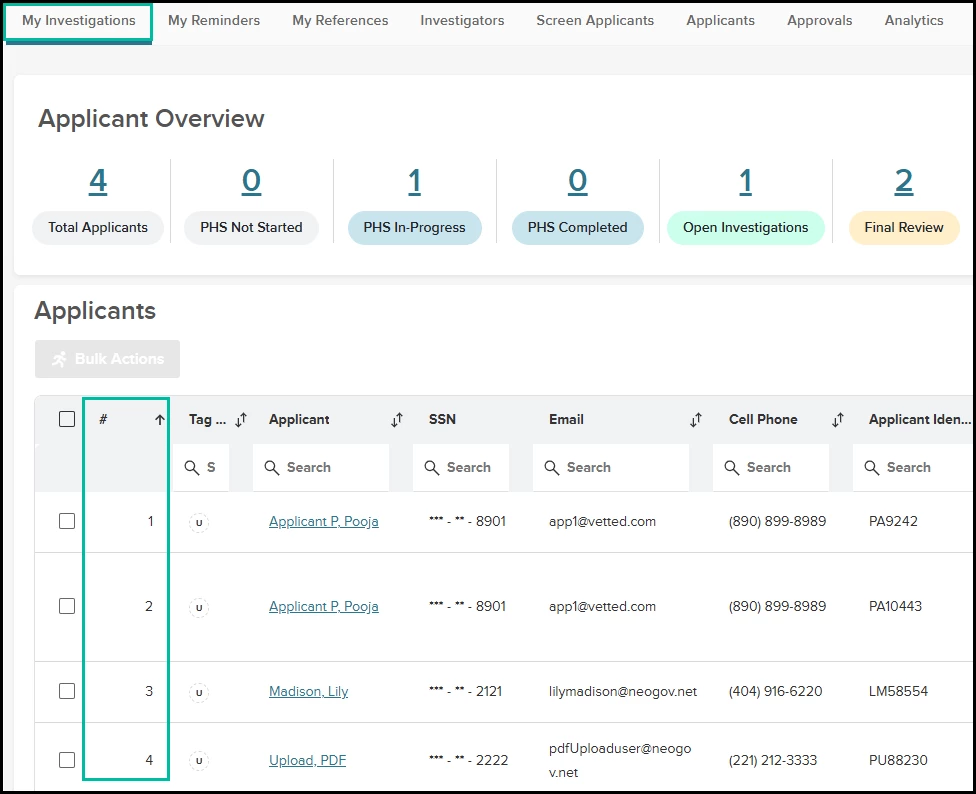
Stay on top of your caseload with a new way to prioritize applicants. With this release, we are introducing a new "#" (Numbering) column within the My Investigations table, allowing you to assign a number to your applicants. The column displays only the numerical value (e.g., 1, 2, 3), and because this numbering is strictly user-specific, your custom order will never affect how other agency users view their own investigations.
How it Works
- Assigning Priorities: Click into the # column for any applicant and enter a positive whole number. The system will instantly apply the number and organize the applicant accordingly.
- Automatic Sequencing: Numbered applicants always form a continuous sequence starting with 1. If you enter a number that would create a gap (for example, if you have applicants 1, 2, and 3, and you assign a new applicant to position 7), Vetted automatically normalizes the entry to the next available position (position 4).
- Smart Shifting: Assigning an applicant to an already occupied position smoothly inserts them into that slot. Vetted will automatically shift the previous occupant—and all subsequent numbered applicants—down by one.
- Clearing and Removing: If an applicant's number is cleared, or if they are removed from your My Investigations dataset, their position is released. All subsequent numbered applicants automatically shift up to fill the gap, ensuring there are never duplicate numbers or skipped sequences.
- Sorting and Persistence: By default, the My Investigations table sorts by your custom numbering order (1, 2, 3...), followed by unnumbered applicants. While you can temporarily sort by other columns like "Assigned To," leaving and returning to My Investigations will always reset your view back to your personalized numerical sort.
- Flexible Views: You can move or hide the # column using the Show Columns configuration menu. Hiding the column does not delete your saved numbering sequence—if you reactivate it later, your numbers will reappear exactly as you left them.
Value
- Frictionless Workflow: Create a definitive top-to-bottom list of your daily tasks so you can quickly identify which background investigations to work on next.
- Smart Automation: Vetted handles the heavy lifting. Automatic sequence normalization means you never have to manually renumber an entire list just to bump one urgent applicant to the top.
- Independent Organization: Tailor your caseload to your workflow. These numbers apply only to your view, so you can organize your investigations without altering applicant data or disrupting your colleagues' workflows.
Audience
- Admins.
- Investigators.
- Reviewers.
- Custom Roles (with access to My Investigations).
Examples
- An Investigator starts their day with five numbered priority cases (1 through 5). A new urgent file is assigned to them, so they enter "1" into the applicant's # column. Vetted instantly shifts the previous priority 1 case to position 2, and cascades the rest down seamlessly.
- A user currently has no numbered applicants and enters "5" in an applicant's # column. Because the sequence must start at 1 and remain continuous, Vetted automatically normalizes the input and assigns the applicant to position 1.
- An Admin is reviewing an applicant assigned to position 2. The applicant's status changes, moving them out of the My Investigations table. Vetted immediately recognizes the released position and bumps the applicant in position 3 up to position 2 to maintain a perfect, gap-free sequence.
Items Removed because of this enhancement: None.
PDF Uploads – Waivers & Agreements
Creating and managing custom agency waivers is now more flexible. With this release, Admins can upload existing PDF documents to Agreements & Waivers, eliminating the need for manual text entry while retaining Vetted’s standard applicant signature and acknowledgment process.
For agencies that require wet signatures and/or notarization, this release provides a streamlined way to manage these requirements. Agencies can present the PDF waiver to the applicant within Vetted, allowing them to print and complete the document as required, then reupload the completed document as a Supporting Document. The completed signed and/or notarized waiver can then replace the standard electronic waiver using existing functionality, allowing the completed document to continue through the existing workflow, including distribution to references.
How it Works
- Uploading the PDF: Navigate to Settings > Library > Agreements & Waivers > Add Agreement or Waiver. Select the new "Use a PDF Document?" checkbox next to the Name field. The manual-entry text box will disappear and be replaced by a PDF upload section. Enter the document title in the Name field above the upload section.
- Managing PDF Waivers: Once saved, PDF-based waivers appear in the Agreements & Waivers table and are visually distinguished by a PDF icon next to the delete button. Select the PDF icon to view the document.
- PHS Integration: PDF waivers seamlessly integrate into existing Personal History Statement configurations under Settings > Library > Personal History Statement.
- Applicant View: In the PHS Waivers section, applicants will be presented with the PDF along with the standard required signature field. Applicants can print the document, sign and/or have it notarized as required, and then reupload the completed document to Vetted as a Supporting Document.
- Document Storage: Published PDF waivers are stored and displayed on the applicant's page under Documents > Agreements & Waivers, maintaining existing system design patterns.
Value
- Streamlined Setup: Save time by uploading your agency's official, pre-formatted PDFs directly instead of copying, pasting, and reformatting complex text into a manual-entry field.
- Support for Wet Signatures & Notarization: Easily manage agreements and waivers that require a physical signature and/or notarization. Applicants can access the PDF directly in Vetted, print and complete the document as required, and then reupload the completed document as a Supporting Document—keeping the entire process organized within the applicant's Vetted profile.
- Complete the Existing Workflow: Once a signed and/or notarized waiver is uploaded, Investigators can save the completed PDF to their local device and use Vetted's existing Upload and Replace functionality to replace the standard electronic waiver. The completed document can then continue through existing workflows, including distribution to references.
- Consistent Applicant Experience: Applicants can review the original, uncompromised formatting of your official documents in a clean PDF viewer while continuing to use Vetted's standard signature and acknowledgment controls.
- Seamless Integration: PDF waivers integrate into existing PHS waiver configurations and applicant document tabs without disrupting the established sequence, grouping, or workflow.
Audience
- Admins.
- Investigators.
- Applicants.
Examples
- An Admin needs to add a complex, multi-page city background authorization form to Vetted. Instead of formatting the text manually, they check the "Use a PDF Document?" box, upload the official city PDF, and insert it as the first waiver in their Police Officer PHS configuration.
- An applicant navigates to the Waivers section of their PHS and is presented with the city’s drug policy in PDF format. The applicant reviews the document and applies their digital signature to acknowledge the terms. An Investigator can then view the signed PDF within the applicant’s Documents > Agreements & Waivers section.
- An applicant is required to provide a wet signature and notarization for a city authorization form. The applicant opens the PDF from the Waivers section, prints the document, signs it and has it notarized as required, then uploads the completed document back into Vetted as a Supporting Document. The Investigator can then access the completed, signed and notarized document from the applicant’s profile.
- An Investigator needs to replace the standard electronic version of a waiver with the applicant’s completed, signed and notarized document. The Investigator opens the completed waiver from Documents > Agreements & Waivers, saves the signed and/or notarized PDF to their local device, and uses the existing "Upload and Replace" functionality on the standard electronic waiver to replace it with the completed document.
Items Removed because of this enhancement: None.

Autofill Command Enhancements
Generating detailed Applicant Summaries just got a whole lot smarter. With this release, we are expanding the existing library of Autofill Commands (previously known as “tokens”) that dynamically populate applicant data into Applicant Summaries.
Alongside these new Autofill Commands, we are introducing specialized "WithNotes" Autofill Commands that populate records along with associated agency-added notes. These dynamic commands not only pull the underlying record details, but also automatically append any associated investigative notes and findings logged against that specific record —eliminating the need to manually retype those comments into the final summary.
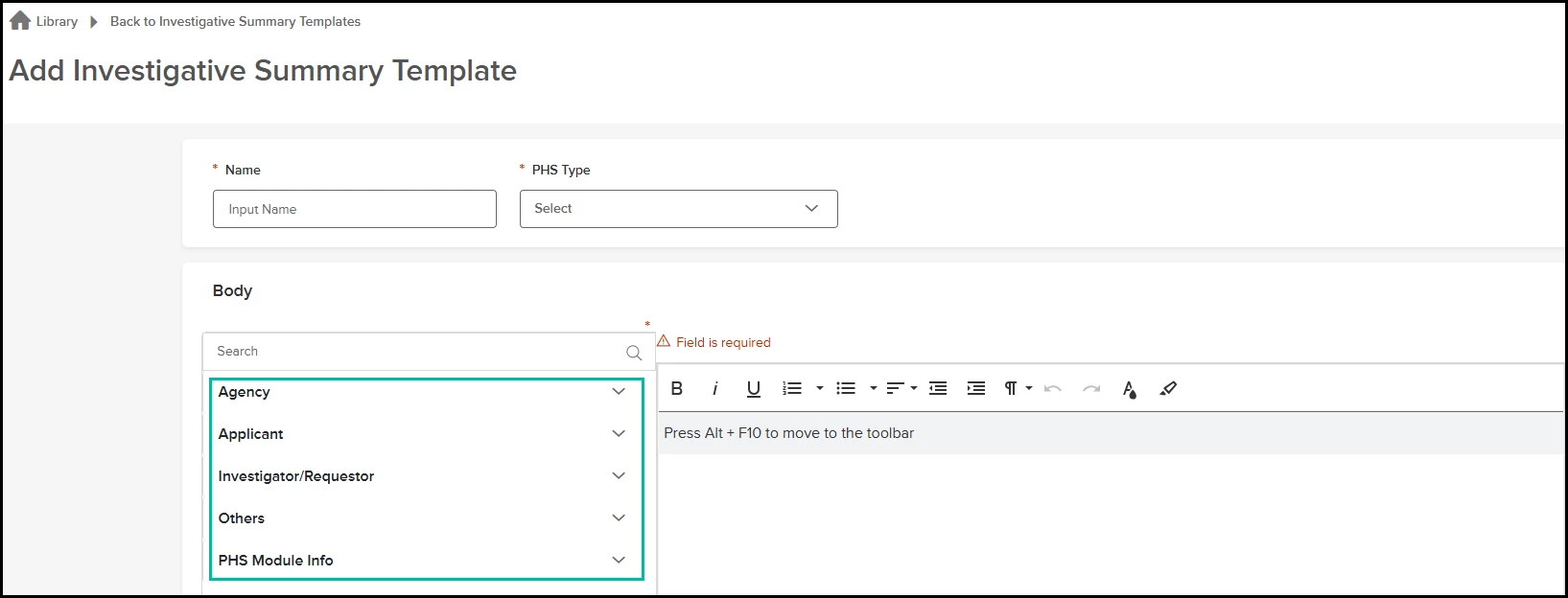
The new Autofill Commands are documented within Settings > Library > Investigative Summary Templates. Add a new Investigative Summary or edit an existing one to access the Autofill Command library on the left side of the page.
How it Works
- New Standard Autofill Commands: Insert core Autofill Commands into your templates to automatically populate applicant data. Vetted formats the output with appropriate section headers, line breaks, and numbering. The new Autofill Commands are: Applicant.Email, Applicant.HeShe, Applicant.HisHer, Applicant.LastNameOnly, Criminal.Checks, Employment.HistoryFull, Family.References, Landlord.References, Military.History, Secondary.References, Social.Media, Unemployment.History.
- New "WithNotes" Autofill Commands: Automatically populate record details together with the corresponding investigative note. The note content is displayed immediately following the associated record using a clear "Note:" label. The new Autofill Commands with notes are: Criminal.ChecksWithNotes, Secondary.ReferencesWithNotes, Employment.HistoryFullWithNotes, Landlord.ReferencesWithNotes, Family.ReferencesWithNotes, Education.ReferencesWithNotes.
- Smart Formatting: If an Autofill Command is used within a summary template but the applicant has no applicable data—for example, no Military History—Vetted automatically removes the unused command from the generated summary. This prevents blank sections, empty headers, and unresolved placeholder values.
- Partial Data Handling: If a record exists but a specific field is missing, Vetted displays all available data and omits the unavailable field without disrupting the sequence. If a record exists but has no associated note, the Autofill Command still displays the Note label with no note content.
Value
- Streamlined Reporting: Drastically reduce manual data entry by allowing Vetted to automatically compile applicant information into your narrative summaries.
- Consistent Presentation: Ensure every Applicant Summary follows a standardized structure with clean, automatic formatting for multi-record entries and investigative notes.
- Integrated Findings: Automatically combine applicant-provided information with investigator-added notes and findings, giving decision-makers immediate context without requiring them to search through separate sections of the applicant profile.
- No More Copy-and-Paste: Eliminate the need to manually transfer investigative notes into the final Applicant Summary. WithNotes Autofill Commands automatically bring those findings into the appropriate section of the summary.
Audience
- Admins.
- Investigators.
- Custom Roles (with access to Investigative Summary Templates).
Examples
Below are examples of how the new standard Autofill Commands automatically format applicant data within an Applicant Summary.
Military.History
Military History:
United States Army, Sergeant, 01/15/2018 to 01/15/2022
Type of Discharge: Honorable, Re-Entry Code: RE-1
Reserve Status:
Army Reserve, Obligation End Date: 01/01/2023
Social.Media
Social Media Accounts:
Facebook: John Smith, [URL]
Instagram: @johnsmith, [URL
Below are examples of how the new WithNotes Autofill Commands automatically combine record details with associated investigative notes within an Applicant Summary.
Secondary.ReferencesWithNotes
Secondary References:
John Smith - Personal. Note: Reference advised great applicant.
Bill Bolan - Professional. Note: Reference advised do not hire.
Employment.HistoryFullWithNotes
Employment History:
- Primary Children's Hospital, Patient Care Technician
- 07/18/2022 to 09/15/2023, Full Time
- 100 Mario Beach, Salt Lake City, UT 84113
- Departure Details: I left to start studying computer science.
- Supervisor: Jeff Harp. Note: Jeff advised he should be hired.
- Coworker: John Smith. Note: John advised he should definitely not be hired.
- [Second Entry]
Education.ReferencesWithNotes
Education:
04/01/2026 to 04/16/2026, Another College - San Diego, CA. Note: Suspended for grades.
12/30/2020 to 09/09/2024, Test College - Fresno, CA. Note: No response
Criminal.ChecksWithNotes — No Note Content
Criminal Record Checks:
Tennessee Bureau of Investigation. Note
Items Removed because of this enhancement: None.
Bias-Reduced Review for Approval Workflows
Conducting objective, fair, and legally defensible background evaluations is a cornerstone of public safety hiring. To assist agencies in adhering to strict compliance policies and minimizing implicit bias, Vetted now supports Bias-Reduced Review for Approval Workflows.
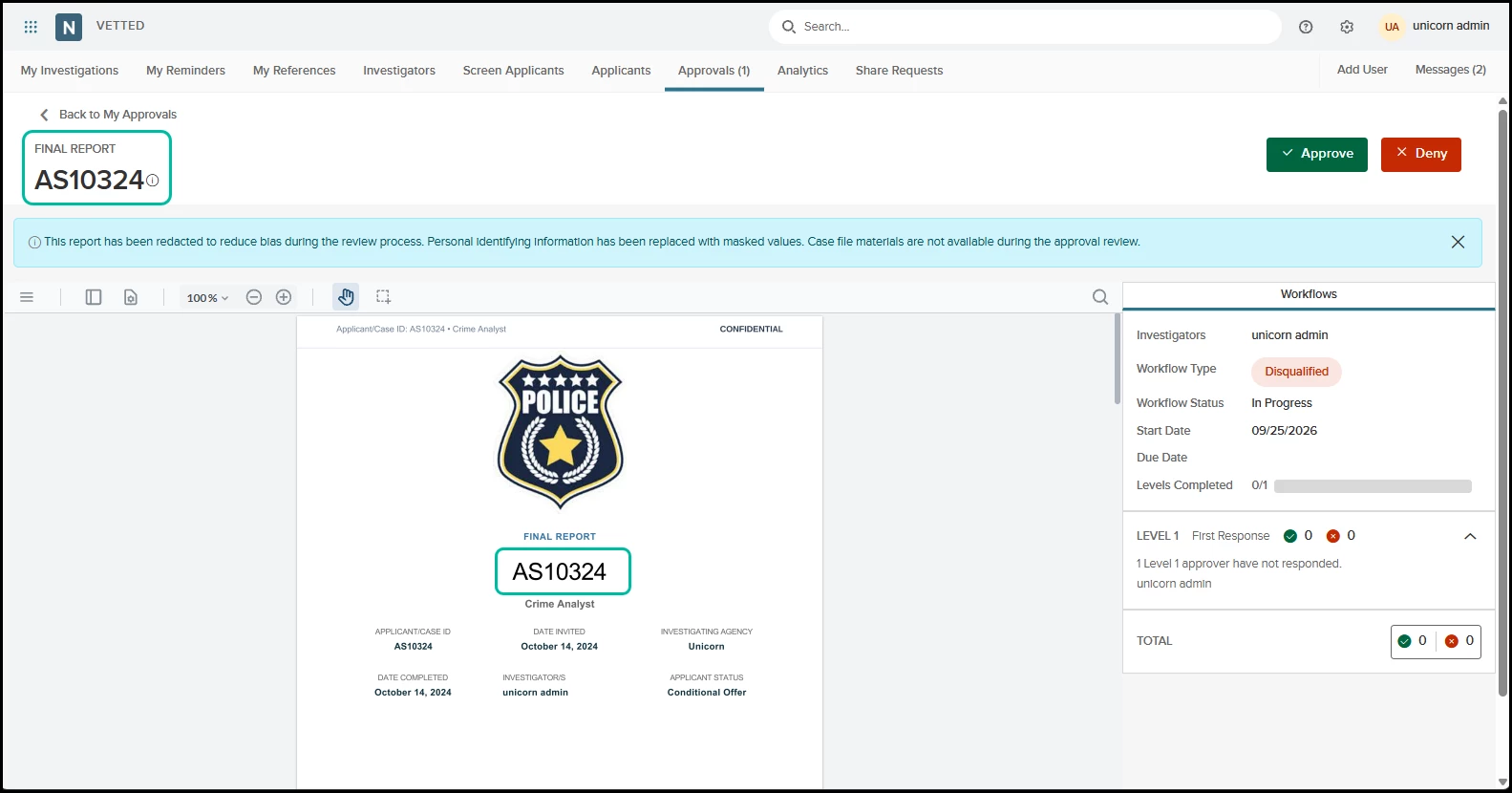
When reviewing background files, evaluators and command staff should focus on objective candidate qualifications, background history, and verification notes rather than non-relevant personal identifiers. With this enhancement, agencies can configure approval workflows to present candidates by their Unique Applicant Identifier (e.g., MS12345) instead of their full legal name across workflow steps, review lists, and approval notifications. This ensures that reviews are conducted with reduced risk of bias and in full compliance with municipal privacy mandates and state hiring policies.
How it Works
The bias-reduced review framework seamlessly anonymizes candidate identity across the approval lifecycle:
- Identifier Generation: When an applicant enters an anonymized workflow, Vetted dynamically assigns or verifies the candidate's Unique Applicant Identifier (such as AP-88402).
- Automated Name Masking: As the candidate profile moves through the guided Submit for Approval Workflow Wizard, Vetted automatically masks personally identifiable information. Legal name references are dynamically replaced with the Unique Applicant Identifier across workflow headers, approval task lists, and email notifications.
- Objective Panel Evaluation: Reviewers and command staff execute their evaluation steps, review attached findings, and log sign-off decisions based strictly on background merits, with candidate identity protected throughout the review queue.
Value
- Reduced Risk of Implicit Bias: Anonymizes candidate review queues so that hiring decisions, board approvals, and command sign-offs are made strictly on background merits and suitability findings.
- Enhanced Regulatory & Privacy Compliance: Helps agencies seamlessly satisfy local ordinances, fair-chance hiring standards, and state privacy mandates requiring bias-free review protocols.
- Consistent System-Wide Anonymization: Dynamically maps and replaces applicant name tokens with unique IDs across review cards, workflow headers, and notification queues.
- Streamlined Panel Evaluations: Provides civilian review boards and executive approvers with a uniform, objective view of candidate files without requiring manual file redactions.
Audience
- Admins.
- Investigators.
- Reviewers.
- Custom Roles.
Example
Civilian Oversight Panel Review: A city oversight board reviews background packets for an upcoming academy cohort. With bias-reduced review enabled, every reviewer panel sees only the assigned Unique Applicant Identifier (such as AP-88402) in their workflow queue, allowing them to evaluate findings and comments completely free of implicit bias.
Items Removed because of this enhancement: None.
Admin-Configured Final Report Default Order
Standardizing candidate background packages across your agency just got a whole lot easier! A complete Final Report is a critical asset during command staff reviews, hiring board panels, and state compliance audits. However, when investigators manually decide which items to include and how to order them for every single packet, report structures can become inconsistent, requiring extra review time and increasing administrative overhead.
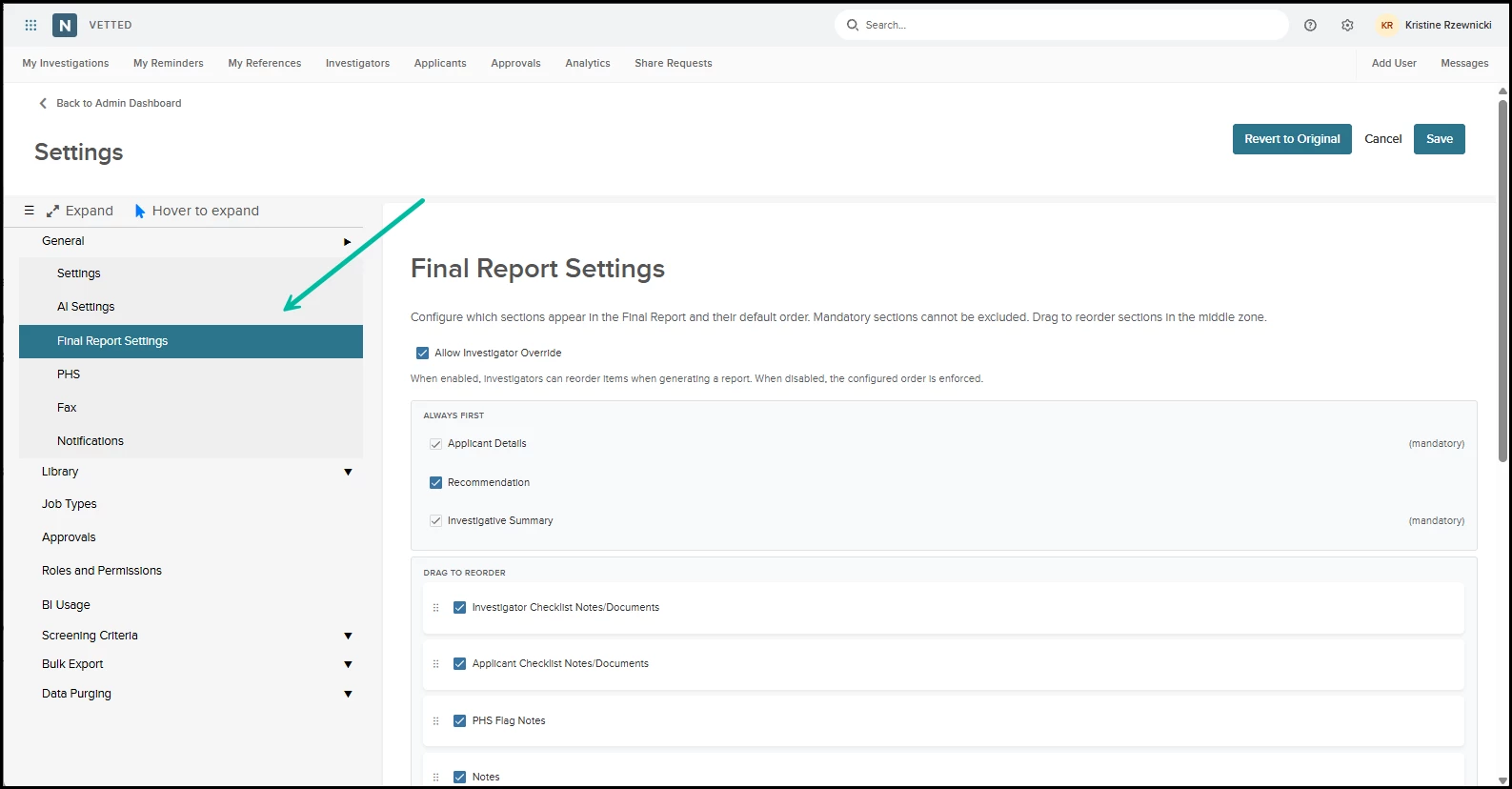
With this release, Agency Administrators can now establish a standardized, agency-wide default structure for the Final Report directly within backend system settings. Admins can define the default sequence of report items using a simple drag-and-drop interface, specify which sections are checked by default, and choose whether investigators have the flexibility to override the sequence during report generation. This ensures every Final Report produced by your agency follows a predictable, executive-ready presentation out-of-the-box.
How it Works
- Access the Configuration Interface: Navigate to Settings > System Configuration > Final Report Settings.
- Set Default Inclusion & Item Order:
- Drag-and-Drop Reordering: Click and drag any report section (e.g., Investigator Summary, PHS, Checklists, Doc Exchange Received Docs, Comparison Reports) to arrange the exact sequence in which items should appear.
- Inclusion Toggles: Check or uncheck individual items to establish agency-wide defaults for what is included when an investigator opens the report generator.
- Configure Investigator Override Permissions: Toggle the Allow Investigator Override setting On to allow investigators to adjust the sequence or item selection for individual applicant cases, or Off to strictly lock the sequence to your agency's approved template.
- Revert to System Defaults: If you ever need to reset your configuration, click the Revert to Original action button. A confirmation prompt will appear, allowing you to restore the system's baseline order and inclusion state safely.
Value
- Department-Wide Standardization: Guarantees that all background packets generated across your agency adopt a uniform, professional hierarchy tailored to your executive review board's preferences.
- Reduced Manual Effort for Investigators: Eliminates the repetitive, manual task of re-ordering and selecting report items for every single applicant file.
- Flexible Governance Controls: Gives Admins absolute authority to lock report structures for strict compliance or grant investigators controlled flexibility via the Investigator Override toggle.
- Risk-Free Configuration: The Revert to Original safety feature ensures Admins can experiment with custom layouts while retaining a one-click restore path back to system defaults.
Audience
- Admins.
- Investigators.
- Reviewers.
- Custom Roles.
Examples
- Establishing Agency Standard Operating Procedure (SOP): An Admin at a state law enforcement agency wants all Final Reports to present the Investigator Summary first, followed by Checklists, Doc Exchange Received Docs, and finally the candidate's PHS. They drag the sections into place, set the inclusion checkboxes, and disable the Investigator Override setting. Now, every investigator across the agency automatically generates identical, perfectly structured packets for command staff sign-off.
- Resetting Configuration After Policy Updates: Following an administrative review, an Admin tests several custom report layouts in settings. To start fresh, they click Revert to Original, confirm the prompt, and instantly restore the platform's standard default sequence before applying a newly approved template.
Items Removed because of this enhancement: None.
General Changes
PHS Submission Time & Applicant Funnel Analytics Reports
We are thrilled to introduce two powerful new analytics reports designed to give agency leaders and background managers unprecedented visibility into their recruitment pipeline. Public safety hiring requires balancing speed with uncompromising thoroughness. However, identifying bottlenecks—such as complex PHS completion requirements or specific background hurdles where candidates drop off—has historically required manual tracking across disparate spreadsheets.
With this release, Vetted delivers two dedicated analytic tools: PHS Submission Time and Applicant Funnel. Together, these analytics provide actionable, data-driven insights that help your agency optimize onboarding timelines, reduce applicant attrition, and refine recruitment strategies across all job types.
Filter Applicants By Social Security Number
Agency users can now search applicant tables using an applicant’s full Social Security Number. Searches match the exact nine-digit SSN regardless of formatting, including dashes, spaces, or leading and trailing whitespace. SSNs remain masked wherever they are displayed, including search results, and partial SSN searches are not supported.
My References Enhancement
My References will now automatically filter out references associated with applicants in an Archived status. When an applicant is moved to Archived, their associated references are immediately removed from the workspace. If the applicant is later restored to an applicable Active status, Vetted automatically reevaluates their references against the existing My References eligibility criteria. References that meet the criteria will reappear when the workspace is reloaded.
Centralized Notes Enhancements
In the centralized Notes tab on Applicant Profiles, the note sections agency users can view and edit now follow their assigned permission groups. Additionally, note creations, edits, and deletions made within the centralized Notes tab are now captured in the Event Log, providing greater visibility into changes made to applicant notes.
Applicant Time Zone Selection
Time zone selection has been added to the registration process and user profile settings. Users are now required to select a valid time zone during registration and can view or update their selection from My Profile. This ensures dates and times are displayed based on each user’s selected time zone.
Applicant Messaging Enhancement
Improved Inbox messaging to ensure font colors and text highlighting applied to messages are preserved when applicants view them. Messages now display supported text formatting as intended by the sender.
Military Service & Branch Selection Updates
Accurate military background tracking is essential when conducting comprehensive public safety investigations. To ensure applicants can precisely document their service history and to maintain full alignment with official U.S. Armed Forces structures, we have updated the military service pick list.
This update corrects an invalid legacy branch selection and incorporates newly established armed service branches across the Applicant Default Personal History Statement (PHS) and CA POST Applicant/Dispatcher PHS forms. By ensuring pick list options accurately mirror real-world military branches, Vetted eliminates applicant confusion during form completion and provides investigators with precise, verified service data right from the start.
Grid Modernization
We have updated table and list views across Vetted with a modernized component architecture to make managing background investigations faster, clearer, and more accessible. Users will enjoy an improved layout with better scannability, enhanced keyboard and screen-reader accessibility (508c compliance), and faster load times when reviewing candidate queues, managing workloads, or performing bulk updates.
Approval Workflow Comments Included in Bulk Export
Bulk Export Document packages now automatically include approval workflow reviewer comments, notes, and feedback. This ensures complete, legally defensible records for offline reporting, audits, and compliance.
Appendix: Bugs Resolved
Functional
| Scenario When Issue Encountered | Issue Resolved |
| Applicant text responses were not breaking across pages seamlessly. | Eliminated awkward breaks by dynamically adjusting to keep content together. |
| Co-Worker details displaying empty summary banner in Employment History module in Applicant UI. | Banner immediately reflects and displays the saved data. |
508(C) Compliance
| Screen(s) | Count of Bugs Resolved |
| N/A | N/A |