



Vetted: September 3, 2026 Release Notes
Article Links
Timeline
When will this be released?
Release Date: 09/03/2026 at 4:00 pm PDT, PST.
Is there downtime for this release?
No.
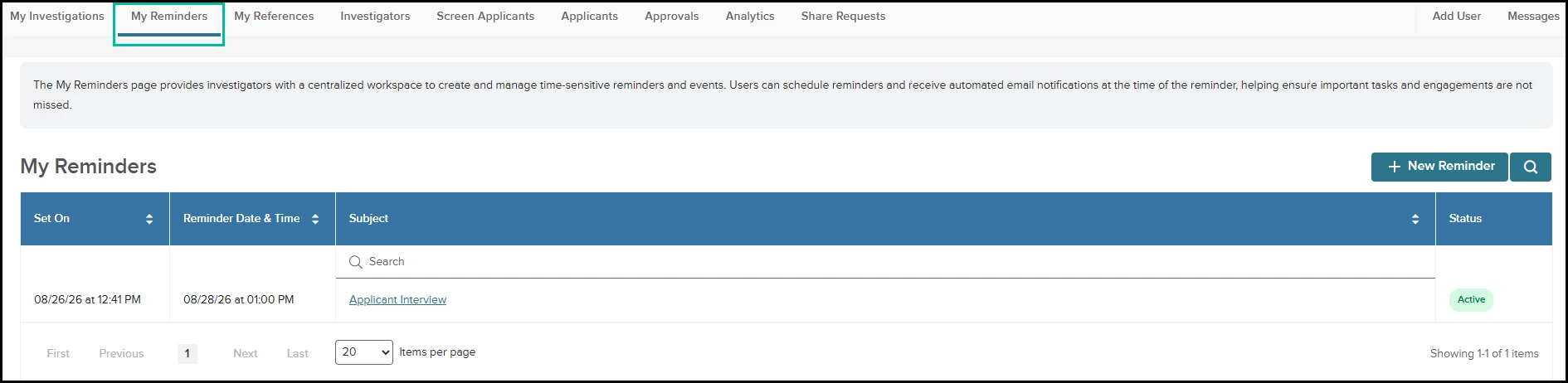
My Reminders — Workspace for Time-Sensitive Tasks
Never miss a critical background check milestone or interview again! We are excited to introduce My Reminders, a brand-new centralized feature designed to keep agency users organized, on schedule, and ahead of deadline-driven tasks right within Vetted.
Located right on your main navigation bar to the right of My Investigations, this workspace allows agency users to set, view, track, and manage time-sensitive events. Paired with automated external email alerts dispatched right when your reminder triggers so you can stay fully prepared without constantly relying on external calendar tools.
How it Works
- Access the Hub: Click on the new My Reminders link in your primary navigation bar. You will be greeted with an informational banner outlining how to schedule and manage your events.
- Create a Reminder: Select the New Reminder action button. In the modal, enter your Subject, select a date and time via the Remind Me On calendar picker, and add your detailed notes to the Reminder Message box.
- Save and Track: Click Save and Close. Your reminder will instantly populate in your My Reminders data table, displaying the system-generated Set On date, your scheduled Reminder Date & Time (converted to your identified time zone), the Subject, and current Status (Active, Disabled, or Past).
- Automated Alerting: When the scheduled date and time arrives, Vetted sends a single direct email notification to your registered email address containing your subject, custom message, and a direct link back to your Vetted account.
Value
The My Reminders feature gives agency users control over their schedules without needing to leave the Vetted platform. By pairing an in-app management grid with reliable, automated email notifications:
- Reduces Tool Switching: Eliminates reliance on external calendar software to track appointments or applicant follow-ups.
- Prevents Missed Deadlines: Automated email notifications deliver critical alerts directly to your inbox using your local timezone.
- Flexible Task Management: In-app status controls (Active, Disabled, Past) and full editing capabilities allow you to seamlessly manage important events as background investigations evolve.
Audience
- Admins.
- Investigators.
- Reviewers.
- Custom Roles.
Examples
- Scheduling Applicant Follow-ups: An Investigator sets a reminder for next Tuesday at 9:00 AM to check on a pending employer reference verification. When Tuesday morning arrives, Vetted sends an email directly to their inbox with a link straight back into Vetted to complete the review.
- Rescheduling Past Tasks: An Admin notices a past-due reminder for an academy document review. They open the reminder from the grid, edit the Remind Me On field to a future date, and click Save. Vetted automatically updates the reminder status back to Active and schedules the new email notification.
- Pausing Notifications: A Custom Role user schedules a reminder for an upcoming interview but learns the applicant rescheduled. They select Disable on the details window to prevent the email from firing prematurely, then update the date and hit Enable once the new date is locked in.
Items Removed because of this enhancement: None.
Enhanced Note Formatting and Color Customization in Text Editor
Personal documentation and investigative notes just got a vibrant upgrade! We have enhanced the standard What You See Is What You Get (WYSIWYG) editor across key areas in Vetted to give agency users deeper customization and visual control over their notes. Whether you are calling out key investigative findings or highlighting critical reference remarks, you can now apply custom font colors and text background highlights directly within your notes.
How it Works
- Access Supported Editors: Launch any supported editor (Investigative Summary, Checklists, PHS Notes, and Library templates).
- Apply Colors and Highlights: Select a font color or background highlight from the toolbar before typing, or highlight existing text to apply colors exclusively to your selection. You can also combine font colors and background highlights on the same text string.
- Removal: Easily clear formatting using the remove-color tool.
Value
Enhanced Visual Hierarchy: Highlighting urgent red flags, missing verification items, or key dates in custom colors allows team members and reviewers to scan notes faster.
Audience
- Admins.
- Investigators.
- Reviewers.
- Custom Roles.
Example
Highlighting Critical Findings: An Investigator reviewing an applicant's Personal History Statement adds a note in the PHS Notes & Findings module. They highlight a flagged employment discrepancy in bright yellow and change the text color to red to alert the lead investigator immediately.
Items Removed because of this enhancement: None.

Centralized Applicant Notes Hub
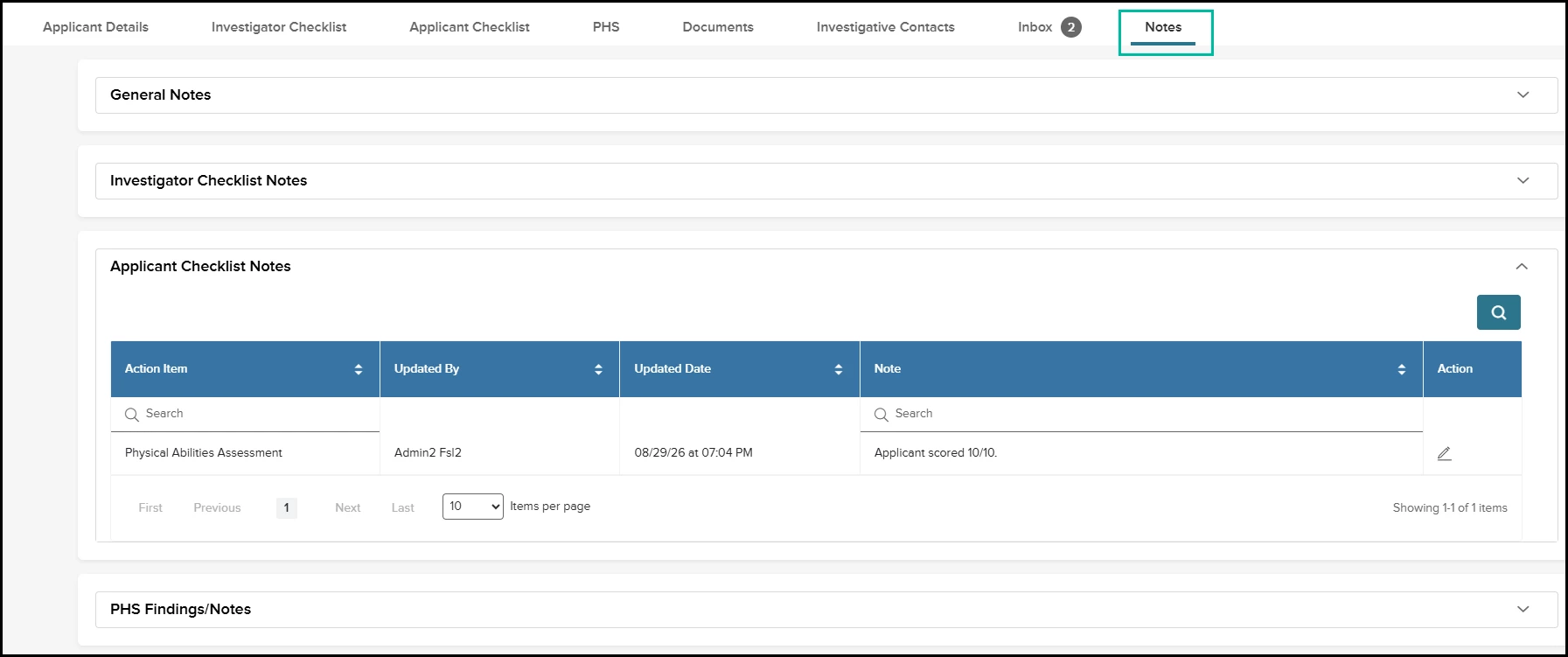
Reviewing an applicant's complete background profile just became significantly faster and more streamlined! We are excited to introduce the newly upgraded, centralized Notes page.
Previously, notes recorded across different areas of an applicant's file, such as the Investigator Checklist, Applicant Checklist, Personal History Statement (PHS), Supporting Documents, and References, remained siloed within their respective modules. This fragmentation created separation for investigators and reviewers who needed a holistic, bird's-eye view of case comments.
With this release, Vetted aggregates notes into a single master workspace, complete with clear source details and seamless two-way synchronization.
How it Works
- Access the Centralized Hub: Navigate to the Notes tab within any applicant profile. You will see the new notes tables.
- Review Aggregated Notes: All notes previously scattered across the file automatically populate into clean, unified grids featuring source headings and standardized columns that provide details about the note origin.
- Seamless Two-Way Synchronization:
- Editing: Any edits made to a note on the centralized Notes page instantly update the original source section (and vice versa).
- Deleting: Deleting a synced note from either the master Notes page or its original source section permanently removes it from both locations.
Value
This enhancement streamlines documentation and makes it easier to quickly locate important notes.
- Holistic Visibility: Eliminates the need to click through multiple tabs to find comments.
- Single Source of Truth: Real-time two-way synchronization prevents duplicate or outdated notes, ensuring that changes made are immediately reflected across the entire file.
Audience
- Admins.
- Investigators.
- Reviewers.
- Custom Roles with view access to Notes.
Examples
- Cross-Referencing Case Remarks: A Reviewer opens an applicant's profile to conduct a final audit before approval. Instead of clicking through PHS modules and reference tabs, they open the central Notes tab to scan comments from the Investigator Checklist, uploaded employment documents, and character references in a single view.
- Updating Field Notes in Real-Time: An Investigator conducting a phone interview updates a reference note. The update immediately syncs to the master notes grid.
Items Removed because of this enhancement: None.
Secure Applicant Information Sharing
The sharing and requesting of applicant background information between agencies just became seamless through new, centralized sharing functionality! Vetted now provides an end-to-end workflow for managing applicant information sharing, from initiating a request and reviewing applicant authorization waivers to selecting the specific information being shared and providing recipient agencies with secure, controlled access.
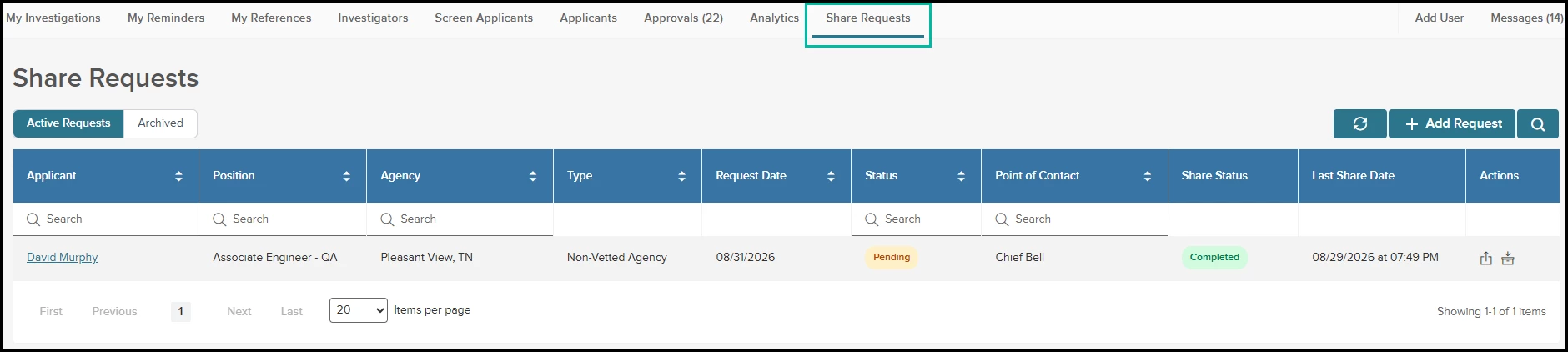
Agencies can initiate a share request directly from an applicant's profile and manage all sharing activity from the new Share Requests workspace in the global navigation. This workspace gives teams full visibility into active and archived requests, request details, statuses, agency contacts, and applicant authorization waivers.
When sharing information, users can select specific applicant modules to include and establish strict access restrictions for the recipient. Each share features a unique, system-generated password, an expiration date, and optional notes for the recipient, alongside built-in security advisements to ensure sensitive applicant information is shared appropriately.
Receiving agencies are guided through a secure access experience that requires acceptance of Terms of Access and authentication before viewing any shared documents or data. Once authenticated, recipients can access only the specific modules authorized by the sending agency.
The new workflow also supports external requests received outside of Vetted (such as by phone or email). Agencies can manually log these requests, upload an authorization waiver, and maintain the request alongside all other sharing activity.
Together, these enhancements create a secure, centralized, and fully auditable process for sharing sensitive background investigation information while eliminating reliance on insecure external email and manual tracking.
How it Works
Requesting Files
Within an applicant profile, the Applicant Details screen displays the Vetted & eSOPH History section (eSOPH history coming soon!). Here, Vetted displays other agencies that use Vetted where the applicant has previously applied.
- Under the Department column, select an agency and click Request Information.
- In the flyout that appears, the applicant's waiver is automatically attached.
- Add any optional request comments and submit.

Fielding Requests
When another Vetted agency sends a request, it automatically populates in the newly added Share Requests workspace in the global navigation.
- Select an applicant's name to review request details, view the provided waiver, add internal notes, or update the status (Approved, Denied, or Pending).
- Under the Actions column, select Share Applicant Data.
- Once approved, Vetted generates a unique password required for recipient access.
- Set the access expiration date, add recipient comments, and select the specific applicant data modules to share.
- Inform the receiving agency of the password via phone.
External Requests
If a non-Vetted agency requests information via phone or email, you can log and manage it directly in Vetted.
- Navigate to Share Requests in the global navigation and select Add Request.
- Document the external request details and upload the authorization waiver received from the requesting agency.
- Share requested data using the standard workflow described in the Fielding Requests section above.
Value
Secure applicant information sharing delivers key operational benefits across your agency.
- Stronger Security: Provides controlled, password-protected access to shared applicant information while limiting recipients strictly to authorized modules and documents.
- Centralized Request Management: Gives agency users a single workspace to review, approve, deny, archive, and track information-sharing requests throughout their lifecycle.
- Streamlined Sharing: Allows users to initiate sharing directly from an applicant profile instead of relying on separate email processes or external tools.
- Greater Visibility and Accountability: Maintains detailed logs of request activity, comments, agency contacts, authorization documentation, and sharing history in one auditable record.
- Reduced Administrative Work: Eliminates unnecessary back-and-forth by bringing request creation, approval, document selection, recipient setup, and secure delivery into a single workflow.
- Flexible Request Handling: Easily supports both Vetted-initiated requests and external requests received via phone or email.
- Controlled Access: Custom expiration dates, mandatory Terms of Access, authentication, and module-level restrictions ensure recipients access information only for the intended period and purpose.
Audience
- Admins.
- Custom Roles with View and Modify access to Share Requests.
Examples
- Request Information from Another Agency: An Investigator reviewing an applicant's history notices a previous background check at a neighboring department. From the applicant's Vetted & eSOPH History tab, the Investigator selects Request Information, adds request comments, and submits. The request is instantly logged in the target agency's Share Requests workspace with a Pending status.
- Manage Incoming Requests: An Admin opens Share Requests from the global navigation to process incoming requests. They filter by status, review an incoming request alongside the applicant's waiver, and select Share Applicant Data to grant access to authorized modules.
- Secure Recipient Access: A partner agency receives an email containing a secure Vetted link. Upon clicking, the recipient agrees to the Terms of Access, enters the provided password to authenticate, and views only the specific modules authorized by the sending agency before access automatically expires.
- Track an External Request: A department receives a background check request via email from an external agency. An Admin selects Add Request in Share Requests, logs the external agency contact details, uploads the emailed waiver, and processes the share securely within Vetted.
Items Removed because of this enhancement: None.
PDF Redaction in Final Reports — Ensure Bias-Free Reviews
This feature gives your agency complete confidence when sharing final reports with hiring panels, review boards, or legal counsel.
Maintaining strict compliance with state-mandated privacy policies and eliminating implicit bias during applicant evaluations requires airtight control over sensitive data. With this release, authorized users can now redact Personal Identifying Information (PII) directly within Vetted's built-in PDF viewer.
How it Works
- Navigate to the Applicant File and click Generate Full Report, or launch the Submit for Approval workflow wizard.
- Select the Redact action next to the generated document in the applicant’s file.
- Select the Redact Tool from the viewer toolbar to draw boxes over the content to be redacted.
- Visually highlight and select specific text sections or graphic regions containing sensitive PII—such as applicant names, Social Security Numbers, residential addresses, and gender pronouns (such as he/she).
- Click Save Redactions.
- Security Flattening: Upon saving, the redactions are permanently burned into the underlying PDF layer. Text beneath the redaction blocks is completely destroyed and flattened, rendering it mathematically impossible for external reviewers to highlight, copy, or recover.
- Audit Logging: Vetted automatically creates an immutable Event Log entry capturing the exact user, timestamp, and document ID whenever a report is modified or finalized with redactions.
Value
- Ensures Unbiased Evaluations: Protects applicant anonymity during critical hiring board reviews by removing non-relevant demographic details, lowering the risk of implicit bias.
- Guarantees Legal and Policy Compliance: Streamlines adherence to state privacy mandates and agency-specific public records policies without relying on third-party PDF editing tools.
- Airtight Data Security: Permanently burning redactions directly into the document structure eliminates risky "masked text" workarounds where hidden text can still be extracted.
- Complete Auditability: Automated Event Log tracking provides clear proof of who finalized and redacted reports for internal risk management and legal oversight.
Audience
- Admins.
- Investigators.
- Custom Roles (with permission).
Example
Committee Review: An investigator finishes a background investigation for a Police Officer position. Before sending the Final Report to a civilian oversight panel, the investigator uses the inline PDF Redaction Tool to mask the candidate's home address, social security number, and gender pronouns. Vetted burns the changes, logs the event, and exports a secure PDF ready for review.
Items Removed because of this enhancement: None.
General Changes
Terminology Enhancements
To make Vetted easier to navigate and more intuitive for users, we’ve updated terminology throughout the platform to provide clearer, more consistent language that better reflects the functionality and workflows supported by the system.
This update includes refreshed labels across the applicant profile, navigation, settings, reports, and investigative workflows. Terms such as Correspondence, Messages, Tokens, Waivers, and PHS Corrections by Applicant or Investigator have been replaced with more descriptive language, including Investigative Contacts, Inbox, Autofill Commands, Agreements & Waivers, and PHS Changes by Applicant or Investigator.
We’ve also updated terminology from Police/Law Enforcement to Public Safety where applicable, helping ensure the platform uses clear language.
Additionally, several buttons, page headings, and instructional messages have been clarified. For example, Generate Reports is now Generate Full Report, and Investigative Summary is now Generate Summary. These changes make it easier for users to understand what each feature and workflow does.
PHS Changes by Applicant Permission Enhancement
To ensure consistent permission controls across Vetted, we’ve updated the PHS Changes by Applicant grid so that users with View Only permission can no longer modify the Reviewed checkboxes. Users with Modify permission can continue to check and uncheck Reviewed.
Event Log within the Applicant Profile
Vetted now provides greater visibility into applicant file activity with the profile Event Log. Located under Applicant Details > Event Log, the log captures key actions performed by Department Users and Applicants, including when the action occurred, who performed it, and additional event details.
Users can view Department User Activity and Applicant Activity separately, with options to filter by Event/Action Type and timeframe. Events include activities such as Applicant File Viewed, PHS Unlocked, and Submitted PHS.
The Event Log provides a clear, centralized record of applicant file activity, improving auditability, accountability, and visibility throughout the background investigation process.
New Dynamic Token: User Title
A new dynamic token, User Title {contact.title}, allows Admins to automatically populate a department contact's professional title into messaging templates. This enhancement helps maintain professional messaging by reflecting official rank or title, eliminates manual editing to save time and reduce errors, and standardizes agency branding across outbound communications.
Appendix: Bugs Resolved
Functional
| Scenario When Issue Encountered | Issue Resolved |
| Applicant Dashboard PHS Completion Issues | Resolved visual latency and UI rendering issues across the applicant Personal History Statement (PHS) workflow, ensuring smooth module transitions, timely modal animations, accurate status badge displays, and explicit due-date visibility on unlocked cards. |
508(C) Compliance
| Screen(s) | Count of Bugs Resolved |
| Admin Settings - Job Types | 1 |
| Admin Settings - Bulk Export | 1 |
| Admin Settings - PHS Forms | 1 |
| Applicant - View & Complete PHS | 3 |