



Benefits: Fall 2026 Release Notes
Article Links
Timeline
When will this be released?
- UAT Preview Window: October 1, 2026 at 5 AM PST - October 29, 2026.
- Production Availability: October 29, 2026 at 5 AM PST.
Is there downtime for this release?
No.
Federal Catchups and Limits
To ensure full statutory compliance with federal tax regulations and the SECURE Act 2.0, we have upgraded the Benefits product to support enhanced retirement contribution limits, age-based catch-ups, and specialized pre-retirement election logic. These updates create seamless alignment between Benefits employee elections and Payroll calculations, eliminating manual interventions, reducing compliance risks, and empowering employees to maximize their tax-advantaged savings.
457(b) Pre-Retirement Catch-Up
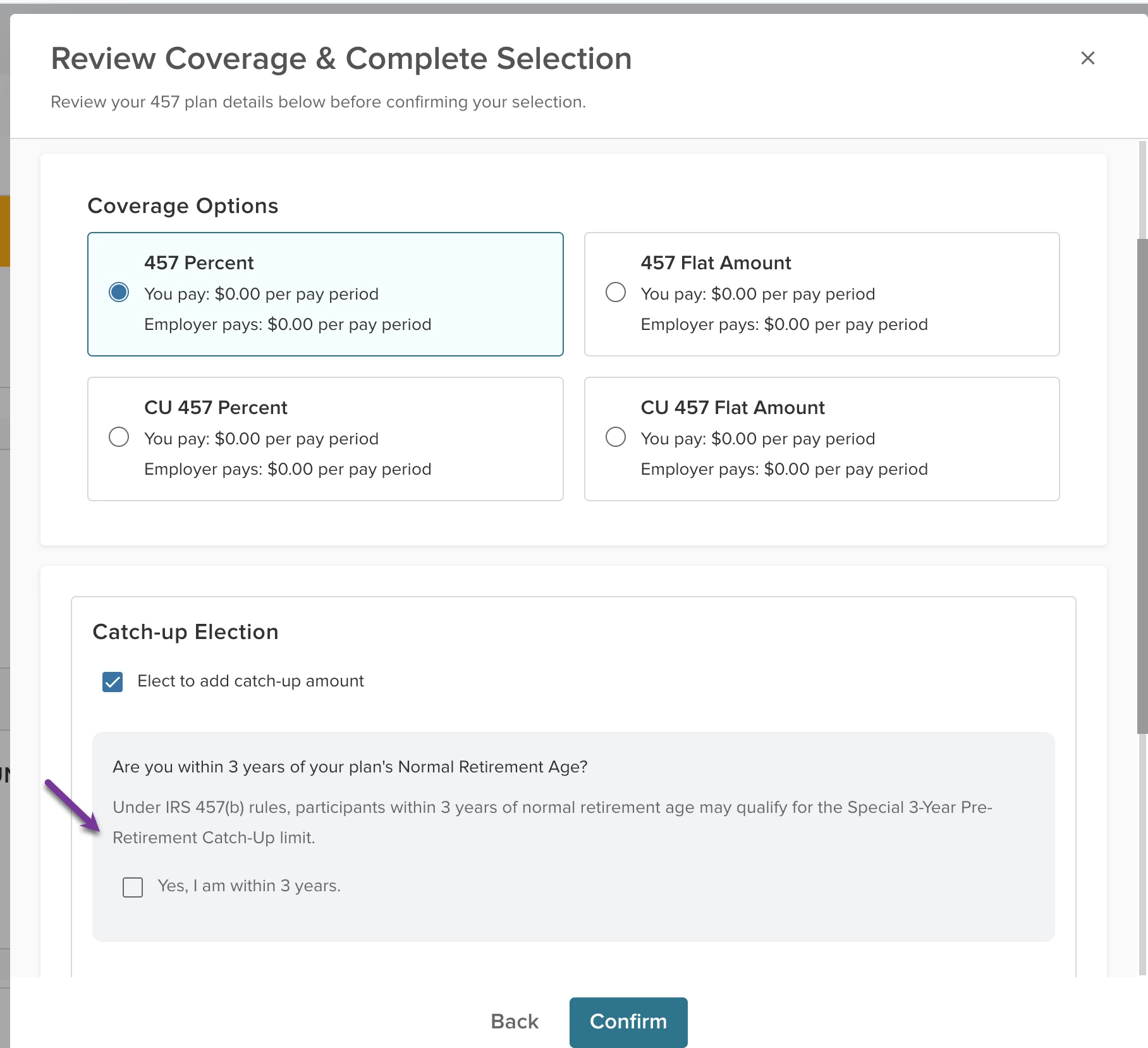
Participants enrolling in or updating a 457(b) plan can elect the IRS Special 3-Year Pre-Retirement Catch-Up option if they are within three years of normal retirement age.
- Selecting Elect to add catch-up amount adds an additional question: "Are you within 3 years of your plan's Normal Retirement Age?" with a Yes, I am within 3 years checkbox.
- When Yes is elected: Maximum Annual Contribution increases to $49,000.00 regardless of employee age.
- When unchecked / standard age catch-up:
- Age 50–59 or 64+: Additional $8,000.00 (Total Max: $32,500.00).
- Age 60–63 (SECURE 2.0 Super Catch-Up): Additional $11,250.00 (Total Max: $35,750.00).
- Always-Open Support: Fully integrated with always-open 457(b) plan configurations.
Secure 2.0 60-63 Catch-Up Elections
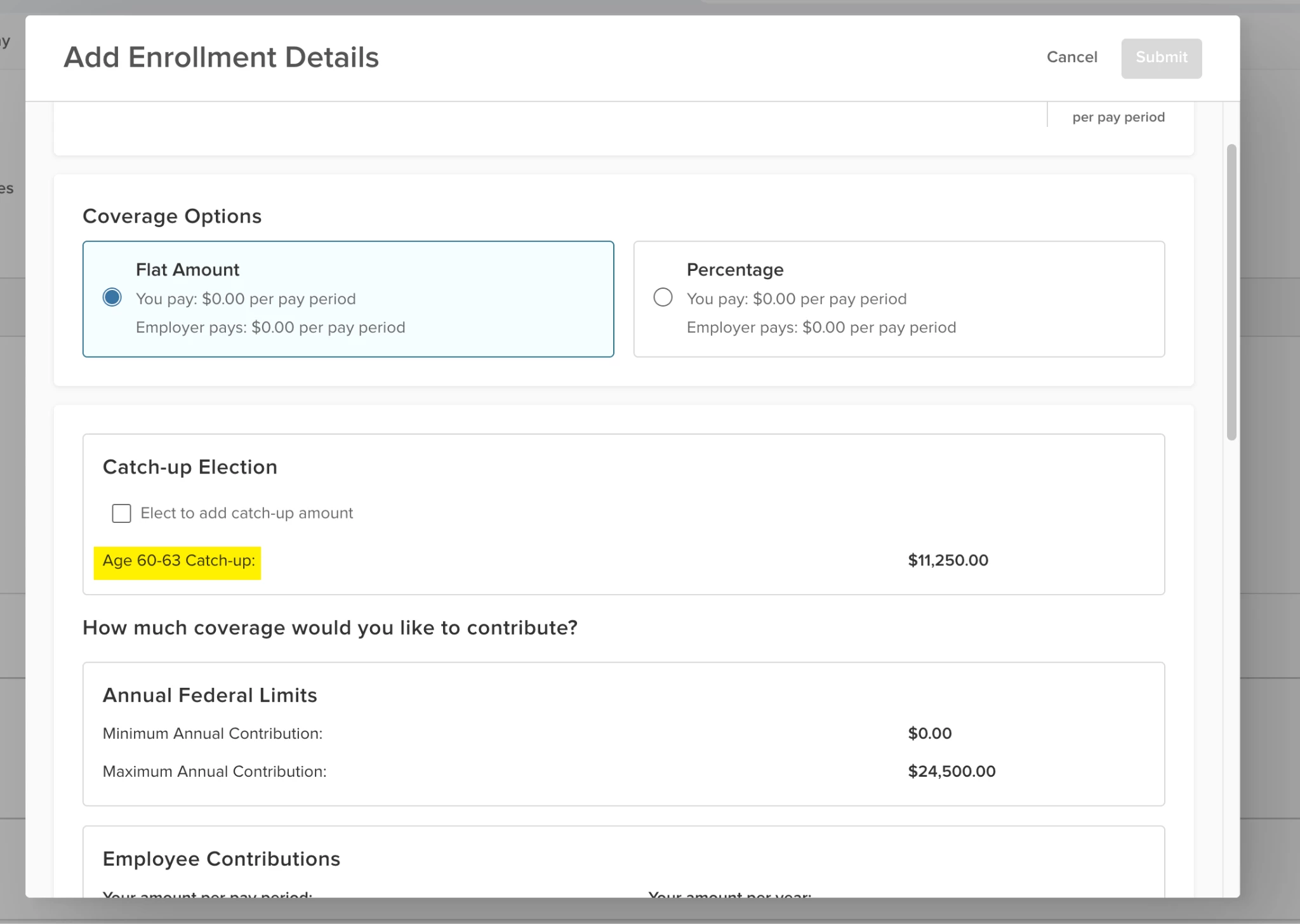
Under SECURE 2.0 provisions, employees aged 60 through 63 are eligible for an elevated pre-retirement catch-up limit higher than the standard age 50+ catch-up limit.
- Selecting Elect to add catch-up amount adds an additional question: "Are you within 3 years of your plan's Normal Retirement Age?" with a Yes, I am within 3 years checkbox.
- When Yes is elected: Maximum Annual Contribution increases to $49,000.00 regardless of employee age.
- When unchecked / standard age catch-up:
- Age 50–59 or 64+: Additional $8,000.00 (Total Max: $32,500.00).
- Age 60–63 (SECURE 2.0 Super Catch-Up): Additional $11,250.00 (Total Max: $35,750.00).
- Always-Open Support: Fully integrated with always-open 457(b) plan configurations.
Client and Employee Experience
- Eligible employees in the 60–63 age bracket will automatically see the Age 60–63 Catch-Up option presented inside the Catch-Up Election card on their 401(k), 457(b), and 403(b) Election Details modals.
- Supported across both Open Enrollment periods and Year-Round / Always-Open enrollment updates.
- Includes real-time validation to inform employees if their entered election exceeds the statutory maximum limit.
Expanded Annual Federal Contribution Limits
Updated system-wide federal statutory contribution cap logic and plan validation rules for retirement savings plans. Updated maximum contribution ceiling rules across all major plan types (401k, 403b, 457, etc.) to mirror IRS statutory annual updates.
Open Enrollment Logic
This release introduces key updates designed to increase employee flexibility in managing contributions and life events while streamlining administrative workflows for Open Enrollment cleanup.
Mid-Year Spending Plan Changes
Administrators can now enable mid-year updates for "Always Open" spending plans, empowering employees in Employee Self-Service (ESS) to adjust their annual or pay-period contribution amounts at any point during the plan year with real-time deduction recalculation.
Plan Setup Option
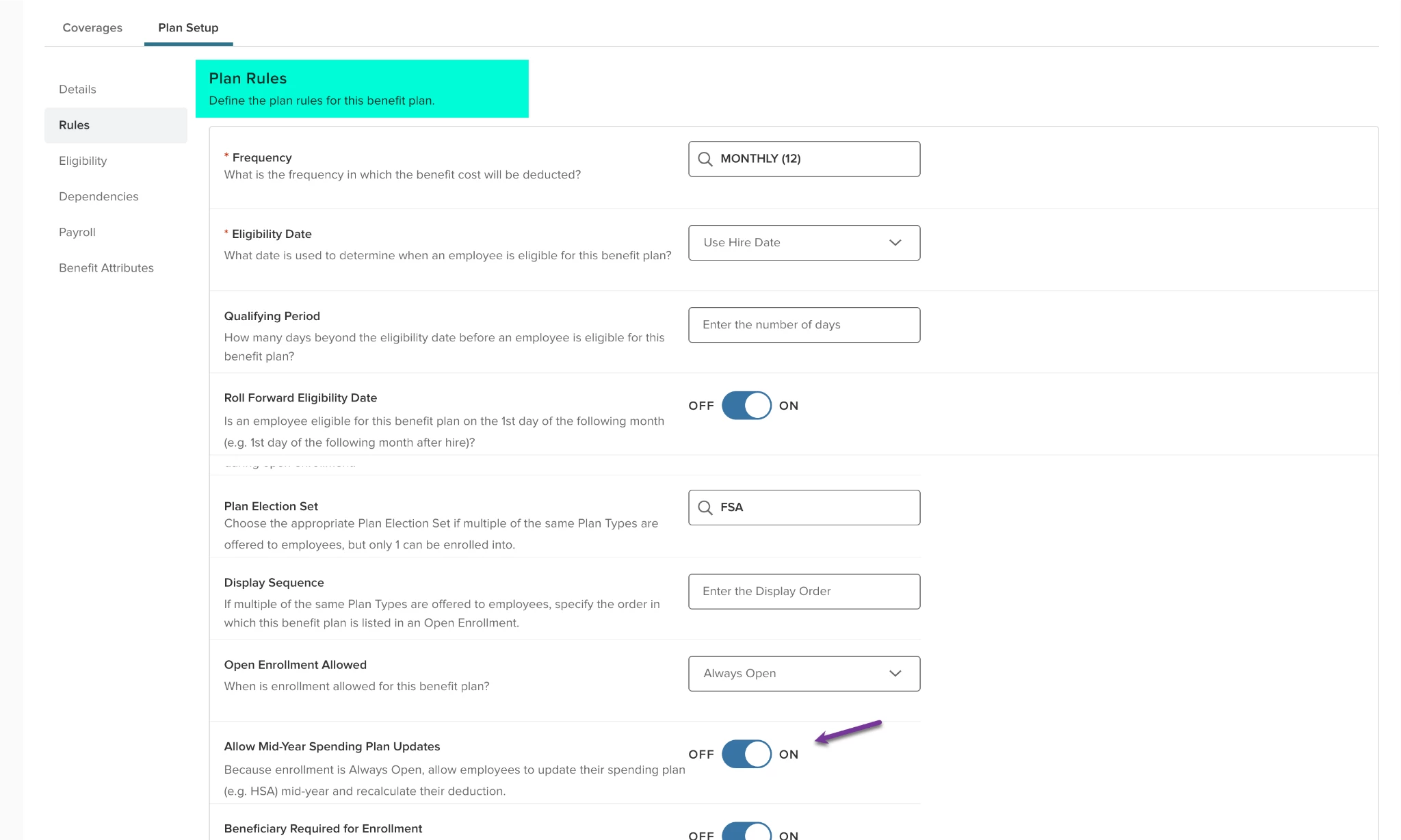
Benefit Administrators can now configure Spending Plans to allow mid-year contribution changes directly within benefit plan setup when enrollment is configured as "Always Open”.
- New Configuration Toggle: Added Allow Mid-Year Spending Plan Updates under Admin Benefit Setup > Spending Plan Type Setup > Enrollment Rules.
- Conditional Visibility: Displays directly below the Open Enrollment Allowed dropdown when set to Always Open.
- Default Setting: The default selection is OFF for new and existing spending plans to prevent unintentional mid-year changes.
- Plan Copy and Audit Trail: Settings persist when duplicating a spending plan and are logged in audit history
- Applicability: Applies exclusively to spending plan types (HSA, FSA, DCFSA, HRA, SPENDING).
Employee Self Service Edits and Recalculations
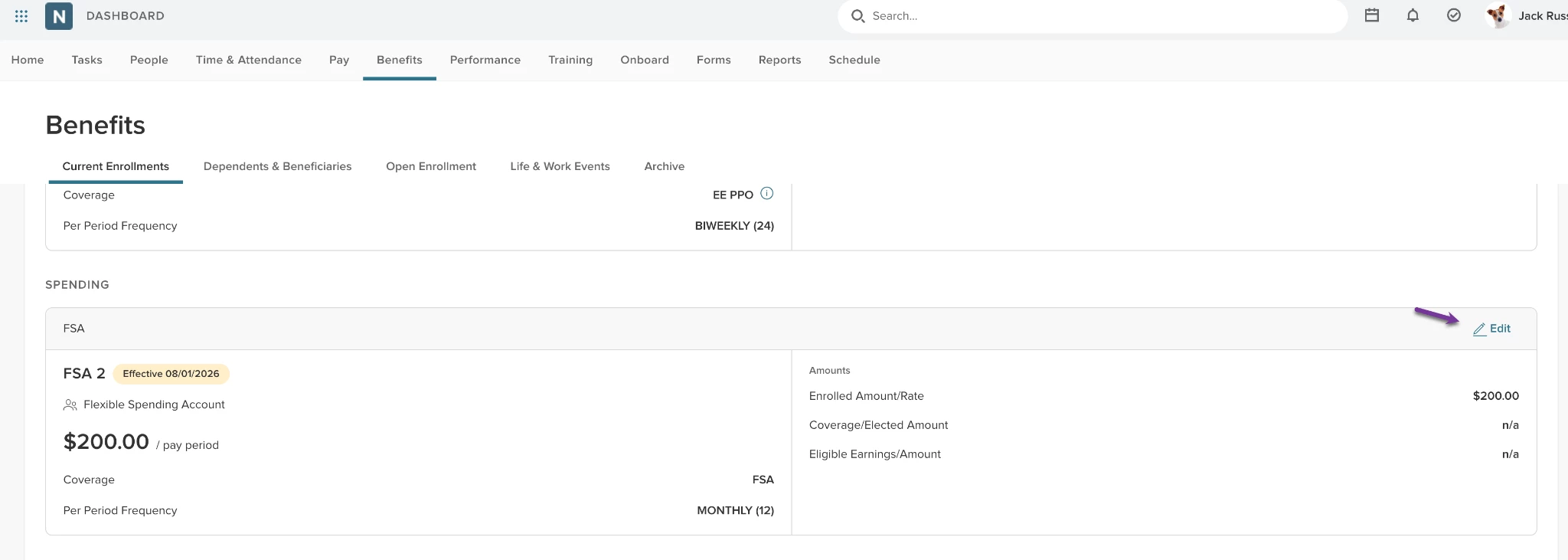
When mid-year updates are enabled by an admin, employees can modify their spending plan elections at any time during the active plan year and view an instant recalculation of their per-pay-period deductions spread across remaining pay periods.
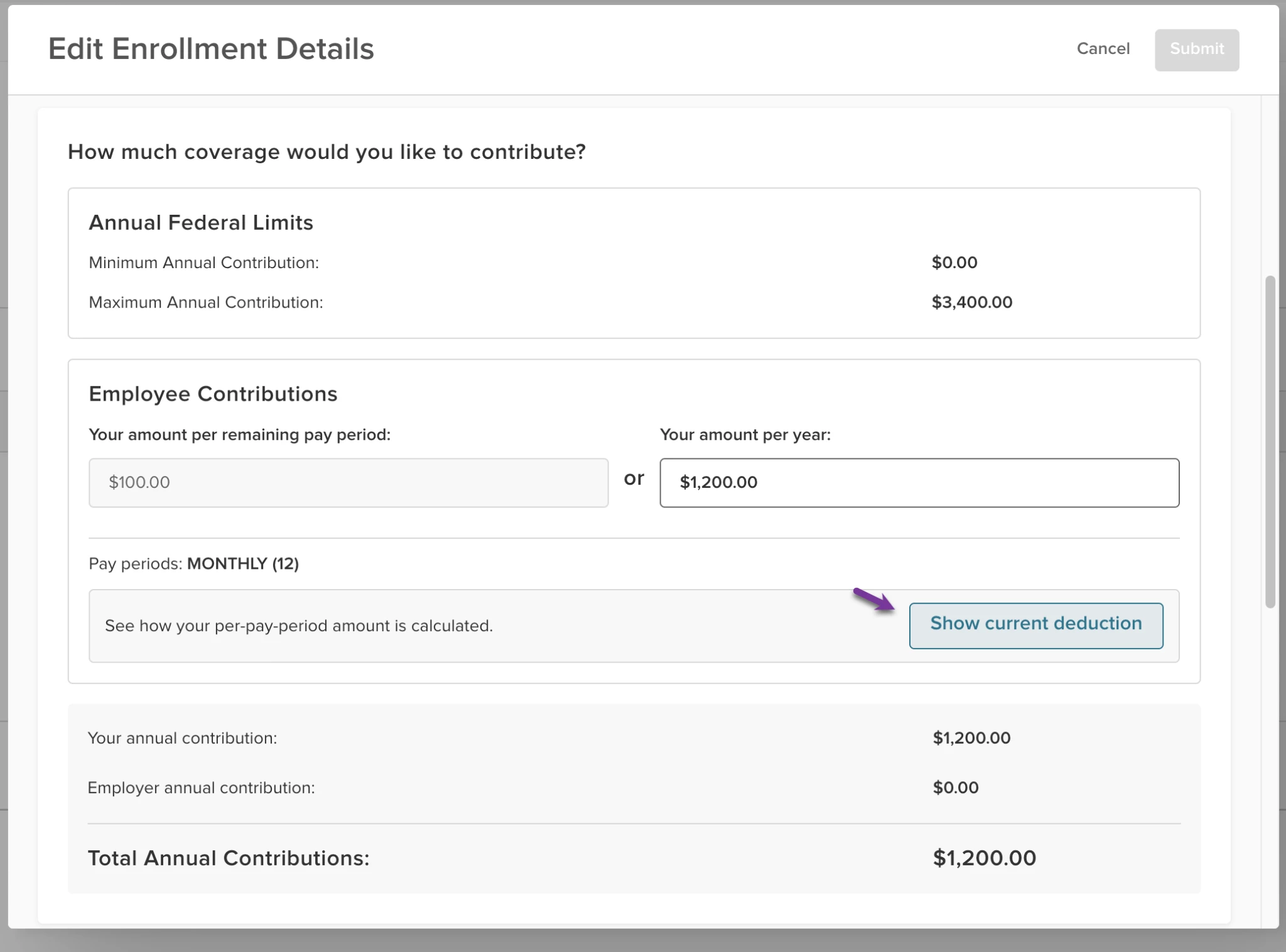
- Changes: Employees viewing their active HSA or spending plan card under Current Enrollments can click Edit to modify their annual total or pay-period contribution amount.
- Interactive Deduction Recalculation:
- Displays a new Show current deduction button in the contribution selection modal.
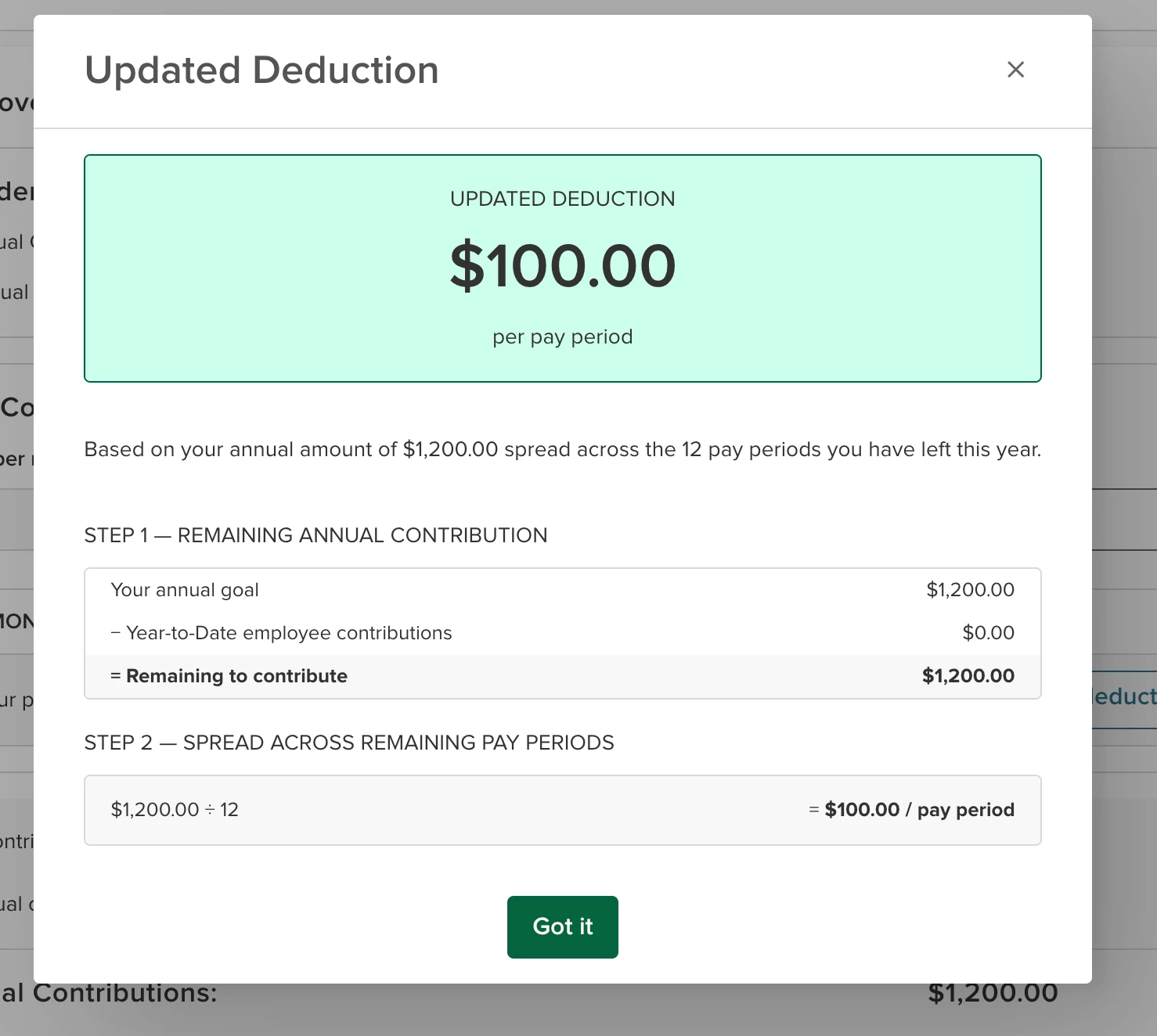
- Clicking the button opens an Updated Deduction box.
- Step 1: Remaining Annual Contribution (Total new election minus YTD contributions).
- Step 2: Spread Across Remaining Pay Periods (Updated per-period deduction calculation).
- Dynamic timestamp of the calculation.
- Flexible Mid-Year Scenarios:
- Mid-Year / New Hire Adjustments: Correctly calculates deductions based on remaining pay periods left in the calendar year.
- Multiple Changes Allowed: Employees can perform multiple mid-year updates within the same plan year.
- Validation and Guardrails:
- Existing Minimum/Maximum annual limit validations, and 55+ catch-up rules remain fully enforced.
- Automatically handles edge cases (example: max limits reached, or zero remaining pay periods).
- Payroll and UBCALC Integration: Updated deduction amounts reflect seamlessly in enrollment records once processed using standard payroll runs, or unposted benefit calculations.
Delete Life Events
Employees can now easily remove a submitted Life & Work Event directly from Employee Self-Service if it was submitted by mistake or requires corrections. The event must not have been approved by an administrator yet.
- Self-Service Convenience: Employees can immediately correct accidental submissions or duplicate entries without waiting for HR intervention.
- Cleaner Admin Queues: Reduces administrative overhead by preventing unneeded or draft life event submissions from cluttering administrator review lists.
- Built-in Safeguards: Deletion is restricted strictly to events that are pending approval, ensuring approved records and historical benefits logs remain secure and intact.
How it Works: Employees
- Navigate to ESS > Benefits > Life & Work Event.
- Locate the event card under your pending events list. On any event that is pending approval, you will see a trashcan icon action on the event card.
- Click the trashcan icon. A confirmation modal will appear displaying the name of the life event.
- Click Delete to confirm. The event will be permanently removed from your self-service dashboard and the administrative review list.
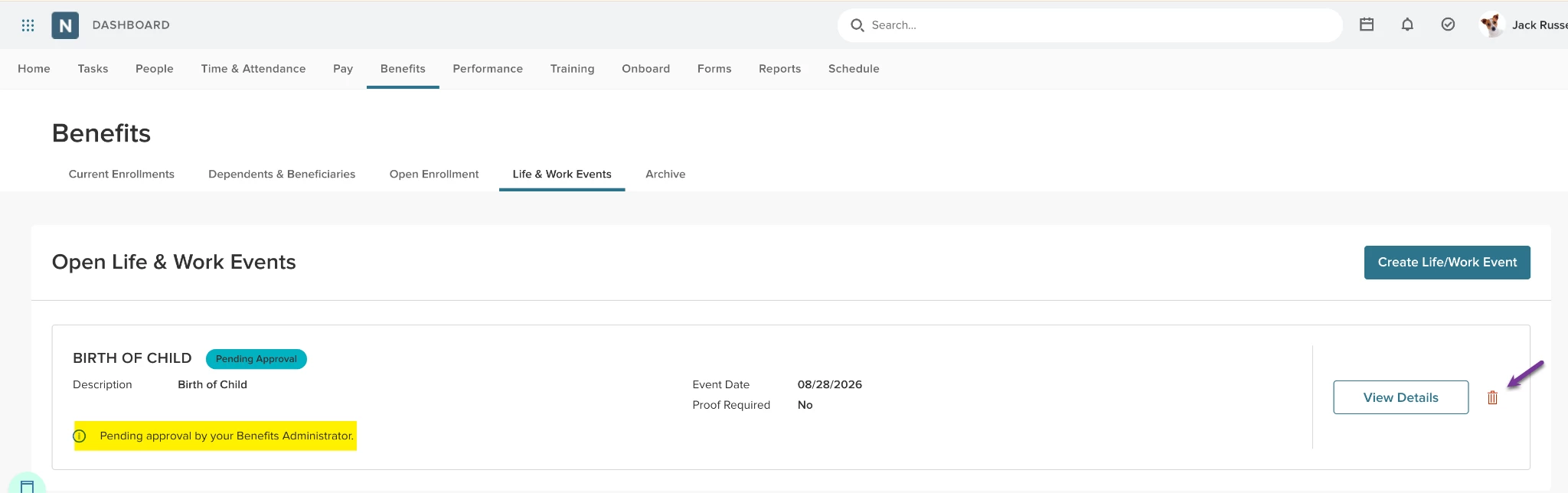
Note: The deletion option (trashcan icon) is only visible for events in an unapproved status. Once a Life & Work Event has been approved by HR or an open enrollment is created, it can no longer be deleted by the employee.
How It Works: Benefit Administrators
- When an employee deletes a pending Life & Work Event from ESS, the record is automatically removed from the dashboard life events management list.
- No additional configuration is required to enable this workflow.
Delete Open Enrollment Events
Benefits administrators can now seamlessly manage past Open Enrollment (OE) events from both the main dashboard and a dedicated Manage Open Enrollments page. This release introduces event deletion capabilities for closed enrollments, centralized action menus, enhanced searching/filtering, and upgraded dashboard header navigation—keeping active enrollments protected while streamlining admin cleanup.
New Dedicated Page: Manage Open Enrollments
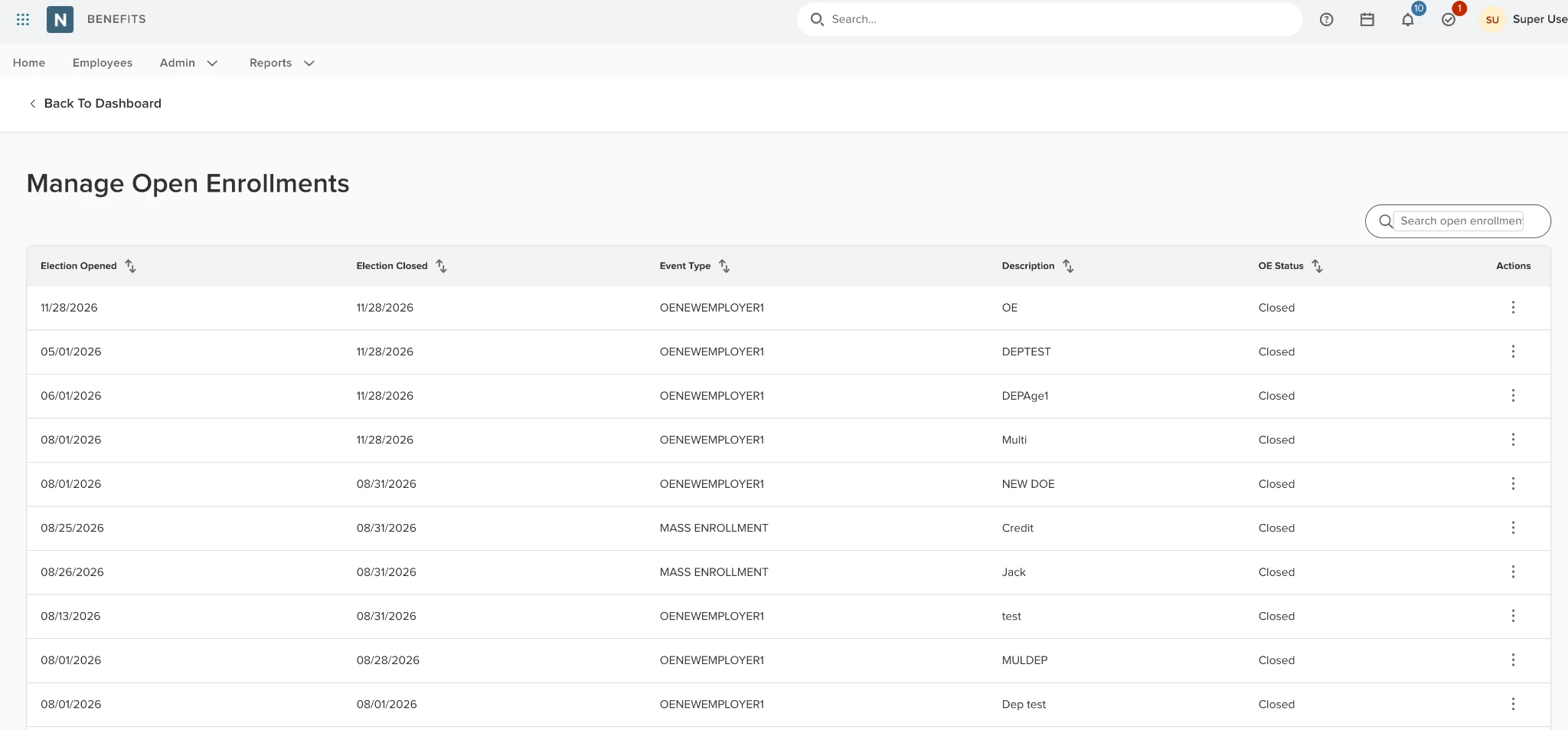
Administrators can access a dedicated view titled Manage Open Enrollments to view and manage all historical and active open enrollment events in one place.
- Event Table: Shows comprehensive event details across six structured columns:
- Election Opened, Election Closed, Event Type, Description, OE Status, and Actions.
- Search and Filter: Easily filter records by:
- Description, Event Type, or OE Status.
- Pagination Controls: Supports configurable pagination (defaulting to 10 items per page) with an items-per-page selector and page navigation controls.
- Seamless Navigation: Features a Back to Dashboard link in the top left for quick returning.
Dashboard Navigation and Header Shortcuts
Two convenient quick links have been added to the top-right of the Open Enrollment Summary section (adjacent to Audit Logs):
- View All Enrollments: Opens the new Manage Open Enrollments page.
- Enrollments by Employee: Direct link to employee-level enrollment details.
- Cleaned Up Layout: Removed the legacy View all open enrollment events footer link.
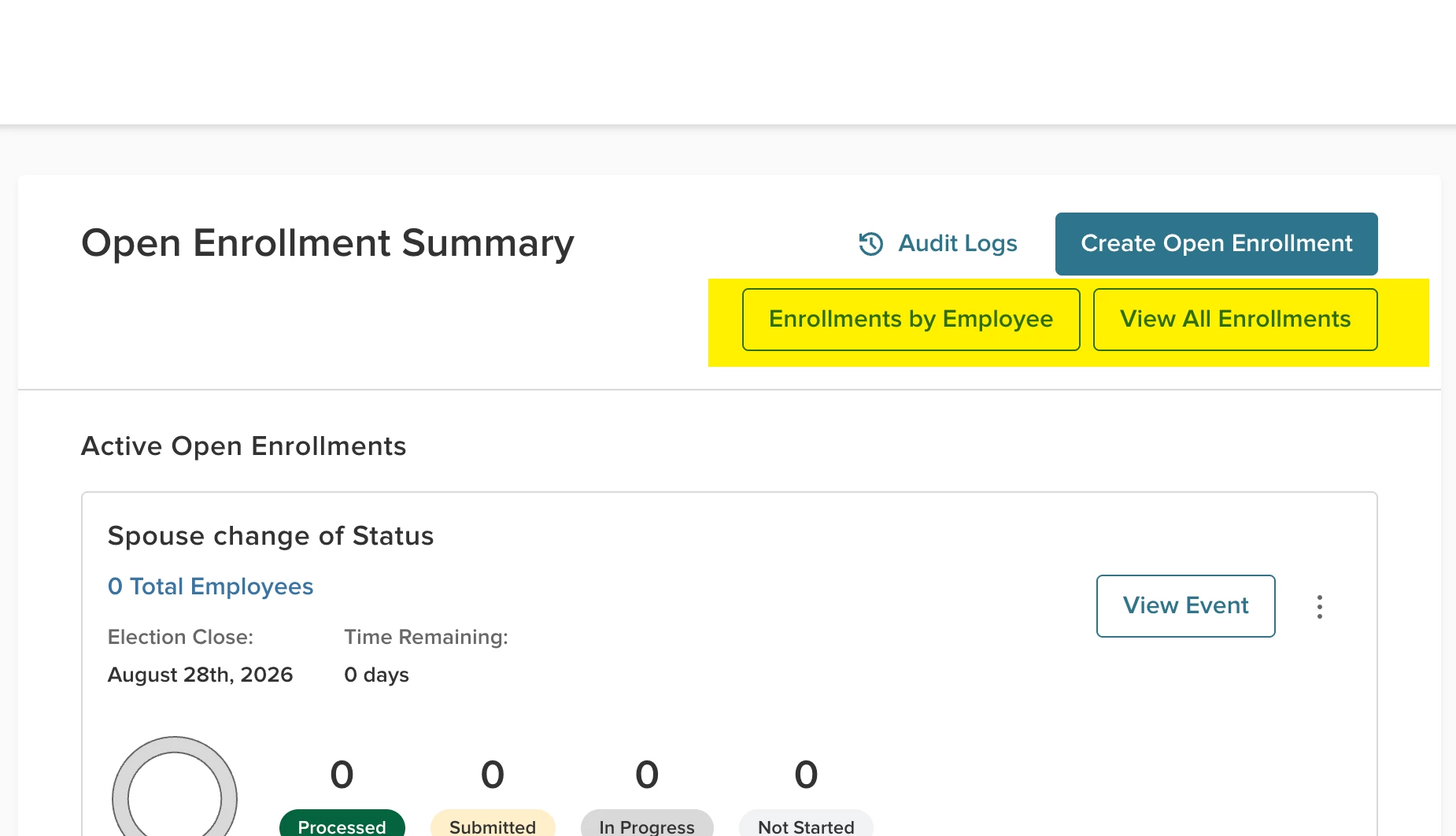
Actions Menu and Event Deletion
Event cards on the dashboard and rows on the new Manage Open Enrollments table now feature a vertical three-dot action menu (⋮).
- Edit Event Details: Opens the event edit modal.
- Delete Enrollment Event: Highlighted in red for authorized administrators.
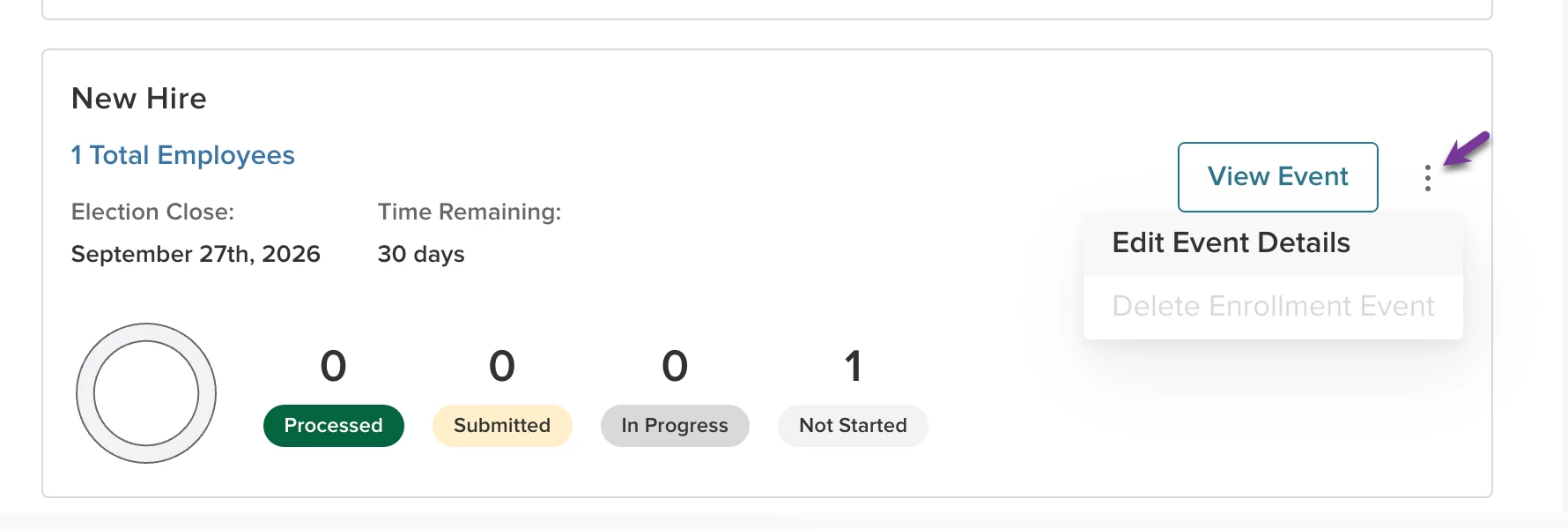
Closed Event Deletion: Administrators can permanently delete closed enrollment events once the election close date has passed.
Instant Refresh: Deleting an event instantly removes it from both the dashboard cards and table view accompanied by a success confirmation.
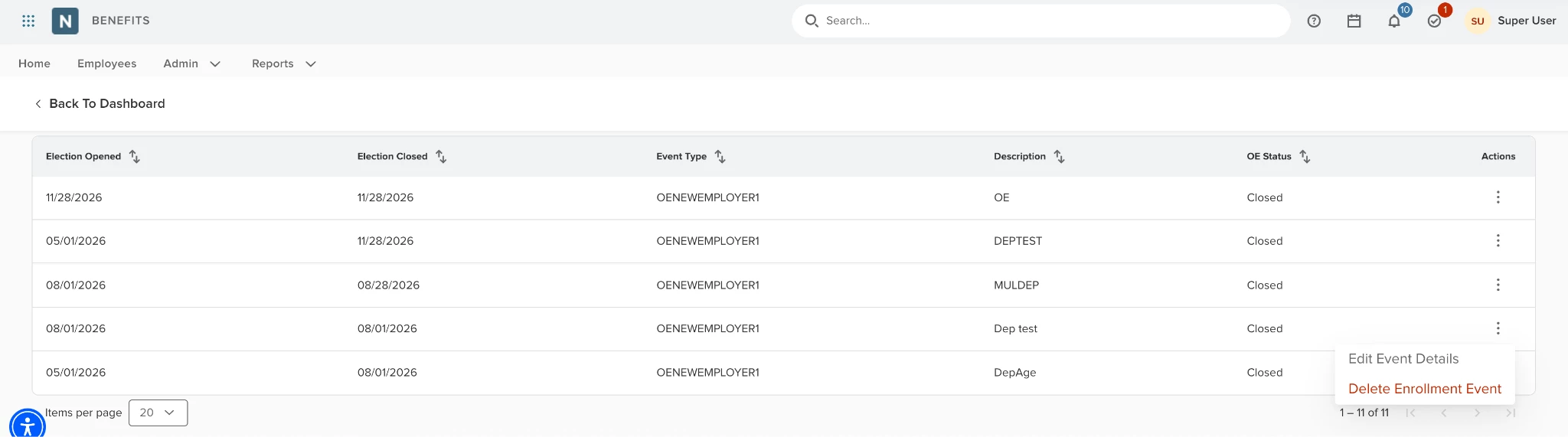
Safeguards and Compliance Controls
- Active Event Protection: Active open enrollment events cannot be deleted. The Delete option is greyed out for active events, displaying a helpful hover tooltip: "Active events cannot be deleted until the election period has closed”.
- Confirmation Prompt: Deleting an event requires confirmation via this prompt: "Delete [Event Name]? This will permanently remove all associated employee data and progress”.
- Audit Trail: Every deletion is recorded in the system Audit Logs (capturing Admin Name, Event Type, and Timestamp) for compliance tracking.
Security and Permission Requirements
Function Permission: Requires the BENFITS_DELETE_OE permission to be enabled for your role.
Pause Open Enrollment
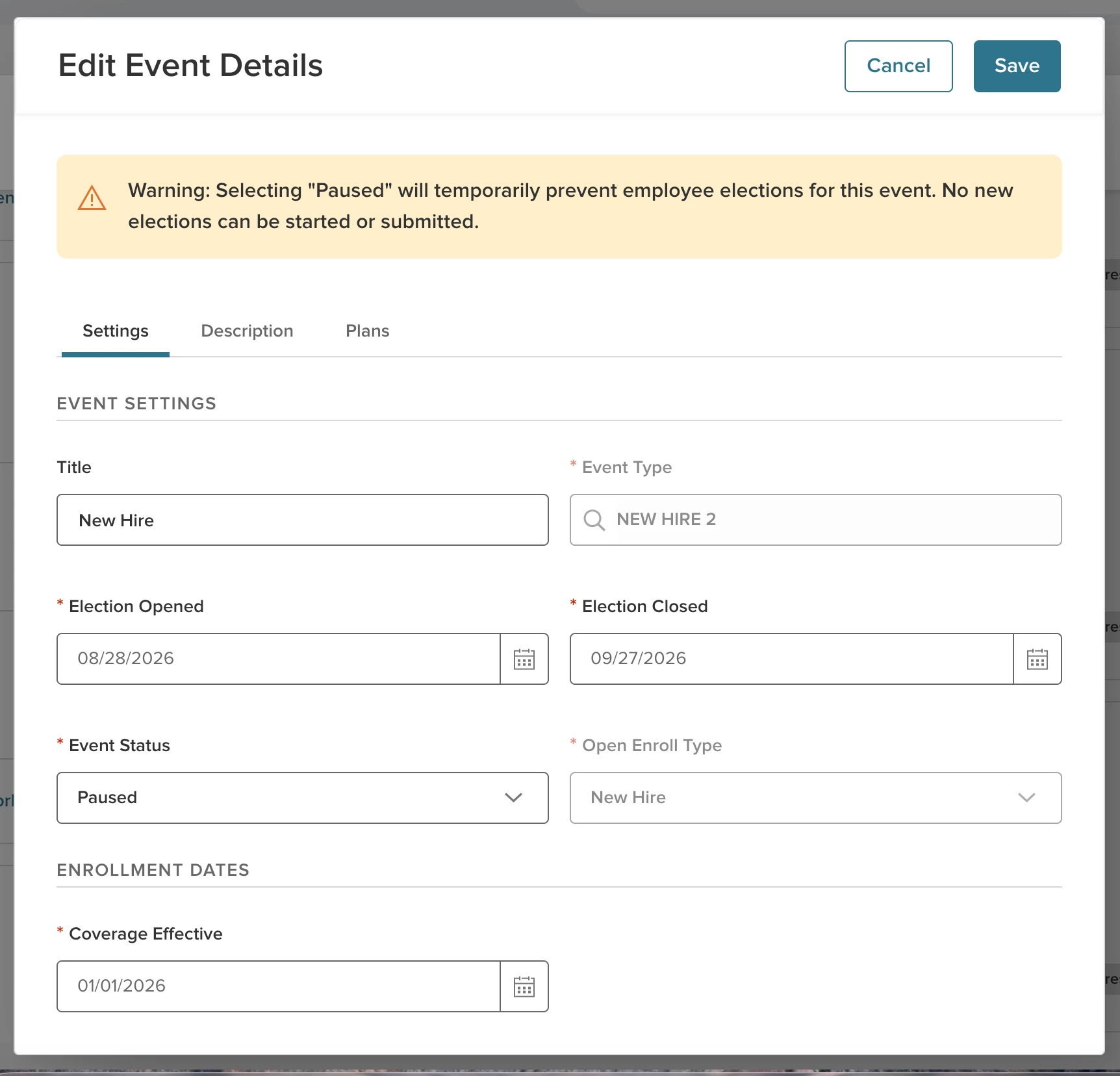
With this release, HR Administrators can now pause an active Open Enrollment event, make required benefit plan adjustments, and resume enrollment.
Edit Event Details: Pause and Open
Administrators can now make an active Open Enrollment event Paused and return it to Open directly from the Benefits Administrator Dashboard.
- Full Administrative Access: While an event is paused, HR admins retain full access to dashboards, reports, and event controls to manage and review configurations.
- Limited Administrative Access: Plan fields are only allowed to be edited while an event is paused if there are no elections in the plans.
- Clear System Warnings: Helpful banners and warning prompts guide administrators when editing plans during a paused OE event to ensure configuration changes are made deliberately and safely.
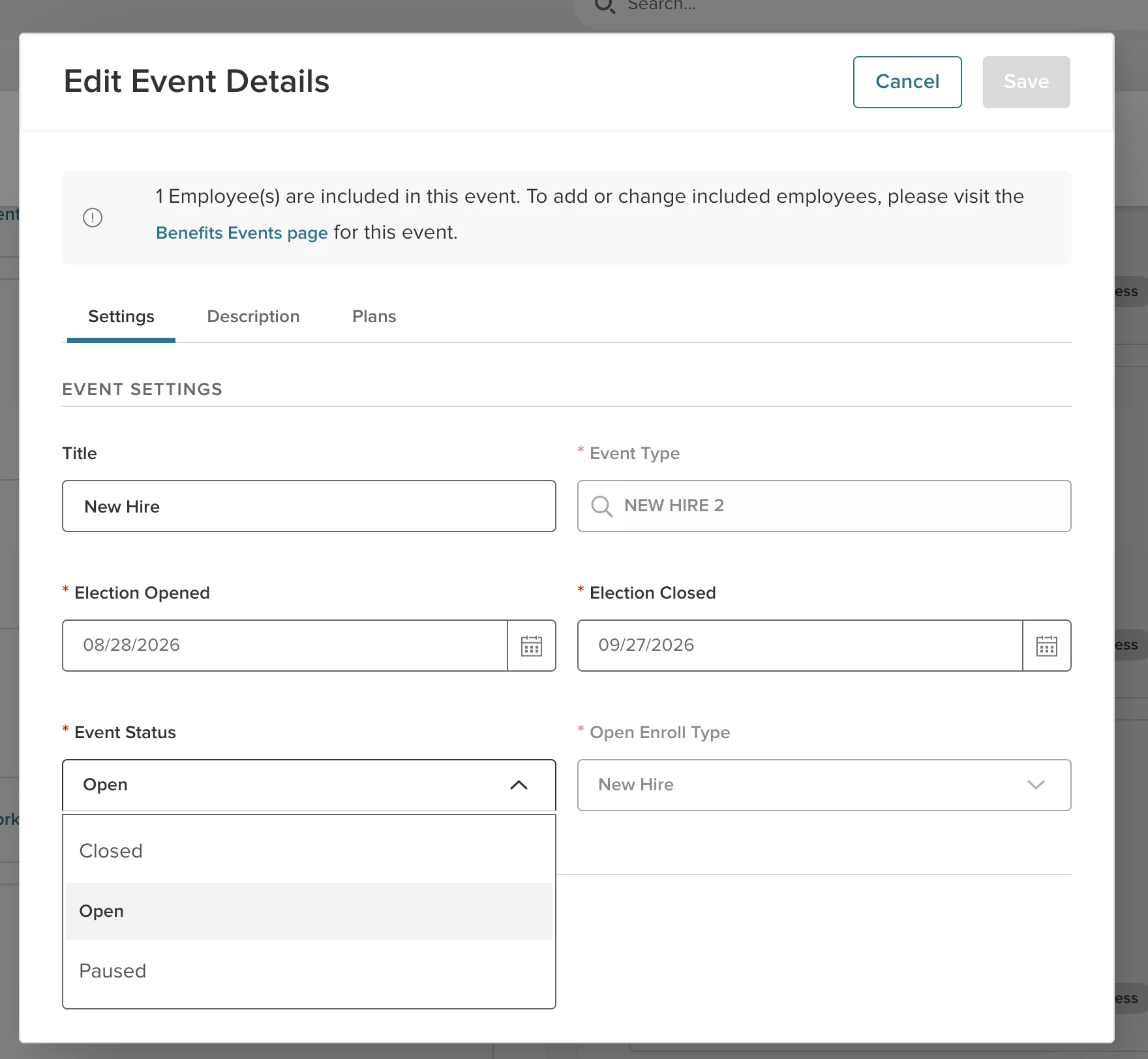
Read Only Employee Self Service
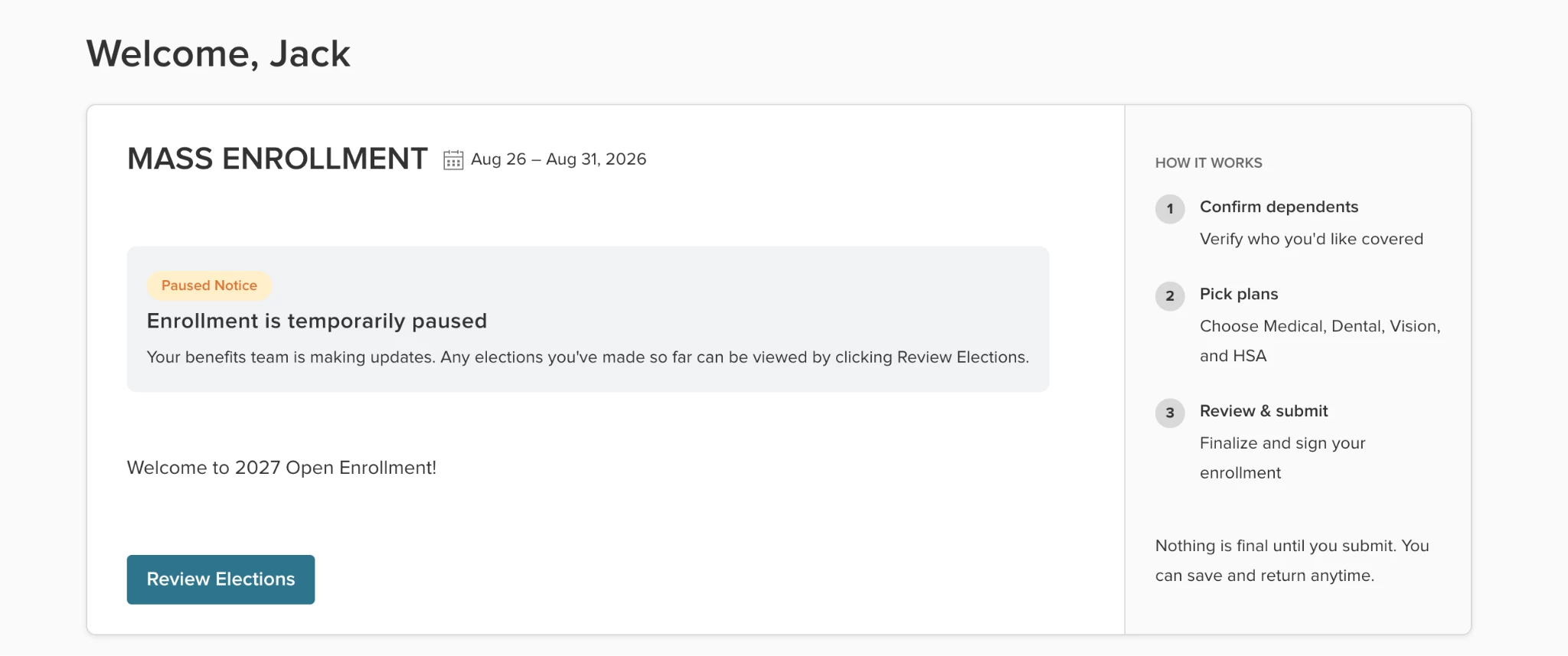
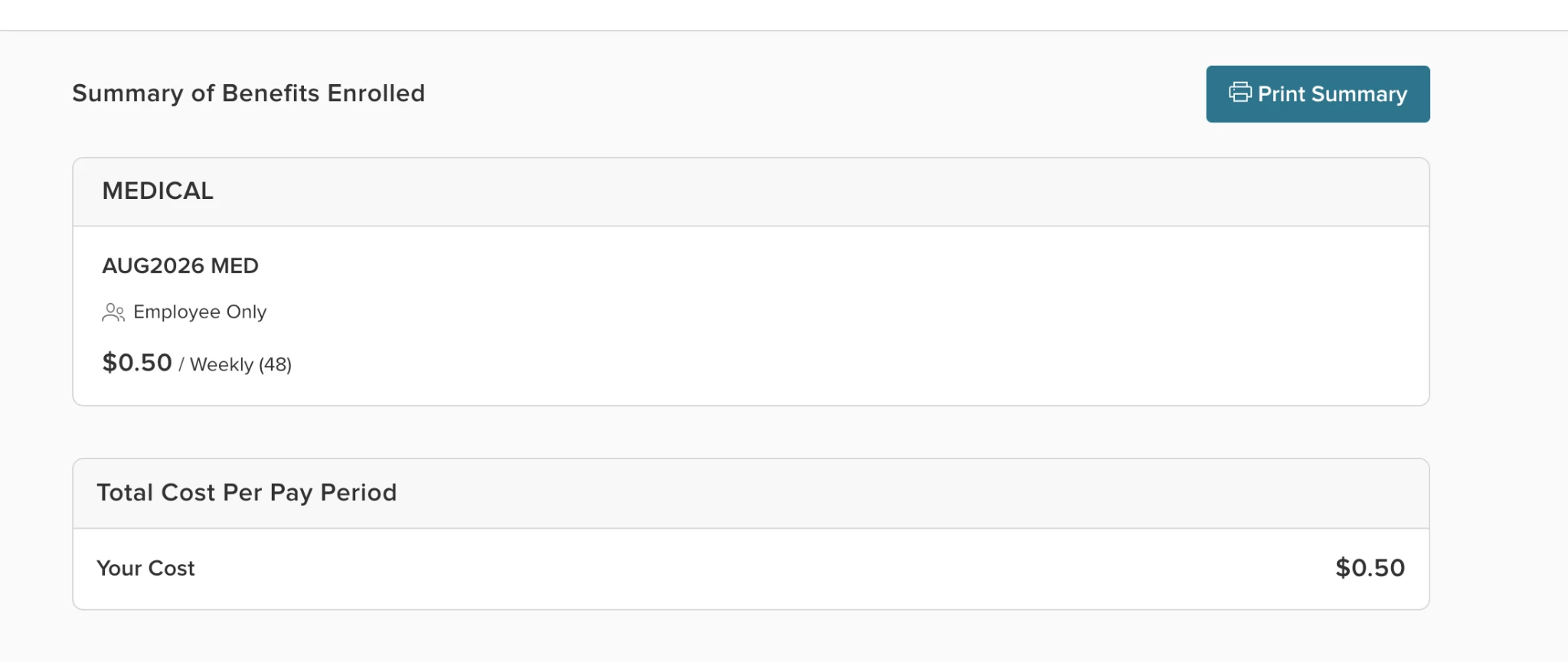
When employees navigate to Employee Self-Service (ESS) during a pause, a clear, friendly banner informs them that enrollment is temporarily paused for updates (rather than closed or unavailable).
Read-Only Inspection: Employees can safely view available plans and review their current elections without making or submitting new changes until HR resumes the event.
Dependent Age Out Automation
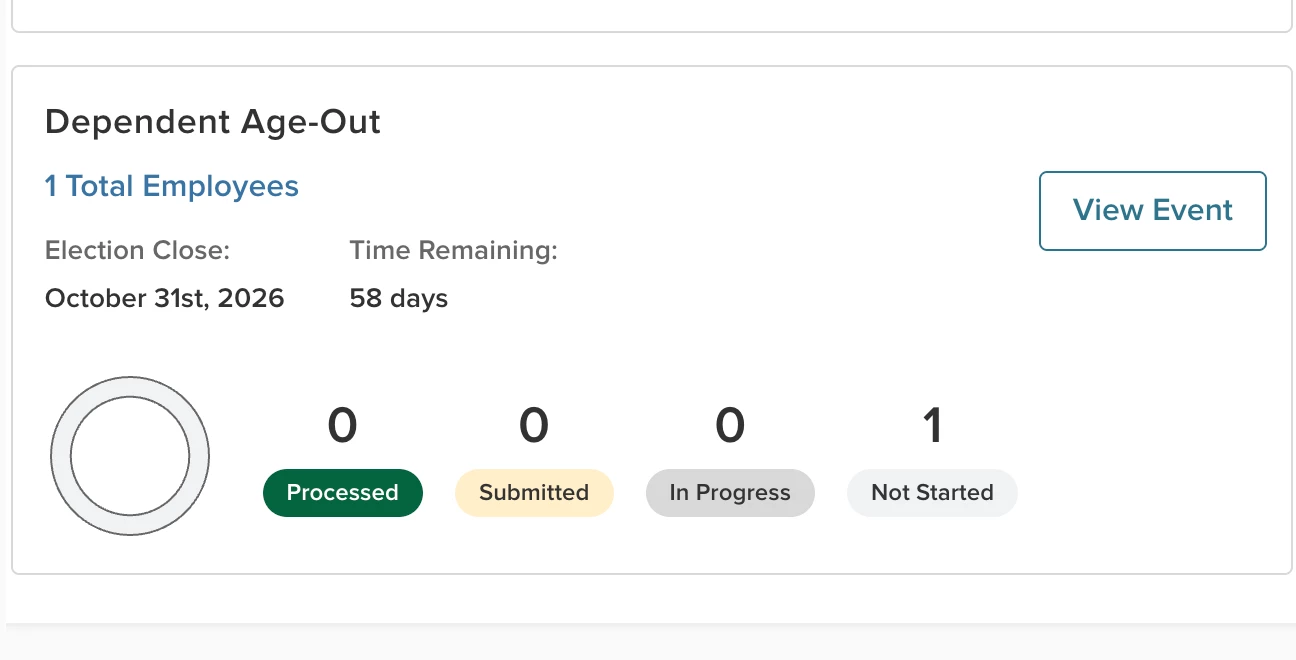
The Dependent Age Out Automation feature introduces end-to-end background automation to monitor dependent eligibility milestones, notify administrators in advance, evaluate coverage tier adjustments (transitioning from Family to Employee + Spouse), initiate employee election life events, maintain detailed audit logs, and automatically process submitted elections through to carriers and payroll.
Administrator Preferences
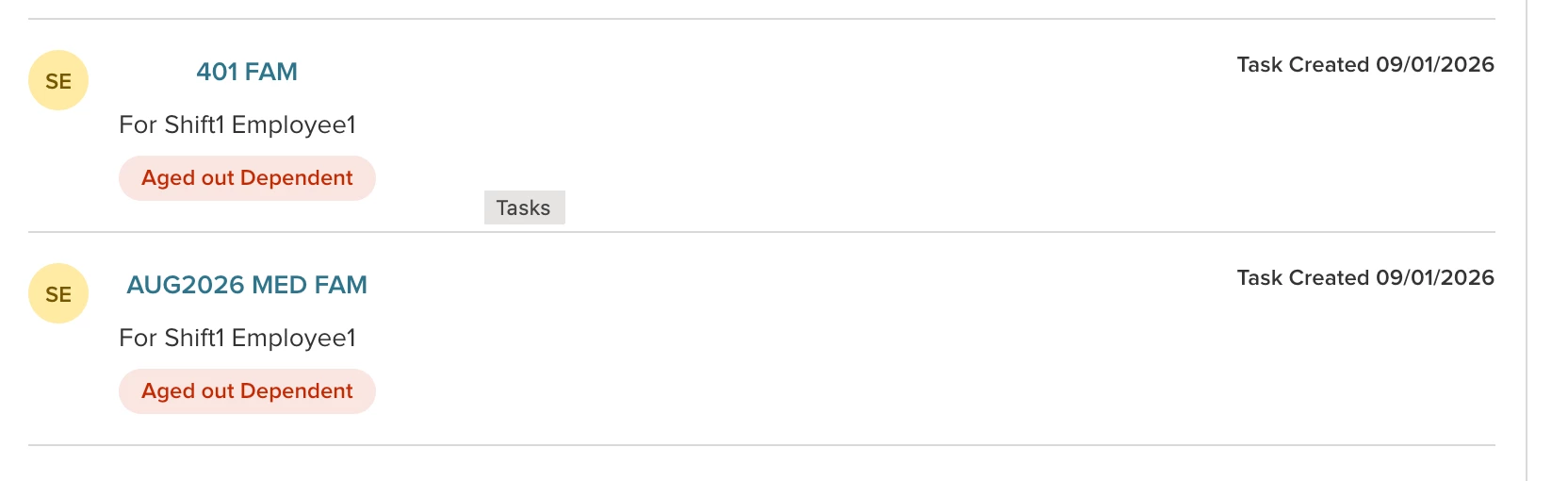
- Configurable preferences to manage automated dependent age-out events.
- Tasks display on the Dependents & Beneficiaries dashboard widget 60 days prior to dependent age-out date.
Drop Aged Out Dependents and Coverage Tier Adjustments
- Background job identifies aged-out dependents and assesses whether removing the dependent requires a coverage tier shift (based on plan setup recipient types).
- Automatically generates an Open Enrollment / Life Event window for affected employees to review and submit election updates.
Auto-Processing of Elections
Submissions made during the dependent age-out election window can be automatically processed upon window close.
Audit Logging
Full audit trail capturing monthly batch un-enrollments and newly generated dependent age-out life events.
Trump Accounts
This release introduces support for Trump Accounts across Admin Plan Setup, Employee Self Service (ESS), and Payroll integration.
Benefit Plan: Trump Account Setup
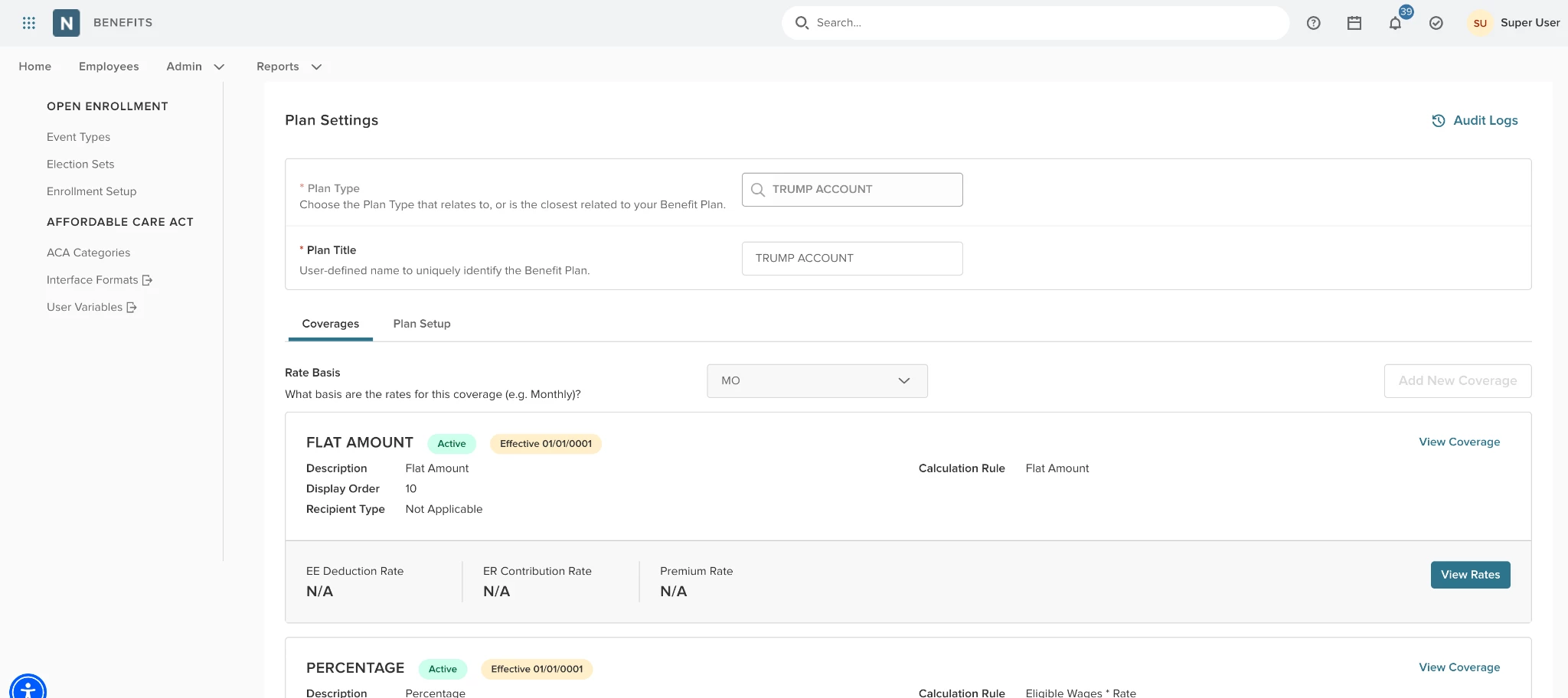
Plan administrators can now select TRUMP ACCOUNT as a distinct plan type during benefit plan creation.
- Auto-Provisioned Coverages: Creating a Trump Account plan automatically generates two default coverages:
- Flat Amount.
- Percentage (Eligible Wages * Rate).
- Required Beneficiaries: Beneficiaries are mandatory for this plan type. The Beneficiaries Required toggle defaults to ON and is locked from being disabled.
Employee Self Service
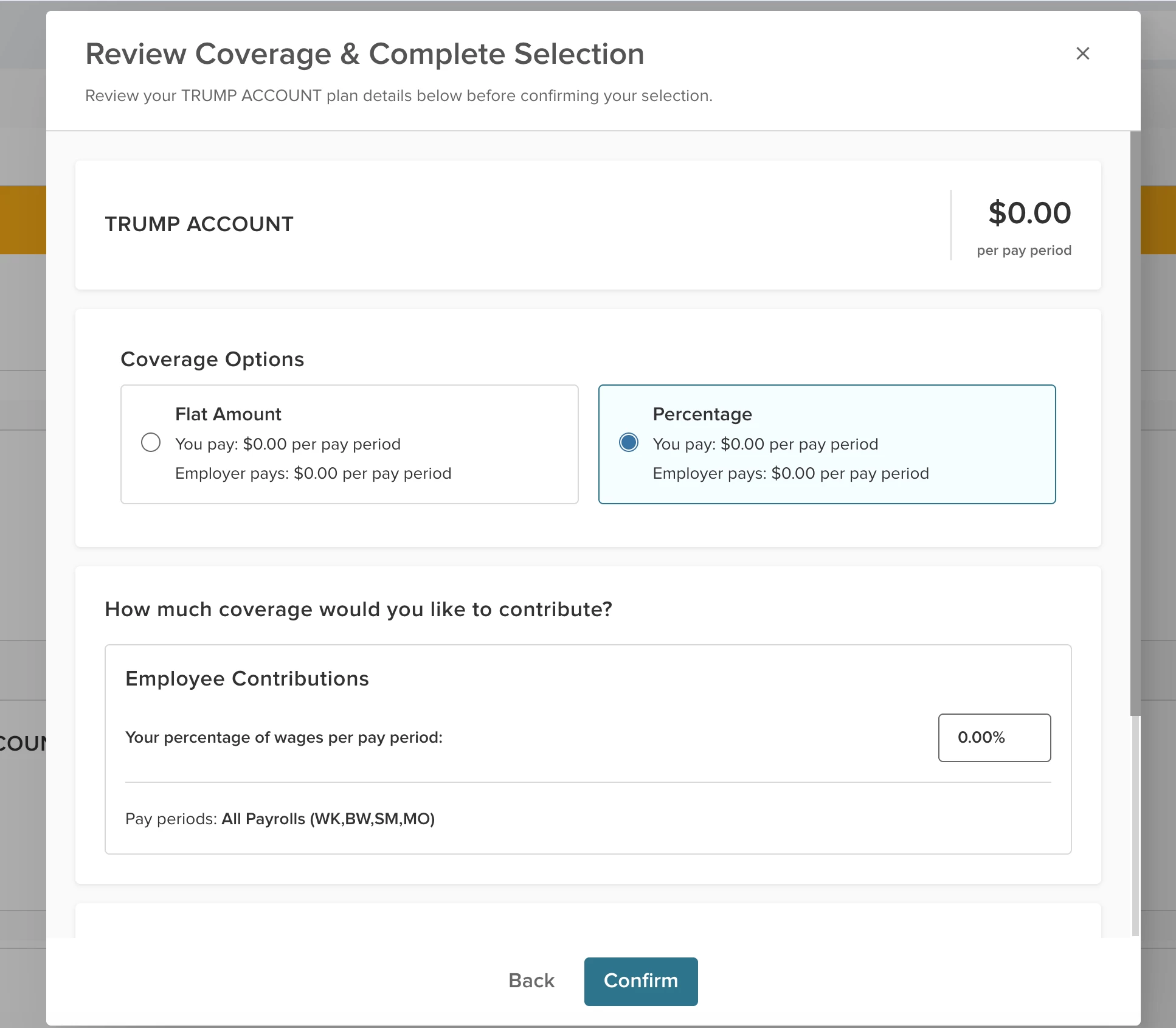
Employees enrolling in or reviewing a Trump Account will see a redesigned review and selection modal (Review Coverage & Complete Selection).
- Annual Federal Limit Visibility: Displays federal contribution limits based on $5,000.00 per designated beneficiary with real-time minimum/maximum coverage cap validation.
- Primary Beneficiary Management:
- Exclusively displays Primary Beneficiaries (contingent beneficiaries are omitted).
- Requires primary beneficiary allocation percentages to sum to exactly 100%.
- Supports adding up to a maximum of 15 beneficiaries per plan.
- Always-Open Enrollment: Operates under an always-open framework, allowing employees to modify elected contributions and beneficiary allocations at any time with effective-date tracking.
Import Deductions and Earnings
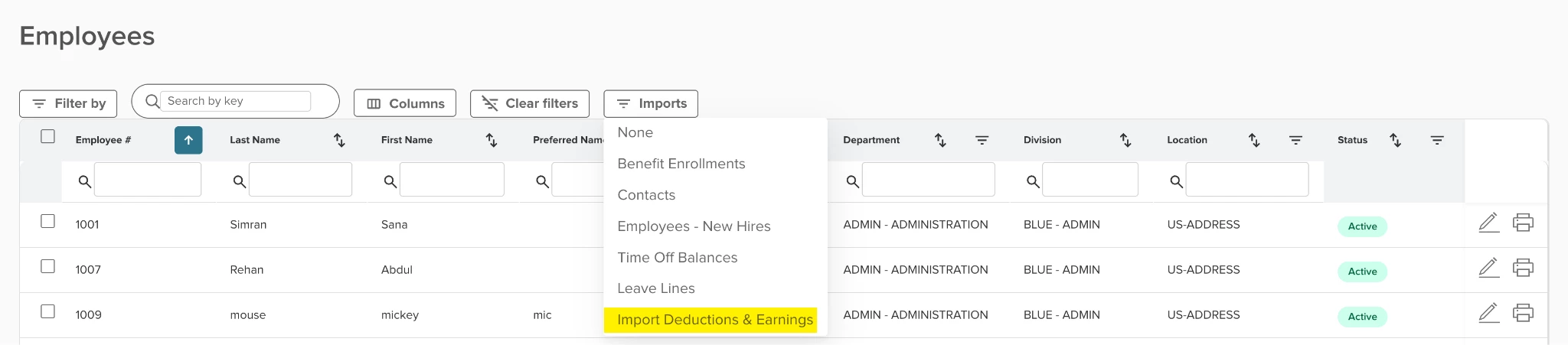
The deduction and earnings import update gives Payroll administrators full self-service control to upload, validate, and process mass deduction and earnings files directly into the payroll engine to process third-party vendor updates and specialized provider files.
Employee List Import
Administrators can import deductions and earnings by clicking Import on the Employees screen.
Appendix: Bugs Resolved
No additional bug fixes outside of the maintenance releases. Refer to the maintenance release notes for more details.
Related Resources