



Perform Release Notes Summer 2026
Article Links
Timeline
When will this be released?
UAT Availability
- Updates to AI Settings: July 9.
- AI-Generated Evaluation Summaries: Not available in UAT or for Canada agencies.
- AI Writing Assistants: Not available in UAT or for Canada agencies.
- Preferred Name Display: July 2.
- Customizable Title and Description for Rating Tasks: July 9.
- Undo Cancel Evaluations and Reason Provided Field: July 9.
- Setting to Allow HR Users to View Upper Hierarchy’s Rating Info: July 9.
- Refuse to Sign Tracking for Task Status Report: July 2.
- Evaluation Programs, Development Plan Lists Shortcut: July 2.
Production Availability
July 30, 2026.
Is there downtime for this release?
No.
Updates to AI Settings
We’ve renamed the “AI Settings” page in Perform to AI Administration to help deliver a consistent user experience across the NEOGOV Suite. From the AI Administration page, you can now enable or disable the writing assistant and summary features separately. This helps you roll out AI thoughtfully while keeping sensitive groups out of scope.
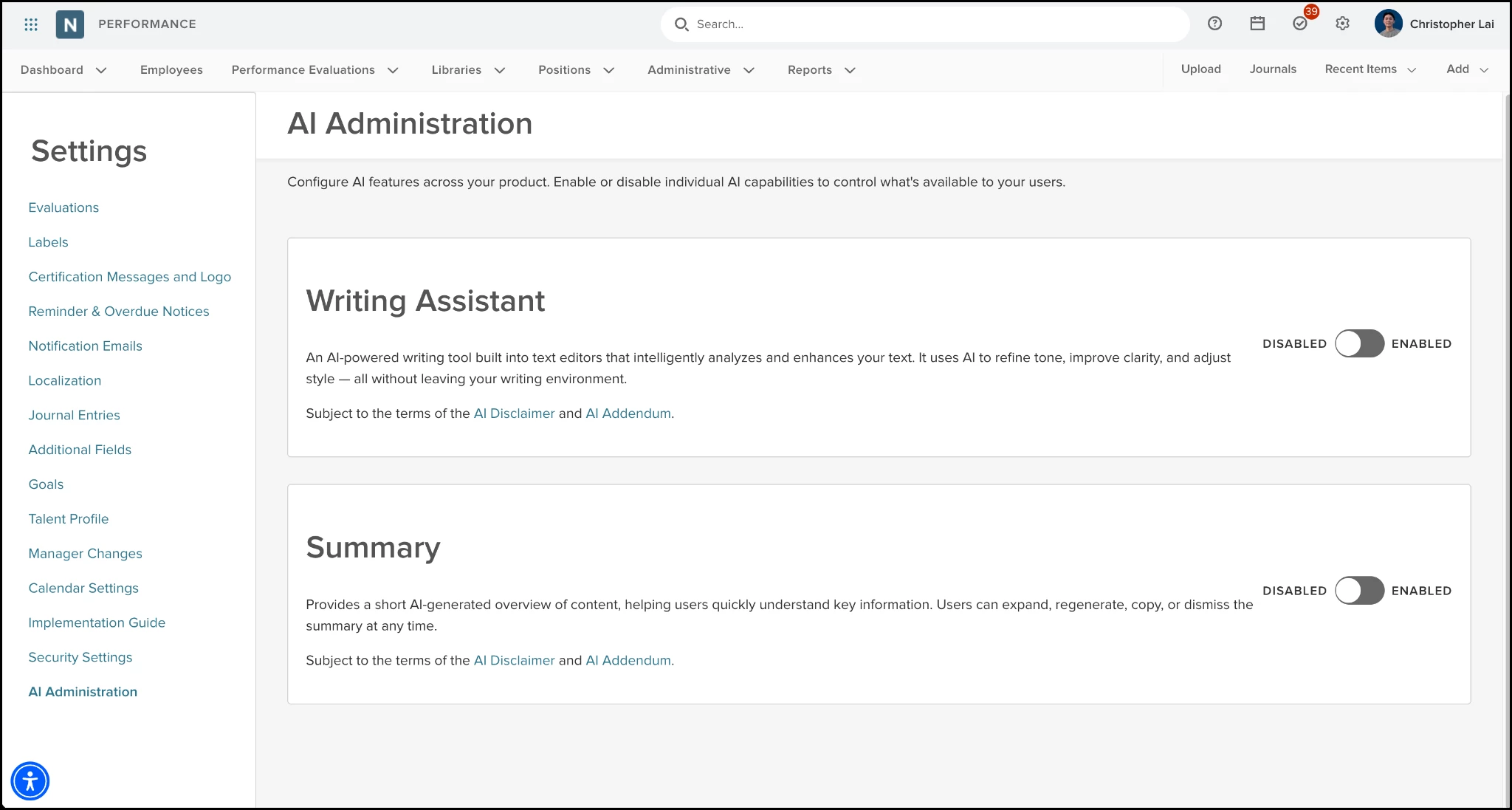
Example
Enable the writing assistants for all users, but only enable the AI summary for specific departments or bargaining units.
How it Works
- Go to Settings > AI Administration.
- Under Writing Assistant or Summary, toggle the feature on.
- In the confirmation popup, agree to the terms to enable the feature.
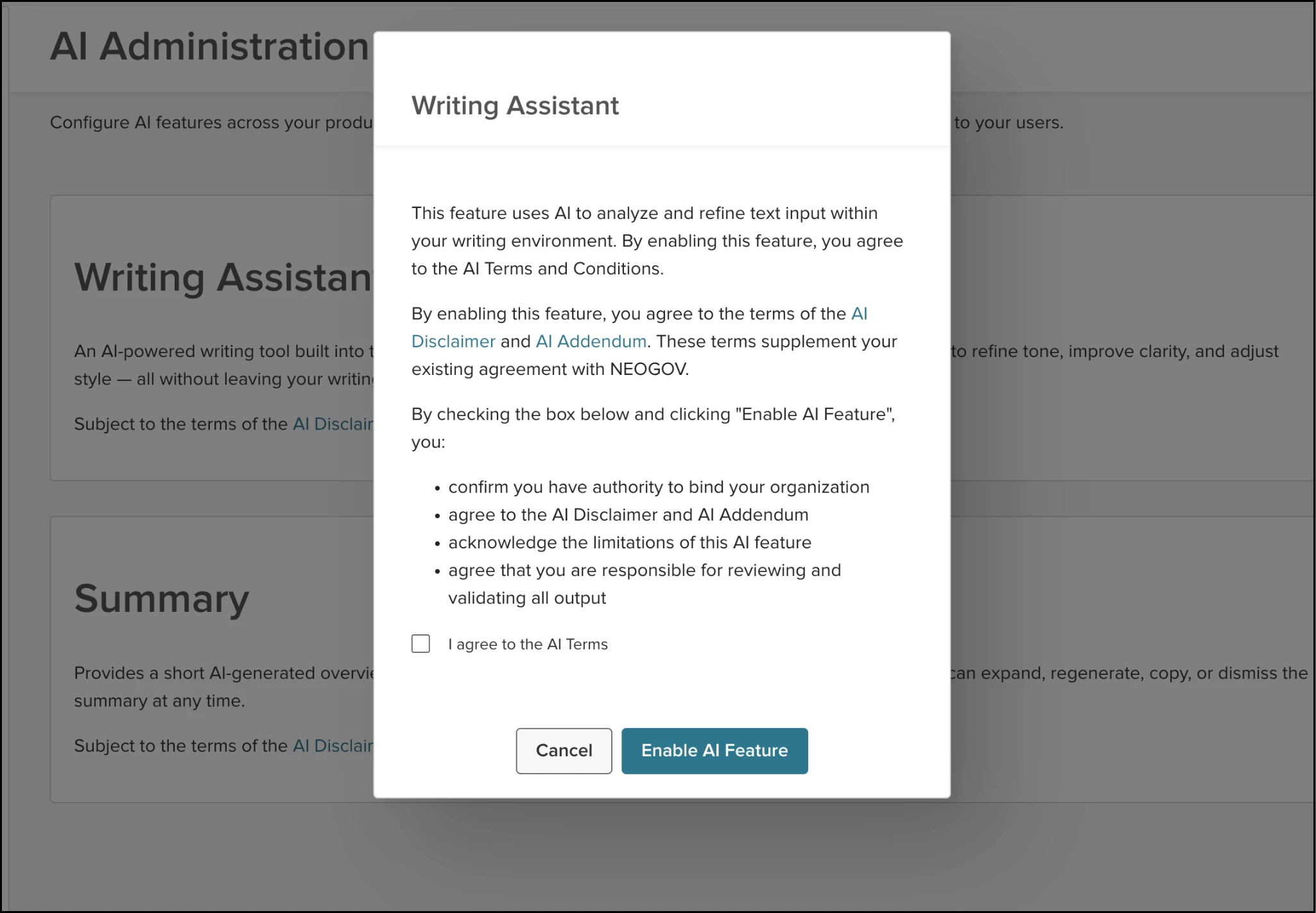
- Once enabled, optionally configure exclusions by department or bargaining unit. Select Save to apply exclusion changes.
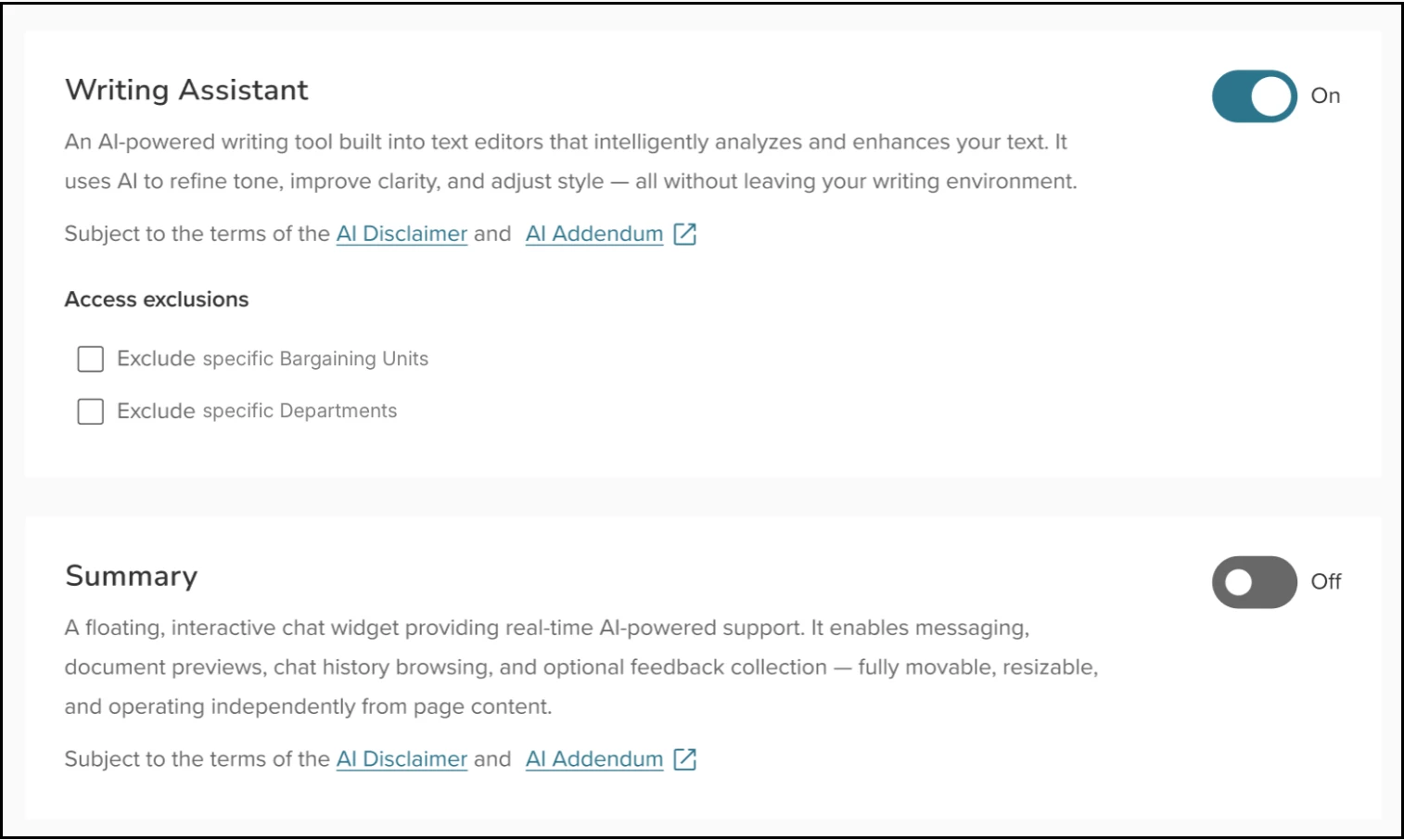
- To remove access for everyone, toggle the feature off and confirm.
Notes
- Exclusions apply only when a feature is enabled. If you disable a feature, all users lose access.
- In the past, AI features were controlled by a single toggle. Under the updated configuration, the system will automatically enable the new individual settings if the original global setting was active, or keep them disabled if it was not.
Value
Supports controlled AI adoption by letting admins enable AI capabilities while limiting access for specific departments or bargaining units.
Audience
HR admins.
AI-Generated Evaluation Summaries
With this release, you can quickly understand employee performance by generating concise, AI-powered summaries of completed evaluations. This feature highlights key achievements and growth areas to streamline reviewing of historical evaluations.
Example
A manager can generate a summary of a last year’s annual review to quickly identify an employee's top three strengths and future goals before a 1-on-1 meeting.
How it Works
- First ensure that AI Summaries are enabled in Perform under the Settings > AI Administration section.
- Locate the Summarize action on any completed evaluation within the Talent Profile, Evaluation Details page, or Evaluation List.
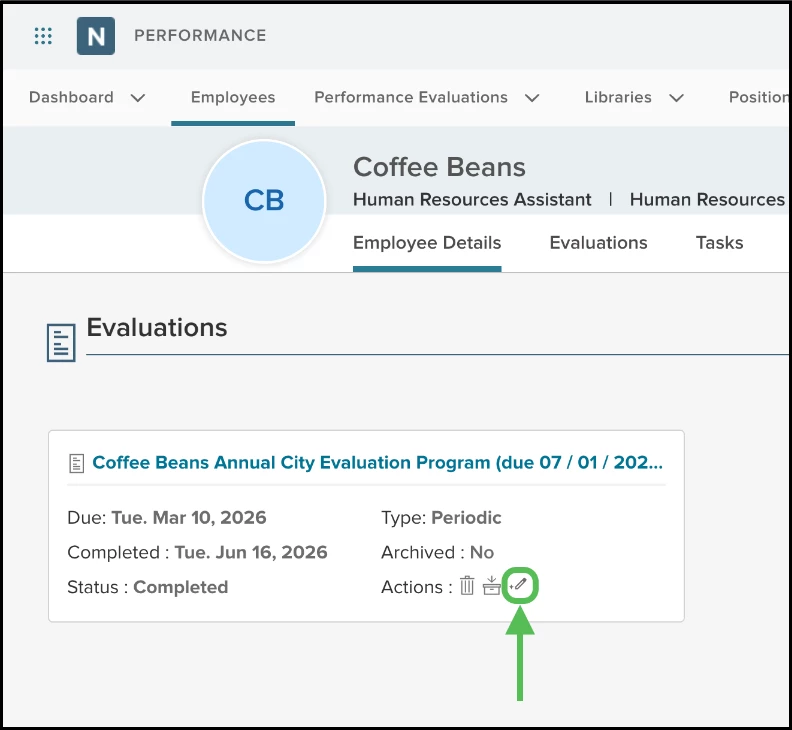
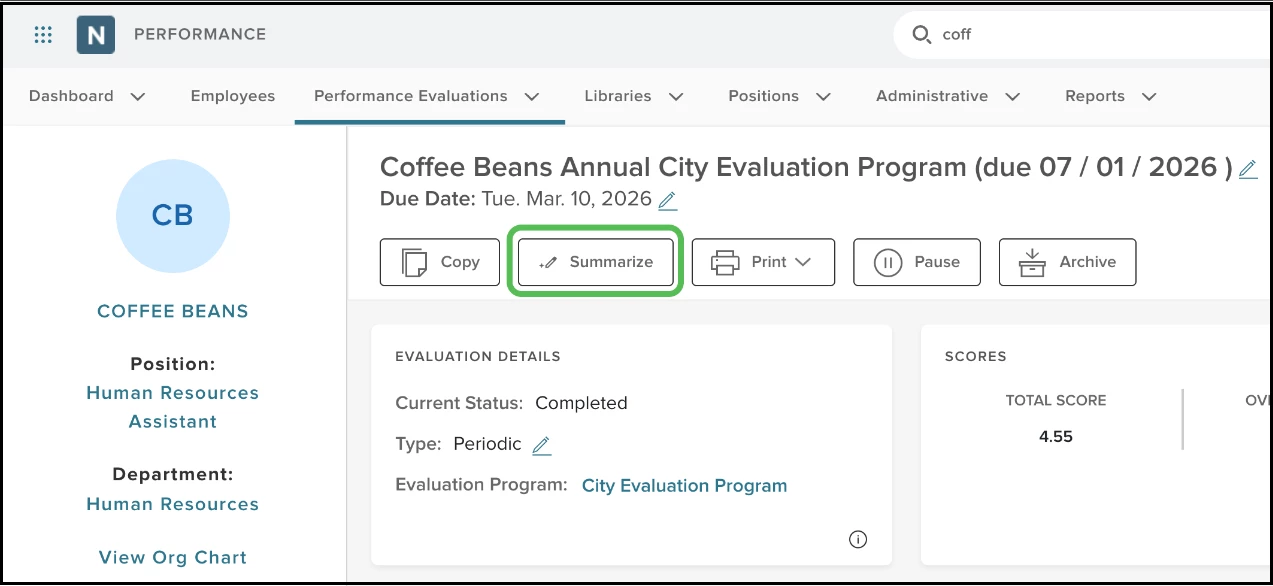
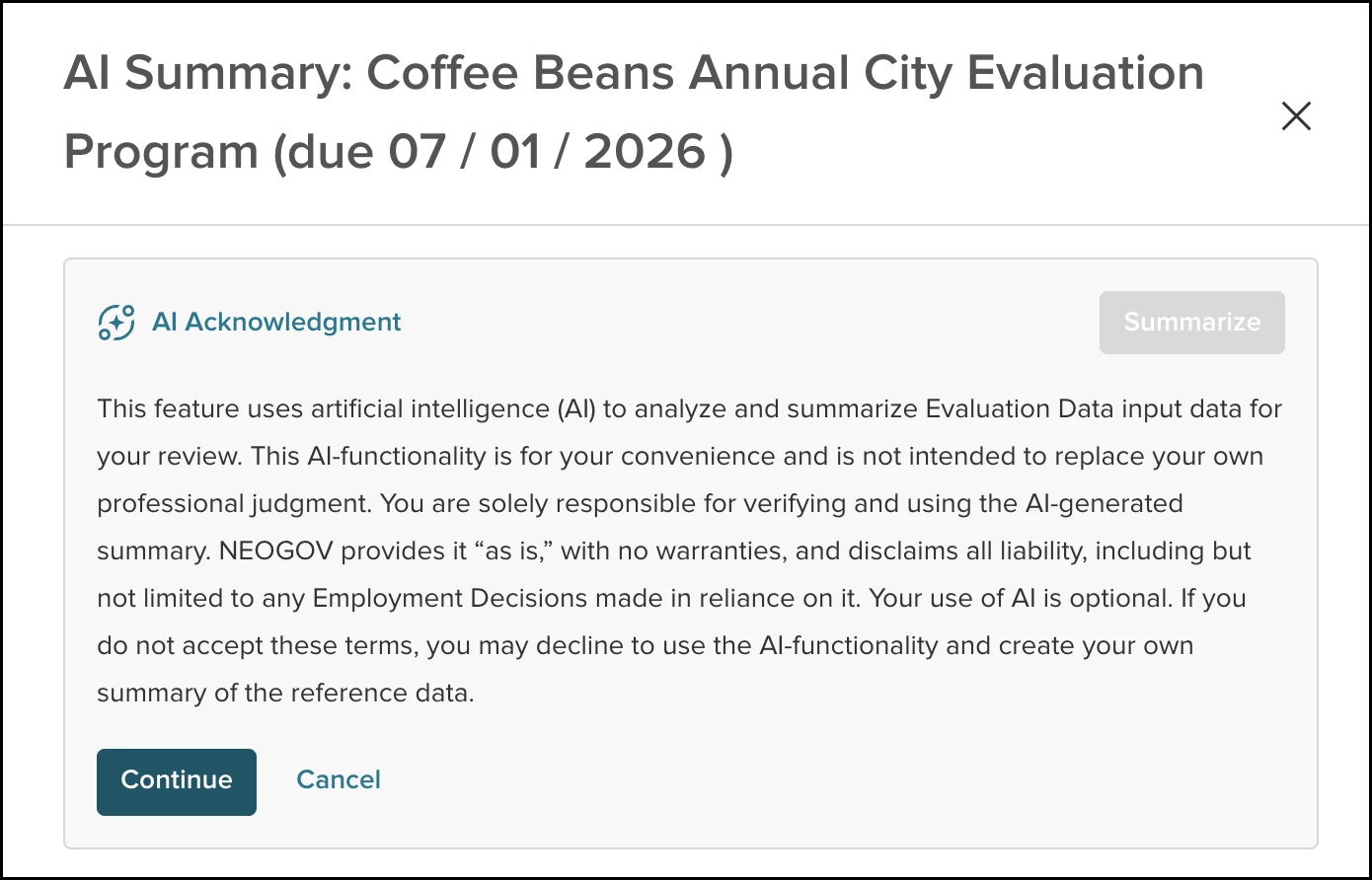
- Select Summarize to open the AI Acknowledgement popup.
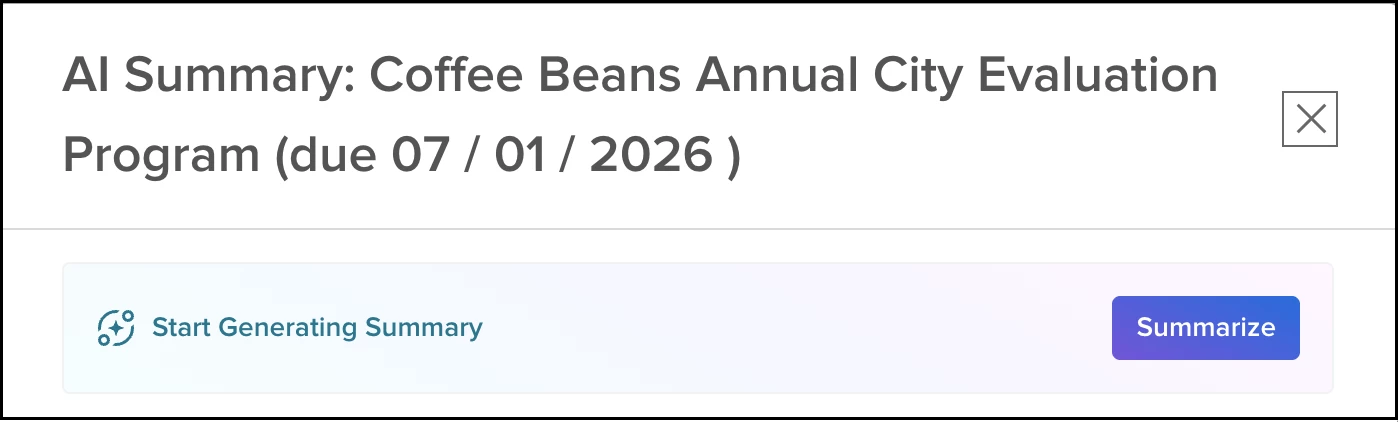
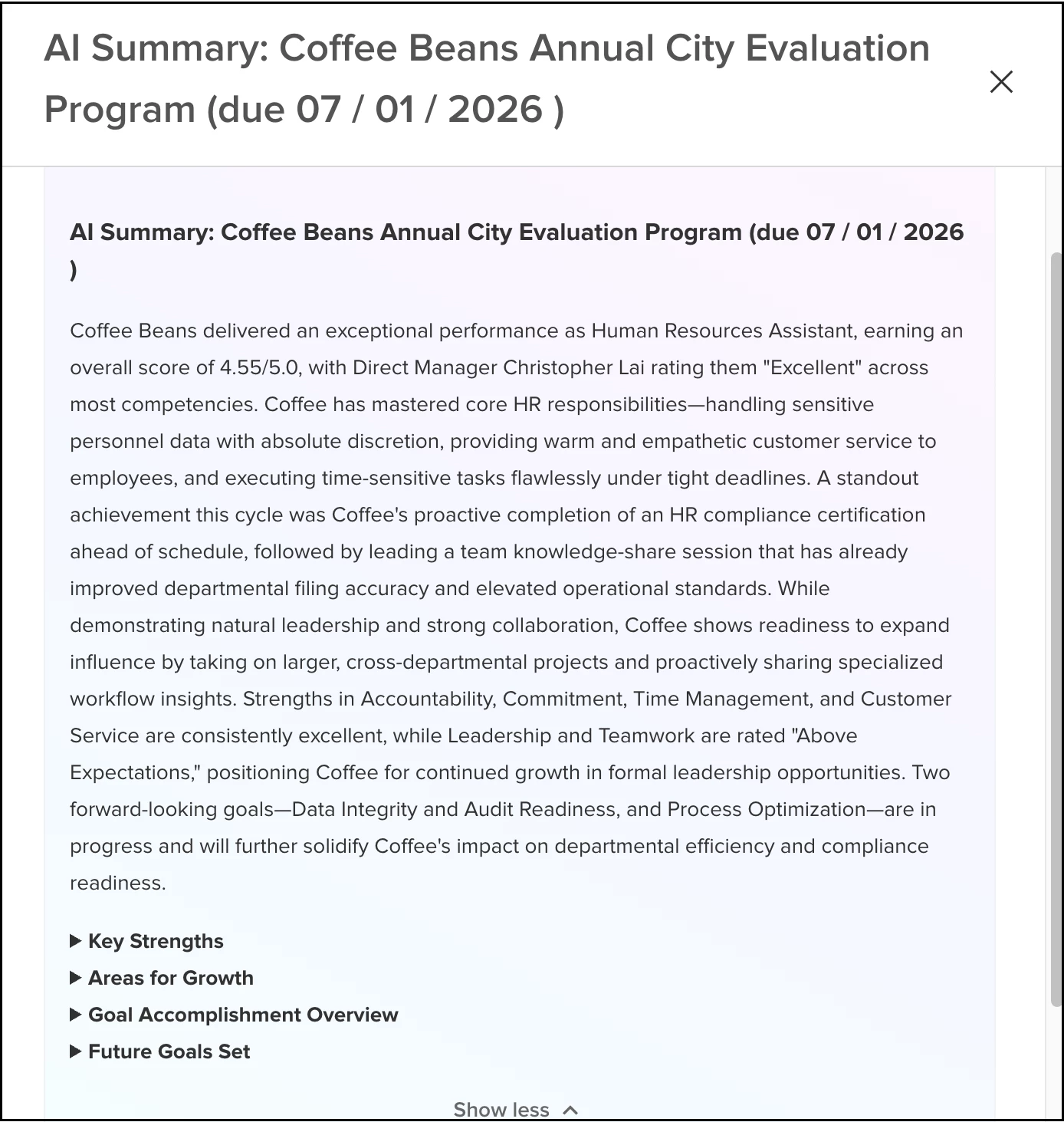
- Select Continue to generate the narrative, which includes a summary overview, key strengths, areas for growth, goal outcomes, and future goals.
- Select Copy to save the text to your clipboard, or Regenerate to create a new version of the summary.
Note: For a given evaluation, you can only use the Summarize action if you have the permission to download that specific evaluation.
Value
Reduces the time spent reviewing historical performance data by providing instant, actionable insights from completed evaluations.
Audience
Administrators and managers.
More AI Writing Assistants
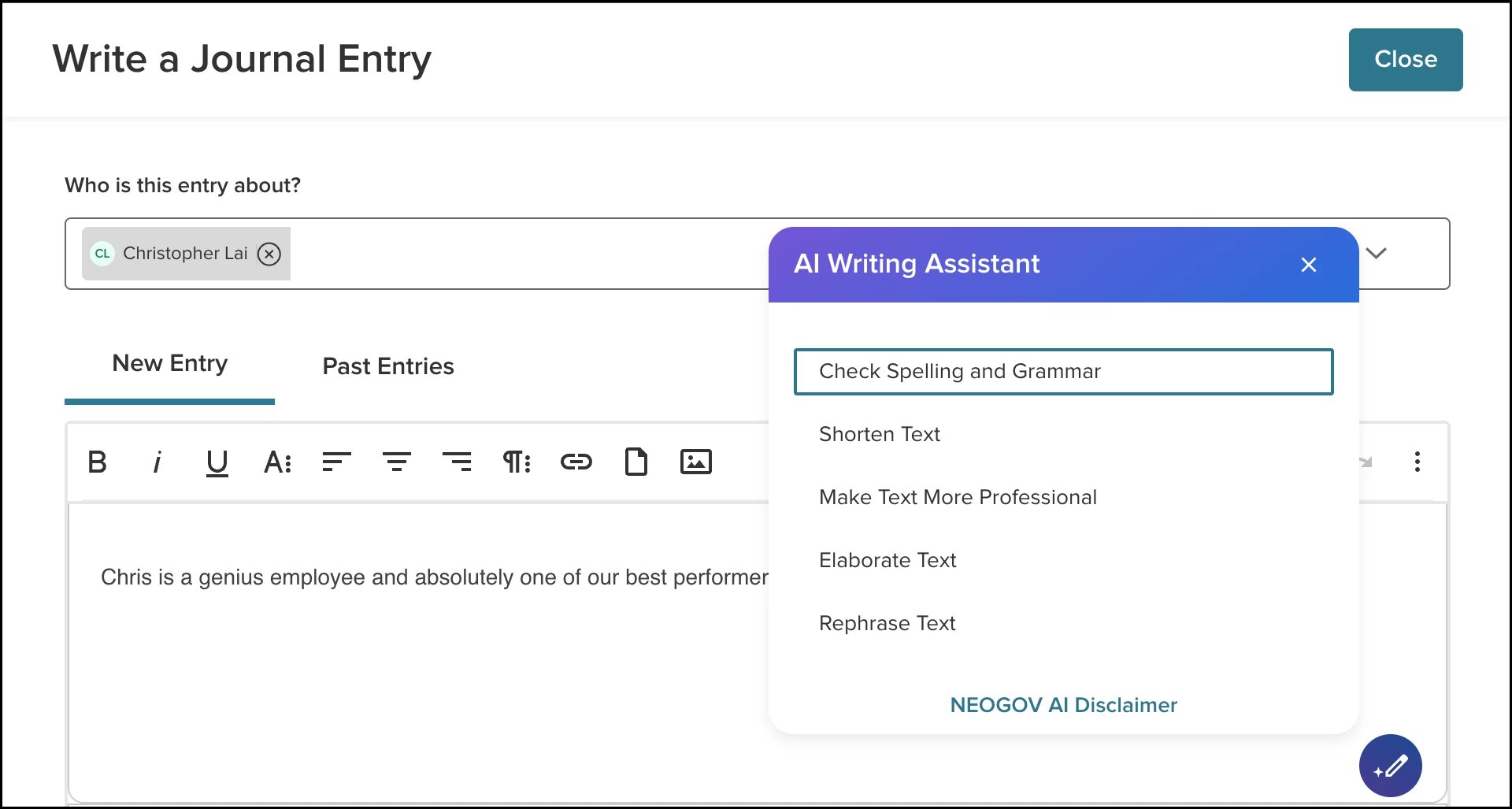
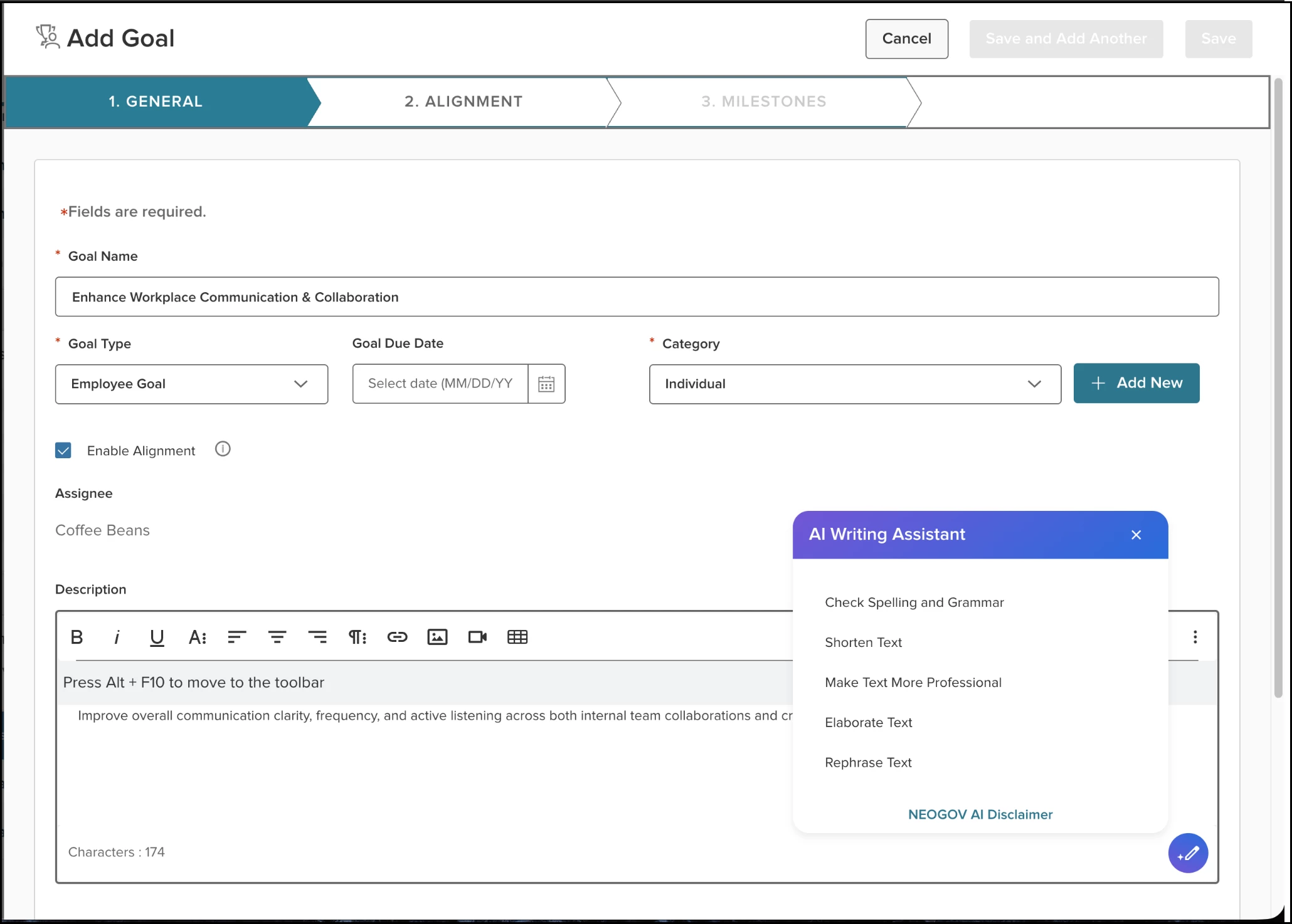
The AI-powered Inline Writing Assistant — previously available only in performance evaluation rating comments — is now available across additional high-value areas of Perform. You can leverage AI to refine tone, improve clarity, and adjust writing style directly within text editors, without leaving your workflow.
How it Works
The AI writing assistants are now available in these places.
- Journal entries: We ensured that the writing assistant is compatible with the existing tagging feature.
- Check-in forms.
- Adding/Editing goals.
- Editing competencies and narratives.
Value
Writing assistants make it easier for employees and admins to produce higher-quality writing, saving time and reducing friction.
Audience
Administrators, managers, and employees.
Preferred Name Display
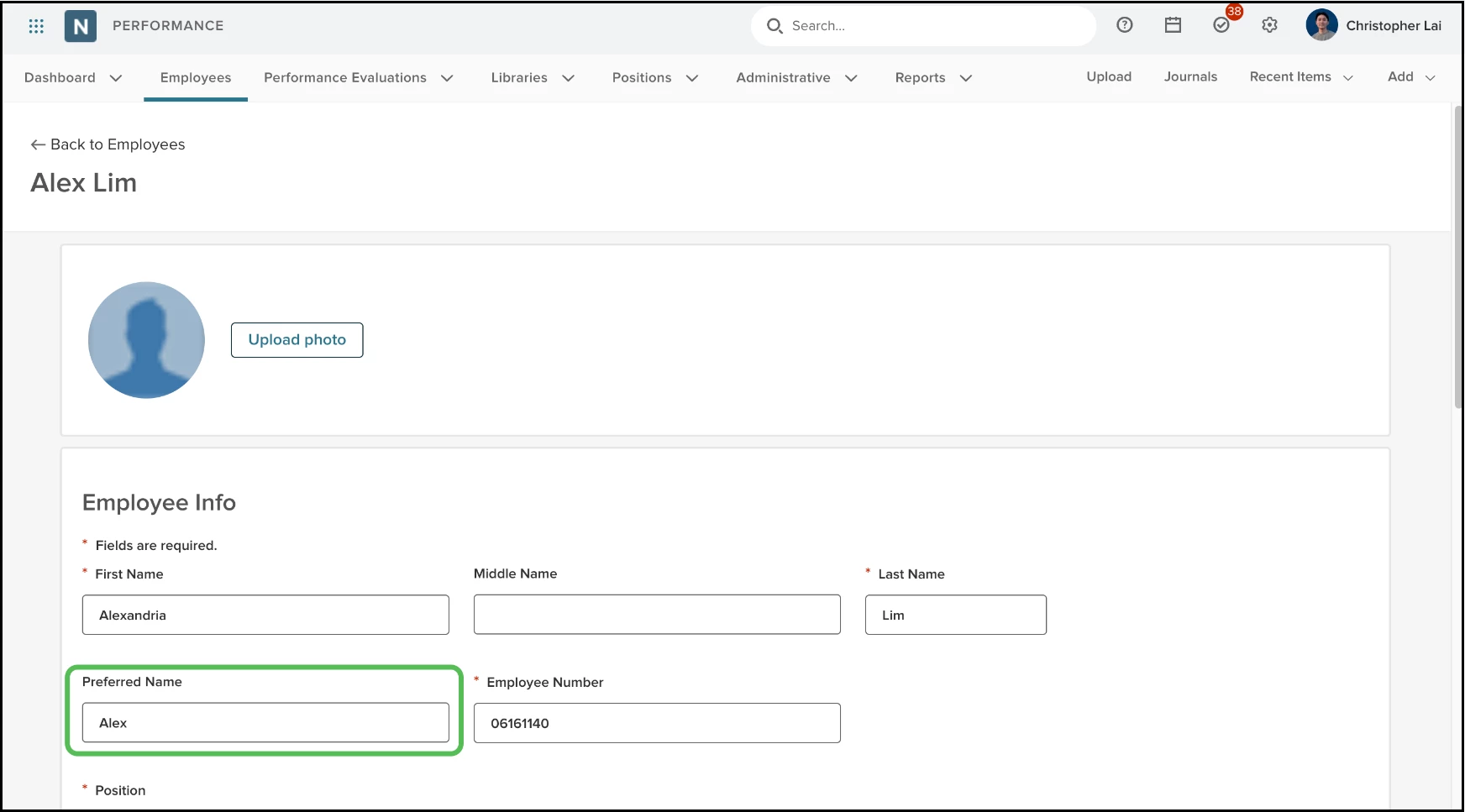
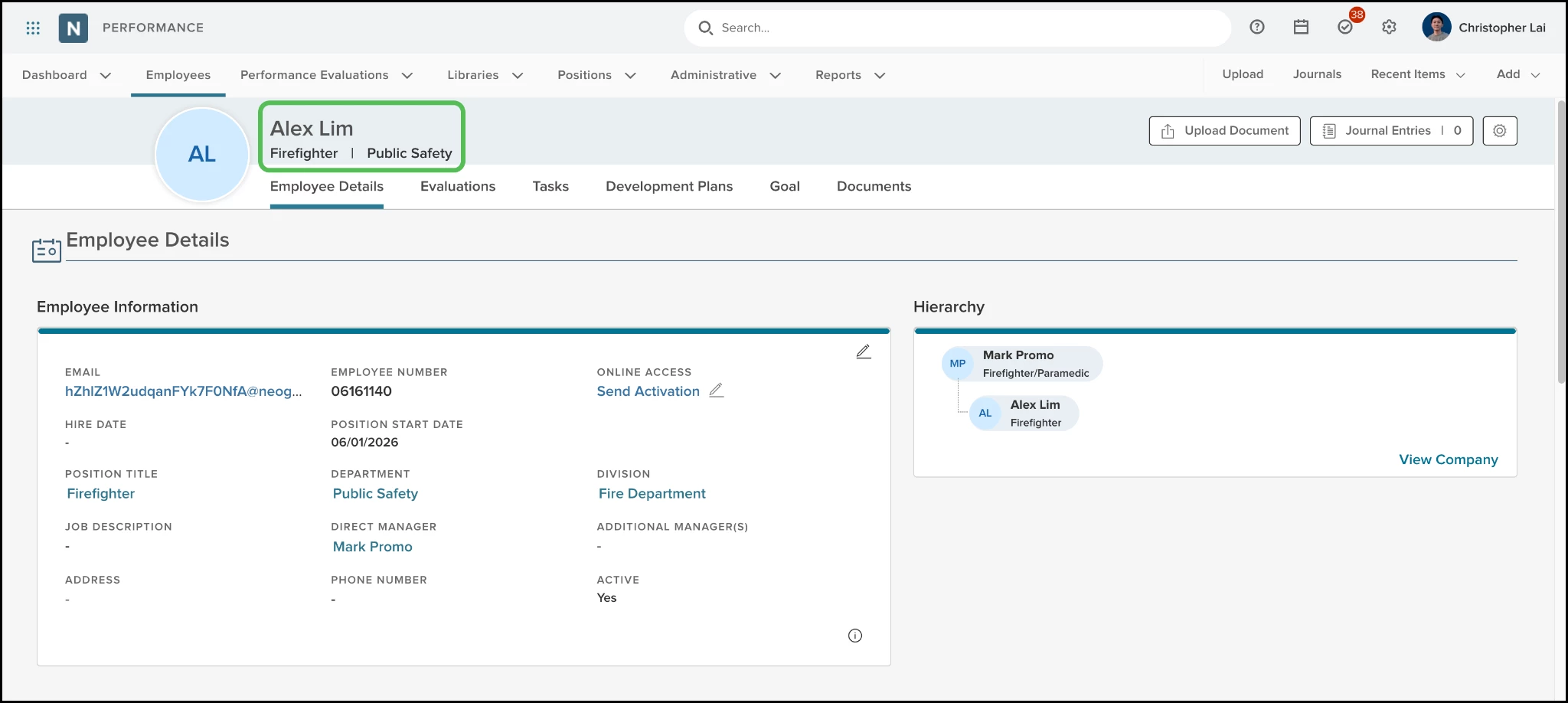
Address employees the way they prefer across Perform when preferred names are defined. Moving forward, you will automatically see an employee’s preferred name anywhere their first name is shown. This helps managers and HR communicate more respectfully and consistently.
Example
A manager sees Alex (preferred) instead of Alexandria (legal first name) in employee lists and evaluation-related screens.
How it Works
View employee names across Perform.
- If an employee has a preferred name, it is shown in place of their legal first name. If the employee does not have a preferred name, you will continue to see the legal first name.
- Signature generation in Perform will use the preferred name as well.
- Headers and labels still read First Name (only the displayed value changes).
Notes
Existing exported file names created before this enhancement (Evaluations, Development Plans, EDMS document exports) do not change because they are stored as static string values.
We’ve also updated the Evaluation API documentation. The API response will now show Preferred Name in the /rest/evaluations response after lastname and before employeenumber. API admins are assumed to have the permission to view the preferred and legal first name.
Value
By consistently showing preferred names across key workflows, we improve the employee experience by reducing instances of misnaming.
Audience
Managers and HR staff.
Customizable Title and Description for Rating Tasks
Improve the clarity of your evaluation process by personalizing the titles and descriptions of rating tasks. This update allows you to clearly distinguish between different types of ratings. This makes tasks easier for participants to identify, and improves the detail in your reports.
Example
An administrator can make it clear to employees whether a rating task is a self-rating, and can provide specific requirements depending on that rating task.
How it Works
- Open a rating task when creating or editing a program.
- If desired, enter a custom name in the Title field (maximum 200 characters). The default value for the field is Rating For [Employee Name]'s [Evaluation Name], and supports tokens for automatic naming.
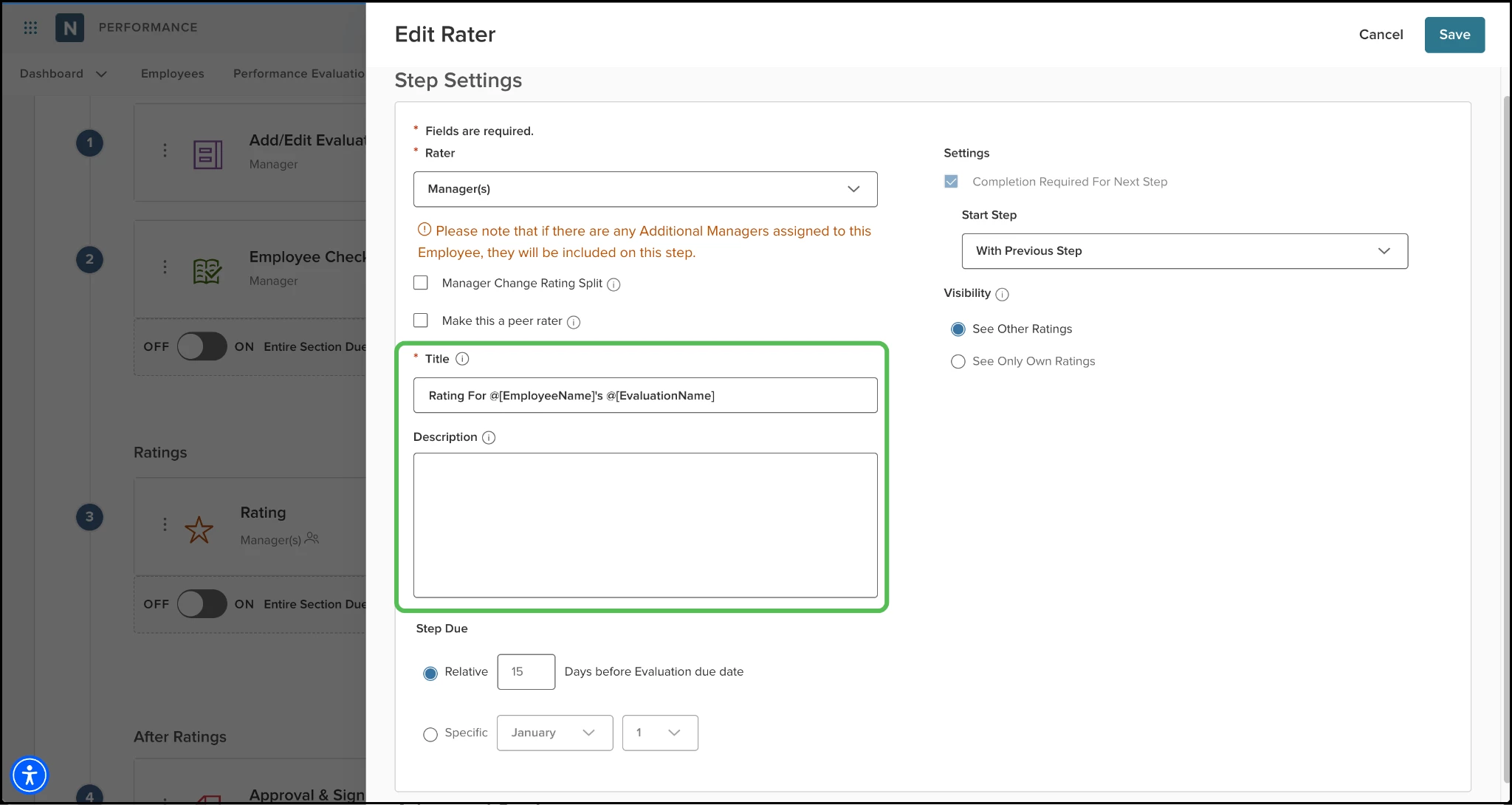
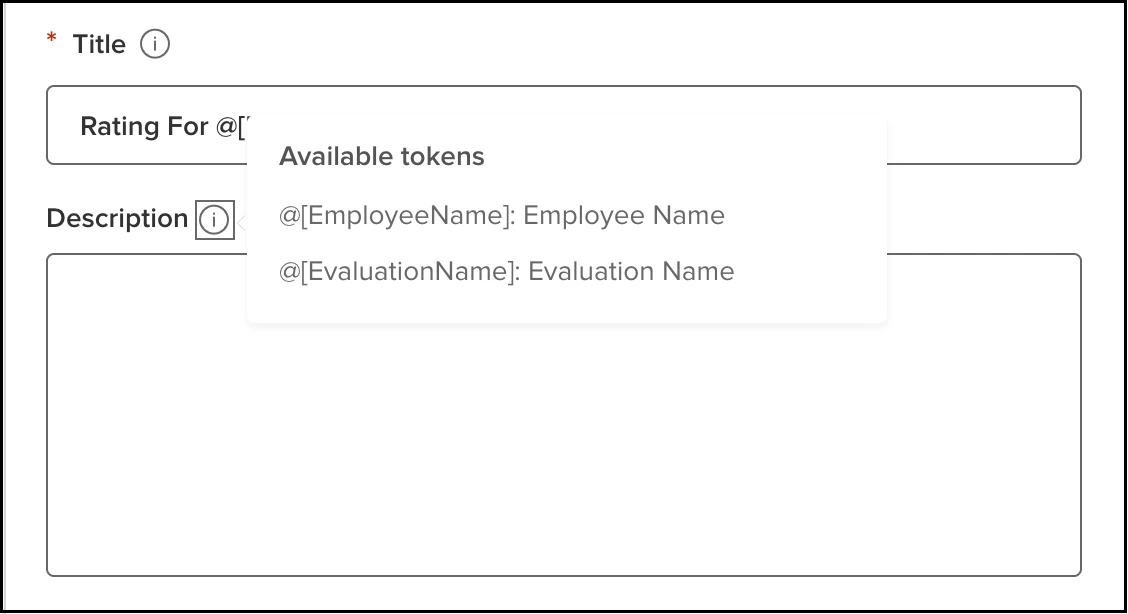
- Add optional instructions or context in the Description field (maximum 1,000 characters).
- Select Save to apply changes to the rating task definition.
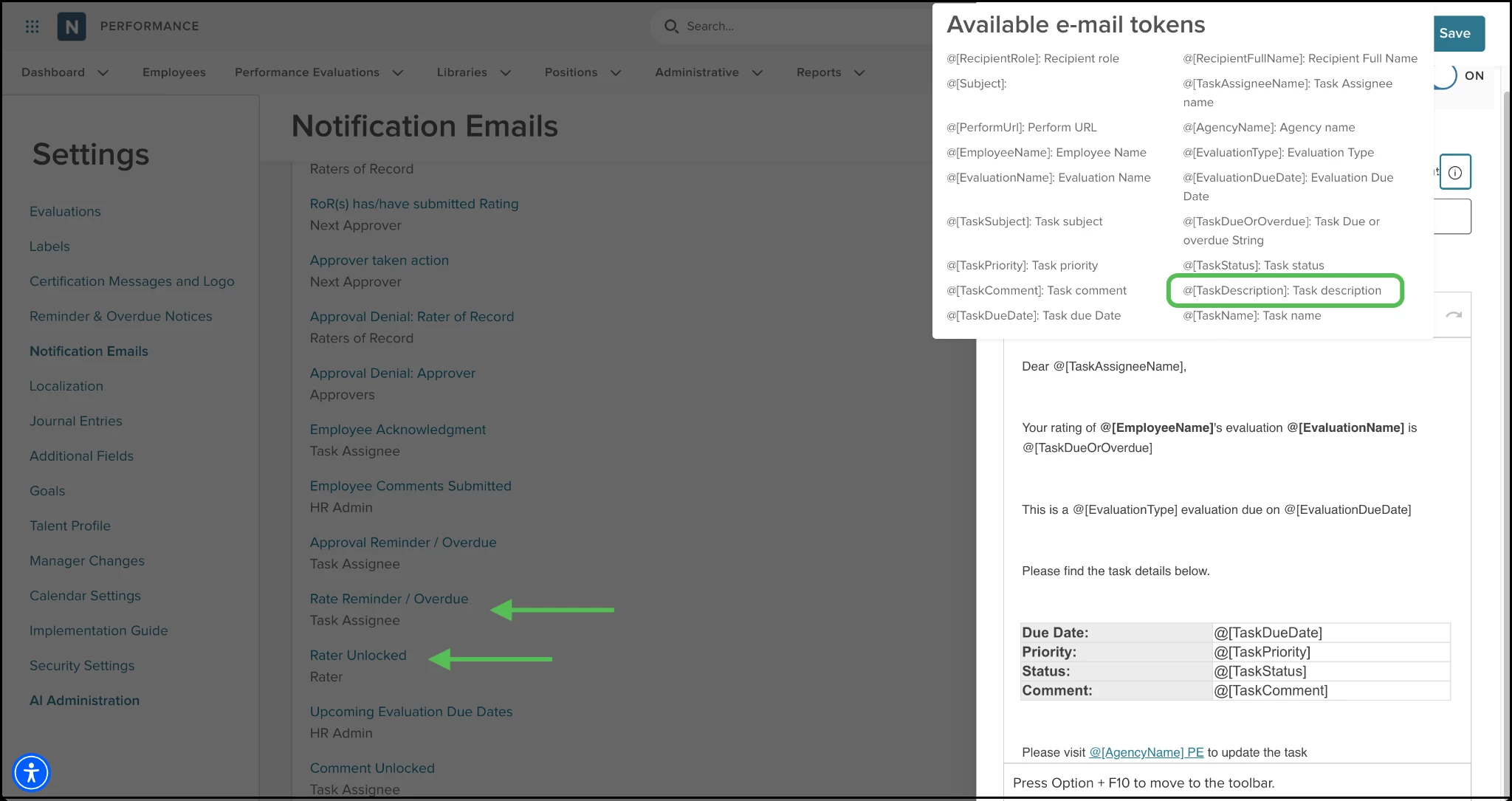
- Use the Task Description token in email notifications, such as Rate Reminder or Overdue notices or the Rater Unlocked notification, to automatically include your custom description.
- On your Perform Evaluation Status Detail Report, use the Current Step Description column to see this detail as needed. This optional column has also been added to the Perform Evaluations report type in Analytics and Reporting’s Report Builder.
Note: Updates to titles and descriptions only apply to newly created evaluations. Updates to an evaluation program will not modify existing tasks that are already assigned, completed, or cancelled. For evaluations that are paused, you can edit the title and description of active rating tasks.
Value
Enhances user experience and reporting accuracy by providing clear, context-specific labels and instructions for every rating step.
Audience
Administrators.
Undo Cancel Evaluations and Reason Provided Field
Restore accidentally canceled evaluations and track the reasoning behind these changes to maintain accurate records of your agency’s evaluations. HR administrators and HR users can now take the Undo Cancel action, which was previously restricted to NEOGOV customer support. Additionally, a new field has been added on the cancel and undo cancel screens so that context can be provided for both cancelling and restoring evaluations.
Example
An HR admin can restore an evaluation canceled by mistake, ensuring the employee's performance review continues without starting over.
How it Works
- Open a cancelled evaluation and select the Undo Cancel from the Evaluation Details page.
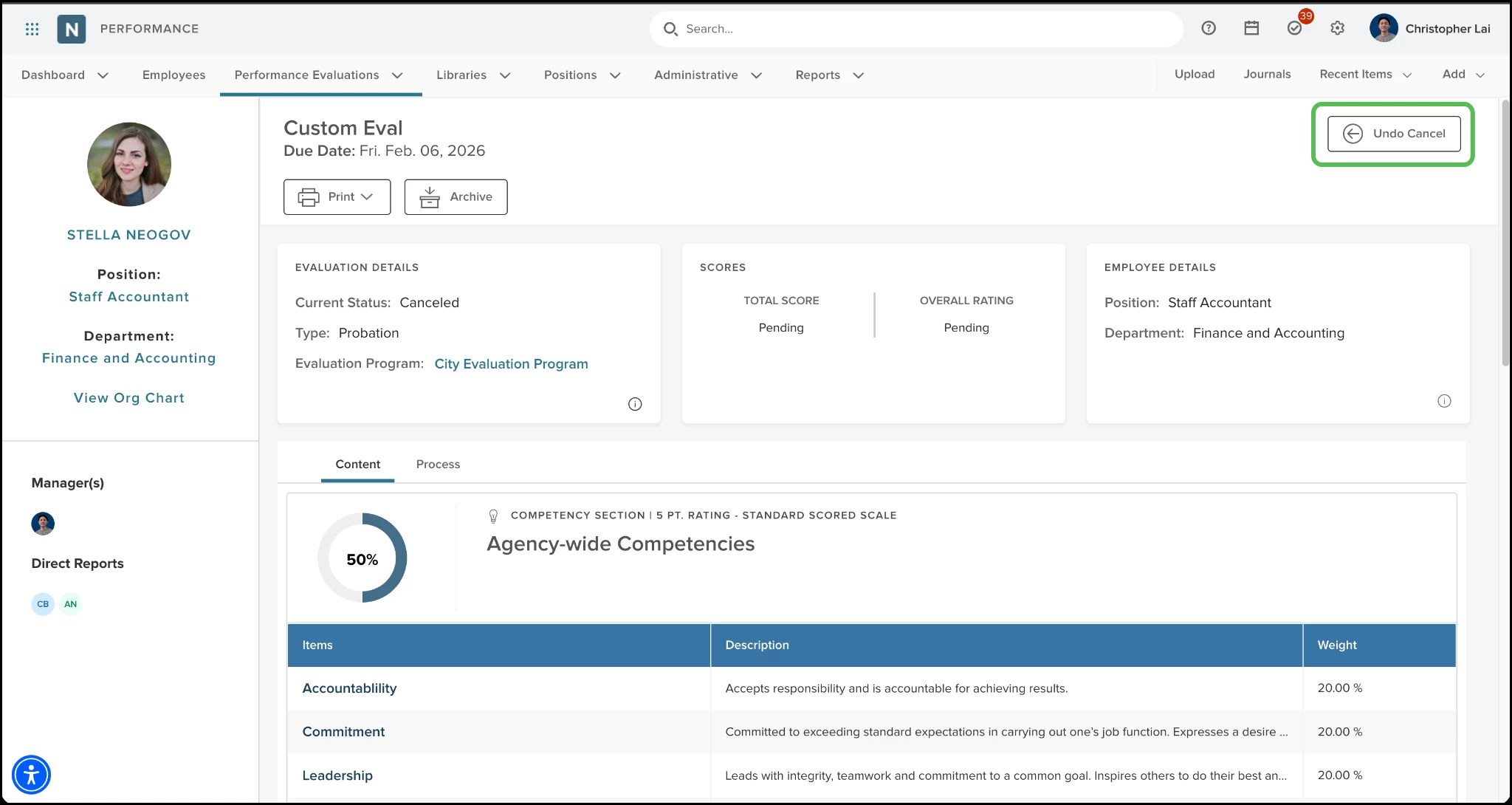
- Review the warning popup outlining limitations for restored evaluations, such as unlinked goals or disabled survey functionality.
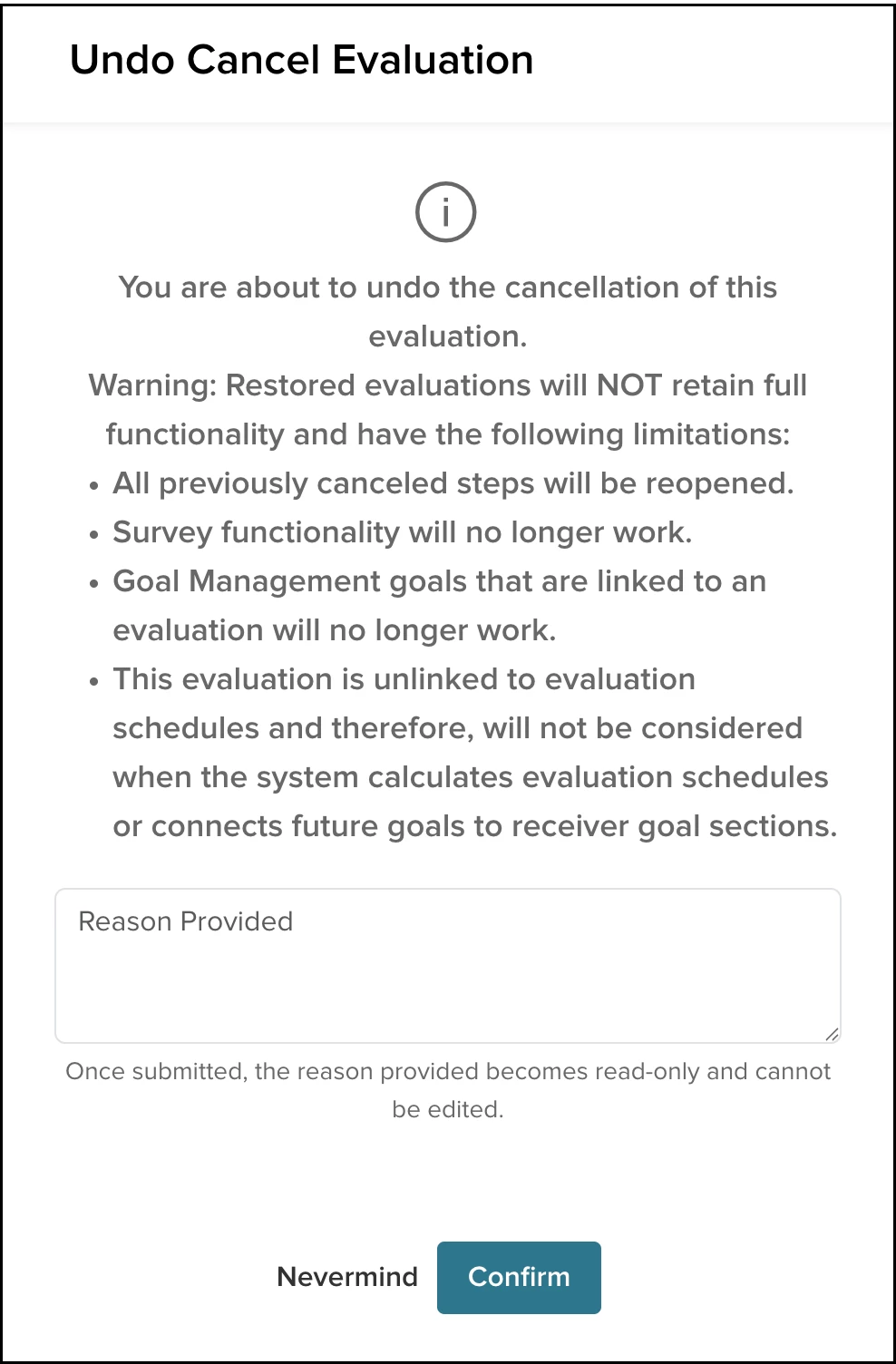
- Enter optional context in the Reason Provided field (maximum 100 characters).
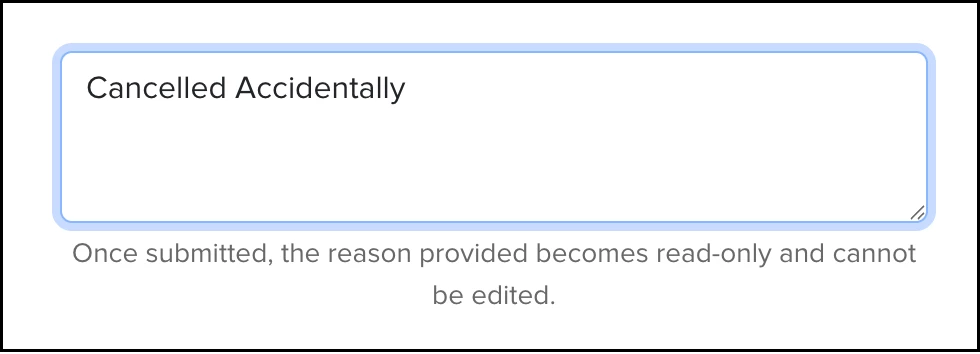
- Select Confirm to reopen all previously canceled steps and update the evaluation status.
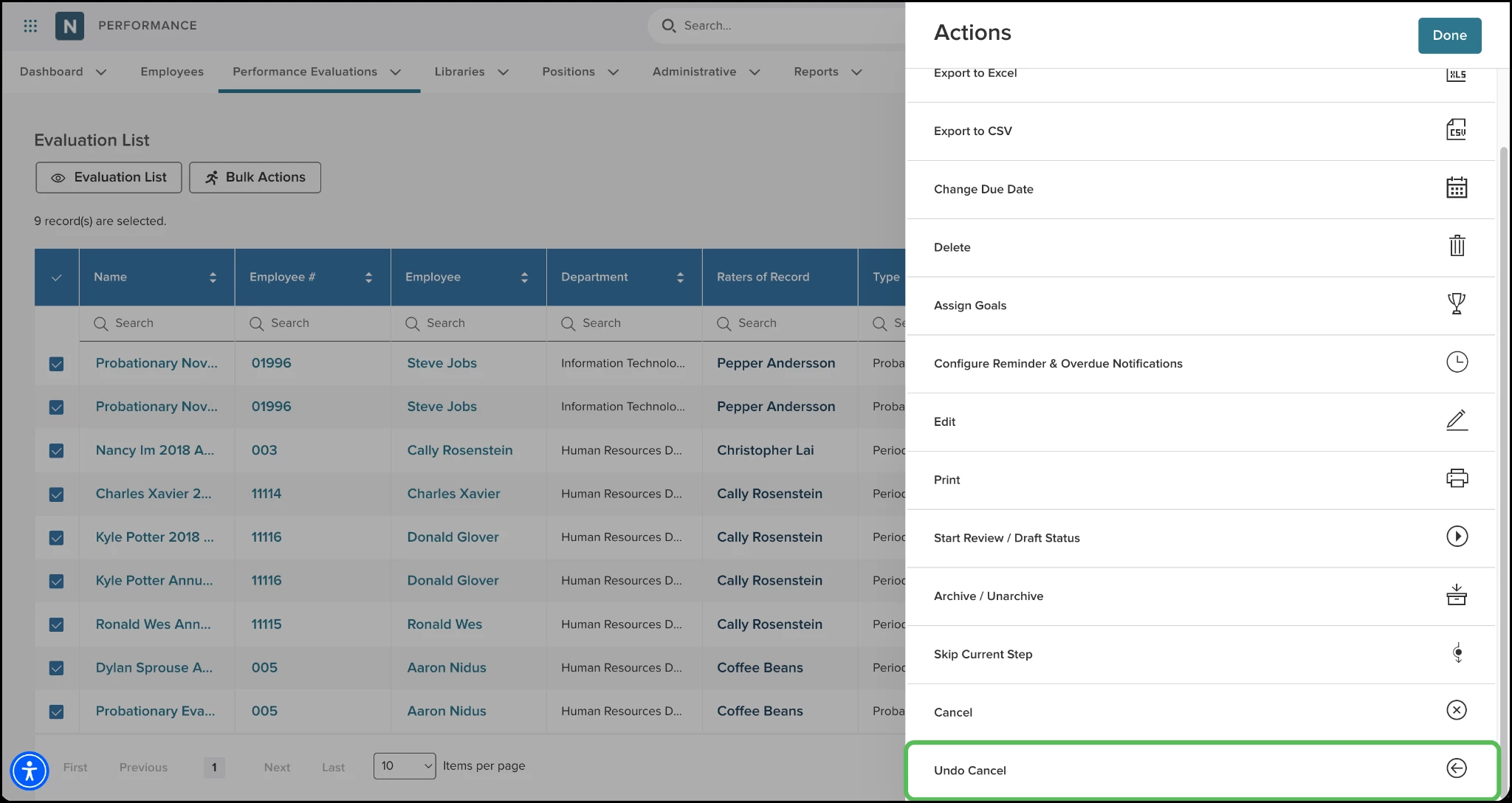
- Please note that bulk undo cancel evaluations is also supported from the Evaluation List.
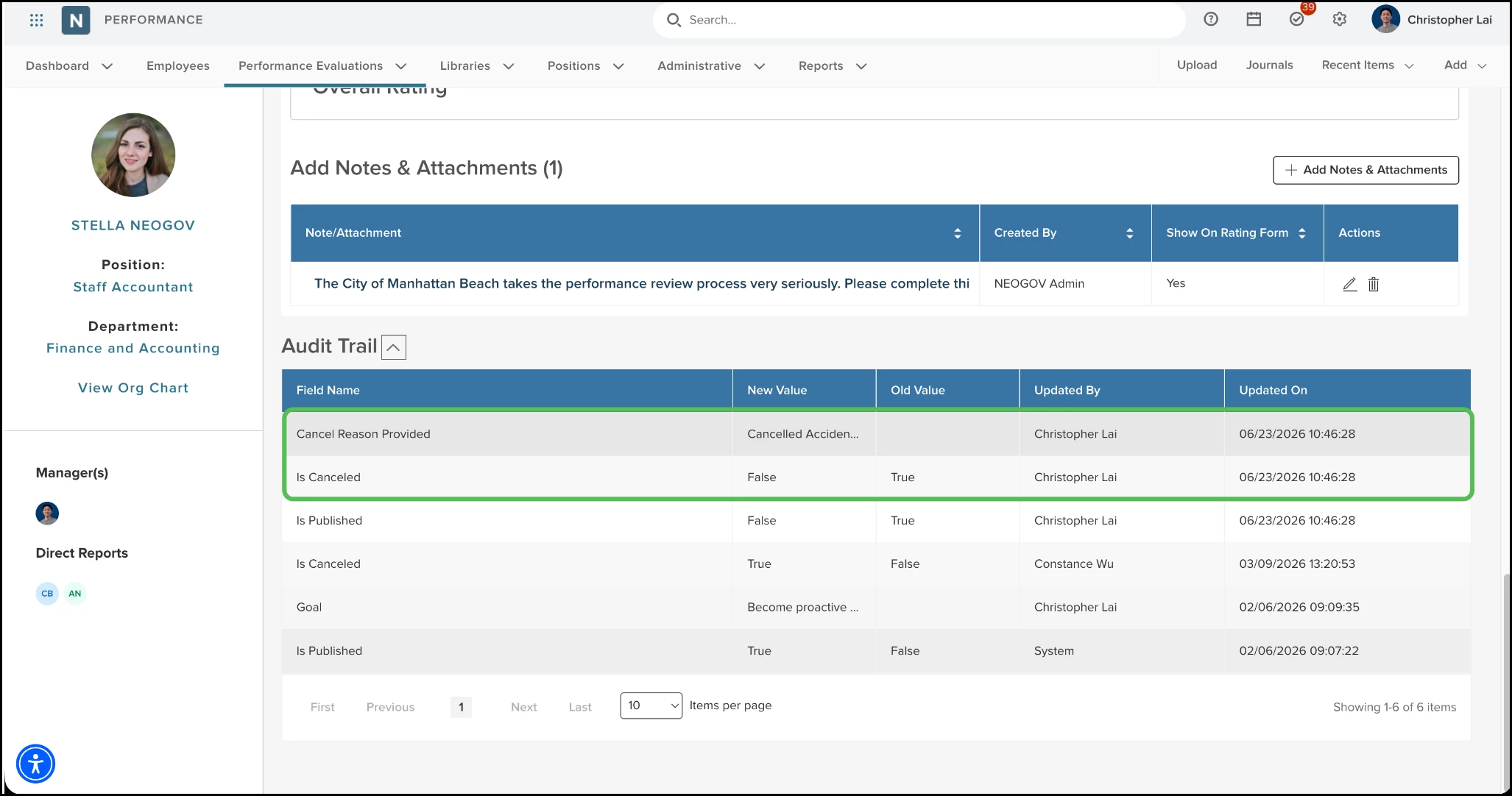
- View the recorded Reason Provided value in the Evaluation Audit Trail. You can also include the Reason Provided column in the Evaluation Status Detail Report in Perform as well as in the Perform Evaluations and Rating Item report types in Analytics and Reporting’s Report Builder.
Notes
Restored evaluations will not retain full functionality.
- Surveys are not supported on restored evaluations.
- Goal Management goals that are linked to a restored evaluation will not work.
- Restored evaluations are unlinked from the evaluation schedule and will not be considered when the system calculates future evaluation schedules, or connects future goals to receiver goal sections.
If an evaluation is automatically canceled due to employee termination, the system automatically populates the reason as, “This evaluation was cancelled by the system due to the employee being terminated”.
Setting to Allow HR Users to View Upper Hierarchy’s Rating Info
Maintain organizational confidentiality by controlling whether HR users can view rating information and comments from their own reporting hierarchy. This new permission ensures that sensitive evaluation data remains restricted based on internal privacy standards.
Example
An HR administrator can hide a department manager’s ratings from an HR specialist who reports to that manager, preventing potential conflicts of interest.
How it Works
- Navigate to Perform Settings > Evaluation > Permissions.
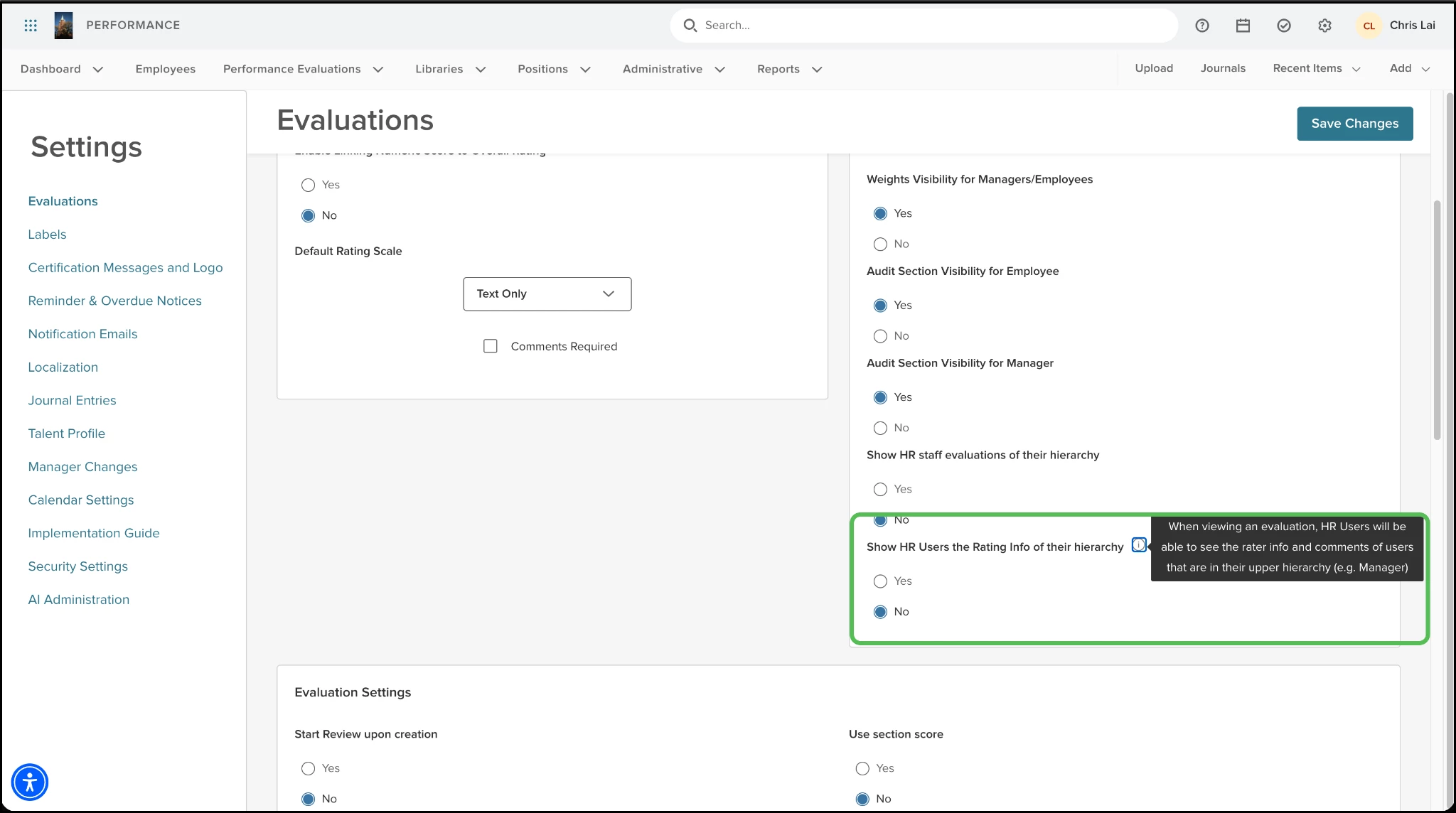
- Locate and select Yes or No for the setting Show HR Users the Rating Info of their hierarchy.
| Condition | Outcome |
|---|---|
| Setting is No (Default) | The HR user cannot see rater info, ratings, and comments for their upper hierarchy. |
| Setting is Yes | The HR user can see rater info, ratings, and comments for their upper hierarchy. |
Exception
If the HR user is viewing their own evaluation, then they can see ratings from their upper hierarchy unless the program settings has the section explicitly hidden from employees (Always hide this section from Employee is true).
Value
Protects sensitive performance data and maintains professional boundaries by preventing conflicts of interest for HR staff who report to the managers being evaluated. Agencies have the freedom to grant HR users more access if needed.
Audience
Administrators.
Refuse to Sign Tracking for Task Status Report
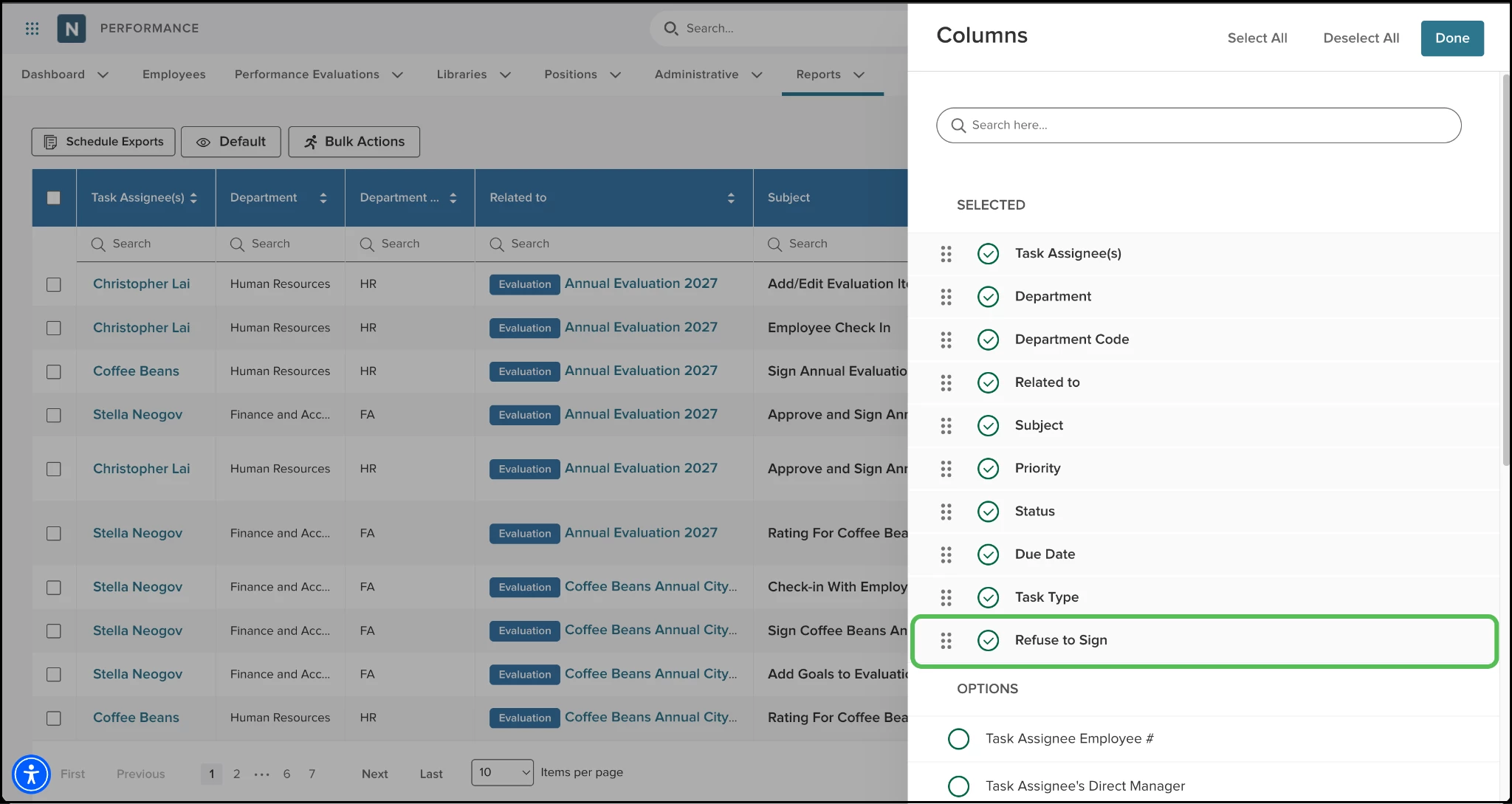
Identify evaluations where employees declined to sign directly from your reports, ensuring better visibility into compliance and signature status. The Task Status Report now includes a Refuse to Sign column.
Example
An HR administrator can quickly filter the Task Status Report to see which employees refused to sign their annual performance reviews.
How it Works
Add the Refuse to Sign column to the Task Status Report grid. The column is also added to the Perform Tasks report type in Analytics and Reporting’s Report Builder.
These are the possible column values.
- Yes - the employee refused to sign.
- No - the employee signed.
- Blank - the task is either not a signature task or is not yet completed.
Value
Improves compliance monitoring by centralizing signature refusal data.
Audience
Administrators.
Evaluation Programs, Development Plan Lists Shortcut
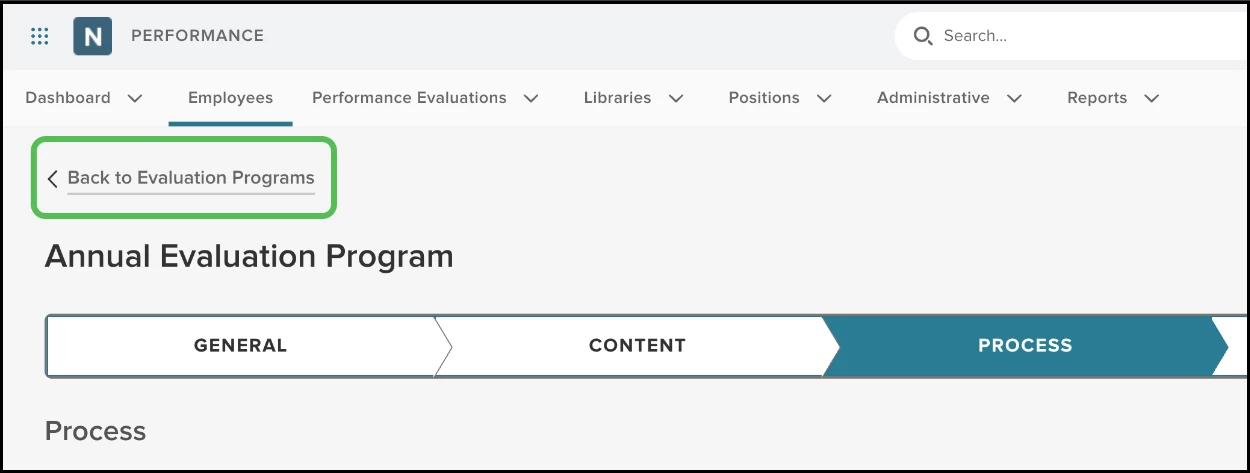
Navigate quickly between program details and your main lists with new shortcut links, reducing the time spent using menu dropdowns.
Example
An HR admin editing an evaluation program can select a single link to return to the full list of evaluation programs instantly.
How it Works
Locate the Back to Evaluation Programs or Back to Development Programs link at the top-left of the program page. Select the link to return to the respective program list.
Value
Improves administrative efficiency by providing a direct navigation path, eliminating repetitive menu clicks.
Audience
Administrators.
Appendix: Bugs Resolved
No additional bug fixes outside of the maintenance releases. Refer to the maintenance release notes for details.
Related Resources