



Perform Spring 2026 Release Notes
Article Links
Timeline
When will this be released?
UAT Availability
- AI Summary and Writing Assistants for Rating Forms: Not available in UAT or for Canada agencies
- Improvements to Manager Change Automation: April 8, 2026
- New Autoshare Journal Entries Setting: April 2, 2026
- UI Updates to Editing Journal Entry Settings: April 2, 2026
- All Survey Usability Enhancements: April 2, 2026
Production Availability: April 30th, 2026, 4 AM PDT.
Is there downtime for this release?
No.
AI Summary and Writing Assistants for Rating Forms
With this release, you can now streamline your performance evaluations with enhanced AI-powered summaries in the rating form. When enabled by an administrator in the Settings page of Perform, the new AI summary feature helps raters efficiently summarize thoughts and resources. Additionally, an AI writing assistant is available in the rating form’s comment boxes to help check spelling and grammar, rephrase or elaborate text, and more.
Example
A manager preparing a performance review can add specific context notes, generate an AI summary, and insert it directly into the comment box, ensuring a thorough and efficient evaluation.
How it Works
Please note that this feature is opt-out, in other words, it is enabled by default. If desired, an HR admins can disable the AI summary feature in the Settings page of Perform.
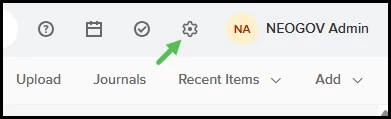
- Click the gear icon to open the Settings page.
- Click AI from the left navigation.
Note: At this time, this setting controls both the AI summary and writing assistant features on the rating form. A setting specific to the writing assistant is in development and will be released at a later time.
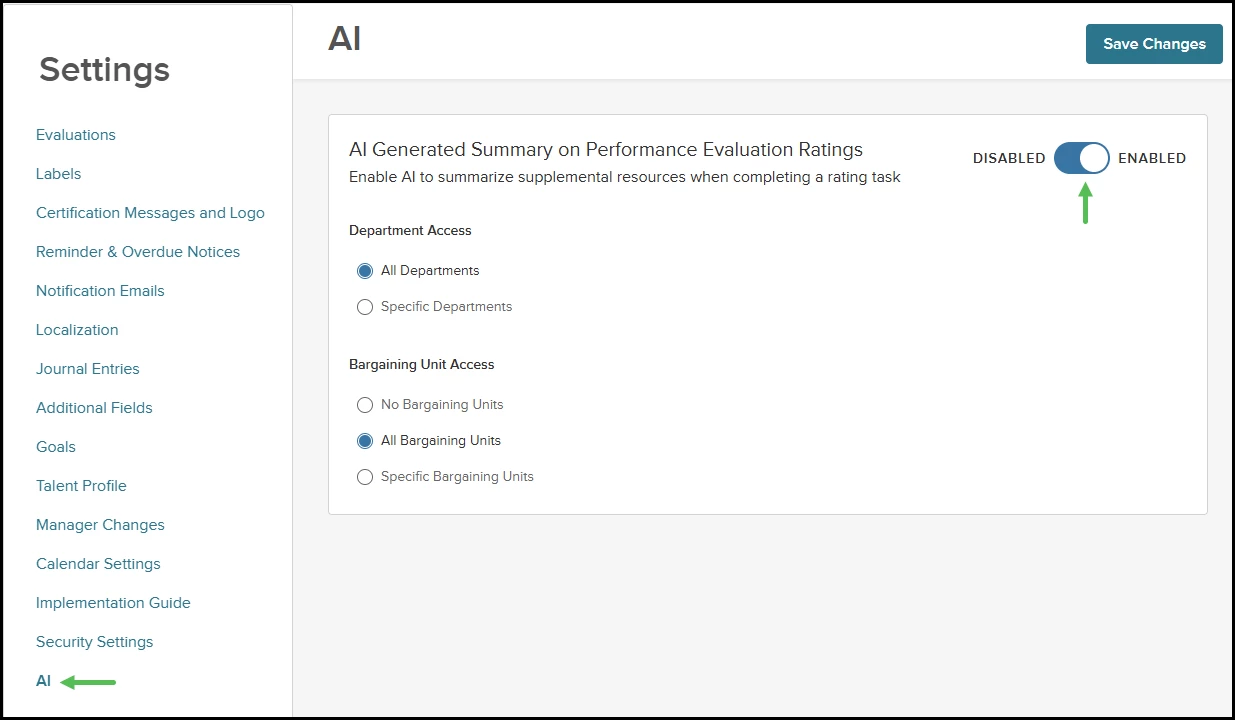
- Make selections for these options.
- Allow for all or specific departments.
- Allow for all, specific, or no bargaining units.
- Click Save Changes.
Once enabled, open the rating form for an active evaluation. The rating form’s right-side panel has been reorganized into three tabs: AI Help, Resources, and Rating Guide.
- The AI Help tab only appears if the rating form’s AI features have been enabled via Perform settings.
- The Resources tab continues to offer access to Reviewer Entries, Journal Entries, and Check-in Entries.
- The Rating Guide tab contains what were previously known as Perform’s “Writing Assistants” and provides guidance for completing ratings. This label update is reflected across Perform to ensure that two features will not have the same name.
In the AI-Help tab, you can create summaries for the current section of the evaluation that is shown. Click Summarize to view the AI acknowledgement, and then click Continue to proceed.
AI summaries will pull from the following areas and are specific to the current section of the evaluation.
- Previous reviewer entries on the program.
- Related check-ins for the evaluation.
- Journal entries for the target employee created within the past year.
- Context notes added under the External Context section of the AI Help tab.
Raters can add context notes of up to 5000 characters to guide the AI summary.
After creating an AI summary, click Use AI Suggestion under the comment box to add the relevant portion of the summary into the comment box below any existing text. The AI writing assistant is also integrated into the comment box.
If needed, you can click Copy in the AI Help tab to copy the entire summary.
Notes
- The AI summary and writing assistant are enabled by default. An admin can disable them for the agency in the Settings > AI section of Perform.
- Added context is used only for creating summaries and is not stored on the employee record.
- AI summaries need to be generated per evaluation section, and external context provided in one section only impacts the summary generated for that specific section.
Value
Reduces time spent on evaluations and improves the quality and consistency of performance feedback.
Audience
Administrators, managers, and employees.
Manager Change Enhancements
Improvements to Manager Change Automation
With this release, you can keep evaluation workflows up to date automatically when managers change, reducing manual task reassignment. The Manager Change feature now reassigns tasks for managers, manager’s manager, and nth-level managers.
Example
When a supervisor leaves and a new one is assigned, both the direct manager and higher-level approval steps in evaluations may be automatically updated to reflect the new reporting structure.
How it Works
- Enable Auto-Reassign Tasks for Manager Changes in Settings > Manager Changes.
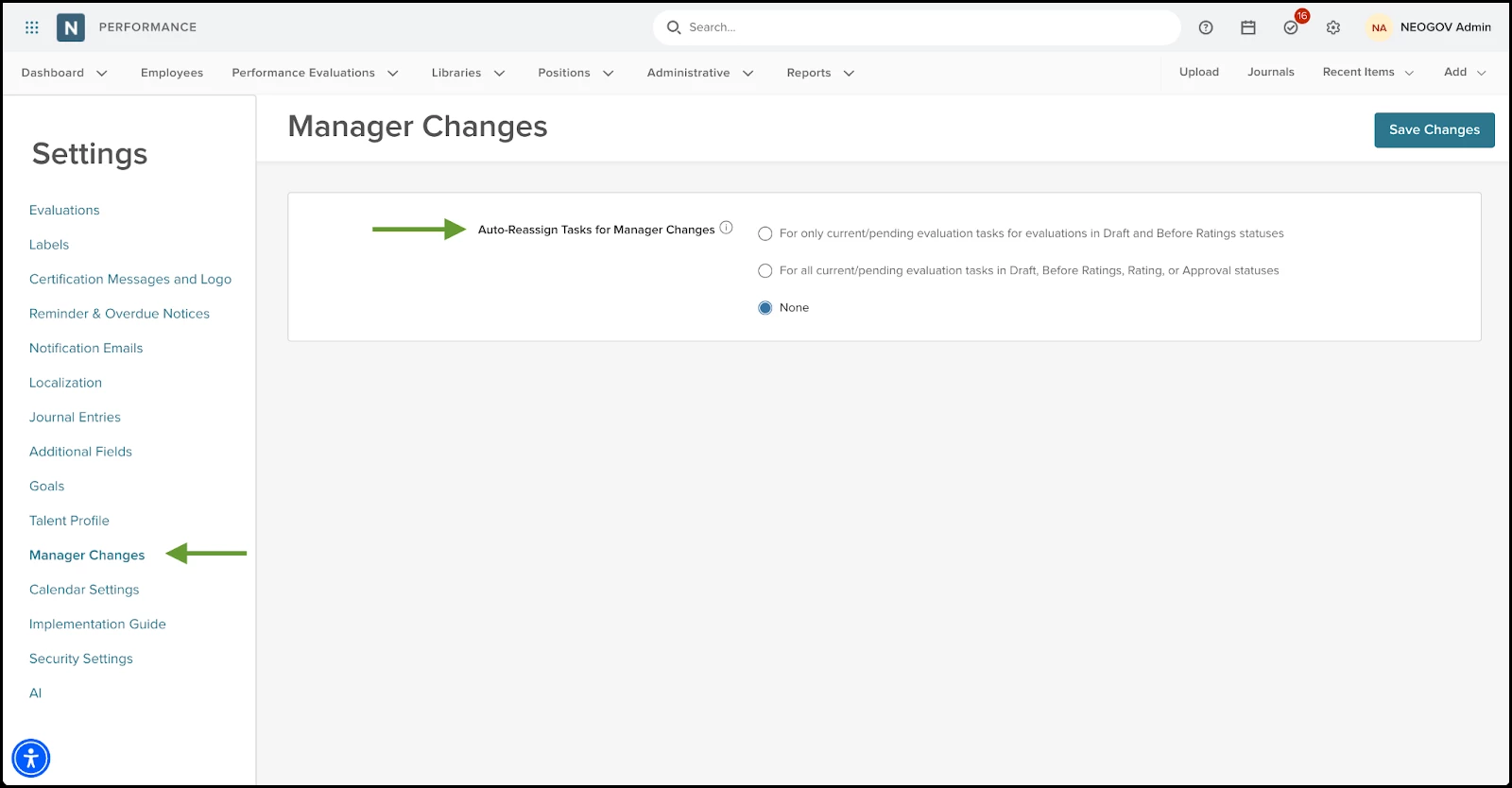
- When a change is made to an employee’s reporting hierarchy, Perform checks the entire hierarchy and reassigns tasks to the correct managers based on the setting selected. Tasks assigned to a hierarchy chain are the exception and will not be affected.
- Applies to direct managers, managers’ managers, and all levels in the hierarchy chain.
Notes
This feature will immediately work for tasks assigned to managers and manager’s managers. For tasks assigned to other manager levels, only evaluations created after this release will be covered by this new feature.
Tasks are not created for managers who do not exist at the time you create the evaluation. If you create an evaluation and the program has a task assigned to the manager role, but the target employee does not currently have a manager, the task is not created. This is existing behavior and has not changed.
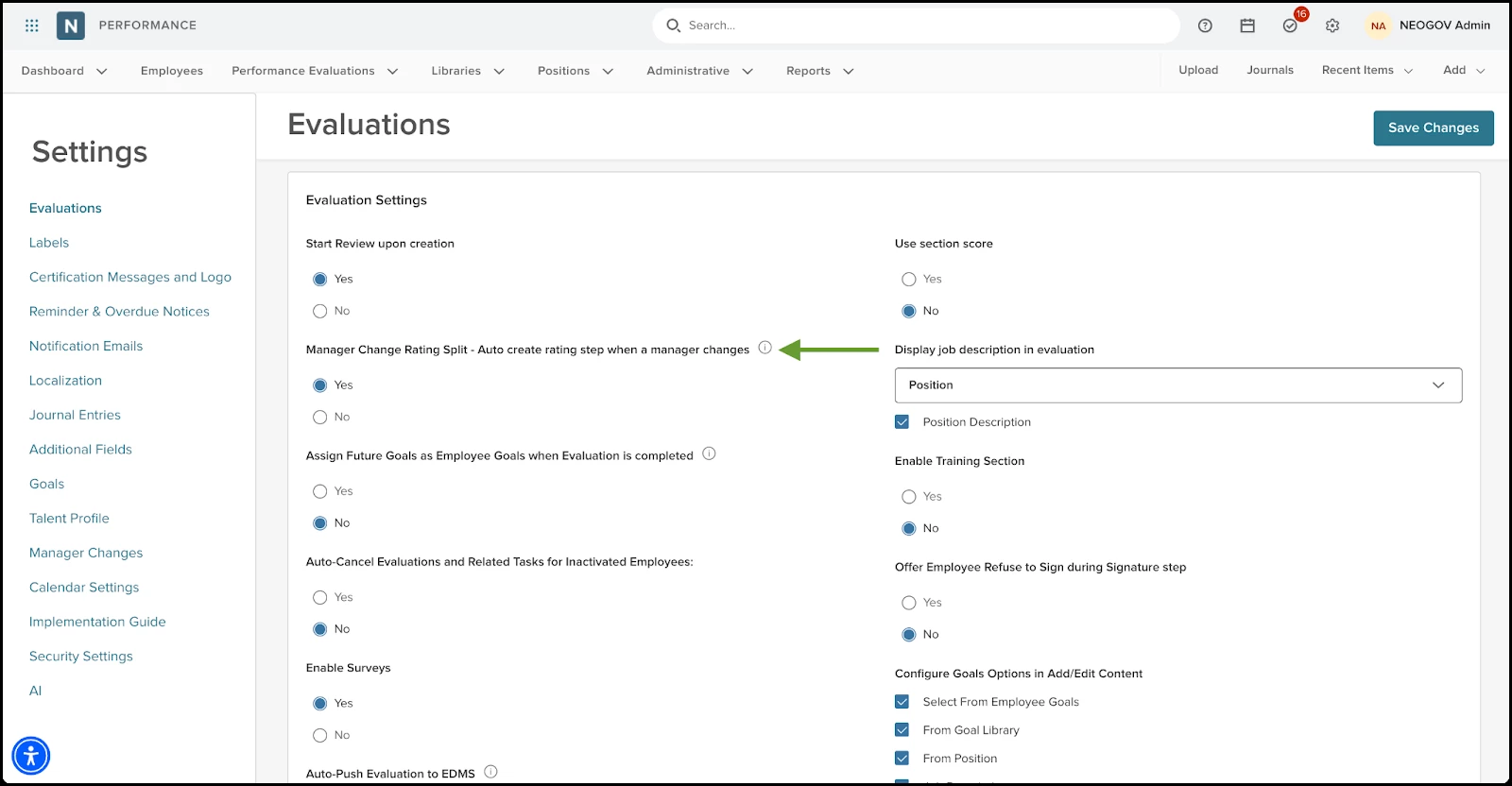
We’ve relabeled the setting “Enable automatic creation of rating step when manager changes” to “Manager Change Rating Split - Auto create rating step when a manager changes”. If this feature is enabled, manager rating tasks will not be auto-reassigned. This is existing behavior.
If Manager Change Rating Split is disabled and a rating task is created for a manager, when additional managers are added later, then the rating task assigned to the manager will be updated to be assigned to the manager group. If the additional managers are removed later, then the task becomes assigned only to the direct manager.
Value
Reduces manual admin work and ensures evaluation workflows always match the current org chart.
Audience
Administrators, and HR staff.
New Autoshare Journal Entries
With this release, you can automatically share journal entries with new managers when reporting relationships change, ensuring continuity of information. The new Autoshare Journal Entries with New Managers setting gives you this level of control without additional manual steps.
Example
If an employee’s manager changes, journal entries previously shared with the old manager can be automatically shared with the new manager, so nothing is missed.
How it Works
- Go to Settings > Journal Entries.
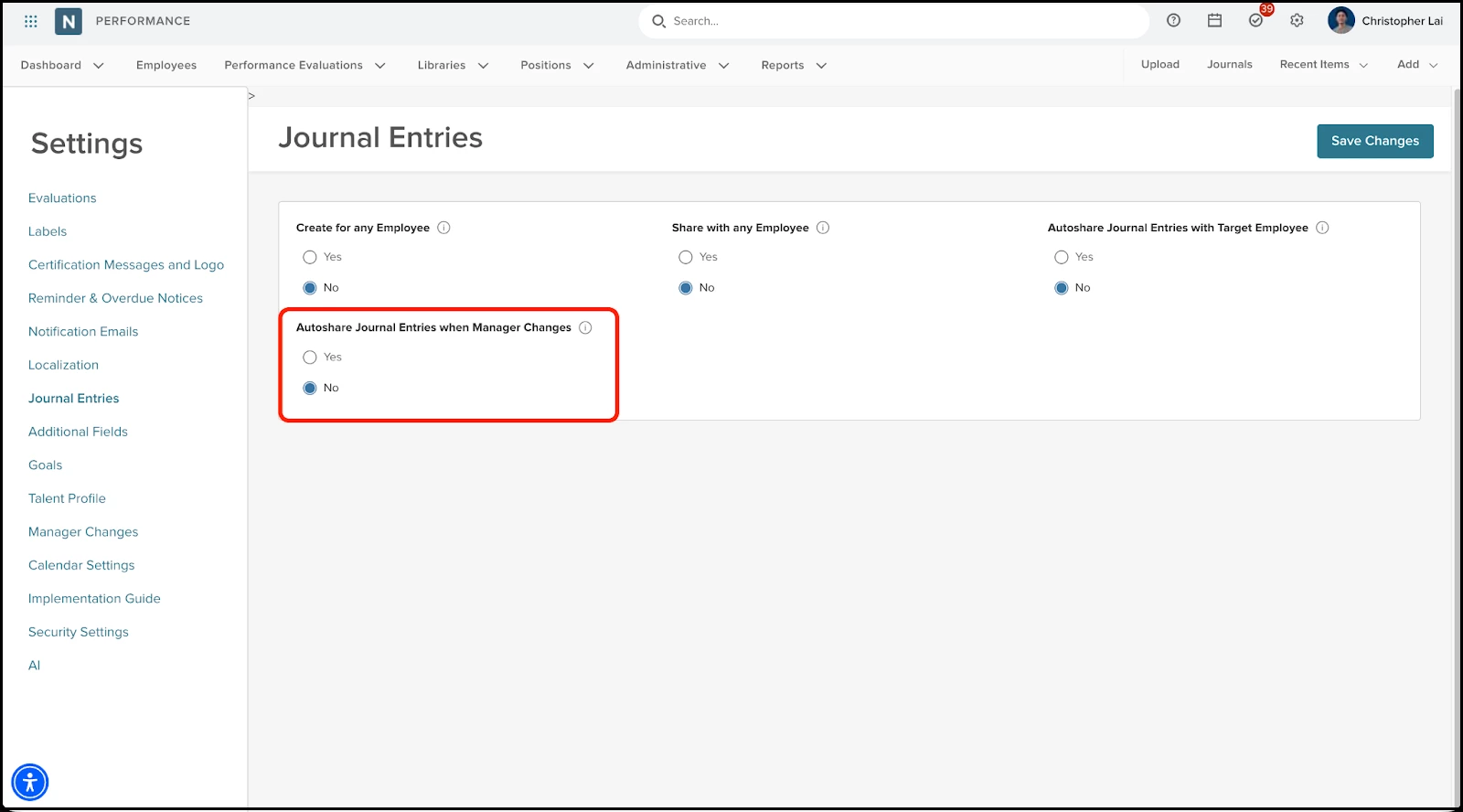
- Set Autoshare Journal Entries with New Managers to Yes or No. The default setting is No.
- If set to Yes: When a manager or manager’s manager changes, all journal entries previously shared with them are also shared with the new manager(s).
- If set to No: Journal entries remain shared only with the previous manager(s); new managers do not get access automatically.
- If a journal entry was shared with a manager(s) or manager’s manager, then previous managers retain access to journal entries they were shared with even after a change of reporting relationships.
Notes
- Only applies to journal entries created after this feature is enabled.
- Entries that the previous manager wrote about the target employee are not automatically shared with the new manager. This is controlled by a separate setting configured by our customer support team.
Value
Ensures new managers have access to relevant journal entries without the need for manual sharing.
Audience
Administrators and HR staff.
UI Updates to Editing Journal Entry Settings
With this release, you can easily manage who can view journal entries with improved sharing controls and clearer options. We’ve updated the interface to streamline sharing with managers and specific employees.
Example
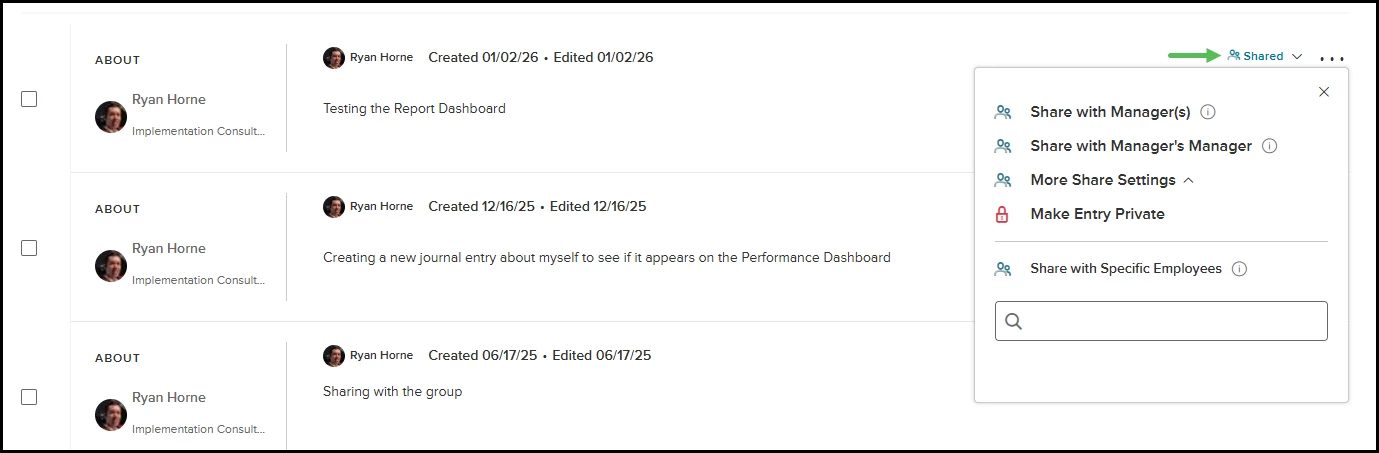
A user can quickly share or unshare a journal entry with the current manager, manager’s manager, or select specific employees, all from a single dropdown.
How it Works
- When viewing or editing a journal entry, use the share settings dropdown to:
- Share/Unshare with Manager(s).
- Share/Unshare with Manager’s Manager.
- Access More Share Settings for advanced options.
- The More Share Settings section allows you to:
- Make the entry private, which removes access from all employees who the journal entry was shared with.
- Share/unshare with specific employees. Note that the current manager(s) and manager’s manager are not shown in the specific employees list or search.
- Hover your mouse over the tool tips to see what each sharing option does.
Notes
When a manager change occurs, the previous managers retain access. Their names will be listed under the More Share Settings as specific employees.
Value
Makes it faster and clearer to control journal entry visibility, reducing confusion and admin effort.
Audience
All Perform users.
Survey Usability Enhancements
With this release, you can ensure survey confidentiality and streamline setup by preconfiguring visibility settings directly in the survey library. You can now define whether respondent identities are hidden and whether results are visible to employees. This removes the risk of accidental settings at launch and helps maintain compliance.
Usability Improvements for Inviting Survey Participants
You can now add survey participants more efficiently when launching a survey on an evaluation. The Invite Participants step features a new grid view with enhanced search options, making it easier to select participants. This update streamlines the process for HR admins, HR users, and managers, helping you quickly build your list of survey participants.
Example
An HR admin can search by position, or paste a list of emails to add multiple participants at once.
How it Works
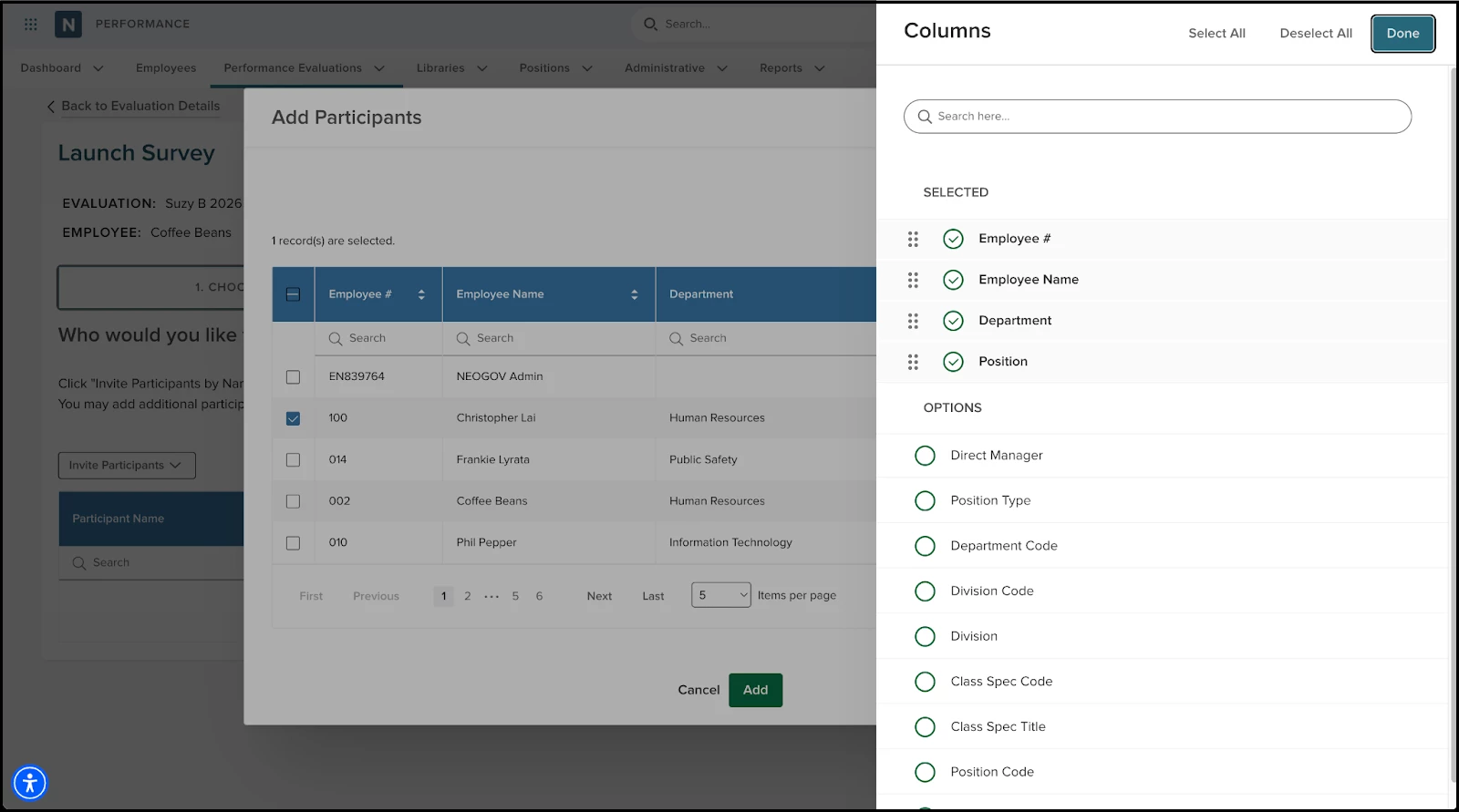
On the Invite Participants step, select Invite Participants and then choose By Name or By Email.
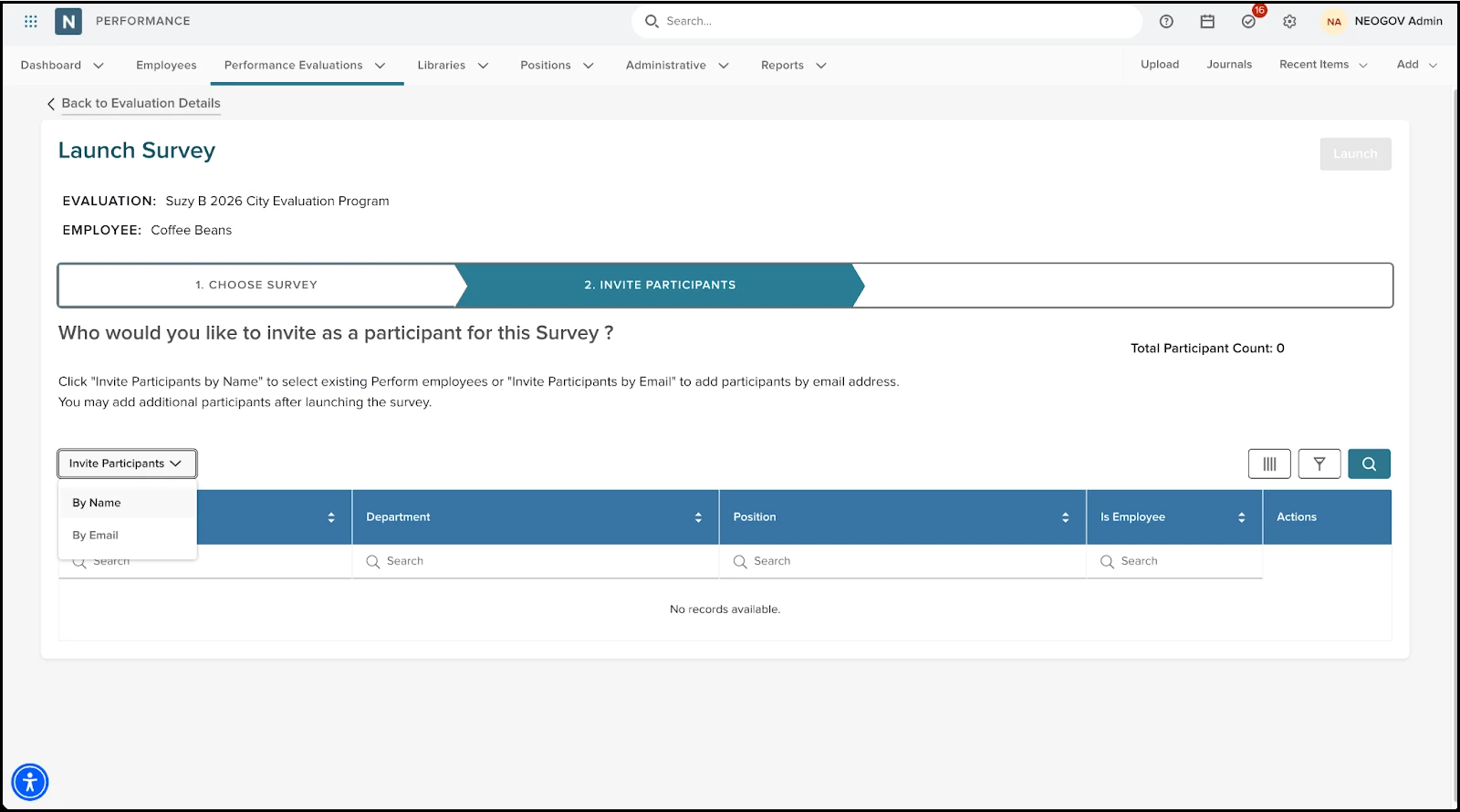
Selecting By Name allows you to view and select employees on a grid.
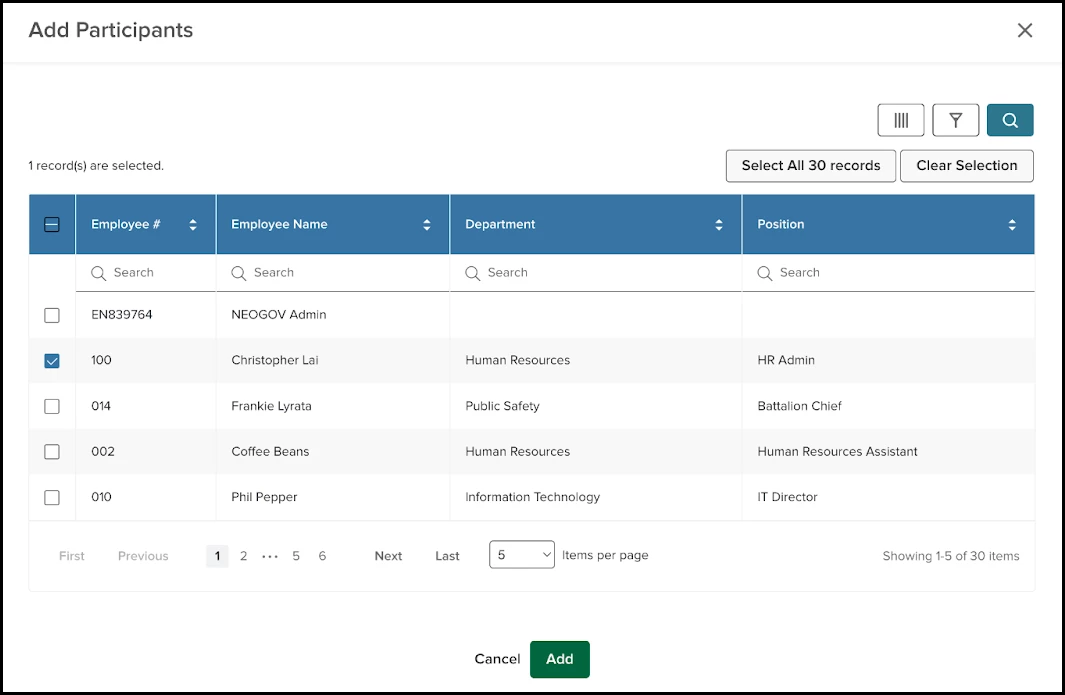
Optional columns provide more information such as direct manager name, position type, division, class spec, and bargaining unit information.
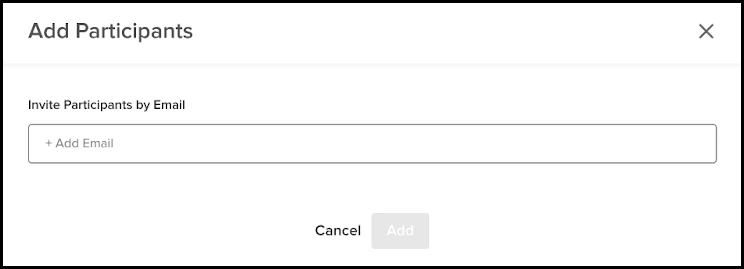
Selecting By Email allows you to invite participants by email. We now support pasting multiple email addresses into the + Add Email field. Use commas or semicolons to separate the emails.
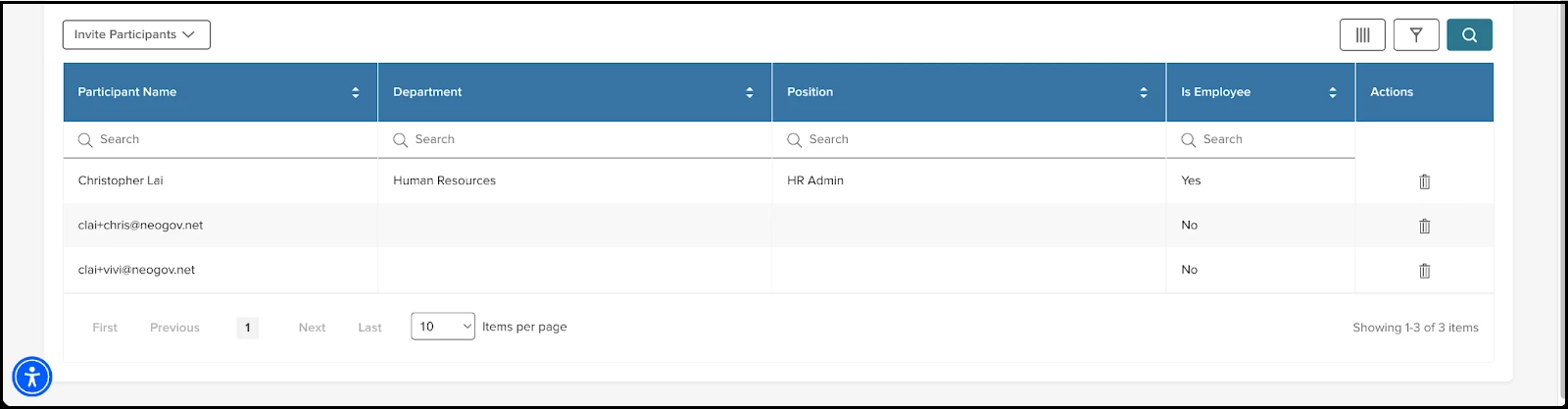
View invited participants in the new grid and sort by Name, Department, Position, or whether the participant is an employee. Additional column options are available to be added and filtering is supported.
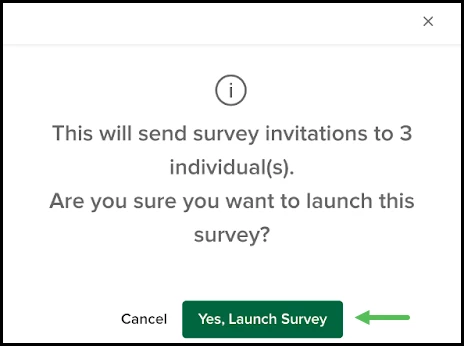
The listed participants will be added once the survey is launched.
Value
Reduces time and effort required to add participants, improving survey setup efficiency.
Audience
HR admins, HR users, and managers.
Launch Survey Flexibility - Add Additional Participants
With this release, you can easily add more participants to an active evaluation survey, giving you greater flexibility and control over your survey process. The new Invite Participants button allows you to invite individuals by name or email, directly from the active survey screen.
Example
A manager realizes a key team member was missed after launching a survey and quickly adds them using the Invite Participants button.
How it Works
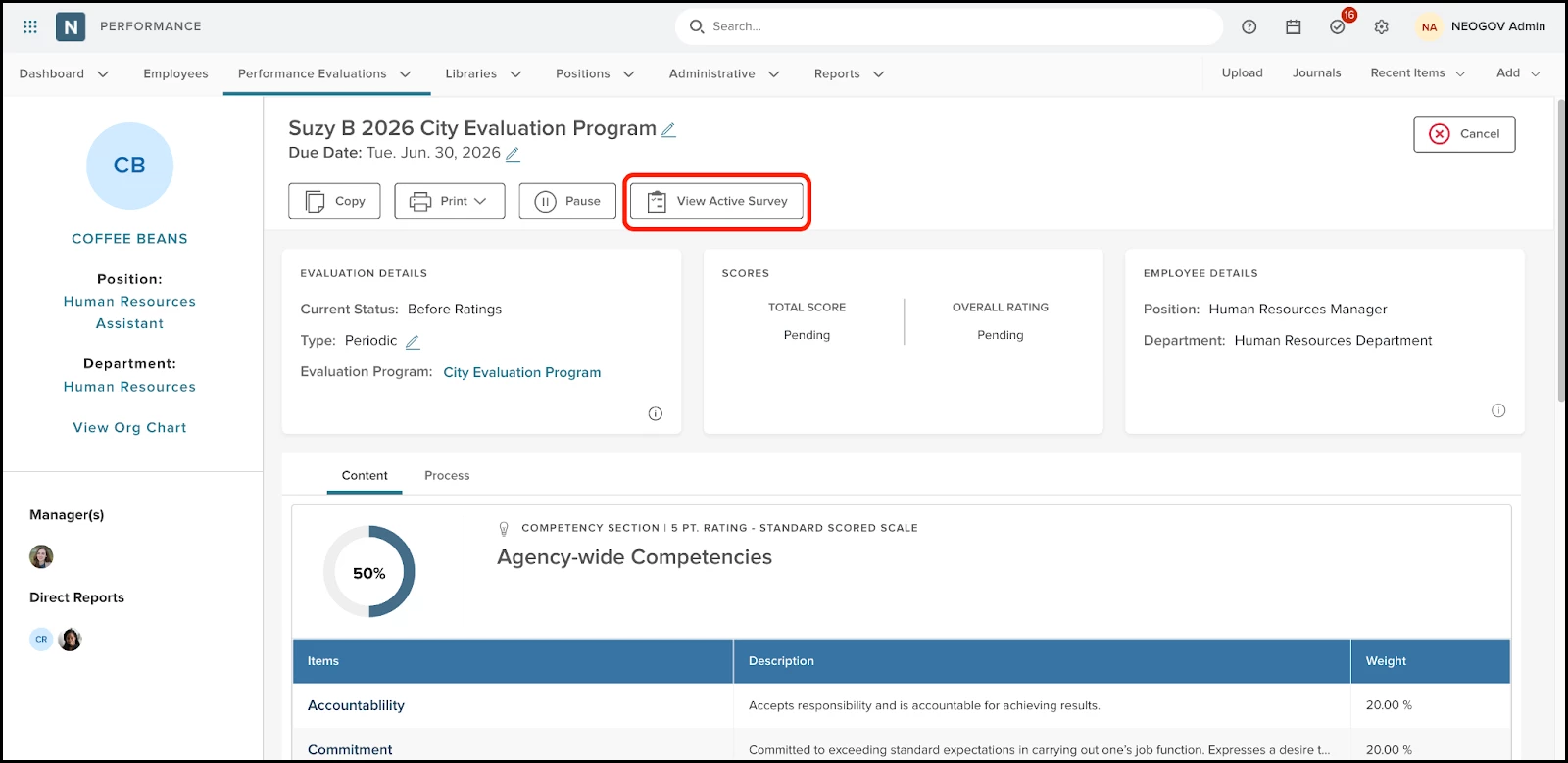
Go to an evaluation then click View Active Survey.
Click Invite Participants at the top left of the survey participants table.
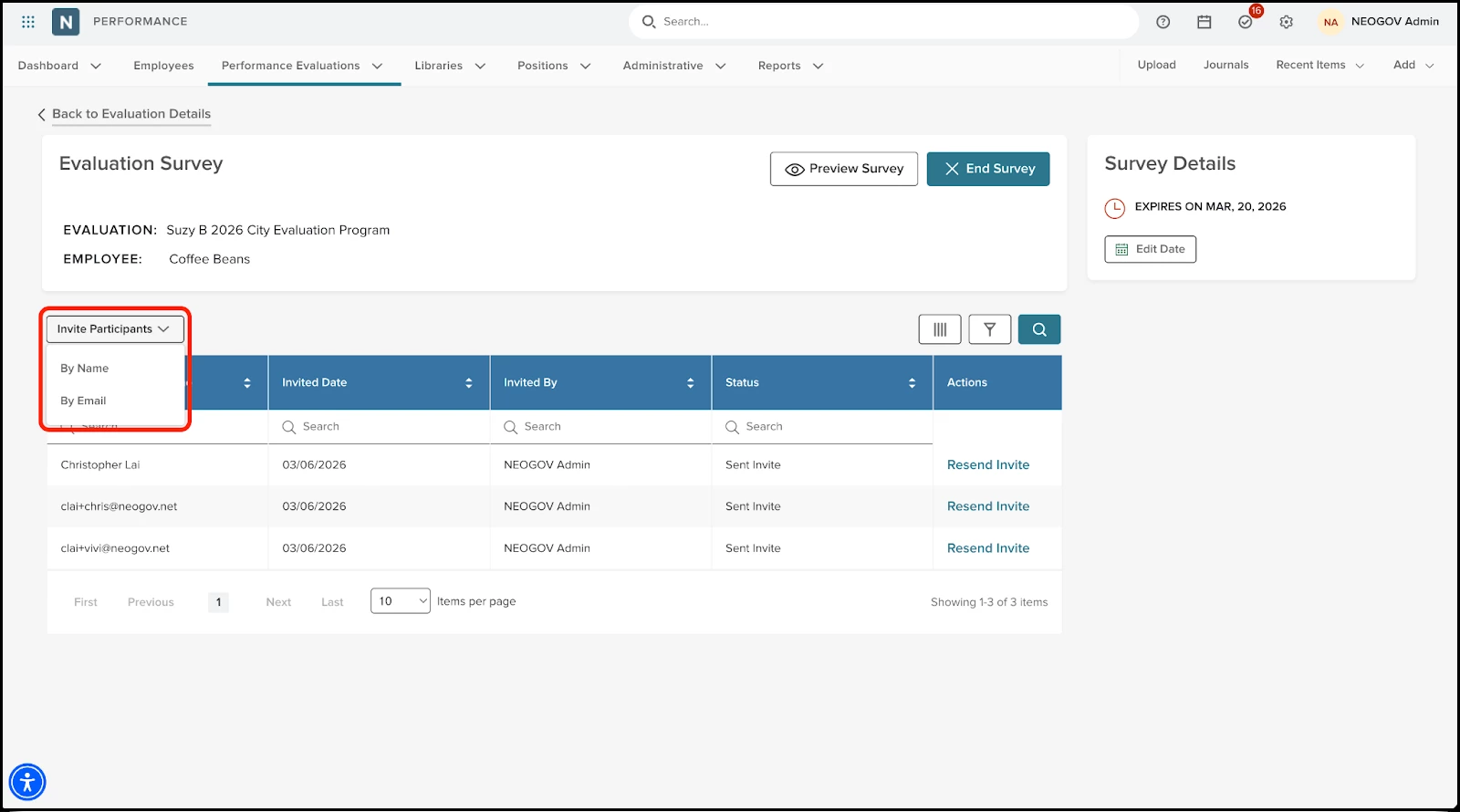
Choose the invite By Name option to search and select employees not already invited, or invite By Email to invite users outside of the system. For both options, confirm the additional participants, then click Add.
Notes
- If an email address is already invited, it will be skipped.
- It is not possible to add additional participants to closed surveys.
Value
Improves survey completeness and response quality.
Audience
Administrators, managers, and HR users.
Launch Survey Flexibility - Survey Expiration Dates
With this release, you can now extend the expiration date of active surveys in Perform. This gives you more flexibility to increase response rates and manage deadlines. This enhancement allows you to update survey expiration dates after launch directly from the Active Surveys page, ensuring surveys remain accessible for longer as needed.
Example
An HR administrator realizes more time is needed for employees to complete an active survey, and extends the expiration date by one week. This keeps the survey open for additional responses.
How it Works
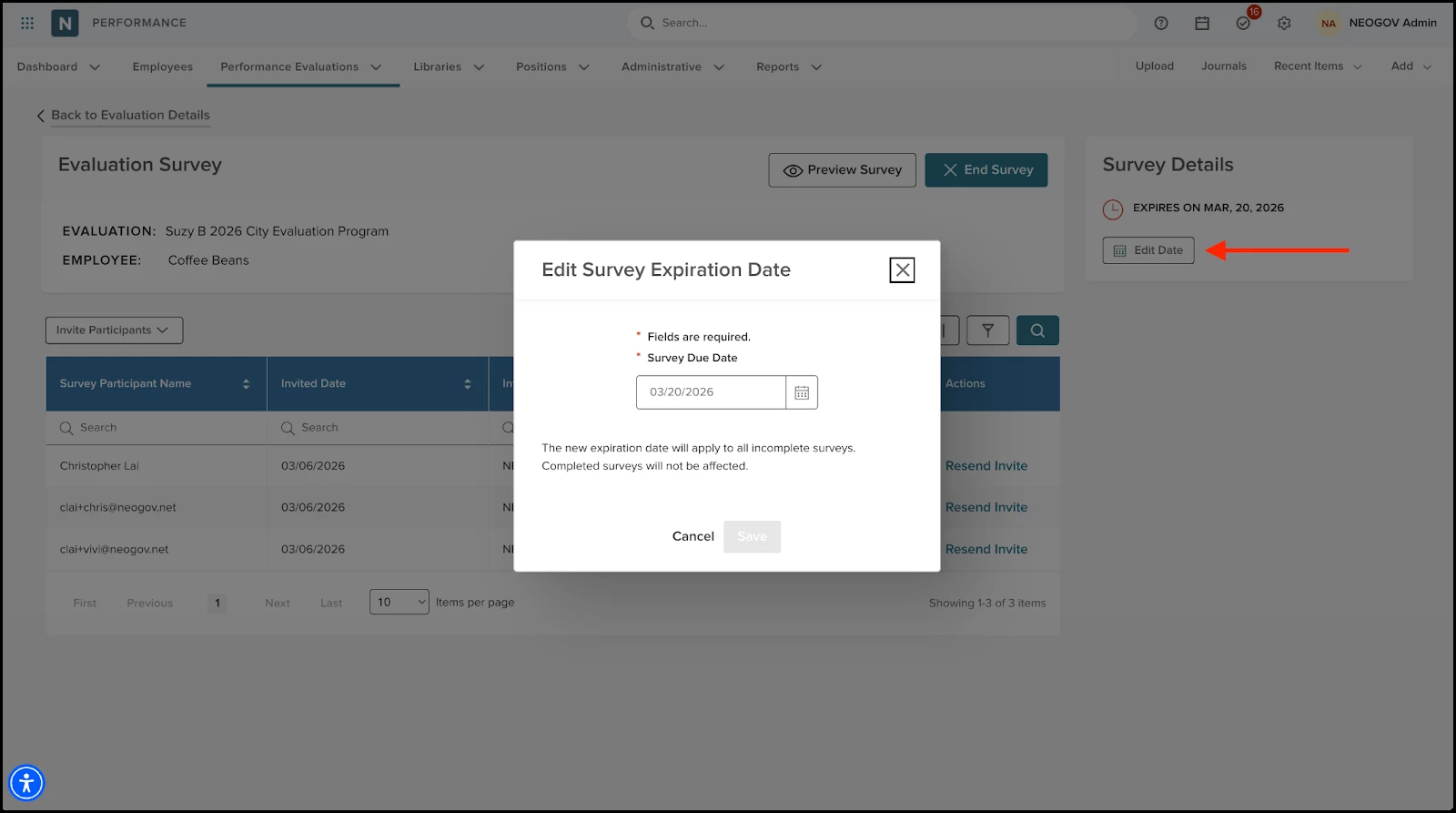
Go into an active survey and click Edit Date below the survey’s expiration date. On the popup, select a new date then click Save.
Notes
- When editing an expiration date, you can only select future dates.
- The new expiration date will apply to all incomplete surveys. Completed surveys will not be affected.
- You cannot reopen completed surveys. This remains unchanged from current behavior.
Value
Helps to improve survey completion rates by allowing deadline extensions after launch.
Audience
HR administrators and managers.
Evaluation Surveys Permission Controls
With this release, you can now control which user roles can view, launch, edit, or end evaluation surveys, giving you more flexibility over survey access and actions.
Example
HR admins can launch and close surveys, while employees can only view results if allowed.
How it Works
| Role | View Survey Results | Launch Survey | Edit Survey Settings | End Survey |
|---|---|---|---|---|
| HR Admin | Yes | Yes | Yes | Yes |
| HR User | Yes | Yes | Yes | Yes |
| Manager | Yes | Yes | Yes | Yes |
| Employee | Yes* | No | No | No |
*Employees can view survey results only if you set the Make survey results visible to employee after evaluation is released? toggle to YES.
These permissions can be changed upon request by contacting our customer support team.
Notes
- We’ve changed the name of the “Close Survey” action to “End Survey”.
- Editing surveys refers to inviting additional participants post-survey launch, or editing a survey expiration date.
Value
Enables more precise control over who can access and manage evaluation surveys, supporting compliance and organizational needs.
Audience
Administrators, HR users, managers, and employees.
Appendix: Bugs Resolved
No additional bug fixes outside of the maintenance releases. Refer to the maintenance release notes for details.
Related Resources