



Spring 2026 Release Notes Time & Attendance Release Notes
Article Links
Timeline
When will this be released?
Spring Quarterly Releases:
UAT Preview Window: April 2nd, 2026, 4 AM PDT.
Production Availability: April 30th, 2026, 4 AM PDT.
Is there downtime for this release?
No.
Cost Center Enhancements
With this release, you can configure new types on the Cost Centers page. To access the page, click Admin > Time > Cost Centers from the top menu.
In the cost center table, you will see the new Type column.
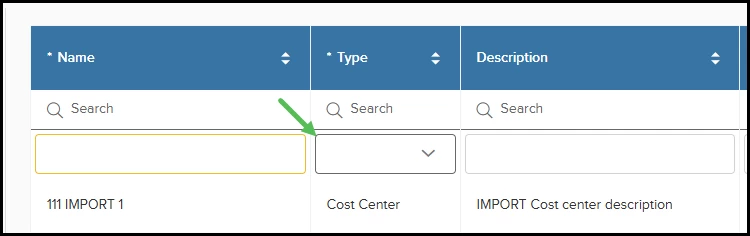
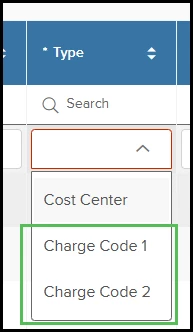
Your existing records will still use the Cost Center label. However, when you add a new cost center, you’ll be able to select Charge Code 1 and Charge Code 2 as well as Cost Center.
Configuring Permissions
If your agency does not want everyone to use the charge codes on their timesheet, you may set permissions by security role.
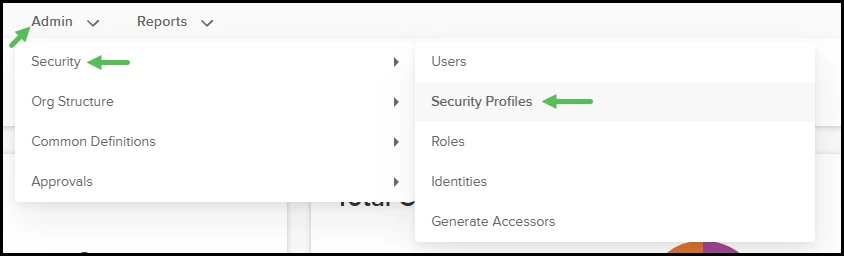
- Go to the CoreHR Dashboard, then click Admin > Security > Security Profiles from the top menu.
- On the Security Profiles page, edit the desired profile. By default, all profiles will be able to use the charge codes on timesheets if they exist in your site.
- Select the Field Controls tab, then scroll down to the Timesheet Entries section.
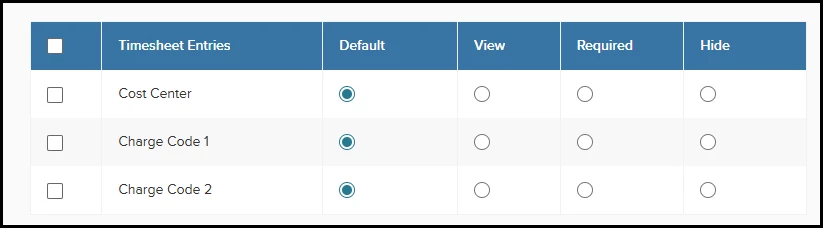
- Define whether users have the following permissions for Cost Center, Charge Code 1, and Charge Code 2.
- Default: Users will be able to select all codes that they have permission for on the timesheet.
- View: Allows users to view the column, but not make a selection in this field (not recommended).
- Required: Users are required to make a selection from this field on the timesheet. They will receive a warning message if the field does not have a value.
- Hide: The column will be hidden for this security profile on the timesheet.
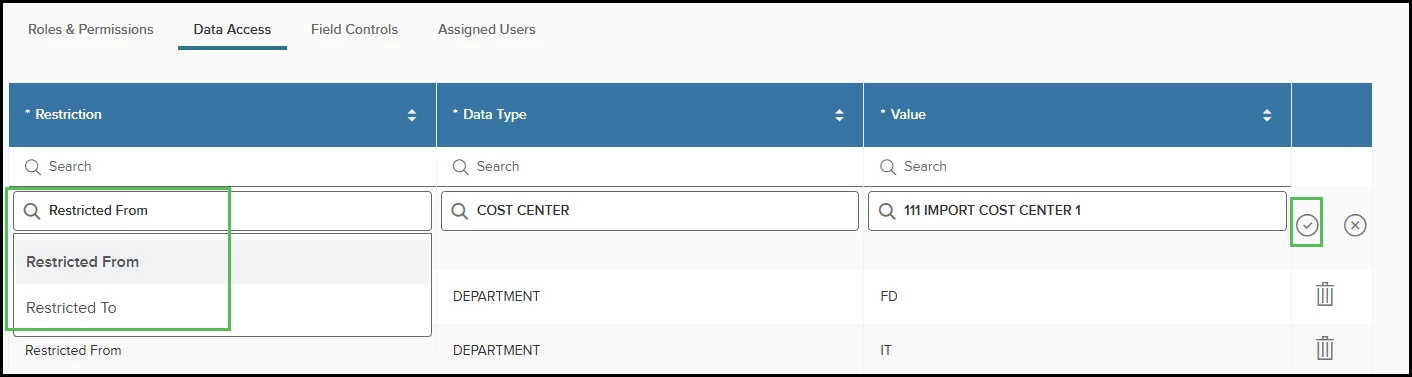
- Select the Data Access tab. This is where you will set restrictions on cost centers and charge codes.
- Click Add New to add a row at the top of the table.
- Select Restricted From or Restricted To for a cost center or charge code.
- Click the check mark icon to save the entry.
- Click Save in the top right corner to save your changes to the security profile.
The changes you make to the security profile will determine the values of cost centers and charge codes that this set of users is able to use and enter on their timesheets.
Timesheet Entries
The columns for Charge Code 1 and Charge Code 2 are dynamic. You will not see them unless you have added them on the Cost Centers page.
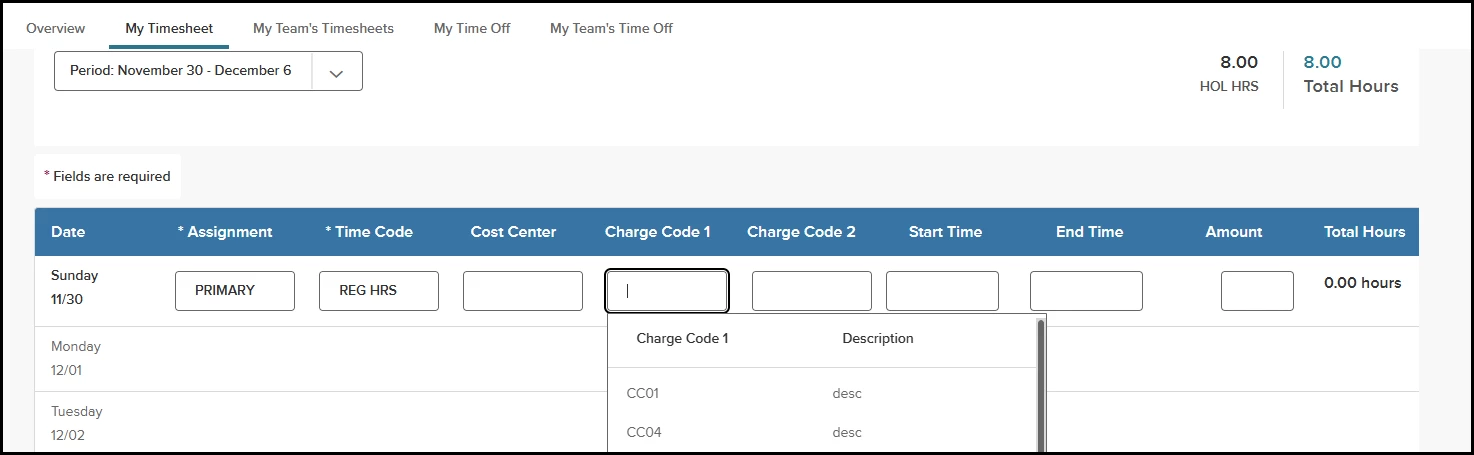
he options in the entry fields follow the current logic of cost centers:
- If a record has start and end dates defined on the cost center table, you will not be able to choose them after the defined end date.
If there is only one entry of a particular type on the cost center table and its end date has passed, the column will still appear on the timesheet because that type remains defined in the table.
Auditing
We are adding more auditing tools throughout Time & Attendance. In the Spring 2026 release, we are adding auditing tools to the administrator view of timesheets and to the Shifts page.
Administrative Timesheets
We’ve added the Audit Logs feature to the timesheet on the Employee Timesheets page.
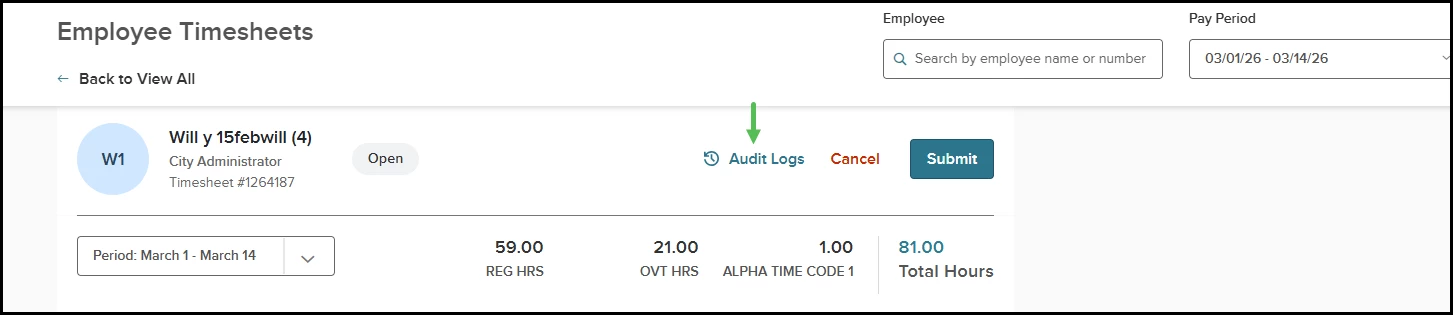
Although the audit log will not show the date and time the timesheet was initially created, it will show every other change.
As an administrator, you can now see any changes that have been made to the timesheet between its initial creation and final approval.
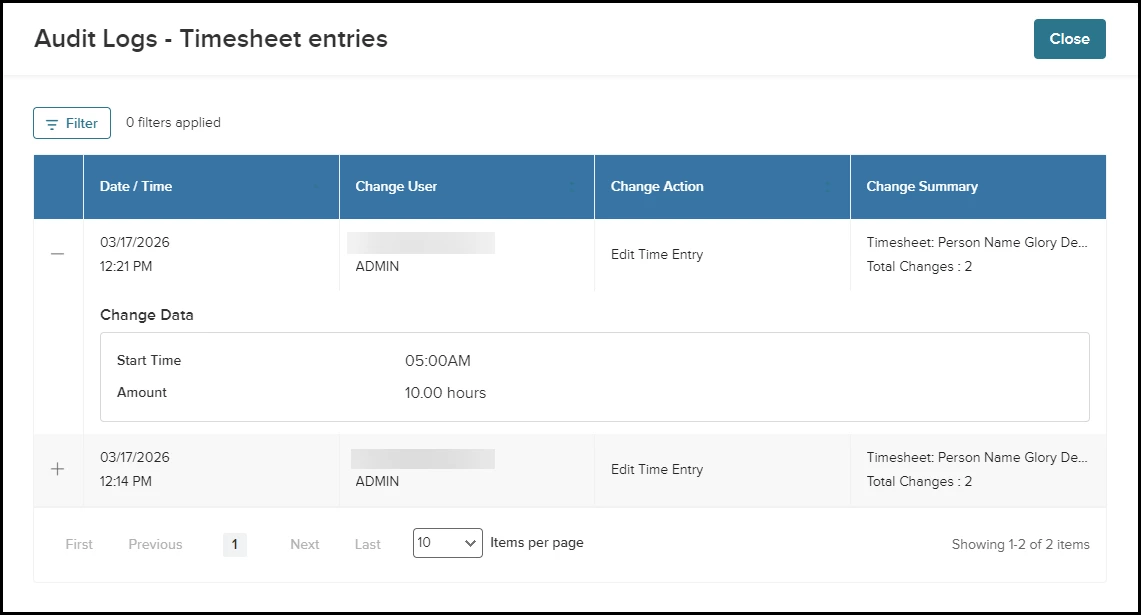
Clicking Audit Logs opens a popup that shows the following.
- The date and time the change occurred.
- The user who made the change.
- The action they took (Add, Edit, Delete, etc.).
- The summary of the changes.
Clicking the plus icon (+) in the row’s first column expands the audit to show the changes in more detail.
Shifts
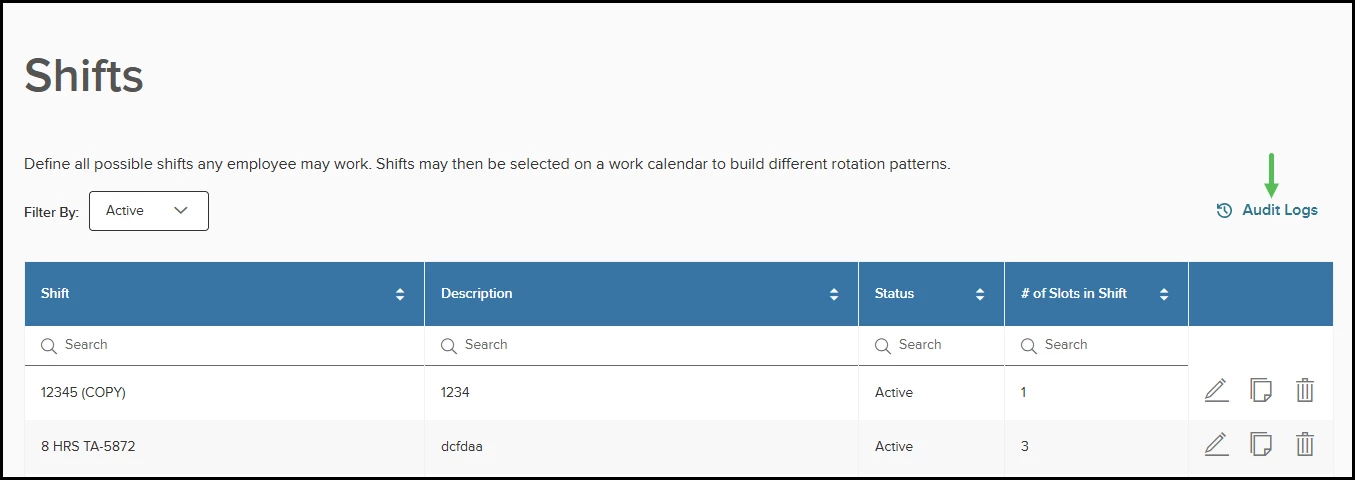
Administrators will also see audit logs on the Shifts page from the Admin > Time > Shifts menu. Clicking Audit Logs on this page shows a popup that includes any details changed in a shift.
Appendix: Bugs Resolved
No additional bug fixes outside of the maintenance releases. Refer to the maintenance release notes for more details.
Related Resources