



Time and Attendance Release Notes Summer 2026
Article Links
Timeline
When will this be released?
UAT Preview Window: July 2, 2026 at 5 AM PST to July 30, 2026.
Production Availability: July 30, 2026 at 5 AM PST.
Is there downtime for this release?
No.
Work Rule Audits
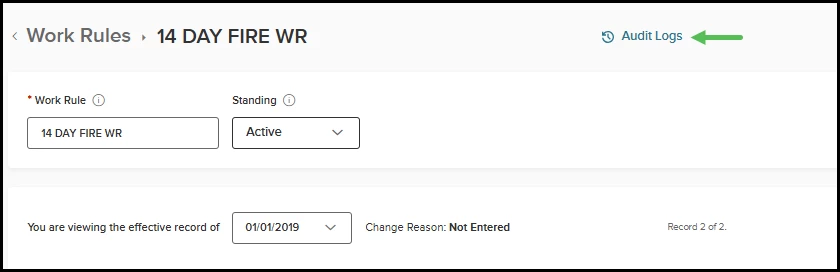
Being consistent as other areas in the product we have introduced an Audit Logs link on each work rule's detail page (positioned in the top-right corner) that, when clicked, opens an audit log showing the history of changes made to that particular work rule. Each audit entry displays a summary row with the date/time, user who made the change, action performed, and a change summary.
How it Works
The Audit Logs link shows a history of changes made to a particular work rule. Each audit entry shows a summary row with the date/time, user who made the change, action performed, and a change summary.
Value
Enhances accountability, provides faster issue resolution, and enables compliance and governance for organizations subject to labor regulations or internal audit requirements.
Audience
Administrators and power users.
Example
Timesheet Submission Control
When an employee has any leave request within a timesheet period that is still "Waiting Approval," the Submit button is disabled across all timesheet views — My Timesheet (employee), My Team’s Timesheets (manager), and Employees Timesheets (admin). An information icon and message appears in a blue banner beside the disabled button with this message: "An outstanding Leave request exists. Please have it approved or canceled to submit your timesheet."
Once all pending leave requests within the period are either approved or canceled, the Submit button will re-enable after a page refresh.
Value
This feature directly prevents stranded leave lines where a timesheet gets submitted (and potentially sent to payroll) while leave requests are still unapproved. By requiring all leaves to be resolved before submission, it ensures the following.
- No payroll discrepancies — timesheets can't be processed with unresolved leave time, eliminating mismatches between leave records and paid hours.
- No orphaned/stranded leave entries — leave requests won't end up in a pending status for a timesheet already-submitted waiting approval.
Audience
Administrators, managers, and employees.
Example
A leave has been requested for Jun 24, 2026. It is within the timesheet period of June 20 - July 3, and is waiting for approval.

The time sheet submit button is disabled and shows a context message. In this example, the message informs the employee that their leave request requires approval before they can submit. This ensures that the timesheet is accurate during submission.
This is the employee’s message.
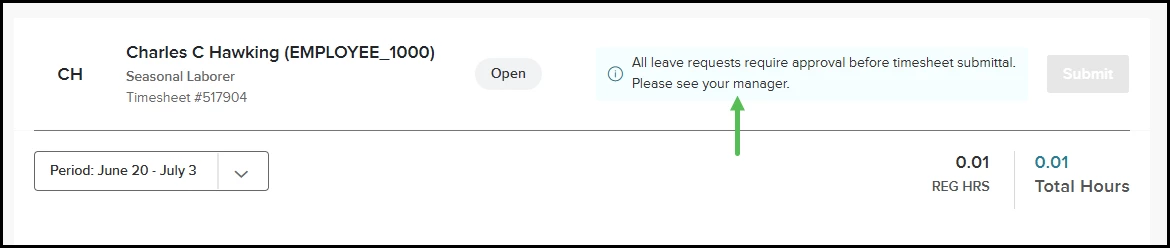
This is the manager’s message.

Geofencing Enhancements
Geofencing enforcement has been improved to restrict user punches IN or OUT (in mobile or unified clocks) as defined on the work rule/location and applies one of four modes.
- No restriction – punch proceeds as normal; coordinates are still captured.
- Lat/Long radius (Mobile) – the user's GPS coordinates are compared against the configured work location and radius; the punch is blocked if they're outside the boundary.
- IP restriction (Unified and Mobile) – the user's IP address is checked against an allowed network range; the punch is blocked if they're outside it.
- Both (Unified and Mobile) – Restrictions from both IP and GPS location will be applied.
Value
Delivers stronger time-theft prevention, reduced admin effort through automation and modernized screens, and closes a competitive gap by covering both mobile and web punch scenarios with configurable geofencing and IP restrictions.
- Fraud Prevention and Accountability — Prevents employees from clocking in/out from unauthorized locations (such as a coffee shop instead of the worksite). This gives employers confidence that time entries reflect actual presence at work.
- Dual-channel Coverage — Extends location-based restrictions from mobile-only to both mobile (GPS/geofencing) and web (IP restriction). This eliminates a gap where web punches had no location validation.
Audience
Administrators, managers and employees.
How it Works
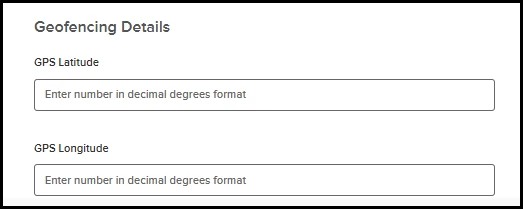
Some prerequisite setup must be completed first before using the new features. For each employee, their primary assignment will have a working location. You must edit the information of this location to include the GPS coordinates providing the center of the geofence. When adding or updating a location, the fields will be populated by a Google API. Existing locations will require manual updates to the GPS coordinates.
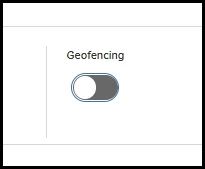
Also, each employee's primary assignment has a work rule. The work rule is where you turn on geofencing and choose the restriction method. On the Timesheets tab, you will find the Geofencing toggle. Turning the toggle on shows four restriction options.
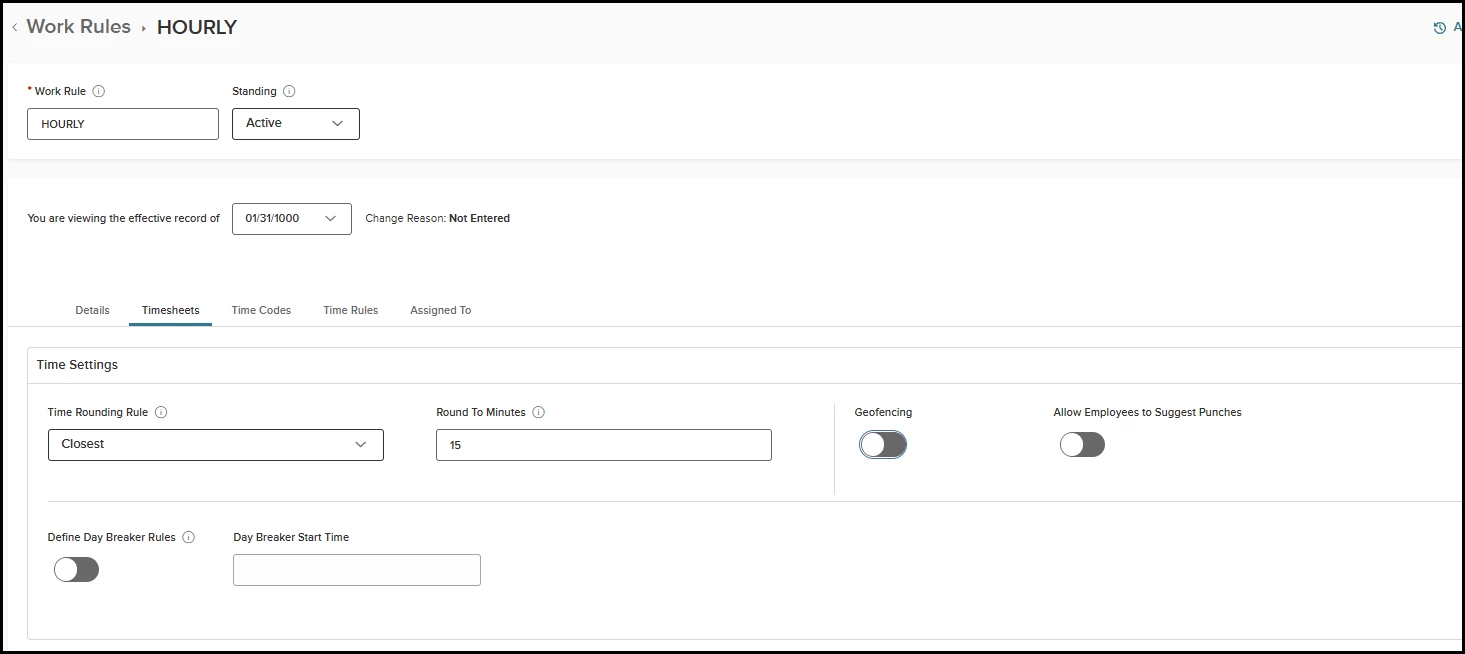
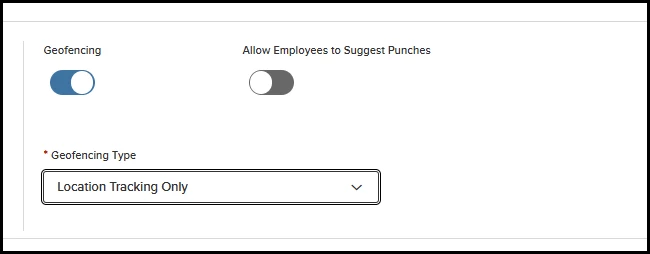
The first option is Location Tracking Only. This works as-is today, stamping the latitude and longitude on all clock punches without restriction.
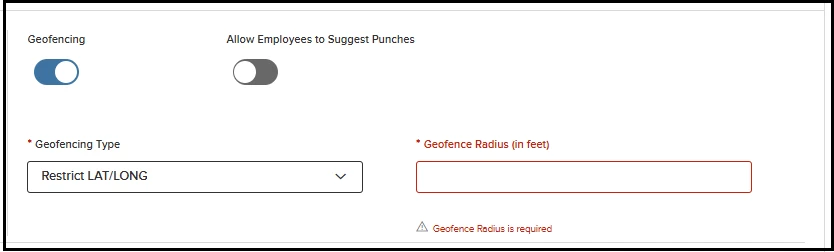
The second option (Restrict Latitude/Longitude) will restrict the latitude and longitude. When you select this option, the Geofencing Radius field will automatically show. This field allows you to define the radius in feet. The field is mandatory and enforced for mobile punching only.
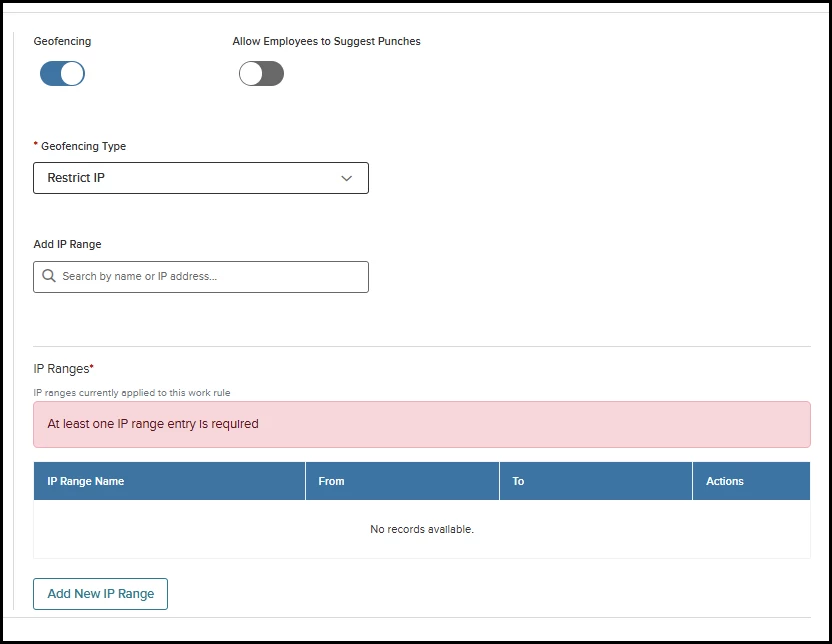
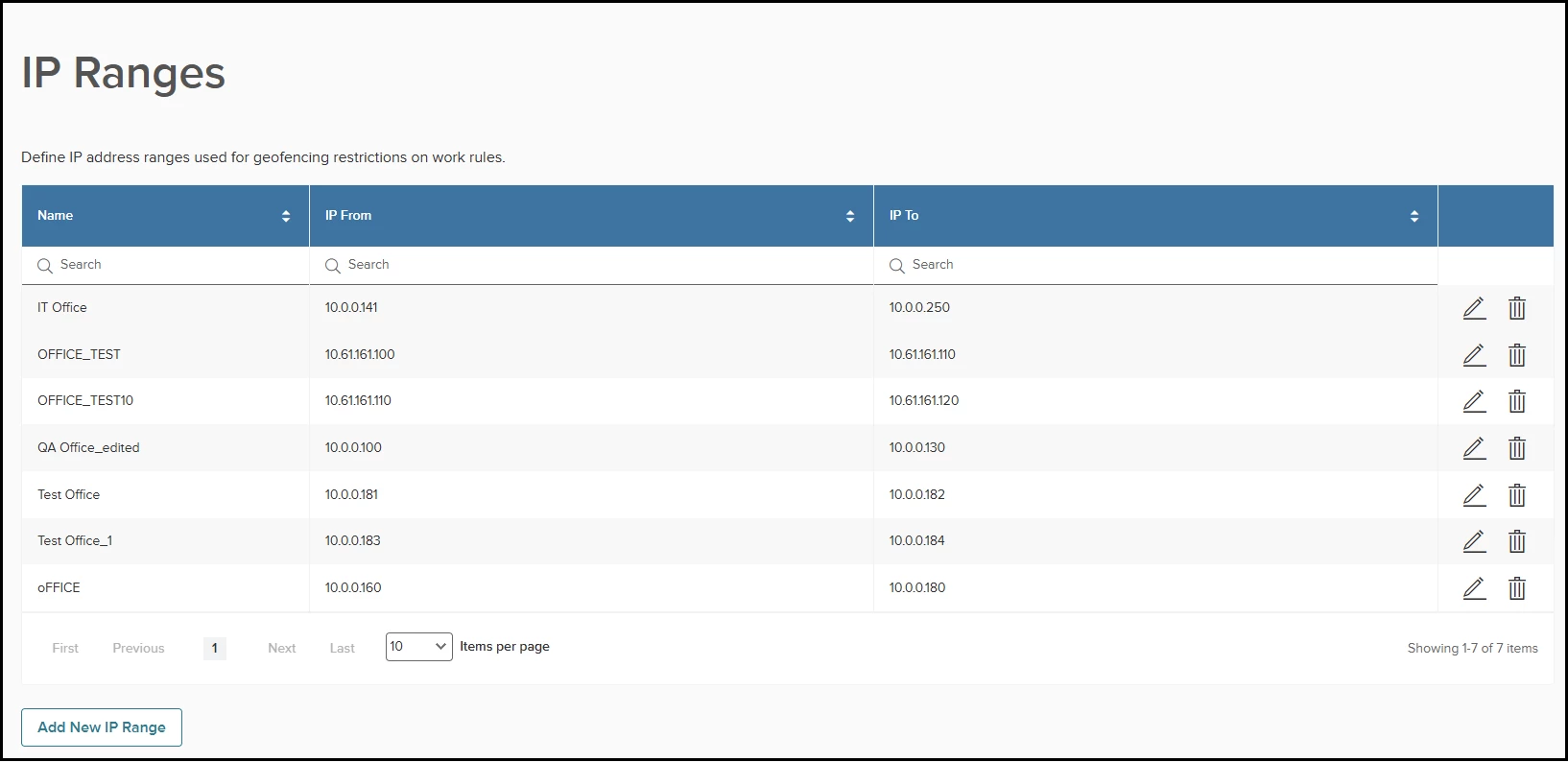
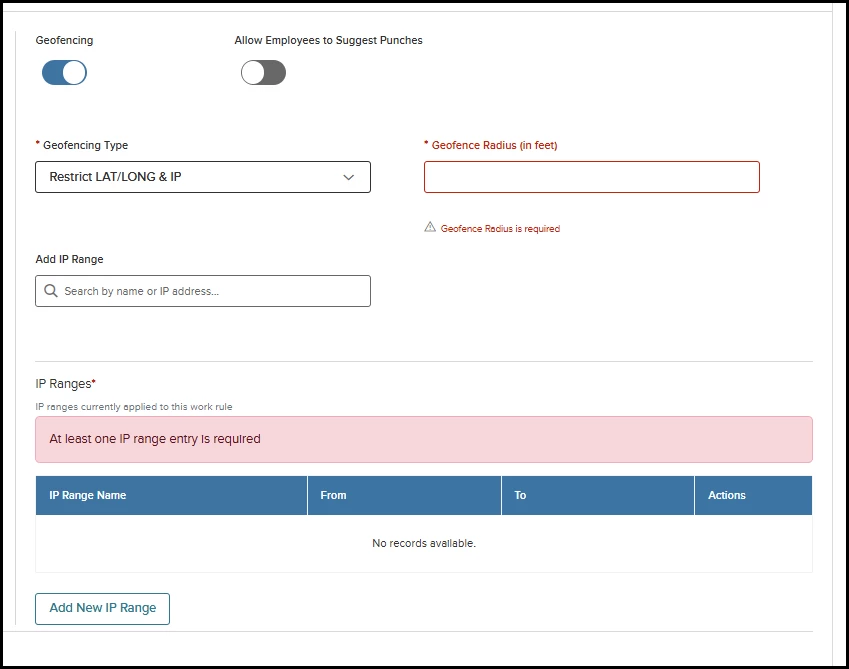
The third option is to restrict by IP address. When selected, the Add IP Range field will automatically appear. This field allows you to choose a predefined IP range. The value you select in this field will show in the IP Ranges table. Here, you can also create a new IP range using the Add New IP Range button. Once created, the new range will be added to the list.
This option is enforced for users clocking using the time clock on the unified home page or mobile, requiring the punch IP to be within the ranges listed.
Administrators will see a new page called IP Ranges. This allows you to create ranges ahead of time.
The fourth option is a combination of both IP range and perimeter limit labeled Restrict Latitude/Longitude and IP. IP ranges and a fence perimeter are both mandatory pieces of information. When both restrictions are enabled, the system verifies latitude/longitude first, followed by the IP address. A clock punch is only permitted if both checks pass.
This option is valid for both mobile and the unified clock punches.
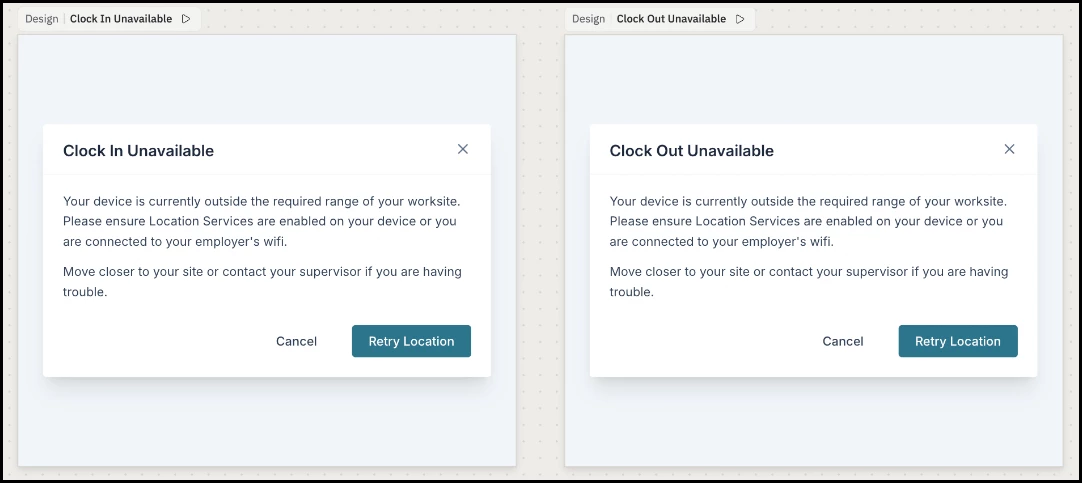
If a computer is outside the IP range or the fence perimeter, messages will be presented to the user stating the restriction. An option to Retry Location is presented.
Appendix: Bugs Resolved
No additional bug fixes outside of the maintenance releases. Refer to the monthly release notes for more details.
Related Resources