



Benefits Spring 2026 Release Notes
Article Links
Timeline
When will this be released?
UAT Preview Window: 04/02/2026 at 4 AM PST
Production Availability: 04/30/2026 at 4 AM PST
Is there downtime for this release?
No.
Dependents & Beneficiaries Enhancements
This release delivers a comprehensive upgrade to how dependents, beneficiaries, and contacts are configured, captured, and managed throughout enrollment. Employers gain more precise control over who is eligible, what data is required, and how contacts are created, hidden, or maintained over time, while employees see a more consistent and intuitive experience. Together, these changes make contact and dependent management more configurable, auditable, and policy‑driven, while reducing confusion for end users and administrators.
Unified Add/Edit Contact Modal (BEN-9217)
Previously there were two different screens that users used to manage a contact dependent on if they were dependents, beneficiaries or an emergency contact. It has now been consolidated into one experience, where the available fields and the logic on whether they are required or not will adjust based on the type of contact it is. The following are the differences in behavior between the new popups and the equivalent in the previous experience.
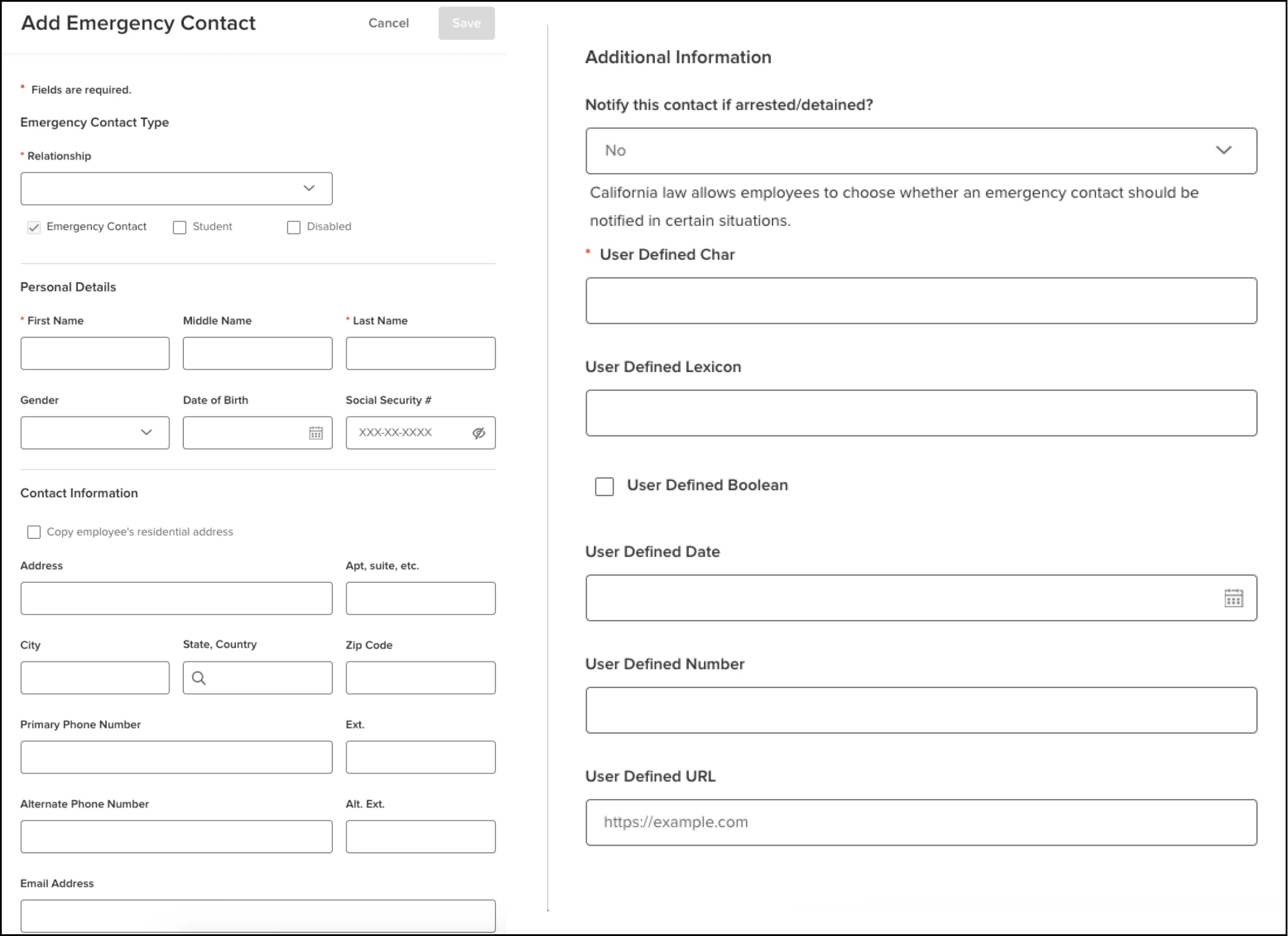
Emergency Contact
- The name of the popup changes from “Add Contact” to Add Emergency Contact.
- You can specify if this is an Emergency Contact, Student, Disabled, or Court Ordered. The Emergency Contact will be selected and uneditable. Previously these options were not available when you just added a contact.
- The Relationship field is now required.
Dependent/Beneficiary
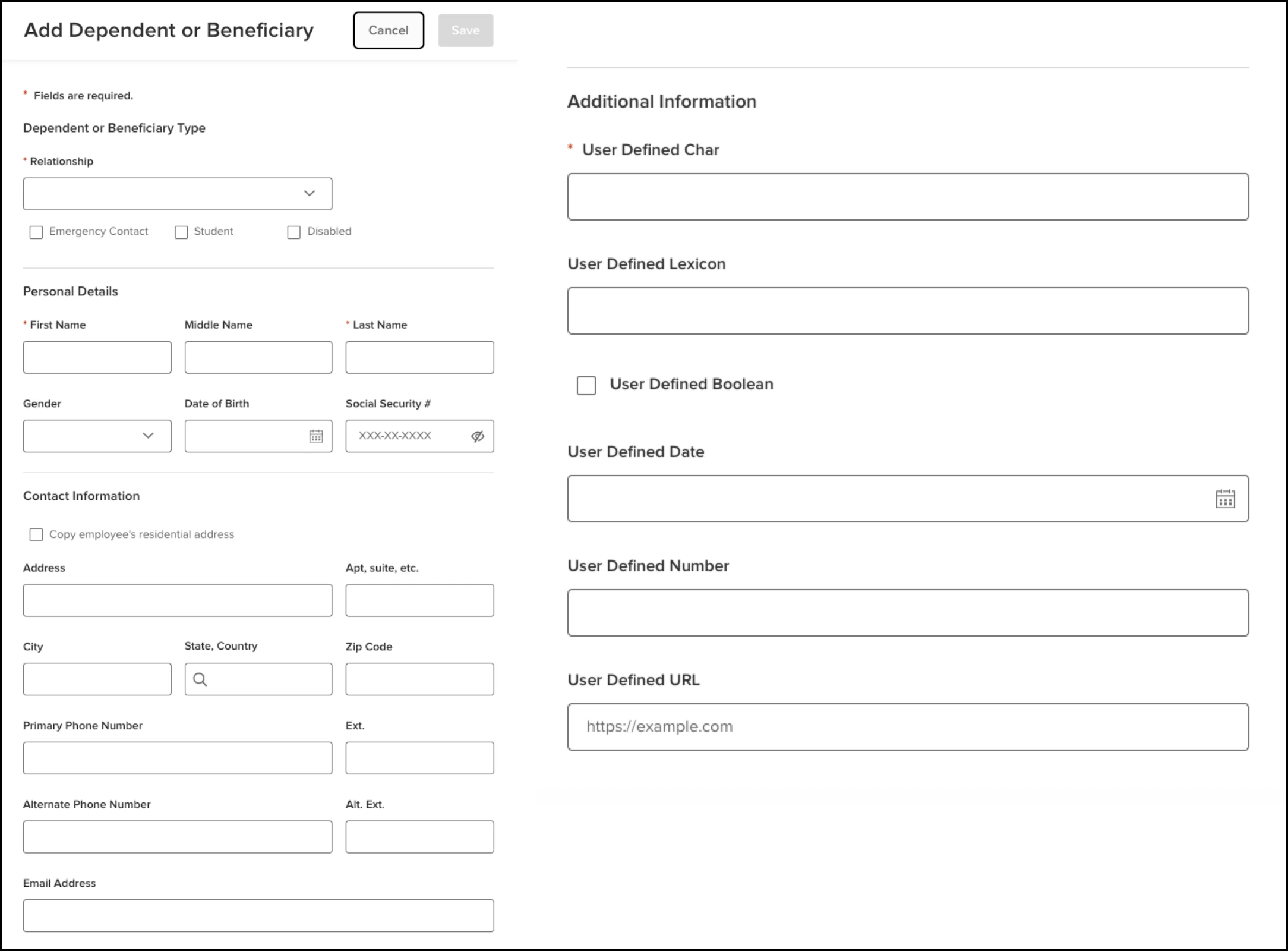
- The “Add New Contact” button has been replaced by the Add New Dependent or Beneficiary button.
- The name of the popup changes from “Add Contact” to Add New Dependent or Beneficiary.
- All the fields that were on the Contact field are now available here including the User Defined Fields (UDFs).
- The only values in the Relationship dropdown belong to those with a Dependent type.
Value
Allows a consistent experience for managing the contact data.
Inactive Dependents & Beneficiaries Archive (BEN-7869)
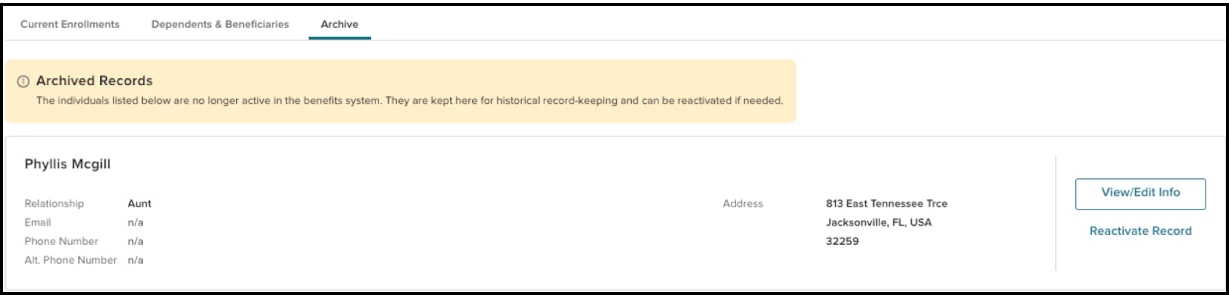
A new tab has been added to the Enrollments page called Archive. This will house any dependents that have either been removed or hidden. Users will be able to perform the following actions from this page.
- They will be able to update demographic information associated with inactive dependents, thereby reducing the need to contact support.
- They will be able to reactivate dependents that were previously hidden or removed by clicking on the Reactivate Record button.
Value
Allows users to manage information associated with inactive dependents and potentially reactivate without needing to contact service.
Audience
HR administrators.
Hide Instead of Remove for Previously-Enrolled Contacts (BEN-8292)
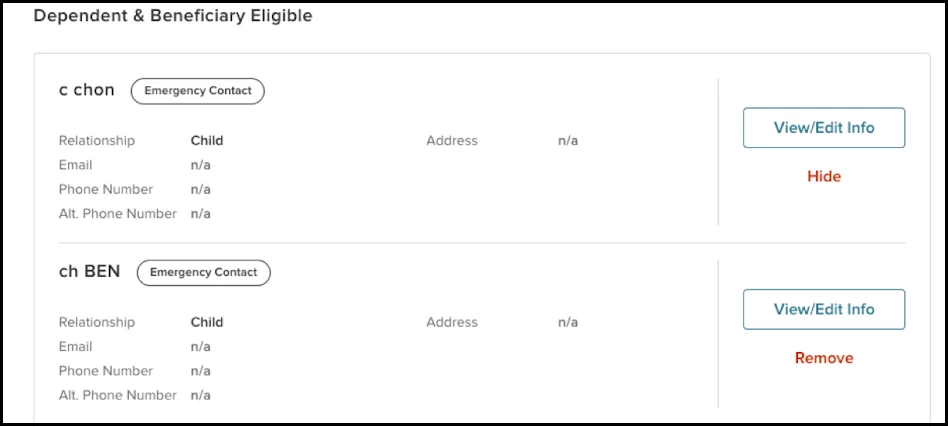
Users can now remove dependents that have never been previously enrolled in a plan. Previously they could only remove dependents that had never been previously enrolled. A new Hide option has been added to the Dependents & Beneficiaries tab to remove dependents that were previously enrolled in a plan. Hide marks the dependent as inactive, and makes them unavailable to be selected for enrollments.
Key Points
- This option is only available for dependents that match both criteria.
- Were previously enrolled AND;
- Not currently enrolled.
Value
Allows users to remove contacts that they no longer wish to see in their list of available dependents.
Configurable Required Fields for Dependent PII (BEN-8243)
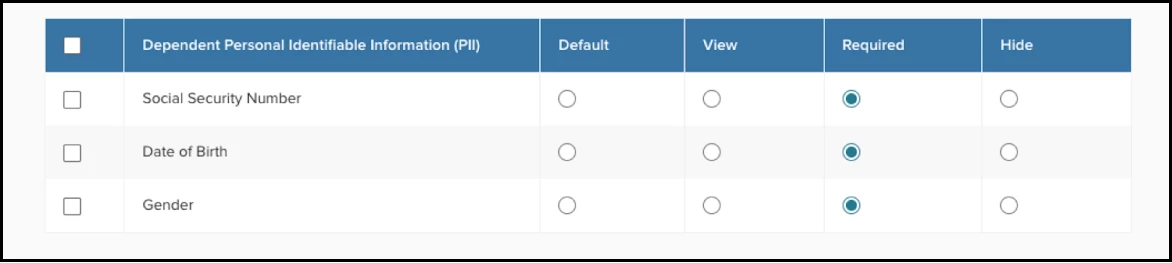
Admins can configure whether the following fields are required or not for a dependent: Social Security Number, Date of Birth, and Gender. For each of these fields they have one of the following options.
- Required: The field is visible and required.
- View: The field is visible but not required.
- Hide: The field is not visible.
- Default: This is the default behavior which is that the field is visible and not required.
These settings are configured in IMUSL for each security profile, and they are only enforced, if the contact is a dependent. If they are just an emergency contact these settings are not enforced.
Value
Gives employers more control over which fields they want to require to adhere to their specific policies.
Copy Address Shortcut (BEN-8249)
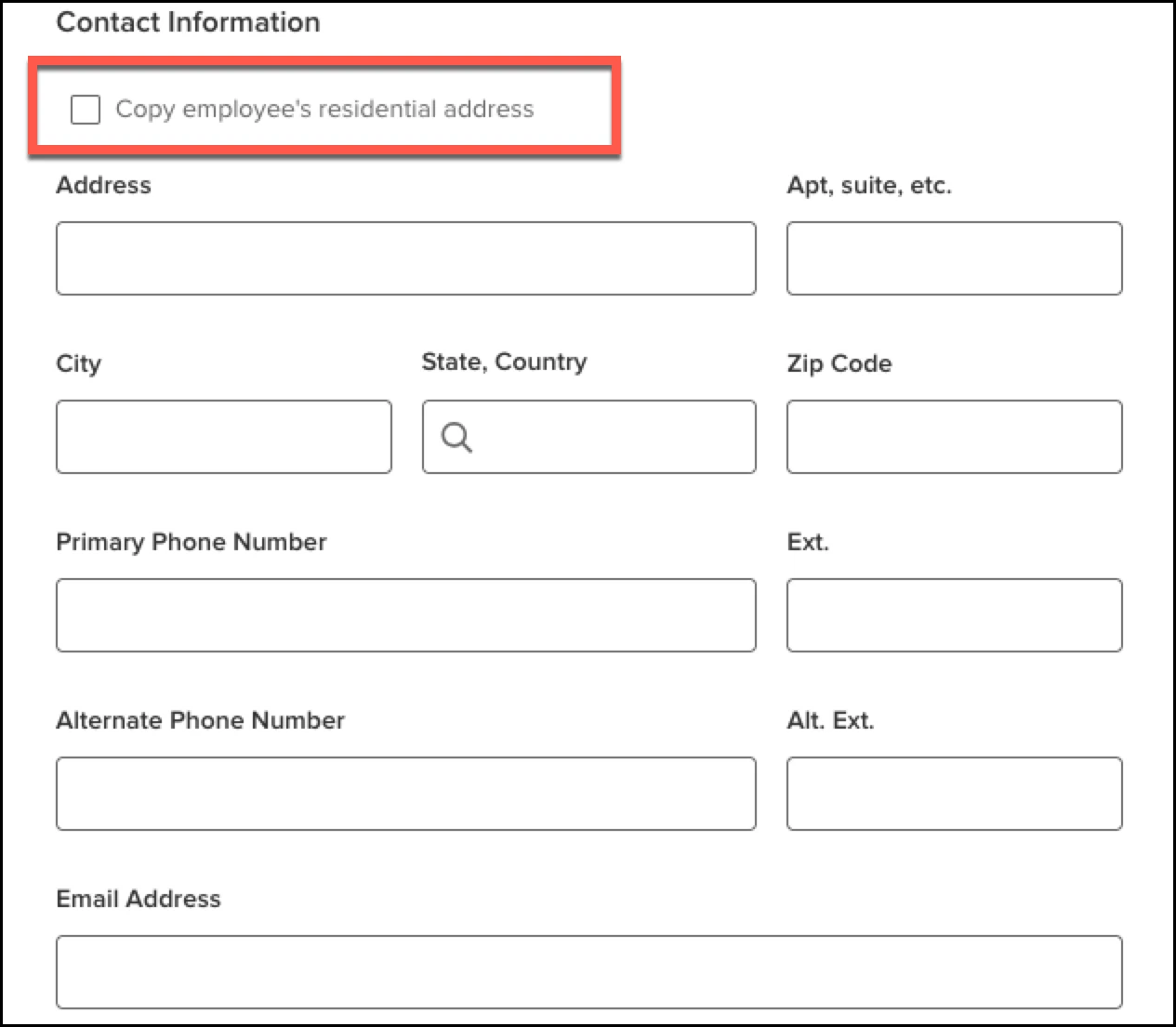
When adding or editing a dependent or beneficiary, users can quickly copy the employee’s residential address into the contact, reducing duplicate data entry.
Key Points
- Users can still modify the address once it has been copied into the address fields.
- The address is not synched with the employee’s address, so if the employee’s address is changed, users will have to update the address manually here.
- Anytime the click on the check box, it will override whatever is in the address fields.
Value
Make it easier to populate the contact’s address, in most scenarios where it is the same as the employee’s.
Enhanced Filtering on Contacts (BEN-8278)
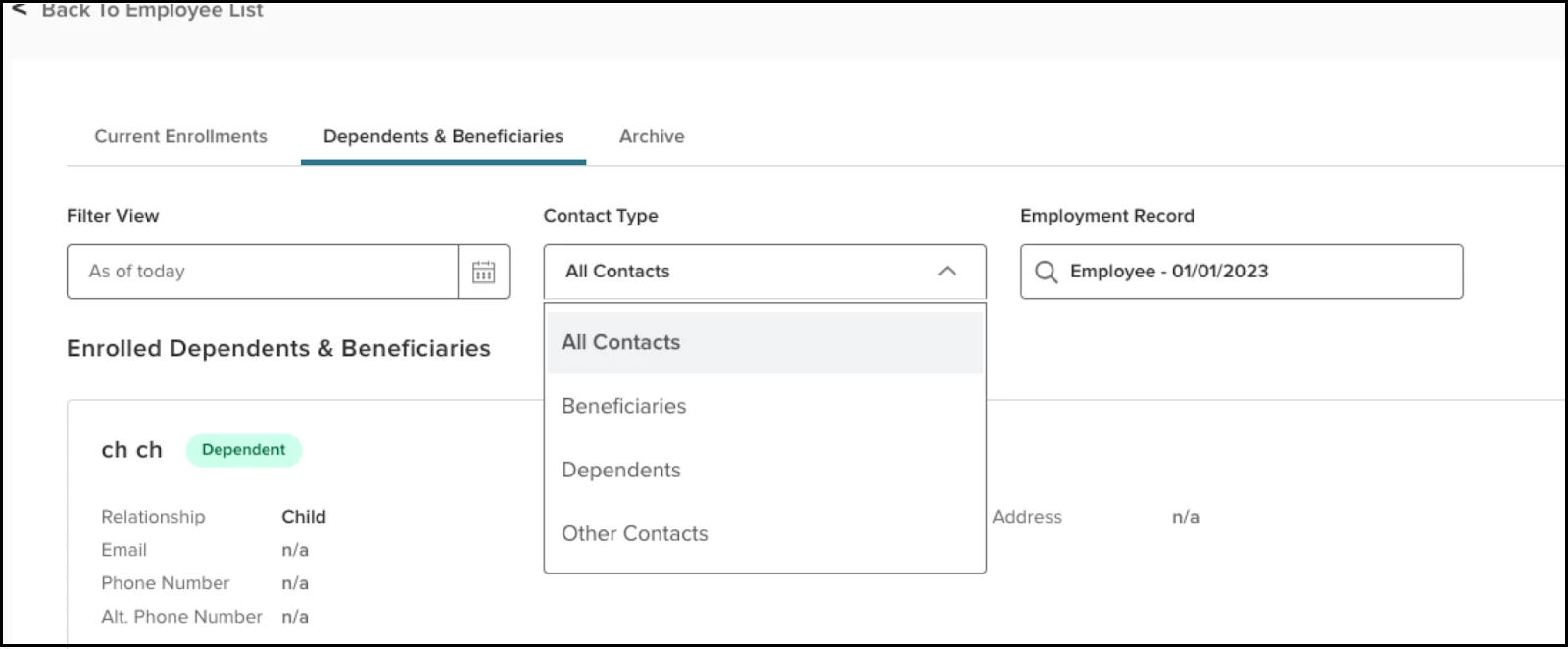
A new Contact Type filter has been added on the Dependents & Beneficiaries tab that allows users to quickly narrow the list to contacts of the following types: All Contacts (default), Beneficiaries, Dependents, Other Contacts.
Key Points
- Filter options are always available.
- Beneficiaries and Dependents show contacts tagged as such (even if both); Other Contacts shows those not tagged as either.
Value
Make it easier to focus on a specific type of contacts to make sure all are accounted for.
Exclude Relationship Types from Coverage (BEN-10979)
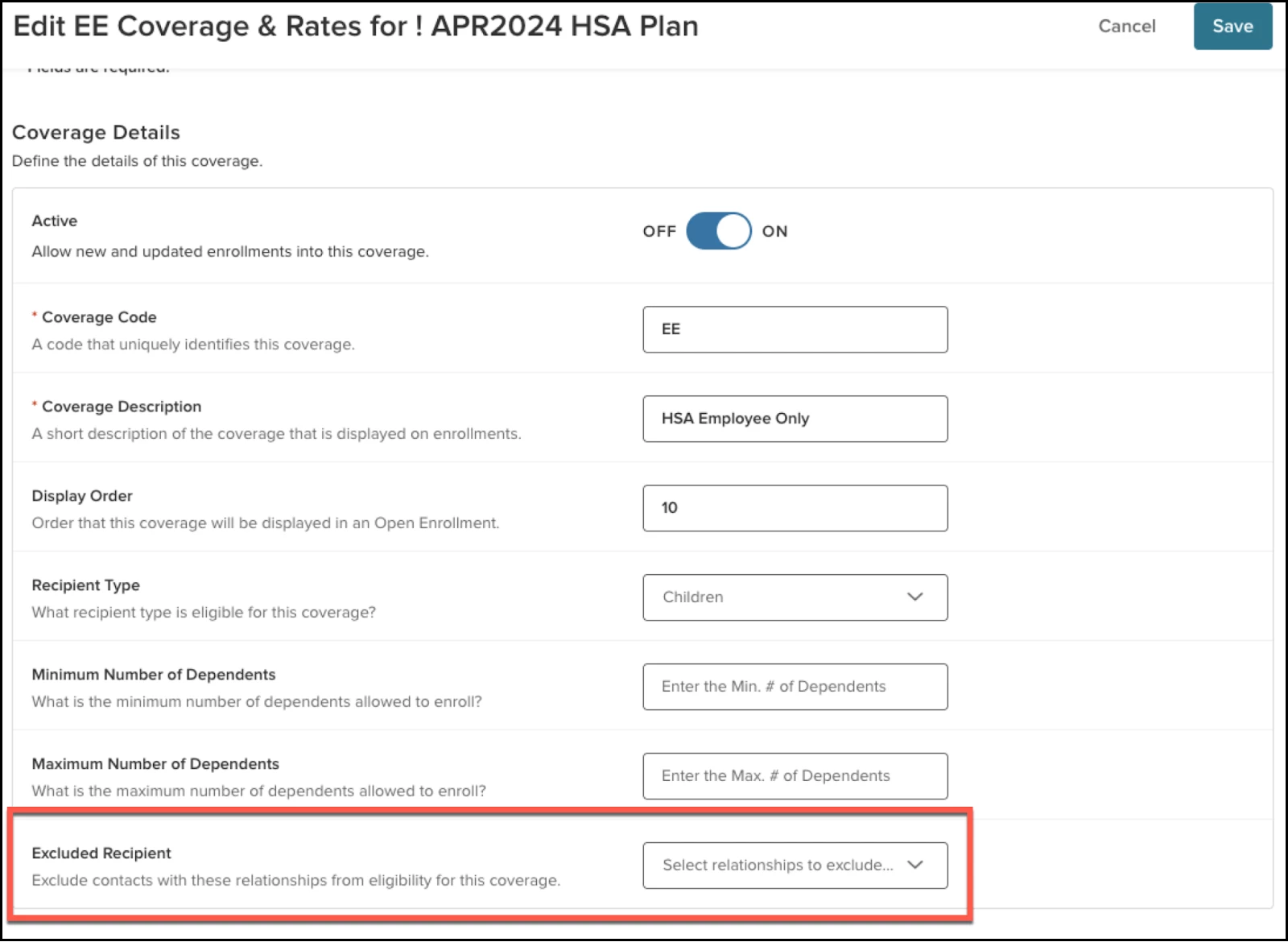
Users can now flag contacts with a specific relationship type value to be ineligible for plans. This is configured at the coverage level where you can select one or more relationship types within the Excluded Recipient setting to be flagged as ineligible for the plan.
Key Points
- The setting is called Excluded Recipient.
- The setting is only available once you select a value in the Recipient Type.
- If no values are selected then any dependent with any relationship type that has the Recipient Type for the coverage will be eligible. This is the default behavior.
- Only relationships matching the selected Recipient Type will be in the Excluded Recipient list.
- When saving the setting, the system will do a check to determine if there are any active enrollments with dependents that have the excluded relationship, and if so the user will be prevented from saving the change.
- Once set, dependents with the relationship type will not be available to be selected during enrollment
- f there is an active enrollment with a dependent that has an excluded relationship, when they open that enrollment, the dependent will be unchecked, and the user will be alerted that they have to remove the dependent.
Value
Certain employers don’t offer plans to contacts that have a specific relationship to the employee. This allows them to enforce that policy.
Court-Ordered Dependents (BEN-8285)
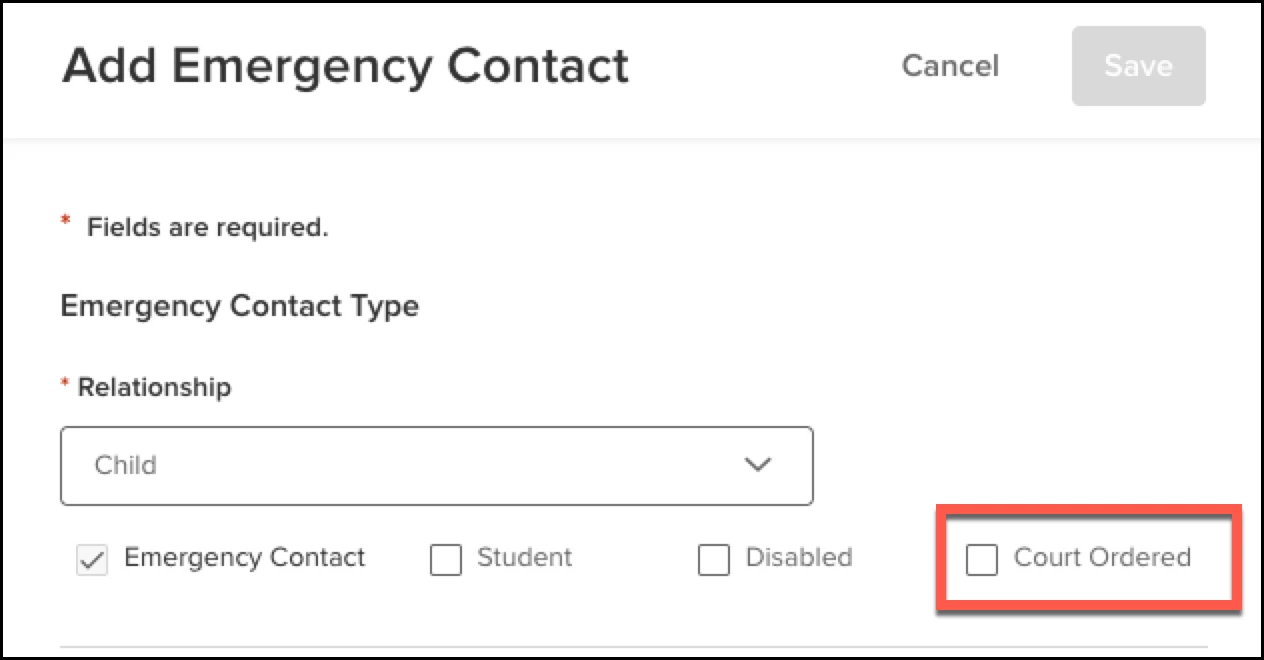
Users can now flag certain dependents as being court-ordered. Once a court ordered dependent is enrolled in a Medical plan, the employee will not be able to modify the enrollment, and they will also not be able to remove the flag on the dependent. These two actions can only be done by an administrator. Court ordered dependents are exempt from maximum age rules.
Key Points
- The Court-Ordered check box appears on the Add/Edit Emergency Contact popup, and does not appear on the contact until you select a Relationship type that is a Dependent type.
- Once the dependent is enrolled in a medical plan, an employee cannot remove that flag. It becomes read only. This can only be done by the administrator.
- The dependent cannot be removed from the medical plan by an employee. This can only be done by the administrator.
- The overage processes will ignore dependents that are flagged as court ordered since court ordered dependents are exempt from maximum age rules.
Value
This allows employers to be in compliance with court orders mandating that certain individuals are required to remain on their employee’s plans, without having to manage it manually.
Student Age Override for Eligibility (BEN-8257, BEN-9695, BEN-9702)
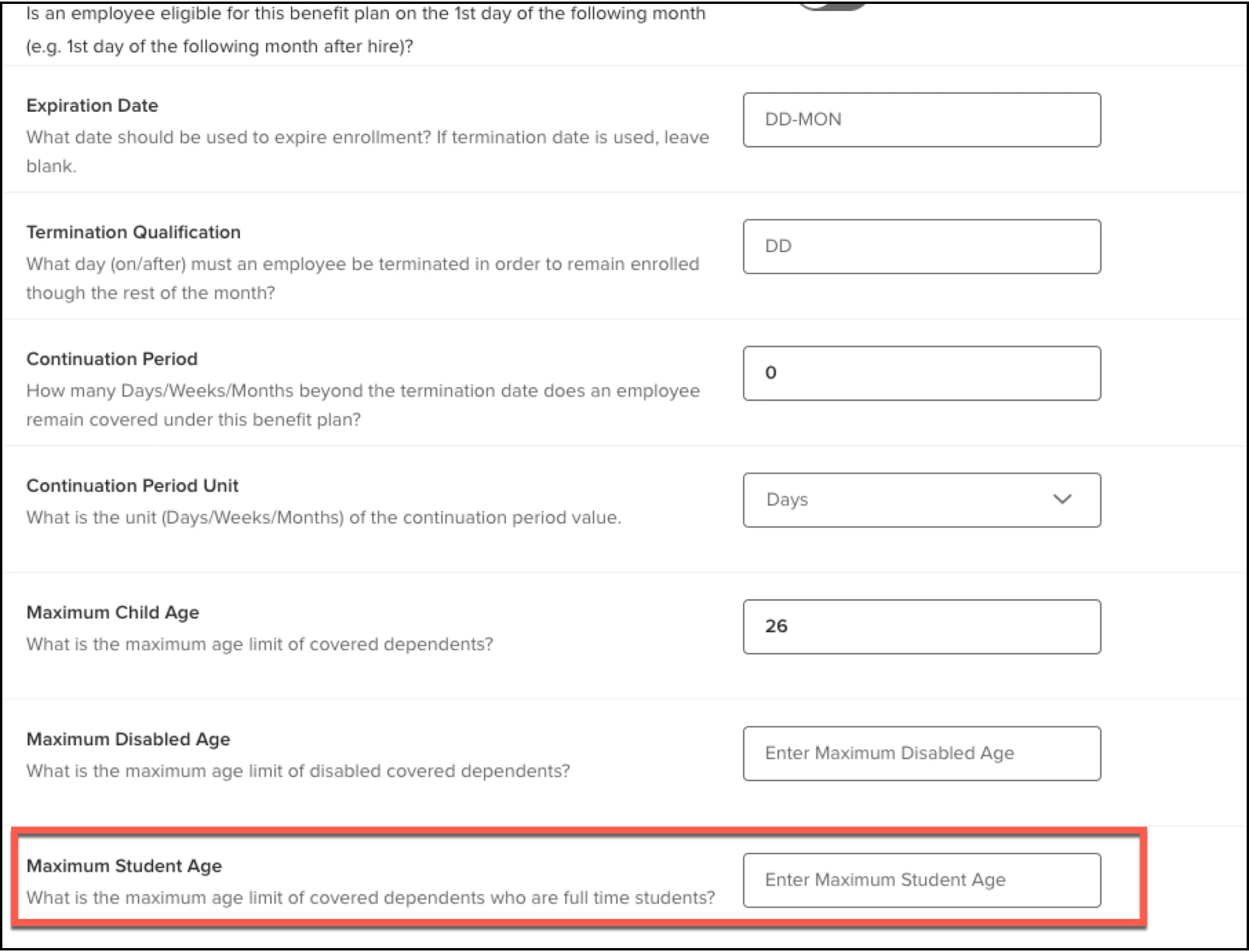
Employers will now be able to support having a different set of age rules for dependents who are flagged as students. They will be able to configure a maximum age at a coverage level to determine if a dependent who is identified as a student is eligible for a plan based on their age. This value will be used in all enrollment processes and the automated over age process.
Key Points
- The setting is called Maximum Student Age.
- The setting is available on the Rules section of the Plan Setup tab on the Benefit Plans page for that plan (see screenshot below).
- The setting does not display for pension plan types.
- This rule only applies to those individuals who were flagged as a student.
- The way the eligibility logic will function is the following:
- If Student, check against Maximum Student Age (default 26 if blank).
- If Disabled, check against Maximum Disabled Age.
- Otherwise, check against Maximum Child Age.
Value
Allows employers to support a very common plan design choice.
Beneficiary Not Required at Enrollment (BEN-8299)
Some employers don’t want to require their employees to enter their beneficiaries at the time of enrollment. A new setting has been introduced to support this need.
Key Points
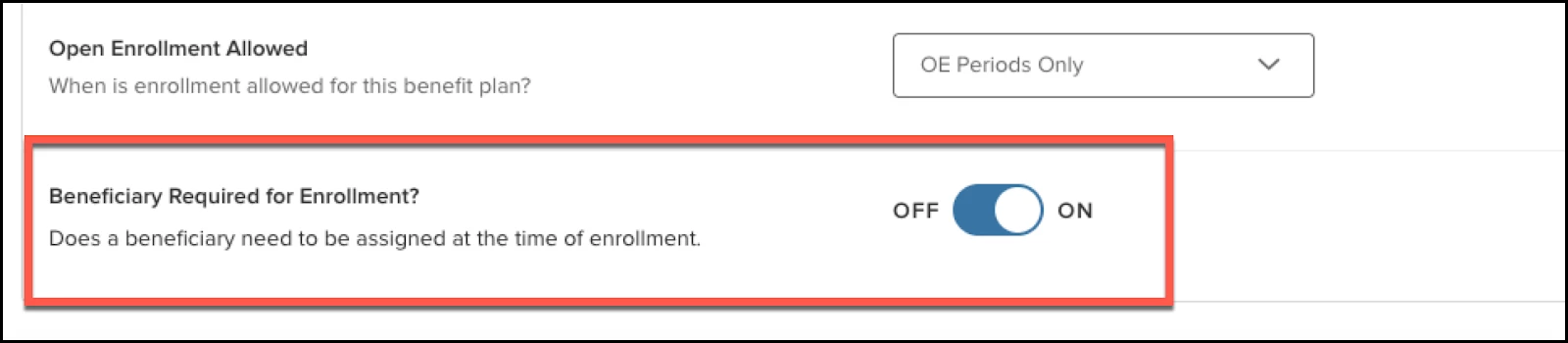
- The setting is called Beneficiary Required for Enrollment?.
- The setting is available on the Rules section of the Plan Setup tab on the Benefit Plans page for that plan within the Enrollment Rules area (see screenshot below).
- The setting only displays for plans that support beneficiaries.
- When the setting is set to OFF, the beneficiary will not be required during enrollment.
- By default, it will be set to ON.
Value
Allows employees to complete enrollment without needing information that is not critical at the time of enrollment.
Other Coverage Details for Dependents (BEN-10800)
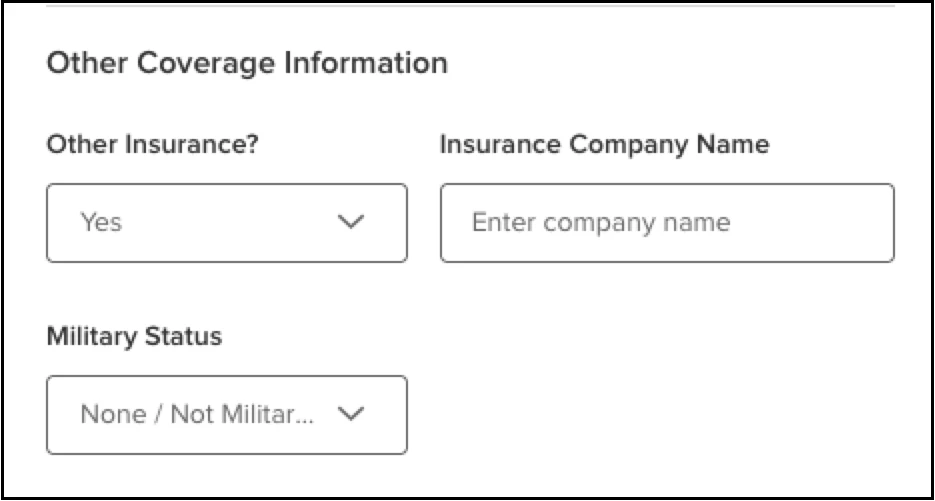
Employers want to capture additional information around dependents, to understand if they have other insurance coverage, and determine how to coordinate benefits across those different options. The following three pieces of information can now be filled out for a dependent within the Other Coverage Information section on dependents.
- Other Insurance?: This is a Yes / No question to identify if the dependent has other insurance.
- Insurance Company Name: The name of the company. This field only shows if they answered Yes to the Other Insurance? question.
- Military Status: What, if any, military status they have.
Key Points
- These fields only show up if the contact is of a Dependent type.
- These fields are optional.
Value
Allows employers to improve the coordination of benefits for dependents of employees.
Comprehensive Audit Logging of Contact Information (BEN-10891, BEN-10898, BEN-10914)
All add, edit, hide, reactivate, and delete actions for contacts are logged with field-level detail. Applies to all contact actions, regardless of entry point (Emergency Contacts, Enrollments, etc.). Audit logs are accessible from the Emergency Contacts page. Audit log includes date/time, user, action, summary, and field-level changes.
Value
Provides transparency on how a change entered the system.
Health & Wellness / Smoker Information (BEN-9686)
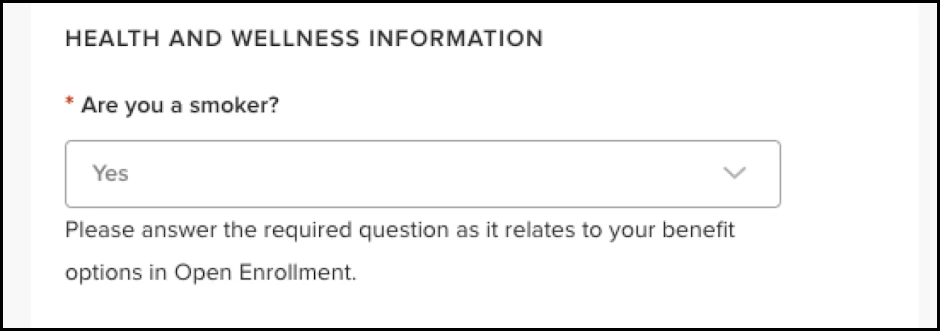
A new Health and Wellness Information section was added to the Personals section to capture the smoker question. Previously this could only be modified through the open enrollment path. This allows us to capture and modify that information outside of open enrollment. The question will only show if the agency has a plan with smoker/non smoker rates. Otherwise, the field is hidden.
Value
Allows users to maintain the smoker status outside of open enrollment.
Bulk Import Contacts (BEN-10993)
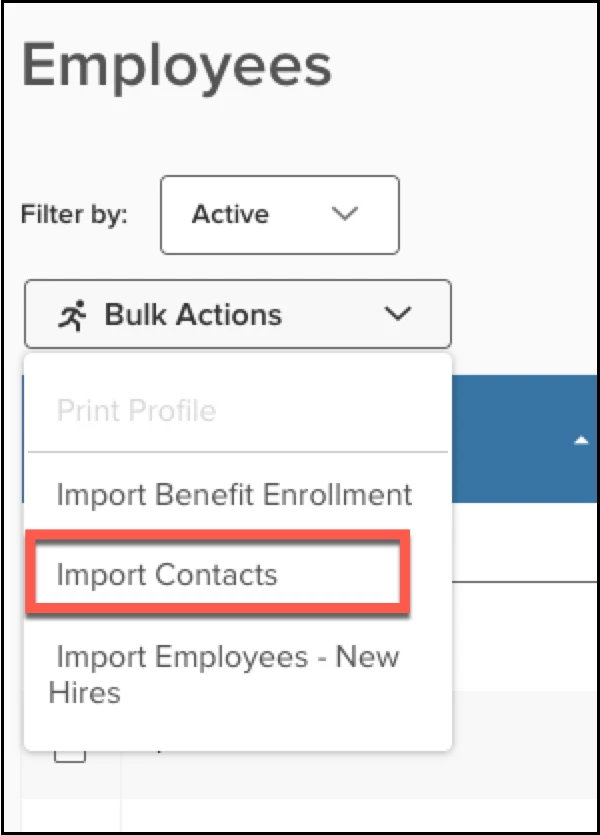
Employers are now able to upload contacts in bulk through a file. This feature will need to be enabled. Once it is enabled, it will appear in the Bulk Actions dropdown on the Employees page. The workflow is the same as all of our other imports. Additional information around the configuration, the file spec, the validation can be provided upon requesting either support or the implementation consultant team.
New Eligibility Logic Enhancements (BEN-11581, BEN-11600, BEN-11607, BEN-11614, BEN-11621, BEN-11628, BEN-11816)
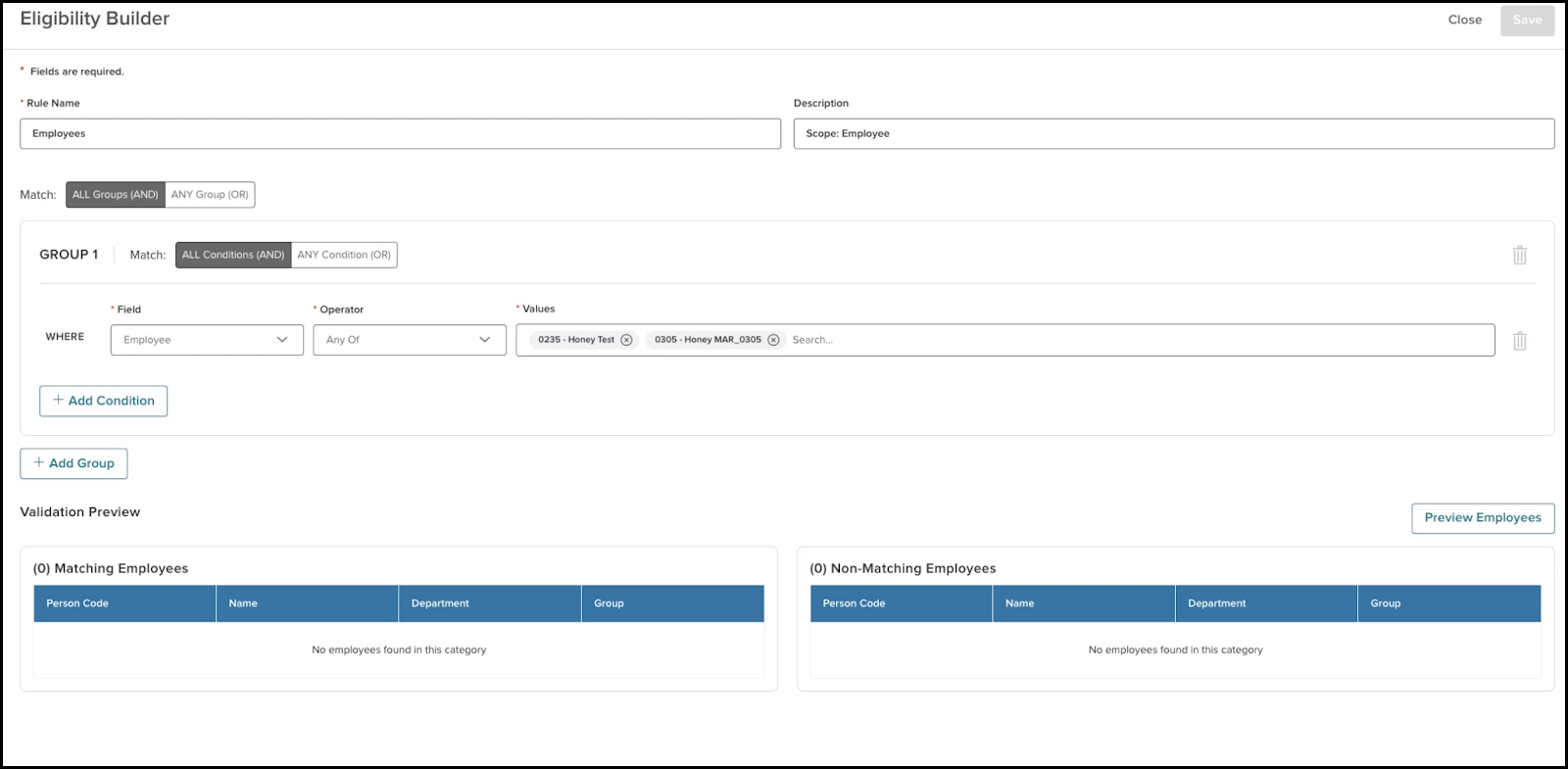
We’ve introduced a new, more powerful way to configure benefit eligibility rules, that allows employers to leverage more fields to determine eligibility and utilize a powerful rules engine. This feature is still in early access. If you are interested in getting early access to it, please contact your CSM. There are three key components of the Eligibility Builder that are outlined below.
New Eligibility Rule Builder (Configuration Editor)
We’ve replaced the legacy eligibility setup with a flexible rule builder at the plan level.
- Eligibility rules are configured per plan, as today, but with a more expressive rule engine.
- Each rule can still be associated with:
- Default coverage.
- Default frequency.
- If these are not selected, the rule has no defaults.
- Rules can now be built using any combination of demographic and employment-related fields defined in the eligibility configuration data dictionary (see “File A” operators/fields: Benefits Eligibility Configuration).
- Conditions are expressed as:
- Field + operator + value.
- Multiple conditions can be grouped with AND / OR logic.
- Multiple groups are combined into a single rule set for the plan.
- Available operators are type-aware (e.g., equality, ranges, list membership, etc., vary by field type).
- We can now configure eligibility off of these fields.
- Employee.
- Group.
- Unit.
- Location.
- State.
- Zip Code.
- Age.
- Department.
- Division.
- Employee Status.
- Employee Type.
- Salary.
- Tenure.
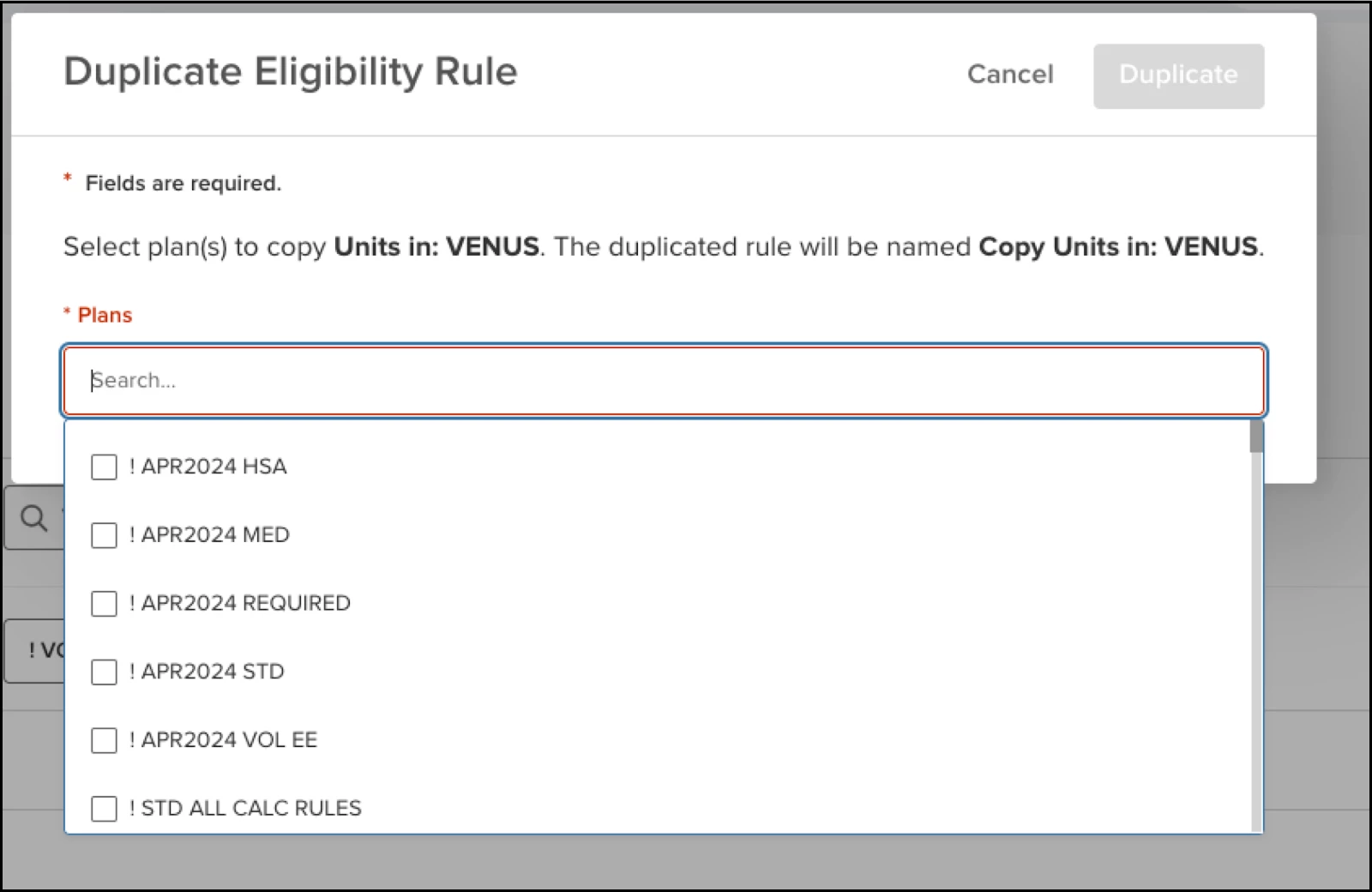
In addition, administrators can now duplicate existing eligibility rules.
- A Duplicate option is available in the Eligibility Configuration Editor.
- Admins can:
- Choose one or more destination plans (including the current one).
- Create copies of the selected rule in the chosen plans.
- Duplicated rules:
- Are created with the same configuration, but
- Are named "Copy <Original Rule Name>", and
- Do not carry over default coverage or frequency (these must be set per plan after duplication).
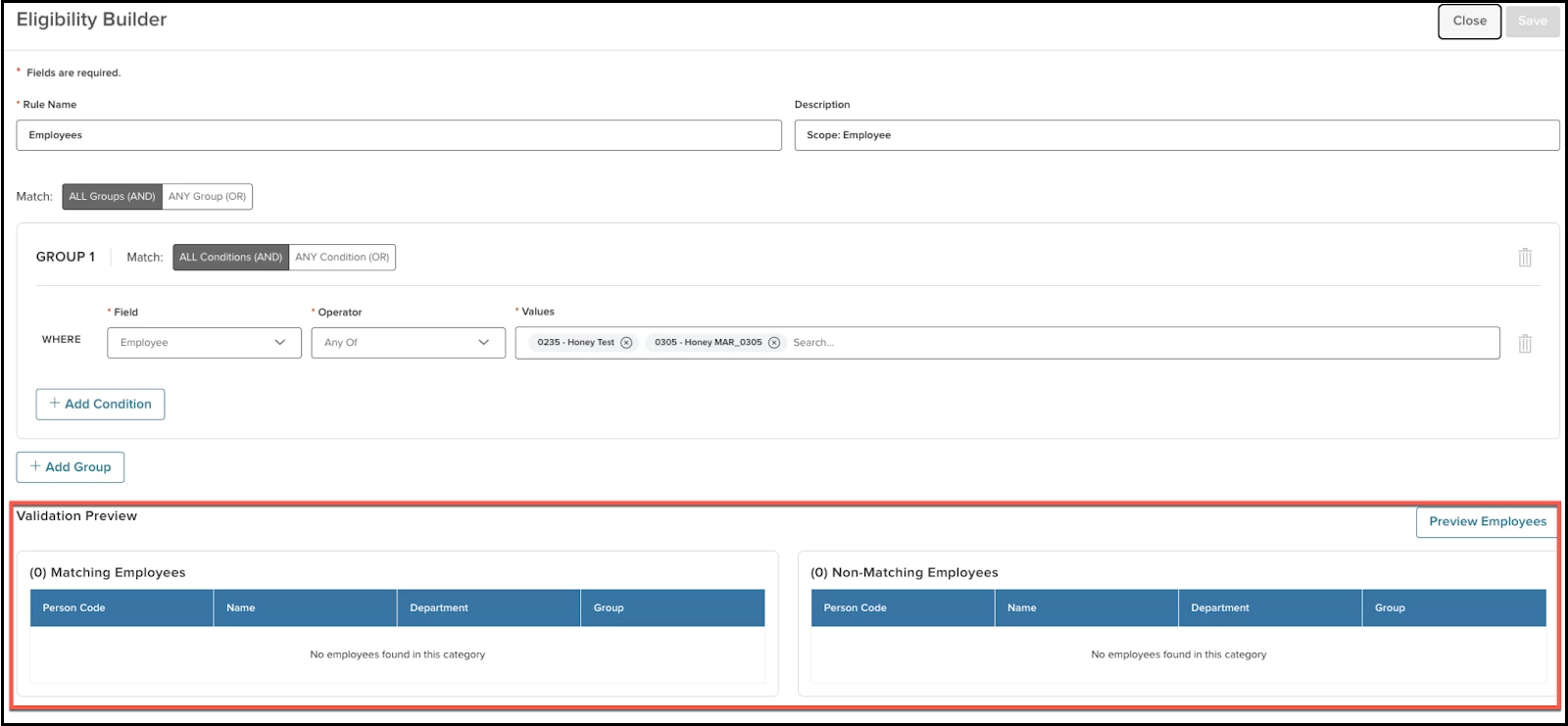
Employee Preview for Eligibility Rules
To improve confidence in configuration changes, the rule editor now includes an employee preview.
- Each rule editor screen now shows two sections at the bottom:
- Employees that match the rule.
- Employees that do not match the rule.
- For each list, we show the first 10 employees in that category.
- For each listed employee, the following fields are displayed:
- Person Code.
- Name.
- Department.
- Group.
This allows admins to quickly validate that the rule is behaving as expected before relying on it in production.
Migration of Existing Eligibility Rules
Existing customer’s rules are being moved into the new configuration model in a phased manner to reduce risk.
Migration Logic
- For each Unit/Group-level rule associated with a unique combination of default coverage and frequency, we create an equivalent rule in the new engine using:
- Unit ANY OF <Unit>
AND - Group ANY OF <List of all linked Groups>
- We associate this migrated rule with the same default coverage and frequency as before.
- Unit ANY OF <Unit>
- For each Employee-level rule associated with a unique combination of default coverage and frequency:
- We create a rule: Employee ANY OF <List of Employees>.
- We again associate it with the same default coverage and frequency it previously had.
This approach preserves existing behavior while enabling customers to take advantage of the new, more expressive rule builder going forward.
Value
Employers have greater configurability to express more nuanced eligibility rules using a broader set of demographic and employment fields with complex AND/OR logic.
Audience
HR administrators with access to the benefits eligibility rule configuration.
Appendix: Bugs Resolved
No additional bug fixes outside of the maintenance releases. Refer to the maintenance release notes for more details.
Related Resources