



eForms: Fall 2026 Release Notes
Article Links
Timeline
When will this be released?
UAT Preview Window
| Feature | UAT Availability Date |
|---|---|
| AI Smart Process Start | AI features are currently not available on UAT, but will be disabled in production by default. |
| Download Folder - All Versions | Postponed |
| Folder Level Permissions - Employee Access | October 1, 2026 |
| Folder Level Permissions - Manager Visibility Scope |
|
| Review Process Tasks - Bypass Feature | October 1, 2026 |
| Folder Audit | October 1, 2026 |
| Document Access Audit | October 1, 2026 |
| Employee-to-Prehire Documents | October 1, 2026 |
| Data Purge Approval | October 1, 2026 |
Is there downtime for this release?
No.
eForms Fall Enhancements Overview
This quarter, we are introducing powerful AI capabilities, enhanced security controls, and improved administrative oversight to eForms. Key enhancements include:
- AI Smart Process Start for natural language workflow initiation.
- Expanded folder-level permissions for employee self-access and manager visibility.
- A bypass feature for review process tasks.
- Comprehensive folder and document access audit trails.
- Seamless document retention during employee-to-prehire transitions.
- Mandatory approval workflows for data purge requests.
AI Smart Process Start
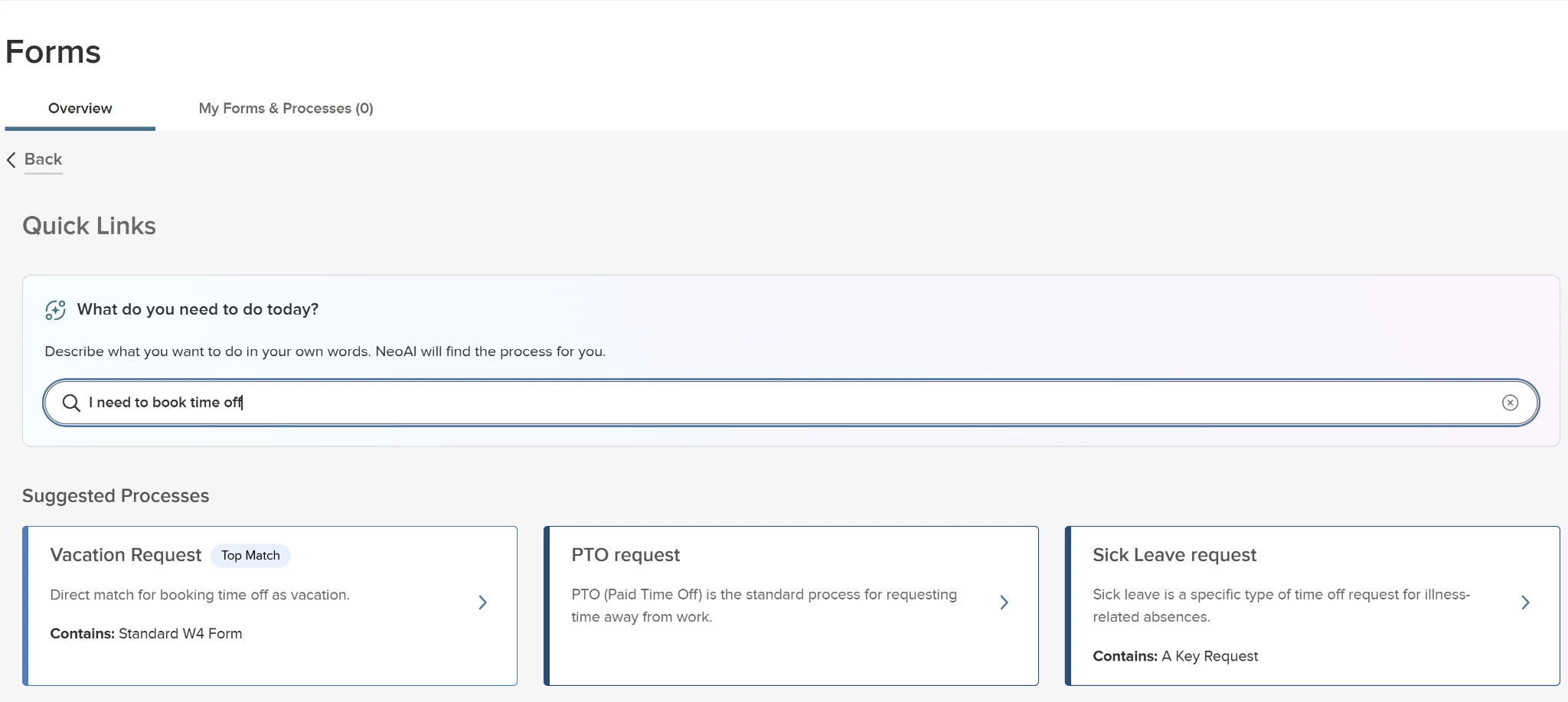
Employees and managers can now use NeoAI to find and launch processes using natural language. Instead of searching for exact process names, you can describe what you need to do, and NeoAI will suggest the most relevant workflows.
How it Works
- Placement: The NeoAI search bar is located at the top of the Quick Links page.
- Search: Enter a question in your own words (example: "I need to request time off." or "How do I get a new badge?").
- Suggested Processes: NeoAI dynamically shows a list of relevant processes.
- Top Match: The most relevant result is highlighted with a teal Top Match badge.
- Metadata: Each card shows a Contains: [Form Name] label to help you identify the primary form within that process.
- Consent: On the first use per session, an AI Acknowledgment dialog will appear. You must click Continue to proceed with the search.
Note: This feature must be enabled by an HR Admin in the AI Administration settings page.
Value
- Improved Discoverability: Helps users find the right process, even if they don't know the official title.
- Reduced Support Burden: Decreases the number of inquiries to HR regarding where to find specific forms.
- Faster Initiation: Streamlines the path from need to action by providing direct links to process initiation.
Audience
Everyone with access to Quick Links (Employees, Managers, and Admins).
Folder Level Permissions - Employee Access
HR Admins now have more granular control over document visibility within EDMS. This update ensures that the employee permission checkbox strictly governs whether users can see their own records, even if they have elevated administrative access.
How it Works
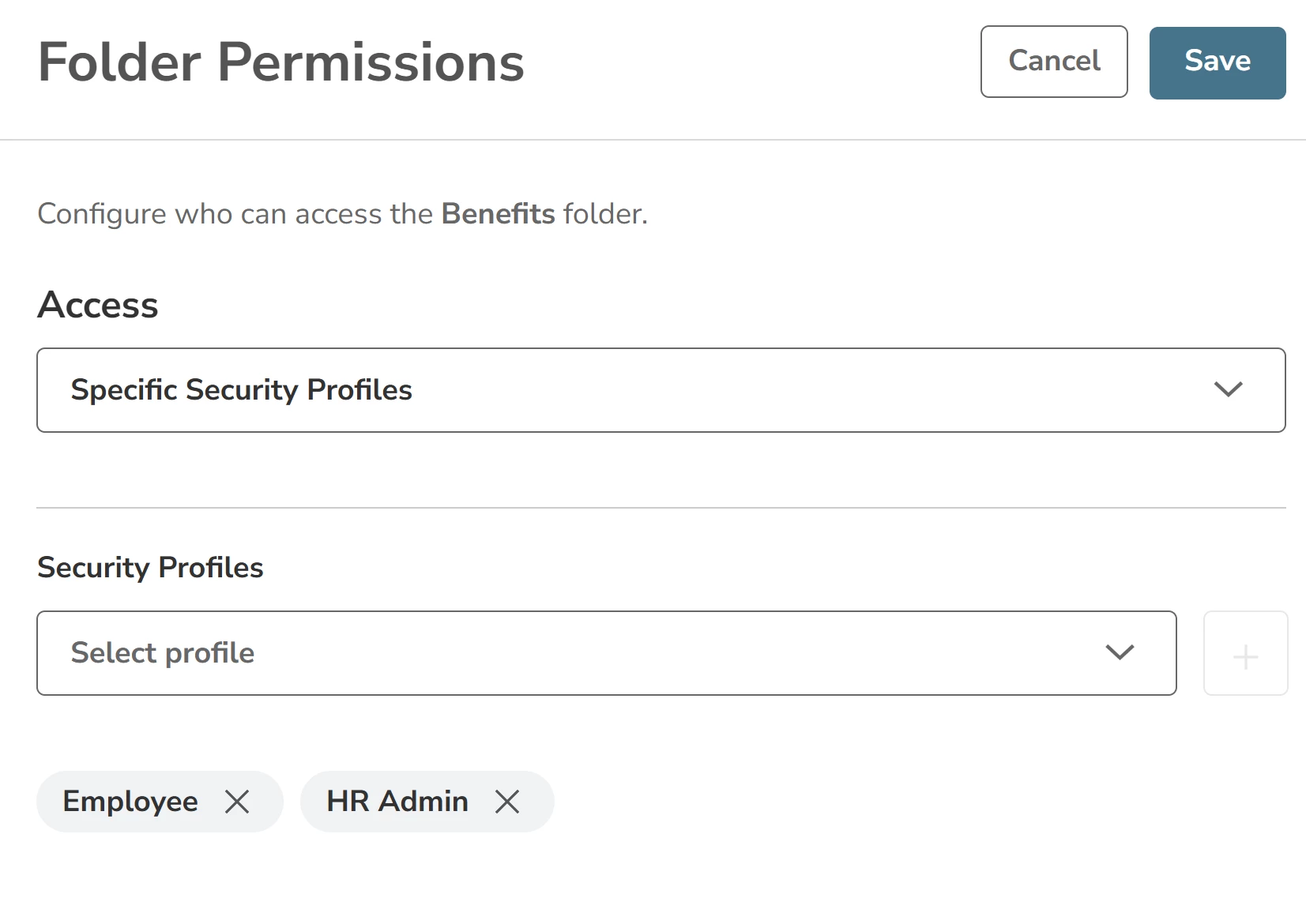
Visibility Control: Within the Folder Permissions flyout, the Employee checkbox determines if a user can see documents where they are the record owner.
- When Checked: Users can see their own documents within the folder.
- When Unchecked: All users, including HR Admins, HR Users, and IT Users are prevented from seeing any documents where they are the record owner.
Administrative Access: Even when the box is unchecked, users with administrative profiles will still see the folder (and other documents of employees) based on their standard permissions. They will lose the My Records visibility for themselves.
Value
- Enhanced Privacy: Prevents HR staff and Admins from viewing their own sensitive documents (such as confidential evaluations or disciplinary actions) while performing administrative tasks for others.
- Granular Security: Provides HR Admins with the ability to hide My Records on a per-folder basis, without removing the overall administrative rights from the user.
Audience
HR Admins.
Folder Level Permissions - Manager Visibility Scope
HR Admins can now more precisely define folder visibility for Managers. This update ensures that Managers only see folders and documents for Employees within their direct reporting hierarchy, preventing unauthorized access to sensitive records across the agency.
How it Works
Visibility Control: Within the Folder Permissions flyout, the Manager checkbox determines if Managers can access documents for their team within that folder.
- When Checked: Managers can see documents for Employees who are their direct reports.
- When Unchecked: Managers are prevented from seeing any documents within that folder for their own direct reports.
Value
- Data Privacy: Ensures that HR Users, HR Admins and IT Users who are also Managers cannot view sensitive documents for Employees outside of their team, maintaining strict data silos between departments.
- Automated Compliance: Reduces the manual effort required by HR Admins to configure complex folder permissions.
- Secure Collaboration: Allows HR to share folders with Managers while trusting that the eForms product will only surface relevant, authorized records to each individual user.
Audience
HR Admins (for configuration) and Managers (affected by the visibility scope).
Review Process Task - Bypass Feature
Administrators can now enable the Bypass option for review process tasks, ensuring that designated reviewers can complete their work even if they do not have standard security visibility to the Employee (Process Assignee). This update aligns the review process task with existing behaviors in review form tasks and Onboard.
How it Works
- Bypass Toggle: The new Bypass Scope Restrictions toggle is available in the Process Builder for review process tasks. The toggle is located directly below the Task Required toggle.
- Task Access: When enabled, the assigned reviewer will see the task in their My Tasks list, Dashboard, and Unified Suite Task List, regardless of their traditional department or position-level security restrictions.
- Process Overview and Forms: Reviewers can access the Process Overview page and associated forms for that specific process instance. Access to the form still uses the Read permissions defined in the Form Builder.
- Security Maintenance: The bypass is task-specific. Reviewers do not gain general access to the employee in Search or Reports outside of this specific review task.
- Audit Trail: To maintain transparency, the Task Audit log will explicitly append the Bypass Scope Restrictions: ON label to entries when a task is assigned or completed using this feature.
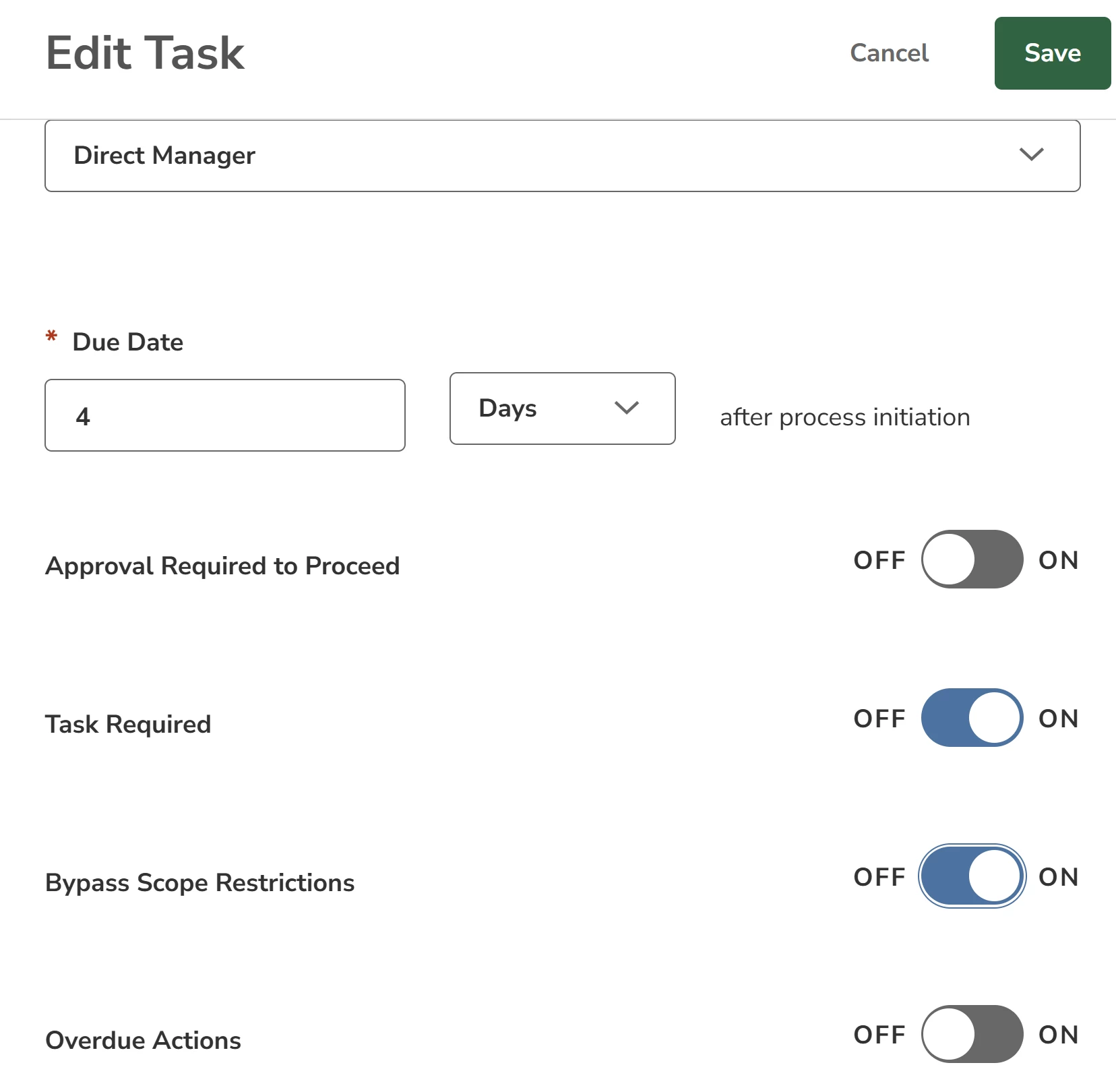
Note: Enabling or disabling this toggle will only apply to newly assigned process instances.
Value
- Process Continuity: Prevents workflows from stalling when a necessary reviewer (such as a cross-departmental Manager or Executive) lacks standard security access to the employee.
- Administrative Consistency: Provides a uniform configuration experience for Administrators across different task types.
- Secure Flexibility: Allows for necessary exceptions to security rules without compromising the overall integrity of employee data privacy.
Audience
HR Admins (for configuration) and designated Process Reviewers.
Folder Audit
HR Admins can now track all actions performed on folders within EDMS and Employee Details. This comprehensive audit trail ensures complete visibility into folder management for compliance and security purposes across both the Unified Suite (US) and eForms.
How it Works
- Audit Entry Points
- Folder Card View: Access the Audit option using the ellipses (three dots) menu on any folder card.
- Folder List View: Click the Audit icon in the Actions column for any folder row.
- Audited Actions: The EDMS logs the following folder-level events.
- Folder Created, Renamed, or Moved.
- Folder Shared.
- Folder Archived or Unarchived.
- Permissions Changed.
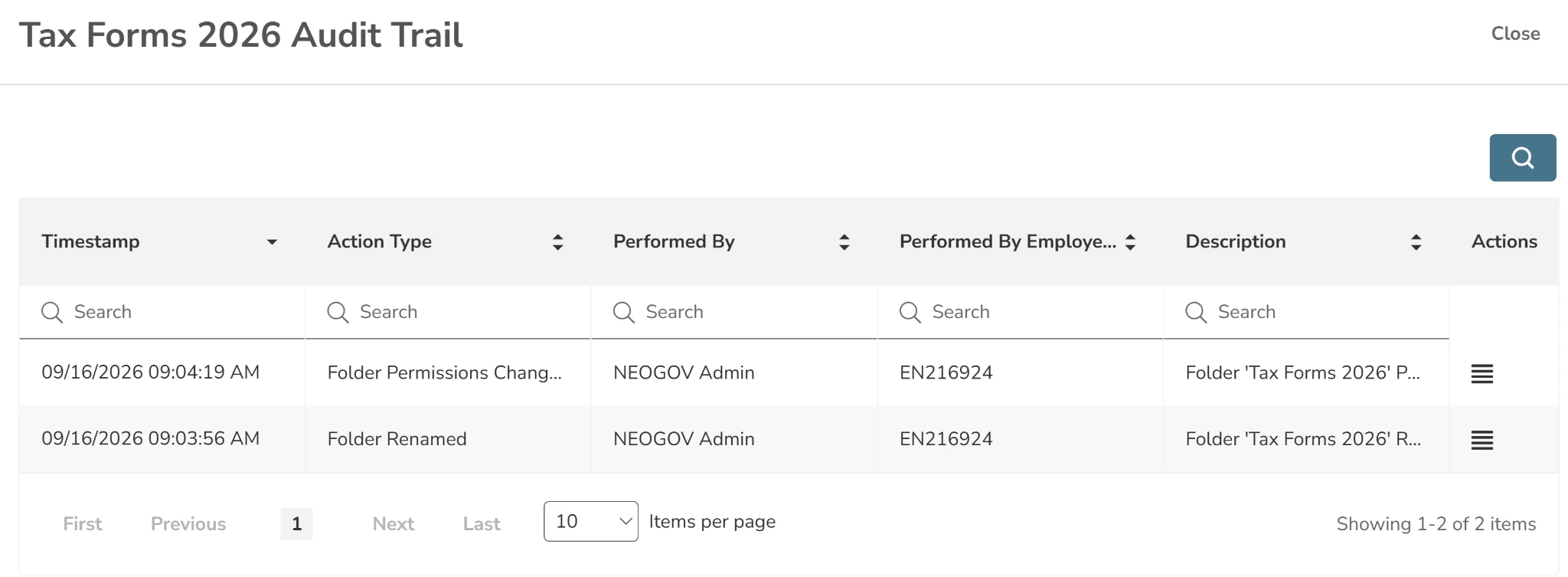
- Audit Trail Flyout: Clicking Audit opens a flyout menu showing the list of actions with timestamps, action types, and the user who performed them.
- Action Details: Selecting a specific row opens a secondary flyout with in-depth information, such as:
- General Info: Exact timestamp, action type (presented as a tag), and the performer's name and employee ID.
- Description: A summary sentence of the action.
- Action Specifics: Detailed changes, such as old name vs. new name.
Note: This feature is available for both top-level folders and subfolders.
Value
- Compliance Readiness: Provides a permanent record of folder management actions, essential for internal audits and regulatory requirements.
- Security Oversight: Allows HR Admins to monitor who is sharing or changing permissions on sensitive folders.
- Operational Transparency: Helps teams understand when and why folder structures or policies were modified, reducing confusion during administrative transitions.
Audience
HR Admins.
Document Access Audit
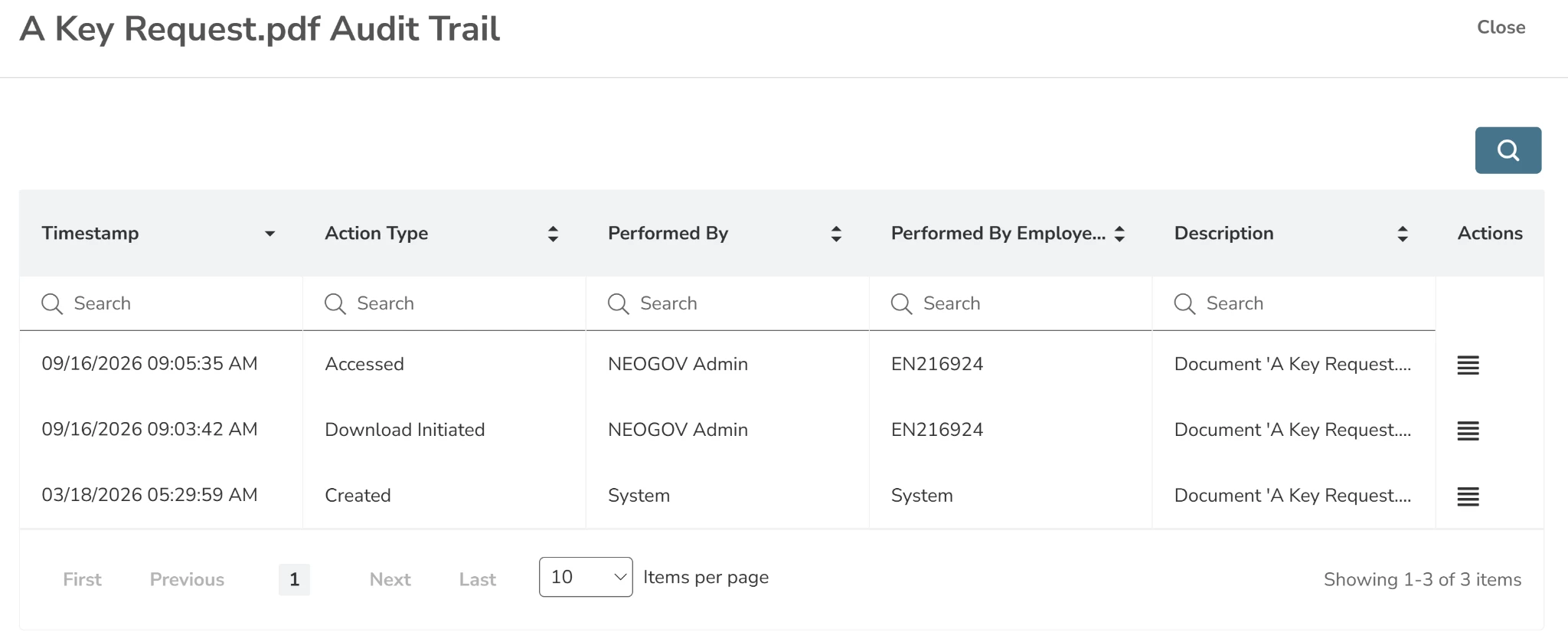
HR Admins can now track every instance a document is accessed or previewed within EDMS and Employee Details. This new audit capability ensures full visibility into document consumption, including access by users who have been granted permission via folder sharing.
How it Works
- New Audited Action: The EDMS now logs a specific Access action type.
- Trigger: This action is automatically recorded whenever a user:
- Clicks the Preview/View icon.
- Opens a document for viewing from any list or card view.
- Shared Access Tracking: The audit trail captures access by all authorized users, including those viewing documents within a folder that has been shared with them.
- Audit Trail Details: Each access entry includes:
- Timestamp: The exact date and time of access.
- Performed By: The name and employee ID of the user who viewed the document.
- Status: A clear indicator that the Document has been accessed.
Value
- Security Compliance: Provides a detailed log of who is viewing sensitive documents, helping agencies meet strict data privacy and security standards.
- Consumption Visibility: Allows HR Admins to verify that required documents (such as policy updates or handbooks) are being reviewed by the intended recipients.
- Accountability: Ensures that all document interactions, even those from shared folders, are correctly attributed to specific users.
Audience
HR Admins.
Employee-to-Prehire Documents
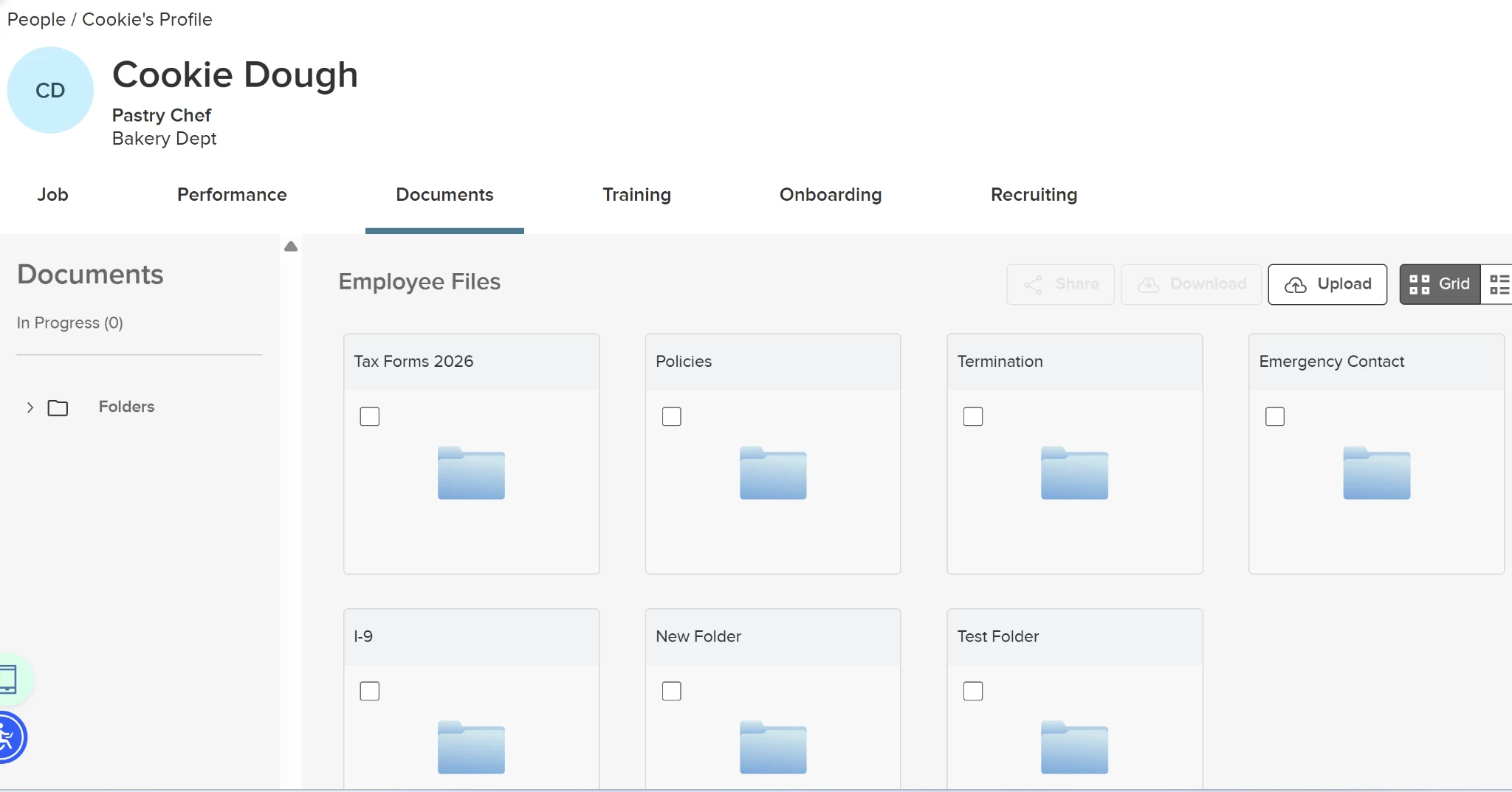
HR Admins can now maintain a continuous record of documentation when an employee transitions to a pre-hire status (example: during a promotion or rehire process). This update ensures that critical files and metadata remain accessible throughout the employee's lifecycle.
How it Works
- Tab Persistence: The Documents tab remains visible and active in the Unified Suite profile even after an employee's status is changed to Pre-hire.
- Data Integrity: All existing files, folder structures, and metadata are preserved without data loss during the status transition.
Value
- Continuous Records: Eliminates gaps in documentation during internal transitions, ensuring that historical records (like original onboarding forms) stay linked to the employee's profile.
- Administrative Efficiency: Reduces manual work by automatically relocating documents to the correct EDMS section once a pre-hire officially becomes an employee.
Audience
HR Admins.
Data Purge Approval
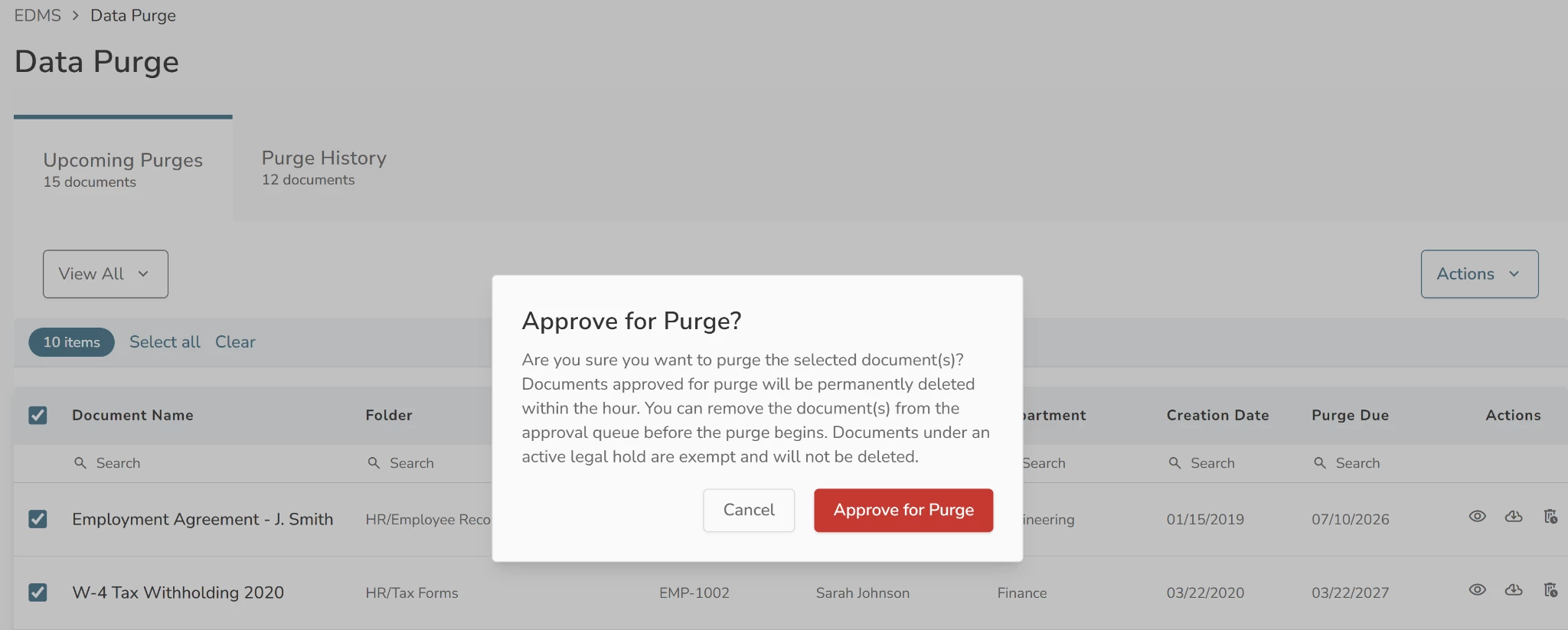
HR Admins can now manually manage EDMS’s automated document deletion. This update replaces the automatic deletion of expired records with a mandatory approval workflow, ensuring that no data is purged without explicit administrative oversight.
How it Works
- Manual Approval Required: Documents will no longer auto-purge upon reaching their expiration date. Instead, they must be reviewed and approved by an HR Admin.
- Upcoming Purges Tab: This tab shows all documents that have met their retention policy conditions.
- Purge Due Column: Shows the date a document becomes eligible for purging.
- Overdue Indicator: An orange warning icon appears next to the date if the purge due date has passed.
- Approval Workflow
- Approve for Purge: Admins can approve individual documents (via a trash-like icon) or multiple documents (via bulk action). This triggers a confirmation popup with a legal hold disclaimer.
- Purge Approved Icon: Once approved, a green icon appears next to the document name, indicating it is ready for the next purge cycle.
- Purge History: Once a document is permanently deleted, it moves to the Purge History tab, which records the Date Purged and the name of the user who approved the purge.
Value
- Risk Mitigation: Prevents the accidental loss of critical data by requiring a second look before permanent deletion.
- Legal Compliance: Ensures additional time needed to get the data purge approval.
- Accountability: Provides a clear record of who authorized each deletion, maintaining a high standard of data governance.
Audience
HR Admins.
Appendix: Bugs Resolved
No additional bug fixes outside of the maintenance releases. Refer to the maintenance release notes for more details.
Related Resources