



Insight: Fall 2026 Early Access
Article Links
Timeline
When will this be released?
UAT Preview Window: Based on sign-ups; Will be communicated via email.
Production Availability: Based on sign-ups; Will be communicated via email.
Is there downtime for this release?
No.
Early Access Sign-Up
We are excited to offer multiple features in an early access release. Early access means you will receive the features in UAT and Production before the general release to all customers.
Sign Up Form:
- Early Access Feature Enrollment Form - Rating Scales and Approval Workflow Permissions
- Early Access Feature Enrollment Form - AI Job Optimizer
Beta Experience
These features are for early beta release, and we’re actively learning from customer feedback.
- Expect ongoing improvements, and the functionality may evolve.
- Your input will help shape the future of the enhancements.
Rating Scales in Unified Hire Workflow
We’re excited to introduce the six additional rating scales in review, interview, and exam steps in the Unified Hire Workflow. With these new scales, your recruitment efforts have more flexibility in scoring candidates qualitatively, especially if you use Hiring Teams.
What are the new Rating Scales?
- Requirements Scale: Does Not Meet Requirement(s), Meets Requirement(s), Exceeds Requirement(s), No Assessment at this Time
- Experience-Based Scale: No Experience, Limited Experience, Moderate Experience, Extensive Experience, Expert-Level Experience, No Assessment at this Time
- Fit Scale: Not a Fit, Potential Fit, Strong Fit, Top Candidate, No Assessment at this Time
- Recommendation Scale: Do Not Recommend, Recommend with Reservations, Recommend, Strongly Recommend, No Assessment at this Time
- Competency Scale: Foundational Knowledge, Working Knowledge, Applied Skill, Advanced Application, Subject Matter Expert, No Assessment at this Time
- Structured Interview Scale: Evidence Not Demonstrated, Partially Demonstrated, Adequately Demonstrated, Fully Demonstrated, Exceptional Demonstration, No Assessment at this Time
What else is new?
- Allow Multiple Raters setting - when checked, allows for multiple raters to give qualitative assessment
- Enables Individual Overall Assessment
- Enables Overall rating system
- Rating Criteria - adds an Individual Overall Assessment field for individual scorers
- Overall rating system - can be given by Hiring Team lead, Hiring Manager, or HR Liaison in the Rating Matrix Grid. The options for configuration are the chosen rating system or a recommendation scale.
Note: Exam steps do not have rating criteria, so they will not have an individual overall assessment. They also will not have an overall rating system like review and interview steps.
- Rating Completion Notification - when all raters have completed their ratings, the Hiring Team lead, Hiring manager, and HR Liaisons will be notified via email. If utilizing hiring teams with overall candidate scoring, this can act as a prompt to begin collaborative deliberations and give the candidate a final score as a committee.
How It Works
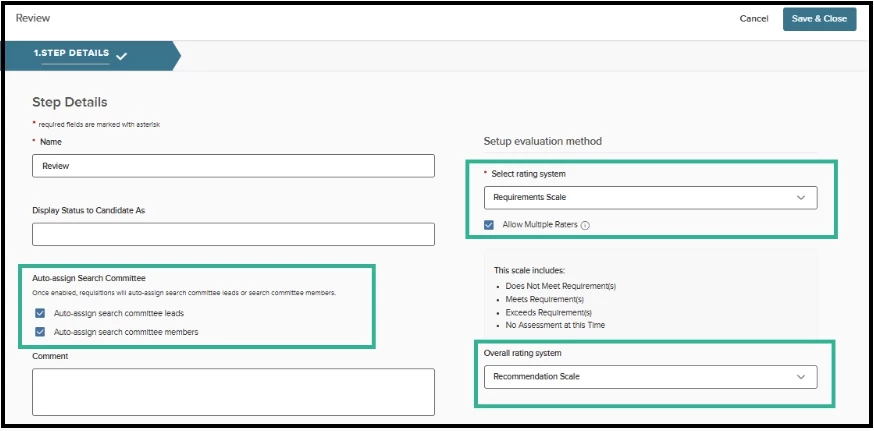
Step 1: Configure Hire Workflow Templates with the Desired Rating Scales.
- Go to Self-Service Portal > Recruiting tab > View Settings > Hire Workflow and edit or create a new template.
- Create a Review, Interview, or Exam step.
- Select from a new rating scale.
- If you want to have multiple raters in the step, select Allow Multiple Raters.
- Configure the Overall rating system if you are using the Review or Interview step.
- If you are using hiring teams, select Auto-assign Hiring Team.
Step 2: Configure the Hire Workflow at the Requisition level.
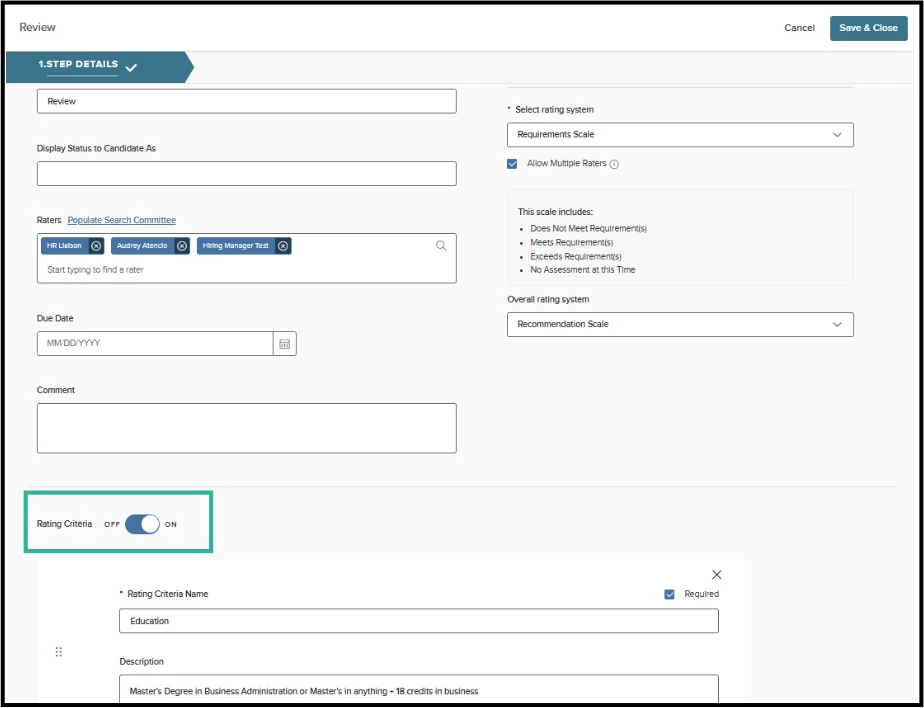
- The hire workflow template will copy the structure of your rating system.
- Use the hire workflow on the requisition if you want to add details like rating criteria.
Step 3: Raters complete their Tasks from the Self-Service Portal dashboard.
- Once candidates have been placed into the step, the raters will receive emails for their task.
- They can complete them from the Self-Service Portal dashboard.
Step 4: If needed, the hiring team lead, hiring manager, or HR liaison can provide the combined overall rating.
- The Rating Column will show the progress of how many raters have completed their rating. Once all raters have completed their rating, an email notification to the users with authority to give an overall score will occur.
- When all ratings have been completed by raters, an e-mail notification will trigger to hiring team leads, hiring managers, and HR liaisons. This can serve as a notification to give a combined overall rating.
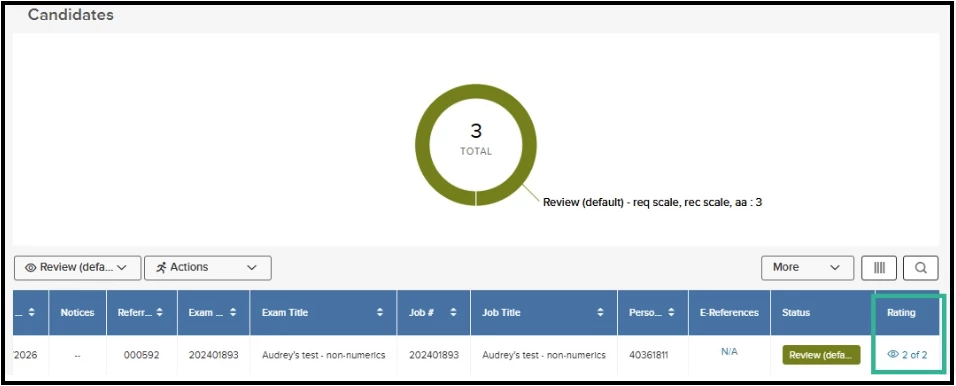
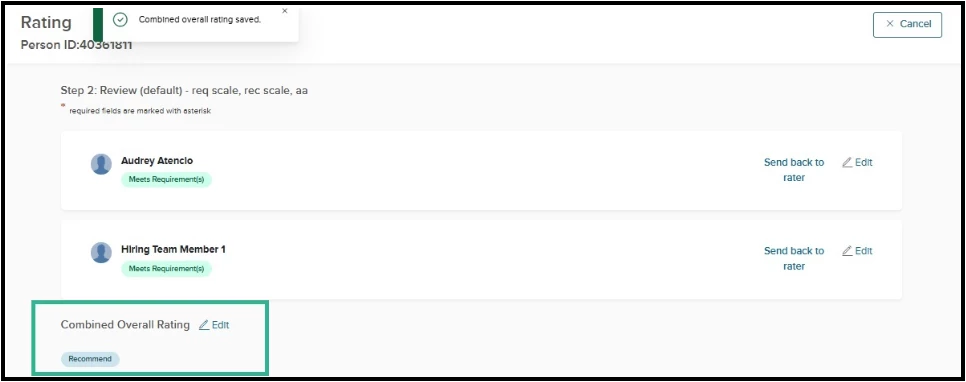
Step 5: Select the rating column progress indicator to open the Rating Matrix Grid and provide the Combined Overall Rating.
Approval Workflow Permissions and Notifications
Introducing three new override permissions that allow Insight Admins to control who can edit approval workflows on requisition, offer, and hire submissions or edits. The new permissions lock down the capability to edit: groups, approvers, or delete groups entirely in the approval workflows. Also, there are additional notifications to Insight Users and HR Liaisons if someone does modify a workflow. Lastly, new tracking capabilities in offer and hire approvals allow users to see exactly what stage the approval is at.
How it Works
Override Permissions
- Configure the override permissions for Originators, Approvers, Hiring Managers, and HR Liaisons. The permissions are enabled by default, which lends itself to the current editing experience (all access to edit groups, approvers, and delete groups within requisition, offer, and hire pre-configured approval workflows).
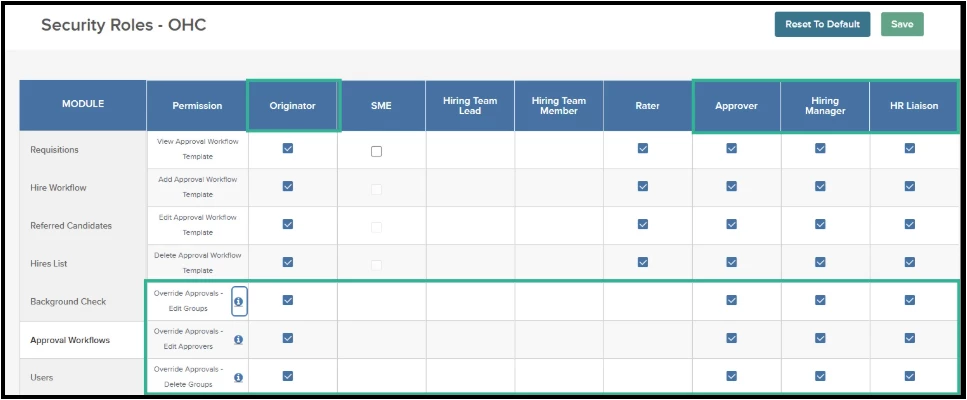
Insight > Admin > Configuration Settings > Security Roles - OHC > Approval Workflows - Override Approvals - Edit Groups: allows for editing the approval groups of pre-configured approval workflows upon submission or editing
- Override Approvals - Edit Approvers: allows for editing the approvers within groups of pre-configured approval workflows upon submission or editing
- Override Approvals - Delete Groups: allows for deleting the approval groups of pre-configured approval workflows upon submission or editing
- Upon submission or editing of a requisition, offer, or hire, the override permissions take place.
Note: users may always add an approval group, but as soon as they save it, it is subject to the override permissions of their user role.
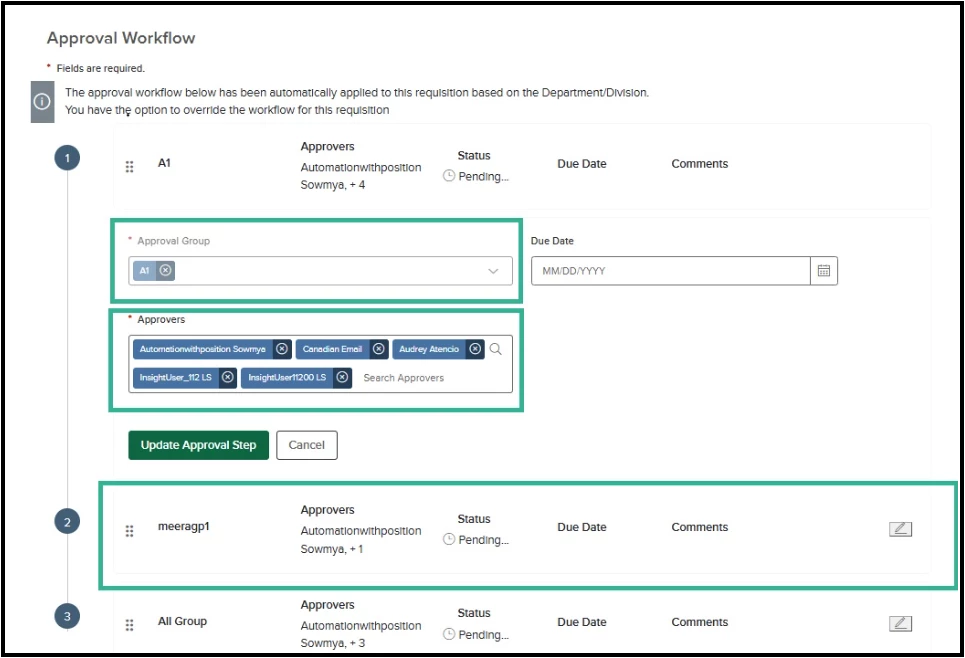
Self-Service Portal > Create Requisition > Approvals tab - Example of user without edit approval group or deletion of groups. This user does have the ability to edit the approvers within the group, however.
Autopopulation
- Create or modify requisition, offer, and hire approval workflows to de-select autopopulation (which is current behavior) if you want users to have to select from a list of users (instead of having them autopopulate). This is beneficial when you have a large group of users (e.g. supervisors) and you want users to select from the list who the approval should go to.
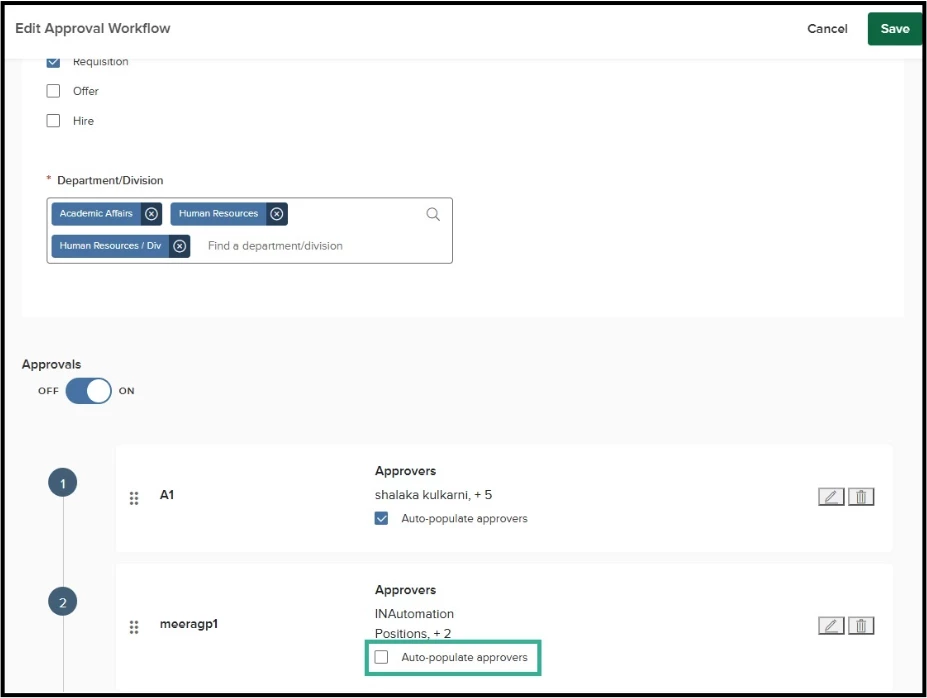
Self-Service Portal > Recruiting tab > View Settings > Approval Workflow - Edit or Add > Auto-populate approvers setting
- Upon submission of the requisition, offer, or hire approval, the approval group will prompt selection of an approver. Submission of these forms is not available until selecting an approver.
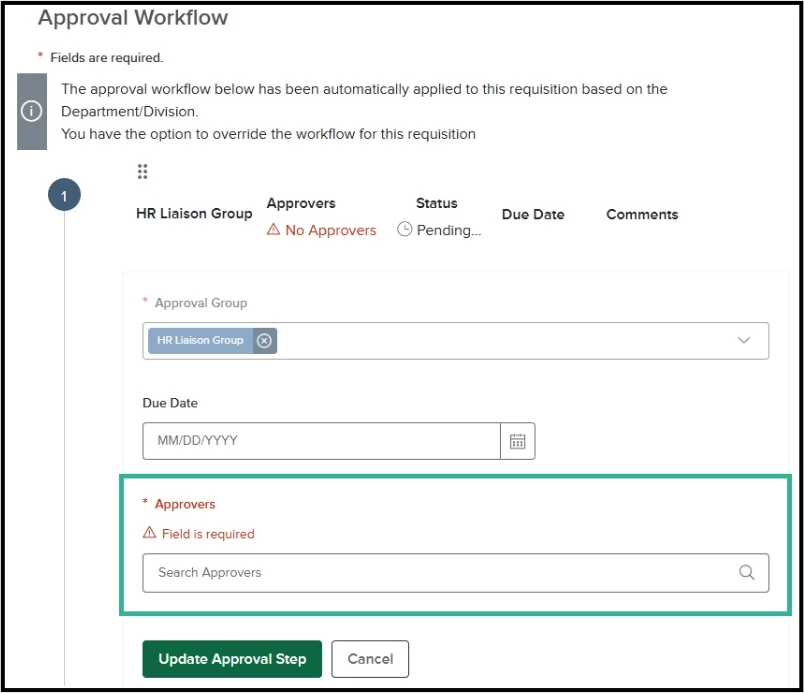
Self-Service Portal > Create Requisition > Approval Tab > Approvers field is required in non-auto-populated approval group. 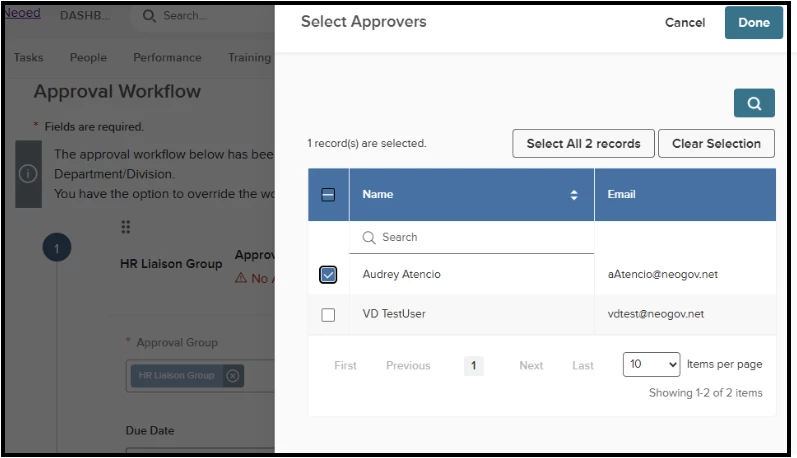
Self-Service Portal > Create Requisition > Approval Tab > Approvers field is required > Select relevant approver(s)
Notifications
When an approval workflow is modified (group edited, approvers edited, or group deleted) in a requisition, Insight Users and HR Liaisons are notified.
Note: Override permissions enable “locking down” approval workflows, but this will inform administrators if there are edits within override rights.
AI Job Optimizer: Data-Driven Insights for Compensation, Education, and Experience Requirements
We're excited to announce Job Optimizer, a new feature in Analytics & Reporting that helps you improve the performance of your job postings using AI-powered, data-driven recommendations.
Job Optimizer helps agencies evaluate how their job postings compare with similar roles across existing NEOGOV / NEOED agencies, using nearby locations or comparable urbanicity to identify relevant peer jobs. It provides recommendations across key areas such as salary, education requirements, and work experience. These insights can help agencies assess whether job requirements are aligned with the market, identify opportunities to make postings more competitive, and support broader workforce and budget planning. The goal is to give HR teams practical, data-driven guidance when reviewing compensation, qualifications, and overall job design.
How to Get Started
Job Optimizer is an optional feature. To enable and access it:
- Navigate to the Admin page in Analytics & Reporting.
- Enable AI Recommendations.
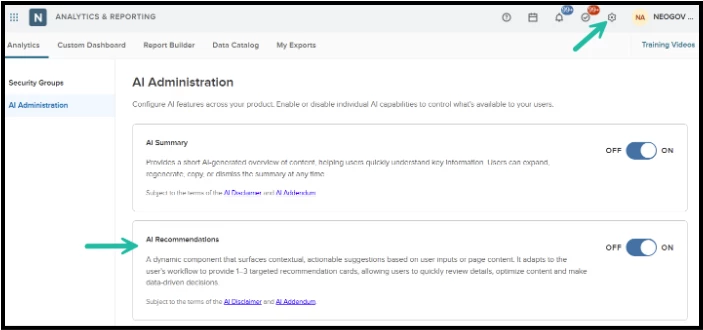
Analytics > AI Administration
- Go to Recruitment Dashboard > Job Attractiveness Metrics Report.
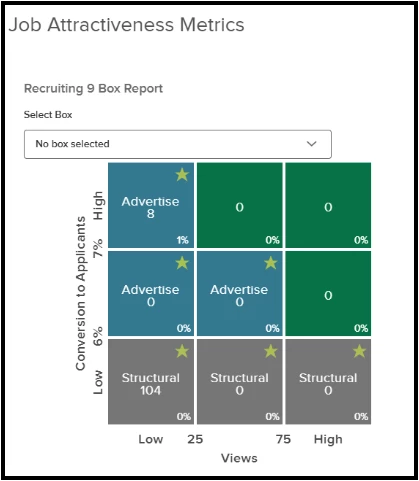
- Select the Job Posting view on the Job Attractiveness page.
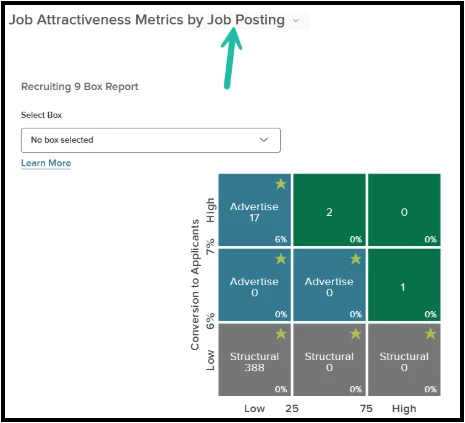
- Click an entry in the Job Optimizer column to view detailed recommendations for that job.
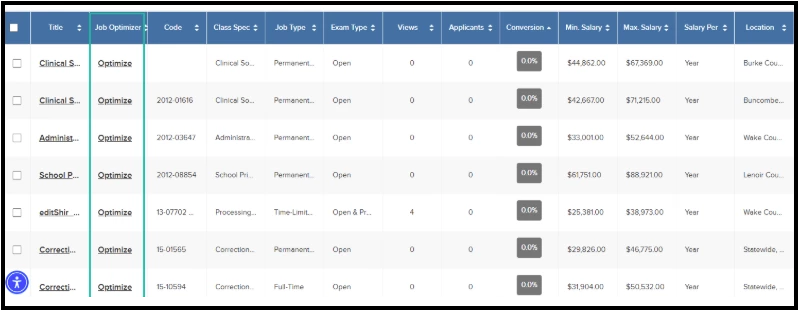
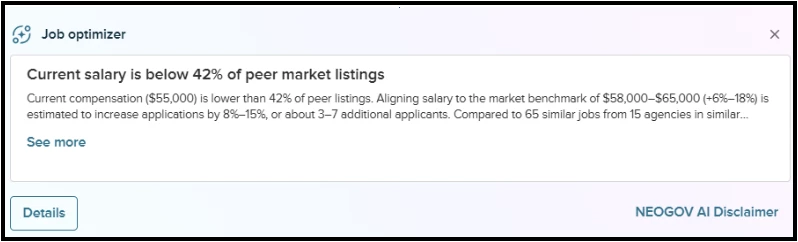
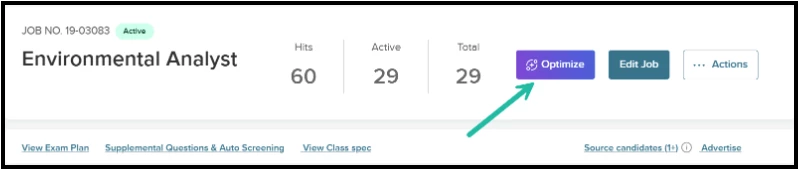
- The detailed job recommendations can be directly accessed from Insight using the Optimize button on the job details page. This direct access button will be available for users with Analytics and Reporting access.
Key Features
Job Optimizer Column
A new Job Optimizer column has been added to the Job Postings grid on the Job Attractiveness page. This column shows at a glance whether a job has recommendations available:
- Optimize – Recommendations are available for this job.
- View – No recommendations are currently available for this job.
AI-Powered Recommendations
Job Optimizer compares your job postings with benchmark data from similar listings across peer agencies. Based on this comparison, it generates clear, actionable recommendations in two key areas:
- Salary – Compare your posted compensation against peer market listings, see recommended salary ranges, and estimate how much applicant volume could grow if you align with the benchmark.
- Education & Experience – Compare your job requirements with peer listings, review suggested adjustments, and evaluate the estimated impact on applicant volume.
Every recommendation provides supporting context, including the number of peer jobs and agencies in the comparison, helping you make informed decisions about your job postings.
Note: This functionality is excluded from the UAT preview window and will be accessible exclusively upon Production Availability.