



Insight: Fall 2026 Release Notes
Article Links
Timeline
When will this be released?
UAT Preview Window: October 1, 2026, 4 AM PDT
Production Availability: October 29, 2026, 4 AM PDT
Is there downtime for this release?
No.
Centralized Evaluation Step Templates in Library
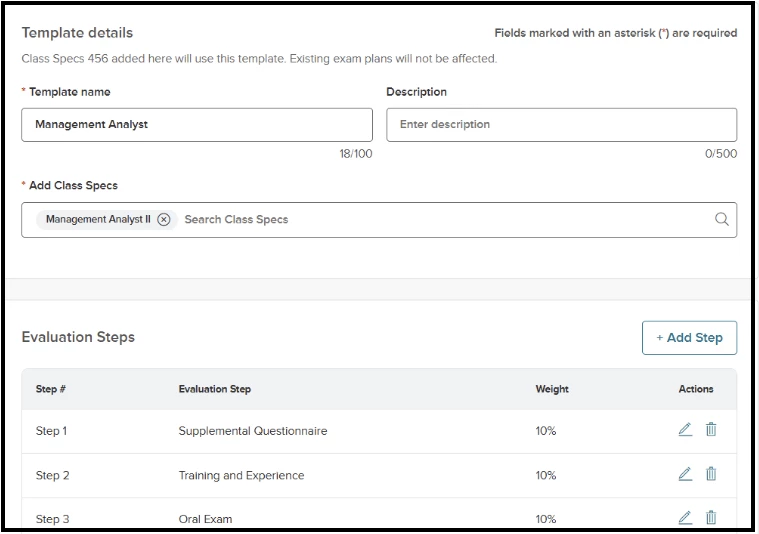
Insight now includes a centralized library for creating and managing reusable evaluation steps. Instead of configuring the same evaluation steps separately on hundreds of class specs, or rebuilding them each time a new exam plan is created, agencies can now build a template once and associate it with one or more class specs. When a new exam plan or recruitment folder is created for an associated class spec, the correct evaluation steps are added automatically.
Security Permissions To Manage Templates
A new security role permission, Manage Evaluation Step Templates (Admin → Configuration Settings → Security Roles Insight → Manage Evaluation Step Templates), controls access to the library templates. It is enabled by default for the Administrator and Insight User roles, and disabled by default for all custom roles; administrators can enable it for additional roles as needed. Users with this permission can view, add, edit, and delete evaluation step templates in the Insight Library, and associate them with class specs.
How it works
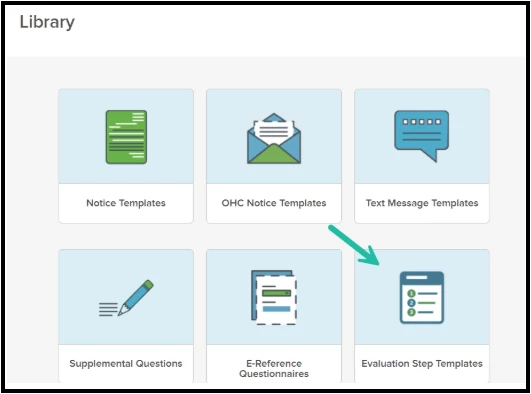
To create a template, a user opens the Insight Library, selects Evaluation Step Templates, and chooses Add New Template. From there, they name the template, select the class specs it should apply to (one, several, or all that share similar evaluation steps), add and configure the evaluation steps, and save. Note that a class spec can be associated with only one template.
When a new exam plan or recruitment folder is created for an associated class spec, the correct evaluation steps are added automatically.
Existing Class Spec Templates
Agencies currently using individual class-spec-level evaluation step templates are migrated automatically to the new centralized Library format. No action is required, and existing evaluation steps continue to apply when exam plans are created.
Audience
Insight Administrators: can enable the Manage Evaluation Step Templates permission for the necessary Insight roles
Insight Users with the Manage Evaluation Step Templates permission: can view, create, edit, and delete templates in the Insight Library, and associate them with class specs.
Value
- Eliminate redundant setup: build evaluation steps once and reuse them across multiple class specs, cutting administrative effort.
- Accelerate exam plan creation: evaluation steps populate automatically when an exam plan is created, helping agencies launch postings and recruitment activity faster.
- Simplify ongoing maintenance: update evaluation steps from one central location instead of editing each class spec individually.
Hiring Team Roles
We’re excited to introduce the Hiring Team experience, which features two new security roles: Hiring Team Lead and Hiring Team Member. With these two new roles, hiring teams gain access to candidates on the Unified Dashboard immediately upon referral.
What can the new Hiring Team Roles do? Roles can be configured so that they can:
- View requisition information (req details, approval history, history of changes made to the req)
- Customize requisition hire workflows (modify the hire workflow templates at the requisition, recruitment level)
- View referred candidates (see candidates in the candidate widget and list), move candidates through evaluation steps, schedule interviews/exams, reject candidates, print applications, view offered and hire information, and send e-reference notices and reminders
- Advertise jobs
- Send text messages
What Hiring Team roles cannot do (examples include, but are not limited to):
- Make offers to candidates (this is still done by Hiring Managers or HR Liaison roles)
- Move candidates to preboarding, background checks, or hire steps
How It Works
- Enable Hiring Teams: Insight Admin enables Hiring Teams inside of Settings > Agency Preferences
- Relabel Terminology - Optional: Relabel the terminology Hiring Teams, Hiring Team Lead, and Hiring Team Member to something that fits your institution in Insight > Configuration Settings > Field Labels
- Configure Lead and Member Roles: In Insight > Settings > Configuration Settings > Security Roles - OHC: in modules Requisitions, Hire Workflows, Referred Candidates, Advertise Job, and Text Messaging
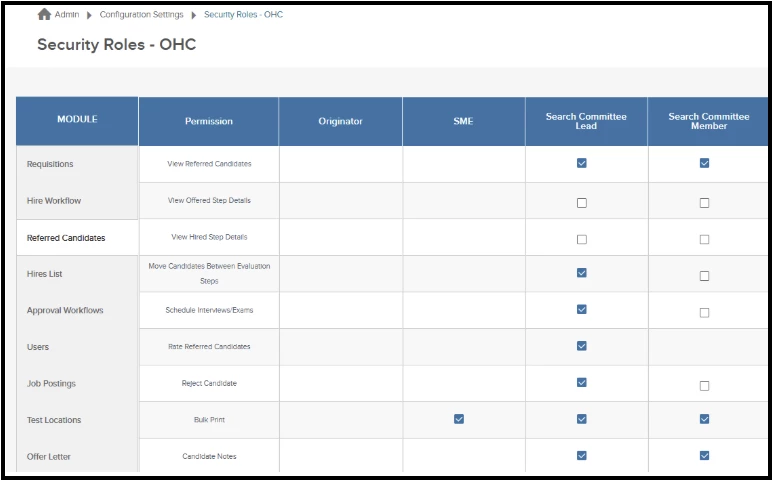
Insight → Admin → Configuration Settings → Security Roles - OHC → Referred Candidates
- Update Hire Workflow Templates - Optional (but recommended): Autoassign Hiring Team Members in review, interview, and exam steps in Hire Workflow Template:
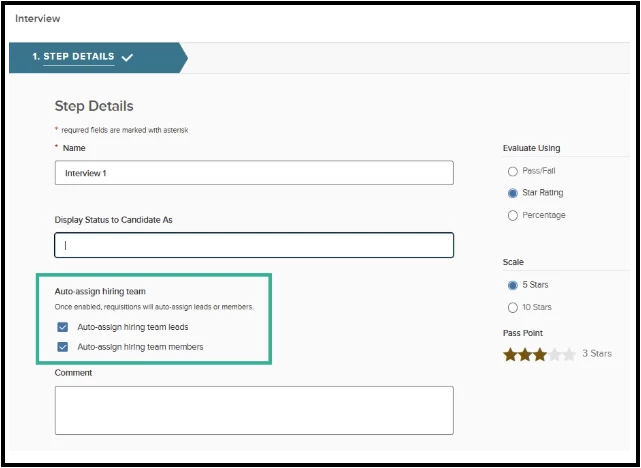
Unified > Recruiting > View Settings > Hire Workflow - Update User Permissions: In Insight > OHC Users > edit - Ensure OHC Users have at least “Rater” permission (this allows them to be listed as a lead or member on a requisition)
- Add Lead and Members on Requisitions: When creating a requisition, add the appropriate users into the Hiring Team Lead and Hiring Team Members fields. This gives them access to the recruitment.
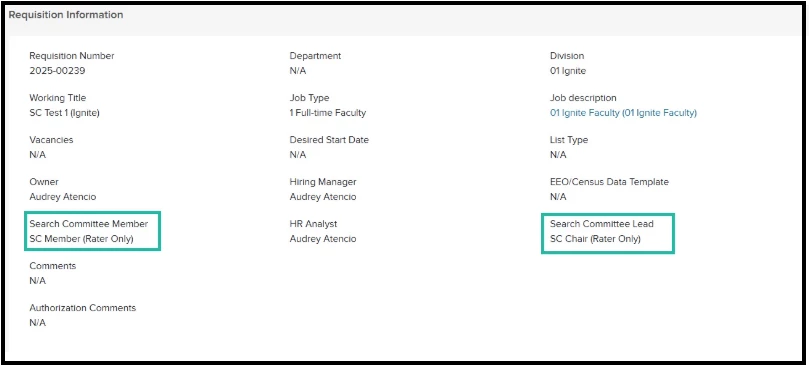
Hiring Team Lead and Hiring Team Members listed on requisition.
Hiring Team Leads and Hiring Team Members can now see candidates as soon as they have been referred and their user experience is dependent upon how their role has been configured in step.
Auto-Advance from Referred List
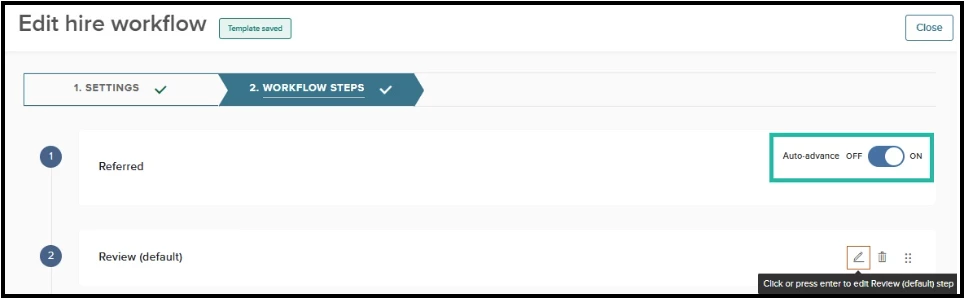
When candidates are referred to Hiring Managers, the new auto-advance setting on the referred step in the hire workflow will automatically advance candidates to the next (non-offer) step without HR Liaison or Hiring Manager intervention.
Audience
HR Liaisons, Hiring Managers, Hiring Team Leads, Hiring Team Members (those who can configure the hire workflow given their permission).
Value
Saves time by automatically placing candidates into the next step after referral.
How it Works
When you toggle “on” the auto-advance feature in the hire workflow templates in Unified/OHC Settings, or in individual requisition hire workflow templates, they will go automatically into the next step - in this example, a review step. With the power of auto-assigned hiring teams, your hiring team members can automatically get their rating task ASAP.
Insight Legacy Report Builder Sunset Notice
It's time to sunset the legacy report builder within Insight! After this release, Insight users will no longer be able to access the legacy Report Builder or view reports created there.
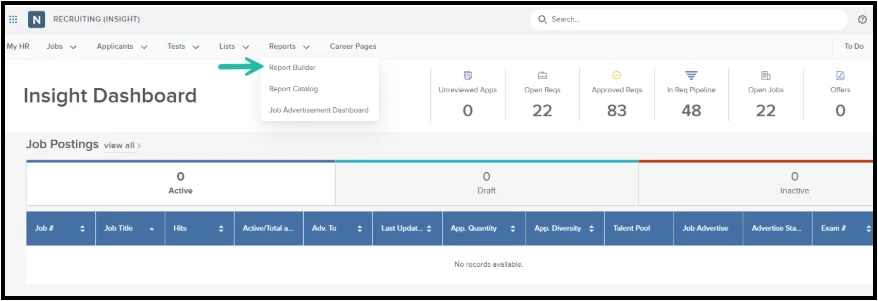
Existing report subscriptions created in the legacy Report Builder will continue to run for a limited time after the release. These subscriptions will also be discontinued at a later date, and we will provide advance notice before subscription delivery is turned off.
Action Required
Most organizations have already moved their reports to the Analytics and Reporting module. Agencies that have not yet moved their legacy reports should recreate needed reports in Analytics and Reporting before this fall release.
Value for Employers
Sunsetting the legacy Report Builder allows NEOGOV to focus continued investment on the newer Analytics and Reporting experience, giving agencies a more modern and scalable reporting solution for their long-term needs.
Early Access Features
We are excited to offer multiple features in an early access release. Early access means you will receive the features in UAT and Production before the general release to all customers.
Sign Up Form:
- Early Access Feature Enrollment Form - Rating Scales and Approval Workflow Permissions
- Early Access Feature Enrollment Form - AI Job Optimizer
For detailed information about each early access feature, please see Early Access notes.
Rating Scales in Unified Hire Workflow
Six new rating scales (Requirements scale, Experience-Based Scale, Fit Scale, Recommendation Scale, Competency Scale, and Structured Interview Scale) for qualitative candidate ratings in review, interview, or exam steps in Unified Hire Workflow. Additional functionality includes ability to give individual and overall candidate ratings as well.
Approval Workflow Permissions and Notifications
Introducing three new override permissions that allow Insight Admins to control who can edit approval workflows on requisition, offer, and hire submissions or edits. The new permissions lock down the capability to edit: groups, approvers, or delete groups entirely in the approval workflows. Also, there are additional notifications to Insight Users and HR Liaisons if someone does modify a workflow.
AI Job Optimizer: Data-Driven Insights for Compensation, Education, and Experience Requirements
Job Optimizer helps agencies evaluate how their job postings compare with similar roles across existing NEOGOV / NEOED agencies, using nearby locations or comparable urbanicity to identify relevant peer jobs. It provides recommendations across key areas such as salary, education requirements, and work experience. These insights can help agencies assess whether job requirements are aligned with the market, identify opportunities to make postings more competitive, and support broader workforce and budget planning. The goal is to give HR teams practical, data-driven guidance when reviewing compensation, qualifications, and overall job design.
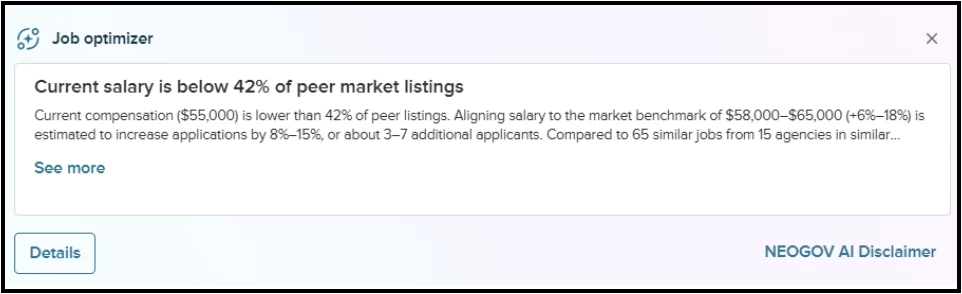
Note: This functionality is available within Analytics and Reporting and is excluded from the UAT preview window and will be available only in the production environment.
Appendix: Bugs Resolved
Please refer to the maintenance release notes for details about all the bugs resolved in this quarter.