Insight Summer 2026 Release Notes - Early Access
Article Links
Timeline
When will this be released?
UAT Preview Window: TBD
Production Availability: TBD
Is there downtime for this release?
No.
Related Release Notes Links
Early Access Sign-Up
We are excited to offer multiple features in an early access release. Early access means you will receive the features in UAT and Production before the general release to all customers.
To sign-up for early access features (you can select which ones you want), please complete this Early Access Feature Enrollment Form.
Beta Experience
These features are for early beta release, and we’re actively learning from customer feedback.
- Expect ongoing improvements, and the functionality may evolve.
- Your input will help shape the future of the enhancements.
Hiring Team Roles
We’re excited to introduce the Hiring Team experience which features two new security roles: Hiring Team Lead and Hiring Team Member. With these two new roles, hiring teams gain access to candidates on the Unified Dashboard immediately upon referral.
What can the new Hiring Team Roles do? Roles can be configured so that they can:
- View requisition information (req details, approval history, history of changes made to the req)
- Customize requisition hire workflows (modify the hire workflow templates at the requisition, recruitment level)
- View referred candidates (see candidates in the candidate widget and list), move candidates through evaluation steps, schedule interviews/exams, reject candidates, print applications, view offered and hire information, and send e-reference notices and reminders
- Advertise jobs
- Send text messages
What Hiring Team roles cannot do (examples include, but are not limited to):
- Make offers to candidates (this is still done by Hiring Managers or HR Liaison roles)
- Move candidates to preboarding, background checks, or hire steps
How It Works
- Enable Hiring Teams: Insight Admin enables Hiring Teams inside of Settings > Agency Preferences
- Relabel Terminology - Optional: Relabel the terminology Hiring Teams, Hiring Team Lead, and Hiring Team Member to something that fits your institution in Insight > Configuration Settings > Field Labels
- Configure Lead and Member Roles: In Insight > Settings > Configuration Settings > Security Roles - OHC: in modules Requisitions, Hire Workflows, Referred Candidates, Advertise Job, and Text Messaging
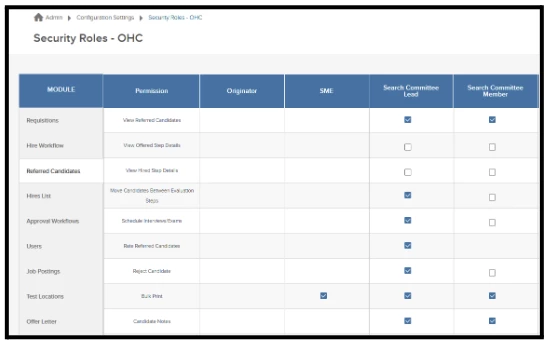
Insight > Settings > Configuration Settings > Security Roles - OHC > Referred Candidates - Update Hire Workflow Templates - Optional (but recommended): Autoassign Hiring Team Members in review, interview, and exam steps in Hire Workflow Template:
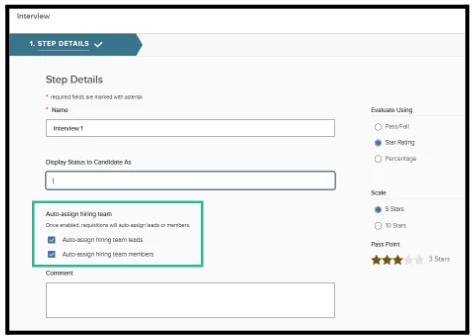
Unified > Recruiting > View Settings > Hire Workflow - Update User Permissions: In Insight > OHC Users > edit - Ensure OHC Users have at least “Rater” permission (this allows them to be listed as a lead or member on a requisition)
- Add Lead and Members on Requisitions: When creating a requisition, add the appropriate users into the Hiring Team Lead and Hiring Team Members fields. This gives them access to the recruitment.
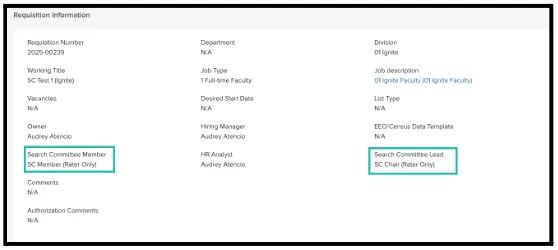
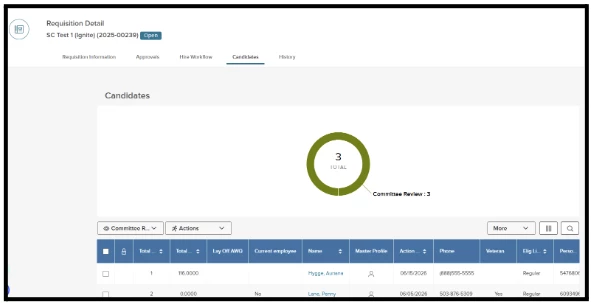
Hiring Team Lead and Hiring Team Members listed on requisition. - Hiring Team Leads and Hiring Team Members can now see candidates as soon as they have been referred and their user experience is dependent upon how their role has been configured in step 3.
E-Offer Enhancements - Versions
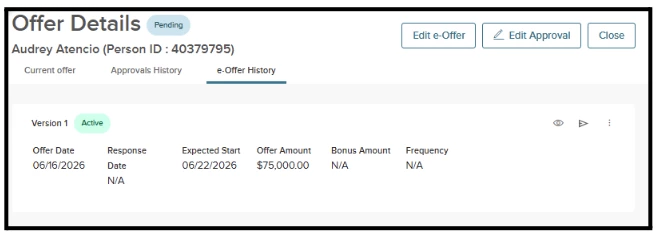
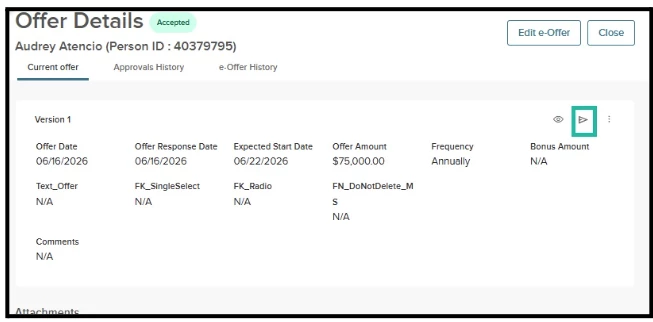
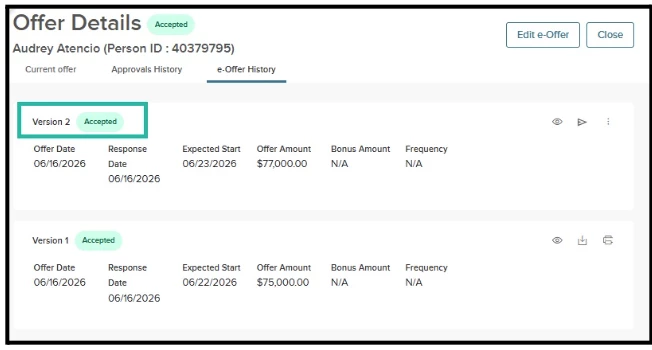
Introducing the new and improved e-Offer experience: HR Liaisons and Hiring Managers will now be able to send multiple offers (e.g. conditional and final, or updated versions of the same offer) to candidates which will be tracked as versions in the Offer Details page in Unified.
What’s new with e-Offers?
- Send e-Offer Permission (for Hiring Managers and HR Liaisons): New “Send e-Offer” permission in Insight > Settings > Configuration Settings > Security Roles - OHC > Referred Candidates
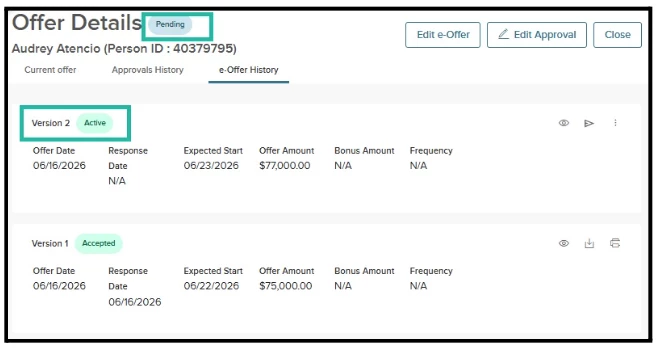
- Versioning: Versions are captured upon sending an e-Offer to a Candidate
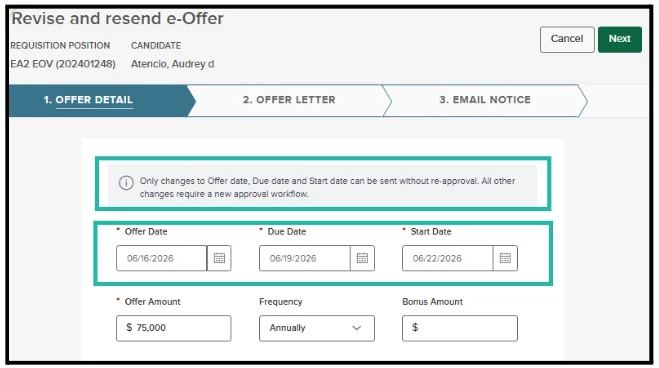
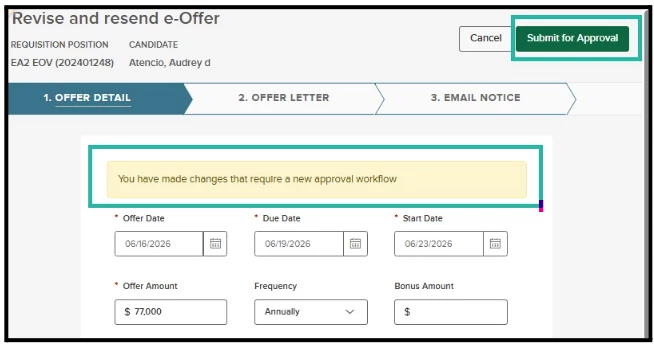
- Re-triggering Approvals: If you use offer approvals, when resending an e-Offer, modifying fields other than the offer date, due date, or start date will re-trigger the defined approval workflow. If your agency does not have offer approvals on, then you can re-send e-Offers at will.
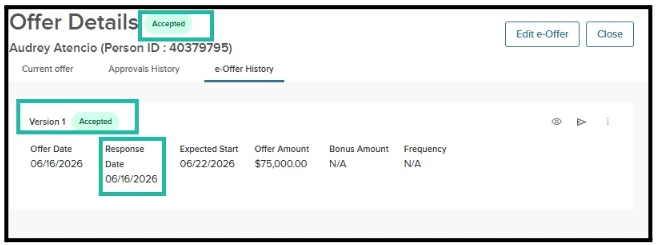
- Offer Persistence: As long as your candidate is in an offered or post-offered step, the offer remains active and available for signature. This means you can move them to preboarding, background check, even hired - and they can still sign the offer as long as the due date hasn’t passed.
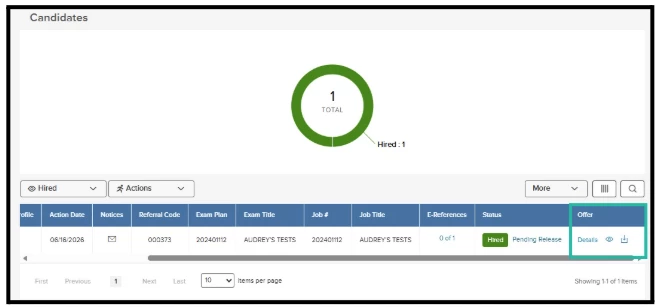
- Offer History Visibility: As long as you’ve created an offer, you will see the offer history regardless of if a candidate is in another step pre or post offer, including rejection.
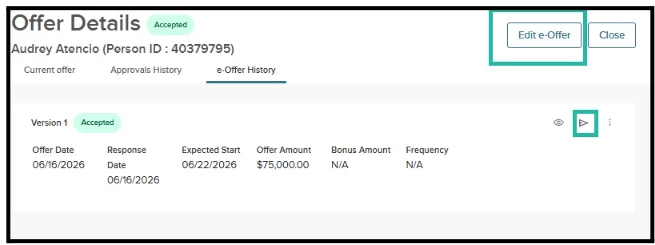
- Re-sending an Offer in a Post-Offered Step: If you’ve sent one offer (for example, a conditional offer), you can send an offer (for example, an updated or final offer) if they are in a post-offered step.
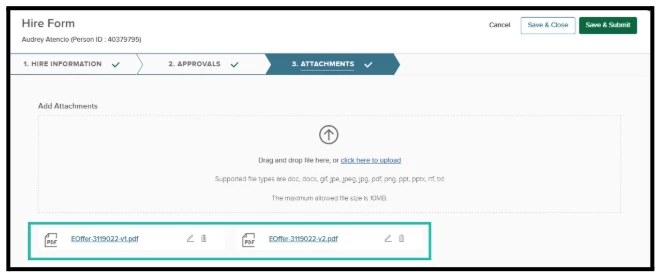
- Attaching Signed e-Offers to the Hire Form Automatically: All signed e-Offers will attach to the Hire form when a Hiring Manager or HR Liaisons moves the candidate to Hire.
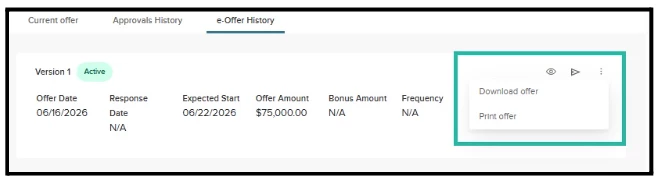
- The Candidate Experience: The candidate will only see the most recent, active version for signature. They can download and print that version as per current functionality until a new version is sent.
How it Works
Offer Approvals On
- Move a candidate to the offered step to initiate the offer approval form. Upon approval, send the e-Offer. This will create the first version.
- Create a subsequent version: Send an updated offer within the offered or any post-offer step (preboarding, background check, hired, etc.) by using:
- Re-send Icon in Current Offer Tab
- Re-Send Icon in e-Offer History Tab
- View Icon - Editing the e-Offer from the View e-Offer Details Page
- Moving back into the offered step (no longer necessary, but still works)
- Move to Hire - signed e-Offers attach to the attachments tab to the Hire Form automatically.
Offer Approvals Off
- Move a candidate to the offered step with “Move to e-Offer” action. Upon sending to the candidate, this will create the first version.
- Create a subsequent version: Send an updated offer within the offered or any post-offer step (preboarding, background check, hired, etc.) by using:
- Re-Send Icon in e-Offer History Tab
- View Icon - Editing the e-Offer from the View e-Offer Details Page
- Moving back into the offered step (no longer necessary, but still works)
- Move to Hire - signed e-Offers attach to the attachments tab to the Hire Form automatically.
Multiple Pass/Fail Ratings (Unified Hire Workflow)
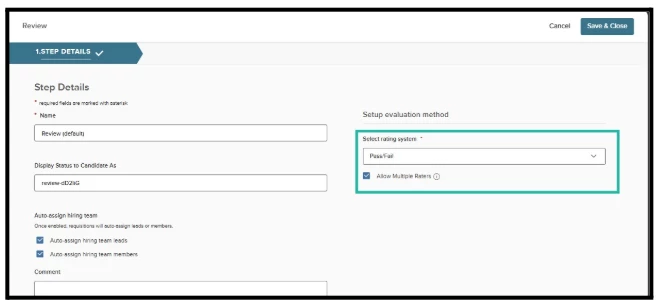
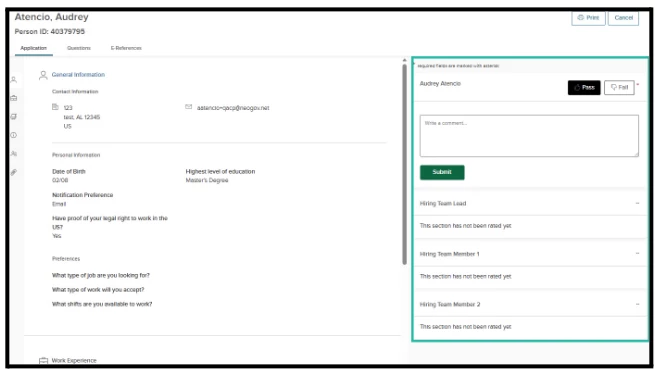
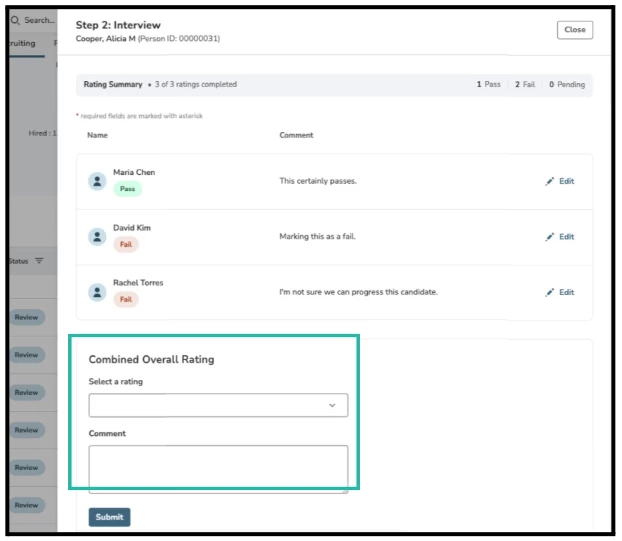
Rating tasks on review, interview, and exam steps will now support multiple raters giving pass/fail scores to an individual candidate. These scores do not aggregate into an overall pass/fail status. Instead, the Hiring Team Lead, Hiring Manager, or HR Liaison enters a Combined Overall Rating as the candidate's final assessment.
Audience
Raters, Hiring Team Leads, Hiring Team Members, Hiring Managers, HR Liaisons.
Value
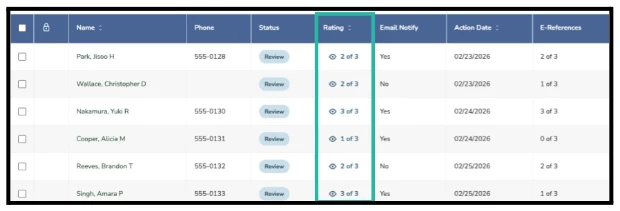
Allows for multiple raters to use pass/fail without overriding each other’s scores. Gives the ability to track how many raters have rated and then the Hiring Team Lead, Hiring Manager or HR Liaison can give an overall score for the candidate based on the scores of the Hiring Team.
How it Works
- When setting up review, interview, or exam steps, choose Pass/Fail and select “allow multiple raters”
- Ensure those raters are listed in the appropriate steps
- Everyone gives their ratings - the X of Y rating dynamically updates as raters submit their scores
- An overall Pass/Fail score can be given by a Hiring Team Lead, Hiring Manager, or HR Liaison (as long as they have “Rate Referred Candidates” permission in Configuration Settings > Security Roles - OHC).
Auto-Advance from Referred List
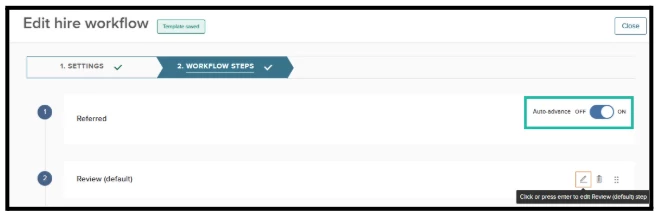
When candidates are referred to Hiring Managers, the new auto-advance setting on the referred step in the hire workflow will automatically advance candidates to the next (non-offer) step without HR Liaison or Hiring Manager intervention.
Audience
HR Liaisons, Hiring Managers, Hiring Team Leads, Hiring Team Members (those who can configure the hire workflow given their permission).
Value
Saves time by automatically placing candidates into the next step after referral.
How it Works
When you toggle “on” the auto-advance feature in the hire workflow templates in Unified/OHC Settings, or in individual requisition hire workflow templates, they will go automatically into the next step - in this example, a review step. With the power of autoassigned hiring teams - your hiring team members can automatically get their rating task ASAP.
Editing Departments and Divisions on Requisitions
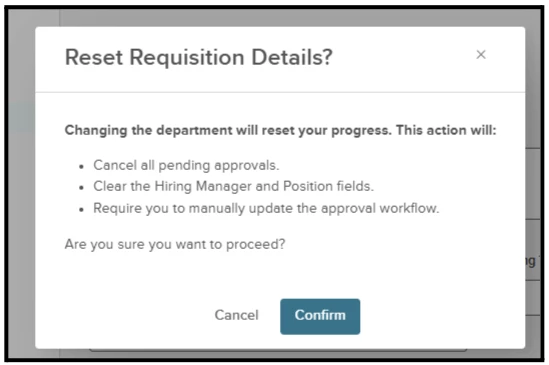
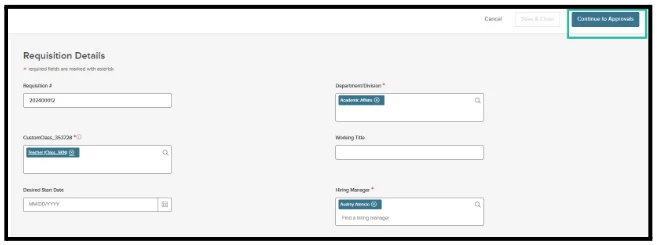
When requisitions have been submitted, Insight users will now be able to edit and update the department/division field when they are in the statuses In Progress, Approved, or Open.
Audience
Insight Users or Insight Administrators.
Value
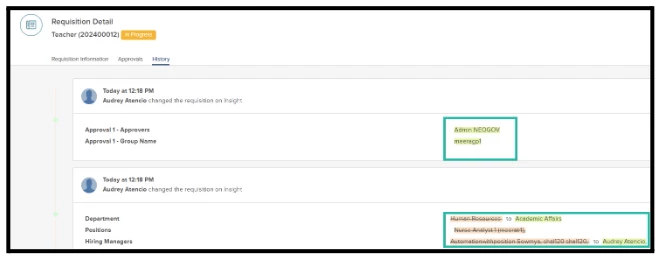
Seamlessly update the department/division field to reflect the accurate hierarchy, position, and update approvers manually (if in progress).
How it Works
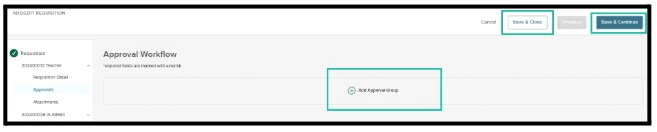
- In Progress: When a requisition is in progress, an Insight User can update the department/division as well as the approval workflow.
- Approved: When a requisition is approved, an Insight User can update the department/division, but approvals cannot be updated. If new approvals are needed, it is recommended to copy the requisition to start fresh and cancel the existing requisition.
Note: Approved requisitions need department/division updates prior to being connected to guided recruitment. Otherwise, change the status to ‘Open’ before updating.
- Open: When a requisition is open, an Insight User can update the department/division, but approvals cannot be updated. We recommend updating the department/division as early as possible to prevent record mismatches between steps, e.g. offered step versus preboarding.
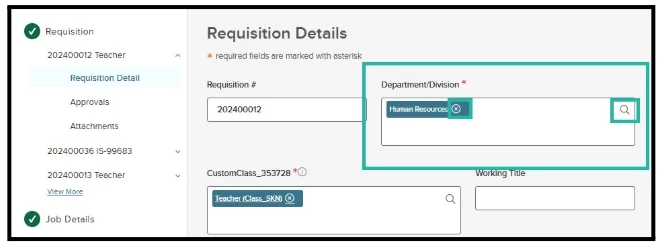
select “x” or search bar to change