



Learn: Summer 2026 Release Notes
Timeline
When will this be released?
| Feature | UAT Availability Status |
|---|---|
| Learner Self-Registration in Learning Plans | July 2, 2026 |
| Preferred Name Display | July 2, 2026 |
| AI Writing Assistants | July 8, 2026 |
| Import Training Bulk Actions | July 13, 2026 |
| AI-Powered Course Recommendations | Not available in UAT, Training, or for Canadian agencies |
Production: Thursday, July 30, 2026, 7 AM EDT
Is there downtime for this release?
No
Release Notes Success Community Article
Related Release Note Links
Overview
This summer, Learn introduces powerful new capabilities designed to make training more accessible, personalized, and efficient for both learners and administrators. Highlights include learner self-registration in Learning Plans, AI-powered tools that help create content and recommend training opportunities, enhanced support for high-volume training imports, and the ability to capture and display preferred names throughout the learning experience.
In addition, we're expanding our course content library with new offerings focused on business skills, health and safety, and employment liability topics to help organizations continue developing and supporting their workforce.
Learner Self-Registration in Learning Plans
Employees can now self-register in Learning Plans directly from the new Learning Plans tab in the Course Catalog, making it easier to start required or elective training without waiting for an administrator to assign them. This update streamlines access to bundled courses while still respecting all course-level requirements such as approvals, prerequisites, and department restrictions.
For example, an employee looking to expand their leadership skills browses the new Learning Plans tab within the Course Catalog and self-registers for a Leadership Development Learning Plan. The employee is automatically enrolled in the included courses and can immediately begin training
Enhanced Learning Plan Management
Admins can now configure Learning Plans for self-registration, add categories, upload images, and assign keywords—all from the Add or Edit Learning Plan page. These enhancements make it easier to manage catalog visibility, improve searchability, and streamline employee access to available Learning Plans.
- Set the Self-Registration toggle to On or Off to control whether employees can self-enroll.
- Choose a Learning Plan Category (required) and any Additional Learning Plan Categories (optional) to improve filtering and search.
- Upload a Learning Plan Image to customize the plan’s appearance in the catalog; if no image is uploaded, a default card is shown.
- Add Keywords (tags) to make the plan easier to find using catalog search and filters.
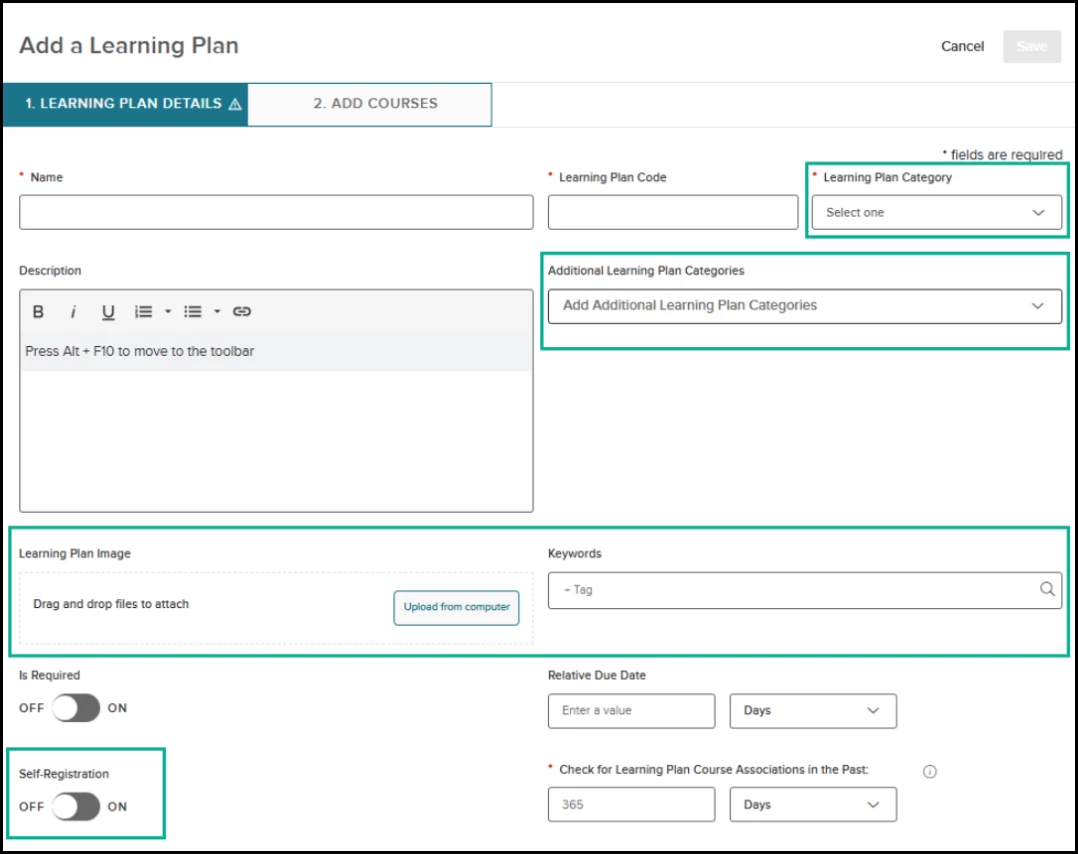
Navigation: Learning Plans menu > Add/edit a Learning Plan
The default value for Self-Registration can be set in General Settings > Learning Plans.
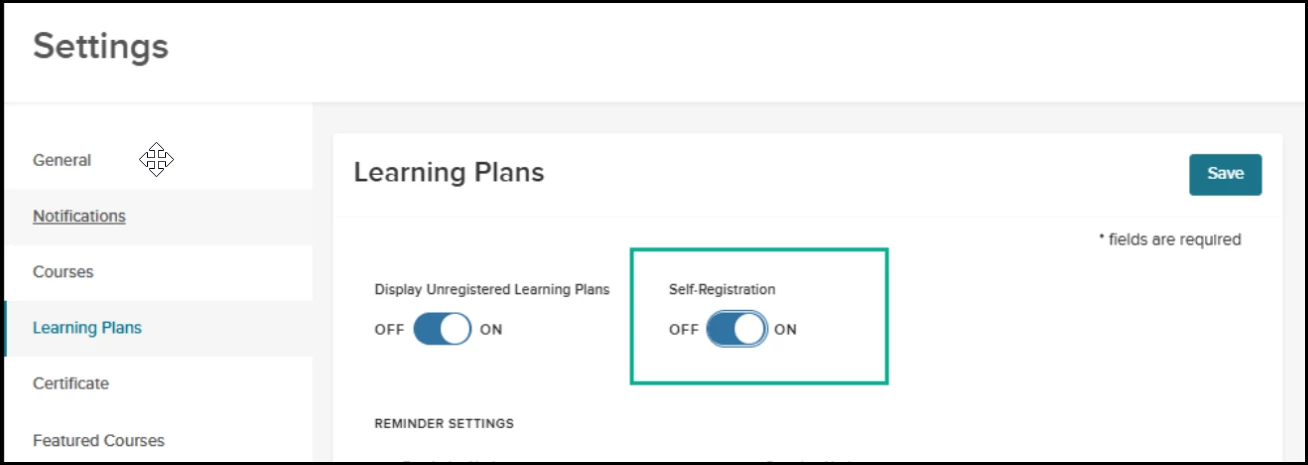
Navigation: Settings > Learning Plans tab
All changes to Self-Registration, categories, image, and keywords are tracked in the Learning Plan Audit Trail.
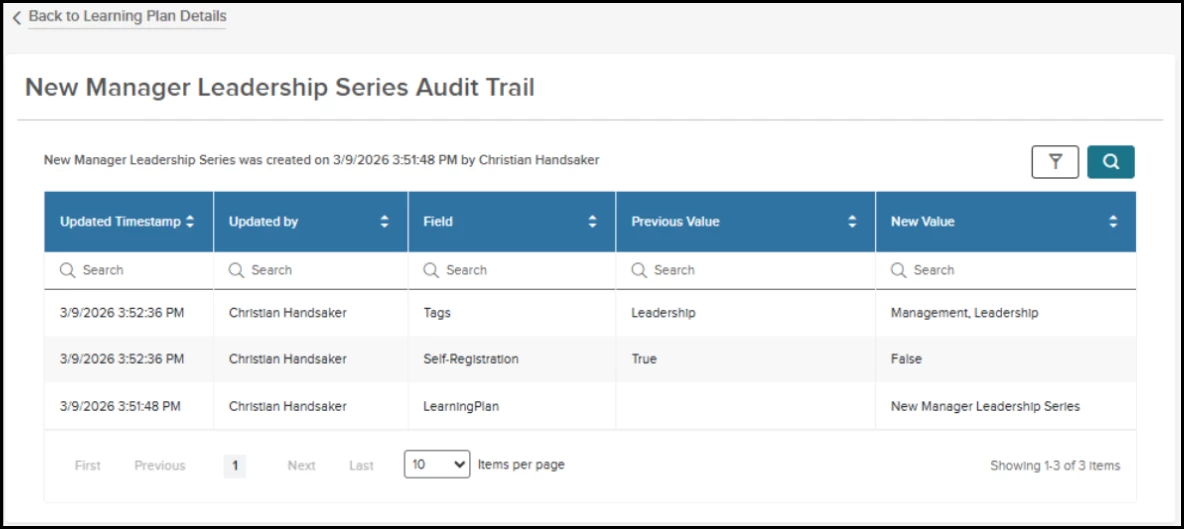
Navigation: Learning Plans menu > Select a Learning Plan > View Audit
You can now view and filter Learning Plans by category in the Learning Plan Library List page, making it easier to find relevant training. Category tags are displayed on each Learning Plan card and in the Library List view, with advanced filtering options for both primary and additional categories.
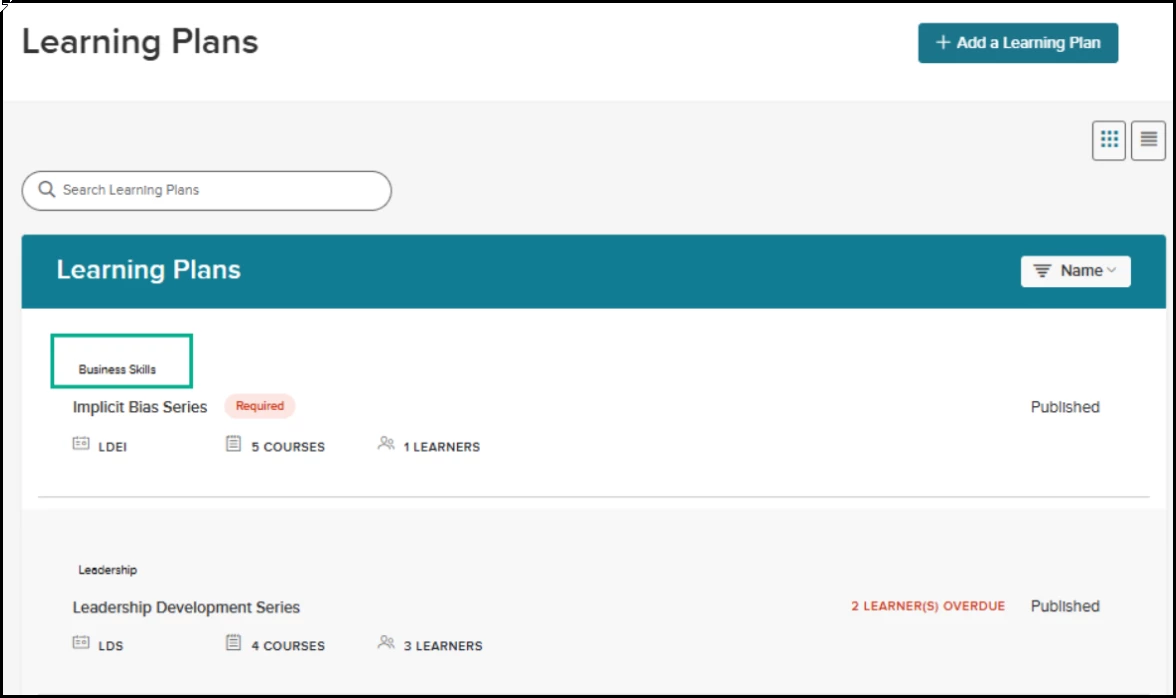
Navigation: Learning Plans menu > Learning Plan List Page (Card view)
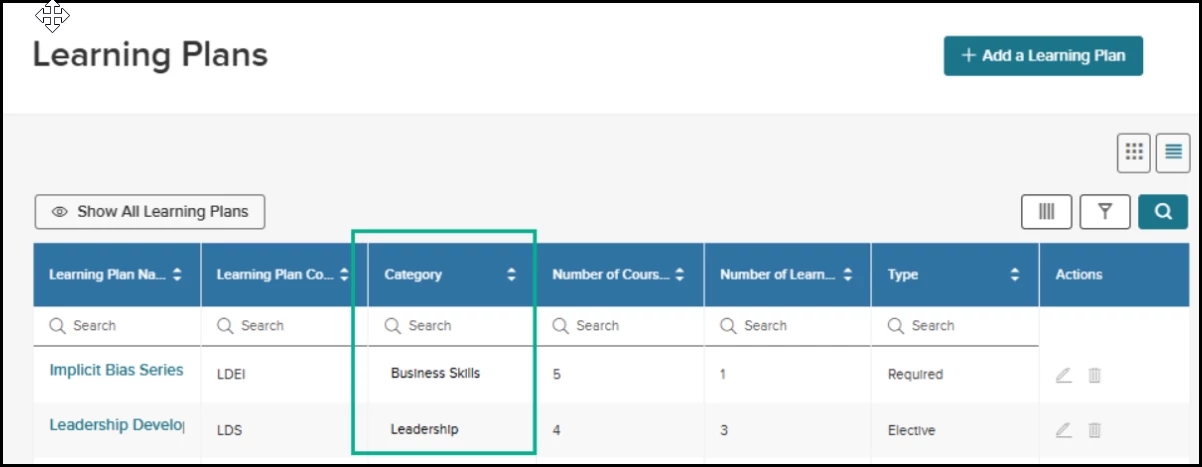
Navigation: Learning Plans menu > Learning Plan List Page (List view)
Additionally, the Library List view now includes an optional Self-Registration column that displays On or Off based on the Self-Registration toggle setting on the Add/Edit Learning Plan settings page, providing greater visibility into enrollment availability at a glance.
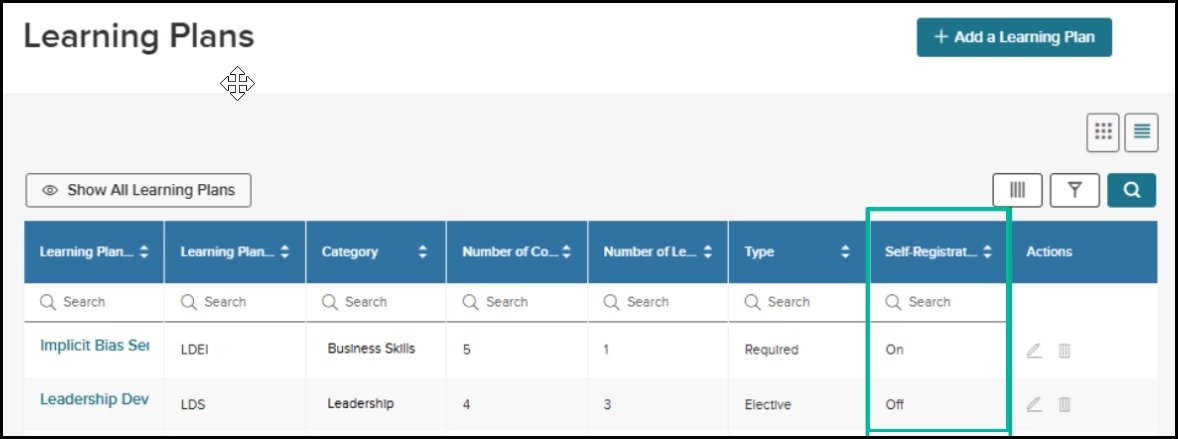
Navigation: Learning Plans menu > Learning Plan List Page > Select Column Selector to add the Self-Registration Column
Centralized Learning Plan Configuration for Risk Pool Admins
Risk Pool Admins can now push Learning Plan categories, images, keywords, and self-registration settings to child agencies, ensuring consistent catalog configuration and streamlined self-enrollment across organizations.
Access Learning Plans from the Course Catalog
Employees can now discover and enroll in available Learning Plans directly from the Course Catalog, making it easier to explore curated training paths and register for learning opportunities in one centralized location.
- Go to Course Catalog and select the new Learning Plans tab beneath the Featured Courses banner.
- Browse available Learning Plans in Card View (default).
- Use search and filters (Category, Type, Duration, Tags) to find relevant Learning Plans.
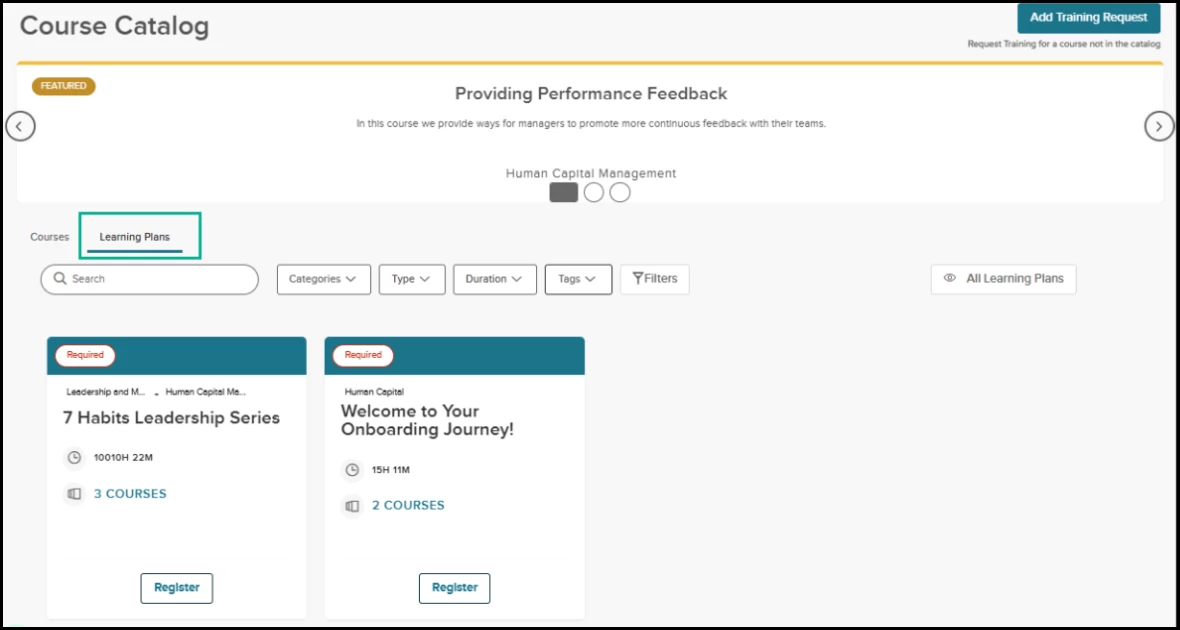
Navigation: Unified Suite > Training tab > Course Catalog page
On the Learning Plan card, view details such as associated courses, categories, and the total duration of all courses.
- Select the Courses hyperlink to view detailed information for each course, including the course name, description, duration, and course category in a convenient collapsible view.
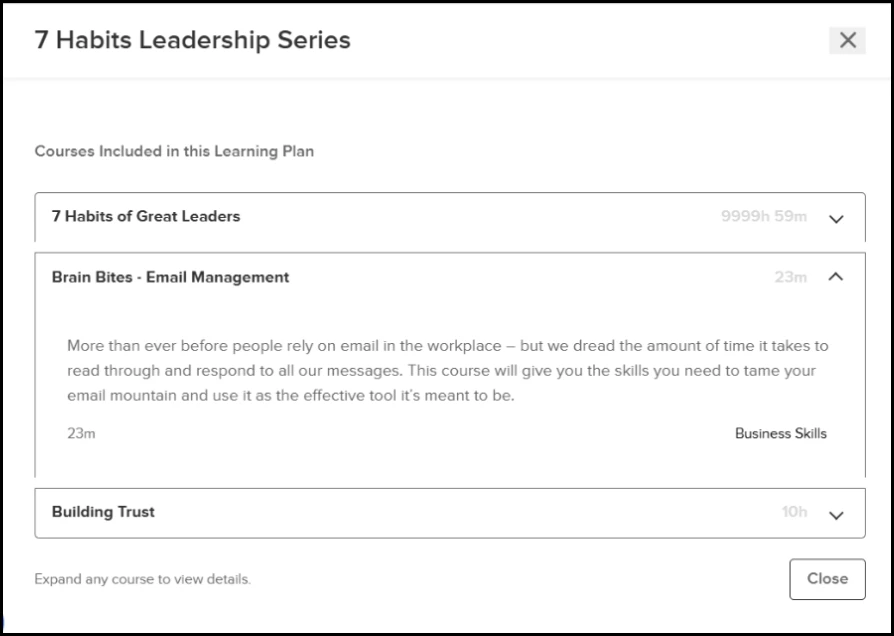
Navigation: Unified Suite > Training tab > Course Catalog page >
Choose the Courses hyperlink on the Learning Plan card
If you do not have department access to a course, a message will display indicating that you do not have access to that course. The course details will be replaced with a system message: You do not have permissions to view this course. Please reach out to your agency’s administrator for access.
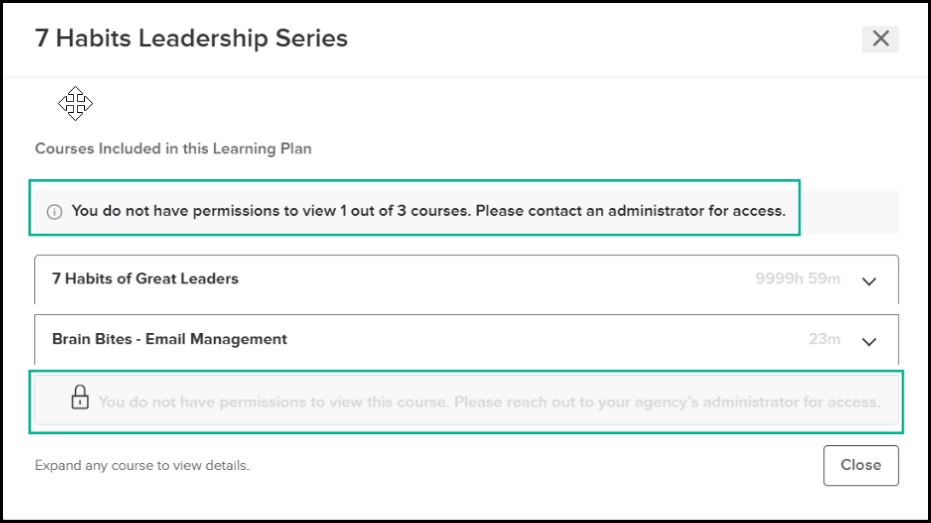
Navigation: Unified Suite > Training tab > Course Catalog page >
Choose the Courses hyperlink on the Learning Plan card
- Flipping the card displays the Learning Plan description.
- Select the Learning Plan name on the front of the card to be directed to the Learning Plan details page.
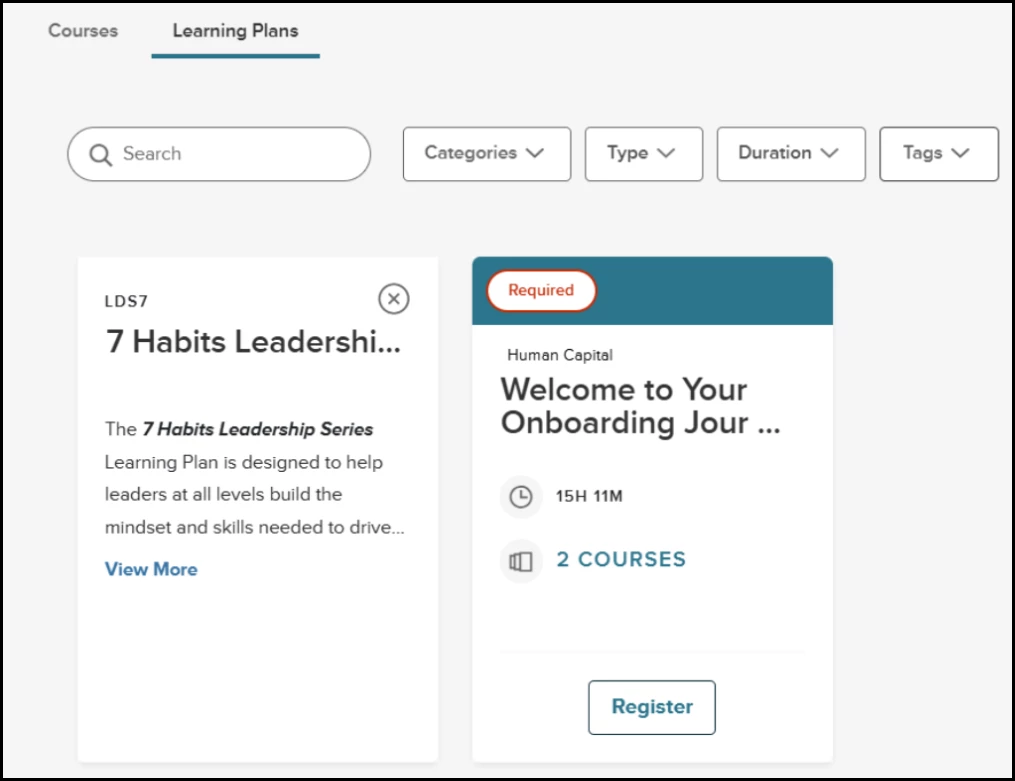
Navigation: Unified Suite > Training tab > Course Catalog page >
Choose the info icon to flip the Learning Plan card
- Choose Register to self-register in the Learning Plan.
- After registering, a successful confirmation notification will be displayed
- If any course in the plan requires additional action (for example, approval, prerequisites, department access), a warning icon and tooltip will appear.
- The system will only enroll learners in courses they are eligible for; restricted courses will display an informational message.
- Registration status and progress are visible in both the catalog and the My Courses area.
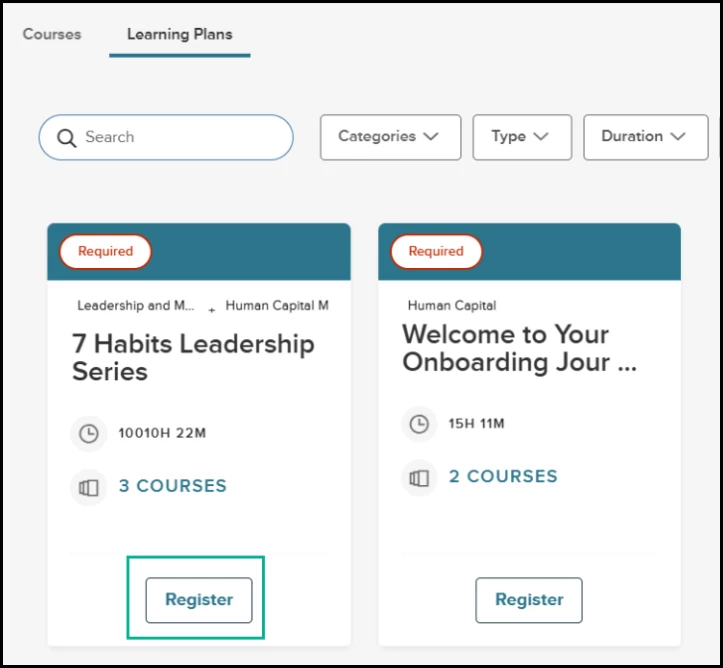
Navigation: Unified Suite > Training tab > Course Catalog page >
Select Learning Plan > Choose Register
Learners can now unregister themselves from Learning Plans they previously self-registered for. When a learner unregisters, the system will also automatically unenroll them from any courses they were enrolled in through that Learning Plan, ensuring their enrollments remain accurate.
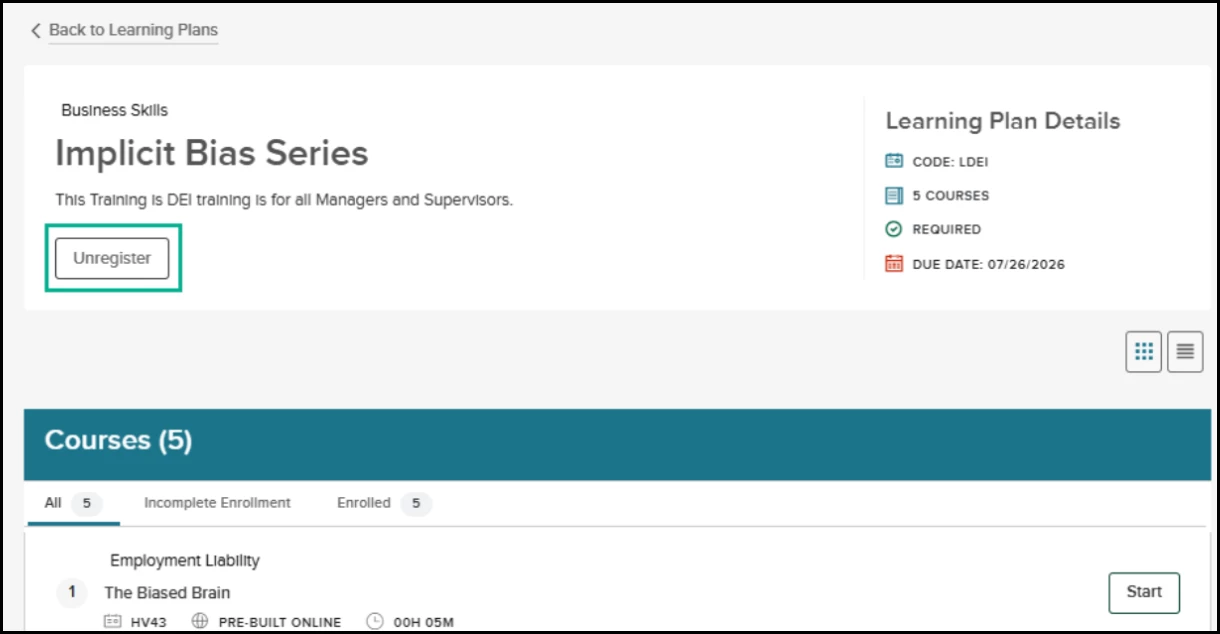
Navigation: Unified Suite > Training tab > My Courses > Learning Plan tab
Select a Learning Plan where you self registered
Note: Self-enrollment is available only for published Learning Plans with self-registration enabled by an administrator. All course-level restrictions (approvals, prerequisites, department access, etc.) are enforced during registration.
Register Direct Reports in Learning Plans
Managers can now enroll direct reports and employees within their reporting hierarchy into Learning Plans directly from the Course Catalog. This provides a faster, more streamlined way to assign curated training paths and support employee development without requiring administrator assistance.
- Go to Course Catalog and select the new Learning Plans tab.
- Browse or search for available Learning Plans.
- Choose a Learning Plan to be directed to the Learning Plan Details page
- Select Register Learners.
- Choose direct reports or employees within your management hierarchy to enroll them in the Learning Plan.
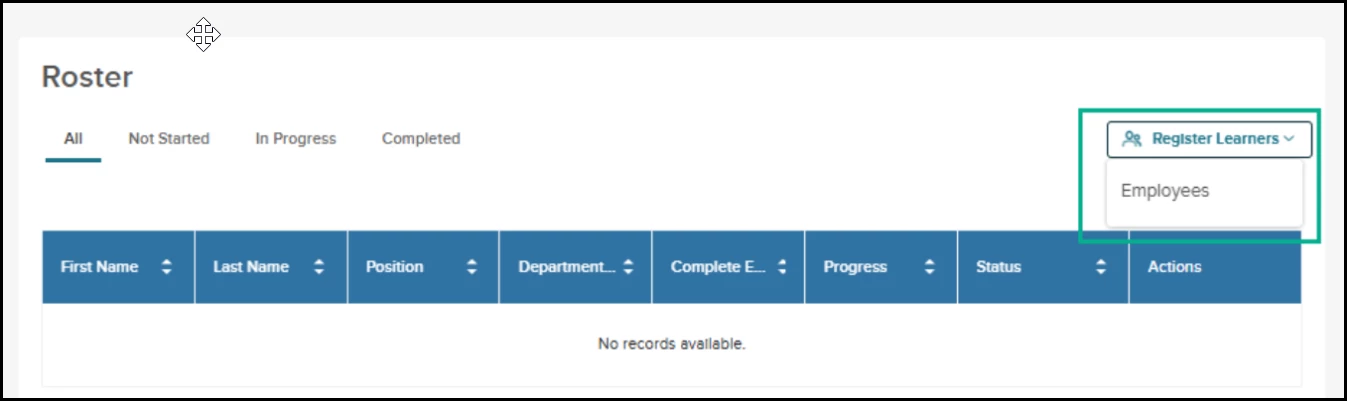
Navigation: Unified Suite > Training tab > Course Catalog page >
Select Learning Plan > Choose Register Learners
Learning Plan Processing and System Messaging
Users will receive clear system messaging when Learning Plan enrollments are processing or when a Learning Plan is temporarily unavailable due to administrator updates. These messages help keep learners and managers informed about enrollment status, availability, and when actions may be temporarily restricted.
Enrollment Processing
- If course enrollments for a Learning Plan are still being processed after registration, learners will see the following message on the Learning Plan Details page (My Courses → Learning Plans): Course enrollments for this Learning Plan are in progress. Please check back later.
- If a learner views the Learning Plan from the Course Catalog while enrollments are still processing, the Register button will be disabled. Hovering over the button will display the tooltip: Course enrollments for this Learning Plan are in progress. Please check back later.
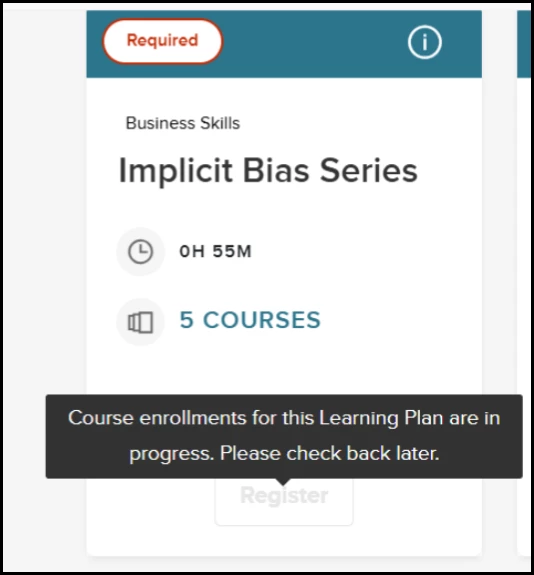
Navigation: Course Catalog > Learning Plan tab >
Register in a Learning Plan > Card View
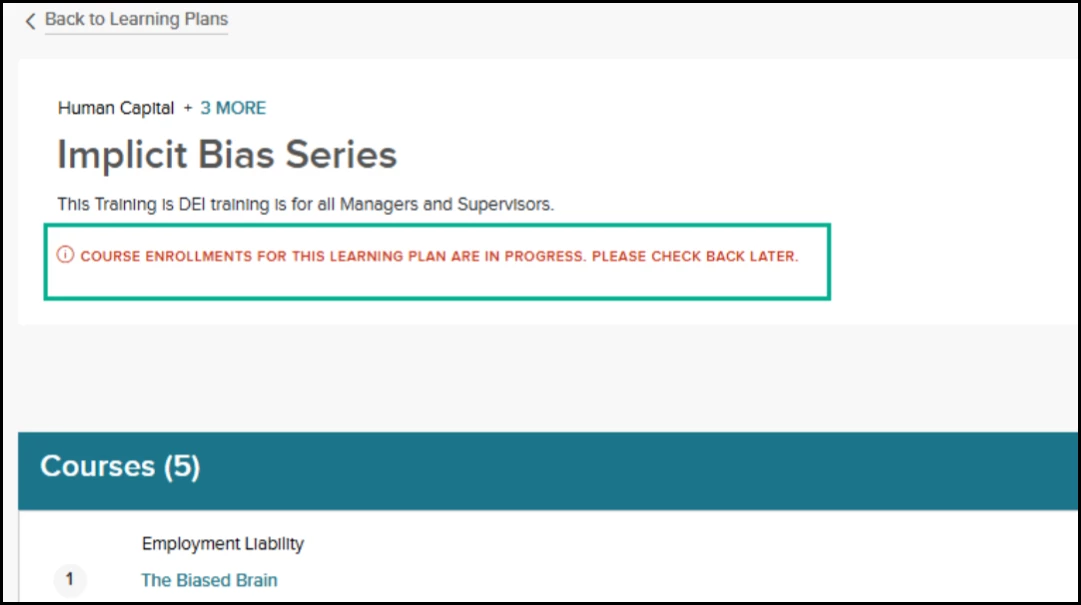
Navigation: Course Catalog > Learning Plan tab > Register in a Learning Plan
> Learning Plan Details page
Learning Plan Updates by an Administrator
When an administrator updates the course list for a Learning Plan, the system may need time to process course and learner registration changes. The amount of processing time depends on the number of courses being added or removed and the number of learner registrations that need to be updated. During this time, the Learning Plan is temporarily unavailable while the updates are completed.
In many cases, the update process completes quickly and users will not see any temporary messages. However, if additional processing time is required, users may see the following:
- If the learner is not yet registered:
The Register button will be disabled, and the following tooltip will appear on hover: An administrator is currently updating the content and requirements of this learning plan. The learning plan is temporarily unavailable. Please check back later. - If the learner is already registered:
The learner will see the message: An administrator is currently updating the content and requirements of this learning plan. Your previous progress is being preserved, but the plan is temporarily unavailable while we enroll you in the latest version. Please check back later.
Value
Enables organizations to mirror real-world approval hierarchies, supporting compliance and reducing bottlenecks in training workflows
Audience
Administrator and Learners
Learning Plan Notification Enhancement
Receive immediate confirmation and clear instructions after enrolling in a Learning Plan, ensuring you know exactly which steps to take next. The Learning Plan Registration notification now provides dynamic guidance based on your enrollment status.
This reduces confusion and enrollment delays by clearly communicating when additional actions are required to complete a Learning Plan.
- Self-register for any Learning Plan to trigger an automatic registration notification.
- View the standard confirmation message if successfully enrolled in all included courses.
- Review the updated notification text if specific courses require further action. This version appears if you must:
- Select a session for a classroom course.
- Complete mandatory prerequisites.
- Obtain manager or administrative approval.
- Request department-level access.
- Access the Learning Plan Details page directly from the email link to complete these pending items.
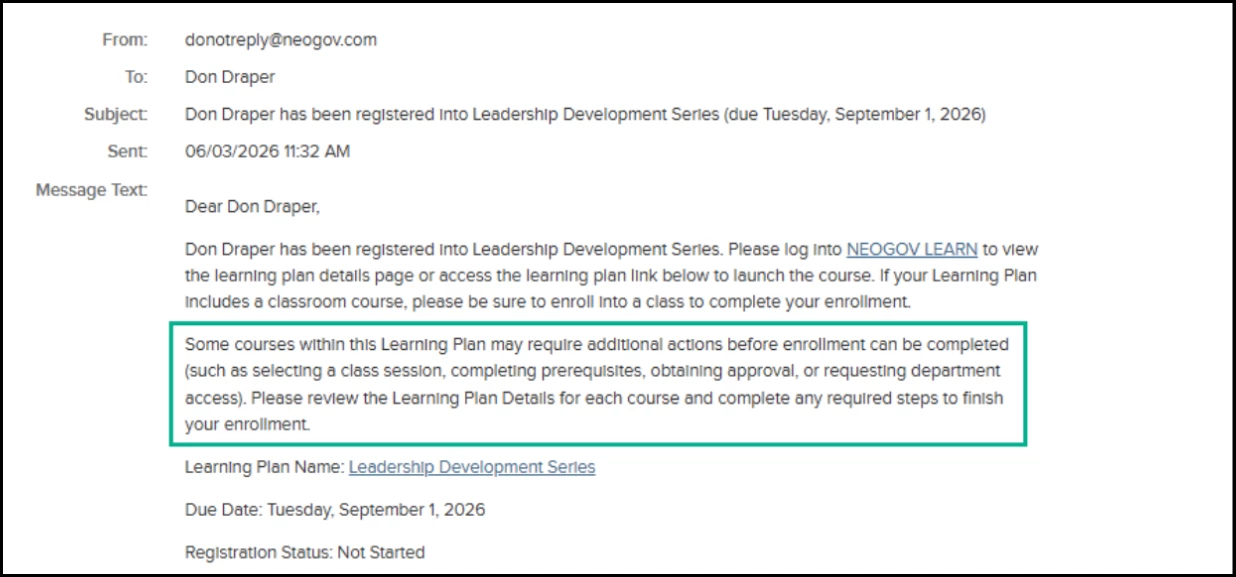
Navigation: Learning Plan Registration Notification
Value
Reduces confusion and enrollment delays by clearly communicating when additional actions are required to complete a Learning Plan.
Audience
Employees, Administrators
AI-Powered Enhancements in Learn
Learn is introducing new AI-powered capabilities designed to improve productivity, simplify content creation, and deliver more personalized learning experiences. These enhancements help administrators work more efficiently while empowering learners with smarter training recommendations tailored to their roles, interests, and learning activity.
AI Administration and Opt-In Requirements
To help organizations maintain transparency and control over AI-enabled functionality, administrators must first review and accept an AI disclaimer before AI features can be enabled in Learn. A new AI Administration settings page provides centralized access for managing AI feature availability and organizational opt-in preferences.
Example
A training administrator reviews and accepts the AI disclaimer from the new AI Administration settings page, enabling AI-powered features across the organization so content creators and learners can begin using AI capabilities within Learn.
How it Works
- Navigate to the new AI Administration settings page within Learn.
- Review the AI disclaimer and terms of use.
- Accept the disclaimer to opt in to AI-powered features:
- AI Writing Assistant
- AI Course Recommendations
- Once enabled, AI features will become available throughout supported areas of the Learn environment.
- Administrators can manage AI feature availability and settings from the AI Administration page.
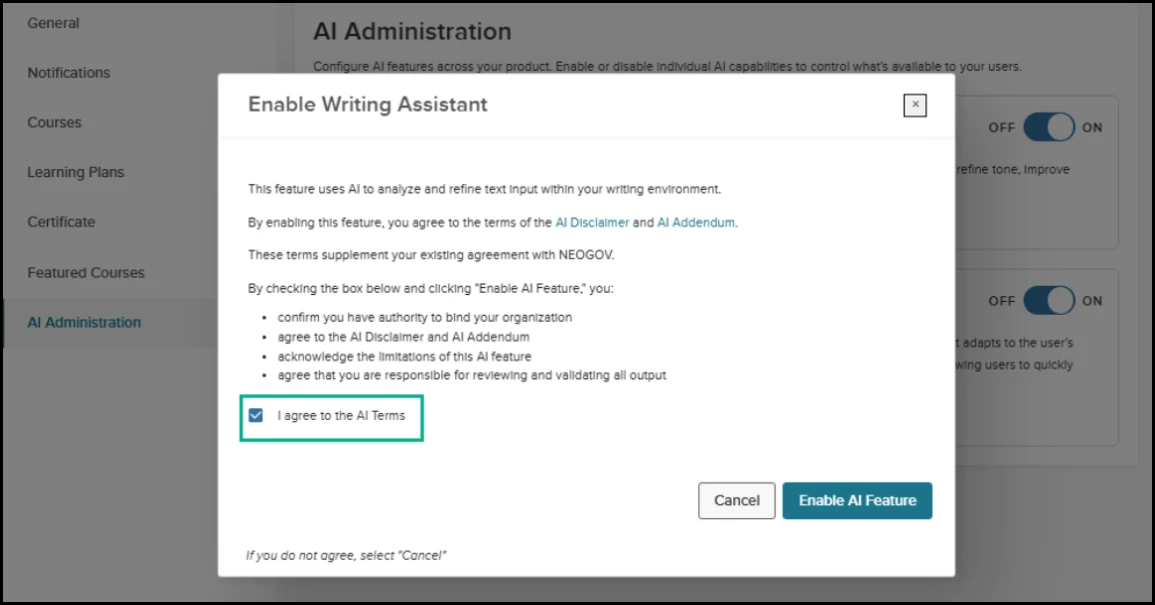
Navigation: Settings > AI Administration Tab > Toggle ON an AI setting
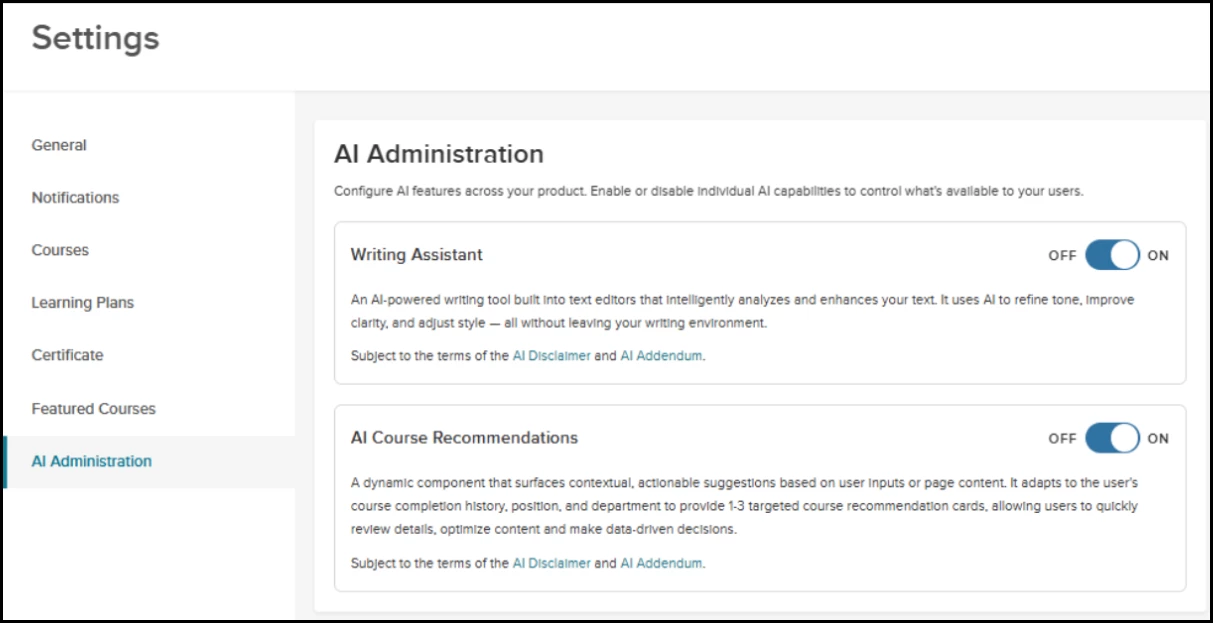
Navigation: Settings > AI Administration Tab
Audience
Administrator
Important Note: Some AI-powered NEOGOV features are currently unavailable in UAT, Training environments, and for Canadian agencies. These features are available only in supported production environments at this time.
AI Writing Assistants in Learn
AI Writing Assistants are now available in supported rich text editor areas throughout Learn, helping users create, refine, and enhance content more efficiently. Whether drafting course descriptions, announcements, learning objectives, or communications, users can leverage AI to improve clarity, tone, and overall quality while reducing manual effort.
Example
An HR administrator creating a new compliance course uses the AI Writing Assistant to generate and refine the course description, update notification messaging, and improve survey instructions, reducing the time spent manually drafting content.
AI Writing Assistants are available in the following areas throughout Learn:
- Course Description fields
- Learning Plan Description fields
- Survey Description fields
- Default and Custom Notification Templates/Pages
- Content Builder slides
- Question slides within Content Builder
Users can leverage AI tools to generate, rewrite, summarize, or improve content directly within supported rich text editors.
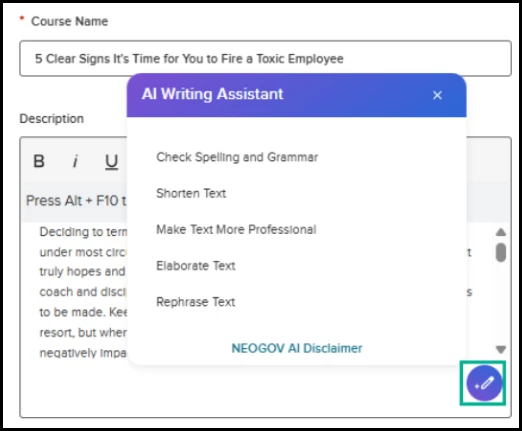
Navigation: Via Any Locations Where the Rich Text Editor Is Available
Value
- Reduces time spent creating and editing content.
- Helps improve consistency and professionalism across training communications.
- Supports administrators and instructors with faster content development.
- Enhances the quality and readability of learning materials.
Audience
Administrator
AI-Powered Course Recommendations
Help learners discover the right training at the right time with AI-powered course recommendations. Rather than relying on administrator-defined recommendation rules, the AI intelligently analyzes your organization's course catalog along with learner and organizational data—such as completed training, enrollments, job information, and other relevant attributes—to surface personalized course recommendations for each employee.
Recommendations automatically adapt as learner activity and organizational data change, helping employees discover relevant training while reducing the need for manual course assignments.
Example
A learner visits the Course Catalog and sees recommended leadership and cybersecurity courses based on previously completed training and trends among employees in similar positions within their department, helping them quickly discover relevant development opportunities.
How it Works
- Learners navigate to the Course Catalog page.
- A new Recommended Courses section will display up to 3 personalized course recommendations.
- Recommendations are generated based on prior course completion history, department trends, and position-based learning activity within the organization.
- Learners can directly enroll in recommended courses from the catalog experience.
- Only courses available for self-enrollment will be displayed in recommendations.
- Existing course-level configurations, such as approval requirements, prerequisites, and access restrictions, will continue to be enforced.
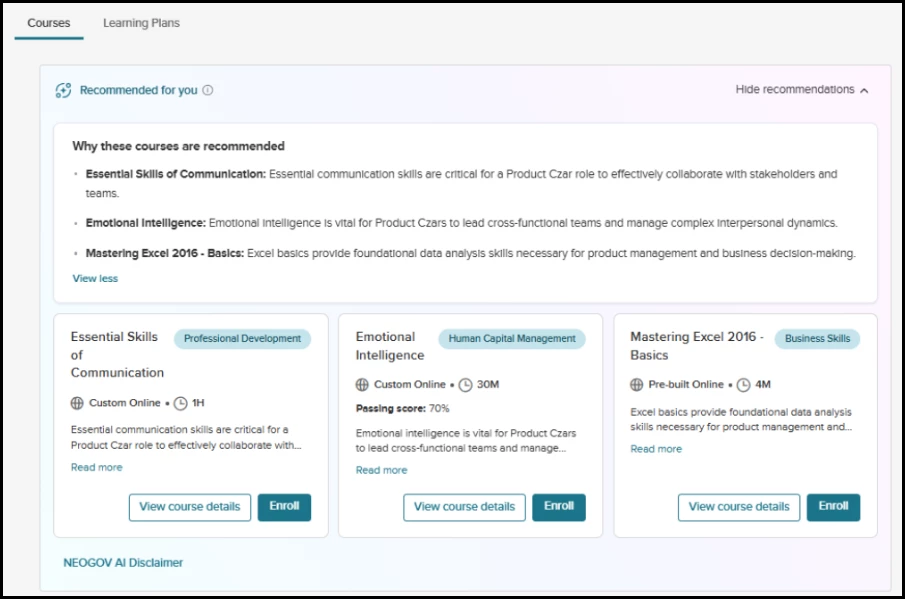
Navigation: Unified > Training Tab > Course Catalog Card View
Can I configure the recommendation logic?
No. AI-Powered Course Recommendations do not use administrator-defined rules. Recommendations are generated automatically using AI based on your organization's course catalog and available learner and organizational data. This approach minimizes administrative overhead while providing recommendations that adapt as training activity and user data change.
Value
- Encourages learner engagement through personalized training suggestions.
- Helps employees discover relevant courses they may have otherwise missed.
- Supports skill development and continuous learning initiatives.
- Aligns learning opportunities with organizational and role-based trends.
Audience
Learners
Import Training Bulk Actions
New bulk validation actions make it easier for administrators to manage large training record imports by reducing the manual effort required to resolve validation issues. These enhancements are intended for organizations importing historical training records during implementation, as well as customers who have purchased the Course Management Integration add-on subscription to import ongoing external training records.
Example
During a large enrollment import, an administrator identifies several records with validation errors caused by missing employee data. The administrator exports the errored records in bulk for correction and skips invalid records so the remaining valid enrollments can continue processing without delay.
How it Works
- Administrators can now perform Bulk Actions during import validation.
- Validation enhancements help reduce manual effort when managing large import files with mixed record statuses.
- Export errored records in bulk for offline review and correction.
- Skip selected records in bulk to continue processing valid records faster.
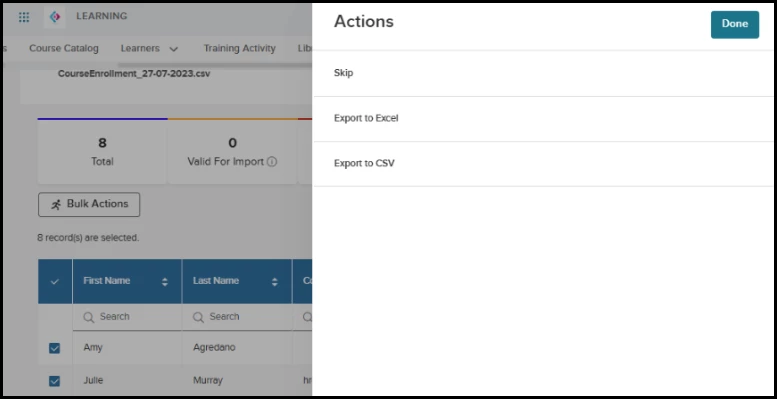
Navigation: Import Training > Click the Status link for a Course Enrollment or Course Management import file with error > Bulk Actions Flyout
Audience
Administrators
Preferred Name Capture and Display
Display employees by their preferred name throughout the Learn platform, creating a more personalized experience while ensuring consistency across the system.
Example
A learner named "Thomas Johnson" who prefers "Tom" will now see "Tom Johnson" on their dashboard, certificates, and reports.
How it works
- Enter a Preferred Name in the Add/Edit Learner Page.
- Select Save.
- Once update, view the updated name automatically in the following areas:
- Learner Dashboard, My Profile, and Transcripts.
- Course Catalog, Rosters, and Enrollment modals.
- Training Requests, Approval Workflows, and Audit Logs.
- Certification and License Tracking reports.
- Search, sort, and filter by the displayed name in all grids and lists.
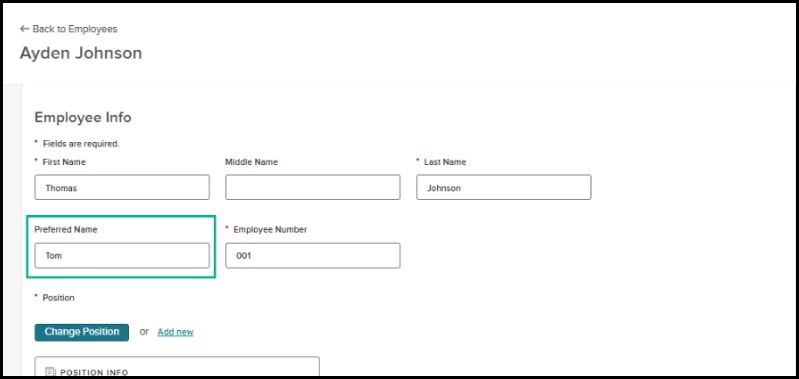
Navigation: Learners menu > Add a Learner/Edit a Learner Page
Important Notes
- Historical records, such as certificates and report exports generated before this update, will not be retroactively changed.
- If no preferred name is provided, the system continues to display the First Name and Last Name field values.
Value
Promotes an inclusive environment by respecting individual name preferences across all learning and administrative workflows.
Audience
Administrators, Managers, Employees
Content Updates & Announcements
The following courses will be available in UAT beginning Jul 2, 2026 and in all Production environments on Jul 30, 2026.
Business Skills
- Getting Started with Learn (GSWL) - Available now in all environments.
- Setting Boundaries With Customers (BX70)
- How to Be a Great Mentor (BX72)
- How to Be a Great Mentee (BX74)
- Career Coaching Conversations (BX66)
- Remote Worker Best Practices (BX68)
Health & Safety
- Heat Illness Prevention in Outdoor Spaces (SK53)
- Heat Illness Prevention in Outdoor Spaces (CalOSHA) (SK55)
- Brush Pile Burning (SK51)
Employment Liability
- Mandated Reporter Suite: Recognizing Signs and Indicators (HW91)
- ICE: Know Your Rights for Public Sector Employees (HW89) - Available now in all environments.
Appendix: Bugs Resolved
No additional bug fixes outside of the maintenance releases. Please refer to the maintenance release notes for details.