



Onboard: Summer 2026 Release Notes
Timeline
When will this be released?
UAT Preview Window: July 2nd
Production Availability: July 30th
Is there downtime for this release?
No
Release Notes Success Community Article
Related Release Note Links
Support for Preferred Name in Onboard
Display your chosen name across the Onboard platform to personalize your experience and ensure consistency with your professional identity.
Note: This promotes an inclusive environment by respecting individual name preferences across all Onboard and administrative workflows.
Capture and Display Preferred Name
Foster a more inclusive workplace by utilizing employees' chosen names throughout the system. Once a preferred name is established, it will automatically populate wherever a first name typically appears. This enhancement enables HR teams and managers to maintain professional consistency and communicate with greater respect.
- Enter a Preferred Name in the Add/Edit Employee Page.
- Select Save.
- Once saved, view the updated name automatically in the following areas:
- Employee and Pre-Hire Lists.
- Employee and Pre-hire Details Pages.
- Mentors Chat Flyout.
- Portal and Email Tokens.
- Search, sort, and filter by the displayed name in all grids and lists.
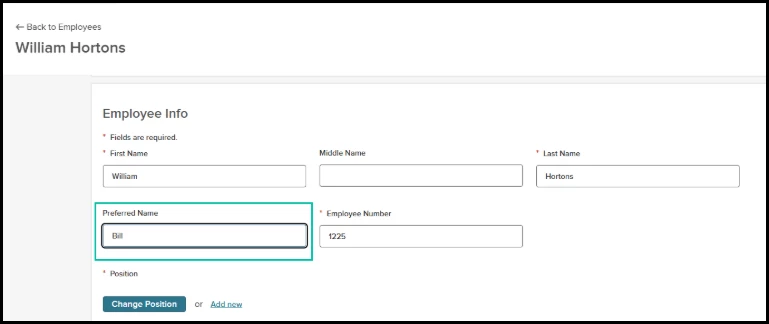
Navigation: Employee List > Add / Edit Employee Page
Preferred Name and Middle Name Support for Pre-Hires
You can now create a more accurate and inclusive pre-hire record by adding preferred and middle names when creating or editing pre-hires. These fields are now available on the Add New/Edit Pre-Hire screen for you to define. The values are retained when promoting pre-hires to employee status.
For example, an admin can enter “Liz” as the preferred name for a new hire named “Elizabeth” to reflect their naming preference.
- Go to the Add New Pre-Hire or Edit Pre-Hire screen. Enter values in the new Preferred Name and Middle Name fields if needed. These fields are optional.
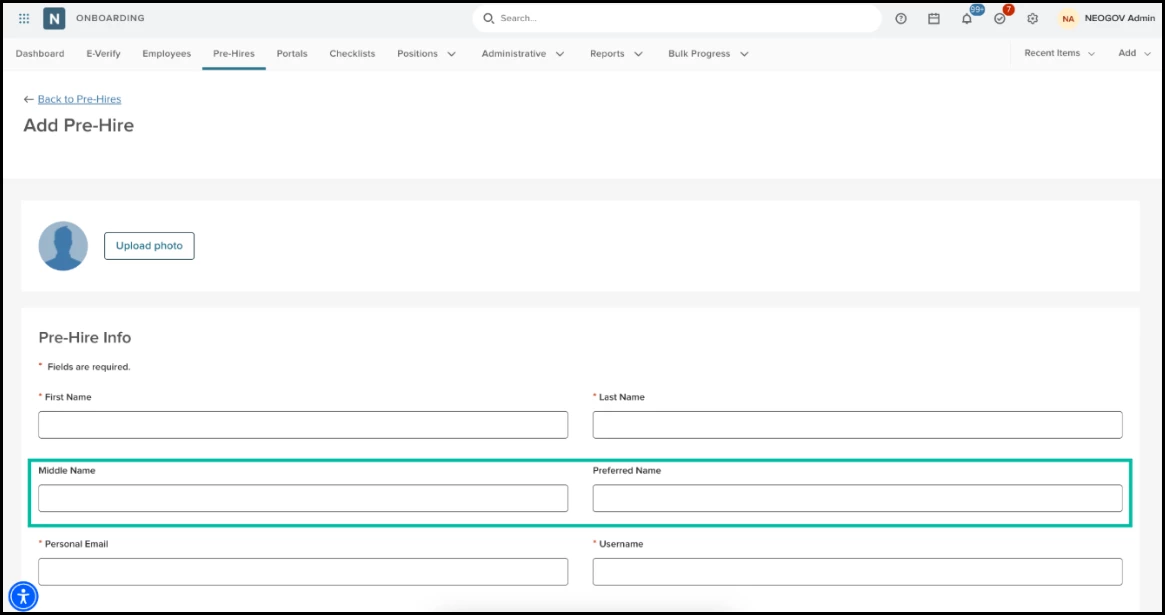
Navigation: Pre-Hires > Add Pre-Hire
- When the pre-hire is promoted to employee, both values are preserved.
Other Important Details
- For customers utilizing our open APIs, these values are supported when using the Rest API to create or edit prehires.
- No changes are made to the HRIS Personal Data Form at this time. Preferred Names are not yet supported in NEOGOV Core HR.
Note: This improves the accuracy and inclusivity of pre-hire records by reflecting your employee’s naming preference. Preferred Name and Middle Name values can then be auto-filled onto forms as needed.
Preferred and Middle Name Fields in Form Builder
Auto-fill preferred and middle names into forms with new employee fields and personalize post-submit workflow emails with these new fields.
For example, HR adds the Preferred Name field to onboarding forms so new hires see their chosen name pre-filled.
- Go to Administrative > Form Builder and edit or create a form.
- In the list of Employee fields, we now have Preferred Name and Middle Name as options.
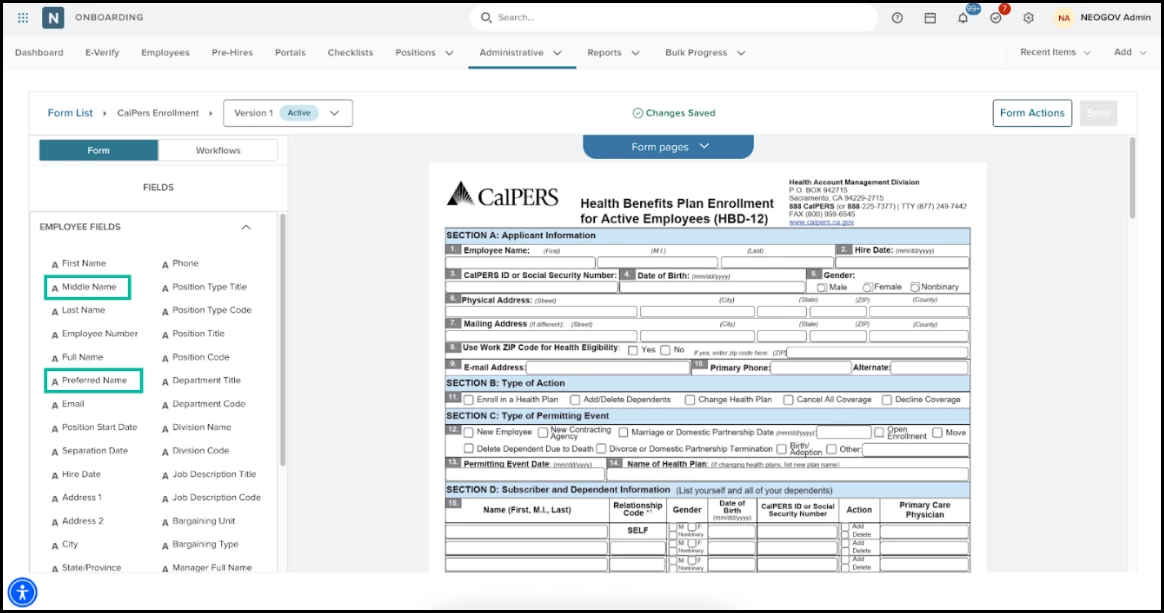
Navigation: Administrative > Form Builder > Add/Edit Form > Employee Fields
- When a form is assigned, these fields auto-fill based on what’s on the employee profile
- Additionally, when editing a post-submit workflow email, the token User Preferred Name is now a standard option. This prefill’s the user’s preferred name on emails.
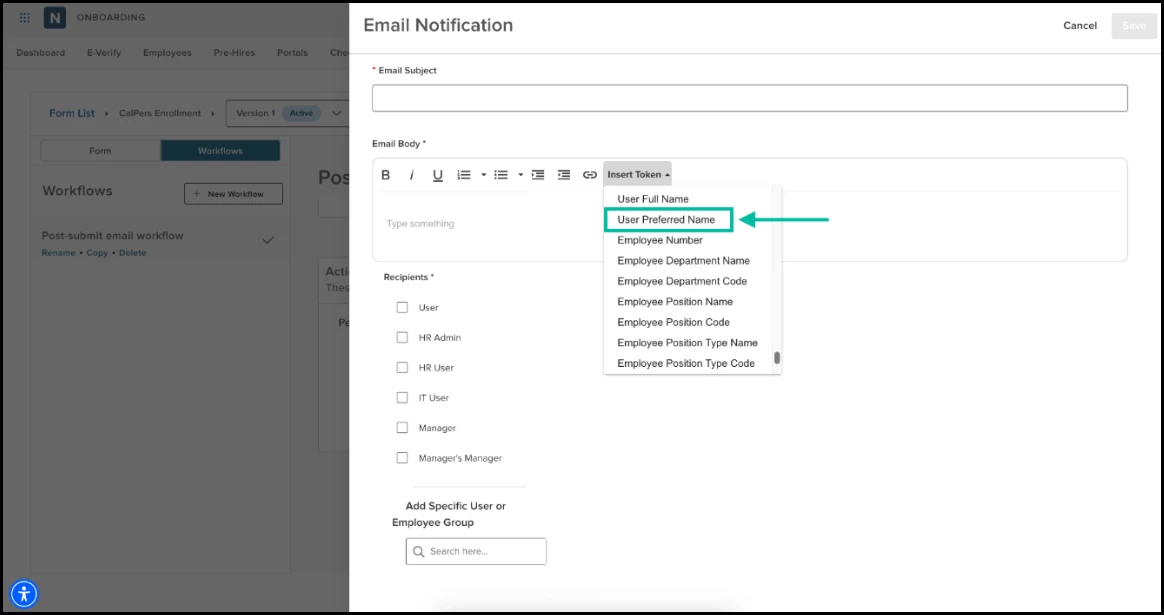
Navigation: Form Builder > Edit Form > Workflows > Post Submit > Actions > Send Email
Note: This promotes inclusivity and accuracy by ensuring employees are addressed by their chosen names across forms and communications. These fields are optional and can be added to forms as necessary.
Display Preferred Name for Full Name Field
To better support employee identity and personalization, we have introduced a new configuration option for the Full Name employee field within the Form Builder. HR Admins can now choose to display an employee's Preferred Name in combination with their Last Name.
For example, an HR Administrator enables this setting on a "Welcome" form so a new hire named Robert, who goes by "Bobby," sees "Bobby Smith" instead of "Robert Smith."
- Open a form in Form Builder.
- Select the Full Name employee field.
- Enable the Display Preferred Name checkbox, located above the Max Input Length setting.
- Save the form to apply the changes.
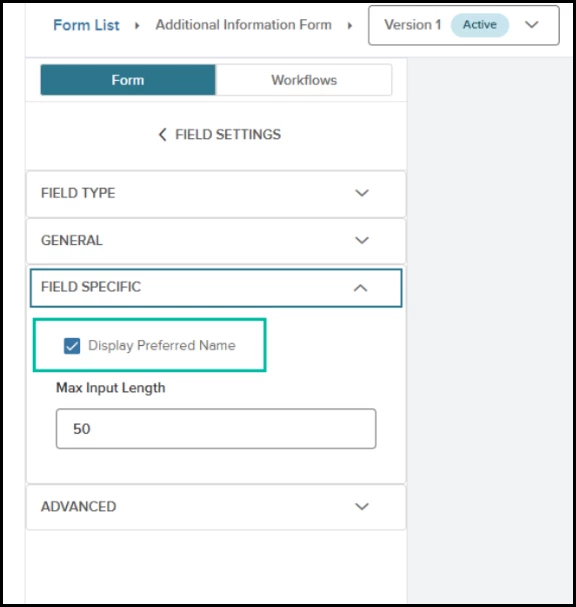
Navigation: Form Builder > Form > Full Name Field > Field Specific Settings
| Condition | Displayed Result |
| Display Preferred Name is enabled and employee has a preferred name. | Preferred Name + Last Name |
| Display Preferred Name is enabled and employee preferred name is empty. | First Name + Last Name |
| Display Preferred Name is disabled. | First Name + Last Name |
Note: This improves the employee experience and fosters an inclusive culture by ensuring employees are addressed by their preferred names on official forms.
Display Preferred Name for Signature
Signature Fields now have an option to Display Preferred Name within the Field Specific settings.
For example, HR updates the employee’s Preferred Name field on their employee profile and selects the option to Display Preferred Name on the signature fields of forms within Form Builder. The employee signature now displays the Preferred Name + Last Name combination when the employee uses the Use Full Name signature option when completing forms.
- Go to Administrative > Form Builder and edit or create a form.
- Add or select the General field type, Signature field
- Open the Field Specific settings and select Display Preferred Name
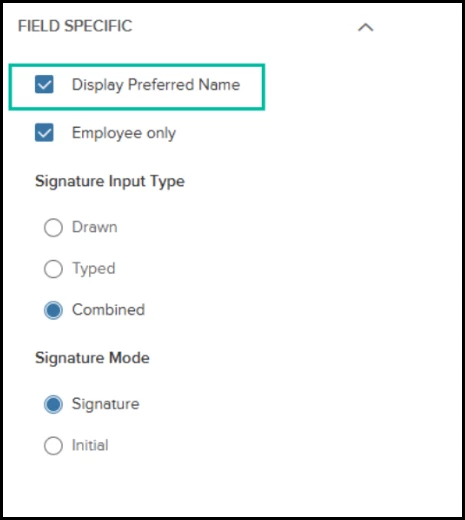
Navigation: Form Builder > Add/Edit Form > Standard Fields > Signature > Field Specific
Note: This setting is not selected by default. If the Preferred Name field is null on the Employee Record; the signature will continue to display as First Name + Last Name.This improves the accuracy and inclusivity of the signature field by reflecting your employee’s naming preference on the Use Full Name signature option.
AI-Powered Enhancements in Onboard
To boost productivity and streamline development in critical strategic sectors, Onboard is launching new AI-driven features. A dedicated Administrative Setting Page, which will be updated as new feature sets are released, manages these AI capabilities.
AI Administration Settings Page
Maintain full control over organizational AI usage by enabling or disabling AI feature sets at the agency level. This new setting ensures that the AI-powered Writing Assistant is only available when it aligns with your agency's policies and compliance requirements.
For example, an HR Administrator enables the Writing Assistant so that Portal Administrators can quickly refine the tone of their Portal welcome message to new hires.
- Navigate to Settings and select the new AI Administration item from the left-hand menu.
- Locate the Writing Assistant card to view its description and legal disclaimers.
- Switch the toggle to On to initiate enablement.
- Review the Enable Writing Assistant modal, which includes links to the AI Disclaimer and AI Addendum.
- Select the I agree to the AI Terms checkbox and choose Enable AI Feature to save.
- Switch the toggle to Off at any time to immediately remove all Writing Assistants from the product for all users.
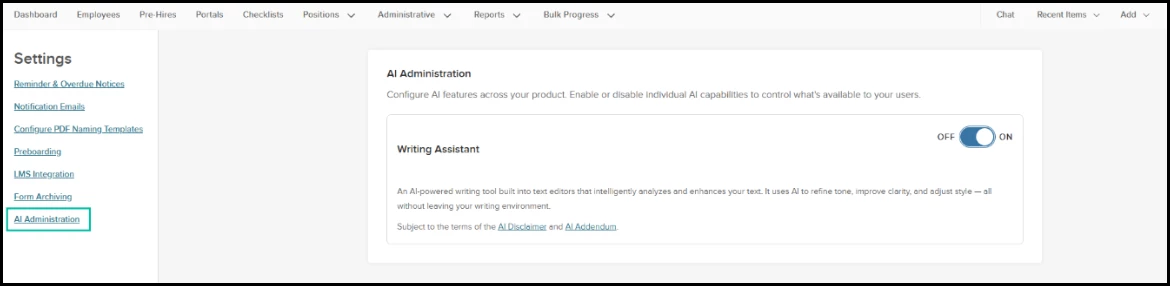
Navigation: Settings Gear Icon > AI Administration
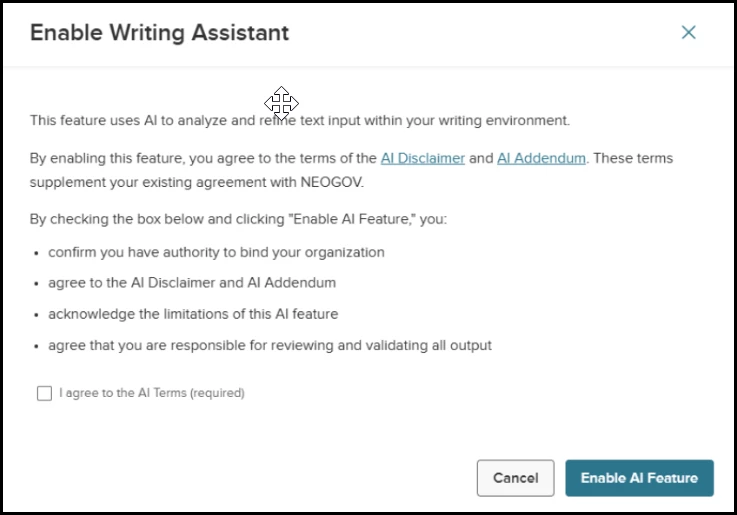
Navigation: Settings Gear Icon > AI Administration > Toggle on AI Setting
Note: This provides centralized governance over AI tools, ensuring organizational compliance with internal data and technology policies.
AI Writing Assistants in Onboard
Quickly create, refine, and optimize written content across Onboard using the new AI Writing Assistant. This feature integrates directly into your existing workflows, allowing you to polish email notifications, checklist tasks, portal widgets, and form labels with just a few clicks.
For example, an HR Administrator can select a draft onboarding task description and use the "More Professional" action to instantly elevate the tone for new hires.
- Enable the feature in AI Administration by toggling the Writing Assistant to ON.
- Open any supported Rich Text Editor (RTE) in the following locations:
- Email Notifications: Edit the email body within the Email Editor.
- Checklists: Add or edit descriptions for onboarding, preboarding, or offboarding tasks.
- Portal Builder: Update text within widgets.
- Form Builder: Edit the "Label" field for custom forms.
- Select the text you wish to modify and click the AI Writing Assistant icon (located in the bottom right of the editor).
- Review and accept the AI Acknowledgement prompt to begin.
- Choose an action from the menu: Rephrase, Shorten, Elaborate, More Professional, or Check Spelling/Grammar.
- Preview the generated text and select Replace to apply the changes or Refine to adjust the results further.
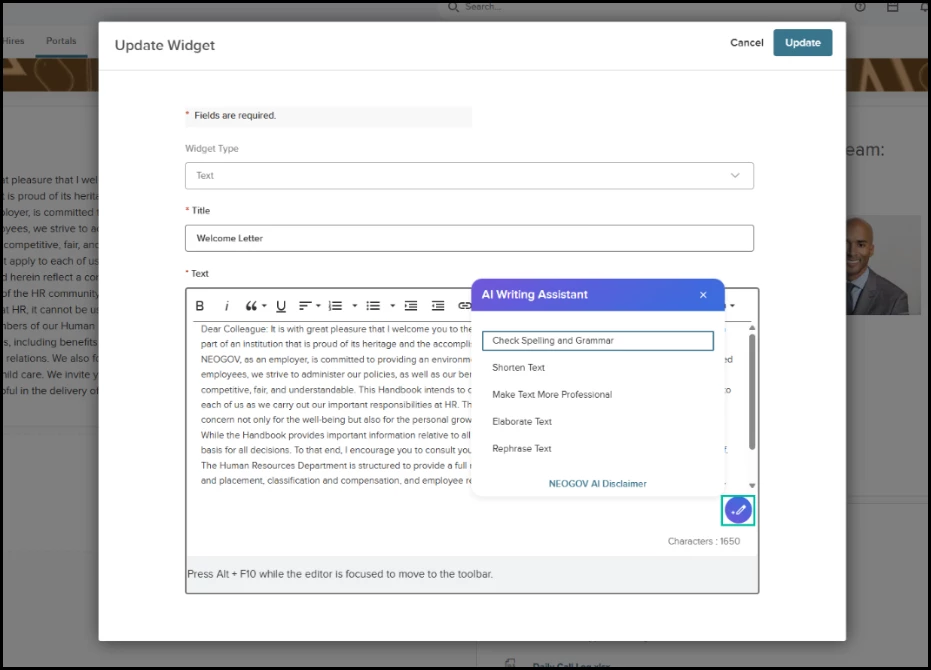
Navigation: Portals > Select Portal > Edit Portal > Edit Text Widget
Note: This reduces the time spent drafting and editing content while ensuring high-quality, professional communication across all employee touchpoints.
Form Versioning: Make Version Forward Facing
Ensure assignees can complete in-progress forms without losing data when a new version is published. The Make Version Forward Facing setting allows you to control whether updates apply immediately to all active Form tasks or only to newly created ones.
For example, a new hire who has already started filling out their tax form can finish the current version even if you publish an updated version.
- Navigate to the Form Settings (from either the Edit Form Flyout or Form Actions) and scroll to Version Specific Settings.
- Enable the Make Version Forward Facing toggle to allow in-progress instances of the previous version to be completed after the new version is published.
- Publish the new form version.
- Review the Audit Trail to track changes to this setting, listed under the "Form settings changed" action type.
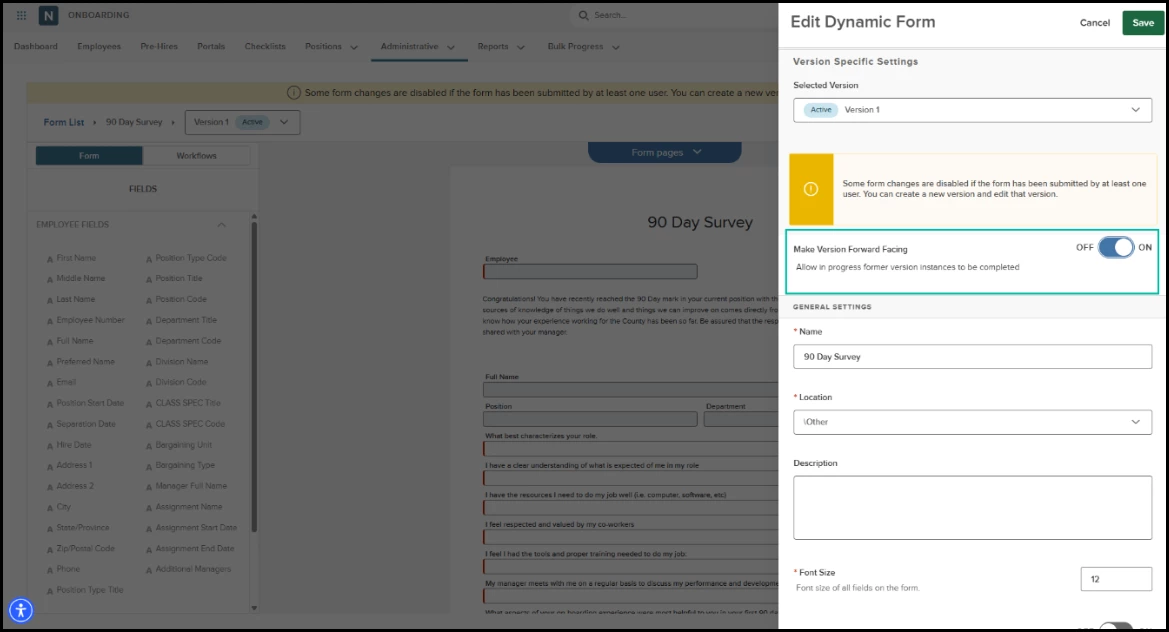
Navigation: Form Builder > Select Form > Form Actions > Form Settings
| Toggle State | Outcome for In-Progress Forms | Outcome for Current or Pending Form Tasks |
| ON | Assignees complete the previous version. | Tasks are cancelled and reassigned with the new version. |
| OFF (Default) | Instances are archived and progress is lost. | Tasks are cancelled and reassigned with the new version. |
Note: This prevents data loss and reduces administrative rework by allowing users to finish forms they have already started.
Appendix: Bugs Resolved
No additional bug fixes outside of the maintenance releases. Please refer to the maintenance release notes for summative details.