



Onboard: Fall 2026 Release Notes
Timeline
When will this be released?
UAT Preview Window: Thursday, October 1, 2026
Production Availability: Thursday, October 29, 2026, 7 AM EDT
Is there downtime for this release?
No
Related Release Note Links
- Onboard Winter 2026 Release Notes
- Onboard Spring 2026 Release Notes
- Onboard Summer 2026 Release Notes
Form Builder Usability Enhancements
Improve your form creation efficiency with new AI-powered writing tools, flexible navigation, and expanded field options. These updates streamline how you manage and design custom forms.
Support for Middle Name and Preferred Name on the Edit Field Type Flyout
Streamline your form design process by quickly switching existing fields to capture middle or preferred names. This update eliminates the need to delete and recreate fields when adjusting name requirements on your custom forms.
Example
An Admin creates a background form with detectable fields that are added as single text fields. Using the Edit Field Type functionality, they quickly update from single text to the Middle Name and Preferred Name fields rather than deleting the single text fields and adding the respective name fields.
How it works
- Choose a field on your form in Form Builder.
- Open the Field Type section within the left menu.
- Select Edit to view available field type selections.
- Pick either Middle Name or Preferred Name from the dropdown list placed.
- Save your choice to automatically update the field type on the form.
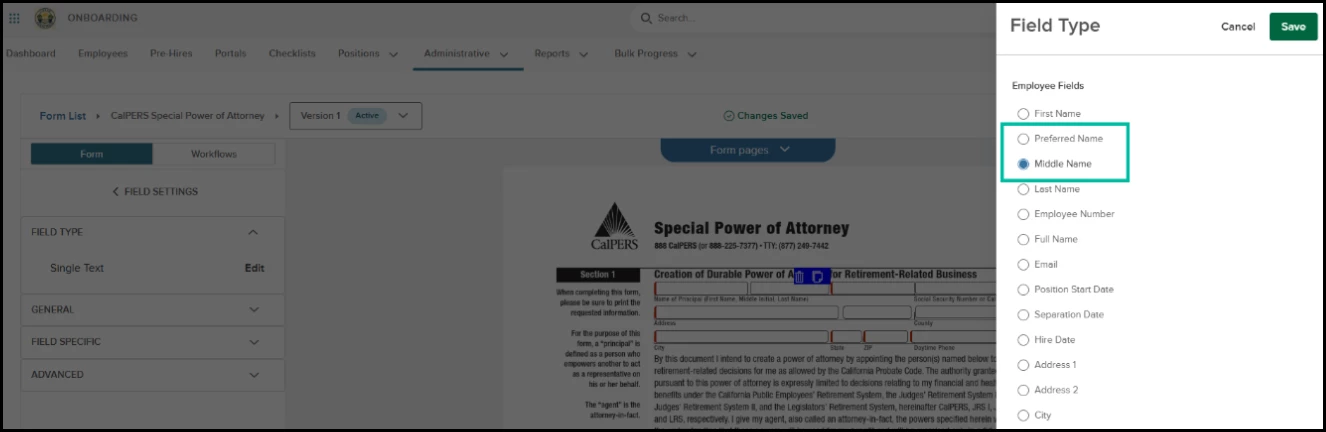
Navigation: Form List > Select Form > Select Field > Field Type Section > Edit
Value
Saves administrative setup time by permitting immediate transformation of current fields into designated name choices.
Audience
Administrators
AI Writing Assistant added to Info Description Field
Enhance the clarity of your form instructions using built-in artificial intelligence to refine your writing. The Writing Assistant helps you draft professional, succinct field descriptions directly within the Form Builder.
Example
An HR Admin uses the "Shorten" tool to make a lengthy field description easier to read.
How it works
- Ensure you have enabled the Writing Assistant setting in Administrative > Settings > AI Preferences.
- Select a field in the Form Builder and expand the Advanced section.
- Click into the Description rich-text editor and enter text.
- Click the AI Writing Assistant icon (located in the bottom right of the editor).
- Select an option: Rephrase, Shorten, Elaborate, More Professional, or Check Spelling/Grammar.
- Preview the generated text and select Replace to apply the changes or Refine to adjust the results further.
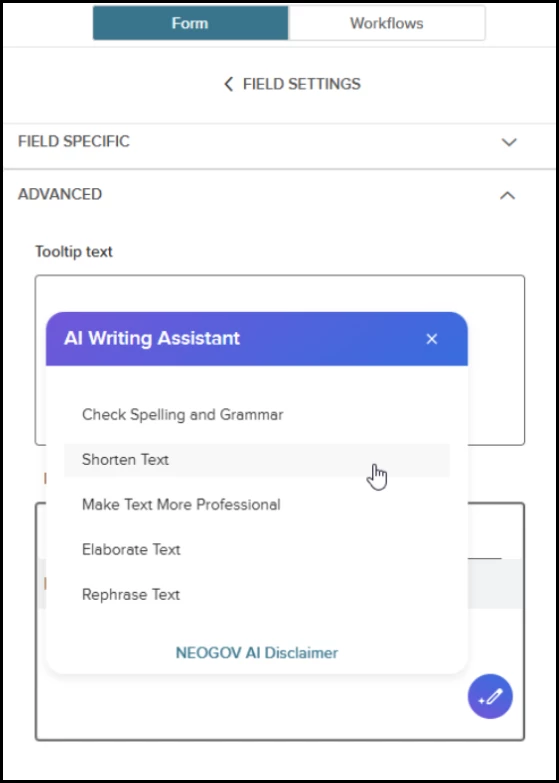
Navigation: Form List > Select Form > Select Field > Advanced Section > Description
Value
Increases the quality and professionalism of form instructions while reducing the time spent drafting content.
Audience
Administrator
Expandable Left Hand Navigation
Customize your workspace by adjusting the width of the Form Builder sidebar to better view long labels and descriptions. This flexibility ensures you can manage complex field settings without horizontal scrolling.
Example
A user expands the sidebar to 50% of the screen to clearly read and edit a long tooltip description.
How it works
- Locate the resize cursor by hovering the mouse over the right edge of the left-hand navigation panel.
- Click and drag the cursor to the right to expand the panel width.
- Expand the panel up to a maximum of 50% of the viewport width.
- Drag the cursor to the left to collapse the panel back to its default size.
- Use arrow keys to resize the panel if navigating via keyboard.
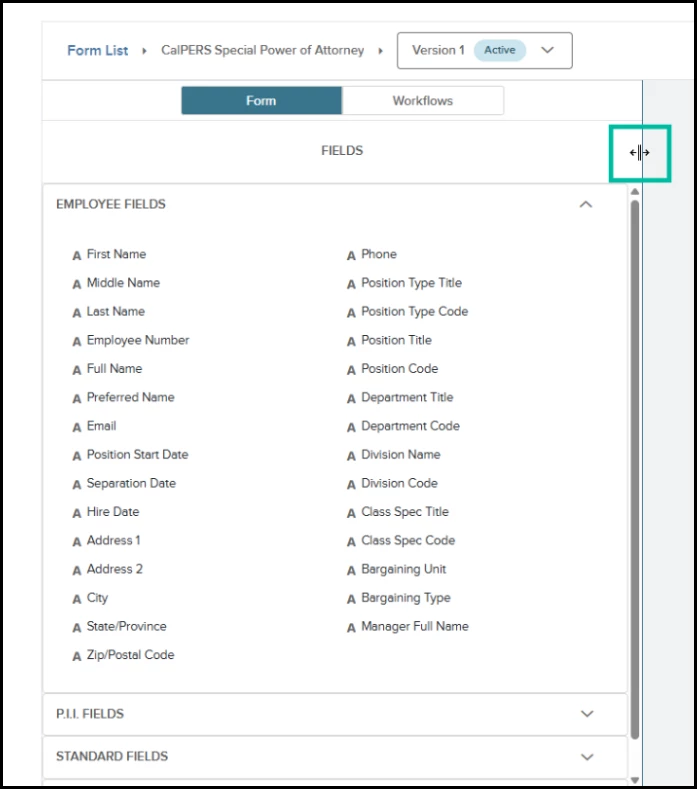
Navigation: Administrative > Form Builder > Add/Edit Form > Expand Left Nav
Note: Left Navigation Panel retains the width from the user’s last session and carries over across all forms.
Value
Improves readability and editing efficiency for rich-text content by providing a wider, more flexible workspace.
Audience
Form Administrators
Previous Employee Number Visibility for Rehires
Simplify the rehire process by viewing a former employee's ID directly during the promotion workflow. This visibility ensures you can easily reference or reuse existing identification numbers without searching historical records.
Example
A coordinator sees a returning staff member's old ID number while promoting them from Pre-Hire to Employee, ensuring the correct Employee Number is maintained.
How it works
- Navigate to the Pre-Hire List and open a specific Pre-Hire Details page.
- Click the gear icon and select Promote to Employee to begin the promotion process.
- View the Promote to Employee tab.
- View the Previous Employee # displayed as a read-only label located directly above the Employee # field.
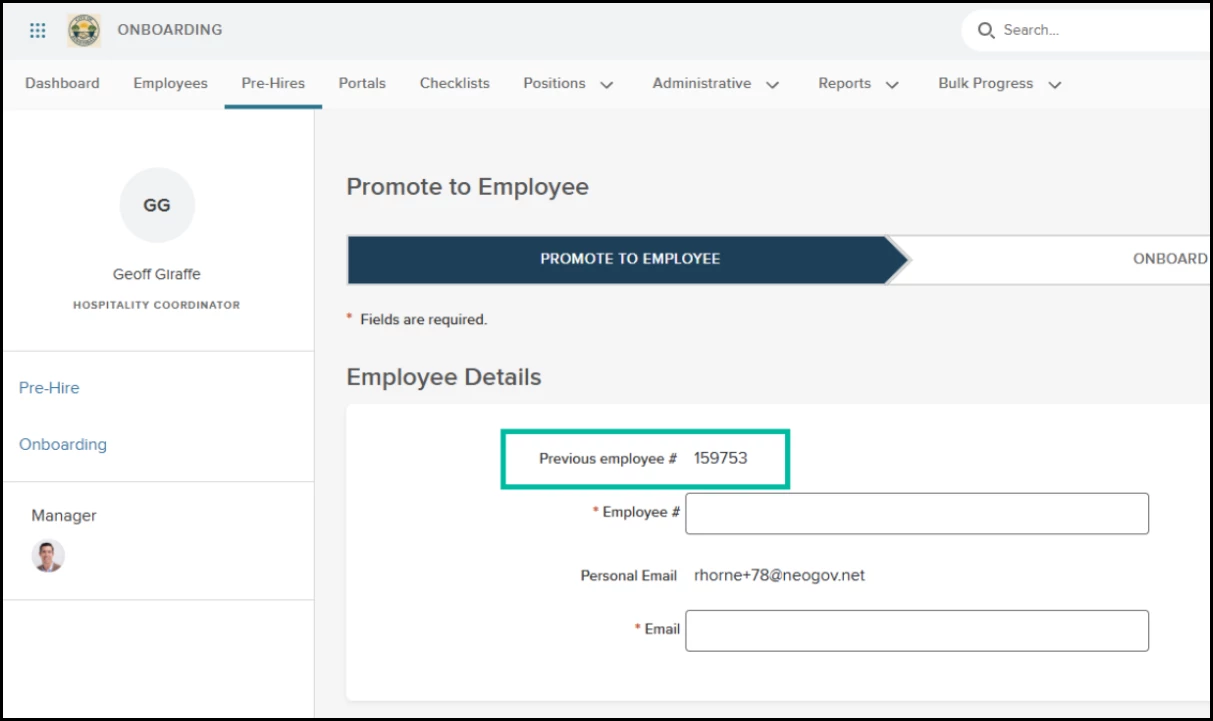
Navigation: Pre-Hire Details Page > Gear Icon > Promote to Employee
Note: The previous ID only appears if the pre-hire has a former employee record associated with a number in the system.
Value
Saves time normally spent reviewing historical documents or reports to find the employee’s last used Employee Number
Audience
Administrators, HR Managers
AI Sentiment Analysis For Exit Interviews
Identify systemic root causes of employee turnover faster by using artificial intelligence to synthesize open-ended feedback. The AI Summary Assistant automatically processes qualitative data from exit interview comment boxes, providing a concise overview of employee sentiments without requiring manual analysis of every response.
Note: This feature set will be available for opt-in Beta testing with the Fall 2026 Production Release on October 29th and will be available to all customers in Production with the Winter 2026 release.
The feature set will not be available for testing in UAT.
AI Administration Summary Setting
Maintain full control over artificial intelligence usage within your agency by enabling or disabling AI-generated content overviews. The Summary Assistant provides users with concise, automated highlights of complex information, such as exit interview feedback, to help them identify key insights faster.
Example
An HR Admin enables the Summary Assistant so HR Generalists can quickly review high-level themes from multiple exit interviews without reading every individual response.
How it works
- Navigate to Settings and select the new AI Administration item from the left-hand menu.
- Locate the Summary card to view its description and legal disclaimers.
- Switch the toggle to On to initiate enablement.
- Review the Enable Summary Assistant modal, which includes links to the AI Disclaimer and AI Addendum.
- Select the I agree to the AI Terms checkbox and click Enable AI Feature to save.
- Switch the toggle to Off at any time to immediately remove all Summary Assistants from the product for all users.
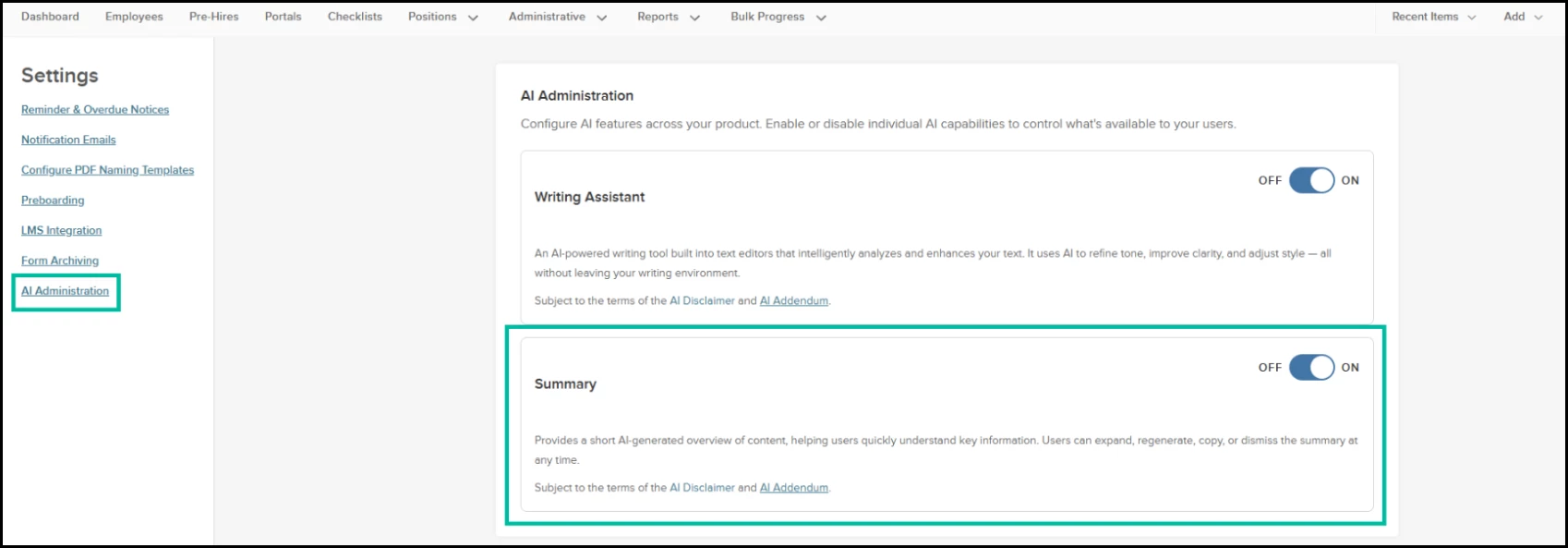
Navigation: Settings Gear Icon > AI Administration
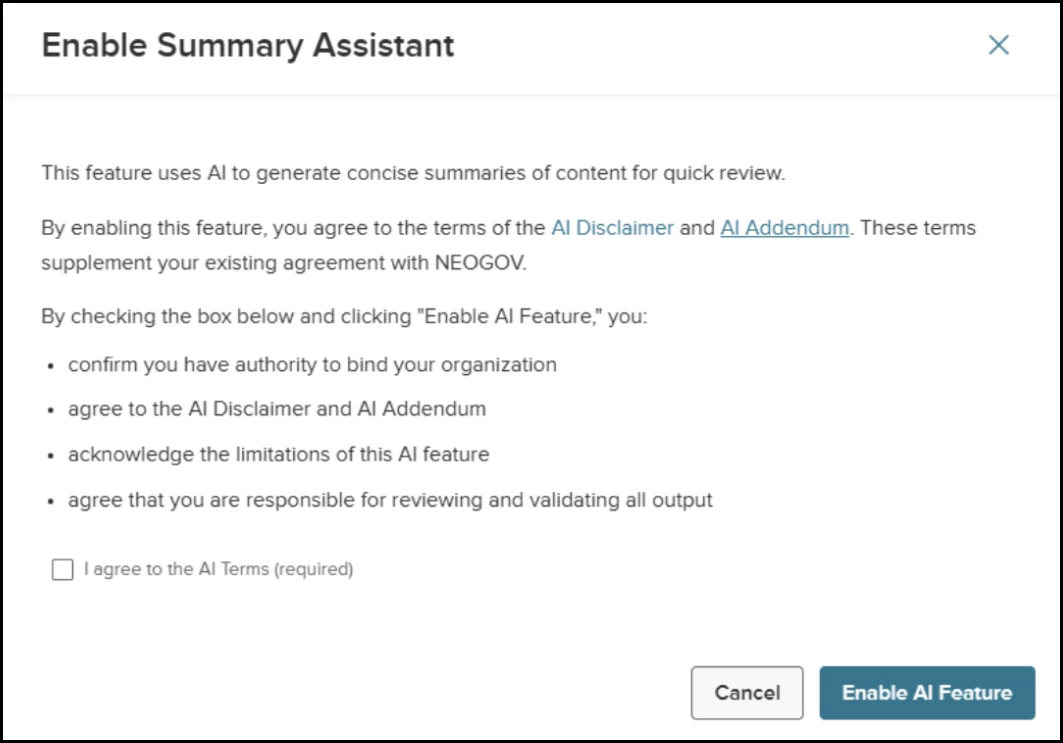
Navigation: Settings Gear Icon > AI Administration > Toggle on Summary Setting
Value
Provides centralized governance over AI tools, ensuring organizational compliance with internal data and technology policies.
Audience
Administrators
AI Sentiment Analysis for Exit Interviews
Transform exit interview noise into immediate retention strategies. The AI Sentiment Analysis for Exit Interviews eliminates hours of manual HR analysis by automatically turning qualitative feedback into clear root-cause insights, quote-backed evidence, and actionable recommendations—empowering leadership to fix systemic culture gaps before losing top talent.
Example
An HR Analyst reviews a summary of 50 exit interviews to quickly identify that "limited career growth" is the primary reason for recent departures.
How it works
- Ensure the Summary Assistant is enabled in AI Administration settings to access the feature.
- Navigate to Reports > Exit Interviews > Analyze Results.
- Select the AI icon within the analysis report to generate a summary of all Comment Box responses.
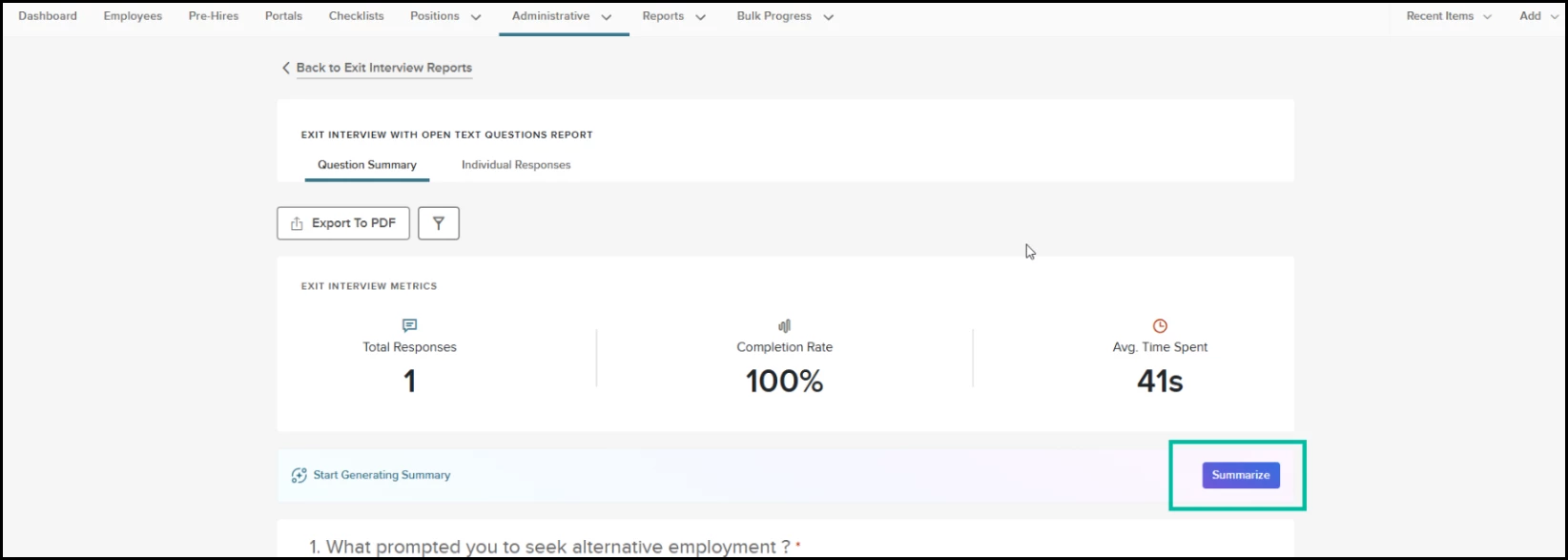
Navigation: Reports > Exit Interviews > Analyze Results > Question Summary Tab
- Review the AI-generated overview to understand high-level themes and sentiments across all submitted feedback.
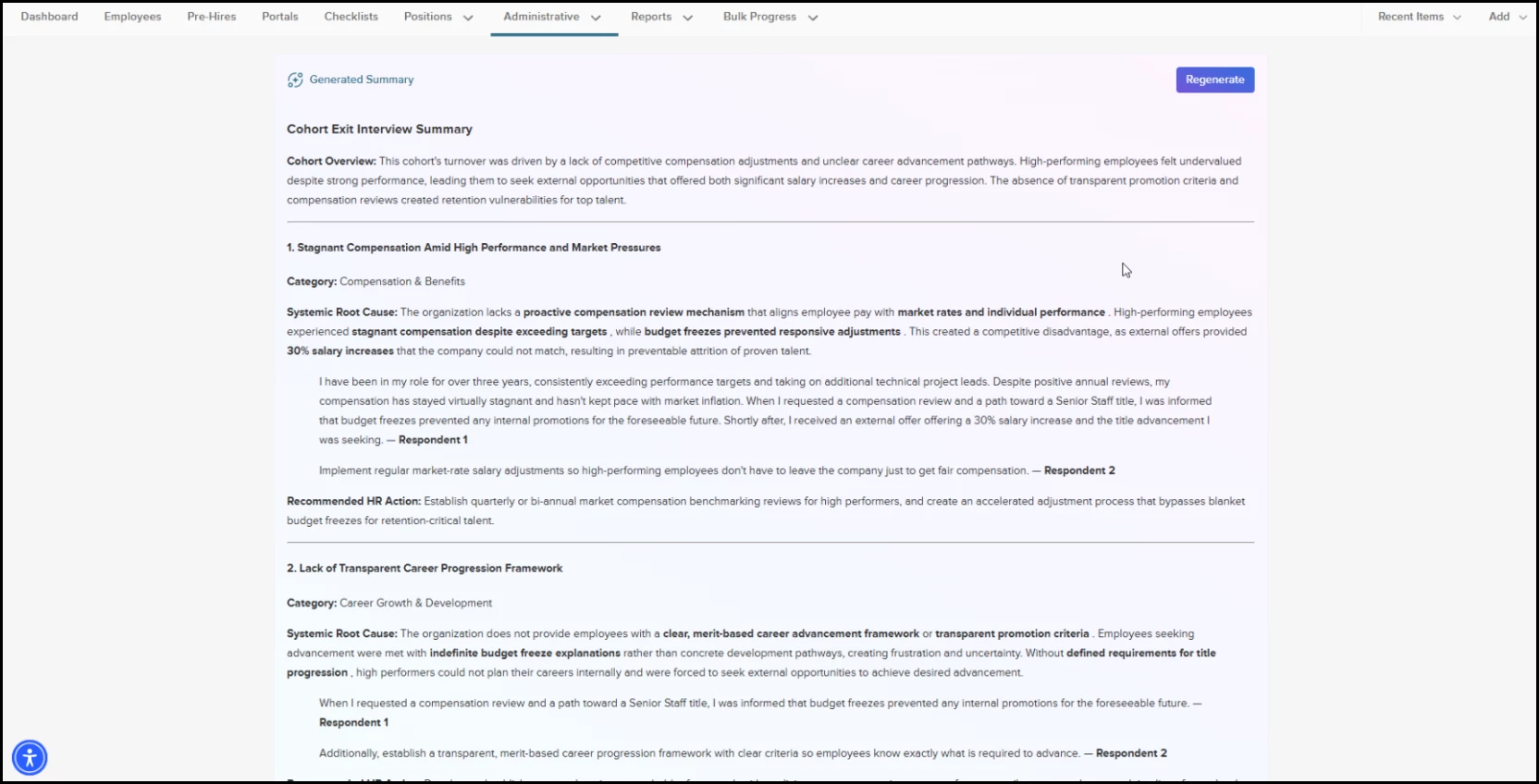
Navigation: Reports > Exit Interviews > Analyze Results > Question Summary Tab > Summarize
The summary provides a concise overview of the primary drivers of turnover for the selected cohort based on the submitted open text responses. Along with the overview, the summary is organized by overarching themes, root causes (including key quotes from respondents), and a recommended action plan.
Note: This feature only summarizes responses from "Comment Box" question types; multiple-choice or rating-scale data is excluded from the summary. If no comment box responses are available, the assistant will indicate that there is no data to summarize.
Utilize the advanced filters available on the Exit Interview Reports to refine your cohort size prior to summarization.
Value
Reduces the administrative burden of manual data synthesis, allowing HR teams to act quickly on employee feedback trends.
Audience
HR Administrators