


Article Links
Timeline
When will this be released?
Production Date: December 3rd, 2025, between 3 PM - 4 PM PST
Is there downtime for this release?
No.
Requisition Lifecycle Report Enhancements
NEOGOV has updated the Requisition Lifecycle report to provide clearer visibility into the approval process for users utilizing the OHC/Insight products. This enhancement focuses on improving the information available in the Approver Taking Action field.
Approver Taking Action Field Update
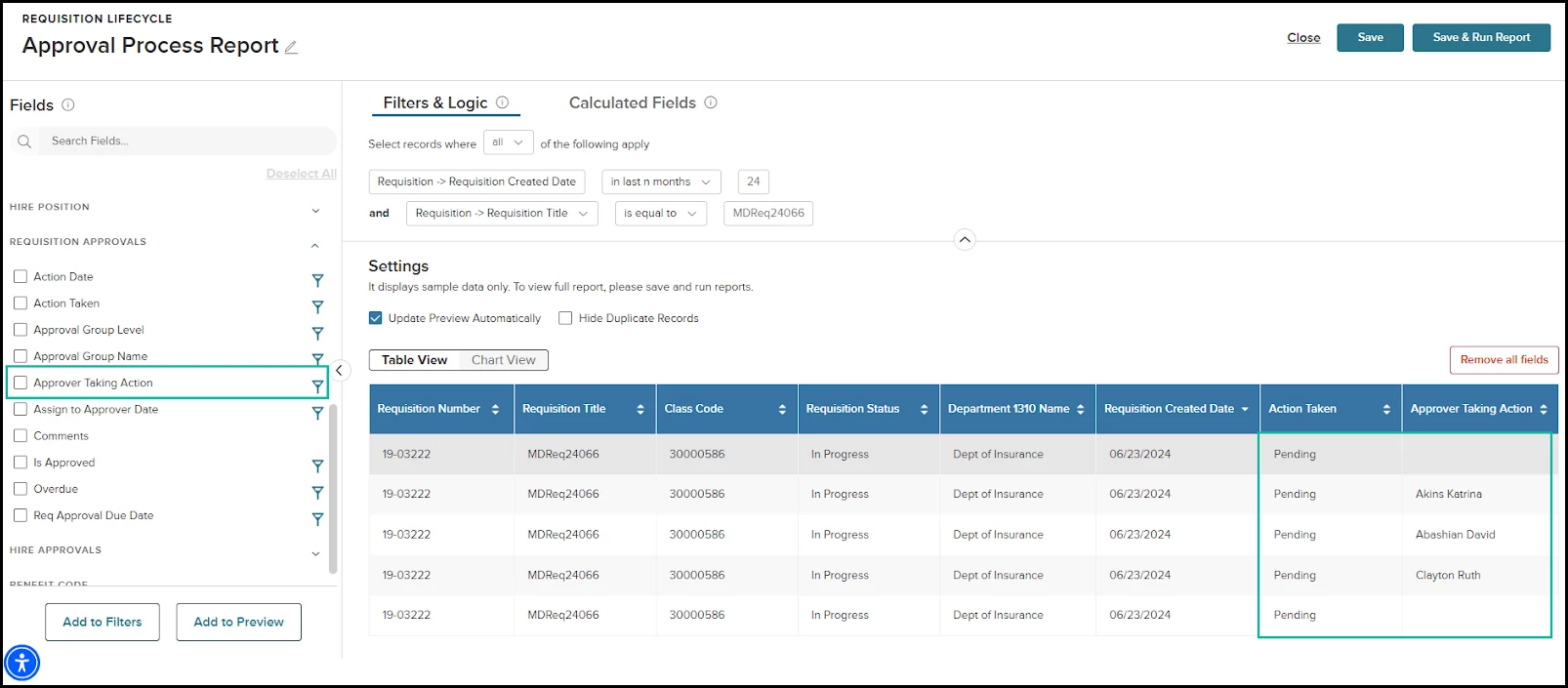
The Approver Taking Action field now displays the approver's name even when the action status is Pending. This provides immediate visibility into who will be taking action on a request. Previously, this field only displayed the approver's name when the action status was Approved.
When creating a report in Report Builder, navigate to Create Report and select the Requisition Lifecycle report. In the left menu, expand the Requisition Approvals section, or search by field name, to find the Approver Taking Action field. You can then add the field to your report by selecting it and selecting the Add to Preview button or by dragging and dropping it into the preview area. You can also use this field as a filter. The field can also be used as a filter by selecting it and selecting Add to Filter or by dragging and dropping it into the filter area.
In cases where there are multiple approvers for the same action, each approver's name will be displayed. Each approver's name will appear in separate rows, ensuring clarity and ease of reading.
Value
This update brings greater transparency and clarity to the requisition approval process, enabling users to easily track and identify pending actions and understand who is responsible for approvals, even in complex approval scenarios.
Audience
This update primarily impacts Insight/OHC users with access to Report Builder who use the Requisition Lifecycle report to monitor and manage requisition approval workflows.
Example
- Maria, an HR Admin, wants to review pending approvals for a specific requisition. Using Report Builder, she starts with Requisition Lifecycle, customizes by adding the field Approver Taking Action and filtering by requisition number and action status.
- John, an HR Admin, wants to review pending approvals for a requisition with the approval group. When John follows the same step mentioned in the first point, he will see all approvers for the specific requisition, listed in separate rows.
Time Off History Report Enhancement
NEOGOV has enhanced the Time Off History report to better meet the needs of Time & Attendance users by improving data relevance and user control over leave request creation.
Introduction of Leave Create Date Field
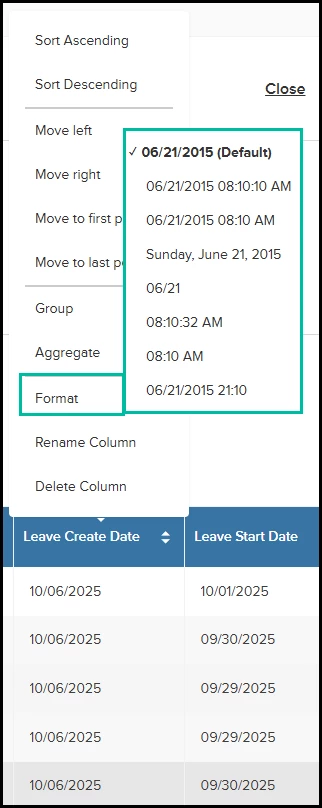
A new field titled Leave Create Date has been added to the Leave Line section. It captures both the exact date and time when a leave request was entered.
You can find and use this new field in the Report Builder under Time Off History > Create Report.
- To add the field to your report: Expand the Leave Line section, then select Add to Preview button for Leave Create Date, or drag and drop the field into the preview area.
- To add the field to the filter area: Select the field and Add to Filters button, or drag and drop it into the filter area.
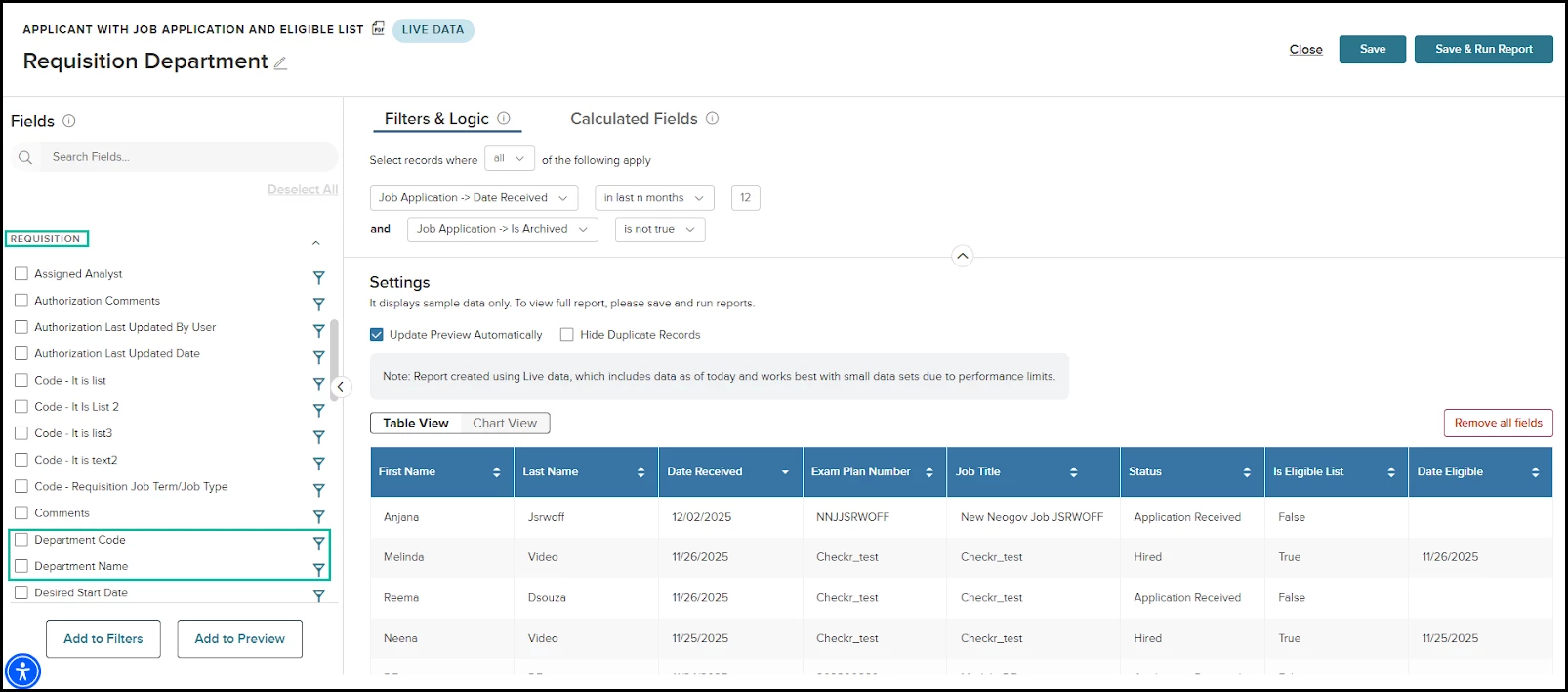
Even though this field has data for both the date and time of the leave creation, the default format is showing only the date. To change the date, once you add this field to the preview, select the column name and choose the format that shows both date and time. By default, this field only displays the date, despite containing both the date and time of the leave creation. To display the time as well, after adding the field to the preview, select the column name and select a format that includes both the date and time.
Value
This update enhances report accuracy, providing Time & Attendance users with improved capabilities for reviewing and filtering leave creation requests. This enhancement enables better decision-making and workflow management by allowing users to efficiently focus on specific timeframes of interest.
Audience
This impacts Time & Attendance users with access to Report Builder who require detailed and accurate time-off reporting for effective leave management and planning.
Example
- Maria, HR Admin, wants to review leave requests created on 10/01/2025. Using Report Builder, she starts with a Time Off History report and customizes it by adding Leave Creation Date to the preview and filter area. Finally, she sets the filter value to 10/01/2025.
Recruitment Reports Enhancement
NEOGOV has enhanced the reporting capabilities for Report Builder users by adding crucial department-related fields to the Requisition data set, allowing for comprehensive analysis of candidate associations across departments.
Department Fields added to the Requisition Data Set
Previously, recruitment reports (excluding the Requisition Lifecycle report) pulled department data from the department linked to the Job Posting.
We have now added the new fields Department Name and Department Code under the Requisition section. This allows users to view department data at the Requisition level.
The department data associated with the Job Posting will continue to be available in all recruitment reports.
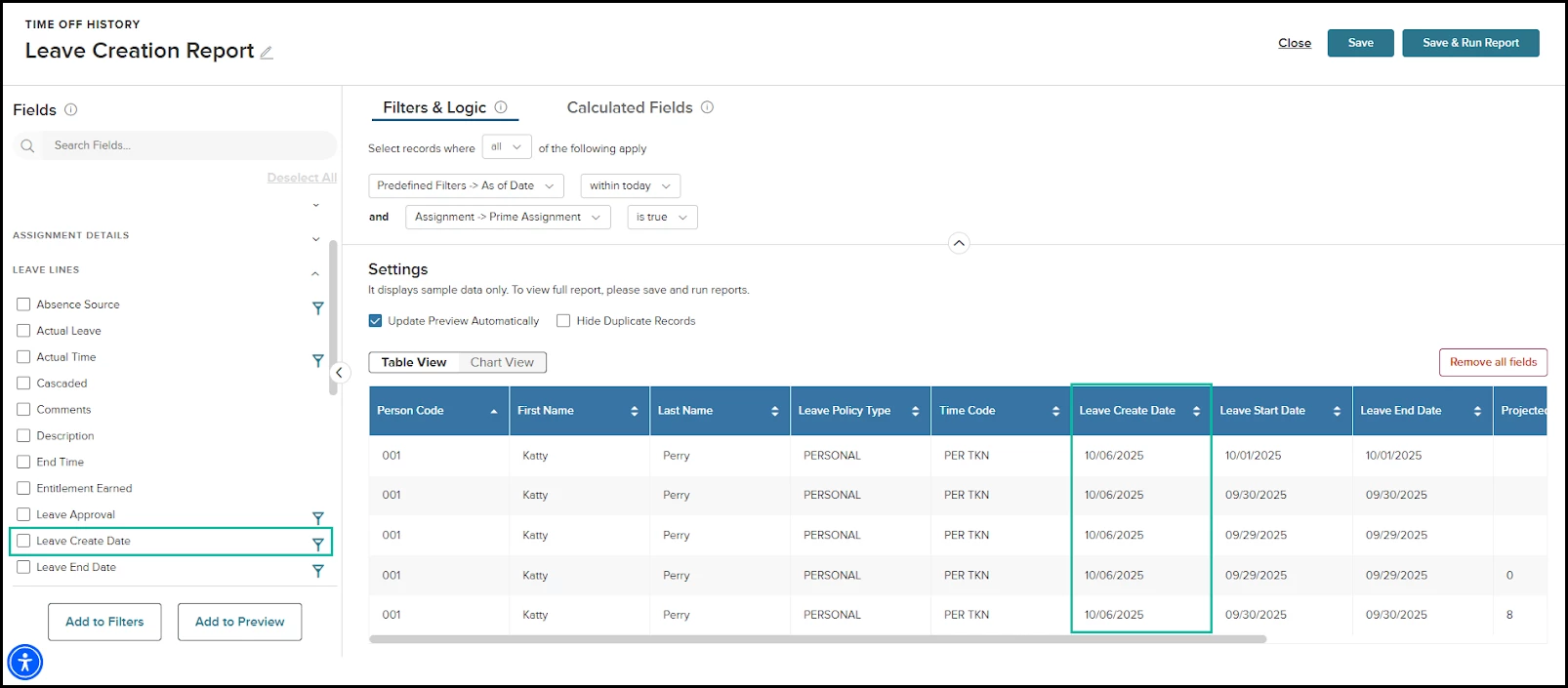
The change impacts the following reports incorporating the requisition section:
- Applicant with Job Application and Eligible List (both Live and Historical sources)
- Applicant With Referred List And Offers/Hires
- Applicants with Requisitions and Eligible List/Referred List/Offers/Hires
- Job Information
- OHC Evaluation Step Candidates
- Requisition Lifecycle
- Applicants with Offers and Hires with Onboard Pre=hires/Employees, Checklists, and Tasks
Users can filter reports using the Department Name and/or Department Code field.
- The default filter option is set to is not null to ensure meaningful data retrieval.
- Filtering respects user-specific department-based security settings if applicable.
The procedure for adding these fields to the preview and filter is unchanged. Please refer to the preceding two paragraphs if you need a reminder of the steps, as the process is identical.
Value
This enhancement enables Report Builder users to conduct more precise and comprehensive departmental analysis in their reports, facilitating improved decision-making and strategic planning based on requisition data by department.
Audience
The update benefits Insight/OHC users with access to Report Builder who require detailed insights into recruitment processes and candidate affiliations across departments, enhancing their reporting capabilities and enabling more effective departmental analysis.
Example
- Jane, a recruitment analyst, is tasked with identifying hiring trends across various departments. Previously, Jane's analysis was limited to department data linked to Job Postings, which did not align perfectly with organizational requisition strategies. With the introduction of Department Name and Department Code in the Requisition section, Jane can now filter and analyze data specifically at the requisition level.
By applying a filter to show all requisitions within the "Engineering" department, Jane can quickly assess the number of candidates associated with active requisitions, identify bottlenecks in the recruitment process, and attribute hires accurately to the department responsible for requisitions. - Tom, an HR manager with department requisition, requires a report that lists all ongoing requisitions within the "Finance" department. However, because department data retrieval respects user-specific security settings, Tom only accesses information pertinent to his security clearances.
This personalized and secure reporting capability helps Tom maintain confidentiality while executing his departmental responsibilities efficiently.
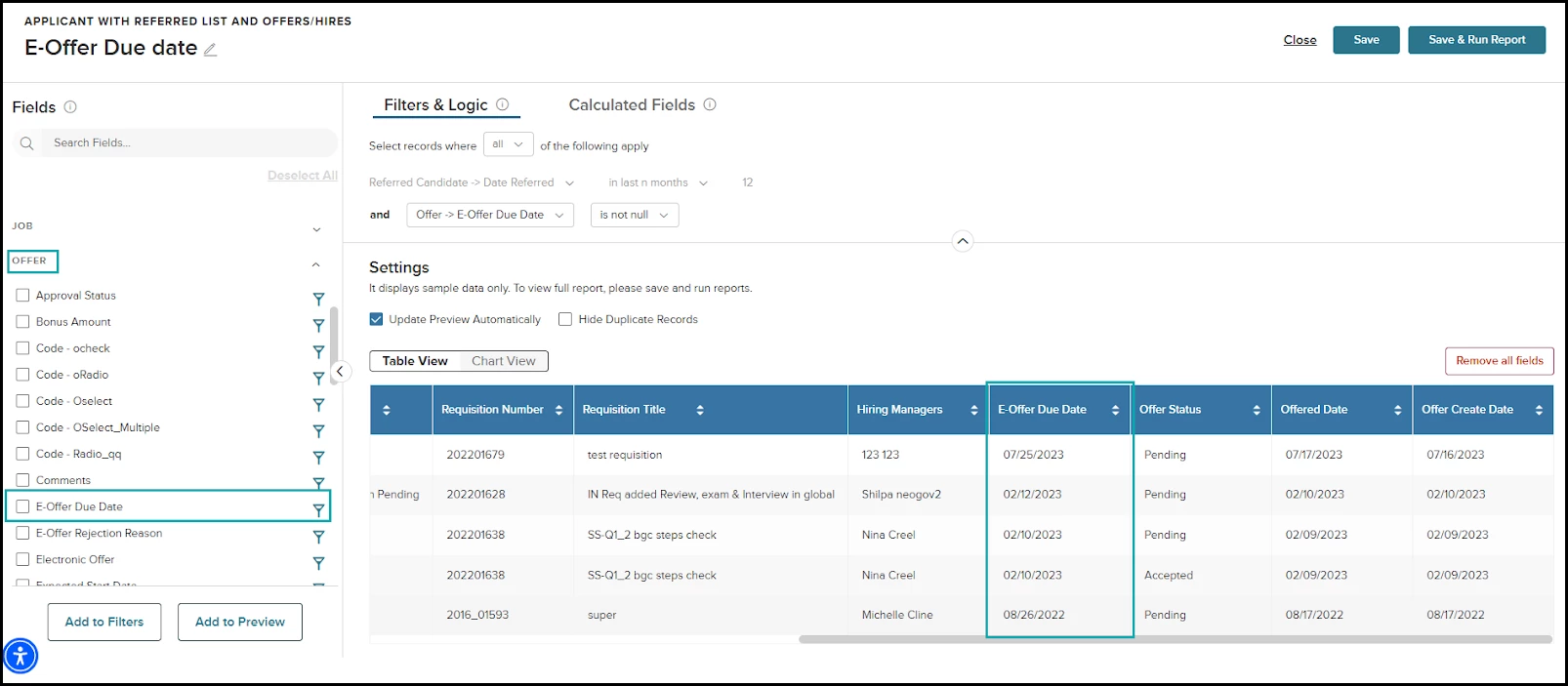
Introduction of E-Offer Due Date Field
The E-Offer Due Date field has been introduced to the Offer section within recruitment reports to provide users with enhanced visibility into the timelines of electronic offer acceptances. This field is specifically designed to track the due dates for E-Offers, enabling recruiters and hiring managers to monitor pending acceptances and identify offers that are nearing their expiration.
Offers that are not electronic will present a blank value in this field.
Reports incorporating E-Offer Due Date are:
- Applicant With Referred List And Offers/Hires
- Applicants with Requisitions and Eligible List/Referred List/Offers/Hires
- Requisition Lifecycle
Users can filter reports by the E-Offer Due Date field. The field operates as a date field with a default value within today.
The procedure for adding this field to the preview and filter is the same as described in the first two paragraphs.
Value
This update empowers Insight users with access to Report Builder with a dynamic tool for offer management, enhancing their ability to proactively oversee candidate statuses and manage timelines for offer acceptance, ultimately supporting timely and informed hiring decisions.
Audience
This enhancement is targeted towards Insight users with access to Report Builder who require detailed oversight of E-Offers, providing them with critical data to manage and track offers efficiently within their recruitment processes.
Example
- Lisa, a hiring manager, wants to ensure that no candidates miss their offer acceptance deadlines. By using Report Builder and customizing recruitment reports with the E-Offer Due Date field, Lisa generates a report listing all candidates with offers that are due within the next week. This allows her to priorities follow-up actions and communicate with candidates to expedite their acceptance decisions, reducing the risk of losing potential hires due to expired offers.
Appendix: Bugs Resolved
Functional
|
Scenario When Issue Encountered
|
Issue Resolved
|
|
Previously, the Requisition Lifecycle report generated duplicate records for a single candidate when a requisition contained multiple approvers from the same approval group. These duplicates were created for every approver in the group, regardless of who actually provided the approval.
|
The report builder will now accurately display the following information:
|
|
The bug manifested when users applied a date filter using the any date field from the Onboard report, specifically setting the filter condition to after with any valid date. This situation resulted in the report failing to load and returning an error message.
|
The underlying issue causing the report retrieval failure has been corrected. Users can now apply any date filter with an after condition without encountering errors.
|
Related Resources