

Analytics & Reporting: Spring 2026 Release Notes
Article Links
Timeline
When will this be released?
Spring Quarterly Releases:
UAT Preview Window: April 2nd, 2026, 4 AM PDT.
Production Availability: April 30th, 2026, 4 AM PDT.
Is there downtime for this release?
No.
Enhanced Security for Recruitment Reports
We're excited to announce a significant enhancement to the security of recruitment reports containing confidential data. This update provides greater flexibility and control over who can access specific information. Previously, access to Report Builder was limited for some users due to the lack of confidential permission.
With this change, users who do not have confidential access can now fully use Report Builder. However, they will only see restricted data, ensuring visibility is strictly based on their individual permissions.
The following sections cover the specifics of how this security update impacts user access, data visibility, and report building.
Confidential Permission
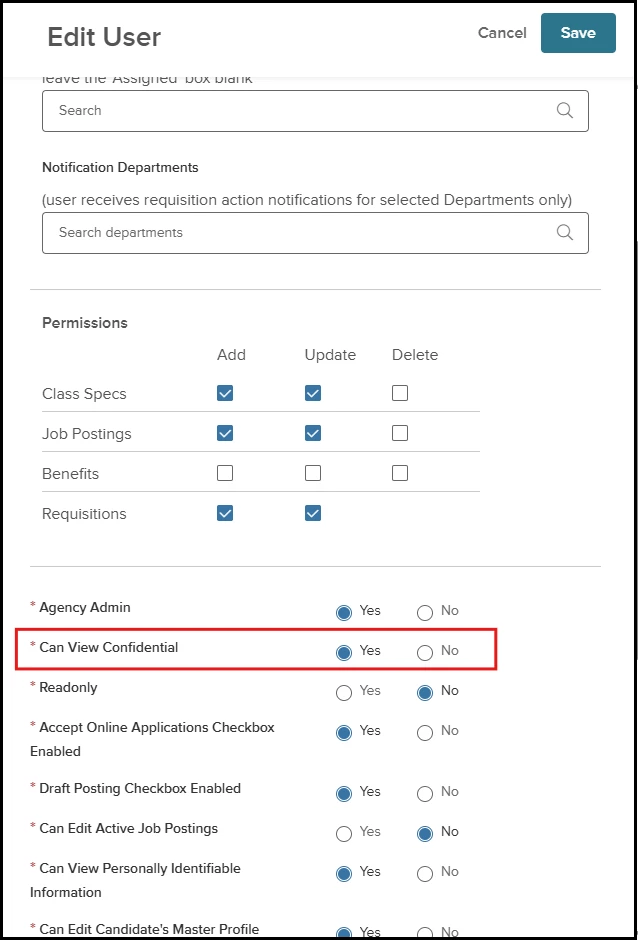
Access to Report Builder is now available for those who meet the following two permission criteria.
- New RB permission must be ON. This is an existing permission that didn’t change in this release.
- Confidential permission can be either ON or OFF.
To verify or change the confidential permission status for a specific user, navigate to Insight > Settings > Insight users > Permissions > Can View Confidential.
Confidential Data Visibility in Report Builder
With this update, users without confidential permission can now access and create reports with restricted confidential data directly in the Report Builder. This change applies to standard and custom recruitment reports.
These fields can be treated as confidential.
- Agency-Wide Questions
- Supplemental Questions
- Custom Form Fields - Master profile.
- Custom Form Fields - Hire.
- Custom Form Fields - Offer.
- Calculated field created with any field, if marked as confidential.
Note: Not all AWQ, CFF, or Supplemental Questions are confidential. Their confidentiality is determined by the setting configured by the agency or user within Insight.
Users who do not have confidential permission will experience the following.
- Viewing and Editing: When accessing existing reports or creating new ones, all confidential fields will be hidden from both the view and the edit report page.
- Exporting and Subscriptions: Confidential fields will be excluded when exporting reports or creating report subscriptions.
Based on where the confidential field is used, users will have different report options.
- Confidential field in the grid.
- Edit and copy options are disabled.
- Run is enabled.
- Confidential field in the chart.
- Edit and copy options are disabled.
- Run is enabled.
- The export option for the chart is disabled.
- Add to custom dashboard button is disabled.
- The chart is not visible.
- Confidential field in the filter.
- The report will not be visible to the user without the confidential permission.
- Aggregate/group by confidential field.
- The report will not be visible to the user without the confidential permission because this function is treated as a filter.
If a user's confidentiality permission is changed to ON, their restrictions will be removed, and they will be able to view the complete data.
Value
Enables broader access to recruitment reporting, and improves efficiency for users without confidential permissions.
Audience
An Insight user without confidential permission and access to Report Builder.
Security Changes in the Insight Report Catalog
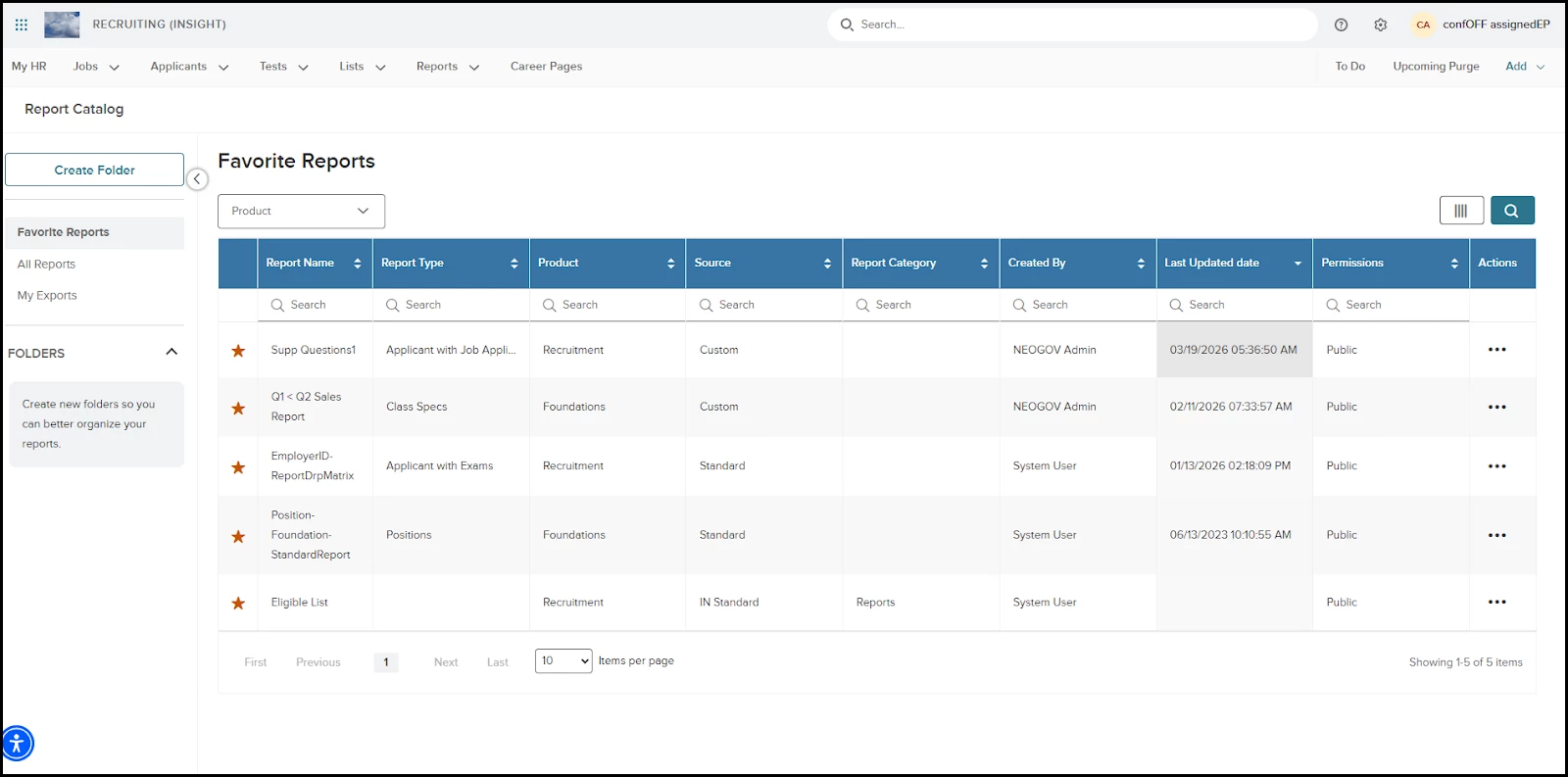
We have updated the required permissions to view all recruitment reports in the Report Catalog, aligning with security enhancements to Report Builder.
Users must have these permissions.
- Can View PII - YES.
- Can View Confidential Yes/No.
- Exam Plan Scope All.
- New RB Checkbox = ON/OFF.
Note: Highlighted points are the ones that changed.
Once a user has these permissions, they will see the following.
- Custom recruitment reports.
- Standard recruitment reports.
- Custom foundation reports.
- Standard foundation reports.
- Any of the above-mentioned:
- Private reports they created.
- Public reports created by themselves and other users.
- Insight Standard reports.
These available actions remain the same.
- Run: All reports.
- Settings: Recruitment/Foundation Standard and Custom reports.
- Add to folder: All reports.
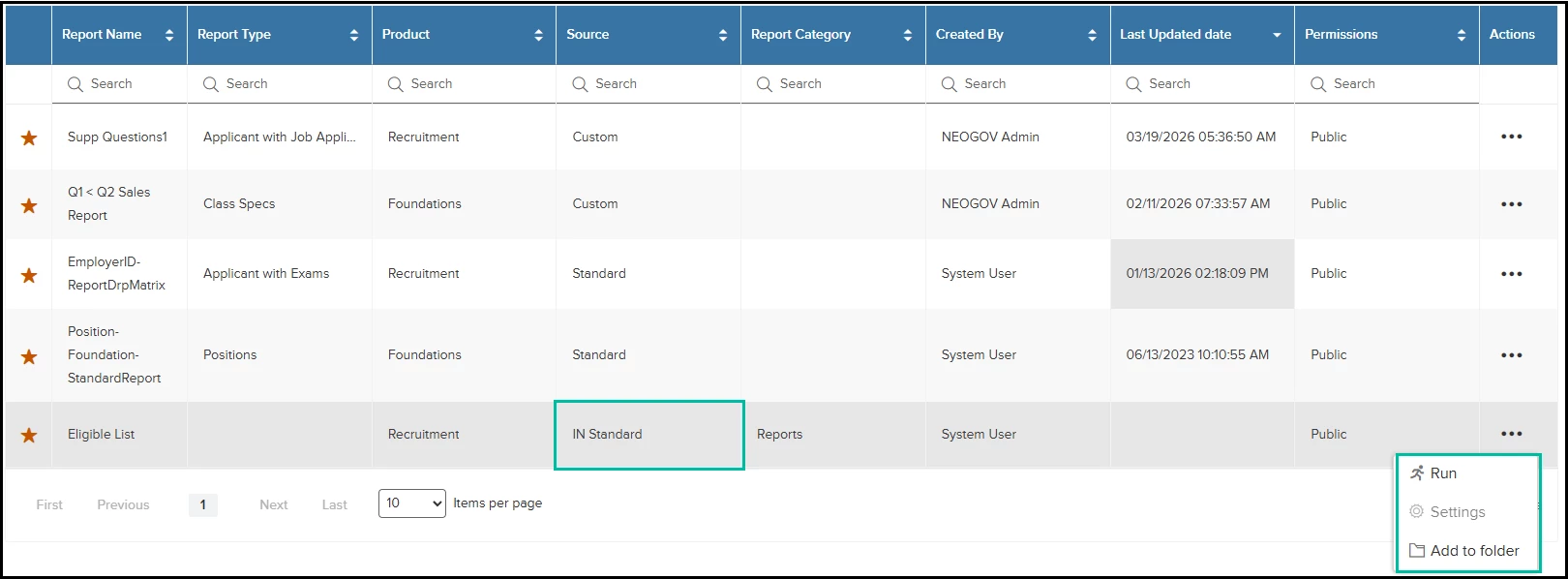
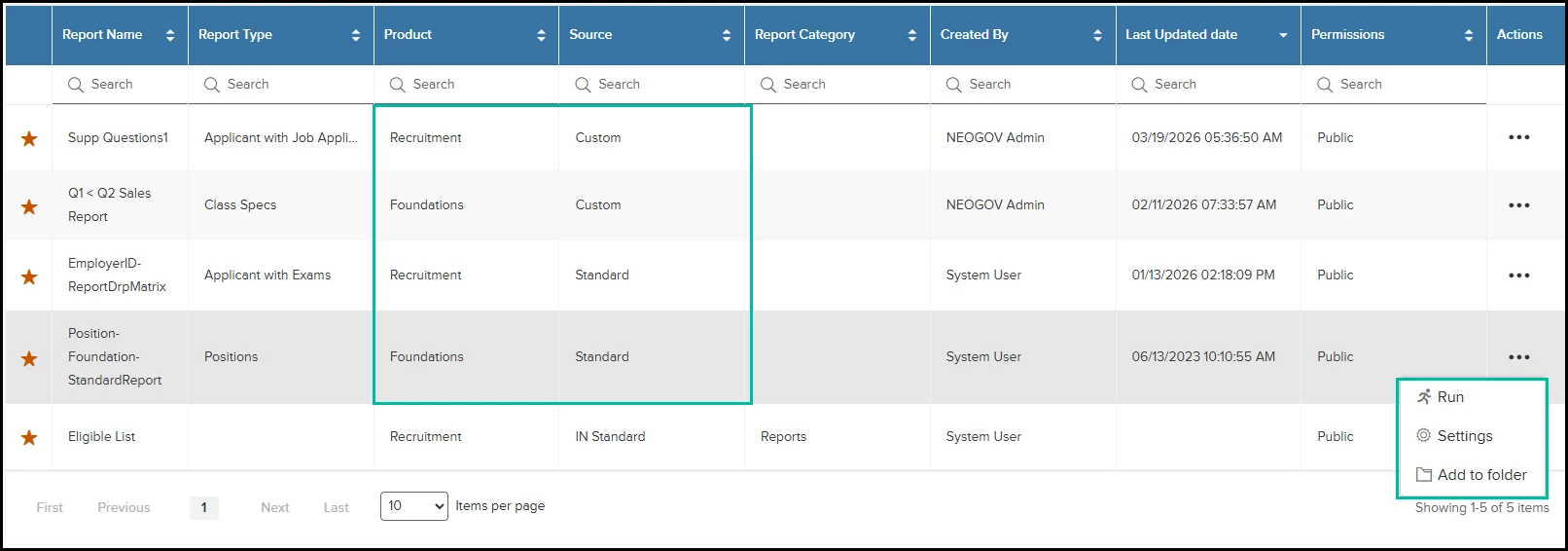
Visibility of confidential fields aligns with the settings defined in the Report Builder section. Other permissions remain as they are.
Value
The Report Catalog now offers expanded actions and enhanced report visibility. This improvement simplifies report management and discovery, especially for users with restricted permissions, making the process quicker and more efficient.
Audience
Insight users.
Subscription Encryption
To ensure a consistent experience across our reporting tools, we’ve added the ability to encrypt report subscriptions. This was previously exclusive to the old Insight Report Builder. With this release, we’ve added this directly within the Report Builder.
- Encryption is supported for recruitment reports subscriptions only.
- This feature is available only for the SFTP and My Exports subscription type.
Step 1: Create a Key
To successfully encrypt the subscription, users will need to create a key first.
- Go to Settings on any custom or standard recruitment report.
- Click the new Key Management tab in the left menu.
- On the new page, click the Add Key button.
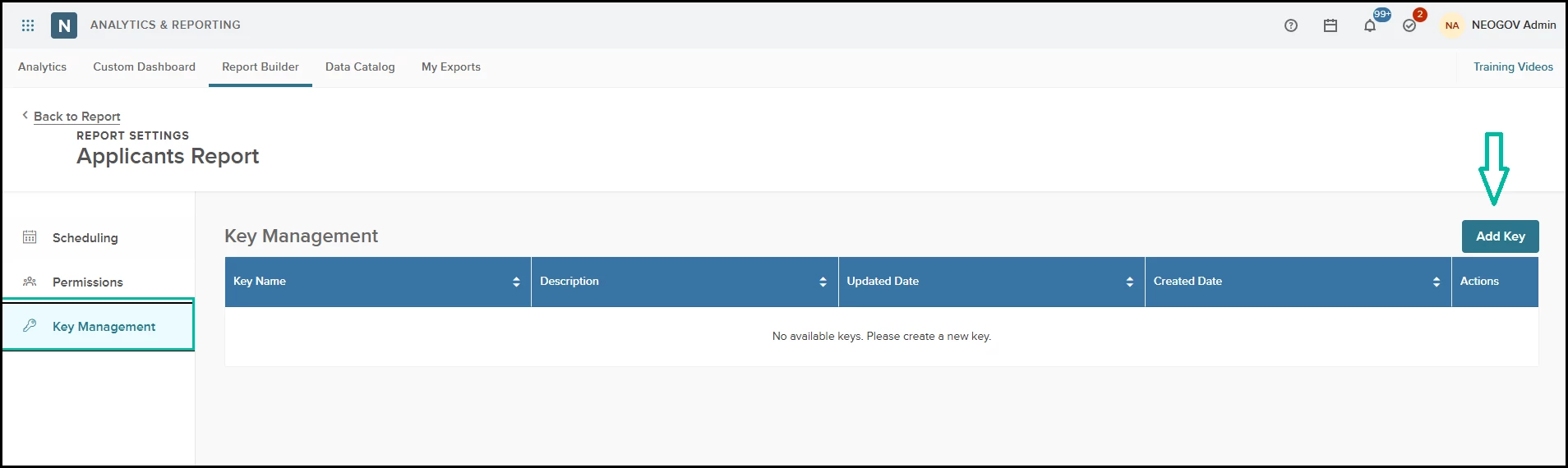
Report Builder > Settings > Key Management
- After the public key file is created, upload it under the Public Key File section.
- Complete all mandatory fields in the dialog.
- To upload the public key file, you must first generate a public key using some PGP encryption tool (external tool, not part of NEOGOV).
- Once created, upload the public key file under the Public Key File section.
- The Public Key Index field is set to 0 by default. You can change this value if you use multiple public keys in one encryption key. If not, we advise using the default value.
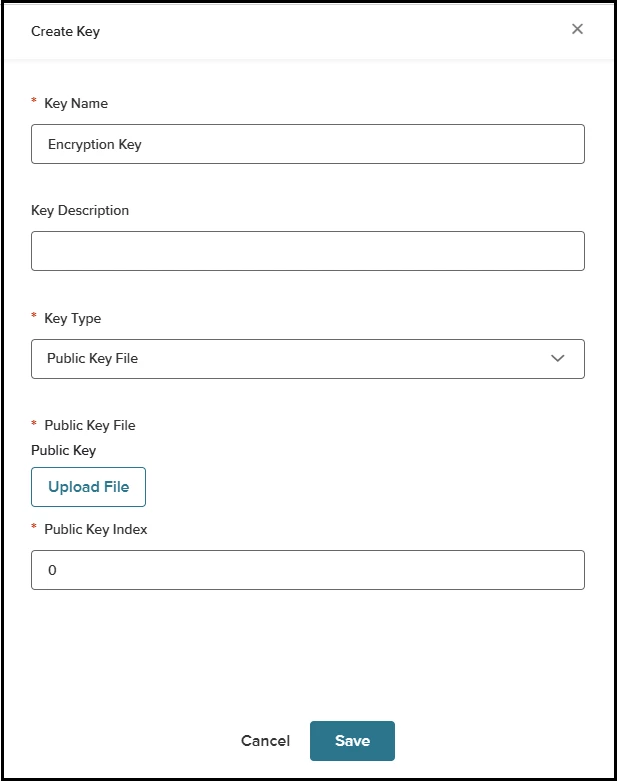
Key Management > Add Key
- Once the key is created, you will see a confirmation message, and the new key will show in the grid.
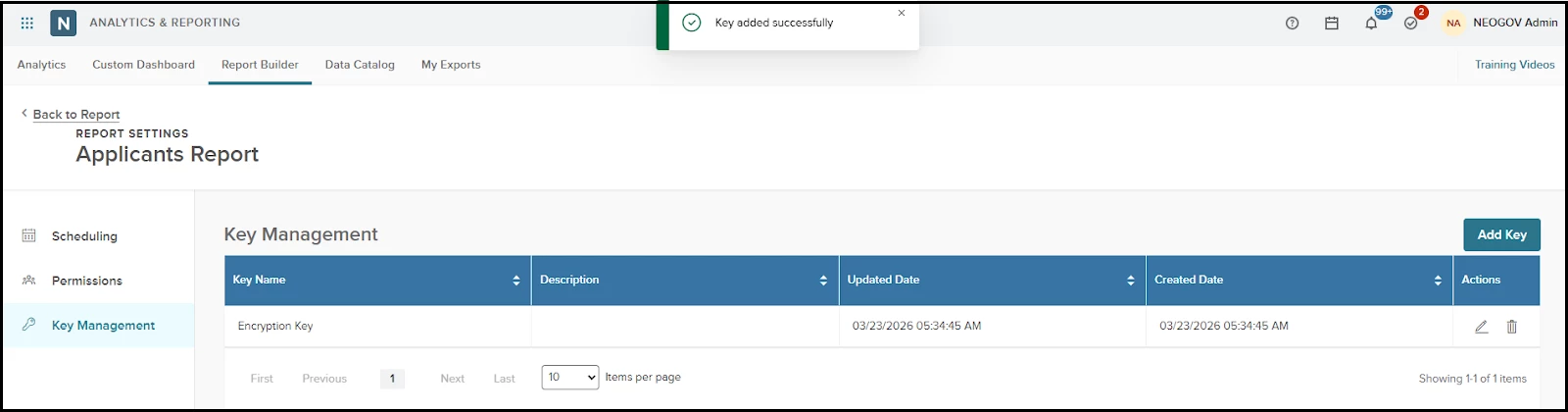
Keys are visible to all users within your organization who have access to Report Builder.
- The same key can be used across multiple subscriptions by different users.
- If a user who did not create the key uses it in encryption and wants to decrypt the subscription, they must obtain the public key file from the creator.
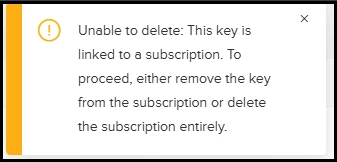
- Only the user who created the key can edit or delete it.
- A key cannot be deleted if it is currently in use by a subscription (see the below screenshot).
Step 2: Encrypt the Subscription
- Once users have a key, they can encrypt the subscription by going to the Scheduling tab.
- Click the Add New Subscription button or edit the existing subscription.
- Choose the SFTP and My Exports subscription type.
- Choose PGP for File Encryption.
- Choose Encrypt for PGP Operation Code.
- Select the encryption key.
- Save the subscription.
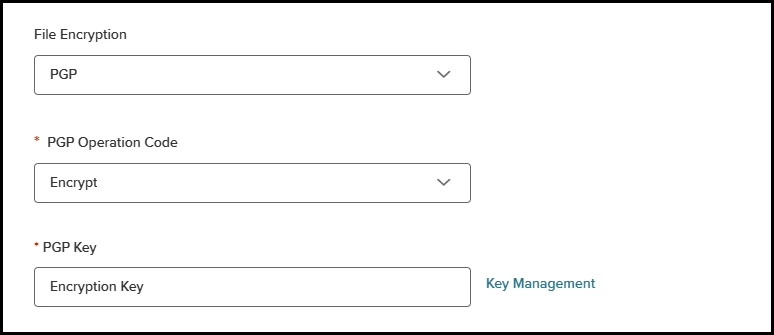
Settings > Subscription > Encryption Fields
- Once the subscription runs, locate the file under the My Export page or the SFTP folder. The file will have the pgp extension at the end, which indicates it is encrypted.
- Download the file.
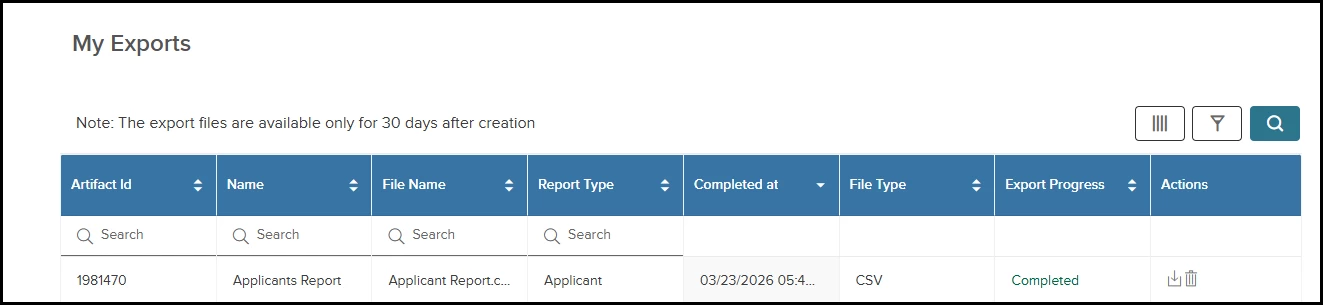
My Exports > Encrypted Subscription
- Decrypt the downloaded file using the PGP tool. The downloaded file will now have a standard csv or xls extension.
- Open the file to view the data.
Value
Enhance your data governance with file-level encryption, ensuring sensitive reports remain secure and accessible only to authorized key holders once they leave the NEOGOV platform.
Audience
Insight users with access to Report Builder.
Subscription Encryption for Report Catalog
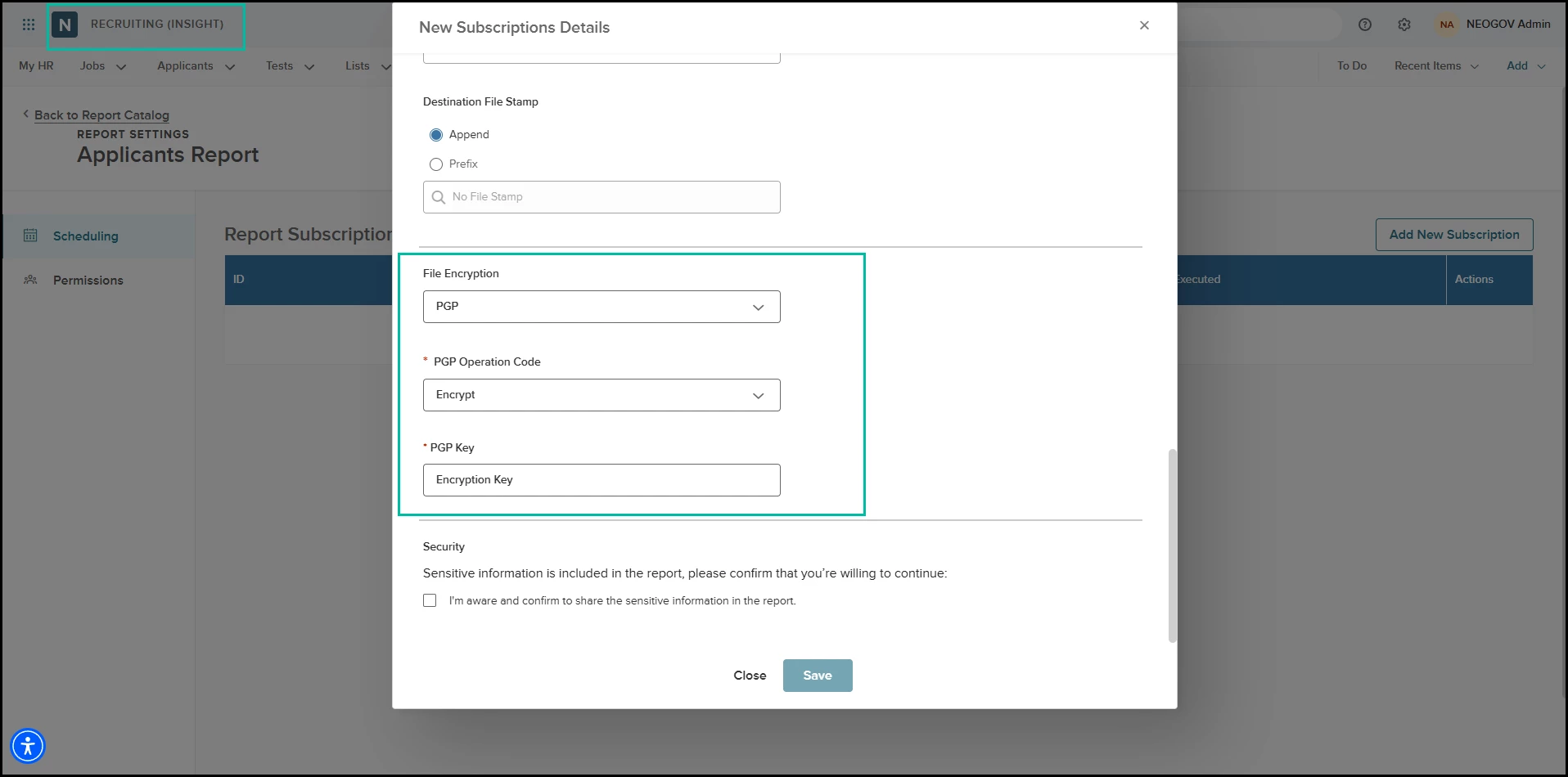
The encryption feature is also available in the Report Catalog.
Note: In the Report Catalog, users can only add existing encryption keys; they cannot create new ones.
Email Attachment Subscription for Learn Reports
As part of this release, users can create subscriptions to Learn reports and have them delivered as email attachments to any valid email address. This includes shared inboxes and external recipients outside your system.
This enhancement adds an Email Attachment subscription type for Learn reports.
Security Note: Safeguards are in place to protect Personally Identifiable Information (PII). If a report contains sensitive data, the option to send it as an email attachment will be disabled, or a clear message will be displayed.
How it Works
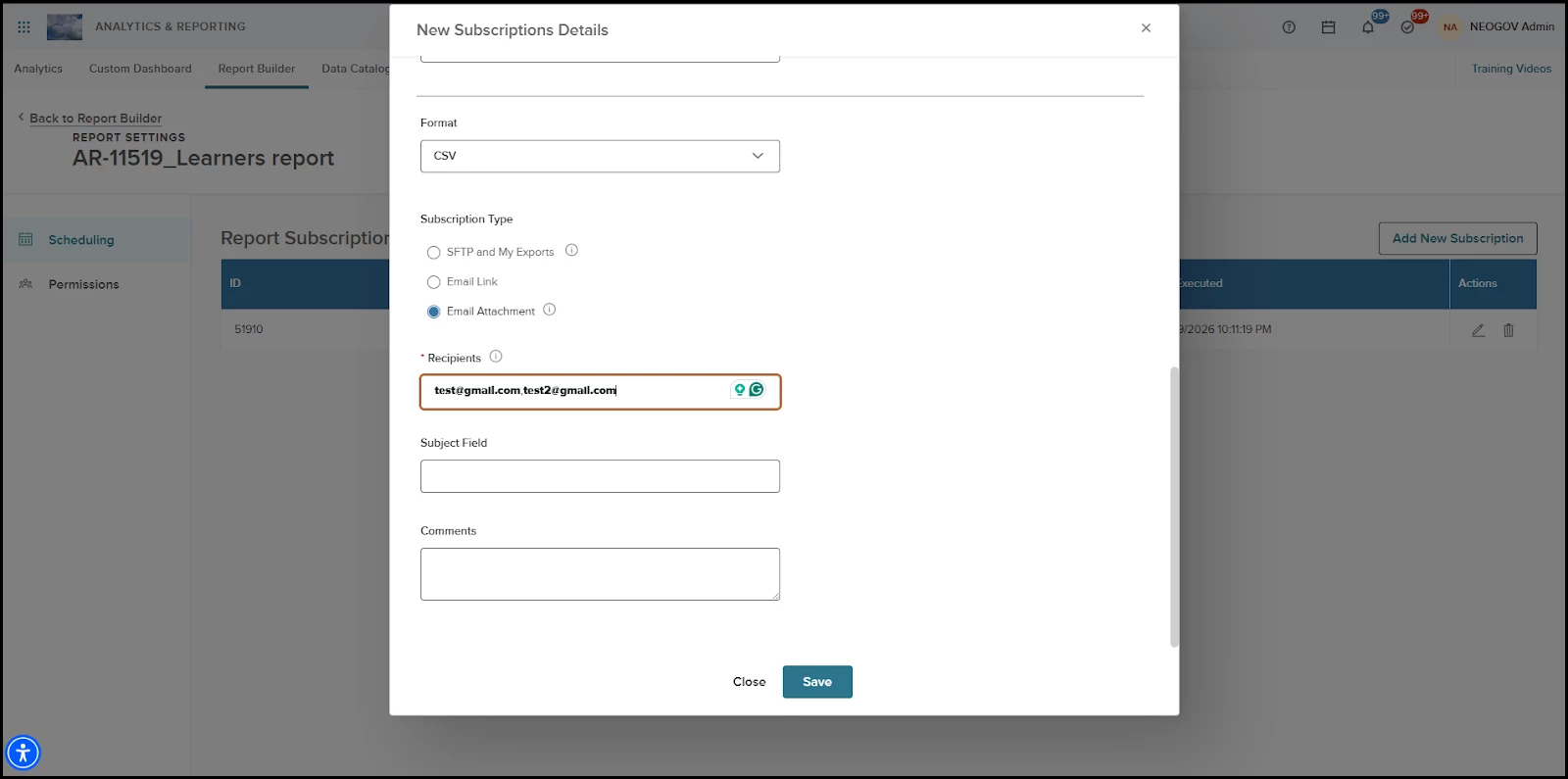
- Go to Report Builder and select or create a Learn report.
- Go to Settings > Scheduling and create a new subscription.
- Select Email Attachment as the subscription type.
- Enter the recipient email addresses (comma-separated). The recipient limit is 50.
- Save the subscription.
Constraints
Learn reports can contain Personally Identifiable Information(PII), which can affect the ability to create a subscription as an email attachment type.
- If the report contains PII fields: Address 1, Address 2, First Name, Last Name, Email Address, or Employee Number, the Email Attachment option is disabled.
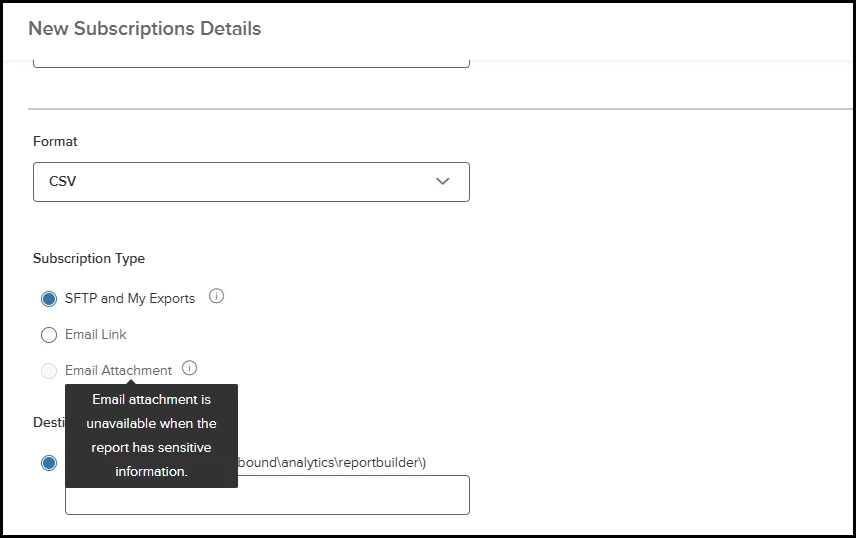
Report with PII Fields
- If the report contains consent PII fields: Employer Id, User ID, or Username, a disclaimer appears and user confirmation is required before saving the subscription.
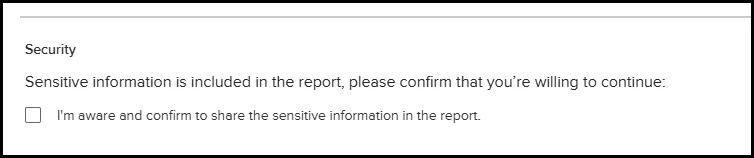
Report with Consent PII
- If a report is edited to add PII fields after a subscription is created: Saving is blocked, and a validation message explains the issue.
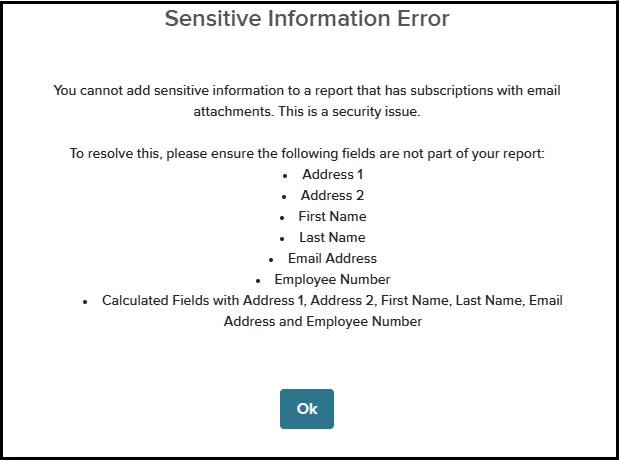
Adding PII Fields to the Report with Email Attachment Subscription
The table below outlines the restrictions on using PII fields when setting up email subscriptions for reports.
| Report Fields Present | Email Attachment | Action Required |
|---|---|---|
| Address 1, Address 2, First Name, Last Name, Email Address, Employee Number | Disabled | No |
| Employer Id, User ID, Username (no other PII fields) | Enabled | Disclaimer and user confirmation required |
| Both the PII and Consent PII fields | Disabled | No |
Value
Secure report delivery is now automated to any inbox, enhancing workflow flexibility while maintaining the protection of sensitive data.
Audience
Learn users with access to Report Builder.
Appendix: Bugs Resolved
No additional bug fixes outside of the maintenance releases. Refer to the maintenance release notes for more details.
Related Resources
- January 2026 Analytics & Reporting Release Notes
- Analytics & Reporting January Release Notes - part II
- Analytics & Reporting Release Notes February 2026 - Part I
- Analytics & Reporting February Release Notes - part II
- Analytics & Reporting February Release Notes - part III
- Analytics & Reporting March 2026 Release Notes